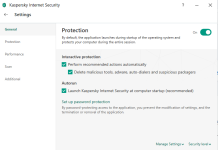
First of all, make sure the "Perform recommended actions automatically" was unticked. Go to Application Control settings then click Manage Applications. Right-click the desired app or group then choose "Details and rules" then go to the "Network rules" tab. You can add your own rules there.
This is what I see in the program in General settings. What should I untick so that I can decide whether to allow or deny a program access to the internet?
Yes, untick In Interactive Protection -> Perform recommended actions...
But this it not enough, as @Allego said... even in Interactive, still all Trusted applications will connect directly without prompting because of the default rules... so You may change some concrete NetWork rules in Application Control -> Manage Applications, column NetWork -> Prompt for action, or change that rule for ALL THE TRUSTED APPLICATIONS GROUP -> mouse right click over column Application -> Trusted -> Details and rules -> Network rules -> column Action.
I won't recommend doing this. You will be bombarded with prompts. I had done this once for a single program, reverted to default next minute.
If you can handle the prompt & know what you are doing, then it is great.
Alternatively, when setting the trusted application group to prompt for network access, allow the Microsoft category. This will greatly decrease the promts since applications wont inherit the parent process restrictions (from explorer.exe mainly).