

The MalwareTips app
Your community, one tap away.
Open MalwareTips from your Home Screen or desktop. Follow discussions, find answers and pick up where you left off.
- Home Screen access
- Optional push alerts
- Your community
You're ready to explore.Explore what's new
Installation instructions
iPhone & iPad
- Open MalwareTips in Safari and tap Share. You may need to open the Page Menu first.
- Choose Add to Home Screen. If it is not listed, use Edit Actions to add it.
- Keep Open as Web App enabled if shown, then tap Add.
Android
- Open MalwareTips in Chrome or another browser that supports app installation.
- Open the browser menu and look for Install app, Install and create shortcut, or Add to Home screen.
- Choose Install and confirm. Wording varies by browser.
Desktop
- Chrome: use the install icon in the address bar, or the menu under Cast, save and share.
- Edge: open the menu, then More tools, Apps and Install this site as an app.
- Safari on Mac: choose Share or File, then Add to Dock. Firefox on Windows: look for the web apps button in the address bar.
If you cannot find an install option, update your browser or use its bookmark option to keep MalwareTips close.
Keep up with your conversations
After installation, open the app and sign in. Enable push notifications in Preferences if you want alerts. On iPhone and iPad, push requires a Home Screen web app and iOS or iPadOS 16.4 or later.
Sign in to manage notificationsInstallation is optional. Your notification settings stay under your control.
You are using an out of date browser. It may not display this or other websites correctly.
You should upgrade or use an alternative browser.
You should upgrade or use an alternative browser.
Solved LaSuperba or some malware has taken over my computer!
- Thread starter Halls
- Start date
Windows Malware Removal Help & Support
121 Replies
18,804 Views

Download RepairDNS to your Desktop and run it. Press GO. Restart your PC. Attach its report
 Command Prompt
Command Prompt
- Press the + R on your keyboard at the same time. Type services.msc and click OK.

- Scroll down until you find DNS Client service.
- Next to its name you should see Started or Stopped.
- If it is stopped, right click and click Start.
- Let me know if it started without problems.
- Press the + R on your keyboard at the same time. Type services.msc and click OK.
- Scroll down until you find DHCP Client service.
- Next to its name you should see Started or Stopped.
- If it is stopped, right click and click Start.
- Let me know if it started without problems.
Last edited:
Okay. Let's see what else we can do.
Go to this location:
C:\Windows\System32
and this location
C:\Windows\SysWOW64
Find dnsapi.dll file in both folders.
=========================================
Go to this location:
C:\Windows\System32
and this location
C:\Windows\SysWOW64
Find dnsapi.dll file in both folders.
=========================================
- Right click it and then select Properties.
- Select Security tab and then click Edit
- Click on Users and then make a picture of this screen.
- Do this for both files in both folders.
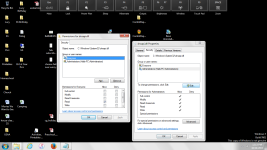
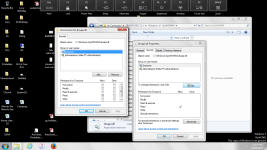
Okay, on these pictures, can you set Read, Read&Execute and Write permissions, for both users (Everyone, Administrator)?
Can you start services i asked you to do now after reboot?
The DNS Client service now has Started next to its name but I get the same error message when I try to start the DHCP Client service.
Oh! And I just realized that I missed your instruction on downloading RepairDNS...I just tried to and my computer (not the infected one) won't let me download it, saying it's a dangerous file or something like that.
Oh! And I just realized that I missed your instruction on downloading RepairDNS...I just tried to and my computer (not the infected one) won't let me download it, saying it's a dangerous file or something like that.
It is not dangerous, disable your antivirus and try again please.
 Scan with Farbar Recovery Scan Tool
Please re-run Farbar Recovery Scan Tool to give me a fresh look at your system.
Please re-run Farbar Recovery Scan Tool to give me a fresh look at your system.
- Right-click on icon and select
Run as Administrator to start the tool.

(XP users click run after receipt of Windows Security Warning - Open File). - Make sure that Addition option is checked.
- Press Scan button and wait.
- The tool will produce two logfiles on your desktop: FRST.txt and Addition.txt.
Yes, one service is disabled and we need to restore its functionality.
- Press the + R on your keyboard at the same time. Type regedit and click OK.
- Navigate to HKEY_LOCAL_MACHINE --> SYSTEM --> CurrentControlSet --> services
- Now you need to find Dhcp service
- Right click on it, choose Permissions and select NETWORK SERVICE
- Check Full Control and confirm with OK.
- Restart your PC and then try to start this service again, like you did before.
Can you make a picture of DHCP service permissions in registry? Sorry, but it is really difficult for me and I believe for you to work like this. These are some non-standard and rarely seen procedures. I haven't had something like this in years.
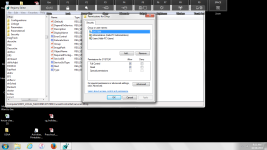
Yes. When you scroll it down to Users, do you have full control?
Still no go with DHCP service?
Recently browsing
Members who viewed this thread in the last 5 minutes
You may also like...
-
 Serious Discussion STAY FAR AWAY FROM AVIRA
 -

-

-
M
- Opera
- Maciej Kocemba
- · 0
-
 Setup Idea Pretty Good PC Security Regimen