Multron Download Manager – fast modern download manager for Windows, macOS and Linux (videos, torrents, browser extension)

winball501

Level 2
Hi everyone,

We're a small team of two developers, winball501 and iemirakman, and we'd like to share the app we've been building: Multron Download Manager. It's a fast, modern download manager for direct links, videos from 1,800+ sites, cloud-drive files and torrents, all in one app, with a browser extension that sends your downloads to it automatically, on Windows, macOS and Linux.
downloads-dark.png


Runs everywhere
Built natively for every major desktop platform, on both Intel/AMD and ARM:
  • Windows 10 and 11 – a regular installer that also sets up .torrent files and magnet links.
  • macOS – native builds for Apple Silicon and Intel Macs.
  • Linux – a package built on each distribution it is made for, for x86_64 and arm64:
    • .deb for Ubuntu 24.04+, Linux Mint 22+ and Debian 13+
    • a separate .deb for Debian 12 and LMDE 6
    • .rpm for Fedora
    • .rpm for openSUSE Leap 16 and Tumbleweed
    • AppImage for every other distribution, such as Arch and CachyOS
  • 35+ browsers – Chrome (Beta, Dev, Canary), Edge (Beta, Dev, Canary), Brave, Opera, Opera GX, Vivaldi, Chromium / Ungoogled Chromium, Arc, Dia, Yandex, Naver Whale, Thorium, Supermium, Cent, Comodo Dragon, Epic, Avast / AVG / CCleaner Secure Browser, Sidekick, Wavebox, Firefox (Developer Edition, Nightly), LibreWolf, Waterfox, Floorp, Zen and Mullvad Browser. On Windows any other browser registered with the system is found too, and on Linux browsers installed from Flathub are supported.
  • 12 languages – English, Turkish, German, French, Spanish, Italian, Portuguese (Brazil), Russian, Japanese, Korean and Chinese (Simplified and Traditional). It follows your system language, or you can pick one.

Speed
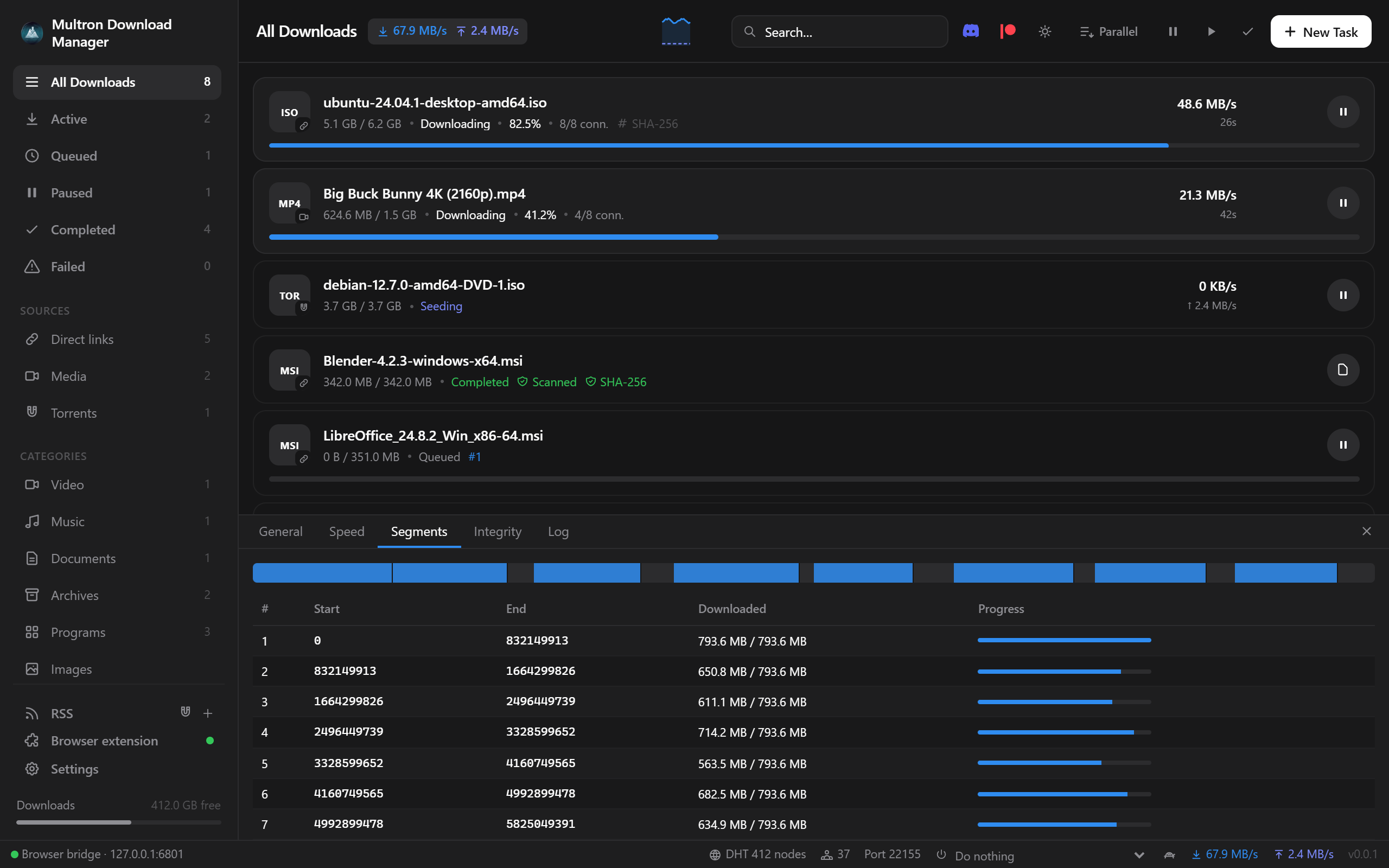
  • Multi-connection downloads – every file is split into parallel parts, 8 connections by default, adjustable from 1 to 64 for all downloads or per download, even while it runs.
  • Work stealing – when a connection finishes its part, it takes over half of the largest part that is left, so every connection stays busy until the last byte and a slow mirror never holds the download back.
  • Direct-to-disk writes – the file space is reserved up front and every connection writes straight to its final position. There is no merge step: when the last byte lands, the file is done.
  • Disk space check – a download that doesn't fit on the drive stops before it starts, instead of failing near the end.
  • Global and per-download speed limits, plus a speed scheduler that switches to alternative limits by hand or at the hours and days you choose.

Reliable
  • Safe resume – downloads continue after a pause, crash or restart. If the file changed on the server in the meantime, the app notices and starts over instead of mixing two versions.
  • Automatic retries for connections that fail.
  • Survives network changes – turning a VPN or GoodbyeDPI on or off, or switching Wi-Fi, doesn't fail the download: it waits for the network, gets fresh links and continues. Broken video pieces are downloaded again instead of ending in an error.
  • Thorough deleting – removing a download can also delete its files, including the temporary pieces of unfinished video downloads.

Videos and music from 1,800+ sites
  • YouTube (including Shorts and playlists), Reddit, Instagram, X, TikTok, Facebook, Vimeo, Twitch, SoundCloud, Dailymotion, Bilibili and many more, through yt-dlp.
  • Pick 4K, 1440p, 1080p, 720p and more, or audio only as MP3 or M4A. MP4 videos use H.264 and AAC, so they play in every player.
  • The real video title is shown right away, and metadata and thumbnails can be embedded in the file.
  • yt-dlp and FFmpeg are installed and kept up to date automatically.

Cloud drives and file hosts
  • Google Drive – files (including the large-file warning) and Docs, Sheets and Slides exports.
  • MEGA – downloaded with multiple connections and decrypted on the fly.
  • Dropbox, MediaFire, Pixeldrain and GitHub links are turned into their direct downloads.

Built-in BitTorrent client
  • Magnet links, .torrent files and URLs (drag and drop, file association or the browser extension), and you choose which files to download, before or after starting.
  • Play while downloading – video and audio files open in your player right away and stream in order with seeking.
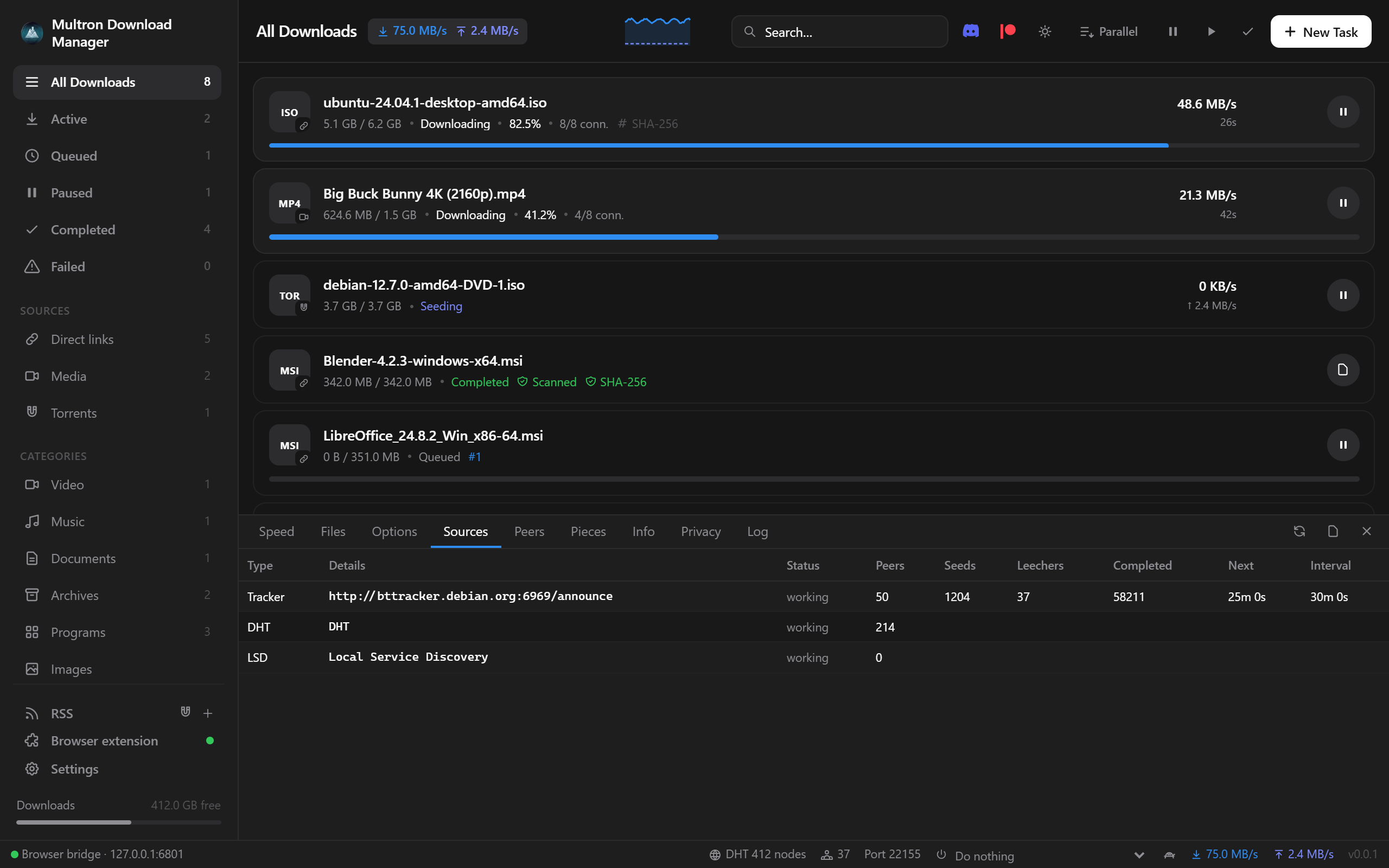
  • Detailed views: speed graph, files, sources (every tracker with seeds, leechers and scrape times, plus DHT and LSD), peers, piece map, info and log.
  • DHT, uTP, UPnP, Local Service Discovery, extra trackers and a one-click public tracker list.
  • Seeding rules: stop at a share ratio or after a time, then pause or remove. Queue limits for active downloading and seeding torrents.
  • Create torrents from a file or folder and start seeding at once, force recheck and export .torrent.
  • Watch folder for .torrent files, and RSS / Atom feeds with auto-download rules (words or regex, own folder, start paused).
  • Privacy: SOCKS5 proxy, binding to a network interface (VPN kill-switch style on Linux and macOS), IPv4-only, hiding the client name and turning off DHT, LSD or trackers.
  • IP filters: block or allow lists from a file or URL (eMule DAT, PeerGuardian, CIDR; plain, gzip or zip), with automatic reloading.

torrent-dark.png


Browser extension
  • Takes over browser downloads – clicks on file links go straight to the app, and downloads started any other way are handed over too. The real link, referrer and cookies are passed along, so downloads that need a login work.
  • Starts the app when it is closed, in the background, and then hands over the download.
  • A download button on every video, on any site, with a quality menu. It always shows the name of what it will download, and you can hide it on a page with one click. In feeds (Reddit, Instagram, X, YouTube, TikTok, Facebook) each video is taken from its own post.
  • Download all from this page – collects every video, image, audio file, file link, magnet and post on a page. It can scroll endless feeds for you, skips ads and promoted posts, and on Reddit it also collects what people posted in the comments. A picker lets you filter by type, search, select and choose one quality for everything.
  • A button on Google Drive, MEGA, MediaFire, Dropbox and Pixeldrain pages, a right-click menu for links and media, and a popup with a quality picker and a paste-a-link box.
  • Opens magnet links in the app.
  • Setup assistant that finds your browsers, prepares the extension and connects it, and the extension updates itself together with the app.

Security
  • SHA-256 verification – enter the expected hash, or let the app find .sha256 and checksum files next to the download; the file is checked when it finishes.
  • Antivirus scan of finished downloads on Windows, with Microsoft Defender or your installed antivirus. Blocked or removed files are reported as threats, with a notification.
  • SmartScreen / Gatekeeper – finished files get the "downloaded from the internet" mark, so Windows and macOS check them when they are opened, the same as browser downloads.
  • File-name spoofing protection – hidden characters that make "invoice.exe" look like a PDF are removed.
  • TLS 1.2 or newer only, HTTPS to HTTP redirects blocked, and a browser bridge that listens only on your own computer and accepts only extensions you approved.
  • Verified updates – every update is checked against the release's SHA-256 list before it is installed.

Comfortable to use
  • Queue: parallel or one at a time, reorder with arrows, and set how many downloads run at once.
  • Bulk actions: select with Ctrl/Shift-click or Ctrl+A to pause, resume or remove many downloads, and clear finished or failed ones in one click.
  • Automatic categories (video, music, documents, archives, programs, images) and optional sorting into category folders.
  • When downloads finish: run a program for each file, then sleep, shut down or quit when everything is done.
  • Desktop integration: tray icon, start with the system, progress on the taskbar or Dock, notifications, drag and drop, and paste a link anywhere to add it.
  • Looks: light, dark or system theme, nine accent colors and transparency effects (Mica and Acrylic on Windows 11, vibrancy on macOS).
  • Automatic updates for the app, yt-dlp and FFmpeg.
  • Light: written in Rust, about a 10 MB installer and around 50 MB of RAM.

Download
github.com/Multron-Community/Multron-Download-Manager/releases/latest

Pick the file for your system from the table on the release page. The macOS build is not notarized yet, so right-click the app and choose Open the first time. You can also read the source code on GitHub.

It's still a young project and we're improving it with every release. Feedback, bug reports and feature ideas are very welcome, either here or on GitHub Issues, and they really help us decide what to build next. Thanks for reading!
 
Hi everyone, We're a small team of two developers, winball501 and iemirakman, and we'd like to share the app we've been building: Multron Download Manager. It's a fast, modern download manager for direct links, videos from 1,800+ sites, cloud-drive files and torrents, all in one app, with a browser […]


Hi winball501 — this is an unusually large feature set for a two-person project. I checked the public repository and the current v0.0.4 release. Nothing here establishes that Multron is malicious, but it is a very young, highly privileged application, so its trust model deserves as much attention as its download engine.

The updater needs stronger authentication​


The README says updates are mandatory and verified against SHA256SUMS.txt from the same GitHub release. That detects corruption, but a hash is not proof of who published the update. Someone controlling the repository, release credentials or CI could publish a malicious binary and its matching hash.

For an application that auto-starts, integrates with browsers and downloads additional executables such as yt-dlp and FFmpeg, I would strongly recommend:

  • signing update metadata and binaries with an Ed25519/minisign-style key whose public key is pinned in the application;
  • protecting the signing key separately from the GitHub release workflow;
  • preventing unsigned downgrades and rollback;
  • publishing GitHub build attestations/provenance and ideally reproducible-build instructions.

Keep SHA-256—it remains useful—but do not make it carry a job it cannot perform.

The extension and local bridge are the largest trust boundary​


Passing cookies is necessary for some authenticated downloads, but those cookies may also represent active account sessions. The documentation should spell out:

  • exactly which extension permissions are requested;
  • whether cookies are requested only for the selected download URL;
  • whether cookie headers are ever saved in the database, logs or crash reports;
  • how approved extensions authenticate to 127.0.0.1:6801;
  • whether the bridge validates a per-install random secret, extension identity, Host and Origin;
  • how approval can be revoked.

Binding to loopback is good, but loopback alone is not authentication. Ordinary webpages can attempt requests to local services, so the bridge should reject everything lacking an unguessable capability token—not merely check that traffic arrived through 127.0.0.1.

The self-updating unpacked extension also places the browser component under the desktop app’s update trust rather than a browser store’s signing and review process. That is not automatically unsafe, but it makes the updater weakness more consequential.

Practical advice for early testers​


For now, I would test it using:

  1. The exact GitHub release rather than a third-party mirror.
  2. Manual hash verification, understanding that this verifies the downloaded bytes, not independent publisher identity.
  3. A VM or standard-user account initially.
  4. A separate browser profile without important logged-in sessions when evaluating the extension.
  5. Browser-download takeover disabled until the extension behaviour and permissions are understood.

A clean antivirus scan would be useful evidence against known malware, but not an audit or a guarantee. Likewise, Mark-of-the-Web, SmartScreen and Gatekeeper are worthwhile layers; they do not make every downloaded file safe.

Code signing should also be high priority. The macOS build is currently unnotarized, and the README instructs openSUSE users to permit an unsigned RPM. I could not establish the Windows Authenticode status from the release page. Developer ID/notarization, Authenticode and signed Linux packages would remove a sizeable trust hurdle.

One smaller housekeeping item: the repository description still mentions Wails, while the README identifies Tauri v2, and the project labels itself source-available rather than open source. Cleaning up that metadata and making the licence distinction prominent would prevent avoidable confusion.

The feature list is doing the work of three applications; the security documentation now needs to catch up. A published threat model covering updates, browser cookies, the loopback bridge and downloaded helper binaries would make the project much easier to evaluate responsibly.
 
Multron Download Manager v0.0.9

Instagram stories download again.

Fixes​

  • Instagram stories. In v0.0.8 the browser extension's download button on Instagram stories and highlights passed the story page on to the video downloader, which cannot read stories and asked you to log in even when you were signed in. The button now downloads the story itself while you are signed in to Instagram in your browser, under a readable name such as user_story_123.mp4. Instagram plays most stories as separate picture and sound streams; Multron Download Manager picks the best picture of the story you are watching, downloads it together with its sound and joins them into one MP4 with FFmpeg, without re-encoding.
 

Multron Download Manager v0.0.10​

Video downloads with all your connections on every site, faster downloads when a server or a connection slows down, steadier torrents, a cleaner download button for videos in fullscreen, and Multron Cloud results that no longer get lost.

Downloads​

  • Slow connections no longer hold a download back. When a connection finished its part, it used to take over half of the largest part still left, and the last part of a slow connection (up to 512 KB) was never shared. Now the free connection takes over the part that would take longest to finish, split by the measured speed of both connections: a slow connection keeps only what it can finish in about a second. In a test with one connection in four running at 64 KB/s, a 16 MB download took 4 seconds instead of 10.
  • Stalled connections are reopened. A connection that receives nothing for 3 seconds while the others keep downloading is closed and reopened from where it stopped. Before, the download waited for the 30-second timeout; in the same test a download with one stalled connection took 4 seconds instead of 31.

Videos​

  • Videos from every site use all your connections. yt-dlp downloads a video that a site serves as one file over a single connection. Now yt-dlp only finds the video, and Multron Download Manager downloads it with its own multi-connection engine, using the number of connections set for the download (8 by default, up to 64). Then yt-dlp joins the picture and sound and adds the metadata and thumbnail as before. Videos that sites serve in many small pieces (HLS / DASH) were already downloaded in parallel, now with up to 64 pieces at once instead of 32. If a video cannot be downloaded this way, yt-dlp downloads it as before.
  • YouTube uses all your connections too. YouTube videos are now downloaded in pieces, so the Connections setting applies to them. In a test, the video track of a clip finished in 5 seconds at 1.9 MB/s, while one connection ran at 0.7 MB/s and was not finished after 25 seconds.
  • Steady progress and a correct size for videos. The progress bar, the downloaded size and the total size of a video no longer jump back and forth. yt-dlp counted the picture and the sound separately, so the bar started over for the sound; with several connections its pieces arrived out of order; and for videos sent in many small pieces it guessed the total from the first pieces (for example 2.9 GB for a short clip). A video now shows one total for picture and sound, taken from the exact sizes of its parts, and the downloaded size only goes up. When the exact size is not known, the total appears only once the guess is reliable. Formats whose size is known are preferred (they also download in parallel pieces), so the total is known from the first moment and does not change. In a test with every quality (Best, 1080p, 720p, 480p, M4A and MP3) of a YouTube video, the total was correct from the first kilobyte, never changed and the bar never went back.
  • The size stays the same after downloading, and each step shows its own status. When a video finished, its size changed to the size of the final file (for example from 35.1 MB to 33.5 MB after joining picture and sound, or larger after converting to MP3). The size now stays what was downloaded. The steps after the download show as their own status instead of Downloading: Merging, Converting, Adding metadata, Adding the thumbnail and Finishing. Before, yt-dlp's messages about these steps were hidden, so the download kept showing Downloading until it was done.
  • The real speed of a video. With several connections, yt-dlp reported the speed of a single piece, so a video seemed slower than it was (for example 1.4 MB/s while it really came in at about 2.5 MB/s). The speed and the time left are now measured from the bytes that actually arrive.
  • Changing the connections during a video download applies right away. When you move the Connections slider while a video downloads, the download continues with the new number within two seconds and keeps what it already has.
  • YouTube downloads at full speed again. yt-dlp now needs a JavaScript runtime to answer YouTube's speed check. Without one, YouTube slowed video downloads to about 100 KB/s and some formats were missing. Multron Download Manager now installs Deno automatically the first time you download a YouTube video (about 45 MB, once; the download shows Installing Deno with its progress) and passes it to yt-dlp. Deno is kept up to date together with yt-dlp and FFmpeg. Settings → Media shows it with an Install / Reinstall button; a Deno already installed on your system is used as well.

Torrents​

  • Quiet peers stay connected. The torrent engine closed a peer after 10 seconds without a message, while most clients only send a keep-alive every two minutes. Seeds that were not sending to you right now were dropped and had to be found and connected again. Quiet peers now stay connected for 150 seconds and get a keep-alive from Multron Download Manager every minute, so they can start sending again without delay.
  • More disk threads. Writing pieces and checking them now runs on up to 32 threads (twice the number of CPU cores, at least 8) instead of 8, so fast connections with many peers are not held up by the disk.

Browser extension​

  • Small download icon in fullscreen. When a video plays in fullscreen, the wide Multron Download Manager bar in the bottom-right corner no longer covers the picture. A small round download icon sits in the top-left corner instead and opens the same quality menu (best quality, 1080p, 720p, 480p or audio only).
  • Fades out with the video's controls. When the mouse stays still for a moment, the icon fades out together with the player's own controls and comes back as soon as you move the mouse, click or press a key. It stays visible while the pointer is on it or its menu is open.
  • Close it or turn it off. Hovering the icon shows a small × button that hides it on that page. To hide it everywhere, turn off Settings → Browser Integration → Show the download icon in fullscreen videos in Multron Download Manager; open tabs follow within a few seconds.

Multron Cloud scan​

  • Scan results are no longer lost. A download you had already scanned could show Multron Cloud: not scanned again: when a new scan failed (for example because the server could not be reached), when Scan all was stopped or did not get to that download, or when the app was closed during a scan. The last result now stays until a new scan finishes with a real result, such as clean, no threat found, threat or suspicious. The scan window still shows why the new scan failed.
  • Downloads with several files. If one file of a torrent or folder could not be checked (for example because it is larger than the upload limit), the whole download used to show Multron Cloud: not scanned even when every other file had been checked. It now shows Multron Cloud: partly scanned in orange, and its details say how many files had no threat, how many could not be checked and why. A threat or a password-protected archive is still shown first.
  • Clearer label when a scan does not finish. A file that was uploaded but whose analysis did not finish, or that the server could not check, now shows Multron Cloud: scan not finished instead of not scanned; click it to see the reason.
  • Files that are too large are no longer shown as scanned. When a file was larger than the upload limit and the cloud did not know its fingerprint, the scan window still said No threat found with a green bar, and the file was listed as Checked by fingerprint only. The window now says Not scanned with an orange bar and shows the reason under it (for example 1 of 1 files are larger than the 100 MB upload limit). The file is listed as Not scanned with Unknown fingerprint, larger than the upload limit. When only some files of a download could not be checked, the window says Partly scanned and why.
  • The same result and reason everywhere. The badge in the downloads list, the details panel, the notice after a scan, the Start this program? question and the scan window now all show the same result with the same color, and the reason in your language. For example: The file is larger than the 100 MB upload limit and the cloud does not know its fingerprint, so it was not uploaded. Before, the reason was shown in English only, the notice called an unfinished scan not scanned, and the Start this program? question showed the result without the reason. Hovering a badge shows the reason too. System notifications show the short result (Not scanned, Partly scanned, Scan not finished) in your language.

App update at startup​

  • The update screen no longer flickers. When Multron Download Manager updated itself at startup on Windows, the update screen flickered and moved up and down: the yt-dlp, FFmpeg and Deno updates ran at the same time and their progress replaced the app's for a moment, so the progress line kept appearing and disappearing. Those updates now wait until the app update is done (so they also do not share your bandwidth with it), the screen keeps its own progress, keeps the same size and has a solid background.

Updating​

Earlier versions update themselves to this version the next time they start. The browser extension reloads itself within a minute of the app update; refresh tabs that were already open.


Multron Download Manager v0.0.11​

Every video quality up to 12K with its size, more audio and video formats, faster YouTube downloads, and a video download button you can move.

Videos​

  • Every quality, up to 12K. Best now really downloads the highest resolution a video has: 4K, 8K or 12K. Before, for MP4 it preferred the H.264 codec, which YouTube only offers up to 1080p, so Best often gave 1080p. You can choose 12K, 8K, 5K, 4K, 1440p, 1080p, 720p, 480p, 360p, 240p or 144p in the new download window, in Download all, as the default quality in Settings → Media and in the browser extension. A higher resolution always comes first, then the higher frame rate, so a 60 fps video stays 60 fps. In a test with an 8K video, Best and 8K picked 7680×4320, 4K picked 3840×2160 and 1080p picked 1920×1080.
  • The size of every quality. Each quality in the new download window, in the browser extension's download button and in its popup shows its size (picture and sound together; a "~" means the size is estimated). The new download window also lists every quality the video has, in your language.
  • More audio formats. Besides MP3, M4A and Opus you can now save the sound as AAC, OGG Vorbis, FLAC, WAV or ALAC. FLAC, WAV and ALAC are lossless, so they keep the sound exactly as the site sends it, but the files are much larger.
  • More video formats. Next to MP4, MKV and WebM, videos can now be saved as MOV, AVI or FLV. The format can be chosen for each download in the new download window and in the browser extension; Settings → Media sets the default. With WebM, formats WebM can hold (VP9 or AV1 with Opus) are chosen. In a test, every format came out right: WebM 1080p with VP9 and Opus, MOV, AVI and FLV with H.264 and AAC, MKV with AV1 and AAC.
  • Videos that play everywhere, also in WhatsApp. The new format MP4 (H.264, plays everywhere) saves only H.264 picture with AAC sound, which WhatsApp, phones, TVs and older players accept. If the chosen quality does not exist in H.264 (YouTube offers it up to 1080p), the best H.264 quality is taken. This is now the default video format, also for installs that used the old MP4 default; a format you chose yourself (MKV, WebM, …) stays. For videos above 1080p, choose plain MP4, which keeps the highest resolution (YouTube offers it only as VP9 or AV1, which WhatsApp does not accept) and now prefers H.264 over a higher frame rate at the same resolution. In a test, Best with this format gave a 1080p 60 fps H.264 video with AAC sound from an 8K clip.
  • Faster YouTube downloads. YouTube videos are now downloaded with Multron Download Manager's own multi-connection engine, split over the number of connections set for the download, with requests of at most 8 MB so YouTube does not slow them down. yt-dlp cut every video into fixed 10 MB pieces, so a 21 MB video got only three connections. In a test, a 1080p clip took 15 seconds instead of 70 and a 1440p clip 22 seconds instead of 73.
  • Tested in every quality. All qualities of an 8K 60 fps clip (8K, 4K, 1440p, 1080p, 720p, 480p, 360p, 240p, 144p) and every audio format downloaded correctly, each with its size known from the start.
  • Opus without FFmpeg. Audio only (Opus) downloaded the video when FFmpeg was missing. It now downloads the sound as M4A.

Browser extension​

  • Move the download button. Drag the Download: … button on a video anywhere on the page, also outside the video. Its place is remembered for each site, relative to the video, so it stays in the same spot for other videos and when the video moves or changes size. Double-click it to put it back in its corner; a short click still opens the quality menu.
  • Sizes in the quality menu. The quality menu shows the size of every quality. While the sizes are being checked, the menu shows Checking sizes… with a spinning icon and an animated bar in each row; if they cannot be checked, it says so.
  • All qualities and formats. The download button's menu and the popup offer every quality from 12K to 144p and every audio format. A row of buttons at the top of the menu (and a list in the popup) picks the video format: Default (the one set in Multron Download Manager), MP4, MP4 H.264, MKV, WebM, MOV, AVI or FLV. The choice is remembered.
  • The extension picks up every new build. The extension reloaded itself only when the version number of Multron Download Manager went up. Now it also reloads when the app brings a new build of the extension, so new features reach the browser without reloading the extension by hand.


Join the discussion

Write your reply below. You'll create a free account or log in before it's posted.

Recently browsing

Members who viewed this thread in the last 5 minutes

Back
Top