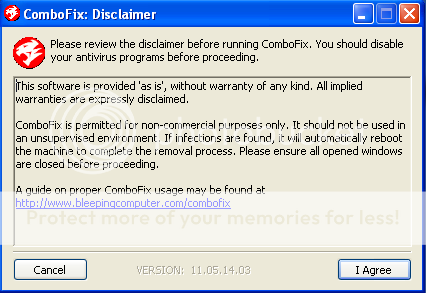
Lets change the tools a little..
1. Run a scan with RogueKiller
<ol>
<li>Please <>download the latest official version of </><>RogueKiller</>.
<a href="http://www.sur-la-toile.com/RogueKiller/RogueKiller.exe" rel="nofollow" target="_blank">RogueKiller Download Link</a> (This link will automatically download RogueKiller on your computer)</li>
<li><>Double click on RogueKiller.exe</> to start this utility and then <>wait for the Prescan to complete</>.This should take only a few seconds and then you can <>click the Start button</> to perform a system scan.
<img title="Click on the Start button to perform a system scan" src="http://malwaretips.com/blogs/wp-content/uploads/2012/04/roguek-1.png" alt="[Image: roguekiller-1.png]" width="600" height="450" border="0" /></li>
<li>After the scan has completed, <>press the Delete button</> to remove any malicious registry keys.
<img title="Press Delete to remove the malicious registry keys" src="http://malwaretips.com/blogs/wp-content/uploads/2012/04/roguek-2.png" alt="[Image: roguekiller-2.png]" width="600" height="450" border="0" /></li>
<li>Next we will need to restore your shortcuts, <>so click on the ShortcutsFix button </>and allow the program to run.
<img title="Click on the Start button to perform a system scan" src="http://malwaretips.com/blogs/wp-content/uploads/2012/04/roguek-3.png" alt="[Image: roguekiller-1.png]" width="600" height="450" border="0" /></li>
</ol>
The report has been created on the desktop.In your next reply please post:
All RKreport.txt text files located on your desktop.
2.Run a scan with Kaspersky TDSSKiller
<>Read carefully and follow these steps.</>
<ol>
<li>Download <><a title="External link" href="http://support.kaspersky.com/downloads/utils/tdsskiller.exe" rel="external">TDSSKiller</a></> and save it to your Desktop.
</li>
<li>Double-click on <>TDSSKiller.exe</> to run the application.
<img src="http://img4.imageshack.us/img4/1907/tdss1.png" alt="Posted Image" /></li>
<li>Click <[b]>Change parameters</[b]>
<img src="http://img593.imageshack.us/img593/288/tdss2.png" alt="Posted Image" /></li>
<li>Check the boxes next to <[b]>Verify Driver Digital Signature</[b]> and <[b]>Detect TDLFS file system</[b]>, then click <[b]>OK</[b]>
<img src="http://img521.imageshack.us/img521/1456/tdss3.png" alt="Posted Image" /></li>
<li>Click on the <[b]>Start Scan</[b]> button to begin the scan and wait for it to finish.
<[b]>NOTE:</[b]> Do not use the computer during the scan!</li>
<li>During the scan it will look similar to the image below:
<img src="http://img6.imageshack.us/img6/9136/tdss4.jpg" alt="Posted Image" /></li>
<li>When it finishes, you will either see a report that no threats were found like below:
<img src="http://img696.imageshack.us/img696/9898/tdss5.jpg" alt="Posted Image" />
If no threats are found at this point, just click the <[b]>Report</[b]> selection on the top right of the form to generate a log. A log file report will pop which you can just close since the report file is already saved.</li>
<li>If any infection or suspected items are found, you will see a window similar to below:
<img src="http://img854.imageshack.us/img854/905/tdss7.jpg" alt="Posted Image" />
<ul>
<li>If you have files that are shown to fail <em>signature check</em> do not take any action on these. Make sure you select <[b]>Skip</[b]>. I will tell you what to do with these later. They may not be issues at all.</li>
<li>If <em>Suspicious objects</em> are detected, the default action will be Skip. Leave the default set to Skip.</li>
<li>If <em>Malicious objects</em> are detected, they will show in the Scan results. TDSSKiller automatically selects an action (Cure or Delete) for malicious objects
Make sure that <[b]>Cure</[b]> is selected. <[b]>Important!</[b]> - If <em>Cure</em> is not available, please choose <[b]>Skip</[b]> instead. Do not choose Delete unless instructed to do so.</li>
</ul>
</li>
<li>Click <[b]>Continue</[b]> to apply selected actions.</li>
<li>A reboot may be required to complete disinfection. A window like the below will appear:
<img src="http://img828.imageshack.us/img828/4812/tdss6.jpg" alt="Posted Image" />
Reboot immediately if TDSSKiller states that one is needed.</li>
<li>Whether an infection is found or not, a log file should have already been created on your C: drive (or whatever drive you boot from) in the root folder named something like <[b]>TDSSKiller.2.1.1_27.12.2009_14.17.04_log.txt</[b]> which is based on the program version # and date and time run.</li>
<li>Attach this log to your next reply.</li>
</ol>
[SIZE=4]3.NEXT, run a OTL scan (as seen above) and post the logs.[/SIZE]
[SIZE=4][b]What's next?
Please post in your next reply:
1.RogueKiller logs
2.Kaspersky TDSSKiller log
3. OTL Logs
4. QUESTION: How is your computer running?[/SIZE]