Ok , looks good.+1 for the .txt file for the HitmanPro log.......Next,please run the below tools...
1. Run a scan with RogueKiller
<ol>
<li>Please <>download the latest official version of </><>RogueKiller</>.
<a href="http://www.sur-la-toile.com/RogueKiller/RogueKiller.exe" rel="nofollow" target="_blank">RogueKiller Download Link</a> (This link will automatically download RogueKiller on your computer)</li>
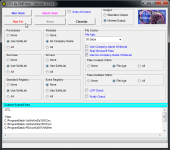
<li><>Double click on RogueKiller.exe</> to start this utility and then <>wait for the Prescan to complete</>.This should take only a few seconds and then you can <>click the Start button</> to perform a system scan.
<img title="Click on the Start button to perform a system scan" src="http://malwaretips.com/blogs/wp-content/uploads/2012/04/roguek-1.png" alt="[Image: roguekiller-1.png]" width="600" height="450" border="0" /></li>
<li>After the scan has completed, <>press the Delete button</> to remove any malicious registry keys.
<img title="Press Delete to remove the malicious registry keys" src="http://malwaretips.com/blogs/wp-content/uploads/2012/04/roguek-2.png" alt="[Image: roguekiller-2.png]" width="600" height="450" border="0" /></li>
<li>Next we will need to restore your shortcuts, <>so click on the ShortcutsFix button </>and allow the program to run.
<img title="Click on the Start button to perform a system scan" src="http://malwaretips.com/blogs/wp-content/uploads/2012/04/roguek-3.png" alt="[Image: roguekiller-1.png]" width="600" height="450" border="0" /></li>
</ol>
The report has been created on the desktop.In your next reply please post:
All RKreport.txt text files located on your desktop.
<hr />
2.Run a Combofix scan
Download ComboFix from one of these locations:
<>Save as Combo-Fix.exe during the download. ComboFix must be renamed before you download to your Desktop</>
<a title="External link" href="http://download.bleepingcomputer.com/sUBs/ComboFix.exe" rel="external"><>Link 1</></a>
<a title="External link" href="http://www.infospyware.net/antimalware/combofix/" rel="external"><>Link 2</></a>
<[b]>* IMPORTANT !!! Save ComboFix to your Desktop</[b]>
<ul>
<li>Disable your AntiVirus and AntiSpyware applications, usually via a right click on the System Tray icon. They may otherwise interfere with our tools
See <a title="External link" href="http://www.bleepingcomputer.com/forums/topic114351.html" rel="external">HERE</a> for help</li>
<li>Double click on Combo-Fix & follow the prompts.</li>
<li>As part of it's process, ComboFix will check to see if the Microsoft Windows Recovery Console is installed. With malware infections being as they are today, it's [b]ly recommended to have this pre-installed on your machine before doing any malware removal. It will allow you to boot up into a special recovery/repair mode that will allow us to more easily help you should your computer have a problem after an attempted removal of malware.</li>
<li>Follow the prompts to allow ComboFix to download and install the Microsoft Windows Recovery Console, and when prompted, agree to the End-User License Agreement to install the Microsoft Windows Recovery Console.</li>
</ul>
**Please note: (This applies to Windows XP systems only) If the Microsoft Windows Recovery Console is already installed, ComboFix will continue it's malware removal procedures.
<img src="http://img.photobucket.com/albums/v706/ried7/RcAuto1.gif" alt="Posted Image" />
Once the Microsoft Windows Recovery Console is installed using ComboFix, you should see the following message:
<img src="http://img.photobucket.com/albums/v706/ried7/whatnext.png" alt="Posted Image" />
Click on <[b]>Yes</[b]>, to continue scanning for malware.
When finished, ComboFix will produce a log.
<[b]>Note:</[b]>
[color=#FF0000]1. Do not mouseclick combofix's window while it's running. That may cause it to stall!
2. Remember to re-enable your anti-virus and anti-spyware before reconnecting to the Internet.[/color]
[SIZE=4][b]What's next?
Please post in your next reply:
1.RogueKiller logs
2.Combofix logs
3.Let me know if you had any problems with the above instructions and also <>let me know how things are running now!</[b]>[/SIZE]