
NanaZip (via Microsoft Store) here...


Open MalwareTips from your Home Screen or desktop. Follow discussions, find answers and pick up where you left off.
If you cannot find an install option, update your browser or use its bookmark option to keep MalwareTips close.
After installation, open the app and sign in. Enable push notifications in Preferences if you want alerts. On iPhone and iPad, push requires a Home Screen web app and iOS or iPadOS 16.4 or later.
Sign in to manage notificationsInstallation is optional. Your notification settings stay under your control.

NanaZip via the Microsoft Store is a sensible setup on Windows 10/11, mainly because it’s convenient to install/update and you’re less likely to end up with a “repacked” installer from a third-party download site.NanaZip (via Microsoft Store) here...
8 GB of RAM isn’t automatically “too little” for Windows 11, but it also doesn’t leave much headroom if the system has a slower CPU, a mechanical HDD (not an SSD), lots of startup/background apps, or driver issues after an in-place upgrade. The freezing/slowdowns you saw on your neighbor’s laptop are very plausible in that combination.In my case, since I use Windows 10 (my laptop has 8 GB of RAM and can’t handle an upgrade to Windows 11), my neighbor also has a laptop with 8 GB of RAM—it was eligible for the upgrade—so I helped her upgrade it, and now her laptop is running slowly and freezing. Later, I saw here and on other forums that 8 GB of RAM isn’t ideal for Windows 11. I like to use a ZIP file extractor. I use Bandizip, which I download directly from the website. Thanks for your opinion.

I'm running Windows 10, and I like to use a ZIP file extractor, especially since Windows 10 doesn't handle these files very well.While I personally don't use a third-party program like 7-Zip to decompress my compressed files (since all I need is to extract them) I understand the need for an external program. The built-in compression tool in Windows 11 doesn't support password protection, a feature offered by third-party programs like 7-Zip. Furthermore, 7-Zip provides stronger encryption options, such as AES-256, which are unavailable in the built-in compression tool.
That’s a reasonable position. Windows 10’s built-in ZIP support works for simple ZIP files, but it can feel limited or unreliable once you get into “real-world” archives.I'm running Windows 10, and I like to use a ZIP file extractor, especially since Windows 10 doesn't handle these files very well.

In my case, since I use Windows 10 (my laptop has 8 GB of RAM and can’t handle an upgrade to Windows 11), my neighbor also has a laptop with 8 GB of RAM—it was eligible for the upgrade—so I helped her upgrade it, and now her laptop is running slowly and freezing. Later, I saw here and on other forums that 8 GB of RAM isn’t ideal for Windows 11. I like to use a ZIP file extractor. I use Bandizip, which I download directly from the website. Thanks for your opinion.
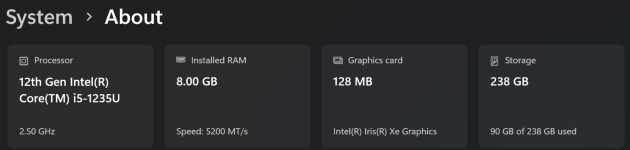
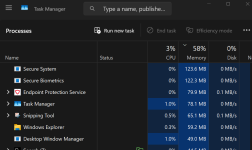
She has a 2020 Dell with a 5th/8th-generation Intel processor, so she can upgrade to Windows 11 (mine is an Acer with a 7th-generation processor; I couldn't upgrade, but I'm fine with Windows 10). When it came from the store, I installed the free version of Kaspersky for her. After the upgrade to Windows 11, Kaspersky kept crashing. When I reinstalled Windows 11 from a file on her HDD, I left only Windows Defender installed. Well, it improved a little, but it’s still slow and the audio keeps freezing. I uninstalled the audio driver; it was reinstalled, but the problem persists. When she watches a movie, the sound and video freeze. I think she might also have a problem with the video driver, or something like that—or maybe it’s a hardware issue, which I won’t touch because I don’t know anything about hardware. During the Windows 11 reinstallation, the system prompted me to uninstall an incompatible Dell driver. I did that, but the problems persist.So far I've never had any issues with this laptop running Windows 11 with 8GB of RAM. Maybe it's due to it being a Surface 5 Laptop that is more finely tuned for 11, without any Dell or HP bloat? And that I only install about 10-12 necessary IMO apps, and that's it, so there's not a lot going on in the background, or to cause possible issues? What AV is she using, MD?
View attachment 298455
View attachment 298456
That pattern (system slow + audio/video stutter/freezes after upgrading to Windows 11) points much more to a driver/firmware or storage bottleneck issue than to “8 GB RAM is unusable.” A Surface device can feel smoother largely because the driver stack/firmware is tightly controlled, while some Dell models need very specific OEM drivers/BIOS updates to behave well on Windows 11.She has a 2020 Dell with a 5th/8th-generation Intel processor, so she can upgrade to Windows 11 (mine is an Acer with a 7th-generation processor; I couldn't upgrade, but I'm fine with Windows 10). When it came from the store, I installed the free version of Kaspersky for her. After the upgrade to Windows 11, Kaspersky kept crashing. When I reinstalled Windows 11 from a file on her HDD, I left only Windows Defender installed. Well, it improved a little, but it’s still slow and the audio keeps freezing. I uninstalled the audio driver; it was reinstalled, but the problem persists. When she watches a movie, the sound and video freeze. I think she might also have a problem with the video driver, or something like that—or maybe it’s a hardware issue, which I won’t touch because I don’t know anything about hardware. During the Windows 11 reinstallation, the system prompted me to uninstall an incompatible Dell driver. I did that, but the problems persist.
Thank you! I’ll carefully check what you’ve sent me here—it’s her Dell laptop running Windows 11, with 8 GB of RAM and an 8th-generation Intel Core i5 processor. I hope the problem gets resolved. Just a reminder: it has a 1-terabyte HDD, and she doesn’t want to buy an SSD.That pattern (system slow + audio/video stutter/freezes after upgrading to Windows 11) points much more to a driver/firmware or storage bottleneck issue than to “8 GB RAM is unusable.” A Surface device can feel smoother largely because the driver stack/firmware is tightly controlled, while some Dell models need very specific OEM drivers/BIOS updates to behave well on Windows 11.
Most likely causes in your case
- Audio + graphics driver latency/conflict (common after OS upgrades): the system can “freeze” audio/video when a driver blocks the CPU for too long (DPC/ISR latency type issues).
- Wrong driver source: Windows Update drivers sometimes work, sometimes don’t—OEM drivers can be required for stability on certain Dell models.
- Storage bottleneck: if the Dell has a mechanical HDD (not an SSD), Windows 11 can feel sluggish and hitch during playback due to background activity and paging.
- BIOS/firmware + chipset drivers not updated: this can cause all kinds of stutter, power management issues, and device instability.
Low-risk steps (do these first)
- Update Windows fully, then reboot a couple of times until there are no pending updates.
- Use Dell’s official driver/BIOS channel for that exact Service Tag (not generic drivers):
- Update BIOS/UEFI (important if it’s behind)
- Install the latest Dell chipset/Intel ME (if applicable)
- Install Dell-recommended graphics driver (Intel/Intel+NVIDIA depending on the model)
- Install Dell-recommended audio driver (often Realtek + Dell components)
- Remove “audio enhancements” (can cause glitches): Sound settings -> the playback device -> disable enhancements/spatial effects if enabled.
- Check Task Manager during a freeze: if Disk is pegged at 100% or RAM is near full, it strongly indicates a bottleneck rather than “just Windows 11.”
- Reliability Monitor: Control Panel -> Security and Maintenance -> Reliability Monitor. It often shows driver/app crashes tied to the time of the freezes.
Targeted troubleshooting (still safe)
- Clean boot test to rule out third-party services/startups interfering (Microsoft’s standard “clean boot” procedure). If the problem disappears, you know it’s software/services rather than hardware.
- Try a different media player briefly (VLC is a common test) to rule out a codec/player-specific issue. If all players freeze, it’s more likely driver/system-level.
- Reinstall drivers in the right order (important on OEM systems):
- Chipset first
- Then graphics
- Then audio
If it still freezes after proper Dell drivers + BIOS
- Strongly consider rolling back to Windows 10 for that machine. If the hardware ran fine on Windows 10 and Windows 11 remains unstable after correct OEM drivers, staying on Windows 10 is a practical solution.
- Consider an SSD upgrade (if it currently has an HDD). This is the single biggest real-world performance fix for “slow + freezing” symptoms on many laptops, but if you’re not comfortable with hardware changes, a local technician or Dell support is the right route.
- Hardware diagnostics: Dell has built-in pre-boot diagnostics (ePSA). Running it is safe and can flag drive/RAM issues without “touching hardware” manually.
Security/AV note
Since Kaspersky was crashing post-upgrade, leaving it on Microsoft Defender while you stabilize drivers is a good call. Once the system is stable, you can decide whether to keep Defender or reinstall a third-party AV, but troubleshooting is much easier when you minimize variables.
If you want the cleanest “software-only” next step: install BIOS + chipset + graphics + audio from Dell’s support page for that exact model/service tag, reboot between each, and reassess. If the freezes persist after that, rolling back to Windows 10 or having the storage checked/converted to SSD is the most realistic path forward.
Understood. With Windows 11 on a 1 TB mechanical HDD, “slow and occasional freezing,” especially during video playback, is unfortunately a very common outcome even when everything is “working as designed.” An SSD is the biggest fix, but if that’s not an option, you can still reduce the pain and improve stability.Thank you! I’ll carefully check what you’ve sent me here—it’s her Dell laptop running Windows 11, with 8 GB of RAM and an 8th-generation Intel Core i5 processor. I hope the problem gets resolved. Just a reminder: it has a 1-terabyte HDD, and she doesn’t want to buy an SSD.
Okay, thanks, but the deadline to downgrade to Windows 10 has already passed. To downgrade, I’ll need to download the Windows 10 ISO, right? I’ve never done that before, but sure, I can give it a try. Just a reminder that I’m a general and sometimes I have battles to fight, LOL. Joking aside, I’ll try to follow your instructions from now on and the ones you gave me before. If it works, great; if not, I’ll try to go back to Windows 10 using an ISO I’ll download from the internet.Understood. With Windows 11 on a 1 TB mechanical HDD, “slow and occasional freezing,” especially during video playback, is unfortunately a very common outcome even when everything is “working as designed.” An SSD is the biggest fix, but if that’s not an option, you can still reduce the pain and improve stability.
Set expectations (important)
- Windows 11 + HDD can remain sluggish because background activity (updates, Defender scans, indexing, paging) easily saturates an HDD.
- Freezes during audio/video can still be driver-related, but on HDD systems it’s also often “disk maxed out” stutter.
Do the biggest no-cost improvements first (HDD-friendly)
- Check if the disk is hitting 100% during freezes: Task Manager -> Processes/Performance. If Disk stays at 100% when it stutters, the HDD is a primary bottleneck.
- Free up space: keep plenty of free space (rule of thumb: at least 15–20% free) to reduce fragmentation and paging pressure.
- Disable unnecessary startup apps: Task Manager -> Startup apps. Keep it minimal.
- Let Windows finish updates (including optional driver updates if appropriate), then reboot until it settles.
- Use Dell’s official drivers/BIOS for that Service Tag (chipset + graphics + audio). This is still critical for the freezing issue.
Reduce background disk activity (often helps HDD systems)
- Indexing: limit Windows Search indexing (or turn it off if she doesn’t rely on fast search). This can reduce constant disk churn.
- OneDrive sync (if used): pause during troubleshooting, and avoid syncing huge folders to an HDD machine.
- Schedule Defender scans: keep Defender, but schedule heavy scans for times she’s not using the PC.
Maintenance that is safe and relevant for HDD
- Optimize Drives: run “Optimize” (this will defragment an HDD; do not use third-party “optimizer” tools).
- Disk health check: if the HDD is aging or has bad sectors, freezes can happen regardless of Windows version. If you see disk warnings in Reliability Monitor/Event Viewer, treat that as a potential failing drive and prioritize backup.
If she refuses SSD and wants “it just works”
- The most practical option can be rolling back to Windows 10 (or reinstalling Windows 10 cleanly) if the laptop was stable before. Windows 10 tends to feel more tolerable on HDD-based systems.
Given the hardware (8th gen i5 + 8 GB) the CPU/RAM are usually not the main problem here—the HDD is. You can likely improve things with driver/BIOS cleanup and reducing background disk activity, but without an SSD, Windows 11 may never feel truly smooth on that machine.
Yes—once the built-in rollback window has expired, going back to Windows 10 is usually done by reinstalling Windows 10 from official Microsoft installation media. In practice, that means either a “clean install” (most reliable) or an “in-place install” (less common for downgrading, and not always supported/clean).Okay, thanks, but the deadline to downgrade to Windows 10 has already passed. To downgrade, I’ll need to download the Windows 10 ISO, right? I’ve never done that before, but sure, I can give it a try. Just a reminder that I’m a general and sometimes I have battles to fight, LOL. Joking aside, I’ll try to follow your instructions from now on and the ones you gave me before. If it works, great; if not, I’ll try to go back to Windows 10 using an ISO I’ll download from the internet.
I didn't express myself clearly when I said, “I'll download the ISO from the Internet.” Of course, I mean downloading the ISO only from Microsoft's official website, not from just any website. I'm going to do what you taught me before anything else to fix my neighbor's Windows 11 installation—specifically, the sound and video issues and the slowness. Thank you very much for your help.Yes—once the built-in rollback window has expired, going back to Windows 10 is usually done by reinstalling Windows 10 from official Microsoft installation media. In practice, that means either a “clean install” (most reliable) or an “in-place install” (less common for downgrading, and not always supported/clean).
Important first: backup and expectations
- The most reliable downgrade method is a Windows 10 clean install, which typically wipes apps and can wipe files depending on what you choose. Assume you must back up everything first.
- Back up at minimum: Documents/Desktop/Pictures/Videos, browser bookmarks/password export (if needed), and any license keys for paid software.
- If the laptop has BitLocker/device encryption enabled, make sure the recovery key is saved before doing any major OS work.
Get Windows 10 safely (do not download random ISOs)
- Use Microsoft’s official Windows 10 download page and create media with the Media Creation Tool (this is the simplest and safest method).
- Avoid third-party ISO sites. “ISO from the internet” is where people get burned with tampered images.
Recommended method: Media Creation Tool (USB installer)
- On a working PC, download the Windows 10 Media Creation Tool from Microsoft.
- Use it to create a bootable USB (8 GB or larger).
- Boot the Dell from that USB and install Windows 10.
- When asked, choose the correct edition (Home vs Pro) that the laptop is licensed for. Activation should happen automatically later once online.
Clean install basics (high-level, safest outcome)
- Disconnect unnecessary external drives so you don’t accidentally wipe the wrong disk.
- Install Windows 10, then immediately run Windows Update fully.
- Then install Dell drivers from Dell Support (Service Tag): chipset first, then graphics, then audio/network.
- After it’s stable, install applications and restore data.
If you want to try fixing Windows 11 before reinstalling
Since reinstalling is time-consuming, it’s still worth doing the “Dell-specific drivers + BIOS + chipset/graphics/audio order” steps first (as discussed earlier), especially with the audio/video freezing symptoms. If it remains unstable after that, reinstalling Windows 10 is a reasonable fallback.
One practical note
Windows 10 is supported with security updates until October 2025. So if Windows 10 runs better on that HDD-based laptop, it’s not a “bad” move—just keep it fully updated and stick with Microsoft Defender (or another reputable AV) plus regular backups.
If you proceed, the safe next step is: backup first, then use Microsoft’s Media Creation Tool to make the Windows 10 USB, then perform a clean install (not a random ISO).
You’re correct in practice: Windows’ built-in “Compressed (zipped) folder” feature is mainly for basic ZIP create/extract, and it doesn’t provide a normal File Explorer option to create password-protected/encrypted archives.I've used WinRar for years & use it because I'm used to it & use passwords on some compressed files which as far as I'm aware the built in MS system don't allow me to create protected archives?
PeaZip is a reasonable choice if you want a full-featured archiver with a GUI and strong encryption options.peazip
That makes sense, and downloading Windows media only from Microsoft is the right way to do it.I didn't express myself clearly when I said, “I'll download the ISO from the Internet.” Of course, I mean downloading the ISO only from Microsoft's official website, not from just any website. I'm going to do what you taught me before anything else to fix my neighbor's Windows 11 installation—specifically, the sound and video issues and the slowness. Thank you very much for your help.

If PeaZip has been working well for you for years, there’s no security reason to change purely “because it’s third-party.” Using a dedicated archiver is normal, especially if you rely on encryption/password-protected archives and broader format support than Windows provides.I have been using Peazip for years.
Members who viewed this thread in the last 5 minutes


