
Privacy News Whether your iPhone is stolen or borrowed, these settings can keep people out

Brownie2019

Level 23
Thread author
Verified
Well-known
Forum Veteran
Mar 9, 2019
1,097
6,001
2,168
Germany

Five minutes now can keep someone out of your money and personal information​

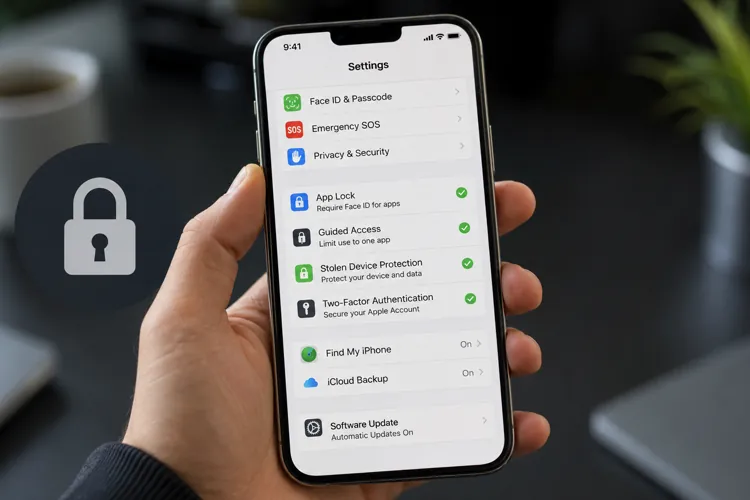
  • Add Face ID to sensitive apps: Put an extra lock on banking, payment, email, and other apps that could expose your money or personal information.
  • Turn on Apple's built-in protections: Guided Access and Stolen Device Protection can limit what someone can do if they borrow or steal your phone.
  • Check who already has access: Safety Check lets you review the people, apps, and devices that can access or receive information from your iPhone.

Your iPhone isn't just a phone anymore.

It typically contains access to your bank accounts, credit cards, email, photos, passwords, and payment apps. This means handing an unlocked phone to the wrong person (or having it stolen) can potentially expose much more than your contact list.

Vanessa Cruz at KCRA-News recently highlighted several built-in iPhone security features that many users overlook, including app-level Face ID, Guided Access, and Stolen Device Protection.

The good news is you don't need to download another security app to use them.

Grab your iPhone and check these settings now.
Read the full Story:
 
  • Like
Reactions: lokamoka820
Read the full Story:
Useful protections, with a few limitations

These are worthwhile iPhone settings, but they work in different situations:

  • Require Face ID: On supported iOS versions, touch and hold an app icon and select Require Face ID. This is useful for banking, email, password managers, and messaging apps, although not every app or every type of data can be protected this way. Notifications may also reveal information unless their previews are restricted.
  • Guided Access: This is mainly intended to temporarily limit the phone to one app, such as when lending the device to someone. It is not a general anti-theft feature and should be configured with its own passcode or biometric authentication.
  • Stolen Device Protection: This helps prevent certain sensitive account and security changes when the iPhone is away from familiar locations. It requires a compatible iOS version and enabled security features, but it does not replace a strong passcode, Face ID, or Lost Mode.
  • Safety Check: This can review sharing, app permissions, Apple Account access, and connected devices. It is particularly useful after a relationship or account-security concern, but it may not identify every third-party account session.

Also enable Find My iPhone, use a long alphanumeric passcode where practical, disable lock-screen access to sensitive features, and avoid entering passcodes where other people can observe them. A stolen or exposed passcode can significantly weaken several protections.

These settings reduce risk, but no single feature guarantees that personal or financial information cannot be accessed. The safest approach is to use them together and keep iOS and important apps updated.
 
Face ID and fingerprint scanning could give the government easy access to your data, so it’s better to stick with passwords. This may be one reason why new technologies are constantly developed to replace them.
 
  • Hundred Points
Reactions: Zero Knowledge