

The MalwareTips app
Your community, one tap away.
Open MalwareTips from your Home Screen or desktop. Follow discussions, find answers and pick up where you left off.
- Home Screen access
- Optional push alerts
- Your community
You're ready to explore.Explore what's new
Installation instructions
iPhone & iPad
- Open MalwareTips in Safari and tap Share. You may need to open the Page Menu first.
- Choose Add to Home Screen. If it is not listed, use Edit Actions to add it.
- Keep Open as Web App enabled if shown, then tap Add.
Android
- Open MalwareTips in Chrome or another browser that supports app installation.
- Open the browser menu and look for Install app, Install and create shortcut, or Add to Home screen.
- Choose Install and confirm. Wording varies by browser.
Desktop
- Chrome: use the install icon in the address bar, or the menu under Cast, save and share.
- Edge: open the menu, then More tools, Apps and Install this site as an app.
- Safari on Mac: choose Share or File, then Add to Dock. Firefox on Windows: look for the web apps button in the address bar.
If you cannot find an install option, update your browser or use its bookmark option to keep MalwareTips close.
Keep up with your conversations
After installation, open the app and sign in. Enable push notifications in Preferences if you want alerts. On iPhone and iPad, push requires a Home Screen web app and iOS or iPadOS 16.4 or later.
Sign in to manage notificationsInstallation is optional. Your notification settings stay under your control.
You are using an out of date browser. It may not display this or other websites correctly.
You should upgrade or use an alternative browser.
You should upgrade or use an alternative browser.
Advice Request Which Windows 11 Services Are Safe to Disable?
- Thread starter lokamoka820
- Start date
Windows 11
36 Replies
8,115 Views
Share practical recommendations that address the author's needs.

sophiakaile
Level 1
Print Spooler
BitLocker drive encryption service
Windows Biometric Service
AssignedAccessManager
Geolocation Service
Parental Controls
WalletService
Fax
Payments and NFC/SE Manager
Phone Service
Print Device Configuration Service
Sensor Service
Server
Shared PC Account Manager
you can get help from this list
BitLocker drive encryption service
Windows Biometric Service
AssignedAccessManager
Geolocation Service
Parental Controls
WalletService
Fax
Payments and NFC/SE Manager
Phone Service
Print Device Configuration Service
Sensor Service
Server
Shared PC Account Manager
you can get help from this list

@sophiakaile Disabling Sensor Service will make some of Settings > System > Power not work on Win 11 24H2.
Last edited:

me neither.normally do not go online with the admin account.

The same here, always logged into the standard account.I normally do not go online with the admin account.

+1me neither.

Thank you all for your valuable replies.
I'm experiencing the same issue on my freshly installed system, suggesting it's a Windows 11 24H2 bug.@rashmi you can check Pegasun System Utilities, it is the best tool I used so far, thanks for @roger_m for recommending it, it finds 40 services to optimize on my device in safe mode and 53 services in maximum mode, and there is noticeable performance improvement, but the only issue I found is that it shows my internet disconnected on the settings app while it is not, I couldn't find the service responsible about this to re-enable it.
I think the developer still on Windows 10 (depending on his video tutorial), and this feature (the network & internet connection shortcut on settings app) is just available in Windows 11, so I guess he didn't notice this bug, I'm still on 23H2 so it is not just related to 24H4.I'm experiencing the same issue on my freshly installed system, suggesting it's a Windows 11 24H2 bug.
I reverted to a clean system image, and the settings panel displays internet connection. I'll see if I can identify the problem.I think the developer still on Windows 10 (depending on his video tutorial), and this feature (the network & internet connection shortcut on settings app) is just available in Windows 11, so I guess he didn't notice this bug, I'm still on 23H2 so it is not just related to 24H4.
I could not find the problem. After the clean image backup, the only operations I performed were disabling Windows Services, disabling Microsoft Defender and Firewall, and installing Comodo Firewall. I repeated these operations on a clean system image, and the settings dashboard shows "internet connected."I reverted to a clean system image, and the settings panel displays internet connection. I'll see if I can identify the problem.
Thank you so much @rashmi for your efforts, I think I should contact the developer to fix the issue, anyway the recommended services from you and other members in this thread and the article from @oldschool were very helpful for me, which makes me understand what I'm disabling (or make manual instead of automatic) rather than following 3rd party app blindly (with respect to the app because the issue is not crucial).I could not find the problem. After the clean image backup, the only operations I performed were disabling Windows Services, disabling Microsoft Defender and Firewall, and installing Comodo Firewall. I repeated these operations on a clean system image, and the settings dashboard shows "internet connected."
Yes, manually disabling services is better. Third-party tools might forcefully disable services that display "access denied" error messages.Thank you so much @rashmi for your efforts, I think I should contact the developer to fix the issue, anyway the recommended services from you and other members in this thread and the article from @oldschool were very helpful for me, which makes me understand what I'm disabling (or make manual instead of automatic) rather than following 3rd party app blindly (with respect to the app because the issue is not crucial).
I re-enabled the "Microsoft Account Sign-in Assistant" service because it prevents downloads from the Microsoft Store.
UPDATE:
I contacted Pegasun System Utilities's developer to report the issue about its service optimizer tool, and after testing we found that it was working perfectly (so it is completely safe to use to optimize system services), so he asked me to reproduce the issue and send a screenshot to be sure that it is not a one time issue, and finally I get the issue again (I think it was in the "Tune up computer" section rather than "Service Manager" section in the "Optimization Toolbox"), and I'm waiting for a response.
Here is the issue where the internet connection shows that it is not connected while in fact it is connected, maybe it is a registry entry mess:
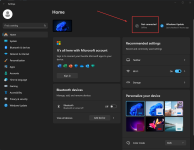
I contacted Pegasun System Utilities's developer to report the issue about its service optimizer tool, and after testing we found that it was working perfectly (so it is completely safe to use to optimize system services), so he asked me to reproduce the issue and send a screenshot to be sure that it is not a one time issue, and finally I get the issue again (I think it was in the "Tune up computer" section rather than "Service Manager" section in the "Optimization Toolbox"), and I'm waiting for a response.
Here is the issue where the internet connection shows that it is not connected while in fact it is connected, maybe it is a registry entry mess:

There is no one holistic approach, everyone has different system environment. To disable services based on your own needs you need to make your own walk-trough, but be aware of their dependencies. There are lots of guides based on some 'majority needs' approach, I find them all lacking in some way. The best solution is your own 

Is this the one?If you want security then OSA System Hardener has a good list of services to disable, paid program but the dev knows what he is doing. Sadly it hasn't been updated in awhile but it's still a good piece of kit.
Harden Windows 10/11 to Improve Security & Privacy | SysHardener
A powerful application to harden Windows 10/11 to mitigate cybersecurity threats, restrict functionalities of Windows that you don't need and reduce the attack surface.
www.syshardener.com
Or the one you said OSA System Hardener is different?

Fan-of-spyshelter
Level 4
@lokamoka820
For extreme configuration :
For windows 10/11, If you use only a pc in a admin account and you have your own media player and you don't use VSC (Visual Studio Code) , with no outside accessories like servers and printer etc.. (no remote) the only thing you need is the NET Framework with sharing port enabled if you use a logical firewall not physical, and a sandbox windows ( available only on a windows pro or higher and want to isolate ONLY third party process that are not signed with a windows certificate accepted in your kernel -> See CertMgr.msc ). Also if you use VMWARE Workstation pro or other virtual Machine and a sandbox is already inside your VM (you don't need Hyper V (can cause a conflict) and windows sandbox anymore).
My recommendation of a local configuration : (without independent soft)
- hyper V enabled (without VMWARE) - Host Guardian Service enabled (if you want to harden your VM on a compatible Os server)
- NET framework (all versions you have) with sharing TCP port enabled
- sandbox windows (Pro - Enterprise) enabled (without Sandboxie or other Sandbox solution like deepfreeze) - Configure your Bios - Virtualisation must be active.
For extreme configuration :
For windows 10/11, If you use only a pc in a admin account and you have your own media player and you don't use VSC (Visual Studio Code) , with no outside accessories like servers and printer etc.. (no remote) the only thing you need is the NET Framework with sharing port enabled if you use a logical firewall not physical, and a sandbox windows ( available only on a windows pro or higher and want to isolate ONLY third party process that are not signed with a windows certificate accepted in your kernel -> See CertMgr.msc ). Also if you use VMWARE Workstation pro or other virtual Machine and a sandbox is already inside your VM (you don't need Hyper V (can cause a conflict) and windows sandbox anymore).
My recommendation of a local configuration : (without independent soft)
- hyper V enabled (without VMWARE) - Host Guardian Service enabled (if you want to harden your VM on a compatible Os server)
- NET framework (all versions you have) with sharing TCP port enabled
- sandbox windows (Pro - Enterprise) enabled (without Sandboxie or other Sandbox solution like deepfreeze) - Configure your Bios - Virtualisation must be active.

My machine specs are low; VM will bring it downt ground.@lokamoka820
For extreme configuration :
For windows 10/11, If you use only a pc in a admin account and you have your own media player and you don't use VSC (Visual Studio Code) , with no outside accessories like servers and printer etc.. (no remote) the only thing you need is the NET Framework with sharing port enabled if you use a logical firewall not physical, and a sandbox windows ( available only on a windows pro or higher and want to isolate ONLY third party process that are not signed with a windows certificate accepted in your kernel -> See CertMgr.msc ). Also if you use VMWARE Workstation pro or other virtual Machine and a sandbox is already inside your VM (you don't need Hyper V (can cause a conflict) and windows sandbox anymore).
My recommendation of a local configuration : (without independent soft)
- hyper V enabled (without VMWARE) - Host Guardian Service enabled (if you want to harden your VM on a compatible Os server)
- NET framework (all versions you have) with sharing TCP port enabled
- sandbox windows (Pro - Enterprise) enabled (without Sandboxie or other Sandbox solution like deepfreeze) - Configure your Bios - Virtualisation must be active.
Recently browsing
Members who viewed this thread in the last 5 minutes
You may also like...
-

-

-
R
Advice Request Disable Microsoft Defender on Windows 11
- Windows 11
- rashmi
- · 46
-

-