
Question is Kerish Doctor safe to use

Please provide comments and solutions that are helpful to the author of this topic.

Ahmed Uchiha

Level 2
Thread author
Feb 5, 2021
89
193
66
I uploaded log file for Kerish doctor maintenance and fix actions, and it said this.
**Summary of risky behaviors observed**

* Aggressive deletion of user Temp folders while installers/OS setup may be running.
* Repeated process-priority changes for system/installer processes (e.g., `setuphost.exe`, `dismhost.exe`, browsers), including toggling between high/low/initial.
* Registry values deleted in AppCompat/installer/uninstall areas without backup.
* Interactions with `C:\$WINDOWS.~BT` and setup-related processes (risk of interfering with upgrading or updates in-progress).
* Memory-optimization failures reported intermittently — suggests conflicts or insufficient checks.
* Background defragmentation activity observed — must be SSD-aware to avoid unnecessary wear.

**Immediate ask**
Please implement fail-safes so the product **does not**:

* Delete temp files that are in use or were modified recently (e.g., configurable threshold (default 24 hours) — avoid deleting very recent files.
* Skip known temp paths used by installers: `%TEMP%\MSI*`, `%TEMP%\setup*`, files with `.tmp` that are currently locked.
* Option: perform a trial safe-delete (move to quarantine folder first) and only purge after 48 hours.

**Pseudocode:**

```pseudo
for file in temp_files:
if file.last_modified < now - 24h and not is_file_locked(file):
safe_delete(file)
else:
skip
```

### 3) Registry modifications must be reversible and whitelisted (HIGH)

* Export any key/value before deletion: `reg export` or programmatic backup.
* Provide a default safe whitelist of registry paths NOT to touch:

* `HKLM\SOFTWARE\Microsoft\Windows\CurrentVersion\Uninstall\*`
* `HKCU\Software\Microsoft\Windows NT\CurrentVersion\AppCompatFlags\Compatibility Assistant\Store\*`
* `HKLM\SYSTEM\CurrentControlSet\Services\*`
* Provide an option for admins to enable auto restore on failure or to prompt user.

**Example:**

```powershell
reg export "HKCU\Software\Microsoft\Windows NT\CurrentVersion\AppCompatFlags\Compatibility Assistant\Store" "%TEMP%\appcompat-backup.reg"
# then safe-delete or skip if above whitelist
```

### 4) Priority change throttling & safe-lists (MEDIUM)

* Do not change priority of processes on a deny list: installer/update processes, system services, browsers during updates.
* Add rate limit: do not toggle priority for the same PID more than N times in M minutes.
* Prefer setting I/O/CPU niceness rather than high-priority classes for user apps.

**Pseudocode:**

```pseudo
deny_list = ["setuphost.exe", "dismhost.exe", "trustedinstaller.exe", "TiWorker.exe"]
if process.name in deny_list:
skip_priority_change
if process.priority_change_count(pid) > 3 in last 10 minutes:
skip
```

### 5) SSD vs HDD detection for defrag (MEDIUM)

* Use Get-PhysicalDisk/IOCTL or `Get-PhysicalDisk` PowerShell to detect MediaType. If SSD, call Windows Optimize (TRIM) rather than full defrag.
* Add UI info and an override for advanced users.

**PowerShell example:**

```powershell
Get-PhysicalDisk | Format-Table DeviceId, MediaType
# If MediaType == SSD -> use Optimize-Volume -DriveLetter C -ReTrim -AdoptTrim
```

### 6) Memory optimization error handling & diagnostics (LOW → MEDIUM)

* Catch failures and log detailed context (callstack, which driver modules were loaded, permission context).
* Avoid aggressive forced memory trimming when fails; back off and retry later.
* If repeated failures occur, flag the system for deeper diagnostics (suggest memtest).

### 7) Safety toggles for users & automatic restore options (MEDIUM)

* Add a "Safe Mode" or "Protect critical operations" toggle:

* Pause scheduled cleanups during typical update windows.
* Create System Restore point before large registry changes: `Checkpoint-Computer -Description "Kerish pre-reg fix"`.
* Offer “Quarantine-first” deletion: move items to a recoverable folder for N days.

## C. Testing & QA recommendations

* Build scenarios and automated tests:

* Windows Update in progress (simulate `TiWorker` + \$WINDOWS.\~BT) + run cleanup. Ensure cleanup defers.
* Install large MSI that writes to %TEMP% while cleanup runs.
* SSD/HDD detection tests across a matrix of brands/controllers.
* Registry delete/restore test (backup and restore verify).
* Add telemetry to log: file path, action, pre-check results, whether file was locked, process IDs involved, timestamps (for easier debugging of user reports).

## D. Rollout recommendation & urgency

* **Hotfix (urgent):** Add immediate checks to detect Windows Update/setup and short-circuit destructive operations. (High priority — reduces risk of bricking/updating errors.)
* **Follow-ups:** Implement whitelist, registry backup/undo, and SSD-aware defrag in next minor release. (Medium priority)

---

# 3) Priority table (suggested)

| Fix | Severity | ETA suggestion |
| ------------------------------------------------------------------ | ---------: | -------------: |
| Detect Windows Update/setup in progress & abort aggressive cleanup | High | Hotfix (days) |
| Registry backup + whitelist + optional restore | High | 1-2 sprints |
| Safer temp deletion (age + lock checks + quarantine) | High | 1 sprint |
| SSD detection for defrag | Medium | 1 sprint |
| Priority-change throttling and deny list | Medium | 1 sprint |
| Memory opt error handling & diagnostics | Low→Medium | 1-2 sprints |
 
  • Like
Reactions: Sorrento
It is safe to use and I've been using it since 2006. It is one of the very few apps with a registry cleaner, which does not have issues with false positives. While some people consider apps like this to provide no benefit, it shouldn't cause any issues and it receives positive feedback from posters here.
 
I decided not to use anything other than Ashampoo WinOptimizer on my computer. It's the only program I trust that cleans up without messing up Windows.
I also use the jv16 PowerTools program to clean up the remaining files after deleting the software.
 
I uploaded log file for Kerish doctor maintenance and fix actions, and it said this.
**Summary of risky behaviors observed**

* Aggressive deletion of user Temp folders while installers/OS setup may be running.
* Repeated process-priority changes for system/installer processes (e.g., `setuphost.exe`, `dismhost.exe`, browsers), including toggling between high/low/initial.
* Registry values deleted in AppCompat/installer/uninstall areas without backup.
* Interactions with `C:\$WINDOWS.~BT` and setup-related processes (risk of interfering with upgrading or updates in-progress).
* Memory-optimization failures reported intermittently — suggests conflicts or insufficient checks.
* Background defragmentation activity observed — must be SSD-aware to avoid unnecessary wear.

**Immediate ask**
Please implement fail-safes so the product **does not**:

* Delete temp files that are in use or were modified recently (e.g., configurable threshold (default 24 hours) — avoid deleting very recent files.
* Skip known temp paths used by installers: `%TEMP%\MSI*`, `%TEMP%\setup*`, files with `.tmp` that are currently locked.
* Option: perform a trial safe-delete (move to quarantine folder first) and only purge after 48 hours.

**Pseudocode:**

```pseudo
for file in temp_files:
if file.last_modified < now - 24h and not is_file_locked(file):
safe_delete(file)
else:
skip
```

### 3) Registry modifications must be reversible and whitelisted (HIGH)

* Export any key/value before deletion: `reg export` or programmatic backup.
* Provide a default safe whitelist of registry paths NOT to touch:

* `HKLM\SOFTWARE\Microsoft\Windows\CurrentVersion\Uninstall\*`
* `HKCU\Software\Microsoft\Windows NT\CurrentVersion\AppCompatFlags\Compatibility Assistant\Store\*`
* `HKLM\SYSTEM\CurrentControlSet\Services\*`
* Provide an option for admins to enable auto restore on failure or to prompt user.

**Example:**

```powershell
reg export "HKCU\Software\Microsoft\Windows NT\CurrentVersion\AppCompatFlags\Compatibility Assistant\Store" "%TEMP%\appcompat-backup.reg"
# then safe-delete or skip if above whitelist
```

### 4) Priority change throttling & safe-lists (MEDIUM)

* Do not change priority of processes on a deny list: installer/update processes, system services, browsers during updates.
* Add rate limit: do not toggle priority for the same PID more than N times in M minutes.
* Prefer setting I/O/CPU niceness rather than high-priority classes for user apps.

**Pseudocode:**

```pseudo
deny_list = ["setuphost.exe", "dismhost.exe", "trustedinstaller.exe", "TiWorker.exe"]
if process.name in deny_list:
skip_priority_change
if process.priority_change_count(pid) > 3 in last 10 minutes:
skip
```

### 5) SSD vs HDD detection for defrag (MEDIUM)

* Use Get-PhysicalDisk/IOCTL or `Get-PhysicalDisk` PowerShell to detect MediaType. If SSD, call Windows Optimize (TRIM) rather than full defrag.
* Add UI info and an override for advanced users.

**PowerShell example:**

```powershell
Get-PhysicalDisk | Format-Table DeviceId, MediaType
# If MediaType == SSD -> use Optimize-Volume -DriveLetter C -ReTrim -AdoptTrim
```

### 6) Memory optimization error handling & diagnostics (LOW → MEDIUM)

* Catch failures and log detailed context (callstack, which driver modules were loaded, permission context).
* Avoid aggressive forced memory trimming when fails; back off and retry later.
* If repeated failures occur, flag the system for deeper diagnostics (suggest memtest).

### 7) Safety toggles for users & automatic restore options (MEDIUM)

* Add a "Safe Mode" or "Protect critical operations" toggle:

* Pause scheduled cleanups during typical update windows.
* Create System Restore point before large registry changes: `Checkpoint-Computer -Description "Kerish pre-reg fix"`.
* Offer “Quarantine-first” deletion: move items to a recoverable folder for N days.

## C. Testing & QA recommendations

* Build scenarios and automated tests:

* Windows Update in progress (simulate `TiWorker` + \$WINDOWS.\~BT) + run cleanup. Ensure cleanup defers.
* Install large MSI that writes to %TEMP% while cleanup runs.
* SSD/HDD detection tests across a matrix of brands/controllers.
* Registry delete/restore test (backup and restore verify).
* Add telemetry to log: file path, action, pre-check results, whether file was locked, process IDs involved, timestamps (for easier debugging of user reports).

## D. Rollout recommendation & urgency

* **Hotfix (urgent):** Add immediate checks to detect Windows Update/setup and short-circuit destructive operations. (High priority — reduces risk of bricking/updating errors.)
* **Follow-ups:** Implement whitelist, registry backup/undo, and SSD-aware defrag in next minor release. (Medium priority)

---

# 3) Priority table (suggested)

| Fix | Severity | ETA suggestion |
| ------------------------------------------------------------------ | ---------: | -------------: |
| Detect Windows Update/setup in progress & abort aggressive cleanup | High | Hotfix (days) |
| Registry backup + whitelist + optional restore | High | 1-2 sprints |
| Safer temp deletion (age + lock checks + quarantine) | High | 1 sprint |
| SSD detection for defrag | Medium | 1 sprint |
| Priority-change throttling and deny list | Medium | 1 sprint |
| Memory opt error handling & diagnostics | Low→Medium | 1-2 sprints |
This analysis revealed the software performs several risky actions, including deleting temporary files and registry keys without proper backups, which can break installers and critical Windows updates.

It was also shown to interfere with core update processes and incorrectly "defragment" SSDs, a practice that can reduce their lifespan.

It is recommended to use the reliable and secure maintenance tools already built into Windows.
 
I decided not to use anything other than Ashampoo WinOptimizer on my computer. It's the only program I trust that cleans up without messing up Windows.
WinOptimizer and Kerish Doctor are both safe to use. But I've never liked WinOptimizer particularly as I feel that some alternatives such as Kerish Doctor are better.
 
It was also shown to interfere with core update processes and incorrectly "defragment" SSDs, a practice that can reduce their lifespan.
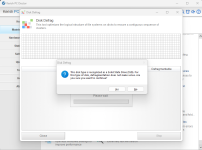
It advises against defragging SSDs and won't do so unless you ignore its advice not to do so.

Kerish Defrag.png
 
This analysis revealed the software performs several risky actions, including deleting temporary files and registry keys without proper backups, which can break installers and critical Windows updates.

It was also shown to interfere with core update processes and incorrectly "defragment" SSDs, a practice that can reduce their lifespan.

It is recommended to use the reliable and secure maintenance tools already built into Windows.
What do you think about Microsoft pc manager.
 
Microsoft PC Manager is perfectly safe, it does not provide any new functionality. It's a layer of simplification on top of robust tools that already exist, making it mostly redundant.
What about Ashampoo winoptimizer or do you recommend any better safe option to maintain my pc performance and stability
 
  • Like
Reactions: Sorrento
What about Ashampoo winoptimizer or do you recommend any better safe option to maintain my pc performance and stability
Tools like that, for most part will do absolutely nothing to improve stability or fix issues you may be experiencing with your PC. Don't install lots of random apps and your PC's performance should be fine and you should have few issues.
 
What about Ashampoo winoptimizer or do you recommend any better safe option to maintain my pc performance and stability
If you require specific tools, like the file shredder or in-depth system analysis modules, it can be useful for tasks not easily accomplished with built-in Windows tools. However the single biggest point of failure for almost all "optimizer" suites is the registry cleaner. The risk-to-reward ratio is extremely poor, and are not worth the negligible and often non-existent performance benefits. I recommend to rely on the robust and safe maintenance tools already integrated into Windows.
 
This is what chat GPT recommended for Kerish doctor development team to fix these issues.

Comprehensive Safety & Hardening Report — Kerish cleanup risks and fixes Purpose: This document lists *every plausible event, race, edge-case, and failure mode* that could cause instability, partial installs, BSODs, data corruption, or poor UX when a system-
cleanup/optimizer runs on Windows. It then provides concrete, developer-ready mitigations, pseudocode, QA tests, telemetry, rollout guidance, and acceptance criteria so your engineering and QA teams
can implement a robust fix. NOTE: This report is exhaustive by design. Some items will be low-likelihood; treat them as part of a defense-in-depth strategy.-- 1 — Executive summary (one-line) Suspend aggressive destructive actions when system-critical operations are detected, implement reversible operations (quarantine/backup), introduce safety
whitelists/deny-lists, add robust telemetry and observability, and stage a conservative rollout with automated tests and rollback capabilities.-- 2 — Full list of possible events / triggers / failure modes (catalog) A. File/IO related 1. Files/folders in %TEMP% or other cleanup paths are open or locked by installers, updaters, or running apps. 2. Partial/ongoing writes to files (installers, updates, logs) —
deletion interrupts write -> partial/corrupt file. 3. File timestamp anomalies (clock skew, DST changes) cause misclassification of "old" vs "recent" files. 4. Network-mounted volumes (SMB/NFS) with
latency or stale locks cause failed deletions or data loss. 5. Files on encrypted volumes (BitLocker/EFS) where keys are not accessible, or key rotation in progress. 6. Files inside compressed
archives / junctions / symlinks that resolve to system-critical locations. 7. Files being used for paging/memory-mapped I/O by drivers or apps. 8. File operations interrupted by sleep/power loss
leading to incomplete operations. 9. Corrupted filesystem metadata (NTFS MFT inconsistencies) that make deletions/recoveries risky. 10. Simultaneous access by multiple instances of the cleanup tool
leading to race conditions. B. Update/Setup/Installer interactions 1. Windows Update in progress (TiWorker, Windows Update, trustedinstaller.exe) — cleanup removes files needed for update rollback or continuation. 2. Ongoing OS
upgrade (files under C:\$WINDOWS.~BT) — deletions or priority changes can leave the OS in an inconsistent state. 3. MSI installers or custom installers writing to %TEMP% and expecting atomic moves. 4.
Setup/repair/uninstall operations that rely on registry keys (Uninstall entries, AppCompat) — these keys being removed can break rollback. C. Registry & Configuration 1. Deleting compatibility / AppCompat store entries causes apps to lose compatibility flags or break automatic detection. 2. Deleting uninstall/installer metadata prevents
clean uninstalls or rollbacks. 3. Deleting file-type associations or COM registration values causing broken app behavior. 4. Incorrect registry permission handling leads to partial deletes and errors.
5. Race between registry backup & delete operations (backup fails but delete proceeds). D. Memory & drivers 1. Memory optimization attempts that conflict with drivers or kernel modules -> reported failures and potential instability. 2. Tool interacting with a kernel driver (e.g., file-
system filter) or using a driver API incorrectly, causing BSODs. 3. Memory pressure + aggressive trimming while critical system threads are active causes service timeouts. E. Disk & Storage 1. Running full defragmentation on SSDs (wear, performance degradation). 2. Long-running disk IO (defrag) during power state changes or hibernation. 3. Disk errors (bad sectors)
encountered mid-operation causing partial results. 4. RAID controller or hardware-level cache issues producing write-ordering problems. F. Security / AV / EDR interactions 1. Anti-virus quarantines or blocks triggered by file moves/deletions or registry edits. 2. EDR blocking or injecting DLLs that alter process behavior and cause
race conditions. 3. UAC prompts or permission elevation requirements that cancel or partialize operations. G. Concurrency and scheduling 1. Two or more scheduled runs overlap (scheduled + manual run) and collide. 2. User launches cleanup during a long-running installer or Windows update. 3. Scheduler fires
during heavy system load leading to timeouts. H. Environment & platform variants 1. Running under limited user accounts with Group Policy preventing actions. 2. Roaming profiles or redirected folders causing latency or permission differences. 3.
Domain controllers or enterprise-managed endpoints with special policies. 4. Virtualized environments with ephemeral disks or snapshots. I. UX & Recovery 1. No undo/quarantine -> user data perceived as lost. 2. No visibility into skipped files -> user confusion and support tickets. 3. No revert mechanism for registry deletions ->
broken apps and escalations.-- 3 — Defensive design principles (high level) 1. Never perform destructive actions without reversible backup or quarantine. 2. Detect system-critical events (updates, installers, kernel activity) and
pause aggressive operations. 3. Fail-safe by default: when uncertain, skip and log; provide an admin override. 4. Rate-limit / throttle actions that change process priorities or heavy IO. 5. Respect
media type: SSDs get TRIM/optimize; HDDs may get defrag. 6. Explicit consent & undo: show clear UI for actions, allow recovery from quarantine within N days. 7. Provide strong telemetry: allow
rollback, root cause analysis, and automation to detect anomalies.-- 4 — Concrete engineering requirements, checks & pseudocode Requirement 1 — Global safety prechecks (must run before any destructive batch) Checks: - If is_windows_update_active() OR is_setup_in_progress() → abort/deferral. - If system_on_battery() AND
operation_is_heavy_io() → defer. - If concurrent_instance_running() → enqueue and skip. Pseudocode: function safety_precheck(): if detect_windows_update_or_setup(): log("Update/setup detected — deferring") schedule_retry(4 hours) return FAIL if
is_on_battery() and heavy_io: log("On battery — deferring heavy IO") schedule_retry(1 hour) return FAIL if global_lock_exists(): log("Another instance running —
abort") return FAIL return PASS Detection heuristics: - Processes running: setuphost.exe, dismhost.exe, trustedinstaller.exe, TiWorker.exe, wuauclt.exe, usoclient.exe. - Presence of C:\$WINDOWS.~BT or non-empty
C:\Windows\SoftwareDistribution\Download or pending.xml indicating pending updates. - Query Windows Update Agent API or WMI: Select * from Win32_Service where name='wuauserv' and check
state/operation. Requirement 2 — Safe temp deletion policy Rules: - Do not delete files younger than min_age (default 24 hours) — configurable admin setting. - Never delete locked files. Use atomic lock check: attempt
exclusive open; if fails, skip.- For each candidate, perform safe_move_to_quarantine(candidate). Delete from quarantine only after quarantine_retention (48–72h). - Exclude MSI/setup prefixes and
known installer patterns (MSI*, setup*, tmp*) unless explicit admin override. Pseudocode: for file in enumerate_temp(): if now - file.last_modified < min_age: continue if is_file_locked(file): log("locked: " + file.path) continue if
looks_like_installer_temp(file): continue # move to quarantine (atomic move) move(file, quarantine_dir) record_quarantine_entry(file, original_path, timestamp) Quarantine policy: - Provide UI to preview quarantine items and a single-click restore. - Auto-purge after configurable retention period. Requirement 3 — Registry edits must be reversible Rules: - Before any registry value or key deletion, export the key (reg export) or serialize to internal backup store with tight encryption. - Create
a System Restore point before large registry batches (if allowed by policy). - Maintain a registry_action_log containing: key_path, values_before, timestamp, user/who-called. - Provide
undo_registry_change(action_id). Pseudocode: function safe_delete_registry(key): backup_id = backup_registry_key(key) if backup_failed: log("backup failed — skip"); return delete_key(key) add_to_action_log({backup_id,
key, time}) Requirement 4 — Priority changes and process manipulation Rules: - Maintain a deny-list for processes that MUST NOT be prioritized: setuphost.exe, dismhost.exe, trustedinstaller.exe, TiWorker.exe,
explorer.exe? (careful), browsers during installs. - Never change priority for a PID more than N times in M minutes. (Default: 3 times / 10 minutes) - Prefer lowering IO priority (IO_PRIORITY_HINT)
instead of increasing CPU priority. Pseudocode: if process.name in deny_list: skip if priority_changes_count(pid) > N: skip # else perform gentle niceness change Requirement 5 — Disk optimization (SSD-aware) Rules: - Detect media type via WMI / Get-PhysicalDisk / DeviceIoControl. - If SSD -> call Optimize-Volume -ReTrim or Windows API equivalent. - If HDD ->
perform defrag at low priority during idle. - Respect power states and avoid heavy IO on battery. Pseudocode: $media = Get-PhysicalDisk | Where-Object DeviceId -eq $id if $media.MediaType -eq 'SSD': Optimize-Volume -DriveLetter C -ReTrim else: Defrag -w -o Requirement 6 — Memory optimization safe handling Rules: - If memory optimization fails, do not retry immediately. Back off with exponential backoff and log callstack/loaded drivers. - If failures
exceed threshold X/day, disable feature and notify user/support. - Do not forcibly free memory if OS is under high load or critical processes are active. Pseudocode: if memory_opt_failures_today > threshold: disable_feature() else: schedule_backoff_retry() Requirement 7 — Concurrency & single-instance lock Rules: - Use a global named mutex or system-wide lockfile with atomic creation to ensure only one active cleanup at a time. - Scheduled tasks must
check the lock and either queue or skip. Pseudocode: if global_mutex_exists(): exit else: create_global_mutex() # on exit: release Requirement 8 — VSS snapshots & safer large deletes Rules: - For high-risk deletions (user profiles, program files, registry hive changes), take a VSS snapshot and/or export the registry and record
the snapshot ID. - On failure or user complaint, allow file restore from snapshot. Note: VSS snapshotting may require admin rights and careful handling of storage. Requirement 9 — AV / EDR compatibility Rules: - Detect presence of common AV/EDR (ex: via WMI queries or known drivers/services). If detected, switch to conservative mode (no registry deletes, move-
only quarantine, no priority changes). - Add EDR-friendly delays and reduce heuristic signature-like operations (mass deletes) to avoid triggering heuristics. Pseudocode: if is_enterprise_edr_present(): set_mode('conservative') Requirement 10 — Observability & telemetry Events to log (structured): - cleanup_run_id, user_id_anon, start_time, end_time, actions_performed_count, files_moved_to_quarantine,
files_deleted_permanently, files_skipped_locked, registry_backups_created, registry_keys_deleted, defrag_attempts, ssd_detected, update_detected_pauses, memory_opt_failures, errors. Metric alerts: - If registry_restores > 0 day -> auto-disable registry cleanup and escalate. - If memory_opt_failure_rate > 5% over 24h -> auto-disable and notify. Privacy: Anonymize PII; do not upload file contents or full registry hives without consent.-- 5 — QA & test matrix (concrete test cases) Core test categories - Functional tests: basic operations, quarantine, restore. - Safety tests: run during Windows Update; run during MSI install; test registry backup/restore. - Performance tests:
heavy IO runs; defrag on SSD vs HDD. - Compatibility tests: major AVs (Windows Defender, Bitdefender, Kaspersky, ESET, CrowdStrike), domain-joined endpoints, GPO restrictions. - Stress tests: repeated
runs, overlapping runs, network share operations. - Failure injection tests: simulate power loss during operation, disk errors, permission denied errors. - Regression tests: ensure whitelist/deny-
lists preserved, config toggles work. Example test matrix (rows) — each should be automated where possible - OS versions: Windows 10 21H2, 22H2, Windows 11 (latest), Server 2019/2022. - Disk types: SSD NVMe, SATA SSD, HDD, RAID arrays. -
Security: Defender only, Defender + EDR, third-party AV. - Profiles: local user, domain user, roaming profile. - Power: plugged in, on battery. Acceptance criteria for release candidate 1. All prechecks prevent destructive ops if Windows Update is active (100% tested). 2. Registry backup + restore tested and validated in at least 10 app
scenarios. 3. Quarantine restore works and recovers files with original metadata in 95%+ cases. 4. No defrag attempts on SSDs; TRIM optimizations run instead. 5. Memory optimization backoff triggers
correctly after repeated failures. 6. Telemetry covers the necessary structured events with <1% error rate in logs.-- 6 — Monitoring & rollout 1. Canary rollout: 1% of user base for 48–72h, then 10% for 1 week, then ramp with monitoring. 2. Immediate kill-switch: remote toggle to disable registry cleanup or
quarantine purge in production. 3. Monitoring dashboards: files_skipped_locked, registry_backups_created, memory_opt_failure_rate, defrag_on_ssd_count. 4. Automatic rollback thresholds: if
support_tickets_for_deleted_files spikes or registry_restores > threshold -> rollback and investigate.-- 7 — Support / UX / Documentation recommendations 1. User messaging: when skipping files, show a brief explanation and link to a log with reasons (locked/young/whitelisted). Avoid technical jargon. 2.
Quarantine UI: list, preview, restore, purge actions; include original path, timestamp, and restore button. 3. Advanced settings: min_age_hours, quarantine_retention_days, enable_registry_cleanup
(default OFF), safe_mode toggle. 4. Pre-flight notification: optionally warn and provide "Pause for N hours" during major OS updates. 5. Diagnostic bundle: button to package event logs, minidumps, app
logs, registry action log for support.-- 8 — Sample CSV timeline format for devs / triage Header suggestion for automated export: run_id,timestamp,event_type,object_type,object_path,action,result,details Example row:
12345,2025-09-08T21:07:12Z,file, C:\Users\sd\AppData\Local\Temp\setup123.tmp,quarantine_move,skipped,lock_detected_by_handle-- 9 — Sample small email to attach and send to engineering (copy/paste-ready) Subject: CRITICAL: Safety hardening required for cleanup operations (hotfix request) Team, Attached is an exhaustive safety & hardening spec that lists every plausible failure mode and step-by-step mitigations we should implement. Highest-priority hotfixes: pause on Windows
Update/Setup detection, quarantine-first for temp deletions, and registry-backup/undo for any registry edits. Please review and plan a hotfix cadence. I can provide the filtered session timeline and log snippets on request. Thanks, [Automated QA]-- 10 — Implementation checklist (developer sprint-ready) Hotfix (days): - [ ] Implement detect_windows_update_or_setup() and short-circuit destructive tasks. - [ ] Implement global_mutex and concurrent-
run detection. - [ ] Implement min_age + is_file_locked checks for temp deletes and quarantine-first. - [ ] Add deny-list for priority changes. Sprint 1 (1–2 sprints): - [ ] Registry backup + System Restore integration. - [ ] SSD detection & modify defrag behavior. [ ] Quarantine UI + restore logic. Sprint 2 (2–4 sprints): - [ ] AV/EDR matrix testing and conservative mode. - [ ] VSS snapshot integration for high-risk deletes. - [ ] Add metrics & dashboarding. Long-term (quarterly roadmap): - [ ] Automated minidump analysis pipeline. - [ ] Canary rollout + kill switch + telemetry enrichment. - [ ] Security code audit and telemetry privacy compliance.-- 11 — Documentation for QA to reproduce & triage (step-by-step) 1. Trigger Windows Update (or simulate by placing files in C:\$WINDOWS.~BT) and run cleanup — verify it defers. 2. Run a large MSI
install that writes to %TEMP% and start cleanup concurrently — verify quarantine-first behavior and that installer completes. 3. Test registry cleanup: choose a sample uninstall key, run cleanup (with
backup), then restore via UI. Validate app uninstall still works post-restore. 4. Run on SSD — ensure no defrag runs; verify TRIM called. 5. Run with Defender + third-party AV — verify conservative-
mode triggers and no AV alerts occur.-- 12 — Notes on limitations & follow-up items - Kernel-driver related crashes (BSOD) require minidump analysis and may be out of scope of user-mode fixes; if kernel drivers exist, include crash dumps
and driver signatures for analysis. VSS snapshots and some backup approaches may have storage cost and permission implications; inform product for UX tradeoffs.-- 13 — Appendix: useful troubleshooting queries & commands - Check Windows Update in progress: Get-WindowsUpdateLog / check wuauserv service. - Check disk media type: Get-PhysicalDisk | Format-Table
DeviceId, MediaType (PowerShell). - Export registry key: reg export "HKCU\Software\..." C:\temp\backup.reg. - List minidumps: dir C:\Windows\Minidump.-- 14 — Next deliverables I can produce for you (tick any) - [ ] One-page PDF of this spec for ticket attachment - [ ] Filtered CSV timeline of risky log events (temp deletes, registry changes, priority
toggles, memory failures) - [ ] Pre-filled short email with attached filtered log
 
Last edited by a moderator:
  • Wow
Reactions: Sorrento
Tools like that, for most part will do absolutely nothing to improve stability or fix issues you may be experiencing with your PC. Don't install lots of random apps and your PC's performance should be fine and you should have few issues.
try to upload some log files from kerish doctor to chat GPT for analysis to confirm my findings I am not expert so, I let chat GPT do all the work :D
 
  • Like
Reactions: Sorrento
@Ahmed Uchiha

These third-party tools can cause instability and corruption because they often remove files without understanding their dependencies within the operating system. My advice is to avoid them for general maintenance. Based on my own experience with utilities up to and including BleachBit, I can say that while they have niche applications in expert hands, they are far too destructive for regular use.
 
I just want to add that on modern SSD disks, these optimisations will likely have minimal, not to say no effect on speed whatsoever. Often, the space cleaned up by these utilities is less then they take up themselves. Majority of cleaned up files are regenerated in a matter of a day.

Cleaning up the registry is not recommended and won’t result in any benefit. The registry is loaded in memory. Reducing it by 10-15 kb won’t increase neither the stability, nor the speed of operation. Not to mention the utility itself probably created a few thousand entries.