Advice Request Windows Firewall: What outbound rules to enable vital Windows processes/services?

Please provide comments and solutions that are helpful to the author of this topic.

oldschool

Level 85
Thread author
Verified
Top Poster
Well-known
High Reputation
Forum Veteran
Mar 29, 2018
8,388
1
61,272
8,369
Republic of Gilead, Russian Federation
en.wikipedia.org
I am slowly learning to configure Windows Firewall to block all outbound connections, except needed apps and vital Windows services. I could use some help about the processes needed for Windows Update and other essentials. I've been researching this with limited success. :unsure: Thanks in advance for any replies.
 
@Vasudev - I don't wish to use a 3rd party GUI or a separate WFP-based app like Simplewall. Too many bugs, popups, etc. Making Windows Firewall rules is not complex, but it is difficult to find information about needed processes, e.g. Windows Update - what I need to enable it.
 
@Vasudev - I don't wish to use a 3rd party GUI or a separate WFP-based app like Simplewall. Too many bugs, popups, etc. Making Windows Firewall rules is not complex, but it is difficult to find information about needed processes, e.g. Windows Update - what I need to enable it.
By default, OS essential services aren't blocked unless you used Telemetry block rules for windows firewall as ps1 script.
 
That depends whats considered essential? Best to use privacy apps like shutup if ur concerned and bavne y already done so

I'm not concerned with privacy. I just want to block all outbound and allow only what apps I want and to keep Windows working properly.
 
I am slowly learning to configure Windows Firewall to block all outbound connections, except needed apps and vital Windows services. I could use some help about the processes needed for Windows Update and other essentials. I've been researching this with limited success. :unsure: Thanks in advance for any replies.
Doing it without 3-rd party software will be painful for you. Furthermore, that can be effective for the users' privacy and against simple malware. The more complex malware will simply inject into one of the system processes (like svchost.exe) or use the process hollowing method to hide.
 
The user can set firewall to 'Outbound Connections that do not match a rule are blocked.'
Use 'Advanced settings' >> 'Windows Firewall Properties', choose your active profile and set 'Outbound connections' from 'Allow (default)' to 'Block'

208748


This will block by default outbound connections for the chosen firewall profile, except the green rules, which can be seen under the Outbound connections tab. So, the system processes, web browser, MS Store, will be allowed, but most applications will be blocked.
208749
 
Last edited:
The user can set firewall to 'Outbound Connections that do not match a rule are blocked.'
Use 'Advanced settings' >> 'Windows Firewall Properties', choose your active profile and set 'Outbound connections' from 'Allow (default)' to 'Block'

View attachment 208748

This will block by default outbound connections for the chosen firewall profile, except the green rules, which can be seen under the Outbound connections tab. So, the system processes, web browser, MS Store, will be allowed, but most applications will be blocked.
View attachment 208749

I have already done this, which is the easy part. Windows seems to work this way EXCEPT for Windows Update. I'm scratching my head trying to understand the required process(s) to make it functional. :unsure:

Edit: I have already enabled Edge and SmartScreen. (y)
 
Last edited:
Windows seems to work this way EXCEPT for Windows Update.
As far as I know, WU requires only svchost, but lately I allow all outbound, so maybe I have missed something. :unsure:
Code:
netsh advfirewall firewall add rule name="Svchost DNS" dir=out action=allow protocol=UDP remoteport=53 program="%WINDIR%\System32\svchost.exe"
netsh advfirewall firewall add rule name="Svchost TCP" dir=out action=allow protocol=TCP remoteport=80,443 program="%WINDIR%\System32\svchost.exe"

I use LiveTcpUdpWatch to find out network traffic, since it logs traffic. Like, I could not figure out, how to get Update Time v1.2 working, because it makes the connection so fast, that it only blinks in network monitors like currports. Then I found this little gem from nirsoft.

208752

True, I haven't seen a good tutorial for configuring Windows Firewall. :giggle:
People, who tried it, ended in a psychiatric ward. Just setting up loopback can be changeling and do not even get me started on LAN network. :emoji_expressionless:
 
I tested the setup from my previous post. It seems that it partially restricts the connections of system processes. For example, without any rule for svchost.exe, the firewall blocked downloading files via bitsadmin.exe and also via PowerShell with BitsTransfer cmdlet (both use BITS). The same effect was when I allowed svchost.exe with a safe option: Allow the connection if it is authenticated and integrity-protected. But, if svchost.exe was fully allowed by the firewall rule, then the download was allowed.
The similar is probably true for Windows Updates.
 
As far as I know, WU requires only svchost, but lately I allow all outbound, so maybe I have missed something. :unsure:
Code:
netsh advfirewall firewall add rule name="Svchost DNS" dir=out action=allow protocol=UDP remoteport=53 program="%WINDIR%\System32\svchost.exe"
netsh advfirewall firewall add rule name="Svchost TCP" dir=out action=allow protocol=TCP remoteport=80,443 program="%WINDIR%\System32\svchost.exe"
...
After applying the above rules, the Firewall can be bypassed again by the downloaders which uses bitsadmin.exe and PowerShell with BitsTransfer cmdlet.:(
 
I tested the setup from my previous post. It seems that it partially restricts the connections of system processes. For example, without any rule for svchost.exe, the firewall blocked downloading files via bitsadmin.exe and also via PowerShell with BitsTransfer cmdlet (both use BITS). The same effect was when I allowed svchost.exe with a safe option: Allow the connection if it is authenticated and integrity-protected. But, if svchost.exe was fully allowed by the firewall rule, then the download was allowed.
The similar is probably true for Windows Updates.

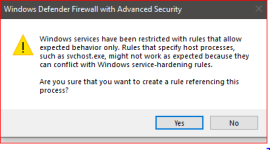
I was taking this route, but got this warning message which I did not fully understand:

208759
 

People, who tried it, ended in a psychiatric ward. Just setting up loopback can be changeling and do not even get me started on LAN network. :emoji_expressionless:

Yes, the men with the white coats are at my door now! :LOL::):LOL:
 
After applying the above rules, the Firewall can be bypassed again by the downloaders which uses bitsadmin.exe and PowerShell with BitsTransfer cmdlet.:(
So I guess, not allowing any Windows processes is a good choice then, while allowing them only temporarily, when updating and such.
 
So I guess, not allowing any Windows processes is a good choice then, while allowing them only temporarily, when updating and such.

Yes, that is what I believe now. Without any testing, I got the funny feeling that enabling some Windows processes was not a good idea. I have Edge, Brave Beta, AV and VodooShield working. I guess that's all I need. So it's not rocket science after all, if one takes the approach you suggest. Making the rules is definitely not the problem.