
New Update Wintoys, a free Windows de-bloat app and optimizer

Captain Holly

Level 6
Thread author
Forum Veteran
Jan 23, 2021
294
4,042
468
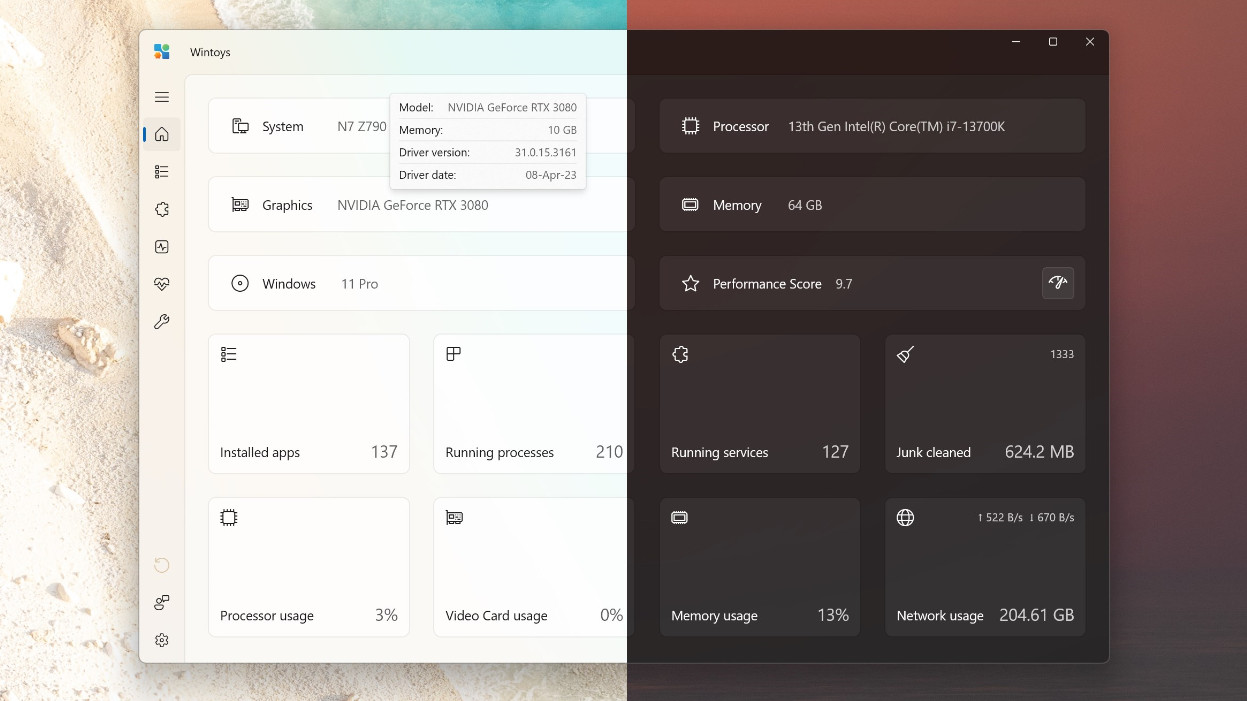
I ran across this on Google. It is a Windows specific de-bloater tool that can help optimize and streamline your Windows OS. It will also remove Windows apps that otherwise have no ability to uninstall. I tested it and that part really did work, I used it to remove the Xbox and Your Phone apps that were still left behind after I used Revo to remove Windows bloatware. I used the Wintoys uninstall function and both apps are long gone now.

Wintoys will also monitor your battery and other computer health aspects. It gives an easy way to turn on or off settings and remove apps/programs in Windows. There are a lot of other functions on it as well, and it seems pretty useful. The way the app looks and works reminds me a lot of the Defender UI app. You can get Wintoys for free in the MS Store. Has anyone else seen or tried it or had any luck with it?

C.H.

 
I recently discovered it and i've found things about windows that are new to me. I was brought here looking for a portable version of this app
 
I ran across this on Google. It is a Windows specific de-bloater tool that can help optimize and streamline your Windows OS. It will also remove Windows apps that otherwise have no ability to uninstall. I tested it and that part really did work, I used it to remove the Xbox and Your Phone apps that were still left behind after I used Revo to remove Windows bloatware. I used the Wintoys uninstall function and both apps are long gone now.

Wintoys will also monitor your battery and other computer health aspects. It gives an easy way to turn on or off settings and remove apps/programs in Windows. There are a lot of other functions on it as well, and it seems pretty useful. The way the app looks and works reminds me a lot of the Defender UI app. You can get Wintoys for free in the MS Store. Has anyone else seen or tried it or had any luck with it?

C.H.


I put wintoys on a vm, I've to test yet
 
v2.0.81.0 (major update)
Mar 31, 2025
  • designed a new logo, with colors dinamically adapting to your theme (light or dark); you might have to rebuild the icon’s cache for the icon to update everywhere in the system - you can use Wintoys for this: Health section > Icons cache
  • revamped the welcome experience (it’s now fullscreen and includes a shortcut for system restore)
  • added a neat titlebar app icon animation that will play when the app opens
  • added system settings restoration: you can now undo all the changes to the state when the app was first opened; even settings changed by the system itself will be detected
  • redesigned sorting and filtering dropdowns across all pages and improved their performance
  • added storage system property on the Home page, with on-hover details about partitions, disk type, disk interface, disk model and disk serial number
  • added uptime system property on the Home page
  • system properties such as storage used space or video card driver will update periodically to reflect the system changes in real time
  • settings that require an explorer.exe restart will no longer automatically restart it, letting you to choose the right moment; you will be informed that a restart is requierd with the Action required button from the bottom left, which once clicked will offer you the option to restart explorer.exe
  • File explorer section changes and improvements:
    • added Classic interface option (on Windows 11)
    • added options to set Home and Gallery items (on Windows 11)
    • changing Hidden system files and items or File extensions options no longer require a refresh of File explorer
    • the toast to reopen File explorer will now only appear if a window is already opened
  • added Digital Markets Act option under Tweaks > System; unlocks exclusive features for EEA (European Economic Area), such as being able to uninstall Edge, but only by launching the uninstaller from a Microsoft signed process like Control Panel or the Settings app; this option does not change your region settings, but Microsoft made it work only with country codes, not region codes; for example, if you live in Bahrain, you’d have to set the Windows region to India
  • added End task option under Tweaks > System (on Windows 11)
  • added Home page in settings option under Tweaks > Ads (on Windows 11); this will remove the Home page in Windows settings app
  • added new Super-usersection under Tweaks with the following options:
    • God mode - moved from the System section
    • Developer mode - new
    • User account control - moved from the System section
    • User choice protection driver (UCPD) - new (hidden if the service is completely missing)
  • added an option to receive a notification whenever a startup app is enabled (on Windows 11)
  • changing This PC and Recycle Bin options no longer require a manual desktop refresh
  • changing Clock with seconds option no longer requires an explorer.exe restart on Windows 11
  • the displayed video card will now always be the high power one if present (external or dedicated)
  • changed validation behavior for all content dialogs due to consistency reasons (now the action button will be disabled until all validation requirements are met)
  • replaced error reporting service: AppCenter is being shutdown by Microsoft on 31st of March, so it was replaced by Application Insights
  • updated UAC option icon to match the system one
  • improved applications size calculation accuracy and sent an email to Gaben to fix Steam not reporting the size of games according to Windows guidelines
  • replaced the teaching tip with a tooltip so a click is no longer needed for the information to be displayed (consumes less memory as well)
  • the Cleanup section was moved at the top of the page for a more convenient access
  • the junk cleaner now supports Opera and Brave browsers, and crash dumps files in the Error reporting category
  • added entrance missing animations for apps and services pages (will play when the pages are set as a landing page)
  • the option to unpin everything from the taskbar was removed due to the new UCPD service that blocks changes to certain registry keys
  • the uninstall option will be greyed out for Windows Security, App Installer and Settings app because they can no longer be removed using official Windows APIs
  • repair tool logs dialog now has a smaller font for better readability where there’s a lot of text
  • a native restart API will now be used to restart Windows when a restart is required to apply some settings
  • the Ultimate performance power plan option will now be disabled on unsupported devices
  • removed Watermark option under Tweaks > Desktop due to Microsoft making it impossible to safely remove it in recent versions of Insider Preview

Stabilization and bug fixes​

  • fixed an issue where the window size was going out of bounds of the screen on smaller resolutions
  • fixed a library issue when loading scheduled tasks (noisy scheduled tasks that require a password to be disabled will be ignored due to security reason)
  • fixed Action required button not hiding when reverting the wallpaper quality setting to the original value
  • fixed an issue where buttons with progress rings were not preserving their space (meaning their size would change to fit the progress ring)
  • fixed an issue with system model and manufacturer not being correctly identified on laptops
  • fixed an issue where Delivery optimization option was displayed as disabled when Devices on the internet and my local network option was selected in Windows settings app
  • fixed an issue where the divider between sections in a tooltip for services would appear when there is no content to separate
  • fixed a random infinite loading when uninstalling modern (Store) apps
  • fixed not correctly setting Windows update mode when Windows DisplayVersion is not found in the registry
  • fixed an issue where the apps page will crash on devices with Umm Al-Quara calendars
  • fixed an issue where the apps page might not load due to versioning containing characters
  • fixed an annoying refresh button animation when uninstalling an app or changing a service
  • fixed not logging all home page errors for system properties in the EventViewer

Known issues​

  • Alt + Tab might make the app freeze; this is a known WinUI 3 bug that has not yet been fixed by Microsoft, you can find more details about the issue here

Technical​

  • removed Powershell SDK dependency and reduced app size from 65 to 48 MB
  • updated packages
 
  • Like
Reactions: badboy
v2.0.91.0
Jun 17, 2025
  • improved security of the feedback process
  • updated libraries
  • fixed an issue where Alt + Tab might make the app freeze
  • fixed an unhandled exception when the store context might not be available on the device
  • fixed an issue where a removed profile option would break the compatibility scanning
  • upgraded .sln to .slnx
  • updated translations
 
Wintoys 2.4.12.0
Oct 5, 2025
  • added app execution alias, now the app can be launched from the command line (the execution alias is also used to create the app shortcut on desktop), all you need to do is open the Terminal, or the old command prompt, type wintoys and press enter
  • fixed an issue where apps won’t load due to old MSI installers adding unhandled value types in the registry
  • fixed an issue that would cause an exception when the device setup region is missing from the registry
  • fixed an issue where checking for a service’s active dependents when trying to stop it would fail due to localization resources not being found
  • fixed an issue where the UCPD option would not load because the ucpd service does not exist
 
2.6.69.0 (Quality of life improvements update) • July 25, 2026
  • added the option to enable or disable the recommended section under Tweaks > Start menu for all Windows 11 editions
  • added the option to to enable or disable recent items tracking (opened documents, projects, etc) so that they can appear in File Explorer or Jump Lists under Tweaks > Start menu for both Windows 10 and 11; Windows 11 25H2 combines this option with another one called Show recommended files in Start, recent files in File Explorer, and items in Jump Lists to create friction for users who’d like to keep the recommended section clean while preserving the history of recent items, you either keep both on or both off at the same time; with the addition of this option you can now remove the section completely while keeping your recents
  • added Device metadata option under Health, to prevent devices from installing apps without consent like the recent LG Monitor Installer App case documented by GamerNexus
  • added an option to include installed applications cache and a warning about its side effects when clearing the Microsoft Store cache accessible from Health > Cleanup; previously the installed apps were included by default with no warning
  • the welcome experience now supports keyboard navigation
  • rewritten the Services page to improve performance:​

    • the rewrite reduces the memory usage of the services page with ~30%, while also preparing for a long-term effort of making the app AOT compatible (replaced the WMI notification mechanism that was used to listen for service changes with a native API and will continue to replace bits and pieces where WMI is used, hopefully removing it completly since the library will not be AOT compatible any time soon, maybe never)
    • a few notable changes that were done alongside the rewrite:
      • the monitor mechanism used for when services change now supports the scenario when a new service is added or removed while responding to changes almost instantly - this means you see changes that the OS or other apps are doing to the services in real time, automatically (a feature that the services.msc or Task Manager is missing)
      • rewritten the service card control from scratch to make the page feel snappier and use less memory (~30% less memory)
      • removed the 3-dot menu from the right section of the service card since the context menu can be right clicked anywhere
      • replaced the info icon with a question mark icon for a service description to nudge the user into reading it before making any changes
      • the options to change the start mode of a service (auto, manual, disabled) are now part of the main context menu, no longer part of a submenu, so it’s simpler to click them and save a bit of time (icons were also added for these three menu items)
      • renamed the Useless filter option to Optional to reduce the risk of disabling services that might be needed
      • fix for an issue where certain context menu items (start, stop, etc.) would not update their enabled/disabled state correctly after a service change
      • fix for an issue where the service restart context menu option won’t restart the services in some cases
  • rewritten the Apps page to improve performance:​

    • the rewrite reduces the memory usage of the applications page with ~20%
    • a few notable changes that were done alongside the rewrite:
      • rewritten the app card control from scratch to make the page feel snappier and use less memory (~20% less memory)
      • instead of checking system apps by instalation path, the signature will now be used to filter them
      • packages that have multiple entries (like bundles) can no longer be opened or closed; previously, the first entry was always used
      • removed the 3-dot menu from the right section of the app card since the context menu can be right clicked anywhere
      • apps that don’t have a display name will now be included in the list with Missing name as the display value
      • fix for an issue where certain app uninstalls won’t trigger a change in the list of apps after being uninstalled
  • rewritten the Startup entries page to improve performance:​

    • the rewrite reduces the memory usage of the startup entries page with ~10%
    • a few notable changes that were done alongside the rewrite:
      • rewritten the startup entry card control from scratch to make the page feel snappier and use less memory (~10% less memory)
      • fix for an issue where certain packages with multiple entries registered to run at startup would be displayed only as the first entry with the name of the main package (Microsoft 365 companions apps is a good example of this case) - you will now see Calendar, Files and People entries instead of one entry called Microsoft 365 companions apps
      • fix for an issue where certain startup apps would get a corrupted state if misconfigured after installation
      • improved the state detection mechanism for entries: even if an app has a startup entry configured as enabled, it will not be displayed as enabled if the app was never launched, aligning with the Task Manager behaviour
      • the on hover buttons for copy and delete a registry key are now available as options on the context menu so it consistently alings with the other lists in the application (installed apps, services, etc.)
      • the option to copy the registry key of an entry is now also available for modern apps, not just the classic ones
      • when sorting entries by their status they will also be sorted by name so they remain ordered (ascending or descending)
  • added the acrylic backdrop for Windows 10 and 11 (on Windows 10, acrylic will be applied by default and the only option available)
  • Activity history option is no longer displayed on Windows versions that don’t support the feature
  • added a warning for when IntegratedServicesRegionPolicySet.json file is corrupt on some devices due to manual changes or debloater changes
  • included Microsoft Compatibility Appraiser Exp scheduled task when disabling telemetry

Bug fixes​

  • fix for an issue where newly added system settings via updates won’t be restored to their initial values accordingly
  • fix for an issue where modifiying a setting in Windows that would require a restart, then restarting without opening the application, would display the Action required button when opening the app after the restart, even though the setting was already in effect because of the restart
  • fix for an issue where scrolling when the setting “Scroll inactive windows when hovering over them” is off won’t work
  • fix for an issue where the titlebar caption buttons background and hover colors won’t be consistent with the system ones (both on light and dark themes)
  • fix for an issue where storage devices won’t load because some of them might be locked with BitLocker
  • fix for an issue where network stats won’t load on devices with VMs and/or third-party VPNs installed
  • fix for an issue where most system tools like bcdedit, wsreset, powercfg etc. would fail to launch because of the SYSTEM PATH environment variable being corrupted or missing (%SystemRoot%\system32) on some systems
  • fix for logging failures when the EventLog service is not running in Windows - when the service is not available, the Event Viewer logging configuration will no longer be set
  • fix for an issue where a temp file would not cleaned after changing the Digital Markets Act option
  • fix for an issue where opening the app would not bring the window in the foreground in some scenarios
  • potential fix for an issue where startup apps won’t load because of broken registry paths
  • potential fix for an issue where using the Browse context menu option from apps, startup apps or services would fail to launch File Explorer because File Explorer is not the default file manager. The fix should use the default file manager now, even if it’s a third party one
  • replaced rstrui.exe with systempropertiesprotection.exe to actually open the Create a restore point window on the welcome experience screen
  • fix for an issue where the redirect button for the Search indexing would not open the correct settings page on Windows 10
  • fix for an issue where the God mode option would fail to turn off because the folder was manually deleted
  • fix for an issue where the ultimate performance power plan option would fail to load its state on some systems
  • gracefully handled a few exceptions:
    • handled an exception when loading services that are no longer found
    • handled the case when the app runs out of system memory or out of disk space, by showing a descriptive warning
    • handled cases where certain operations on services might fail due to internal API exceptions
    • handled a case where loading modern apps (including startup ones) or subscribing to catalog changes for modern apps would fail if AppX Deployment Service (AppXSVC) is missing, fails to start or is stopping. It will now only load and subscribe for classic apps. A UI warning will be added at a later point to indicate the dependency on this service. For now the warning will be found in logs (EventViewer)
    • handled cases where the StoreContext might be unavailable because its services or the Store itself is not installed on the device (like using an LTSC or debloated version of Windows for example)
    • handled some cases where operations on files could not be done because they were in use by other processes (loading startup apps, deleting a startup app, toggling the app shortcut option etc.)
    • handled an exception where the memory diagnostic could not be loaded because the Event Viewer logs are corrupted or not enough permissions were set to access them. Hovering over the heart icon will show the text inaccessible logs in this scenario
    • handled an access denied exception preventing changes to certain registry keys because of antivirus protection; a descriptive warning will now be displayed
    • handled an exception when loading certain scheduled tasks

Technical​

  • added a guide for offline unattended installation - a script that doesn’t require the Microsoft Store component or services to be installed (it’s for technical users)
  • upgraded to Windows App SDK 2.3.1
  • upgraded to .NET 10
  • logging is now faster and details were enriched to further troubleshoot errors and exceptions
  • replaced native file and folder pickers with modern APIs
  • reduced CPU usage spikes while loading OS stats on the home page
  • added logging for when the restore operation fails for a setting (EventViewer can be checked for details)
 
  • Like
Reactions: Zero Knowledge