Serious Discussion YogaDNS Service mode

7Oz-64

Level 2
Thread author
Jan 16, 2023
84
192
67
For those use YogaDNS as service mode :
I always want to know if the service is running but the problem is that : there is no indicator statut and it's impossible to show a systray icon related to a service.
Solution create a powershelll script for checking "active service", then create related task scheduler.
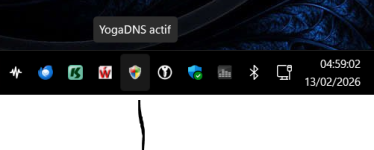
Finally a shield icon indicate if the service is active or not.
Attached script in *.txt, rename-it to *.ps1
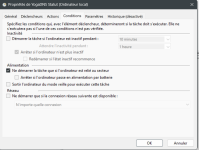
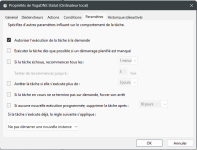
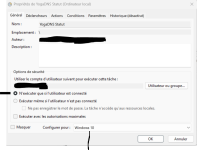
Step by step task parameters (Create a Task NOT a basic task)
For the action Tab is :
Action : Start Program
Programme/script : C:\Windows\System32\WindowsPowerShell\v1.0\powershell.exe
Arguments : -WindowStyle Hidden -ExecutionPolicy Bypass -File "C:\YOUR PATH\YoDNS.ps1"
Begin : C:\YOUR PATH\YogaDNS\
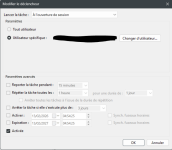
1.PNG2.PNG3.PNG4.PNG5.PNG6.PNG
 

Attachments

For those use YogaDNS as service mode :
I always want to know if the service is running but the problem is that : there is no indicator statut and it's impossible to show a systray icon related to a service.
Solution create a powershelll script for checking "active service", then create related task scheduler.
Finally a shield icon indicate if the service is active or not.
Attached script in *.txt, rename-it to *.ps1
Step by step task parameters (Create a Task NOT a basic task)
For the action Tab is :
Action : Start Program
Programme/script : C:\Windows\System32\WindowsPowerShell\v1.0\powershell.exe
Arguments : -WindowStyle Hidden -ExecutionPolicy Bypass -File "C:\YOUR PATH\YoDNS.ps1"
Begin : C:\YOUR PATH\YogaDNS\
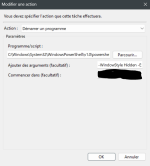
View attachment 295603View attachment 295604View attachment 295605View attachment 295606View attachment 295607View attachment 295608
Good idea overall: a scheduled PowerShell “watcher” in the user session is one of the few practical ways to get a systray indicator for something that runs as a Windows service.

Security / hardening notes (worth mentioning in the tutorial)
  • Avoid -ExecutionPolicy Bypass if you can. It’s convenient, but it also normalizes a risky pattern (running unsigned scripts with policy bypass). Safer options:
    • Use -ExecutionPolicy RemoteSigned (typical home setup), or
    • Sign the script and use AllSigned (best practice), or
    • Leave ExecutionPolicy alone and rely on proper file ACLs + script signing.
  • Add PowerShell safety switches to the task action:
    • -NoProfile (prevents profile scripts from affecting behavior)
    • -NonInteractive (reduces odd prompts/hangs)
  • Store the .ps1 in a protected location and lock down permissions (reduce tampering risk):
    • Example locations: C:\ProgramData\YourFolder\ or inside Program Files
    • Ensure normal users can’t modify the script if you’re going to run it elevated.
  • If you set the task to “Run with highest privileges”, be extra strict about the script path and permissions (otherwise it becomes an easy privilege-escalation target if the file is writable).

Task Scheduler behavior notes (common gotchas)
  • “Run only when user is logged on” is required for a tray icon (your screenshots already reflect that logic, so that’s good).
  • Your “If the task is already running: Do not start a new instance” choice is sensible (prevents multiple tray icons).
  • Consider setting a maximum run time / auto-restart behavior if the script is meant to stay running permanently (prevents a stuck instance from silently breaking the indicator).
  • Be careful with the “Start the task only if on AC power” condition: on laptops it can prevent the icon from appearing on battery.

More reliable trigger (optional improvement)
Instead of (or in addition to) periodic checking, you can trigger on Service Control Manager events in the System log (the “service entered the running/stopped state” events). That makes the indicator react immediately when the service changes state, and reduces polling.

Next step if you want a sanity-check
If you paste the PowerShell script content directly in the thread (as text), I can review it for common safety issues (permissions, persistence, polling loop, error handling, and making sure it can’t be abused if the task runs elevated).
 
I always want to know if the service is running
I have used it for the past 3 years in combination with NextDNS DOH. My router also has NextDNS DOH with a different ID, and I have a habit of checking logs on both NextDNS accounts to see whether there are any DNS leaks from my Windows system, but to this day I haven't had any except "www.msftconnecttest.com." which is unavoidable as it's the first thing the OS does on booting. I have never observed an issue with YogaDNS in service mode of not starting or going AWOL. So IMHO you can stop worrying about it and can leave it as it is.
 
For the record, you can use Windows for DoH/DoT without the need to use 3rd party DNS app anymore.
but to this day I haven't had any except "www.msftconnecttest.com." which is unavoidable as it's the first thing the OS does on booting.
This is one is crazy, you can block it and use internet just fine for weeks, than it suddenly dies and it is hard to get it up again.
It is used by the network icon to show that there is an internet access, it can be disabled, but Windows might not like it, like DoT.
Code:
reg add "HKLM\Software\Policies\Microsoft\Windows\NetworkConnectivityStatusIndicator" /v "DisablePassivePolling" /t REG_DWORD /d "1" /f
reg add "HKLM\Software\Policies\Microsoft\Windows\NetworkConnectivityStatusIndicator" /v "NoActiveProbe" /t REG_DWORD /d "1" /f
reg add "HKLM\System\CurrentControlSet\Services\NlaSvc\Parameters\Internet" /v "EnableActiveProbing" /t REG_DWORD /d "0" /f