

We all love getting things for free. A free meal, free samples at the grocery store, buy one get one free deals – they all spark joy. But when it comes to free offers online, especially unsolicited ones via email, we have to be more skeptical.
Inboxes around the world have been flooded with emails that seem to come directly from Netflix, declaring that the recipient’s subscription has ended and inviting them to “Get 1 Year of Netflix FREE”. As tantalizing as this may sound, it’s 100% a scam designed to steal your money and personal information.
This article will break down exactly what the Netflix free subscription scam is, how it works, and most importantly, how to avoid being duped. Let’s dig in.
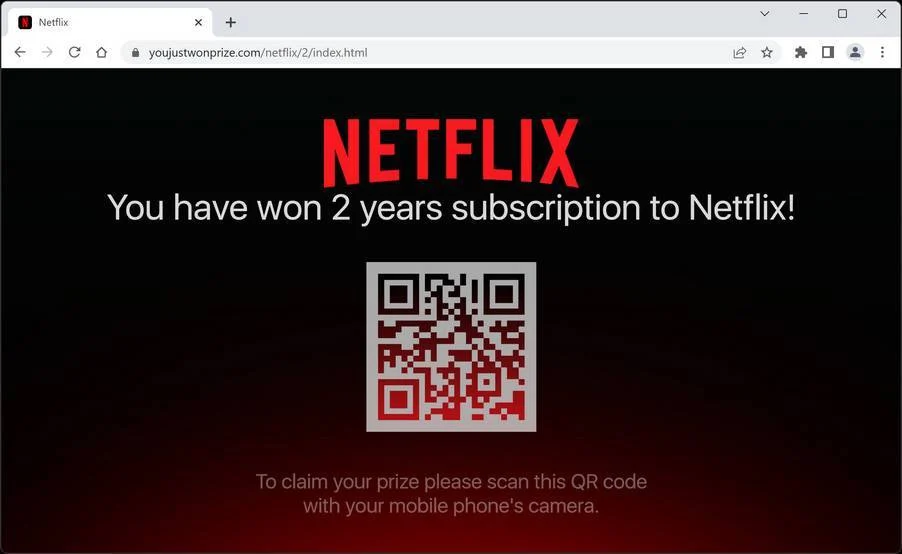
Overview of the Free Netflix Subscription Scam
This widespread scam predominately circulates via email, aiming to trick Netflix subscribers into handing over sensitive personal and financial information. Hundreds of scam variations exist, but the general framework is the same across most reported versions.
It starts with an email appearing to originate directly from Netflix. The sender name, email address, and branding seem legitimate at first glance. The content declares that the recipient’s subscription has ended, failed to renew, or encountered an unspecified billing problem.
This creates a sense of urgency, especially for those who may have actually just renewed their real Netflix account. It lures the victim into clicking enclosed links in a rush to “fix” the problem and restore their supposed missing access.
Clicking the link leads down a purposefully convoluted path, starting with an irrelevant survey about shopping habits or products. The scam depends on quickly distracting victims and establishing a sense of credibility through these surveys.
After completing the survey, the next redirect congratulates the victim for qualifying to receive a free gift card to popular merchants like Amazon or Walmart. Images of $100 gift cards appear, as do instructions to provide an email and physical address to claim it.
The website then suddenly changes to convey issues in supply or overwhelming demand, and switches the “prize” to a hot item like wireless headphones or an iPad. This further perpetuates the illusion of exclusivity and credibility.
Finally, the victim ends up on a fake checkout page under the premise of claiming their “prize”. It asks for credit card information, billing address, phone number, and other sensitive details – the true end goal.
Hidden in obscure fine print are monthly reoccurring subscription fees in the range of $100 charged by entering any payment information. The criminals behind the sites keep the credit card numbers for fraudulent purposes or resell on the dark web.
For example, in 2022 Texas resident Alice Chen reported losing $800 over 6 months before noticing the charges originating from “Deals Unlimited”, which she entered her info through the Netflix phishing flow. This scam continues to claim new victims daily.
The entirety of this multi-step process is designed to mislead victims away from realizing it’s a scam. The promised free Netflix subscription never materializes, just recurring credit card charges buried in deceptive terms and conditions.
Being aware this highly prevalent Netflix phishing scam exists is the best defense against being deceived. Caution should be exercised with any unexpected emails offering free subscriptions or account compromises. Verify the sender, check links, and delete suspicious messages.
How the Free Netflix Subscription Scam Works
Let’s break down the step-by-step process of how this scam unfolds:
1. You Receive an Email Claiming to be from Netflix
The scam starts with an email arriving in your inbox that appears to come from Netflix. The sender address normally looks convincing, containing some variation of the word “Netflix”, like “support@netflix.com” or “billing@netflixaccount.com”.
The email itself is well-designed, featuring the Netflix logo and following Netflix’s brand style. At quick glance, it looks totally legitimate.
2. The Email States Your Subscription Has Expired
The body of the email declares that your Netflix subscription has expired or failed to renew. This plants the seed that there’s an issue with your real Netflix account that needs to be fixed.
It may say something like “Your subscription expired on [date]” or “We were unable to renew your membership”. This gets you worried that your access has lapsed.
3. It Offers 1 Year of Netflix Free to Rectify the Problem
Now here comes the hook – the email offers you 1 full year of Netflix completely FREE. All you have to do is click the link to “Renew your membership” or “Verify your account”.
This tantalizing offer is meant to get you to act quickly, without thinking too hard about whether it’s legitimate. One year of free Netflix sounds awesome, so why not click and see what happens?
4. The Link Takes You to a Survey Site
When you click the link, instead of going straight to Netflix.com, you’re taken to some type of survey site. This acts as a redirect to hide the true malicious nature of the scam.
You’re prompted to take a “quick 3-minute survey” about shopping habits, browse products, or answer questions to “confirm your subscription”. In reality, it’s just gathering marketing data.
5. After Completing the Survey, You’re Told You’ve “Won” a Prize
Once you get through the survey questions, you’re congratulated and informed you qualified to receive a prize or free gift. This is just further distraction to keep you engaged and move you along to the real scam portion.
Prizes may include free Amazon gift cards, iPads, or other popular products. Of course, you’re never actually receiving anything – it’s just bait.
6. You’re Taken to a Fake Checkout Page to Claim Your “Prize”
The final redirect takes you to a sketchy website you’ve never heard of, disguised as the checkout page to claim your prize. Images of products are plastered everywhere to make it look legit.
You’re instructed to enter your shipping address and credit card information – this is the real goal of the scammers all along. To harvest your personal and payment details.
7. Hidden Fees Are Charged to Your Card on a Recurring Basis
If you actually complete the process and enter your info, your credit card will start being charged recurring monthly fees around $100 by the scammers behind the sites.
These ridiculous fees are buried in obscure terms and conditions or fine print, counting on you not reading closely. The scammers pocket the money and disappear, while you’re stuck dealing with the fraudulent charges.
This is why it’s absolutely vital to avoid entering any information and immediately close the pages if you encounter this scam flow. The “free” Netflix gift will never materialize – only the fees are real.
How to Spot the Fake Free Netflix Subscription Emails
While these scam emails become more sophisticated, there are telltale signs you can watch for to avoid being deceived and protect your information. Here are tips for identifying the fraudulent Netflix emails:
- Scrutinize the sender’s email address – Authentic Netflix email addresses use @netflix.com. Scams use slight misspellings or other domains.
- Look for grammatical/spelling errors – Legitimate emails from Netflix contain no obvious mistakes. Phishing emails often have typos.
- Hover over hyperlinked text – Don’t click, but hovering shows you where links really direct. They should go to netflix.com.
- Check for threatening urgent language – Scams want you to act fast out of fear. Real Netflix emails use neutral language.
- Note the formatting and style – Fake emails can look sloppy and informal. Real emails match Netflix branding.
- Watch for requests for information – Netflix would never ask for personal or banking details over email.
- Be skeptical of incredible offers – Unprompted free subscriptions out of the blue are always scams.
- Compare to real Netflix emails – Check the phishing email against valid emails from Netflix to spot inconsistencies.
Trust your instincts. If an email raises flags, feels off, or pressures you to act quickly, it’s safest to delete it. Report truly suspicious emails to Netflix directly to help protect others from falling victim.
What to Do if You Get the Fake Netflix Email
If this suspicious email pops up in your inbox, here are the smart steps to take:
- Hover over the sender address – See if the address matches Netflix’s actual domain, like info@netflix.com. If it’s anything else, it’s fake.
- Check for spelling/grammar errors – Legitimate emails from corporations don’t contain typos or mistakes. These scams are hastily put together.
- Don’t click any links – Links can download malware or send you to phishing sites. Never click in scam emails.
- Forward to phishing@netflix.com – Netflix provides this email to report scam emails impersonating them. Forward it to help get the domain blacklisted.
- Delete the email – Remove the email from your inbox so you don’t accidentally click later on. Empty your trash folder completely.
- Scan for suspicious charges – Log into your Netflix account to confirm your subscription is active. Double check your credit card statements for any unusual charges.
- Change passwords – Out of caution, change your main email, Netflix, and credit card account passwords in case they were compromised.
- Add extra security – Enable two-factor authentication on important accounts for an added layer of protection on your logins.
Following these steps will ensure no harm comes from the fake Netflix subscription email. You successfully dodged the scam attempt and can continue streaming your favorite shows without interruption. Being vigilant goes a long way online.
Is Your Device Infected? Run a Free Malware Scan
Slow performance, constant pop-ups, or strange behavior? These are classic signs of a malware infection. The fastest way to find out is to scan your device with Malwarebytes Free — one of the most trusted malware removal tools available.
The free version detects and removes the most common threats, including:
- Adware — the cause of those annoying pop-ups
- Browser hijackers — unwanted redirects and changed homepages
- Trojans and spyware — hidden programs stealing your data
- Potentially unwanted programs (PUPs) — software you never asked for
👉 Select your device below — Windows, Mac, or Android — then follow the simple steps to download Malwarebytes, scan your system, and remove any threats it finds. The scan usually takes 5 to 20 minutes.
Run a Malware Scan with Malwarebytes for Windows
Malwarebytes is one of the most popular and trusted anti-malware tools for Windows — and it’s completely free for removing infections. It catches threats that many antivirus programs miss, including adware, browser hijackers, and trojans. Follow the steps below to scan and clean your PC in just a few minutes.
Download Malwarebytes
Click the button below to download the latest version of Malwarebytes for Windows from the official source. The free version is all you need — it will scan your computer and remove adware, browser hijackers, and other malicious software at no cost.
Download MalwarebytesOfficial installer for Windows 11 and 10. Your download starts right away.Want real-time protection? See Malwarebytes Premium Malwarebytes Free for WindowsScans and removes malware at no cost
-
Install Malwarebytes
When the download finishes, open your Downloads folder and double-click the MBSetup file. If Windows shows a User Account Control pop-up, click “Yes” to allow the installation.

Follow the On-Screen Prompts to Install Malwarebytes
The setup wizard will walk you through a few quick screens:
-
Choose where you’re installing the program — “Personal Computer” or “Work Computer” — then click Next.

-
Malwarebytes will now install on your device. This usually takes under a minute.

-
When installation is complete, the “Welcome to Malwarebytes” screen will open automatically.

-
On the final screen, click Open Malwarebytes to launch the program.

-
Enable “Scan for Rootkits”
Before scanning, turn on rootkit detection so Malwarebytes can find even the most hidden threats. Click the Settings gear icon on the left side of the screen.

In the settings menu, find “Scan for rootkits” and click the toggle so it turns blue.

Done? Click “Dashboard” in the left pane to return to the main screen.
Start the Scan
Click the blue Scan button. Malwarebytes will automatically update its virus database and start checking your computer for malware.

-
Wait for the Scan to Finish
The scan checks your entire system for browser hijackers and other malicious programs, so it can take 5 to 20 minutes depending on your computer. Feel free to do something else — just check back occasionally to see the progress.

-
Quarantine the Detected Threats
When the scan is done, you’ll see a list of everything Malwarebytes found — malware, adware, and potentially unwanted programs. Click the “Quarantine” button to remove all of them at once.

Malwarebytes will now remove the malicious files and registry entries and move them safely into quarantine.

-
Restart Your Computer
Some threats can only be fully removed after a reboot. If Malwarebytes asks you to restart, click Yes. Once you’re logged back in, Malwarebytes has finished removing the threats it found.

That’s it — your Windows PC is now clean of trojans, adware, and other malware, and should be back to running smoothly.
If you are still having problems with your computer after completing these instructions, then please follow one of the steps:
- Run a computer scan with ESET Online Scanner
- Ask for help in our Windows Malware Removal Help & Support forum.
Run a Malware Scan with Malwarebytes for Mac
Malwarebytes for Mac is a free on-demand scanner that removes the malware other security software tends to miss — adware, browser hijackers, and unwanted programs included. Cleaning an infected Mac with Malwarebytes has always been completely free, and it’s our go-to recommendation. Follow the steps below to scan and clean your Mac in just a few minutes.
-
Download Malwarebytes for Mac
Click the button below to download the latest version of Malwarebytes for Mac.
Download MalwarebytesOfficial installer for macOS. Your download starts right away.Want real-time protection? See Malwarebytes PremiumMalwarebytes Free for MacScans and removes malware at no cost -
Open the Malwarebytes setup file
When the download finishes, open your Downloads folder and double-click the setup file to begin the installation.

-
Follow the On-Screen Prompts to Install Malwarebytes
The Malwarebytes for Mac Installer will guide you through a few quick screens. Click “Continue” and keep following the prompts until the installation completes.



When the installation is complete, Malwarebytes opens to the Welcome to Malwarebytes screen. Click “Get started“.
-
Select “Personal Computer” or “Work Computer”
Malwarebytes will ask what type of computer you’re installing it on. Click either Personal Computer or Work Computer, whichever applies.

-
Start the Scan
Click the “Scan” button. Malwarebytes will automatically update its detection database and begin checking your Mac for malware.

-
Wait for the Scan to Finish
Malwarebytes will scan your Mac for adware, browser hijackers, and other malicious programs. This can take a few minutes, so feel free to do something else — just check back occasionally to see the progress.

-
Quarantine the Detected Threats
When the scan is done, you’ll see a list of everything Malwarebytes found. Click the “Quarantine” button to remove all the threats at once.

-
Restart Your Mac
Malwarebytes will now remove all the malicious files it found. Some threats can only be fully removed after a reboot — if Malwarebytes asks you to restart, allow it. Once you’re logged back in, your Mac is clean.

That’s it — your Mac is now free of adware, rogue browser extensions, and other potentially harmful software.
If you are still experiencing problems while trying to remove a malicious program from your computer, please ask for help in our Mac Malware Removal Help & Support forum.
Run a Malware Scan with Malwarebytes for Android
Malwarebytes for Android automatically detects and removes dangerous threats like malware and ransomware so you don’t have to worry about your most-used device being compromised. Aggressive detection of adware and potentially unwanted programs keeps your Android phone or tablet running smooth.
-
Download Malwarebytes for Android.
You can download Malwarebytes for Android by clicking the link below.
Get Malwarebytes for AndroidOpens Google Play in a new tab.Want real-time protection? See Malwarebytes Premium for AndroidMalwarebytes for AndroidScans your phone and removes malware at no cost -
Install Malwarebytes for Android on your phone.
In the Google Play Store, tap “Install” to install Malwarebytes for Android on your device.

When the installation process has finished, tap “Open” to begin using Malwarebytes for Android. You can also open Malwarebytes by tapping on its icon in your phone menu or home screen.

-
Follow the on-screen prompts to complete the setup process
When Malwarebytes will open, you will see the Malwarebytes Setup Wizard which will guide you through a series of permissions and other setup options.
This is the first of two screens that explain the difference between the Premium and Free versions. Swipe this screen to continue.
Tap on “Got it” to proceed to the next step.
Malwarebytes for Android will now ask for a set of permissions that are required to scan your device and protect it from malware. Tap on “Give permission” to continue.
Tap on “Allow” to permit Malwarebytes to access the files on your phone.
-
Update database and run a scan with Malwarebytes for Android
You will now be prompted to update the Malwarebytes database and run a full system scan.

Click on “Update database” to update the Malwarebytes for Android definitions to the latest version, then click on “Run full scan” to perform a system scan.

-
Wait for the Malwarebytes scan to complete.
Malwarebytes will now start scanning your phone for adware and other malicious apps. This process can take a few minutes, so we suggest you do something else and periodically check on the status of the scan to see when it is finished.

-
Click on “Remove Selected”.
When the scan has been completed, you will be presented with a screen showing the malware infections that Malwarebytes for Android has detected. To remove the malicious apps that Malwarebytes has found, tap on the “Remove Selected” button.

-
Restart your phone.
Malwarebytes for Android will now remove all the malicious apps that it has found. To complete the malware removal process, Malwarebytes may ask you to restart your device.
That’s it — your Android phone is now clean — no more malicious apps, adware, or browser redirects.
If you are still having problems with your phone after completing these instructions, then please follow one of the steps:
- Restore your phone to factory settings by going to Settings > General management > Reset > Factory data reset.
- Ask for help in our Mobile Malware Removal Help & Support forum.
Stay Protected: Block Ads and Malicious Sites
Now that your device is clean, keep it that way. Most infections start with a malicious ad or a fake download button — so blocking them at the source is your best defense.
We recommend AdGuard, which blocks malicious ads, phishing pages, and dangerous redirects before they can reach you.
👉 Download AdGuard and browse safely
Frequently Asked Questions about the Fake 1 Year Free Netflix Subscription Email Scam
1. What is the 1 year free Netflix subscription email scam?
This is a phishing scam where victims receive an email claiming to be from Netflix, stating that their subscription expired and they must “renew” to get 1 year of Netflix for free. The email contains a link that leads to survey sites, eventually taking you to a fake checkout page designed to steal your personal and payment information.
2. How do I recognize the Netflix phishing email is fake?
Look closely at the sender address – it likely won’t match an official @netflix.com domain. Check for typos, grammatical errors, and formatting inconsistencies, which signal it’s not a real Netflix communication. Hover over links to see if they direct anywhere suspicious.
3. What happens if I click the link in the Netflix scam email?
You’ll be taken through a series of sketchy websites starting with a survey, then shown fake prizes, before ending up at a bogus checkout page asking for your info. Any credit card details entered will be stolen and used to charge monthly recurring fees by the scammers.
4. Should I ever click links or attachments in unsolicited emails?
No, never click anything in emails from senders you don’t know. Even if an email looks to be from a real company like Netflix, it’s safest to delete right away. Clicking could infect your device with malware or send you to phishing sites.
5. What steps should I take if I receive the fake Netflix email?
Do not click any links. Forward the email to phishing@netflix.com to report it. Delete the email permanently. Scan your credit card statements for odd charges. Change your Netflix password and enable two-factor authentication for added protection.
6. How can I identify other phishing email scams?
Watch for urgent language demanding quick action, threats about account closure, adamant requests for personal information, and too-good-to-be-true offers. Check sender addresses, hover over links, and look for poor spelling/grammar.
7. What are some tips to avoid phishing scams?
Never click links or attachments from unverified emails. Use security measures like multifactor authentication. Hover over links to inspect their real destination. Keep software updated. Check account statements routinely for fraudulent charges.
8. What should I do if I entered my information and now see suspicious charges?
Immediately alert your credit card company and dispute the charges as fraudulent. Change online account passwords that may have been compromised. Monitor your credit reports with Equifax, TransUnion, and Experian for signs of identity theft long-term.
9. Can I really get 1 year of Netflix for free from an email offer?
No, Netflix only provides discounted subscription offers on its official website, following an account cancellation. Unexpected free subscription offers via email are always 100% scams, aimed at stealing financial information. Deleting the emails is the safest option.
10. Who do I contact for help if I was scammed?
Notify your bank and credit card provider immediately about any fraudulent charges. File a complaint with the Federal Trade Commission on IdentityTheft.gov and your local police department. Request credit reports and monitor closely for any signs of identity theft.
The Bottom Line
The infamous “free 1 year Netflix subscription” scam is running rampant globally. Millions of these emails are being sent daily to lure victims into giving up personal information and credit card numbers under false pretenses.
While the email looks convincingly real, it’s just a front for redirects to shady phishing sites that charge hidden fees after you enter your info. No free Netflix is being given away.
If you receive this scam email, report and delete it immediately. Never click links, provide data, or even open attachments from unsolicited messages. Follow basic email security practices like checking sender addresses and be aware of this specific Netflix phishing scam.
Staying aware of the latest online scams like this can help you avoid becoming the next victim. Don’t get duped out of your hard-earned money – stick to official communications from reputable companies. If it seems too good to be true, like 1 year of free Netflix, it undoubtedly is.

Join the discussion
0 commentsShare your experience or ask a question about this article.
Discussion
Start the conversation
Have a question or something useful to share? Add the first comment.