


Your inbox works, but a note from the supposed mail administrator says it just got bigger. The new allowance is 10 GB, and the message makes it sound routine.
There is one condition buried below the good news. The sender wants you to confirm that you still use the mailbox. That small request deserves a closer look.
Overview
The offer is more space, not a warning that you’re full
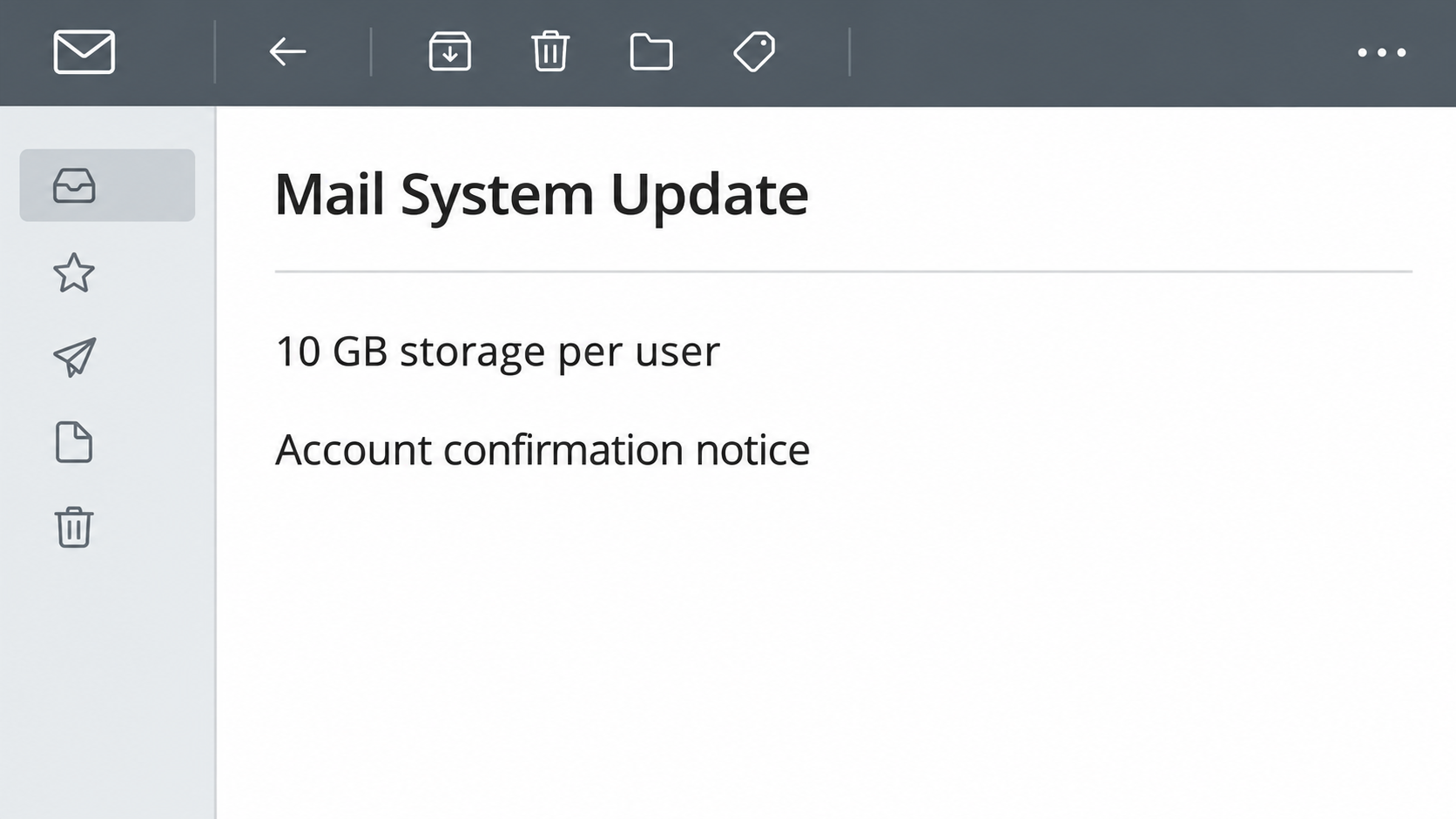
The “Email Accounts Have Been Upgraded” phishing email announces 10 GB of storage per user. It presents the extra space as a change to a whole group of mailboxes.
The subject in the documented example combined a mail system update with user confirmation. The message then asked the recipient to confirm that an email account was still active.
It isn’t a genuine storage upgrade. The sender imitates an administrator and supplies a verification link rather than pointing you to an independently accessible setting in the existing mailbox.
The sender wants you to treat a sign-in as routine housekeeping
People at work get notices about storage, software and policy changes all the time. A small account confirmation can sound like the last task left over from a real migration.
The sample link was no longer active when researchers checked it. You have no reason to try it again or look for another way to reach it.
Don’t assume it showed the same login for everyone. More generally, fake pages can imitate familiar providers, but this particular report doesn’t confirm what every recipient would have seen.
The number is easy to check without the email
- Open your existing mail account directly and look for storage in the genuine settings.
- If it’s a managed mailbox, ask the real administrator whether the quota changed.
- A storage setting doesn’t prove that an unrelated request for login details is genuine.
- If you typed a password on an unexpected page, contact the appropriate provider or administrator promptly.
You don’t need to decide whether 10 GB is generous. You need to decide who controls the mailbox and why a message is asking for another sign-in.
How the 10 GB Mailbox Upgrade Scam Works
Step 1: An administrator seems to announce good news
The note speaks about a group upgrade, not an offer you have to buy. That can make it feel like something the organization already approved on your behalf.
A message addressed to your actual mailbox can still come from somebody outside the organization. Knowing the address isn’t evidence that the sender can allocate storage to it.
The request can reach personal addresses too. If you don’t have a group administrator for that mailbox, don’t invent one just because the message is written in administrator language.
Step 2: The free upgrade comes with a small task
The email asks whether you still use the account. That sounds less invasive than a password request when you read the instruction quickly and don’t see the next page yet.
The difference between verifying use and giving someone a password is the part worth questioning. A service already running your mailbox can see which account is assigned to you.
Even if you’re in the middle of a genuine migration, confirm any action with the real administrator. The timing of an authentic project doesn’t validate a second notice.
Step 3: The email supplies its own place to verify
The link takes you outside your usual mailbox route. A page can show your address or copy a familiar login without being part of the service.
Open a new tab and go to the provider directly instead. If you’re already signed in there, don’t switch back to the unrelated page to confirm the account.
A password manager may not offer the saved login if the site is different. That’s a reason to check the destination, not to type the exact password by hand.
Step 4: Email access can affect more than the storage meter
Some mailboxes receive financial statements, supplier conversations and links used to reset passwords. Losing control can affect services that you never thought of as connected to email storage.
An attacker who obtains access may try to read messages, send convincing replies or keep receiving copies after you reset the password. Those aren’t outcomes confirmed for each recipient.
Think about what the mailbox is used for. If it approves purchases or handles customer records, tell the account administrator before treating it as an ordinary personal password issue.
Where to Check a Real Storage Upgrade
Start with the setting, not the message
For a personal account, open the provider’s storage settings while signed in through your usual route. Look for the current allowance and how much of it is already used.
For example, Microsoft’s storage guidance distinguishes personal Outlook.com mailbox storage from other Microsoft cloud storage. A change to one limit doesn’t necessarily change the other.
Don’t compare the email’s number to a random figure in a search result. Plans and organization policies differ, and your actual account is the relevant place to check.
Ask which account or group is involved
If the mailbox belongs to a school or employer, open a support ticket through the organization’s normal system. Include the message subject and ask whether that upgrade was announced.
Give them the address that received it, but not your password. If multiple people got the note, send the fact of that wider distribution through the same internal route.
The administrator may have a standard communication about the real changes. Read that on the intranet or support portal rather than forwarding the suspicious link as a sign-in shortcut.
Don’t mistake a genuine storage problem for proof of the email
You might actually be close to a quota. Some services can limit sending or receiving when storage is exhausted. Use genuine instructions to deal with your real limit.
Find out whether you should archive, remove large items or ask for more space. If records belong to an employer, follow its retention rules before deleting anything.
Nothing about a full inbox tells you that the link in a stranger’s upgrade notice is safe. Resolve the practical storage issue in the account you normally use.
What to Do If You Opened the Upgrade Email
-
If you only read it: Report it using the available phishing option. For a managed mailbox, use the organization’s report button or a verified help desk route.
You can check the actual quota if you’re curious. There’s no requirement to reply to the sender or prove that you still receive mail at this address.
-
If the page opened but you shared nothing: Close it without testing another link. Note whether you accepted a permission or saved a file, since those are separate actions.
Don’t search for another version if the page fails to load. Go directly to your mailbox through your usual route instead.
-
If you entered a login: Reset it from the provider’s real account settings on a trusted device. Contact work or school support if it manages the mailbox.
Ask how to revoke active sessions or access you don’t recognize. If you use the same password for another account, replace it on that service independently.
-
If you supplied a code or approved a sign-in: Tell the administrator exactly what happened, not just that you received phishing. Include the time and affected account.
A request can be genuine while the action it authorizes is not yours. Use the provider’s legitimate security controls to review or terminate unfamiliar access.
-
Review settings after regaining control: Look for new forwarding addresses, mailbox rules, delegates and recovery contacts. Where available, review third-party app access and account activity.
Don’t remove a work-approved delegate based on the name alone. Ask your administrator if you can’t distinguish an unfamiliar change from a legitimate shared mailbox setup.
-
Warn colleagues if the account sent messages: Use a channel you know is secure. Specify the kind of message to ignore and ask recipients not to forward it.
If the account sends invoices or payment updates, verify outstanding instructions separately with the people who received them. Keep a record rather than assuming every message was altered.
After the Password Reset, Check Where New Mail Goes
A password reset makes it harder to sign in again with the old password. It doesn’t necessarily remove a forwarding rule somebody set while the account was accessible.
Check for rules that send email to another address, move it out of the inbox or mark it read. Those changes can hide alerts you were expecting to see.
Google’s suspicious activity guidance lists warning signs such as unexpected forwarding. Microsoft’s account recovery guidance also calls out mail settings that should be checked.
Ask your security team what to record before removing a suspicious work mailbox rule. Don’t forward real customer mail just to show how the rule behaved.
Review other services where the mailbox is used for account recovery. If those services show unfamiliar access, use their security settings and notification routes, not links in unexpected reset messages.
A shared mailbox can affect several people. Find out who can send on its behalf and who manages recovery before asking users to change any other passwords.
How to Report the Message Without Sending New Secrets
Send the actual subject line and receipt time to the legitimate support team. Explain the 10 GB claim so they can distinguish this message from ordinary quota notifications.
Preserve the original email if the team asks for it. A pasted screenshot can omit sender and destination information, but don’t click either link to collect that information yourself.
If you entered a password, tell support which account it was for without stating the password itself. Describe any approval messages or unexpected resets separately.
A useful report separates what the sender claimed, what you observed and what you did. That gives the account owner enough information to check for actual access rather than guessing.
Don’t Confuse Your Mail Address With the Provider Behind It
Many school and work addresses don’t end in the name of the software you use to read them. You might sign in through a separate organization portal.
Start wherever you normally open webmail. The part after the at sign identifies a domain, but it doesn’t tell you which login page to trust.
If you’re on a new device and don’t remember, ask for the route through an existing support number or portal. Don’t let the upgrade email supply a replacement.
Make sure you’re checking the right account. An app can show several mailboxes at once, and the storage meter you find may belong to your personal account.
Check the full address in the genuine account settings or browser tab, especially if you manage a work inbox and a private one on the same device.
What to Do if Storage Really Is Almost Full
Read the notice shown inside the account and see what is taking up space. The total may include different things depending on the provider and the plan.
If you decide to archive or remove files, use tools recommended by your own provider. Avoid a stranger’s promise to clean up the mailbox if you grant access.
For a company or school account, ask support about shared limits and retention before trying to move messages to a personal account. The storage notice doesn’t change those responsibilities.
Test whether mail is flowing through your ordinary communication with someone you already know, if needed. There’s no reason to send the phisher a test reply.
Handle a real quota limit and a suspicious notice as two separate problems. You can fix one in your existing account and report the other without using its link.
If your administrator really did announce more capacity, keep the official announcement handy. It should let you describe exactly what changed without relying on the suspicious version.
Frequently Asked Questions
Did my email provider raise my storage allowance to 10 GB?
The documented message isn’t a genuine upgrade. Check your own account settings or ask the administrator whether the allowance changed rather than relying on the number in the email.
Does the email mean my mailbox will be disabled?
The sender’s claim doesn’t establish an account restriction. Look in the official account or support portal for a real notice about inactivity, storage or access.
Can a fake sign-in know my email address?
A page can show an address already known to its operator. Seeing that address on a form doesn’t mean the page belongs to your email provider.
Do I need to delete messages to fix the scam?
There’s no need to clear your inbox because of the fake notice. Only make storage changes if your account actually needs them, using the provider’s genuine guidance.
Should I reset the password if I just read it?
Reading the email doesn’t show somebody obtained your password. A reset and session review are appropriate if you gave up credentials or find signs someone accessed the account.
What if the new quota is visible in my real account?
A matching allowance doesn’t validate the message or its link. Use the genuine settings and ask your administrator if any further action is actually required.
The Bottom Line
Ignore the verification link in the 10 GB mailbox upgrade email. Check storage through the account you already use, or ask the real administrator about the change.
If you gave the page login details or confirmed a sign-in, secure the account through known channels now. Review sessions and mail settings rather than stopping at a password change.

Join the discussion
0 commentsShare your experience or ask a question about this article.
Community experiences
Did this happen to you?
Your experience could help someone recognize the same scam. Submit a private report for our team to review.
I experienced this tooReports are reviewed before publication. Sharing publicly is always your choice.
Discussion
Start the conversation
Have a question or something useful to share? Add the first comment.