


You want to play GTA VI on the computer you already own. A site says its cloud player can do it, without waiting for a native PC release.
The page looks like a familiar game launcher. Then it asks you to do something in Windows that has nothing to do with signing into your console.
Overview
A real gap in the release makes a false shortcut believable
GTA VI launched on PlayStation 5 and Xbox Series X|S. The lack of a native PC release made the fake cloud player’s workaround sound useful.
The site claimed its Windows client would stream the game from a console. That’s not the same thing as a service you reach through the game publisher or console maker.
Check Rockstar’s official GTA VI page for supported platforms and editions. An unofficial client doesn’t become authorized because it mentions a real game and familiar hardware.
The dangerous step is running the command or opening the launcher
Bitdefender analyzed the campaign and found a malicious Windows program behind the promise. It documented a downloaded executable and a prompt to run a command.
This kind of prompt is called ClickFix. The page is asking you to run its instructions in Windows. You don’t need to inspect the code first.
A fake launcher can appear to work while doing something else. The researchers observed game-themed content as a decoy while the program retrieved other malicious components.
The response depends on what you actually did
- Seeing the site doesn’t establish that the documented program ran.
- Downloading a file is different from opening it or letting a command run.
- If you executed either route, isolate the PC and secure important accounts from another device.
- Removing software does not revoke stolen sessions, change passwords or secure an exposed wallet.
This is not a concern limited to a Rockstar account. The analyzed stealer could seek saved browser credentials, session data and information associated with other apps on the computer.
How the GTA VI Cloud Player Scam Works
Step 1: The page promises a way around the PC wait
The pitch doesn’t promise a new build of the game. It claims a client can relay the console version to your computer, a narrower and more believable promise.
Remote play and streaming are real, which helps the story sound plausible. Verify that this particular app is approved instead of trusting the idea it borrows.
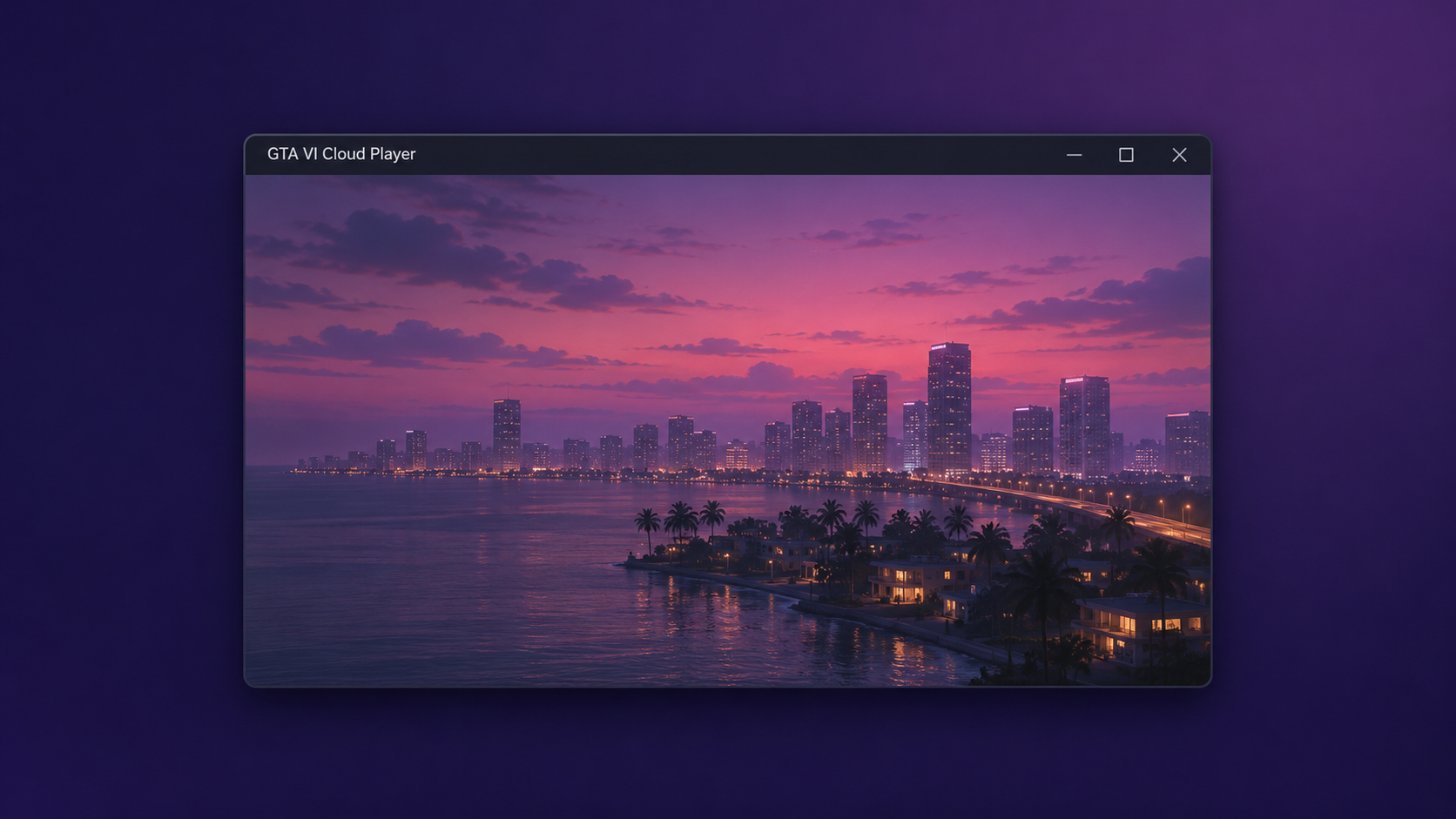
Don’t let the product artwork answer those questions. A page can borrow trailer footage or recognizable scenery without working with the company that owns it.
Step 2: The download turns into an instruction for Windows
The page offered a supposed client and urged visitors to run a command. Don’t continue when a download page sends you to a system prompt.
You aren’t accepting a normal video stream when you do that. You’re letting a website’s instructions act on the computer as your user, outside the browser’s ordinary page controls.
If you’ve copied something but haven’t run it, clear it from the clipboard without pasting it into a shell. Close the page and don’t keep working through the steps.
Step 3: A familiar video distracts from the malicious program
The research described a GTA-themed display playing a trailer. Seeing the video can make the setup feel successful even though you aren’t playing or receiving a live game stream.
What happened in the background is what mattered. The opened program brought down other components and allowed the information stealer to run. Closing the visible window alone doesn’t undo that.
You don’t need to reproduce the sequence to know whether it resembles your experience. Write down how you got there and whether you ran a file or approved the instruction.
Step 4: The stealer reaches beyond the game
The researchers found that the malware could target browser data and sessions, gaming and chat accounts, some cryptocurrency wallet data, clipboard contents and credentials used for work or development.
That capability is not a list of everything taken from every infected PC. It tells you which accounts and secrets are worth checking if you ran the client.
A session lets you stay signed in after entering your password. If a browser session was copied, shutting the original browser window doesn’t necessarily end the service’s session elsewhere.
What to Do If You Encountered the Fake Download
If you only saw the site: Close the page without downloading the player. Don’t return to see if anything changed or try a copy advertised in the comments.
Check the browser’s downloads for an unexpected file. Don’t open it to identify the icon. If nothing ran, don’t assume that every password on your PC has been stolen.
If you ran the download or command: Disconnect the affected PC from Wi-Fi or Ethernet. Stop signing into accounts on it, even if the launcher has already closed.
For a computer managed by work or school, contact the help desk or security team before restarting, deleting files or running your own cleanup. They may need to preserve evidence.
Protect accounts from a clean device: Start with your recovery email account. Change its password, close unfamiliar sessions, check recovery details and enable stronger sign-in protection.
Then work through identity, financial, game and chat accounts that were signed in on the affected device. Use each service’s own session and security controls.
Protect private storage and work accounts: Tell the administrator if the PC held work credentials or developer keys. Check for tokens that need revoking, not just passwords needing a reset.
If you used a wallet on that PC, check it from a clean device. Seek verified support for suspicious activity and never give a recovery phrase to a recovery service.
Make a short incident record: Note when you opened the launcher, what you ran and what security alerts appeared. Keep payment, account and scanner records private.
Do not upload the suspicious program, private keys or browser profile to a public help thread. A volunteer can often start with the symptoms and a safely redacted report.
How to Check and Clean the Affected Windows PC
Step 1: Contain it before you think about the scanner
Keep the machine disconnected while you decide on a cleanup route. Use a separate device to read official instructions or get an installer from a source you trust.
If it’s a managed computer, stop at containment and follow the organization’s instructions. On a home PC, note the time and security alerts before you remove anything.
Don’t click Allow, Restore or Exclude on a detection tied to the download. Don’t turn off security protections to help the fake player or a supposed repair tool run.
Step 2: Run a trusted Malwarebytes scan and review results
The illustrated Windows procedure below covers getting the installer, running a Threat Scan, reviewing findings and quarantining the detections. A manual scan doesn’t require purchasing the real-time protection offer.
Use the official download route shown in the guide. Don’t reuse a scanner, update or installer provided by the website that offered the GTA VI player.
If the site’s download button doesn’t open, use the official Malwarebytes download page from a clean computer. Keep its installer separate from the file you suspect.
The screenshots show the controls in an example scan. They don’t show a GTA VI detection, and your result can have different names or no findings.
Malwarebytes is one of the most popular and trusted anti-malware tools for Windows — and it’s completely free for removing infections. It catches threats that many antivirus programs miss, including adware, browser hijackers, and trojans. Follow the steps below to scan and clean your PC in just a few minutes.
Download Malwarebytes
Click the button below to download the latest version of Malwarebytes for Windows from the official source. The free version is all you need — it will scan your computer and remove adware, browser hijackers, and other malicious software at no cost.
Download MalwarebytesOfficial installer for Windows 11 and 10. Your download starts right away.Want real-time protection? See Malwarebytes Premium Malwarebytes Free for WindowsScans and removes malware at no cost
-
Install Malwarebytes
When the download finishes, open your Downloads folder and double-click the MBSetup file. If Windows shows a User Account Control pop-up, click “Yes” to allow the installation.

Follow the On-Screen Prompts to Install Malwarebytes
The setup wizard will walk you through a few quick screens:
Current installers may offer Browser Guard, a trial, or a paid plan. Read each screen; use Skip for optional offers you do not want. Manual Windows scans and quarantine remain available in the free version.
-
Choose where you’re installing the program — “Personal Computer” or “Work Computer” — then click Next.

-
Malwarebytes will now install on your device. This usually takes under a minute.

-
When installation is complete, the “Welcome to Malwarebytes” screen will open automatically.

-
On the final screen, click Open Malwarebytes to launch the program.

-
Choose the scan type and optional rootkit check
Start with the normal Threat Scan. For an additional rootkit check, click the three dots on the Scanner tile, choose Advanced Scan, then Custom Scan.
In the Custom Scan options, enable Scan for rootkits and select the entire C:\ system drive. Click Start Custom Scan when you have reviewed the remaining options. This option is unavailable on Windows ARM devices; do not change Windows security settings to make it appear.
Run the Custom Scan if you selected it. Otherwise, return to the Dashboard and follow the Threat Scan steps below. You do not need rootkit scanning enabled to run a normal scan.
Start the Scan
Click the blue Scan button. Malwarebytes will automatically update its virus database and start checking your computer for malware.

-
Wait for the Scan to Finish
A Threat Scan checks memory, startup items, the registry, and common malware locations; it does not inspect every file on every drive. Allow it to finish. Use a Custom Scan if you also need to check a particular drive or folder.

-
Quarantine the Detected Threats
When the scan finishes, review the detected items and leave the threats you want removed selected. Click Quarantine. If you are unsure about a detection, save the report and ask for help before excluding it.

Malwarebytes will now remove the malicious files and registry entries and move them safely into quarantine.

-
Restart Your Computer
Some threats can only be fully removed after a reboot. If Malwarebytes asks you to restart, click Yes. Once you’re logged back in, Malwarebytes has finished removing the threats it found.

Save the result so you can tell what was found and what the tool actually did. If it asks for a restart, save your work before following that instruction.
Step 3: Check the result before putting accounts back on the PC
After any requested restart, check the scanner for outstanding findings. If Microsoft Defender is your active protection, its Protection History can show security actions that still need review.
A clean result doesn’t prove an executed stealer did nothing before the scan. Keep account recovery separate, and monitor alerts on the affected accounts from your clean device.
If threats reappear or the scan can’t finish, stop using the system for sensitive work. Get professional help before choosing a reinstall or assuming the PC is clean.
Step 4: Get help before rebuilding or copying everything back
A reinstall can remove software and personal files depending on the method. Review Microsoft’s recovery instructions or ask a technician before choosing an option that wipes data.
Keep necessary documents and photos, but do not restore the suspicious launcher, earlier downloads or unknown scripts. Scan retained files and reinstall trusted applications from their original sources.
For a personal computer, the MalwareTips Windows removal forum can help with unresolved findings. Don’t include session cookies, payment data or private tokens in a public post.
Why Changing a Password Isn’t Always the Last Step
A password is only one way an account recognizes you. A site may also remember your browser so that it doesn’t challenge every visit with a new sign-in.
Look for a page that lists active devices or sessions. Use the account’s available controls to sign out unfamiliar access, and check trusted applications and recovery options.
For a work account, the administrator may be able to revoke active access and check sign-in records. A personal password change doesn’t replace that organizational response.
Be alert to contacts who receive messages you didn’t send. Let them know through a trusted channel and tell them to ignore any links sent from the affected account.
If you handle payments or wallet addresses on the same PC, don’t trust older copied payment details. Check the destination independently on a clean device before authorizing any payment.
What to Do With the Accounts People Often Forget
Look at the mailbox tied to your gaming accounts, not just the games. Inbox access can reveal purchase records, recovery links and security notices from several services.
Review what the mailbox forwards, filters or hides. Those settings matter even if you haven’t found a message you didn’t send, because not every mailbox change produces sent mail.
Use the security dashboard for each gaming or social account to check logins and purchases. Check saved payment methods separately, and report charges you did not authorize through verified support.
If the machine also held browser-saved work logins, tell the administrator which services you used. They can advise which sign-in sessions, keys or tokens need replacing.
For a wallet, don’t share screenshots containing recovery information. Ask verified wallet support what applies to your type of wallet and get help before moving funds if you’re unsure.
If you’ve already changed a password from the affected PC, change it again from a clean device after checking the account’s recovery settings. The first change may not be enough.
Check What the Browser Actually Downloaded
A file in Downloads doesn’t mean a program ran. Look at the browser’s download history and your own actions, rather than drawing a conclusion from the file name alone.
If you didn’t open it, discard the file without starting it. Don’t pass it to a friend who says they can try it on a different computer.
If you can’t remember what ran, describe the window, any security prompt and changes after a restart. Those details help a technician assess what happened.
Don’t resume paying bills or signing into games on that PC until cleanup is complete. Keep using the clean device for sensitive accounts if you’re unsure.
Don’t return to the download site to compare its instructions with a screenshot. Check the publisher’s own release information to find where the game is available.
Neither a changed website nor a file somebody gave a different name proves the launcher is now safe. Make your decision from the verified source, not from a new claim.
Don’t restore an unexpected detection to check whether it was harmless. Ask the scanner’s support team or a trusted technician to review the result.
Frequently Asked Questions
Is the GTA VI cloud player download from Rockstar?
The client in the documented campaign wasn’t an official Rockstar product. Use the publisher’s site and your console’s official service to check game availability and ways to play.
Can the fake launcher look like it is working?
The analyzed program showed GTA-themed content as a decoy. A trailer playing inside a window doesn’t authenticate the program or show that it is streaming the game.
Does only visiting the site mean Windows is infected?
The documented infection depended on execution. If you didn’t run the command or open the downloaded program, the report doesn’t establish infection from your visit alone.
Does this only affect my Rockstar or console account?
The stealer could seek data stored on the affected PC, including browser sessions and credentials from other services. Prioritize your recovery email and accounts with sensitive access.
Can a scan recover stolen passwords or sessions?
A scanner can find and quarantine software, but it doesn’t undo information disclosure. Reset affected credentials and revoke access through the legitimate services from a clean device.
Should I try the download again with security software enabled?
Do not run another copy to test whether a scanner recognizes it. Use the original publisher and official console services instead of treating a malware warning as an installation problem.
The Bottom Line
Don’t install the fake GTA VI PC cloud player or run a command it supplies. The documented software used the promise of playing on Windows to deliver an information stealer.
If you already executed it, isolate the PC, secure your accounts from a clean device and get the machine checked. Don’t wait for a gaming login to stop working first.

Join the discussion
0 commentsShare your experience or ask a question about this article.
Community experiences
Did this happen to you?
Your experience could help someone recognize the same scam. Submit a private report for our team to review.
I experienced this tooReports are reviewed before publication. Sharing publicly is always your choice.
Discussion
Start the conversation
Have a question or something useful to share? Add the first comment.