Eva Delonne AI Influencer Exposed: Is She a Real Woman or Virtual Persona?
Written by: Lapain Epuran
Published on:
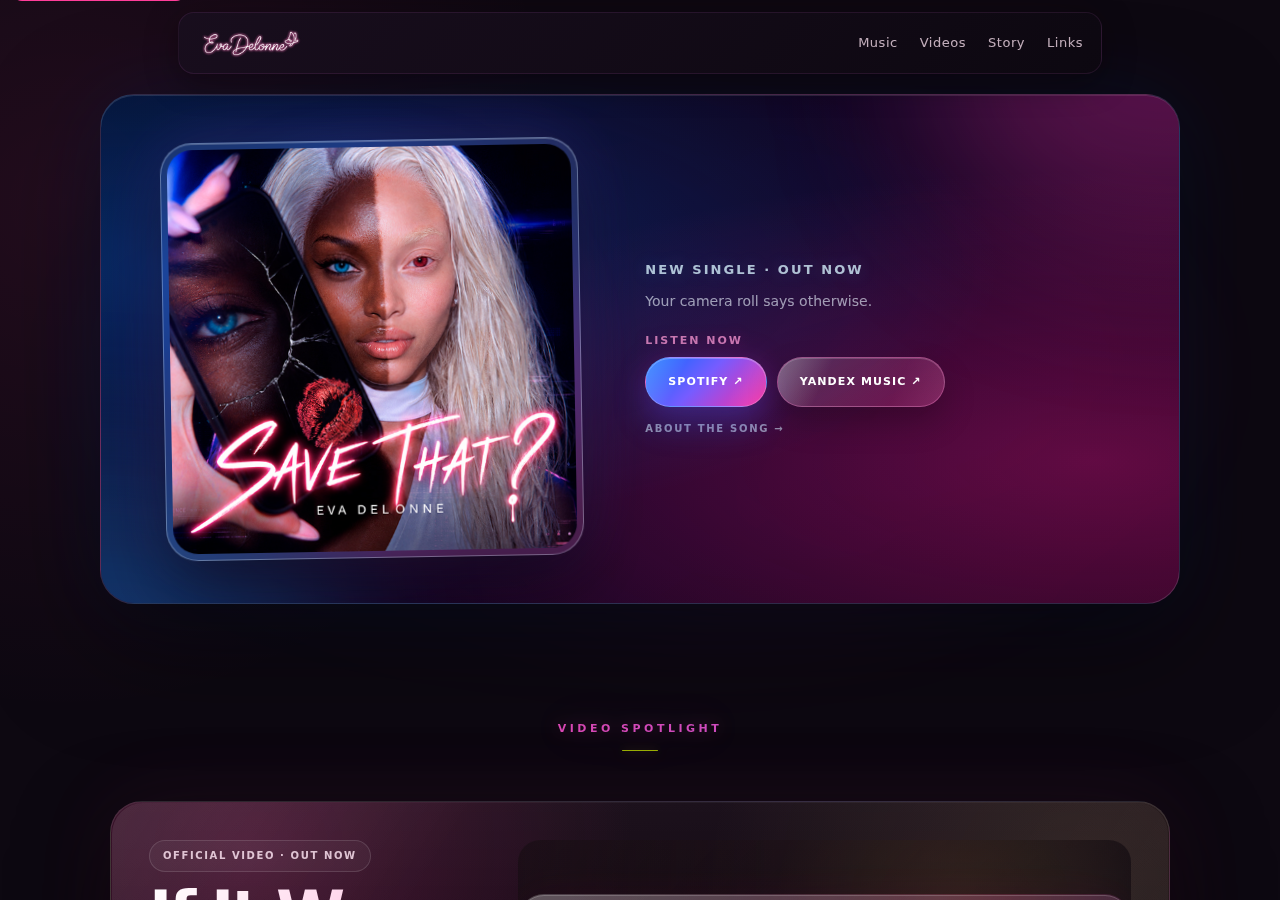
Eva Delonne looks like another polished lifestyle creator, complete with travel photographs, private updates, and an invitation to get closer.
Yet a few details change how those posts should be understood. This investigation follows the public trail behind the profile.
Overview
Eva Delonne is presented as a digital personality
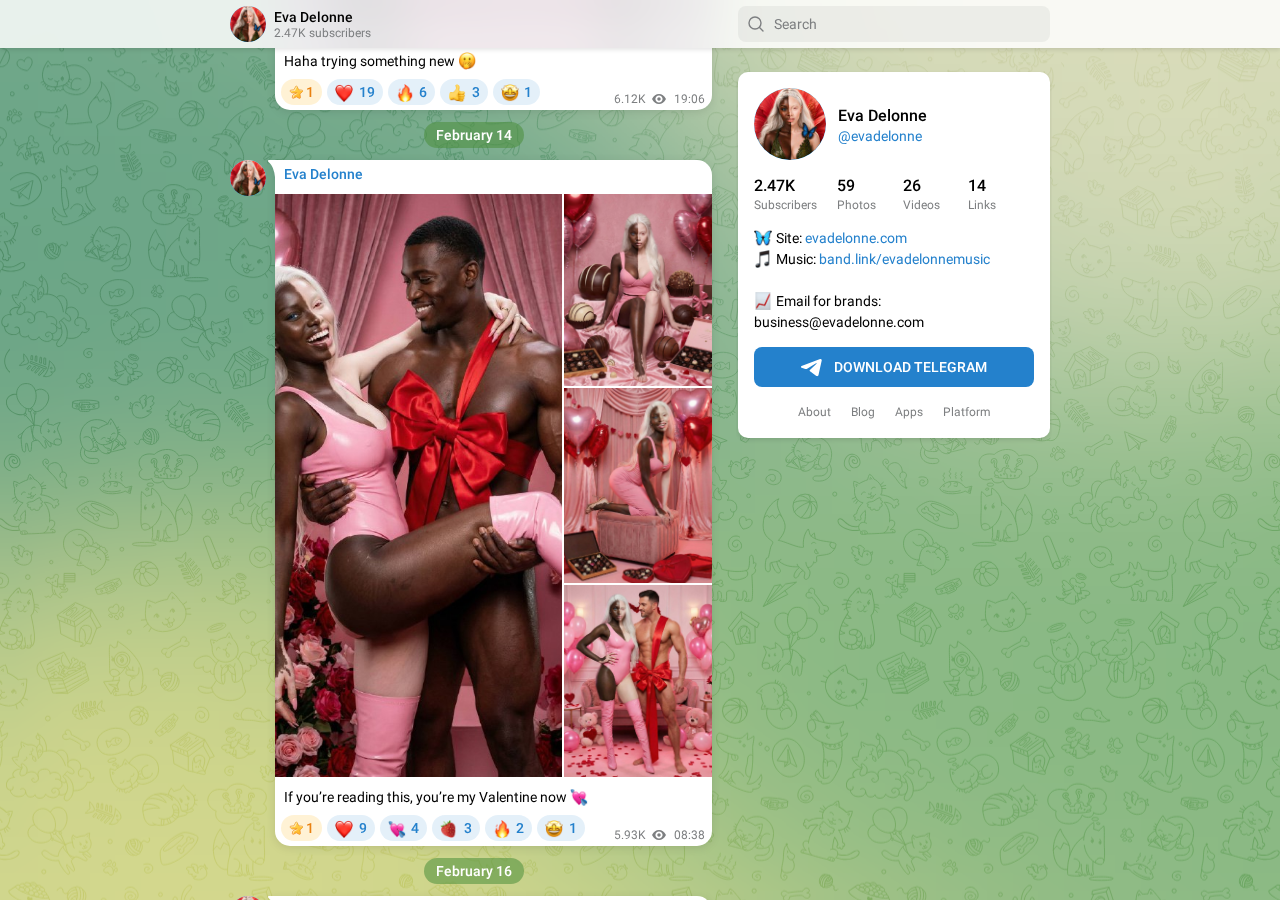
Eva appears across a personal website, social accounts, Telegram, and a paid-content platform. The presentation resembles an ordinary influencer business.
Her pages use first-person language, glamorous portraits, travel scenes, and personal messages. That storytelling can make the identity feel entirely human.
However, the strongest public evidence points elsewhere. A creator named Anton Kudo openly describes Eva as a character he created with artificial intelligence.
The creator disclosure is clearer than Eva’s own pages
On his public website, Kudo says he created Eva Delonne and explains that his work involves AI-generated videos and digital characters.
That disclosure matters because Eva’s consumer-facing pages do not always place the same explanation beside the photographs or subscription invitation.
The issue is therefore not whether synthetic characters may exist. It is whether visitors understand who, or what, they are interacting with before paying.
This is a transparency investigation, not a criminal accusation
Creating an AI influencer is not automatically fraud. Virtual performers can be entertainment, advertising, art, or a clearly labeled fictional project.
Problems begin when realistic presentation encourages a false assumption about identity, personal contact, ownership of photographs, or the nature of paid access.
Our review found several points readers should understand:
Eva’s creator publicly identifies her as his creation.
The photographs display the polished consistency common in AI influencer projects.
Eva’s site directs visitors toward social and paid-content accounts.
First-person storytelling can blur the line between character and real individual.
No evidence reviewed proves that every associated transaction is fraudulent.
Is Eva Delonne a Real Person?
The short answer is that Eva is best understood as a virtual character. That conclusion comes from her creator’s own public description.
This is stronger evidence than guessing from skin texture, fingers, reflections, or other visual artifacts. Modern image generators can produce convincing photographs.
Likewise, unusual details do not prove AI use by themselves. Filters, retouching, compression, and ordinary photography mistakes can create similar clues.
The responsible approach combines visual review with ownership records, creator statements, platform disclosures, and consistency across the project’s public pages.
What Anton Kudo says about the project
Kudo’s portfolio identifies him as a creator working with AI avatars, videos, and digital production. Eva appears as a named project.
His language does not suggest an accidental resemblance or fan account. He directly states that he created Eva Delonne.
That admission resolves the central identity question more reliably than a facial analysis tool. Eva is a designed persona controlled by a human operator.
It does not reveal every production detail. Individual pictures may combine generation, editing, stock elements, or other techniques.
What Eva’s website communicates
Eva’s website speaks in a warm first-person voice. It describes interests, emotions, places, and the possibility of a more private connection.
The language is familiar because it follows the same pattern used by human lifestyle creators. Visitors are invited into a continuing personal story.
A disclosure can be easy to miss when biography and visual realism dominate the page. Clear labeling should accompany the identity claim itself.
Readers should not have to investigate a separate creator portfolio before learning that a commercial personality is virtual.
How the Eva Delonne Virtual Persona Works
Step 1: A consistent face creates familiarity
A successful virtual influencer needs continuity. The same face, hair, body type, and visual mood appear repeatedly across different settings.
Consistency encourages recognition. After several posts, the audience stops examining each photograph and begins following the apparent person behind them.
AI image workflows can preserve a character across beaches, bedrooms, restaurants, airports, and seasonal campaigns without a conventional photo shoot.
Small inconsistencies may remain, but viewers scrolling quickly rarely inspect background geometry, jewelry, fabric, or reflections closely.
Step 2: A biography gives the images a voice
Photographs alone feel like a gallery. Captions, preferences, travel notes, and emotional language turn that gallery into a recognizable personality.
The character speaks as “I,” answers presumed audience questions, and describes daily experiences. This narrative supplies the human context an image cannot provide.
None of that is inherently wrong in fiction. The concern is whether the fictional nature remains understandable during a commercial interaction.
Step 3: Social channels create a sense of presence
Multiple channels make the persona feel established. A website confirms the brand, while social posts create frequency and Telegram creates apparent immediacy.
Cross-linking also acts as social proof. Visitors assume an identity appearing in several places has been independently validated, although one operator may control everything.
Regular updates can simulate a daily routine. Scheduled messages and generated scenes allow that routine to continue without the represented person existing.
Step 4: Public attention is moved toward private access
Many influencer businesses reserve exclusive material for paying followers. A virtual influencer can use exactly the same funnel.
Public posts create curiosity, while profile links promise a closer view. The payment is often framed as support, membership, or access.
A customer may knowingly pay for fiction and feel satisfied. Another may believe the payment supports a real model offering personal interaction.
That difference in understanding is central. Consent to a purchase is meaningful only when the identity and product are described honestly.
Step 5: Direct messages can deepen the illusion
Automated replies, hired chat operators, or the creator can answer messages in the character’s voice. The recipient may interpret those replies as personal attention.
The emotional effect can be stronger than a static post. Conversation creates reciprocity, even when the person pictured is not the person typing.
We found no basis to claim a specific messaging method is used in every Eva conversation. The risk applies broadly to virtual persona businesses.
Step 6: The character becomes a reusable commercial asset
A virtual face never needs travel, lighting, availability, or physical wardrobe. New scenes can be produced quickly and adapted for different audiences.
The same persona may promote subscriptions, affiliate products, brand partnerships, or future services. Disclosure must remain visible as the business expands.
Without that clarity, followers may evaluate recommendations based on experiences the character never had and products the character never physically used.
Why AI Influencer Disclosure Matters
People do not respond to a fictional mascot exactly as they respond to a person. Realistic faces invite trust, attraction, sympathy, and identification.
Those feelings affect spending. A follower may subscribe because they believe payment supports someone’s life, career, travel, or personal creative work.
A virtual character changes that bargain. The purchaser is funding a production managed by an operator, not necessarily the individual represented onscreen.
Identity affects informed consent
A clear label lets viewers decide whether the format interests them. Hidden or distant disclosures leave that decision resting on a mistaken assumption.
The label should be understandable before payment, not buried in another website, an old interview, or a policy page most visitors never open.
Useful wording includes “virtual creator,” “AI-generated character,” or “fictional digital persona.” Vague phrases such as “digital dreamer” do not provide equal clarity.
Generated endorsements deserve extra scrutiny
An AI character cannot personally test skincare, visit a hotel, taste food, or experience a service. Any testimonial must reflect the operator’s evidence.
When a lifelike character claims personal results, ask who made the claim, what evidence supports it, and whether a commercial relationship exists.
This problem extends beyond Eva. Thousands of synthetic creators can be generated, renamed, and redirected toward different offers with very little cost.
Emotional attachment can become expensive
Some followers enjoy role-play and understand the format. Others may develop a relationship expectation that the operator never clearly promised or corrected.
Small payments can accumulate through subscriptions, tips, locked messages, and renewed access. Check every screen for recurring billing before confirming.
Keep screenshots of the offer, price, cancellation terms, and profile disclosure. Those records are useful if the service differs materially from its description.
What We Could and Could Not Verify
The strongest fact is the creator’s own statement. It establishes that Eva is a constructed digital character rather than an ordinary lifestyle model.
We also confirmed that her website and Telegram presence direct attention toward a broader branded identity and paid-access ecosystem.
We could not determine the exact workflow used for every picture. Modern projects may combine generation, retouching, compositing, and manual design.
We did not inspect private conversations or subscriber-only material. Claims about personalized replies should therefore be evaluated from each buyer’s actual experience.
We found no reliable basis to say Eva impersonates one identified real woman. A synthetic face may still incorporate influences that outsiders cannot trace.
We also cannot assume the operator hides the character’s nature from every visitor. Some followers may arrive already understanding the format.
The concern is inconsistent disclosure. A creator portfolio explains the project clearly, while a casual visitor may encounter only first-person presentation.
That gap can shape expectations before a follower reaches any terms page. It deserves correction even without evidence of a criminal scheme.
A fair assessment separates verified identity facts from speculation about motives. Synthetic production is established; fraudulent intent is not.
It also separates emotional discomfort from measurable consumer harm. Feeling surprised is different from being charged contrary to stated terms.
If a buyer received the access described and understood the virtual identity, the transaction may be ordinary digital entertainment.
If identity or renewal terms were materially concealed, the buyer may have a legitimate consumer complaint supported by saved records.
Clues That a Social Media Personality May Be AI-Generated
No single clue provides certainty. Use several checks together, and prioritize direct creator disclosures over visual guesswork.
Facial proportions remain unusually perfect while background details change strangely.
Earrings, necklaces, tattoos, or clothing patterns transform between similar images.
Reflections and shadows do not match the subject or surrounding objects.
The account has many polished scenes but little verifiable live interaction.
Biographical details remain broad, emotional, and difficult to confirm independently.
Reverse-image searches lead to creator portfolios or AI design showcases.
The payment page explains the character differently from the social profile.
Videos avoid long, unscripted movement or use conspicuous facial smoothing.
These signs can also appear in heavily edited human content. Do not accuse an individual solely because a photograph looks unusually smooth.
Instead, search the name with terms such as “creator,” “virtual model,” and “AI character.” Read the oldest available profile descriptions.
Check whether interviews, company pages, or portfolio entries identify the operator. A transparent project usually has little reason to hide that information.
Company, Address, and Fulfillment Checks
Identify who operates the character
A persona name is not necessarily a legal business. Find the individual or company responsible for billing, data processing, and customer support.
Compare the name on the website with the checkout, receipt, privacy policy, and card statement. Differences deserve an explanation before payment.
Read the paid platform’s billing rules
Determine whether access renews automatically, which party processes payments, and how cancellation works. Save these terms before joining.
Do not assume deleting a social account cancels a separate membership. Use the billing platform’s cancellation control and retain confirmation.
Check privacy and identity disclosures
A privacy policy should identify a controller and explain what happens to messages, email addresses, payment data, and uploaded content.
Be cautious with requests for identity documents or intimate media. Once shared, those materials may be difficult to retrieve or remove.
Treat unclear support details as a warning
Before paying, locate a working support channel outside direct messages. Test whether it answers a simple question about identity and recurring charges.
An unanswered mailbox, anonymous billing descriptor, or missing cancellation path increases the practical risk, even when the entertainment itself is legal.
What to Do if You Paid or Shared Personal Information
Review what you actually purchased. Reopen the checkout and identify the access period, renewal schedule, platform, and cancellation deadline.
Cancel through the payment platform. Use the account billing page, not only a message to the character. Save the confirmation screen and email.
Contact support in writing. Explain any misleading identity impression or missing service precisely. Request the remedy promised by the platform’s published policy.
Check your card statement. Match every charge to a receipt. Ask the issuer about blocking future recurring charges if cancellation is ignored.
Dispute only with accurate facts. Tell the bank what was represented, what arrived, and what cancellation attempts failed. Do not exaggerate the claim.
Change reused passwords. Create a unique password and enable multifactor authentication wherever the same credentials were used.
Protect messages and images. Stop sending sensitive material. Record the profile URL, username, payment page, and relevant conversations before blocking.
Scan the device if you downloaded files. Run Malwarebytes and remove anything detected. Paid media should not require unknown installers or browser extensions.
Reduce deceptive ads. AdGuard can block many malicious redirects and aggressive advertising pages, although it cannot verify an influencer’s identity.
Report impersonation or coercion. Contact the platform and local authorities if someone threatens exposure, demands money, or impersonates a real person.
Is Your Device Infected? Run a Free Malware Scan
Slow performance, constant pop-ups, or strange behavior? These are classic signs of a malware infection. The fastest way to find out is to scan your device with Malwarebytes Anti-Malware Free — one of the most trusted malware removal tools available.
The free version detects and removes the most common threats, including:
Adware — the cause of those annoying pop-ups
Browser hijackers — unwanted redirects and changed homepages
Trojans and spyware — hidden programs stealing your data
Potentially unwanted programs (PUPs) — software you never asked for
👉 Select your device below — Windows, Mac, or Android — then follow the simple steps to download Malwarebytes, scan your system, and remove any threats it finds. The whole process takes about 5 minutes.
Malwarebytes for WindowsMalwarebytes for MacMalwarebytes for Android
Run a Malware Scan with Malwarebytes for Windows
Malwarebytes is one of the most popular and trusted anti-malware tools for Windows — and it’s completely free for removing infections. It catches threats that many antivirus programs miss, including adware, browser hijackers, and trojans. Follow the steps below to scan and clean your PC in just a few minutes.
Download Malwarebytes
Click the button below to download the latest version of Malwarebytes for Windows from the official source. The free version is all you need — it will scan your computer and remove adware, browser hijackers, and other malicious software at no cost.
(The link opens in a new page where your download will start)
Install Malwarebytes
When the download finishes, open your Downloads folder and double-click the MBSetup file. If Windows shows a User Account Control pop-up, click “Yes” to allow the installation.
Follow the On-Screen Prompts to Install Malwarebytes
The setup wizard will walk you through a few quick screens:
Choose where you’re installing the program — “Personal Computer” or “Work Computer” — then click Next.
Malwarebytes will now install on your device. This usually takes under a minute.
When installation is complete, the “Welcome to Malwarebytes” screen will open automatically.
On the final screen, click Open Malwarebytes to launch the program.
Enable “Scan for Rootkits”
Before scanning, turn on rootkit detection so Malwarebytes can find even the most hidden threats. Click the Settings gear icon on the left side of the screen.
In the settings menu, find “Scan for rootkits” and click the toggle so it turns blue.
Done? Click “Dashboard” in the left pane to return to the main screen.
Start the Scan
Click the blue Scan button. Malwarebytes will automatically update its virus database and start checking your computer for malware.
Wait for the Scan to Finish
The scan checks your entire system for browser hijackers and other malicious programs, so it can take several minutes. Feel free to do something else — just check back occasionally to see the progress.
Quarantine the Detected Threats
When the scan is done, you’ll see a list of everything Malwarebytes found — malware, adware, and potentially unwanted programs. Click the “Quarantine” button to remove all of them at once.
Malwarebytes will now remove the malicious files and registry entries and move them safely into quarantine.
Restart Your Computer
Some threats can only be fully removed after a reboot. If Malwarebytes asks you to restart, click Yes. Once you’re logged back in, your PC is clean and you can continue with the next steps in this guide.
When the scan finishes, click Quarantine to remove everything Malwarebytes found. That’s it — your Windows PC is now clean of trojans, adware, and other malware, and should be back to running smoothly.
If your current antivirus allowed this malicious program on your computer, you may want to consider purchasing Malwarebytes Premium to protect against these types of threats in the future. If you are still having problems with your computer after completing these instructions, then please follow one of the steps:
Malwarebytes for Mac is a free on-demand scanner that removes the malware other security software tends to miss — adware, browser hijackers, and unwanted programs included. Cleaning an infected Mac with Malwarebytes has always been completely free, and it’s our go-to recommendation. Follow the steps below to scan and clean your Mac in just a few minutes.
Download Malwarebytes for Mac
Click the button below to download the latest version of Malwarebytes for Mac.
When the download finishes, open your Downloads folder and double-click the setup file to begin the installation.
Follow the On-Screen Prompts to Install Malwarebytes
The Malwarebytes for Mac Installer will guide you through a few quick screens. Click “Continue” and keep following the prompts until the installation completes.
When the installation is complete, Malwarebytes opens to the Welcome to Malwarebytes screen. Click “Get started“.
Select “Personal Computer” or “Work Computer”
Malwarebytes will ask what type of computer you’re installing it on. Click either Personal Computer or Work Computer, whichever applies.
Start the Scan
Click the “Scan” button. Malwarebytes will automatically update its detection database and begin checking your Mac for malware.
Wait for the Scan to Finish
Malwarebytes will scan your Mac for adware, browser hijackers, and other malicious programs. This can take a few minutes, so feel free to do something else — just check back occasionally to see the progress.
Quarantine the Detected Threats
When the scan is done, you’ll see a list of everything Malwarebytes found. Click the “Quarantine” button to remove all the threats at once.
Restart Your Mac
Malwarebytes will now remove all the malicious files it found. Some threats can only be fully removed after a reboot — if Malwarebytes asks you to restart, allow it. Once you’re logged back in, your Mac is clean.
Once the scan is done, remove every threat it detected. Your Mac is now free of adware, rogue browser extensions, and other potentially harmful software.
If your current antivirus allowed a malicious program on your computer, you might want to consider purchasing the full-featured version of Malwarebytes Anti-Malware to protect against these types of threats in the future. If you are still experiencing problems while trying to remove a malicious program from your computer, please ask for help in our Mac Malware Removal Help & Support forum.
Run a Malware Scan with Malwarebytes for Android
Malwarebytes for Android automatically detects and removes dangerous threats like malware and ransomware so you don’t have to worry about your most-used device being compromised. Aggressive detection of adware and potentially unwanted programs keeps your Android phone or tablet running smooth.
Download Malwarebytes for Android.
You can download Malwarebytes for Android by clicking the link below.
In the Google Play Store, tap “Install” to install Malwarebytes for Android on your device.
When the installation process has finished, tap “Open” to begin using Malwarebytes for Android. You can also open Malwarebytes by tapping on its icon in your phone menu or home screen.
Follow the on-screen prompts to complete the setup process
When Malwarebytes will open, you will see the Malwarebytes Setup Wizard which will guide you through a series of permissions and other setup options. This is the first of two screens that explain the difference between the Premium and Free versions. Swipe this screen to continue. Tap on “Got it” to proceed to the next step. Malwarebytes for Android will now ask for a set of permissions that are required to scan your device and protect it from malware. Tap on “Give permission” to continue. Tap on “Allow” to permit Malwarebytes to access the files on your phone.
Update database and run a scan with Malwarebytes for Android
You will now be prompted to update the Malwarebytes database and run a full system scan.
Click on “Update database” to update the Malwarebytes for Android definitions to the latest version, then click on “Run full scan” to perform a system scan.
Wait for the Malwarebytes scan to complete.
Malwarebytes will now start scanning your phone for adware and other malicious apps. This process can take a few minutes, so we suggest you do something else and periodically check on the status of the scan to see when it is finished.
Click on “Remove Selected”.
When the scan has been completed, you will be presented with a screen showing the malware infections that Malwarebytes for Android has detected. To remove the malicious apps that Malwarebytes has found, tap on the “Remove Selected” button.
Restart your phone.
Malwarebytes for Android will now remove all the malicious apps that it has found. To complete the malware removal process, Malwarebytes may ask you to restart your device.
After the scan, tap Remove Selected to delete all detected threats. Your Android phone is now clean — no more malicious apps, adware, or browser redirects.
If your current antivirus allowed a malicious app on your phone, you may want to consider purchasing the full-featured version of Malwarebytes to protect against these types of threats in the future. If you are still having problems with your phone after completing these instructions, then please follow one of the steps:
Restore your phone to factory settings by going to Settings > General management > Reset > Factory data reset.
Now that your device is clean, keep it that way. Most infections start with a malicious ad or a fake download button — so blocking them at the source is your best defense.
We recommend AdGuard, which blocks malicious ads, phishing pages, and dangerous redirects before they can reach you.
Public creator material identifies Eva as a created AI character. Her pages should be understood as a virtual persona, not ordinary documentary photography.
Is Eva Delonne a scam?
The existence of an AI influencer is not automatically a scam. The concern is whether identity, billing, and the nature of paid access are disclosed clearly.
Who created Eva Delonne?
Anton Kudo publicly states that he created Eva. His portfolio describes work involving AI avatars and synthetic video production.
Are all Eva Delonne images generated by AI?
The project is publicly described as AI-created, but we cannot prove the production method for every individual image. Some may include editing or composites.
Can AI influencers legally sell subscriptions?
Virtual creators can sell entertainment, subject to applicable consumer, advertising, privacy, and platform rules. Buyers should receive an honest description and clear billing terms.
How can I avoid being misled by virtual influencers?
Look for direct AI disclosure, identify the operator, inspect renewal terms, avoid sharing sensitive media, and preserve records of any paid offer.
The Bottom Line
Eva Delonne is best understood as a carefully produced virtual influencer. Her creator’s own website provides the clearest evidence behind that conclusion.
The project is not automatically fraudulent. Still, realistic presentation should never replace clear disclosure when followers are asked for money, personal data, or emotional trust.
10 Rules to Avoid Online Scams
Here are 10 practical safety rules to help you avoid malware, online shopping scams, crypto scams, and other online fraud. Each tip includes a quick “if you already got hit” action.
Stop and verify before you click, log in, download, or pay.
Most scams win by creating urgency. Verify using a trusted method: type the website address yourself, use the official app, or call a known number (not the one in the message).
If you already clicked: close the page, do not enter passwords, and run a malware scan.
Keep your operating system, browser, and apps updated.
Updates patch security holes used by malware and malicious ads. Turn on automatic updates where possible.
If you saw a scary “update now” pop-up: close it and update only through your device settings or the official app store.
Use layered protection: antivirus plus an ad blocker.
Antivirus helps block malware. An ad blocker reduces scam redirects, phishing pages, and malvertising.
If your browser is acting weird: remove unknown extensions, reset the browser, then run a full scan.
Install apps, software, and extensions only from official sources.
Avoid cracked software, “keygens,” and random downloads. During installs, choose Custom/Advanced and decline bundled offers you do not recognize.
If you already installed something suspicious: uninstall it, restart, and scan again.
Treat links and attachments as untrusted by default.
Phishing often impersonates delivery services, banks, and popular brands. If it is unexpected, do not open attachments or log in through the message.
If you entered credentials: change the password immediately and enable 2FA.
Shop safely: research the store, then pay with protection.
Be cautious with brand-new stores, “closing sale” stories, and prices that make no sense. Prefer credit cards or PayPal for dispute options. Avoid wire transfers, gift cards, and crypto payments.
If you already paid: contact your card issuer or PayPal quickly to dispute the transaction.
Crypto rule: never pay a “fee” to withdraw or recover money.
Common patterns include fake profits, then “tax,” “gas,” or “verification” fees. Another is a “recovery agent” who demands upfront crypto.
If you already sent crypto: stop paying, save evidence (wallet addresses, TXIDs, chats), and report the scam to the platform used.
Secure your accounts with unique passwords and 2FA (start with email).
Use a password manager and unique passwords for every account. Enable 2FA using an authenticator app when possible.
If you suspect an account takeover: change passwords, sign out of all devices, and review recent logins and recovery settings.
Back up important files and keep one backup offline.
Backups protect you from ransomware and device failure. Keep at least one backup on an external drive that is not always connected.
If you suspect infection: do not connect backup drives until the system is clean.
If you think you are a victim: stop losses, document evidence, and escalate fast.
Move quickly. Speed matters for disputes, account recovery, and limiting damage.
Stop payments and contact: do not send more money or respond to the scammer.
Call your bank or card issuer: block transactions, replace the card if needed, and start a dispute or chargeback.
Secure your email first: change the email password, enable 2FA, and remove unfamiliar recovery options.
Secure other accounts: change passwords, enable 2FA, and log out of all sessions.
Scan your device: remove suspicious apps or extensions, then run a full malware scan.
Save evidence: screenshots, emails, order pages, tracking pages, wallet addresses, TXIDs, and chat logs.
Report it: to the payment provider, marketplace, social platform, exchange, or wallet service involved.
These rules are intentionally simple. Most online losses happen when decisions are rushed. Slow down, verify independently, and use payment methods and account controls that give you recourse.
Hello! I'm Lapain Epuran, your go-to source for detailed and honest product reviews. From tech gadgets to miracle cures, I provide insights to help you make informed choices. Join me as we discover what's truly worth your time and money.