

A file you trusted ran, and now a security alert mentions Pulsar RAT. The name is unfamiliar, but the question feels immediate: what could someone see?
Start with what you know. The alert, the file you opened, and the accounts used on that computer will help you choose the right next step.
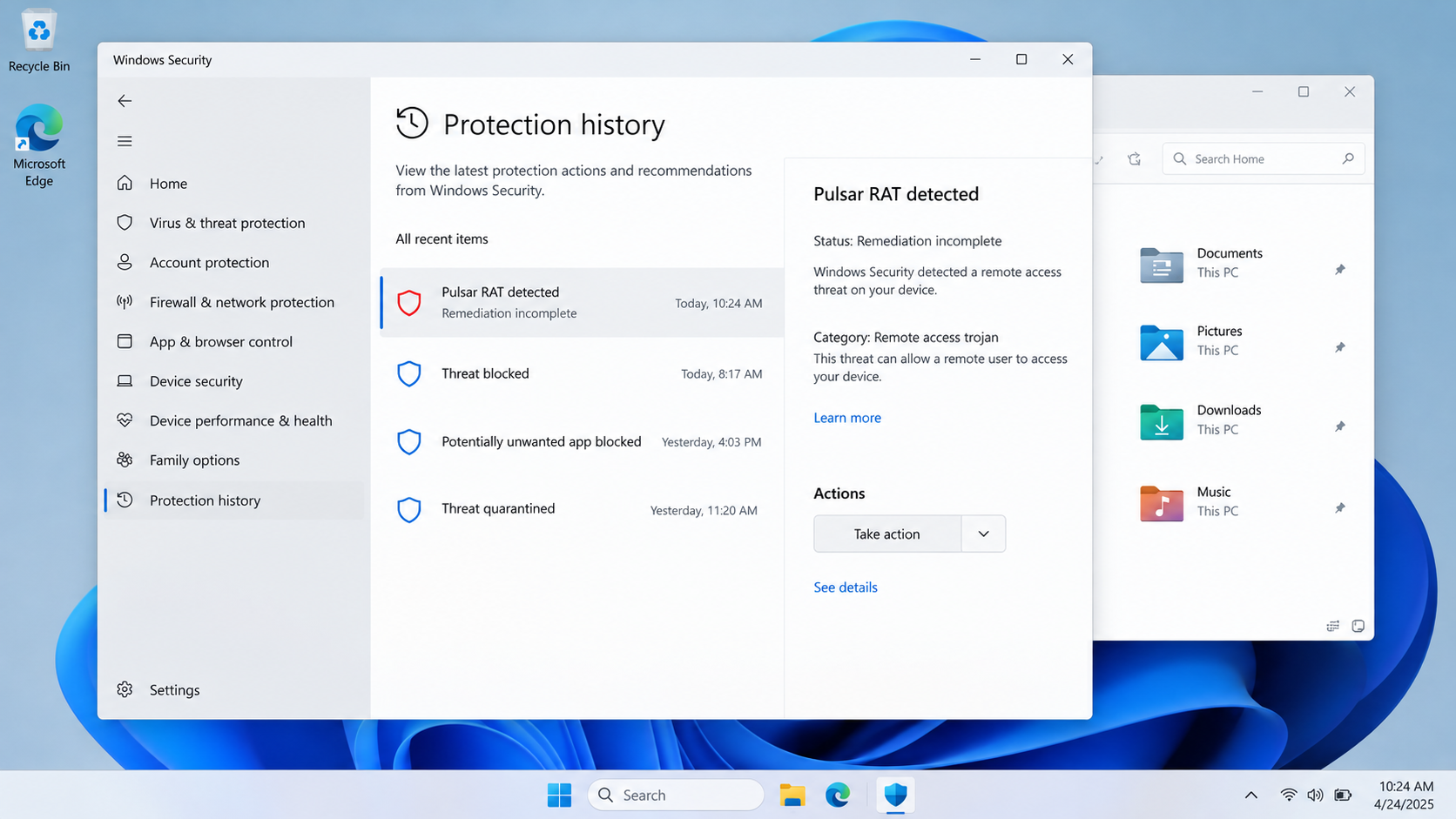
Overview
What Pulsar RAT is
Pulsar is a remote access trojan, often shortened to RAT. Once it runs on Windows, an operator may be able to control the computer without sitting in front of it.
It descends from Quasar RAT, an open-source remote-control project. That lineage matters because attackers can adapt Pulsar for different jobs rather than use one fixed set of actions.
A SonicWall analysis of a Pulsar sample documented hidden execution, remote communication, browser-data theft, and clipboard monitoring.
A named alert deserves attention, but it does not reveal everything an attacker did. Treat the computer as exposed while you confirm the detection and secure your accounts.
Why this is more than a suspicious file
Opening a malicious installer is the beginning, not necessarily the end. A RAT can remain available after the first visible window disappears.
In the sample SonicWall examined, the program ran quietly, checked for analysis tools, changed security settings, and contacted a remote host.
Researchers also found abilities to collect browser passwords and cookies, watch the screen, and inspect the clipboard for cryptocurrency addresses.
Those are capabilities, not proof that every Pulsar infection used every feature. The operator, configuration, and time spent on the system determine the damage.
What you should do first
Treat a credible Pulsar detection as a possible account compromise. Disconnect the computer from networks, then use a separate trusted device for sensitive account changes.
Do not start deleting random Windows files because a name looks odd. A wrong deletion can damage the system while leaving the real threat untouched.
- Save the exact detection name, file path, and time from your security tool.
- Record which unknown installer, attachment, or archive you opened.
- Keep the affected computer away from banking and password-manager logins.
- Tell your employer promptly if it is a work-managed device.
The rest of this guide explains how the infection can unfold, how to clean the machine, and what cleanup alone cannot undo.
How Pulsar RAT Gets In and What It Can Do
Step 1: A convincing file reaches the computer
A malicious attachment or downloaded installer can arrive under an ordinary-looking name. The disguise may fit a task you were already trying to finish.
Someone expecting a document may open an archive. Someone searching for software may run a third-party installer without checking its publisher.
That moment of execution is the critical boundary. Merely reading a warning about Pulsar online does not install Pulsar on your computer.
For most readers, the practical question is simpler: what unfamiliar file did Windows allow to run shortly before the alert?
Step 2: The program tries to stay quiet
SonicWall observed a sample running as a hidden Windows Forms process, with no normal application window to explain its activity.
The sample checked whether it was inside a virtual machine, sandbox, or debugger. Malware often does this to avoid showing researchers its behavior.
It also attempted a User Account Control bypass. That matters because Windows normally asks before certain high-privilege changes.
Not every infection will display a dramatic pop-up or make the computer noticeably slow. Silence is part of why remote-access malware is dangerous.
Step 3: A remote operator gains a foothold
After execution, a RAT seeks a connection to infrastructure controlled by its operator. That channel can turn a one-time download into ongoing access.
With remote-control functions, an attacker may browse files, issue commands, install additional tools, or watch what appears on the screen.
The exact commands depend on the variant and operator. A detection name identifies a threat family, not a complete transcript of everything done on your PC.
That distinction is important for recovery. You should plan around plausible exposure without pretending to know that every password was stolen.
Step 4: Data and transactions become the target
The analyzed sample could collect saved browser credentials and session cookies. A session cookie can sometimes let an intruder access an account without typing its password.
Clipboard monitoring creates a different hazard. If you copy a cryptocurrency address, a malicious module may replace it with an attacker-controlled address.
A quick glance at the first and last characters is not enough for large transfers. Compare the complete receiving address on a trusted device.
Remote screen or webcam access creates privacy risks too. If you used the computer for work, client records or internal systems may also be exposed.
At this stage, simply closing the browser does not address the problem. The harmful program may still be running outside the browser.
Signs That Deserve a Closer Look
Many RAT infections have no unique symptom. A slow computer or a warm laptop does not prove Pulsar is present.
A named antivirus detection is stronger evidence. So are unexplained security-setting changes, new startup entries, or account sessions you do not recognize.
Check Windows Security Protection history for the exact finding. Microsoft explains whether a threat needs action, was quarantined, or was already removed.
If the entry says remediation is incomplete, do not assume the first scan finished the job. Follow the tool’s instructions and run another scan.
Likewise, a clean antivirus result does not erase the possibility that stolen credentials were already used. Device cleanup and account recovery are separate jobs.
Look for the source, not a random filename
Review recent downloads, browser history, email attachments, and installed applications around the time the alert appeared.
Do not execute the suspected file again to “see what it does.” Preserve its name and location for a security professional or your workplace IT team.
Attackers can give malware names that resemble legitimate Windows components. Guessing from a process name alone is a poor way to decide what to remove.
Protect the accounts that matter most
Email, password managers, banking, work accounts, and cryptocurrency wallets deserve priority because one compromised login can lead to many more.
Use another clean device to change passwords. Sign out of existing sessions where services offer that option, then enable strong multi-factor authentication.
For a work computer, your employer may need to revoke organization-wide tokens or investigate access logs. Tell them before you erase evidence.
What to Do If Pulsar RAT Is on Your PC
The safe route is containment, scanning, verification, and account recovery. Do these in order, because a password changed on an infected computer may be stolen again.
- Disconnect the affected computer. Turn off Wi-Fi and unplug Ethernet. Stop using it for email, banking, work dashboards, or wallet transactions until cleanup is complete.
- Record the alert. Photograph or write down the detection name, file path, and security-tool status. Keep the suspicious email or download details without reopening the file.
- Run a reputable full scan. Update your existing security product, scan every local drive, and quarantine detected items. Review the results rather than clicking “Allow.”
- Use a second opinion if needed. Malwarebytes offers a Windows threat scan and quarantine workflow. Download it from its official site, not from an alert, advertisement, or search result impersonator.
- Consider an offline scan. If the threat returns or blocks cleanup, Microsoft Defender Offline can restart into a separate environment and scan before ordinary Windows processes load.
- Check security settings afterward. Confirm Windows Security is active, User Account Control remains enabled, and no unknown remote-access software or startup entry remains.
- Change passwords from another device. Begin with email and your password manager, then financial, work, and social accounts. Revoke unfamiliar sessions and rotate recovery codes where appropriate.
- Escalate if you cannot trust the machine. A persistent detection, administrator-level compromise, or sensitive work data may justify professional incident response or a clean Windows reinstall.
Is Your Device Infected? Run a Free Malware Scan
Slow performance, constant pop-ups, or strange behavior? These are classic signs of a malware infection. The fastest way to find out is to scan your device with Malwarebytes Free — one of the most trusted malware removal tools available.
The free version detects and removes the most common threats, including:
- Adware — the cause of those annoying pop-ups
- Browser hijackers — unwanted redirects and changed homepages
- Trojans and spyware — hidden programs stealing your data
- Potentially unwanted programs (PUPs) — software you never asked for
👉 Select your device below — Windows, Mac, or Android — then follow the simple steps to download Malwarebytes, scan your system, and remove any threats it finds. The scan usually takes 5 to 20 minutes.
Run a Malware Scan with Malwarebytes for Windows
Malwarebytes is one of the most popular and trusted anti-malware tools for Windows — and it’s completely free for removing infections. It catches threats that many antivirus programs miss, including adware, browser hijackers, and trojans. Follow the steps below to scan and clean your PC in just a few minutes.
Download Malwarebytes
Click the button below to download the latest version of Malwarebytes for Windows from the official source. The free version is all you need — it will scan your computer and remove adware, browser hijackers, and other malicious software at no cost.
Download MalwarebytesOfficial installer for Windows 11 and 10. Your download starts right away.Want real-time protection? See Malwarebytes Premium Malwarebytes Free for WindowsScans and removes malware at no cost
-
Install Malwarebytes
When the download finishes, open your Downloads folder and double-click the MBSetup file. If Windows shows a User Account Control pop-up, click “Yes” to allow the installation.

Follow the On-Screen Prompts to Install Malwarebytes
The setup wizard will walk you through a few quick screens:
-
Choose where you’re installing the program — “Personal Computer” or “Work Computer” — then click Next.

-
Malwarebytes will now install on your device. This usually takes under a minute.

-
When installation is complete, the “Welcome to Malwarebytes” screen will open automatically.

-
On the final screen, click Open Malwarebytes to launch the program.

-
Enable “Scan for Rootkits”
Before scanning, turn on rootkit detection so Malwarebytes can find even the most hidden threats. Click the Settings gear icon on the left side of the screen.

In the settings menu, find “Scan for rootkits” and click the toggle so it turns blue.

Done? Click “Dashboard” in the left pane to return to the main screen.
Start the Scan
Click the blue Scan button. Malwarebytes will automatically update its virus database and start checking your computer for malware.

-
Wait for the Scan to Finish
The scan checks your entire system for browser hijackers and other malicious programs, so it can take 5 to 20 minutes depending on your computer. Feel free to do something else — just check back occasionally to see the progress.

-
Quarantine the Detected Threats
When the scan is done, you’ll see a list of everything Malwarebytes found — malware, adware, and potentially unwanted programs. Click the “Quarantine” button to remove all of them at once.

Malwarebytes will now remove the malicious files and registry entries and move them safely into quarantine.

-
Restart Your Computer
Some threats can only be fully removed after a reboot. If Malwarebytes asks you to restart, click Yes. Once you’re logged back in, Malwarebytes has finished removing the threats it found.

That’s it — your Windows PC is now clean of trojans, adware, and other malware, and should be back to running smoothly.
If you are still having problems with your computer after completing these instructions, then please follow one of the steps:
- Run a computer scan with ESET Online Scanner
- Ask for help in our Windows Malware Removal Help & Support forum.
Run a Malware Scan with Malwarebytes for Mac
Malwarebytes for Mac is a free on-demand scanner that removes the malware other security software tends to miss — adware, browser hijackers, and unwanted programs included. Cleaning an infected Mac with Malwarebytes has always been completely free, and it’s our go-to recommendation. Follow the steps below to scan and clean your Mac in just a few minutes.
-
Download Malwarebytes for Mac
Click the button below to download the latest version of Malwarebytes for Mac.
Download MalwarebytesOfficial installer for macOS. Your download starts right away.Want real-time protection? See Malwarebytes PremiumMalwarebytes Free for MacScans and removes malware at no cost -
Open the Malwarebytes setup file
When the download finishes, open your Downloads folder and double-click the setup file to begin the installation.

-
Follow the On-Screen Prompts to Install Malwarebytes
The Malwarebytes for Mac Installer will guide you through a few quick screens. Click “Continue” and keep following the prompts until the installation completes.



When the installation is complete, Malwarebytes opens to the Welcome to Malwarebytes screen. Click “Get started“.
-
Select “Personal Computer” or “Work Computer”
Malwarebytes will ask what type of computer you’re installing it on. Click either Personal Computer or Work Computer, whichever applies.

-
Start the Scan
Click the “Scan” button. Malwarebytes will automatically update its detection database and begin checking your Mac for malware.

-
Wait for the Scan to Finish
Malwarebytes will scan your Mac for adware, browser hijackers, and other malicious programs. This can take a few minutes, so feel free to do something else — just check back occasionally to see the progress.

-
Quarantine the Detected Threats
When the scan is done, you’ll see a list of everything Malwarebytes found. Click the “Quarantine” button to remove all the threats at once.

-
Restart Your Mac
Malwarebytes will now remove all the malicious files it found. Some threats can only be fully removed after a reboot — if Malwarebytes asks you to restart, allow it. Once you’re logged back in, your Mac is clean.

That’s it — your Mac is now free of adware, rogue browser extensions, and other potentially harmful software.
If you are still experiencing problems while trying to remove a malicious program from your computer, please ask for help in our Mac Malware Removal Help & Support forum.
Run a Malware Scan with Malwarebytes for Android
Malwarebytes for Android automatically detects and removes dangerous threats like malware and ransomware so you don’t have to worry about your most-used device being compromised. Aggressive detection of adware and potentially unwanted programs keeps your Android phone or tablet running smooth.
-
Download Malwarebytes for Android.
You can download Malwarebytes for Android by clicking the link below.
Get Malwarebytes for AndroidOpens Google Play in a new tab.Want real-time protection? See Malwarebytes Premium for AndroidMalwarebytes for AndroidScans your phone and removes malware at no cost -
Install Malwarebytes for Android on your phone.
In the Google Play Store, tap “Install” to install Malwarebytes for Android on your device.

When the installation process has finished, tap “Open” to begin using Malwarebytes for Android. You can also open Malwarebytes by tapping on its icon in your phone menu or home screen.

-
Follow the on-screen prompts to complete the setup process
When Malwarebytes will open, you will see the Malwarebytes Setup Wizard which will guide you through a series of permissions and other setup options.
This is the first of two screens that explain the difference between the Premium and Free versions. Swipe this screen to continue.
Tap on “Got it” to proceed to the next step.
Malwarebytes for Android will now ask for a set of permissions that are required to scan your device and protect it from malware. Tap on “Give permission” to continue.
Tap on “Allow” to permit Malwarebytes to access the files on your phone.
-
Update database and run a scan with Malwarebytes for Android
You will now be prompted to update the Malwarebytes database and run a full system scan.

Click on “Update database” to update the Malwarebytes for Android definitions to the latest version, then click on “Run full scan” to perform a system scan.

-
Wait for the Malwarebytes scan to complete.
Malwarebytes will now start scanning your phone for adware and other malicious apps. This process can take a few minutes, so we suggest you do something else and periodically check on the status of the scan to see when it is finished.

-
Click on “Remove Selected”.
When the scan has been completed, you will be presented with a screen showing the malware infections that Malwarebytes for Android has detected. To remove the malicious apps that Malwarebytes has found, tap on the “Remove Selected” button.

-
Restart your phone.
Malwarebytes for Android will now remove all the malicious apps that it has found. To complete the malware removal process, Malwarebytes may ask you to restart your device.
That’s it — your Android phone is now clean — no more malicious apps, adware, or browser redirects.
If you are still having problems with your phone after completing these instructions, then please follow one of the steps:
- Restore your phone to factory settings by going to Settings > General management > Reset > Factory data reset.
- Ask for help in our Mobile Malware Removal Help & Support forum.
Stay Protected: Block Ads and Malicious Sites
Now that your device is clean, keep it that way. Most infections start with a malicious ad or a fake download button — so blocking them at the source is your best defense.
We recommend AdGuard, which blocks malicious ads, phishing pages, and dangerous redirects before they can reach you.
👉 Download AdGuard and browse safely
The scan block above contains MalwareTips’ existing Malwarebytes and AdGuard recommendations. AdGuard can reduce exposure to malicious advertising; it is not a substitute for RAT removal.
Before reinstalling Windows, save personal documents to a clean external drive without copying suspicious executables, scripts, or installers. Scan the backup before restoring it.
If you manage a company computer, follow your incident-response policy. A technician may need logs or the original drive before a reset destroys useful evidence.
A reset or reinstall can remove malware from the PC, but it does not automatically invalidate stolen passwords, cookies, or wallet keys.
What to Do if Accounts or Wallets May Have Been Exposed
Browser accounts and saved passwords
Assume saved passwords and active sessions may be at risk if the malware had time to run. Start with the account that can reset all others: your primary email.
Then change your password manager’s master password if you used one on the infected device. Follow the provider’s guidance for ending active sessions.
Look for new forwarding rules in email. An attacker may leave a rule that quietly copies messages even after you change the password.
Review recent logins, recovery addresses, connected apps, and newly approved devices. Remove anything you do not recognize and keep screenshots for a fraud report.
Banking and payment accounts
Call your bank using the number on your card or official app if you entered financial information on the affected PC.
Ask about suspicious transfers, card charges, new payees, and additional account monitoring. Tell the bank that remote-access malware may have been present.
Do not use a phone number shown in a pop-up or unsolicited email. It may connect you to a separate support scam.
Cryptocurrency wallets
If a seed phrase or private key was stored on the infected PC, treat that wallet as compromised. Move remaining assets using a clean device and a newly created wallet.
Check token approvals and recent transactions. Revoke suspicious permissions, but understand that revocation cannot undo confirmed transfers.
Compare complete destination addresses before sending. Pulsar’s clipboard-monitoring capability makes copy-and-paste particularly risky during an active infection.
Be wary of anyone promising guaranteed recovery of stolen crypto for a fee. Such offers often target people immediately after a loss.
How to Lower the Chance of Another Infection
Download installers from the software maker’s site or a trusted app store. A familiar program name in a third-party download button is not enough.
Keep Windows, browsers, and security tools updated. Leave real-time protection on unless a trusted administrator gives a specific reason to change it.
Be skeptical of archives attached to unexpected invoices, resumes, or support messages. Verify the sender through a separate channel before opening anything.
Do not install “security fixes” from a browser pop-up. A webpage cannot diagnose Pulsar RAT inside your Windows installation merely by being opened.
For workplace devices, limit local administrator access and report unusual prompts early. A fast report can prevent one infected machine from becoming an organization-wide problem.
Maintain backups that are not continuously writable from the computer. They help if cleanup requires a rebuild or a second payload damages files.
Consider using a standard Windows account for everyday work. Keep administrator approval for installations and settings changes, so an unexpected prompt stands out.
Review browser extensions periodically. Remove those you no longer use, especially extensions that can read data on every website.
If an unfamiliar file claims your antivirus must be disabled to install it, stop there. That request is a strong warning sign, even when the software name looks familiar.
Keep a list of important services and their recovery options. When an incident happens, you can move through the accounts that matter without guessing.
For family computers, explain the simple rule: verify unexpected attachments and downloads before opening them. A quick question is cheaper than a long recovery.
None of these habits guarantees protection. Together, they make the common entry points harder to exploit and help you notice trouble sooner.
Frequently Asked Questions
Is Pulsar RAT a virus or a remote-access tool?
It is a remote access trojan. People often say “virus” casually, but the important fact is that an attacker may control an infected computer.
Can visiting a page about Pulsar infect my computer?
No. Reading an article does not install this RAT. Risk begins when a harmful file or command is executed, or another exploit succeeds.
Will deleting the original download remove Pulsar?
Not necessarily. The program may have copied itself or established persistence. Scan and verify the system instead of relying on the Downloads folder.
Does a clean scan mean my passwords are safe?
No. A scan can remove malware, but it cannot retrieve credentials already sent away. Change important passwords from a trusted device.
Should I reinstall Windows after a Pulsar detection?
A clean reinstall may be sensible after persistent malware, administrator-level access, or serious data exposure. Back up safely and get professional advice when unsure.
Can a hardware wallet protect me from this RAT?
It can help keep private keys isolated, but a compromised computer may still alter a destination address or trick you into approving a bad transaction.
The Bottom Line
Pulsar RAT is malware, not a fake warning or harmless browser pop-up. If your security tool identifies it, disconnect the computer and complete a trusted cleanup.
Then handle the second problem: accounts, sessions, and wallets used while the PC was exposed. A removed file cannot undo credentials that may already have left.








