

You download an app after seeing a local activity advertisement. Then a message claiming to be your bank says a dangerous app has been detected.
It promises an officer will call. The timing makes the warning feel convincing, especially when you’ve just installed something unfamiliar.
Overview
The bank warning is part of the approach
This fake bank malware warning scam connects an everyday advertisement to a much more frightening conversation about your phone, savings, and supposed criminal activity.
Singapore Police confirm that fraudulent social-media advertisements have pushed Android app downloads, followed by callers impersonating banks or government agencies.
Their October 20 warning describes at least 62 cases and S$989,000 in losses since April 2026. This is an established fraud pattern.
The advertisements included senior activities, water fitness, and recycling services. The bait may sound useful and local rather than like a financial offer.
A fake alert can follow a genuinely dangerous download
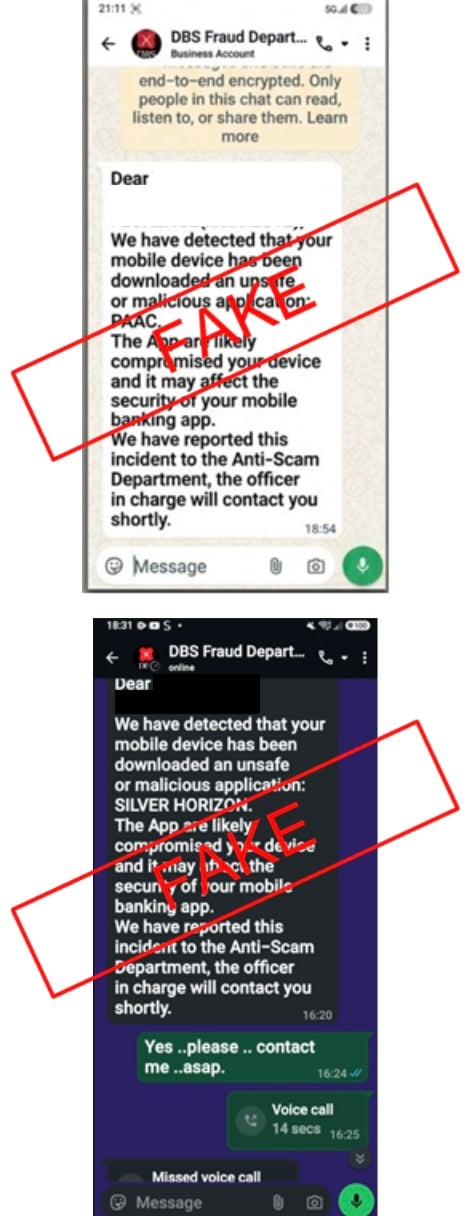
The police example above shows messages claiming to come from DBS Fraud Department. They say an unsafe app was detected and an AntiScam officer will follow up.
Those are fraudulent messages. DBS and the government agencies being imitated aren’t the operators of the scam described here.
However, the false warning doesn’t make the downloaded app safe. Police also describe malware-enabled unauthorized banking transactions in some cases.
There are two problems to address: someone is trying to direct your next actions, and an installed app may have exposed the device or accounts.
What the fraudsters want you to do
- Install an Android APK to register for an activity or arrange a service.
- Accept a fake bank or government warning as independent confirmation.
- Speak to the supposed officer introduced by that warning.
- Disclose banking information or follow instructions involving your money.
- In reported variants, hand over valuables under an investigation pretext.
APK is the file format used to install Android apps. A file sent through an advertisement or chat bypasses the reassurance of finding the genuine service yourself.
The authority’s screenshot retains its original redactions and fraud markings. Names within the fake warning shouldn’t be treated as a verified malware-family identification.
How the Fake Bank Malware Warning Scam Works
Step 1: A useful-looking activity creates the opening
The first offer doesn’t need to mention your bank. A recreational program or collection service gives you an ordinary reason to contact the advertiser.
Someone interested in a class expects registration details. Someone arranging recycling expects booking instructions. That expectation makes an app request easier to introduce.
Fraudsters can borrow the appearance of a familiar organization to make the process seem routine. Verify the activity through the organization’s established channel before downloading anything.
A social-media page’s logo and helpful replies don’t establish that it represents the organization. They also don’t establish who created a file it sends.
The related PAAC app scam starts with a similar registration lure. The fake bank warning gives that approach a second chance to reach your savings.
Step 2: Registration becomes an Android installation
You are directed to install an APK, supposedly to complete registration or access the advertised service. That changes the exposure from conversation to software.
Do not dismiss Android’s warnings because the advertiser calls the file an official registration tool. The person asking you to bypass a warning hasn’t independently verified it.
If you downloaded a file but never installed it, say so when seeking help. Downloading, installing, and granting access are different actions with different consequences.
The police warning doesn’t identify one universal app permission or malware family across every case. Don’t rely on a single filename as your safety test.
An app can also keep a harmless-looking name. Its name and icon are less useful than knowing where it came from and what you allowed it to do.
Step 3: A supposed bank detects exactly what just happened
A message then claims that a suspicious app has been found. The police example uses a bank fraud-department identity and refers to a recent unsafe download.
That detail feels personal. You really did install something, so a warning about an app can seem like proof that the bank has detected a problem.
But information about the download can come from the fraudulent process itself. It doesn’t establish that the sender works for your bank or inspected your phone.
The message also introduces another authority: an AntiScam department or officer who will supposedly call. The next contact arrives with an explanation already attached.
Don’t let this introduction become verification. Contact your bank using its genuine app, card number, or branch, preferably from another trusted device.
Step 4: The caller turns the warning into an investigation
A caller impersonating a bank or government agency claims your device, accounts, or identity are implicated in a serious problem. The discussion becomes urgent and intimidating.
What began as help with an activity now appears to require cooperation with an official inquiry. That is the shift the fake warning prepared you to accept.
Don’t provide passwords, OTPs, account access, or additional installations to resolve the caller’s allegations. A convincing account of your recent download doesn’t establish official authority.
If you are frightened, bring a trusted person into the conversation after ending the call. You don’t need the caller’s permission to seek independent help.
Step 5: Your money or valuables become the requested solution
Police describe demands involving transfers, banking disclosures, or handing over valuables for supposed investigative purposes. The exact request varies between reported cases.
Money doesn’t become protected because a stranger describes the destination as part of an investigation. Ask your real bank about protecting the existing account.
The same applies to physical valuables. Don’t arrange a handover because someone on a call says it is necessary to resolve an app-related case.
Some victims also suffered unauthorized banking transactions through malware. Refusing the caller’s payment demand is essential, but an installed app still needs attention.
Why a Scanner and a Bank Call Solve Different Problems
A scanner can help identify harmful software. It cannot cancel a transfer, retrieve handed-over valuables, or prove that a supposed officer was genuine.
Your bank can help protect accounts and investigate payments. It may still need you to stop using a potentially compromised phone for financial activity.
Don’t perform banking checks on the suspected device while a stranger talks you through the screens. Use a clean device or visit a branch.
Likewise, don’t reconnect a disconnected phone simply to follow a cleanup link supplied in the fake warning. That gives the same sender another opening.
If you haven’t installed anything, the response can be simpler: stop the contact, preserve the message, and verify the activity directly with the genuine organization.
The following actions distinguish those situations. Start with containment and financial protection; software cleanup comes after the immediate exposure is under control.
What to Do if You Have Fallen Victim to This Scam
-
Disconnect a phone on which you installed the suspicious app. Enable flight mode and make sure Wi-Fi is off. Stop using it for banking or passwords.
This follows ScamShield’s malicious-app guidance. Keep the device disconnected while arranging help. Don’t follow the impersonator’s instructions to restore its connection.
If you only viewed the advertisement, you haven’t established an infection. If the APK remains uninstalled, don’t open it now to see what it does.
-
Contact your bank from a clean device or a branch. Explain the app installation, fake fraud warning, subsequent calls, and any banking activity you completed.
Ask about restricting affected accounts, stopping transactions, and revoking exposed access. Report unfamiliar payments even if you never personally agreed to send money.
If credentials for other sensitive services were entered, contact those providers through trusted channels too. Follow their recovery instructions without returning to the suspected phone.
-
Preserve evidence and report any handover. Save the advertisement, sender details, APK filename, download link, bank messages, call history, receipts, and transaction references.
Tell police promptly about any money or valuables already delivered. Include the meeting place, recipient description, and communications without attempting to recover items through another private meeting.
Don’t forward the APK to relatives as a warning. Share a description or redacted screenshot instead, keeping the original evidence available for investigators.
-
Arrange removal of the suspicious app. On Android, open Settings, find Apps or Apps & notifications, select the app, and choose Uninstall.
Menu names vary by manufacturer. Google’s Android malware guidance explains app removal, Play Protect, and device updates.
If removal is blocked or the app returns, keep the phone isolated and seek qualified technical help. Don’t blindly change work-managed security settings or grant further permissions.
The MalwareTips mobile removal-help forum is another place to seek guidance. Describe the app and symptoms without publicly posting passwords, bank records, or identity documents.
Removing an app is a cleanup step, not proof that earlier information or transactions are safe. Continue the bank and account-recovery actions separately.
-
Use a genuine Android scanner when it is safe to do so. If one is already installed, follow its removal guidance while maintaining containment where possible.
If installing or updating requires reconnecting the suspect phone, arrange a controlled cleanup with trusted help first. Don’t restore connectivity just to begin a download.
Malwarebytes for Android is available from its official Google Play listing. Never install a copy supplied by the caller.
Open the genuine app and review any setup or subscription offer carefully. Manual Android scanning is free; ongoing protection and scheduled features can require payment.
Under Device on the dashboard, tap Scan now. Grant the storage access needed to examine files if prompted, and let the scan finish.
For a detected malicious app, open its results menu, choose Uninstall app, and confirm Android’s removal prompt. Don’t add an untrusted detection to Always allow.
The vendor’s Android scan instructions describe these controls. Save findings and restart if requested before checking whether the unwanted app remains.
An optional paid-protection offer is available through MalwareTips’ Malwarebytes link. This is an affiliate link; purchasing protection isn’t required to report fraud or request bank help.
-
Secure accounts after the device is safe. Change exposed passwords from a clean device and review account sessions with the genuine providers.
Check Play Protect and Android security updates during the controlled cleanup. Don’t mistake an empty scan result for a complete investigation of every earlier account action.
If the phone remains compromised, obtain advice about a factory reset. A reset erases local data, so preserve necessary evidence and arrange backups appropriately first.
Avoid restoring the suspicious APK afterward. Ask the technician or device maker how to return to a clean setup without copying the same problem back.
-
End the impersonator’s access to you. Once evidence is saved, block the fraudulent contacts. Don’t accept another officer, technician, or recovery agent introduced by them.
Tell a trusted relative what happened, especially if the activity advertisement reached a family group. Help anyone who installed the same file take their own containment steps.
Monitor bank statements and follow up on your reports. A caller’s claim that the investigation is closed doesn’t establish that accounts or devices are secure.
Frequently Asked Questions
Is the DBS malware-warning message genuine?
The police-published messages shown here are fake. A bank name, business-profile label, or promised AntiScam callback doesn’t authenticate their sender.
Check any genuine concern with your bank through a channel you obtained independently. Don’t use the warning’s own contact route as confirmation.
If the warning is fake, can I keep the downloaded app?
No such reassurance follows. This campaign includes malicious APK downloads, and police report unauthorized banking through malware in some cases.
If you installed the suspicious file, isolate the phone and arrange cleanup. The fraudulent alert and the software exposure need separate responses.
Are PAAC and SILVER HORIZON the malware names?
Those names appear within the fake warning. That doesn’t identify a verified malware family or prove the genuine organizations created the app.
Give investigators the actual filename and source link if available. Don’t use branding alone to decide which app or business caused an incident.
Should I install another app sent by the supposed officer?
No. Stop taking software or access instructions from that contact. An app described as cleanup or verification can extend the same fraudulent interaction.
Use the device maker’s guidance, a genuine app store, or qualified assistance you arranged independently.
Will Malwarebytes recover money or guarantee the phone is clean?
No. A scan addresses detectable software threats. Your bank and police handle financial reports, and unresolved device problems may require additional technical work.
Free manual Android scanning is separate from paid protective features. Buying a subscription doesn’t guarantee reimbursement or resolve the impersonation.
What if I never installed the APK?
Don’t install it. Save the messages and verify the advertised activity through its genuine organizer. A downloaded file alone isn’t the same as an installed app.
If you also disclosed banking information or sent money, address that exposure with your bank even though no installation occurred.
The Bottom Line
A fake bank warning can make the next fraudulent caller sound expected. End that chain and contact the real bank independently before following any financial instructions.
If you installed the advertised APK, isolate the phone as well. Refusing the caller protects your next decision; careful cleanup addresses the device you’ve already exposed.

Join the discussion
0 commentsShare your experience or ask a question about this article.
Discussion
Start the conversation
Have a question or something useful to share? Add the first comment.