

Antivirus Security Pro is a computer virus, which pretends to be a legitimate security program and claims that malware has been detected on your computer. If you try to remove these infections, Antivirus Security Pro will state that you need to buy its full version before being able to do so.
It’s important to remember that by purchasing Antivirus Security Pro you will be submitting your personal information to unscrupulous persons and may also end up being a victim of credit card or identity fraud or theft.
![[Image: Antivirus Security Pro]](http://malwaretips.com/blogs/wp-content/uploads/2013/08/antivirus-security-pro.jpg "Antivirus Security Pro")
Antivirus Security Pro targets users browsing Internet websites, and rely on social engineering to deliver its payload. This infection is promoted through web sites that have been hacked with scripts that try to install the software by exploiting vulnerabilities on your computer. It is also promoted through Trojans that pretend to be legitimate programs that are required to view an online video, but instead it will install the Antivirus Security Pro infection.
Once installed, Antivirus Security Pro will display fake security alerts that are designed to think that your data is at risk or that your computer is severely infected.These messages may include:
Warning! Infected file detected.
We strongly recommend activating full edition of your antivirus software for repairing threats.Warning! Network attack attempt detected.
To keep the computer safe, the threat must be blocked.
In reality, none of the reported issues are real, and are only used to scare you into buying Antivirus Security Pro and stealing your personal financial information.
As part of its self-defense mechanism, Antivirus Security Pro has disabled the Windows system utilities, including the Windows Task Manager and Registry Editor, and will block you from running certain programs that could lead to its removal.
This rogue antivirus has also modified your Windows files associations, and now whenever you are trying to open a program, Antivirus Security Pro will block this operation and display a bogus notification in which will report that the file is infected.
Antivirus Security Pro Firewall Alert
Warning! Infected file detected
Location: File System
Suspicious activity detected in the application notepad.exe to the behavior of the virus Win32/Conficker.X. For your security and to avoid loss of data, the operation of application cmd.exe has been temporarily restricted.
If your computer is infected with Antivirus Security Pro virus, then you are seeing the following screens:
![[Image: Antivirus Security Pro virus]](http://malwaretips.com/blogs/wp-content/uploads/2013/08/antivirus-security-pro-virus.jpg "Antivirus Security Pro virus")
![[Image: Antivirus Security Pro Alert]](http://malwaretips.com/blogs/wp-content/uploads/2013/08/antivirus-security-pro-alert.jpg "Antivirus Security Pro virus")
Antivirus Security Pro is a scam, and you should ignore any alerts that this malicious software might generate.
Under no circumstance should you buy Antivirus Security Pro as this could lead to identity theft, and if you have, you should contact your bank and dispute the charge stating that the program is a scam and a computer virus.
Activation codes for Antivirus Security Pro
As an optional step,you can use any of the following license keys to register Antivirus Security Pro and stop the fake alerts.
Antivirus Security Pro Activation code: AA39754E-715219CE
Please keep in mind that entering the above registration code will NOT remove Antivirus Security Pro from your computer , instead it will just stop the fake alerts so that you’ll be able to complete our removal guide more easily.
How to remove Antivirus Security Pro virus (Removal Guide)
This page is a comprehensive guide, which will remove the Antivirus Security Pro infection from your your computer. Please perform all the steps in the correct order. If you have any questions or doubt at any point, STOP and ask for our assistance. To remove the Antivirus Security Pro infection, we can use any of the below methods:
OPTION 1: Remove Antivirus Security Pro virus with Malwarebytes Anti-Mawlare Free and HitmanPro
OPTION 2: Manually remove Antivirus Security Pro virus from your computer
OPTION 3: Remove Antivirus Security Pro virus with Windows System Restore
OPTION 1: Remove Antivirus Security Pro virus with Malwarebytes Anti-Mawlare Free and HitmanPro
STEP 1: Remove Antivirus Security Pro virus with Malwarebytes Anti-Malware FREE
The Malwarebytes Chameleon utility will allow us to install and run a scan with Malwarebytes Anti-Malware Free without being blocked by Antivirus Security Pro rootkit.
- Right click on the Internet Explorer icon, and select Run As or Run as Administrator. This should allow your browser to open so that we can then download Malwarebytes Chameleon.
![[Image: Starting web browse on infected computer]](data:image/gif;base64,R0lGODlhAQABAAAAACH5BAEKAAEALAAAAAABAAEAAAICTAEAOw== "Right click on your Web Browser icon and click on Run As Administrator")
If you’ll see a “Warning! The site you are trying visit may harm your computer!” message in your web browser window, you can safely click on the Ignore warnings and visit that site in the current state (not recommended) link, because this a bogus alert from Antivirus Security Pro.
- Download Malwarebytes Chameleon from the below link, and extract it to a folder in a convenient location.
MALWAREBYTES CHAMELEON DOWNLOAD LINK (This link will open a new web page from where you can download Malwarebytes Chameleon)
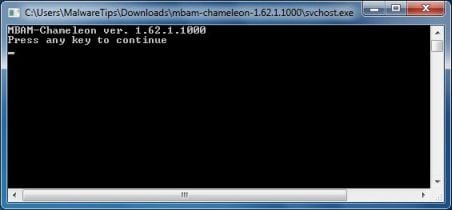
- Make certain that your infected computer is connected to the internet and then open the Malwarebytes Chameleon folder, and double-click on the svchost.exe file.
IF Malwarebytes Anti-Malware will not start, double-click on the other renamed files until you find one will work, which will be indicated by a black DOS/command prompt window. - Follow the onscreen instructions to press a key to continue and Chameleon will proceed to download and install Malwarebytes Anti-Malware for you.
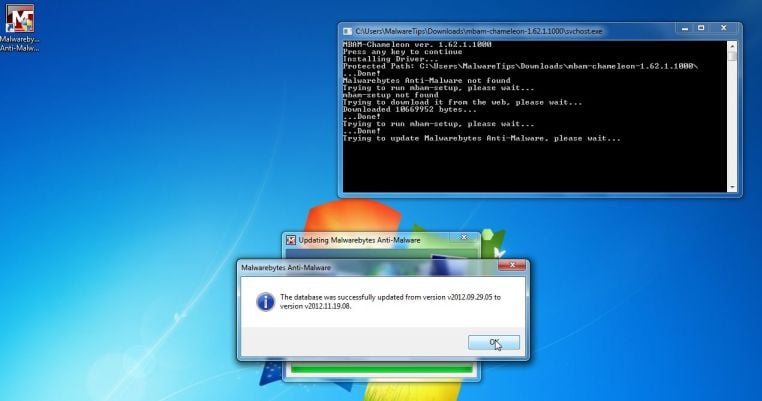
- Once it has done this, it will update Malwarebytes Anti-Malware, and you’ll need to click OK when it says that the database was updated successfully.
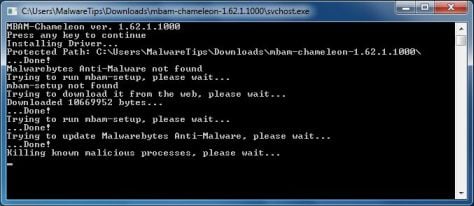
- Malwarebytes Anti-Malware will now attempt to kill all the malicious process associated with Antivirus Security Pro.Please keep in mind that this process can take up to 10 minutes, so please be patient.
- Next, Malwarebytes Anti-Malware will automatically open and perform a Quick scan for Antivirus Security Pro malicious files as shown below.
- Upon completion of the scan, click on Show Result
- You will now be presented with a screen showing you the malware infections that Malwarebytes Anti-Malware has detected.
Make sure that everything is Checked (ticked),then click on the Remove Selected button.
- After your computer will start in Windows regular mode, open Malwarebytes Anti-Malware and perform a Full System scan to verify that there are no remaining threats
![[Image: Starting web browse on infected computer]](http://malwaretips.com/blogs/wp-content/uploads/2013/03/open-web-browser.jpg "Right click on your Web Browser icon and click on Run As Administrator")
![[Image: Antivirus Security Pro Warning]](http://malwaretips.com/blogs/wp-content/uploads/2013/08/antivirus-security-pro-warning.jpg "Antivirus Security Pro Warning")
![[Image: Extract Malwarebytes Chameleon utility]](http://malwaretips.com/blogs/wp-content/uploads/2013/02/malwarebytes-chameleon-zip.jpg "Extract Malwarebytes Chameleon utility")
![[Image: Double click on svchost.exe]](http://malwaretips.com/blogs/wp-content/uploads/2013/02/malwarebytes-chameleon-svchost.jpg "Double click on svchost.exe")
![[Image: Malwarebytes Anti-Malware scanning for Antivirus Security Pro]](http://malwaretips.com/blogs/wp-content/uploads/2013/01/malwarebytes-scan.jpg "Malwarebytes Anti-Malware scanning for Antivirus Security Pro")
![[Image: Malwarebytes Anti-Malware scan results]](http://malwaretips.com/blogs/wp-content/uploads/2013/01/malwarebytes-scan-results.jpg "Malwarebytes when the system scan has completed")
![[Image:Malwarebytes removing virus]](http://malwaretips.com/blogs/wp-content/uploads/2013/01/malwarebytes-virus-removal.jpg "Click on Remove Selected to get rid of Antivirus Security Pro")
STEP 2: Remove Antivirus Security Pro infection with HitmanPro
Some variants of the Antivirus Security Pro virus will install on victims computers a ZeroAccess rootkit. To remove this nasty piece of malware, we will perform a system scan with HitmanPro.
HitmanPro is a cloud on-demand scanner, which will scan your computer with 5 antivirus engines (Emsisoft, Bitdefender, Dr. Web, G-Data and Ikarus) for the Antivirus Security Pro infection.
- You can download HitmanPro from the below link:
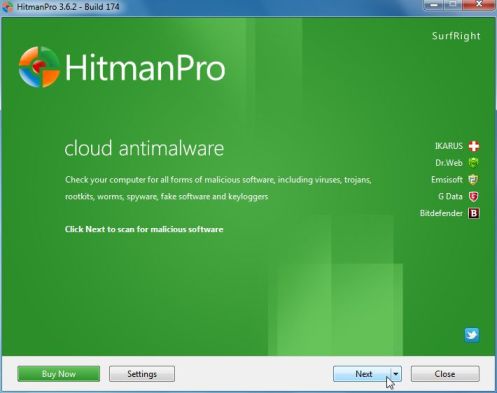
HITMANPRO DOWNLOAD LINK (This link will open a web page from where you can download HitmanPro) - Double-click on the file named HitmanPro.exe (for 32-bit versions of Windows) or HitmanPro_x64.exe (for 64-bit versions of Windows). When the program starts you will be presented with the start screen as shown below.
When HitmanPro will start, click on the Next button, to install this program on your computer.
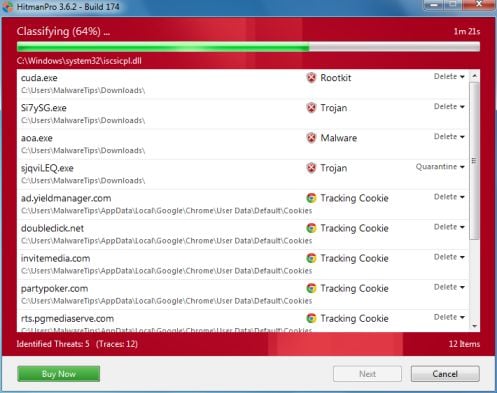
- HitmanPro will now begin to scan your computer for Antivirus Security Pro trojan.
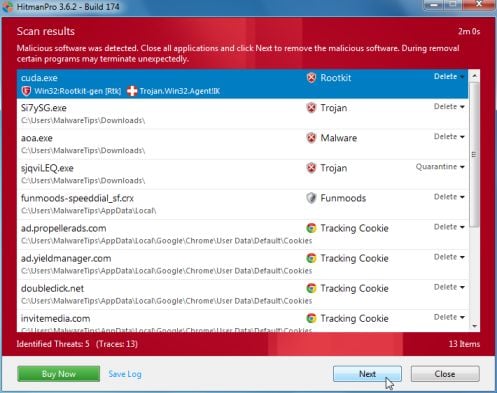
- When it has finished it will display a list of all the malware that the program found as shown in the image below. Click on the Next button, to remove Antivirus Security Pro virus.
- Click on the Activate free license button to begin the free 30 days trial, and remove all the malicious files from your computer.
![[Image: HitmanPro 30 days activation button]](http://malwaretips.com/blogs/wp-content/uploads/2012/11/hitmanpro-activation.jpg "HitmanPro free 30 days trial")
OPTION 2: Manually remove Antivirus Security Pro virus from your computer
When Antivirus Security Pro has infected a computer, it will drop it’s malicious files in the C:\Documents and Settings\All Users\Application Data\random folder (Windows XP) or C:\ProgramData\random folder (Windows Vista, 7 or 8) folder, and add on your desktop a Antivirus Security Pro.lnk shortcut. In the following steps, we will rename this malicious folder thus disabling this infection.
STEP 1: Display the hidden files and folders on your computer
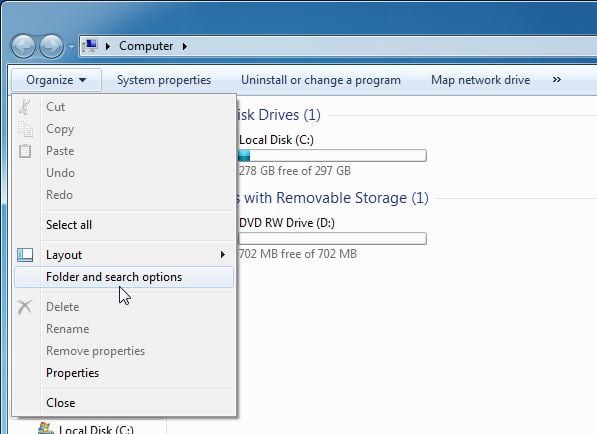
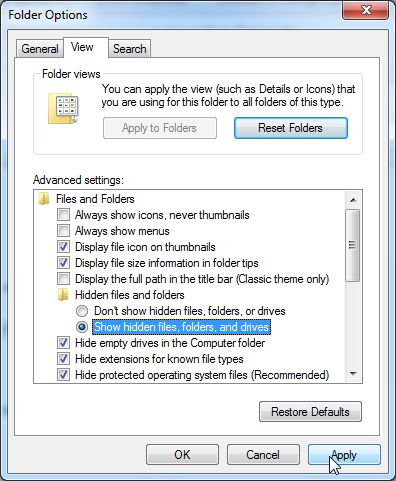
Because the C:\ProgramData\ path is hidden by default, we will need to enable the Show hidden files and folders option.
- Click on the Start button, and click on Computer.
- Click Organize and choose Folder and Search Options. (Tools > Folder Options for Windows XP Users).
- Click the View tab, select Show hidden files, folders and drives, then click on Apply and then OK.
STEP 2: Rename the malicious folder to disable Antivirus Security Pro virus
- Right click on the Antivirus Security Pro icon on your desktop, click Properties in the drop-down menu, then click the Shortcut tab. In the Target box there is a path to the Antivirus Security Pro malicious file.
- Browse to C:\Documents and Settings\All Users\Application Data\ (For Windows XP) or C:\ProgramData\ (For Windows Vista, 7 or 8), and find the Antivirus Security Pro malicious folder. In our case it was named hVma7xi, however its name is randomly generated, so you might have a different name.
- Right click on the hvma7xi folder, and select Rename from the context menu.
- Add a unique variation to the folder name, such as _old (for example, hvma7xi_old) or something random.
- Restart your computer, then perform a system scan with Malwarebytes Anti-Malware and HitmanPro to remove Antivirus Security Pro malicious files from your computer.
![[Image: Antivirus Security Pro malicious files path]](http://malwaretips.com/blogs/wp-content/uploads/2013/08/malicious-path-to-malware.jpg "Antivirus Security Pro malicious files path")
![[Image: Rename the Antivirus Security Pro malicious folder]](http://malwaretips.com/blogs/wp-content/uploads/2013/08/rename-malicious-folder.jpg "Rename the Antivirus Security Pro malicious folder")
![[Image: Rename the Antivirus Security Pro disabled]](http://malwaretips.com/blogs/wp-content/uploads/2013/08/folder-renamed1.jpg "Antivirus Security Pro malicious folder renamed")
OPTION 3: Remove Antivirus Security Pro virus with System Restore
System Restore helps you restore your computer’s system files to an earlier point in time. It’s a way to undo system changes to your computer without affecting your personal files, such as e‑mail, documents, or photos.
- Reboot your computer into Safe Mode with Command Prompt. To do this, turn your computer off and then back on and immediately when you see anything on the screen, start tapping the F8 key on your keyboard.
If you are using Windows 8, the trick is to hold the Shift button and gently tap the F8 key repeatedly, this will sometimes boot you into the new advanced “recovery mode”, where you can choose to see advanced repair options. On the next screen, you will need to click on the Troubleshoot option, then select Advanced Options and select Windows Start-up Settings. Click on the Restart button, and you should now be able to see the Advanced Boot Options screen. - Using the arrow keys on your keyboard, select Safe Mode with Command Prompt and press Enter on your keyboard.
- At the command prompt, type rstrui.exe, and then press ENTER.
Alternatively, if you are using Windows Vista, 7 and 8, you can type: C:\windows\system32\rstrui.exe , and press Enter. And if you are a Windows XP user, type C:\windows\system32\restore\rstrui.exe, then press Enter. - System Restore should start, and you will display also a list of restore points. Try using a restore point created just before the date and time the Antivirus Security Pro virus has infected your computer.
- When System Restore has completed its task, start your computer in Windows regular mode, and perform a scan with Malwarebytes Anti-Malware and HitmanPro, as seen in OPTION 1.
![[Image: F8 key]](http://malwaretips.com/blogs/wp-content/uploads/2013/06/F8-key.jpg.png "Windows F8 key")
![[Image: Starting computer in Safe Mode with Command Prompt]](http://malwaretips.com/blogs/wp-content/uploads/2013/06/Safe-Mode-with-Command-Prompt.jpg "Advanced Boot Options screen")
![[Image: Start System Restore to remove Antivirus Security Pro virus]](http://malwaretips.com/blogs/wp-content/uploads/2013/06/system-restore-command.jpg "rstrui.exe command in Safe Mode with Command Prompt")
![[Image: Restore settings to remove ransomware]](http://malwaretips.com/blogs/wp-content/uploads/2013/06/system-restore.jpg "Restore your computer's system files to an earlier point in time")
Your computer should now be free of the Antivirus Security Pro infection. If your current anti-virus solution let this infection through, you may want to consider purchasing the PRO version of Malwarebytes Anti-Malware to protect against these types of threats in the future, and perform regular computer scans with HitmanPro.
If you are still experiencing problems while trying to remove Antivirus Security Pro from your machine, please start a new thread in our Malware Removal Assistance forum.









The access code did not work for me, but rkill stopped it. http://www.bleepingcomputer.com/download/rkill/
Thanks a lot mate. I have been trying to get this thing out of my laptop all day. Yo da man!
Thank you!!!! The activation code really helped & then I followed Option 1. It took about 2 hours total, but I have tons of files. BTW got this by NOT using my head & opening an email from Whatsapp that showed up in my Yahoo mail saying I had a Voice Message, then running the .exe.
It wouldn’t let me rename the file until I put in the activation code and closed the program. Thank you very much for providing this information.
Also ….. Thanks I have managed to remove this nasty malware/Trojan/virus. I needed to go into Safe Mode with Networking to do so as the malevolent software kept preventing any downloads or renaming its folder. I would donate but have a problem with you being a Starbucks addict. I understand that Starbucks owner Howard Schulz is pro Israel and uses his position and wealth to foster US Israeli relations. Israel is a rogue state based on ethnic cleansing and US and UK support for it is deplorable. Please reconsider your choice of coffee shop.
Thanks again for the assistance in removing Anti-Virus-Security Pro, I appreciate that independent malware defence is unrelated to malevolent politics but feel we must all use whatever levers we can to fight both.
Please advise to 3 questions. I was unable to start in safe mode. It kept rebooting and wouldn’t let me do anything- I kept getting the pop up wanting me to buy the AV. I do think that I’m on the right track now. I answered like I wanted the AV and entered in the keycode that is online here to disable the pop ups. I scanned with malwarebytes and removed 18 malicious things including the fake AV program. My concern is that after I entered the key code into the pop up -it looked like it was scanning my computer. 1) Should I be concerned that my computer has been compromised? I do online banking and such on here. I’m trying to run my microsoft security essentials now and it’s not working. 2) I’m thinking that I should delete microsoft security essentials and redownload and run- Do you agree 3) My firewall keeps telling me that googleupdate.exe wants to access my computer. I keep denying it. Is this a legit app or another virus?
Hello,
This infection does not come with keylogging capabilities, and as long as you do not buy this rogue antivirus you should be fine.
Microsoft Security Essentials is a very basic antivirus, I highly recommend that you give Comodo Internet Security Free a try !:)
Googleupdate.exe could be legit, it all depends from which path is running. Let make one more check, just to make sure you computer is clean:
Can you please run a scan with Combofix and post the logs here so that I can get an idea on what’s going on:
You can download ComboFix from here: http://download.bleepingcomputer.com/sUBs/ComboFix.exe
VERY IMPORTANT !!! Save as Combo-Fix.exe during the download.ComboFix must be renamed before you download to your Desktop
Close any open browsers.
Very Important!!!> Temporarily disable your anti-virus, script blocking and any anti-malware real-time protection before performing a scan. They can interfere with ComboFix or remove some of its embedded files which may cause “unpredictable results”.
WARNING: Combofix will disconnect your machine from the Internet as soon as it starts
Please do not attempt to re-connect your machine back to the Internet until Combofix has completely finished.
If there is no internet connection after running Combofix, then restart your computer to restore back your connection.
1. Double click on ComboFix.exe & follow the prompts.
2. Accept the disclaimer and allow to update if it asks
3. When finished, it shall produce a log for you.
Notes:
Do not mouse-click Combofix’s window while it is running. That may cause it to stall.
Do not “re-run” Combofix. If you have a problem, reply back for further instructions.
If after the reboot you get errors about programs being marked for deletion then reboot, that will cure it.
Please post the Combofix, so that I can get an idea on what’s going on.
well… changing names was easy!
Thanks so much for saving me from a complete Windows 7 re-installation!
The temporary activation key listed above (Antivirus Security Pro Activation code: AA39754E-715219CE) is what saved me. Then I used the Malwarebytes method to get rid of it.
Thank you so much for the accurate and informative article!
: )
.
Thank you very much, you have been a great help!
Thanks a lot… I used the option 2 to cleanup. I also am grateful.
I m grateful you wrote this. Thanks a million. Jerome
thank u somuch
Thanks a lot!
I’m very grateful for you taking the time to publish this for free. I must be honest and say it didn’t work for me- it was as if the virus had read your blog and knew how to block all the attacks! I’m glad it worked for others though.
Greetings from Spain
Hello,
Can you please try the “Safe Mode with Networking” method: here is how to do it: http://malwaretips.com/blogs/antivirus-security-pro-virus/
Great. Felt relieved. Used option 3. Thx. a Ton
Thank you very much :)
Worked like a charm…thank you!
Thanks so much.. Its works done and Great Job…….
Hello,
Did you run a scan with Malwarebytes and HitmanPro?
If these two utilites did not detect and remove that malicious folder, then you can delete it from your computer.
Aslo, just to be on the safe side, you can run a scan with these two tools:
STEP 1: Run a scan with RogueKiller
1. Please download the latest official version of RogueKiller.
RogueKiller Download Link : http://tigzy.geekstogo.com/roguekiller.php
2. Double click on RogueKiller.exe to start this utility and then wait for the Prescan to complete.This should take only a few seconds and then you can click the Scan button to perform a system scan.
3. After the scan has completed, press the Delete button to remove any malicious registry keys.
STEP 2: Run a scan with ESET Online Scanner
1.Download ESET Online Scanner utility.
ESET Online Scanner Download Link : http://download.eset.com/special/eos/esetsmartinstaller_enu.exe
2. Double click on the Eset installer program (esetsmartinstaller_enu.exe).
3.Check Yes, I accept the Terms of Use, then click the Start button.
4.Check Scan archives and push the Start button.
5. ESET will then download updates for itself, install itself, and begin scanning your computer. Please be patient as this can take some time.
6. When the scan completes, click on the Finish button.
Stay safe!
Thanks so much! This stupid “fake” virus even has a phone number that I left a hateful voicemail on. This article is so helpful and was able to remove this virus with option 1. Although, I may double up on protection and download option 2. Thanks again for your hard work and kind heart for taking time to write this. <3