


An ordinary document stops opening, and its familiar filename now ends differently. Nearby, a new text file offers an explanation that raises more questions than it answers.
When important files suddenly become inaccessible, the urge to try every suggested fix is understandable. A careful order of actions can protect the recovery choices you still have.
Overview
Recognizing AoQin without relying on a single filename
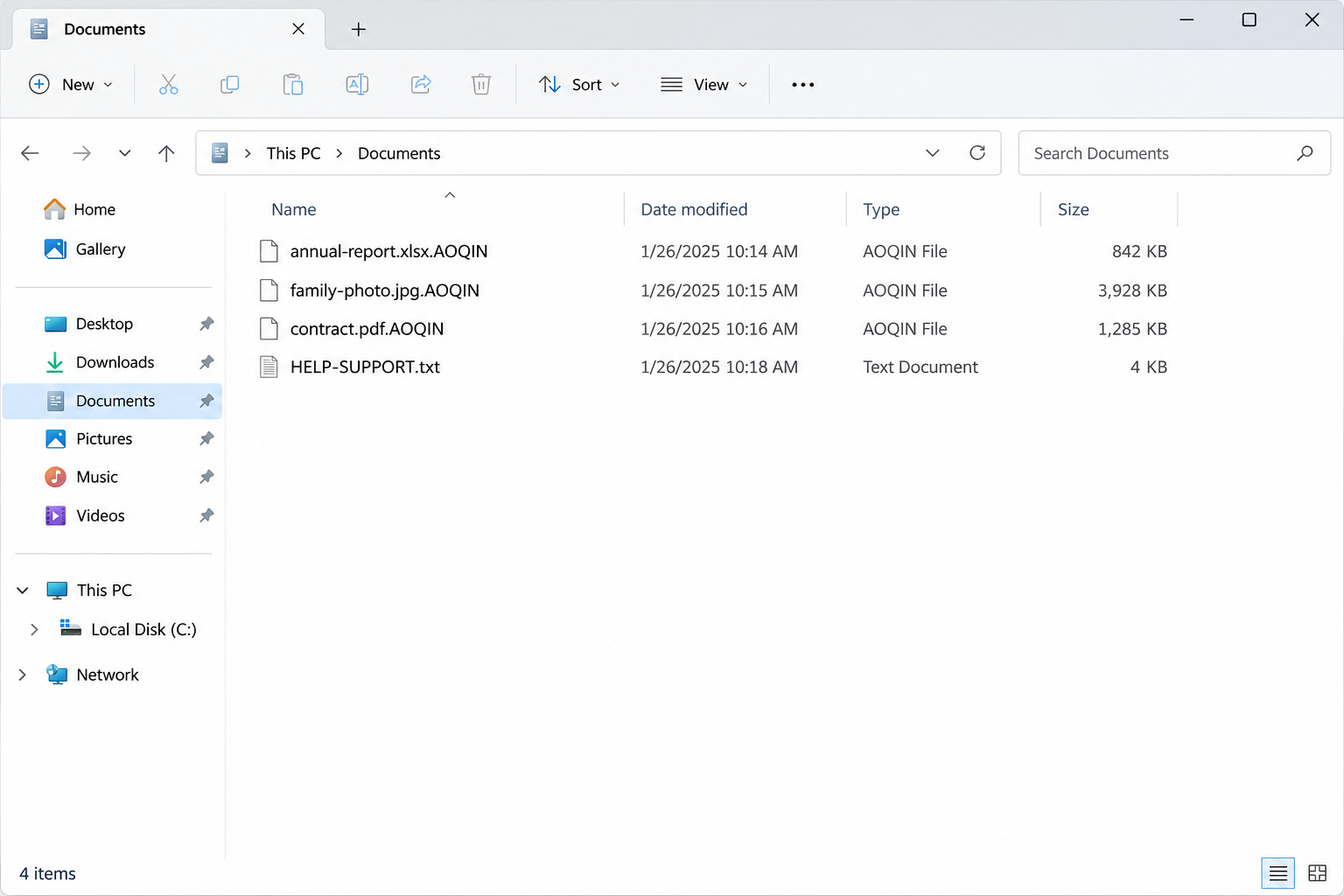
AoQin ransomware is reported to append .AOQIN to encrypted filenames and create HELP-SUPPORT.txt. A changed desktop background is another reported sign associated with the infection.
For example, a document name can retain its original extension before the added suffix. Removing that suffix changes the label, not the encrypted contents that prevent normal opening.
These indicators help describe an incident, but an extension alone is not a complete forensic identification. Preserve the note and affected files for a more reliable assessment.
The demand combines locked files with pressure about data
The note claims affiliation with an AoQin group, offers seven days to negotiate, and claims sensitive documents were taken. A ransom demand alone cannot prove that files left your network.
Treat possible disclosure seriously while investigating it. For an organization, that can require professional incident response and legal or regulatory advice alongside restoring access to business systems.
The attacker’s deadline should not dictate your technical decisions. Preserve evidence and establish what happened before installing utilities, reconnecting backups, or changing affected systems unnecessarily.
Removal and recovery are separate tasks
Malware removal aims to stop harmful software and address its access. File recovery aims to obtain usable original information through backups, surviving versions, or a genuinely applicable decryption method.
One does not automatically accomplish the other. A scan can remove malicious components while leaving encrypted documents exactly as they were, including the added file extension.
Keep these priorities in view while choosing the next action:
- Isolate the affected device before exposing more storage or shared folders.
- Preserve the ransom note and untouched copies of affected files.
- Involve your organization’s response team before changing a managed system.
- Check independent recovery options before accepting anything an attacker offers.
- Never interpret a software purchase as a guaranteed decryption key.
What To Do First If Your Files Were Encrypted
-
Disconnect the affected computer from networks and attached backups.
Unplug Ethernet and disable Wi-Fi, then disconnect removable backup drives when safe. Do not connect another drive simply to see whether it also contains readable files.
For shared or business systems, notify the administrator immediately. They can assess other endpoints and storage without assuming this particular ransomware has a proven automatic network-spreading feature.
-
Preserve the current state before attempting repairs.
Keep the note, relevant timestamps, and representative encrypted files. If business data or irreplaceable personal files are involved, seek qualified help before writing extensively to the affected disk.
A responder may need memory or disk evidence before a restart. Do not power-cycle a managed endpoint impulsively, and do not let the attacker’s instructions replace professional guidance.
-
Identify usable backups without exposing them to the infection.
Check backup inventories from a clean device where possible. Keep offline copies disconnected until the destination is trustworthy, and confirm that a backup predates the file damage.
A drive appearing in a backup list does not establish a successful restore. Later, test representative documents and verify their contents rather than relying only on a completion notification.
-
Plan cleanup and recovery together, without confusing their purposes.
If deleted-original recovery matters, minimize disk writes and consider imaging first. Installing a scanner or recovery tool on the affected drive can overwrite data needed for that approach.
On a work computer, follow the incident team’s plan. The consumer Windows instructions below are not permission to bypass company controls, destroy evidence, or reconnect an isolated machine prematurely.
Understanding the Ransom Note Without Following Its Instructions
The demand tries to make contacting the attacker feel like the only next step. A deadline, a sample-decryption offer, and a data-disclosure threat can each contribute to that pressure.
A successfully decrypted sample would not guarantee complete recovery, a functioning tool, or deletion of copied information. It demonstrates only what happened to that particular sample under those conditions.
Likewise, paying does not establish that the computer is trustworthy again. The original access route, additional malware, and account compromise can remain relevant even if some files become readable.
The precise initial delivery method for this case is not established here. Do not delete a guessed attachment, blame a particular download, or assume one exposed service explains the intrusion.
Incident investigation should examine system evidence, access records, and affected accounts. Preventing recurrence depends on finding the route that applied to your environment rather than choosing a familiar ransomware story.
Never download an alleged decryptor from a stranger’s advertisement or private message. Recovery anxiety creates opportunities for further fraud, especially when someone promises certain results before identifying the infection.
How to Remove AoQin Ransomware
These Windows instructions adapt the site’s established Malwarebytes removal procedure. Start only after containment and any necessary evidence preservation, particularly when a professional responder is handling the incident.
The instructional screens come from the existing Windows guide. Their purpose is to show the relevant controls; newer releases can arrange onboarding and scanning options differently.
Step 1: Obtain and install the verified Windows scanner
Use a clean device to obtain the legitimate installer if necessary. Transfer it safely, or follow your responder’s approved approach for updating an isolated endpoint without exposing it unnecessarily.
The download provides the Windows installer, not a decryption utility. Free on-demand scanning and removal are separate from optional paid protection, and no purchase guarantees recovery of encrypted documents.
The button opens the official free-scanner page through the site’s download route. Choose its free download for Windows, then save the installer without accepting unrelated offers or advertisements.
Open the downloaded MBSetup installer after checking its identity. Accept the Windows permission prompt only when it corresponds to the legitimate Malwarebytes installer you intentionally obtained.

Choose Install, then select Personal for your own home computer. A company-owned device belongs under the organization’s deployment procedure, so stop and ask its administrator if you are unsure.
Continue through the installer and skip optional offers you do not need. After installation finishes, open Malwarebytes rather than an unrelated application advertised beside the download.
If onboarding offers subscription activation, use it only for a subscription you actually own. Follow the available free-scan route when appropriate rather than assuming cleanup requires purchasing Premium.
Step 2: Run the scan and review every proposed action
Allow the scanner to update through an approved connection if required. Start the supported Threat Scan from the Scanner area and let it finish before deciding what its results mean.

A Threat Scan examines common threat locations rather than every byte on every connected drive. Use the scanner’s supported additional scan options when the situation calls for a wider investigation.
Do not reconnect backup drives merely to include them in a routine scan. Handle potentially affected removable or shared storage under a separate plan that protects clean recovery copies.
Review the detection list, including names, locations, and proposed actions. Save the report, then quarantine identified malicious items rather than manually deleting arbitrary files with unfamiliar names.

Do not mistake a listed encrypted document for the malicious program itself. If a proposed action could remove an irreplaceable file or valuable evidence, pause and ask for qualified guidance.
This scan is one part of assessing the endpoint. A clean result does not prove that stolen credentials are safe, data was never copied, or every persistence mechanism was found.
Step 3: Complete required restarts and investigate unresolved symptoms
If Malwarebytes requests a restart after applying its actions, save needed work and restart when evidence-preservation requirements permit. Managed systems should follow the responder’s timing rather than this consumer sequence.

After restarting, open the scanner and review its status and retained report. Update and rescan as appropriate, checking whether detections recur or newly created files show further unwanted changes.
If malicious activity continues, keep the machine isolated and seek assistance through MalwareTips removal help or a qualified responder. Do not repeatedly restore backups into a still-compromised environment.
A planned clean rebuild may provide a more dependable destination than continuing uncertain repairs. Preserve needed evidence and files first, and restore applications from trustworthy installation sources afterward.
How to Recover .AOQIN Files
Recovery starts with preserved copies and a trustworthy destination, not with renaming files. Keep the original affected set unchanged so a failed experiment does not erase a later opportunity.
Restore verified backups and surviving earlier versions first
Identify a backup from before the damage and confirm that it contains the files you actually need. Prefer an isolated test restore before replacing a large working dataset.
Restore onto a cleaned or rebuilt system, not an endpoint that may still encrypt new files. Open a selection of restored documents and compare their contents with known expectations.
Check legitimate cloud version history and previously configured backup services from a clean device. A synchronized encrypted copy is not the same thing as an intact historical version.
Where Windows backup or previous versions are available, inspect the relevant folder’s recovery options. Surviving snapshots may help, but their availability depends on prior configuration and what the incident affected.
Copy useful versions to separate storage instead of overwriting the only remaining encrypted set. Document which dates and sources produced readable results so you can repeat a successful recovery consistently.
Check for a genuinely matching public decryptor
The checked No More Ransom directory did not list an AoQin-named tool. That is a current directory observation, not a promise that assistance will never become available.
Ask a reputable identification service or responder to identify the variant before trying a tool. A filename suffix or similar ransom note is not enough to select one safely.
Read the tool’s exact instructions and supported variants before use. Test only disposable copies, retain the originals, and stop if the utility cannot identify or safely process the sample.
Never upload sensitive business documents merely to obtain a diagnosis without authorization. An organization’s incident team can choose suitable evidence and consider confidentiality before submitting anything to outside services.
Consider deleted-file recovery only when original data may survive
Some recovery tools search for deleted or lost original files. They do not decrypt correctly encrypted contents, and success depends on disk activity, storage behavior, and what remains recoverable.
If this route is important, stop using the source disk and seek imaging assistance first. New installations and recovered output can overwrite the very data you are trying to find.
The site’s recovery guide includes EaseUS Data Recovery Wizard as an optional tool for this purpose. Preview results before paying, and check the currently advertised free recovery allowance.
Install the recovery application on a different clean drive or computer, not the affected source volume. A qualified technician can connect or image the source without booting its compromised installation.
Open the verified setup file on the clean machine and approve its Windows permission prompt. Follow Install Now or the equivalent installation control, checking the destination before confirming.
When installation completes, choose Start Now or open the application from its installed shortcut. Skip optional offers you do not need, and leave the recovery source unchanged throughout setup.
Open the application and select the drive or folder that held the missing files. Start its scan without formatting, initializing, or otherwise modifying the source when Windows suggests repairs.
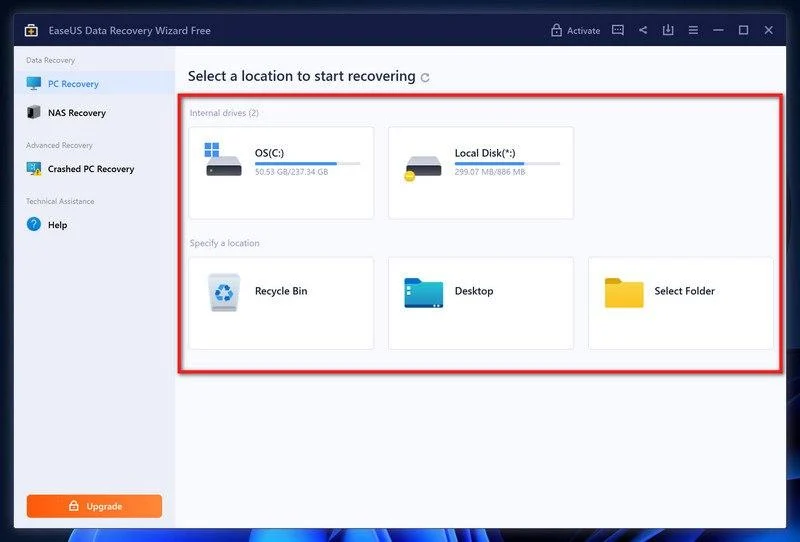
Let the scan progress and inspect the discovered file tree. Filter by the file types or names you need, but remember that a recognizable listing does not prove readable contents.
Use Preview on a promising result before committing to recovery. A file that remains encrypted, fails to preview, or contains damaged content is not something a purchase automatically fixes.
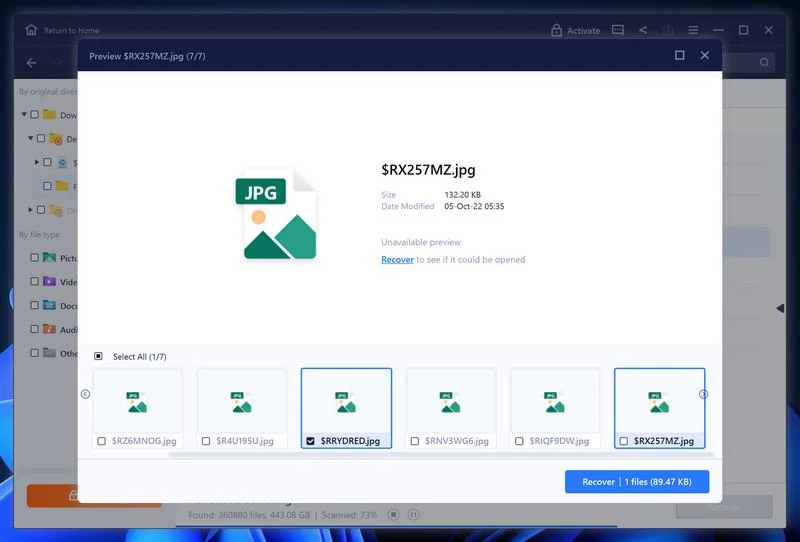
Select the useful results and choose Recover, then select separate clean destination storage. Confirm that the destination is not the same volume you are scanning or trying to preserve.
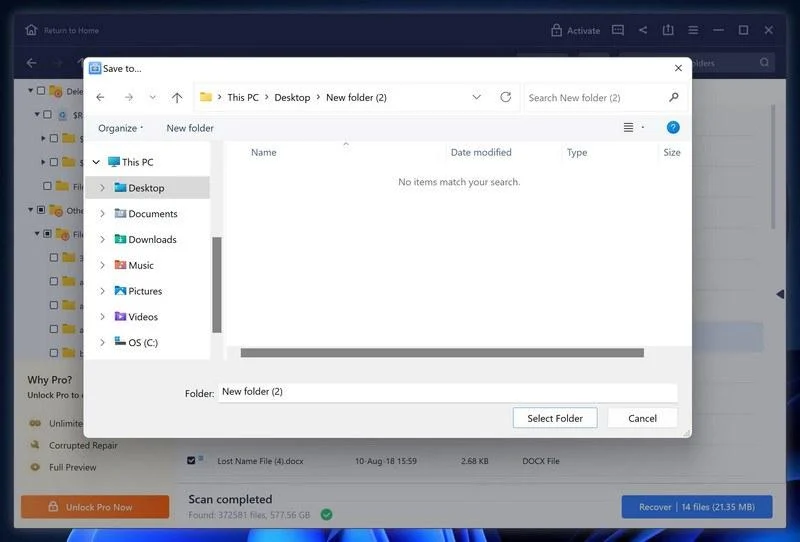
If the destination picker opens to Desktop, navigate to separate clean storage instead. Do not accept a convenient default folder on the very source volume you need to preserve.
Open recovered copies with appropriate applications and check their actual contents. Keep a record of what worked, and retain the untouched source if additional professional recovery is still under consideration.
The illustrated recovery interface is from the site’s existing guide and may differ from newer releases. The critical safeguards remain previewing results and avoiding writes to the source.
Do not treat a failed deleted-file scan as proof that all other recovery routes are exhausted. Backups, version history, specialist identification, and future decryptor developments are separate possibilities.
After Cleanup, Check the Access That May Remain
Use a known-clean device to change credentials relevant to the incident. An organization should assess privileged access, remote access, service accounts, and sessions according to its actual investigation.
Do not reconnect the restored system simply because documents open again. Confirm security updates, protection status, network access controls, and the original intrusion route before resuming ordinary operations.
Keep offline or otherwise protected backups with a tested restore process. A backup strategy needs usable recovery copies that cannot all be changed through the same compromised access.
If sensitive information may have been taken, handle that question separately from decrypting files. Successful restoration cannot demonstrate that an attacker lacks a copy of documents they previously accessed.
Frequently Asked Questions
Does removing the .AOQIN extension restore a file?
No, because renaming changes the filename rather than the affected contents. Keep original encrypted copies and pursue verified recovery options instead of renaming the entire dataset.
Can Malwarebytes decrypt the documents after removing ransomware?
Malware removal and decryption serve different purposes. Scanning can address detected malicious software, while readable file recovery still depends on backups, surviving versions, or an applicable decryption method.
Does the note prove that documents were stolen?
An attacker’s claim alone does not prove data theft. Preserve the claim and investigate access and transfer evidence, particularly if business, employee, or other sensitive information may be involved.
Should I immediately restart a work computer?
Contact the incident-response team after isolating the device. They may need volatile evidence before a restart, so follow their preservation and containment instructions rather than making unplanned changes.
Is a paid file-recovery tool an AoQin decryptor?
Not simply because it finds files or advertises ransomware recovery. Deleted-file recovery is a different mechanism, and a paid license cannot by itself turn encrypted contents into readable originals.
What if I cannot recover anything today?
Preserve untouched encrypted copies and the ransom note on safe storage. Seek qualified identification and recovery advice, and avoid destroying the remaining evidence while checking future legitimate options.
The Bottom Line
Isolate the affected system, preserve the files, and follow a proper removal or rebuild plan before restoring data. Keep recovery work separate from the attacker’s deadline and payment instructions.
Start with verified backups and surviving versions, then assess genuinely applicable tools on copies. If the situation remains uncertain, qualified help is safer than repeated experiments on your only files.

Join the discussion
0 commentsShare your experience or ask a question about this article.
Your progress
Did these steps help?
Let us know how the guide worked for you.
Describe what you see and the step you reached. Keep passwords and other private information out.
Discussion
Start the conversation
Have a question or something useful to share? Add the first comment.