

Apple Fraud Prevention Team scams are impersonation scams that use fake Apple billing and security alerts to create panic.
The message may arrive by email or text, but the script is the same. It claims there was a suspicious Apple Pay charge, tells you your account is at risk, and pressures you to call a phone number that connects you to scammers posing as Apple support.
If you call, the scam often escalates into a fake tech support operation focused on remote access, stolen credentials, and payment fraud.
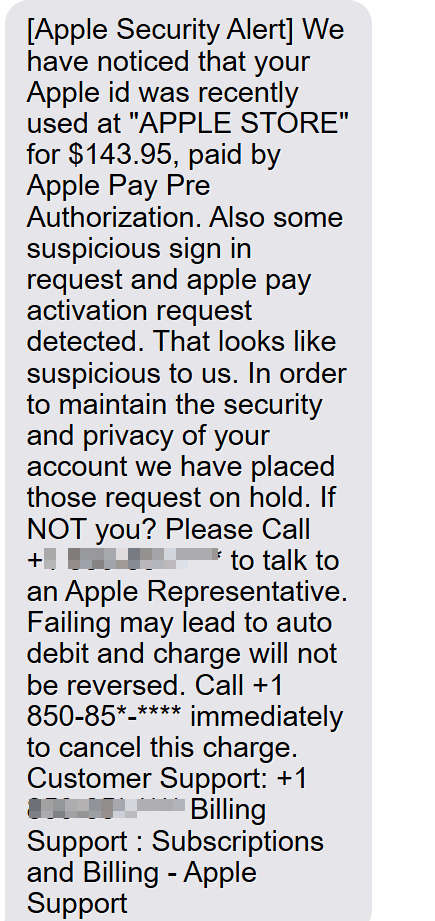
Scam Overview
What the Apple Fraud Prevention Team scam really is
This scam is a blended phishing and tech support fraud.
The first contact usually looks like a billing or fraud notification from Apple. It may say your Apple ID was used for a purchase, that Apple Pay was activated on a new device, or that your account triggered a fraud review. The message often uses a specific dollar amount, a fake case ID, and a support number to make it feel legitimate.
The goal is not just to warn you.
The goal is to get you to call the number in the message.
Once that happens, the scam shifts from a fake billing alert into a fake support call. Apple warns that scammers use social engineering, which is impersonation and manipulation, to trick people into sharing sign-in credentials, security codes, and financial information. Apple also specifically warns about scam calls, voicemails, and messages that impersonate Apple Support.
The FBI describes the same broader pattern under spoofing and phishing. Scammers disguise sender names, phone numbers, or websites to look trusted, then use that trust to steal information or money. The FBI also notes that smishing happens through SMS texts and vishing happens over phone calls, which is exactly how this scam operates across both email and text channels.
Why scammers use the phrase “Fraud Prevention Team”
“Fraud Prevention Team” sounds official, neutral, and urgent.
It is one of those labels that instantly lowers a person’s guard because it sounds like the company is trying to protect them. The wording is designed to trigger a quick emotional response:
- “Someone used my account”
- “I need to stop this”
- “I should call support immediately”
That emotional sequence is the conversion path.
Scammers know people respond faster to fraud alerts than to generic spam. They also know that if they use a big brand name like Apple, many recipients will assume the alert is part of a real security system.
Apple’s guidance tells users to assume an unexpected message or call requesting personal information or money may be a scam and to contact the company directly through official channels if needed. That advice matters here because the entire scam depends on you trusting the contact details inside the message.
Why the scam appears in both emails and text messages
This is the same scam campaign running across multiple channels.
Some versions are email-based and look like billing notices or fraud alerts. Others are text-based and look like urgent Apple Security Alert messages. In both cases, the language is nearly identical:
- A fake charge or payment
- A suspicious sign-in or Apple Pay activation
- A warning that action is required
- A phone number to call
The FTC has documented this exact structure in tech support scams. It warns that scammers send emails or texts claiming a suspicious charge or subscription renewal, then tell you to call a number if you want to dispute it. If you call, they move into a fake support script, request remote access, and start the real theft.
That is why it is important to see these messages as one scam family, not separate scams.
An “Apple Fraud Prevention Team” email and an “Apple Security Alert” text are often just different wrappers around the same operation.
Why these messages look convincing at first glance
The scammer does a few things very well.
First, they borrow Apple branding cues. The message may include the Apple name, a billing department label, a fake case ID, and support wording that resembles real customer service language.
Second, they add fake transaction details. You might see a precise amount like $143.95 or $623.00, a location like an Apple Store in a specific city, and a timestamp that makes the alert feel like a real payment log.
Third, they use mixed urgency. The message does not only mention a charge. It also mentions account risk, suspicious sign-ins, Apple Pay activation, or a blocked transaction. This creates fear on two fronts:
- Financial loss
- Account compromise
That combination makes people act fast.
The FTC has repeatedly warned that scammers rely on panic, pressure, and urgent stories to get people to stop verifying and start reacting. In its tech support scam guidance, the FTC explains that scammers use threats and pressure to push victims into giving up financial information or money.
Clear red flags in Apple Fraud Prevention Team scam emails and texts
These messages often contain several red flags at once.
Some are obvious. Others are subtle but very revealing.
They tell you to call a phone number in the message
This is the biggest red flag.
Real companies expect customers to contact them through official channels. Scammers want you to call the number they control.
The FTC’s guidance is direct on this point. If a message seems real, contact the company using a phone number or website you know is real, not the information in the message. The FBI gives the same advice and specifically says to look up the company’s phone number yourself, not the one the potential scammer provides.
The wording is off, even when the layout looks polished
Many Apple impersonation scams use awkward wording, inconsistent capitalization, or strange phrasing.
Examples include things like:
- “That looks suspicious to us”
- “Failing may lead to auto debit”
- “Your Appointment Has Been Booked” in a fraud alert
- “Review or cancel the transaction during the appointment”
The message may look formal, but the language does not read like a real Apple communication.
That mismatch is common in scam templates.
They use placeholders, generic labels, or unusual formatting
Fraud templates are often mass-produced and reused.
That is why some scam emails contain strange placeholders, generic department names, or inconsistent sections that do not make sense together, such as:
- “Apple & Customer Billing Department”
- “[Unverified Apple Pay Usage]”
- A case ID that looks manufactured
- Repeated support phone numbers in multiple spots
These details are not just sloppy. They are signals that the message was built to impersonate a process, not reflect a real account event.
They include technical details that sound impressive but do not hold up
Scammers often add “technical” details to create credibility.
This can include a timestamp, a device ID, or an IP address. But the details are often fake, meaningless, or even impossible. Some versions list invalid IP addresses that do not conform to standard formatting rules, which is a strong sign the message was never generated by a real payment or security system.
This is a common impersonation tactic.
The FBI notes that spoofing scams rely on small details that make a fake message look real enough to gain trust.
They create a false deadline
The message usually implies something bad will happen if you do not act right away.
You may be told:
- The charge will auto-process
- The transaction will not be reversible
- Apple Pay will remain active on a new device
- Your account will be charged within 24 hours
This is not about customer service. It is about forcing a fast decision.
The FTC warns that urgency is a core feature of these scams, especially in fake billing and tech support messages that pressure people to call immediately.
Why this is not just spam, but a serious theft setup
It is easy to dismiss these messages as annoying spam.
The problem is that they are usually the front end of a much bigger fraud attempt.
If the scammer gets you on the phone, they may try to:
- Get remote access to your device
- Collect Apple account credentials
- Capture verification codes
- Watch you log into your bank
- Push a fake refund process
- Demand gift cards or transfers
Apple warns users never to share passwords or security codes and to avoid suspicious calls claiming to be from Apple. Apple also advises users to contact Apple only through official support channels, not through links or numbers in suspicious messages.
The FTC and FBI guidance supports the same conclusion from another angle. Once you call or click, the scammer’s goal is to move you into a controlled environment where they can steal credentials or money.
The scam can target anyone, not just less technical users
A lot of smart people fall for this.
That is because the scam is not built around technical confusion alone. It is built around timing, stress, and brand trust.
You might be busy. You might have real subscriptions. You might have used Apple Pay recently. You might have had a real fraud alert from another company before. Scammers exploit that normal background noise and insert a fake alert that feels plausible.
The FTC has emphasized in multiple scam alerts that these messages can be convincing and that panic is often what makes people comply. Talking to someone you trust before acting can be enough to break the scam’s momentum.
That is why this scam still works.
It does not need a perfect message. It only needs a believable enough story and a phone number.
How The Scam Works
Stage 1: The fake Apple fraud message arrives
The attack starts with an email or text.
The message claims there was a recent Apple purchase, Apple Pay payment, suspicious sign-in, or payment activation. It often includes a specific amount, a location, and a case ID to make it feel like an internal fraud notice.
This is the hook.
The FTC describes a very similar pattern in fake subscription and charge scams. The message says there was a charge and tells you to call within a short timeframe if you want to dispute it. The brand name changes, but the flow is the same.
Stage 2: The message pushes you to call a “support” number
The message does not want you to log into your account and verify anything.
It wants you to call a phone number controlled by the scammer.
This matters because once you call them, they control the conversation. They can sound helpful, confident, and urgent. They can also keep you from contacting real Apple support or your bank while they work through the script.
Both the FBI and FTC warn people not to use contact information provided in unsolicited messages. Instead, they recommend looking up the official contact details yourself.
Stage 3: A fake Apple support agent answers
When victims call, the person on the line often sounds professional.
They may introduce themselves as:
- Apple Support
- Apple Billing
- Apple Fraud Prevention
- Apple Account Security
- Senior Apple Technician
They may use a fake case number and thank you for “reporting the fraud quickly.”
This is intentional.
The scammer needs to create authority before asking for anything sensitive. Apple warns that scam calls and voicemails may impersonate Apple Support, and the FBI explains that spoofing and impersonation are designed to make you believe you are talking to a trusted source. (Apple Support)
Stage 4: The scammer confirms basic information to build trust
Before asking for passwords or money, the scammer often asks low-risk questions.
For example:
- Your name
- Device type
- Whether you use iPhone or Mac
- Whether you use Apple Pay
- Your ZIP code
- Your email address
This serves two purposes.
First, it makes the call feel like a real support workflow.
Second, it gives the scammer enough information to customize the next part of the script. If you say you use a Mac, they pivot to a computer security story. If you say you use Apple Pay, they push the payment fraud story harder.
Apple notes that scammers use manipulation and sophisticated tactics to persuade people to share personal details and financial information.
Stage 5: The script shifts from billing to “device security”
This is where the scam usually becomes a fake tech support scam.
The caller may say the charge was only one symptom and that your device or Apple account appears compromised. They may claim:
- A hacker is connected to your device
- Malware is causing unauthorized Apple Pay activity
- Your Apple ID token was activated on another device
- They need to “secure” your device before they can cancel the charge
This is a classic move.
The FTC describes tech support scams where scammers impersonate well-known companies, claim there is a virus or malware problem, and use that claim to justify remote access and payment demands.
The fake Apple billing alert is just the first script.
The real scam begins when they convince you your device needs immediate technical intervention.
Stage 6: They ask you to install remote access software
This is one of the highest-risk moments in the scam.
The caller may instruct you to install a remote access tool such as AnyDesk or another screen-sharing app. They frame it as a normal support step so they can “inspect” or “secure” your device.
Once installed, they will ask for the code or approval needed to connect.
If you provide it, they may be able to:
- See your screen
- Control your device
- Open websites
- Watch what you type
- Guide you through banking or account logins
AnyDesk’s own abuse prevention guidance warns that scammers misuse remote access software to connect to devices and steal data, access codes, and money. It also gives a very clear rule: never give people you do not know access to your devices and never share online banking logins or passwords. (AnyDesk)
The FTC also warns that fake tech support agents ask for remote access and may use it to steal information or install malware. (Consumer Advice)
Stage 7: The scammers harvest credentials and financial information
After the remote session starts, the scammer often moves quickly.
They may ask you to log in to your Apple account to “verify the fraud block” or to your bank account to “confirm the charge was reversed.” In reality, they are trying to collect credentials, watch your logins, or trigger password resets.
Common targets include:
- Apple account sign-in
- Email inbox
- Banking websites
- Card account portals
- Payment apps
- Verification codes sent by text
The FBI warns that phishing often leads victims to spoofed websites that look nearly identical to real ones, where criminals collect passwords, credit card numbers, and banking information.
Some scammers do not even need a fake website if they can watch you log in on a real one during a remote session.
Stage 8: The fake refund or overpayment trick
A common endgame is the fake refund script.
The scammer pretends they canceled the Apple charge or issued a refund, then claims they made a mistake and refunded too much money. They may say:
- “We sent $1,439.50 instead of $143.95”
- “You need to return the difference”
- “This is a recorded compliance issue”
This is a known fraud pattern.
The FTC specifically describes scams where victims call to dispute a fake charge, give remote access, and then get pushed into a fake refund scenario where scammers claim an overpayment and demand money back.
The fake refund is not an accident.
It is a pressure tactic to move you from “I need help” to “I need to pay them back.”
Stage 9: Payment demand through gift cards or other hard-to-reverse methods
Once the overpayment story is in place, the scammer demands payment.
They often insist on methods that are difficult to reverse:
- Gift cards
- Bank transfer
- Wire transfer
- Cryptocurrency
- Payment apps
The FTC notes that these are common payment channels in tech support scams because scammers want irreversible or difficult-to-trace payments. It also warns that scammers may tell people to buy gift cards and share the codes, which is a major fraud sign.
Apple’s anti-scam guidance also warns users not to share security information and to treat requests for money or sensitive account data in unexpected messages as suspicious.
If a caller claiming to be Apple asks for gift cards, it is a scam.
Stage 10: The scam can continue after the first call
Many victims think the scam ends once they hang up.
Sometimes that is only the beginning.
If the scammers captured your information, they may:
- Call again from another number
- Pretend to be a different department
- Try password reset attempts
- Use your email for additional scams
- Sell your details to other scam groups
The FBI warns that spoofing allows scammers to disguise phone numbers and sender names, which is why follow-up calls may look different and still be part of the same operation.
This is also why blocking one number is helpful but not enough.
The real defense is securing your accounts and refusing to engage with unsolicited support calls.
Stage 11: Why this scam works so well
This scam works because it combines several strong manipulation tactics in one flow:
- Brand trust (Apple)
- Financial fear (unauthorized charge)
- Security fear (account compromise)
- Urgency (“call immediately”)
- Authority (“Fraud Prevention Team”)
- Technical confusion (remote access, security checks)
- Payment pressure (gift cards, transfers)
The FTC’s consumer guidance on tech support scams repeatedly highlights the same ingredients: pressure, threats, and fake security claims that push people into fast decisions.
The format changes, but the engine is the same.
An email that says “Apple Fraud Prevention Team” and a text that says “Apple Security Alert” are often just two different doors into the same scam room.
What To Do If You Have Fallen Victim to This Scam
If you interacted with the scam, move fast but stay calm.
The right response depends on how far the scam got. Use the checklist below in order and prioritize the steps that match what happened.
1) If you only received the email or text and did not call or click anything
This is the best-case scenario.
Take these steps:
- Do not reply.
- Take a screenshot for documentation.
- Block the number if it was a text.
- Mark the email as junk or phishing.
- Report the message.
- Delete it.
Apple says suspicious Apple impersonation emails can be forwarded to reportphishing@apple.com, and suspicious Apple-related SMS messages can be reported by sending a screenshot to the same address. Apple also notes you can use “Report Junk” for suspicious Messages content.
The FTC also recommends forwarding unwanted phishing texts to 7726 (SPAM), reporting them in your messaging app, and filing a report at ReportFraud.ftc.gov.
2) If you called the number but did not share any information
That is still recoverable, but do not assume it is over.
Do this immediately:
- Hang up if the call is still active.
- Do not call back.
- Block the number.
- Ignore follow-up calls claiming to be Apple or a “fraud callback team.”
- Verify your Apple account separately through official Apple channels only.
Apple warns users not to answer suspicious calls claiming to be from Apple and to contact Apple through official support channels instead. The FBI also warns that caller ID can be spoofed, so a familiar name or number is not proof.
3) If you clicked a link in the email or text
Treat it as a possible phishing exposure.
Even if nothing obvious happened, take these steps:
- Close the page.
- Do not enter any information.
- Run a security scan on your device.
- Check for suspicious downloads or new apps.
- Change your password if you typed it anywhere.
The FTC advises that if you clicked a link or opened an attachment and suspect harmful software, you should update your security software and run a scan.
4) If you gave your Apple account password or verification code
This is urgent.
Apple specifically warns users never to share passwords or security codes, and says that if you think your Apple Account was compromised or you entered information on a scam site, you should change your Apple Account password immediately and confirm two-factor authentication is enabled.
Take these steps right away:
- Change your Apple Account password from a device you trust.
- Confirm two-factor authentication is on.
- Review trusted devices and remove any you do not recognize.
- Review your recovery phone and recovery email.
- Check payment methods linked to your Apple account.
- Review recent purchases and subscriptions.
Apple’s security help page also points users to review recent purchases if they have a question about a charge, which is the correct way to check a real Apple billing concern.
5) If you reused the same password on other accounts
Assume those accounts are at risk too.
This is a common follow-on problem in phishing and fake support scams.
Do this next:
- Change the password on your main email account.
- Change passwords on any accounts that reused the same password.
- Use unique passwords for each account.
- Enable multi-factor authentication where available.
The FTC’s tech support scam guidance specifically tells people to change passwords immediately if they gave a username and password to a scammer, and to change reused passwords on other accounts too. The FBI also recommends using two-factor or multi-factor authentication whenever possible.
6) If you installed AnyDesk or another remote access app
This is one of the most important recovery steps.
If a scammer had remote access, treat your device as compromised until you secure it.
Do this now:
- Disconnect from the internet.
- End the remote session.
- Uninstall the remote access app.
- Restart the device.
- Check for unknown apps, browser extensions, and configuration changes.
- Run a full security scan.
- Change important passwords from a different trusted device if possible.
AnyDesk warns that scammers misuse remote access tools to steal data, access codes, and money. It also advises users to end calls and stop remote sessions if they feel uncomfortable or suspect fraud.
If you are not sure the device is clean, have it checked by a trusted IT professional. AnyDesk’s own guidance lists this as a recommended step after a scam.
7) If you logged into bank or card accounts while they were watching
Assume the scammers may have seen or captured your financial information.
Do not wait for fraud to show up.
Call your bank or card issuer using the number on the back of your card or the official website, not any number from the scam message. Tell them you may have been targeted by a remote access or fake support scam and ask for immediate fraud protection.
Ask your bank or issuer about:
- Card replacement
- Account monitoring
- Temporary holds
- Login resets
- Unauthorized transaction review
The FTC advises people to check bank and credit card accounts, report unauthorized charges, and contact the financial institution directly.
8) If the scammer asked you to “move money to protect it”
This is a scam, even if they claim to be Apple, your bank, the FTC, or the FBI.
The FTC has issued warnings about scammers who tell victims to transfer money, buy gift cards, or move funds to a “safe” account. The FTC is clear that only a scammer will tell you to move or transfer your money to protect it.
If you started a transfer, contact the bank or payment service immediately and report fraud.
Speed matters.
9) If you paid with gift cards
Act fast, even if the caller said the payment was for “verification” or “refund correction.”
Take these steps:
- Save receipts and gift card numbers.
- Contact the gift card company immediately.
- Ask if the funds can be frozen or recovered.
- Report the scam to the FTC.
- Keep screenshots and call logs for your records.
Gift card payment requests are a common end stage in tech support scams, and the FTC repeatedly flags this pattern in its guidance and alerts.
10) Report the scam to Apple, the FTC, and the FBI
Reporting helps track numbers, scripts, and fraud patterns.
Use this reporting checklist:
- Apple
- Forward suspicious Apple-like emails to reportphishing@apple.com
- Send a screenshot of suspicious Apple-like SMS messages to reportphishing@apple.com
- FTC
- File a report at ReportFraud.ftc.gov
- Include the scam phone number, message wording, and what happened
- FBI IC3
- File a report at IC3 if you lost money, gave remote access, or exposed sensitive information
Apple directly lists reporting options for suspicious Apple impersonation emails, texts, and scam calls. The FBI also directs victims to report spoofing and phishing to IC3.
11) Report spam texts to your carrier
This is simple and useful.
The FTC recommends forwarding scam texts to 7726 (SPAM), which helps wireless providers identify and block similar messages. The FTC also recommends using your messaging app’s built-in spam reporting option.
This will not stop every scam, but it helps reduce repeat campaigns.
12) Monitor your accounts and devices for follow-up abuse
Scammers often try again.
For the next several weeks, watch for:
- Password reset emails you did not request
- New device login alerts
- Unrecognized Apple purchases
- Suspicious bank activity
- New scam calls referencing your earlier “case”
If anything looks wrong, act immediately.
Apple’s account security guidance emphasizes rapid password changes and account protection when compromise is suspected.
13) If identity information was exposed, use identity theft recovery tools
If you shared sensitive information like account numbers, card details, or other personal identifiers, take identity theft prevention seriously.
The FTC’s phishing guidance directs people to IdentityTheft.gov for tailored recovery steps based on what information was exposed.
That is a good next step if you are not sure how to prioritize your response.
14) Use one rule going forward: never trust the contact details in the alert
This one habit blocks most scams in this category.
If you get a message that claims to be from Apple:
- Do not call the number in the message
- Do not click the links in the message
- Check your Apple account and purchase history directly
- Contact Apple through official support channels you navigate to yourself
This aligns with the core advice from Apple, the FTC, and the FBI, and it is the single most effective way to avoid this scam family.
Is Your Device Infected? Run a Free Malware Scan
Slow performance, constant pop-ups, or strange behavior? These are classic signs of a malware infection. The fastest way to find out is to scan your device with Malwarebytes Free — one of the most trusted malware removal tools available.
The free version detects and removes the most common threats, including:
- Adware — the cause of those annoying pop-ups
- Browser hijackers — unwanted redirects and changed homepages
- Trojans and spyware — hidden programs stealing your data
- Potentially unwanted programs (PUPs) — software you never asked for
👉 Select your device below — Windows, Mac, or Android — then follow the simple steps to download Malwarebytes, scan your system, and remove any threats it finds. The scan usually takes 5 to 20 minutes.
Run a Malware Scan with Malwarebytes for Windows
Malwarebytes is one of the most popular and trusted anti-malware tools for Windows — and it’s completely free for removing infections. It catches threats that many antivirus programs miss, including adware, browser hijackers, and trojans. Follow the steps below to scan and clean your PC in just a few minutes.
Download Malwarebytes
Click the button below to download the latest version of Malwarebytes for Windows from the official source. The free version is all you need — it will scan your computer and remove adware, browser hijackers, and other malicious software at no cost.
Download MalwarebytesOfficial installer for Windows 11 and 10. Your download starts right away.Want real-time protection? See Malwarebytes Premium Malwarebytes Free for WindowsScans and removes malware at no cost
-
Install Malwarebytes
When the download finishes, open your Downloads folder and double-click the MBSetup file. If Windows shows a User Account Control pop-up, click “Yes” to allow the installation.

Follow the On-Screen Prompts to Install Malwarebytes
The setup wizard will walk you through a few quick screens:
-
Choose where you’re installing the program — “Personal Computer” or “Work Computer” — then click Next.

-
Malwarebytes will now install on your device. This usually takes under a minute.

-
When installation is complete, the “Welcome to Malwarebytes” screen will open automatically.

-
On the final screen, click Open Malwarebytes to launch the program.

-
Enable “Scan for Rootkits”
Before scanning, turn on rootkit detection so Malwarebytes can find even the most hidden threats. Click the Settings gear icon on the left side of the screen.

In the settings menu, find “Scan for rootkits” and click the toggle so it turns blue.

Done? Click “Dashboard” in the left pane to return to the main screen.
Start the Scan
Click the blue Scan button. Malwarebytes will automatically update its virus database and start checking your computer for malware.

-
Wait for the Scan to Finish
The scan checks your entire system for browser hijackers and other malicious programs, so it can take 5 to 20 minutes depending on your computer. Feel free to do something else — just check back occasionally to see the progress.

-
Quarantine the Detected Threats
When the scan is done, you’ll see a list of everything Malwarebytes found — malware, adware, and potentially unwanted programs. Click the “Quarantine” button to remove all of them at once.

Malwarebytes will now remove the malicious files and registry entries and move them safely into quarantine.

-
Restart Your Computer
Some threats can only be fully removed after a reboot. If Malwarebytes asks you to restart, click Yes. Once you’re logged back in, Malwarebytes has finished removing the threats it found.

That’s it — your Windows PC is now clean of trojans, adware, and other malware, and should be back to running smoothly.
If you are still having problems with your computer after completing these instructions, then please follow one of the steps:
- Run a computer scan with ESET Online Scanner
- Ask for help in our Windows Malware Removal Help & Support forum.
Run a Malware Scan with Malwarebytes for Mac
Malwarebytes for Mac is a free on-demand scanner that removes the malware other security software tends to miss — adware, browser hijackers, and unwanted programs included. Cleaning an infected Mac with Malwarebytes has always been completely free, and it’s our go-to recommendation. Follow the steps below to scan and clean your Mac in just a few minutes.
-
Download Malwarebytes for Mac
Click the button below to download the latest version of Malwarebytes for Mac.
Download MalwarebytesOfficial installer for macOS. Your download starts right away.Want real-time protection? See Malwarebytes PremiumMalwarebytes Free for MacScans and removes malware at no cost -
Open the Malwarebytes setup file
When the download finishes, open your Downloads folder and double-click the setup file to begin the installation.

-
Follow the On-Screen Prompts to Install Malwarebytes
The Malwarebytes for Mac Installer will guide you through a few quick screens. Click “Continue” and keep following the prompts until the installation completes.



When the installation is complete, Malwarebytes opens to the Welcome to Malwarebytes screen. Click “Get started“.
-
Select “Personal Computer” or “Work Computer”
Malwarebytes will ask what type of computer you’re installing it on. Click either Personal Computer or Work Computer, whichever applies.

-
Start the Scan
Click the “Scan” button. Malwarebytes will automatically update its detection database and begin checking your Mac for malware.

-
Wait for the Scan to Finish
Malwarebytes will scan your Mac for adware, browser hijackers, and other malicious programs. This can take a few minutes, so feel free to do something else — just check back occasionally to see the progress.

-
Quarantine the Detected Threats
When the scan is done, you’ll see a list of everything Malwarebytes found. Click the “Quarantine” button to remove all the threats at once.

-
Restart Your Mac
Malwarebytes will now remove all the malicious files it found. Some threats can only be fully removed after a reboot — if Malwarebytes asks you to restart, allow it. Once you’re logged back in, your Mac is clean.

That’s it — your Mac is now free of adware, rogue browser extensions, and other potentially harmful software.
If you are still experiencing problems while trying to remove a malicious program from your computer, please ask for help in our Mac Malware Removal Help & Support forum.
Run a Malware Scan with Malwarebytes for Android
Malwarebytes for Android automatically detects and removes dangerous threats like malware and ransomware so you don’t have to worry about your most-used device being compromised. Aggressive detection of adware and potentially unwanted programs keeps your Android phone or tablet running smooth.
-
Download Malwarebytes for Android.
You can download Malwarebytes for Android by clicking the link below.
Get Malwarebytes for AndroidOpens Google Play in a new tab.Want real-time protection? See Malwarebytes Premium for AndroidMalwarebytes for AndroidScans your phone and removes malware at no cost -
Install Malwarebytes for Android on your phone.
In the Google Play Store, tap “Install” to install Malwarebytes for Android on your device.

When the installation process has finished, tap “Open” to begin using Malwarebytes for Android. You can also open Malwarebytes by tapping on its icon in your phone menu or home screen.

-
Follow the on-screen prompts to complete the setup process
When Malwarebytes will open, you will see the Malwarebytes Setup Wizard which will guide you through a series of permissions and other setup options.
This is the first of two screens that explain the difference between the Premium and Free versions. Swipe this screen to continue.
Tap on “Got it” to proceed to the next step.
Malwarebytes for Android will now ask for a set of permissions that are required to scan your device and protect it from malware. Tap on “Give permission” to continue.
Tap on “Allow” to permit Malwarebytes to access the files on your phone.
-
Update database and run a scan with Malwarebytes for Android
You will now be prompted to update the Malwarebytes database and run a full system scan.

Click on “Update database” to update the Malwarebytes for Android definitions to the latest version, then click on “Run full scan” to perform a system scan.

-
Wait for the Malwarebytes scan to complete.
Malwarebytes will now start scanning your phone for adware and other malicious apps. This process can take a few minutes, so we suggest you do something else and periodically check on the status of the scan to see when it is finished.

-
Click on “Remove Selected”.
When the scan has been completed, you will be presented with a screen showing the malware infections that Malwarebytes for Android has detected. To remove the malicious apps that Malwarebytes has found, tap on the “Remove Selected” button.

-
Restart your phone.
Malwarebytes for Android will now remove all the malicious apps that it has found. To complete the malware removal process, Malwarebytes may ask you to restart your device.
That’s it — your Android phone is now clean — no more malicious apps, adware, or browser redirects.
If you are still having problems with your phone after completing these instructions, then please follow one of the steps:
- Restore your phone to factory settings by going to Settings > General management > Reset > Factory data reset.
- Ask for help in our Mobile Malware Removal Help & Support forum.
Stay Protected: Block Ads and Malicious Sites
Now that your device is clean, keep it that way. Most infections start with a malicious ad or a fake download button — so blocking them at the source is your best defense.
We recommend AdGuard, which blocks malicious ads, phishing pages, and dangerous redirects before they can reach you.
👉 Download AdGuard and browse safely
The Bottom Line
Apple Fraud Prevention Team scams are not real Apple security alerts. They are impersonation scams designed to push you into calling a fake support number.
The message may come by email or text, but the goal is the same: create panic, gain trust, and move you into a fake tech support call where scammers try to get remote access, steal credentials, and take money.
If you receive one of these messages, do not call the number in the alert. Verify your account directly through official Apple channels, report the message, and delete it. If you already interacted with the scam, act quickly, secure your accounts, and report it. Fast, calm action can stop a bad situation from getting worse.
Apple Fraud Prevention Team scams are fake Apple billing and security alerts sent by email and text message to trigger panic.
They typically claim there was a suspicious Apple Pay charge or unauthorized Apple ID activity, then urge you to call a phone number for immediate help. If you call, you are connected to scammers posing as Apple support who may try to gain remote access to your device, steal account or banking information, or pressure you into sending money.
Treat these messages as phishing or smishing scams. Do not use the phone number or links in the alert.
FAQ
Is the Apple Fraud Prevention Team message real?
In scam cases, no. It is an impersonation message designed to look like an Apple billing or fraud alert.
The goal is to make you call a fake support number so scammers can take control of the conversation.
Why do these scam messages look so convincing?
Scammers use Apple branding, realistic dollar amounts, fake case IDs, and urgent wording to make the message feel legitimate.
They rely on fear and speed so you react before you verify the alert through official Apple channels.
Do scammers send this by both email and text?
Yes.
The same scam often appears in multiple formats, including email and SMS. The wording may change slightly, but the core script is the same: fake charge, urgent warning, and a phone number to call.
What happens if I call the number?
You usually reach a fake support center.
The caller may pretend to be Apple billing, fraud prevention, or technical support. They may then claim your device or Apple account is compromised and push you into risky steps.
Why do they ask me to install AnyDesk or another remote access app?
Because they want access to your device.
If you install remote access software and approve the connection, scammers may be able to see your screen, control your device, and capture passwords, banking details, or verification codes.
Can they really steal money this way?
Yes.
These scams often end with credential theft, fake refund tricks, or payment demands through gift cards, bank transfers, or other methods that are hard to reverse.
Is a specific charge amount like $623.00 or $143.95 proof the alert is real?
No.
Scammers often use exact amounts because they look more believable. A precise number does not make the message legitimate.
How can I check if there is a real Apple charge?
Check directly through official sources only.
Review your Apple purchase history, Apple Pay transactions, and bank or card statements by opening the app or website yourself. Do not use links or phone numbers from the message.
What should I do if I only received the message and did not call or click anything?
That is the best case.
Take a screenshot, report it as spam or phishing, block the number if it was a text, and delete the message.
What should I do if I called but did not share any information?
Hang up and do not call back.
Block the number and ignore follow-up calls. Then check your Apple account directly using official Apple support or your account settings.
What should I do if I gave them my Apple ID password or a verification code?
Act immediately.
Change your Apple account password, review your trusted devices, confirm your recovery details, and change the password on your email account too, especially if it is linked to your Apple account.
What should I do if I installed remote access software?
Treat it as urgent.
Disconnect from the internet, end the session, uninstall the remote access app, restart your device, and change important passwords from a trusted device. If you logged into banking or card accounts during the session, contact your bank right away.
Why do scammers ask for gift cards?
Because gift cards are difficult to trace and recover.
Any caller claiming to be Apple support who asks for gift cards is running a scam.
Can scammers spoof caller ID and make it look like Apple?
Yes.
Caller ID can be spoofed, so a familiar name or number on your screen is not proof that the call is legitimate.
How do I report an Apple Fraud Prevention Team scam message?
You can report it in several ways:
- Mark the email as phishing or spam
- Report the text as junk in your messaging app
- Forward scam texts to 7726 (SPAM)
- Report Apple impersonation attempts to Apple
- File a report with the FTC
- File a report with the FBI IC3 if money was lost or sensitive information was exposed
What is the best rule to avoid this scam in the future?
Never use the phone number or links inside a security or billing alert message.
Always verify the issue by going directly to your Apple account or Apple Support through official channels that you open yourself.

Join the discussion
2 commentsShare your experience or ask a question about this article.
Discussion
This is a great article. I feel for this when I was not feeling well and not really thinking. I know better this was an expensive lesson. Thank you
In reply to Margo
Hi Margo, thank you for sharing that.
Please do not be too hard on yourself. A lot of these scams are designed to catch people when they are stressed, distracted, or not feeling their best. That is exactly when scammers are most effective.
I’m glad the article helped make sense of it, even if it came after an expensive lesson.