


A new rewards scam called AugustCash60 has recently emerged, enticing victims with promises of easy cash in exchange for completing sponsored deals. But this website is just a ploy to steal personal information and money. Here’s what you need to know about how the AugustCash60 scam works, how to avoid it, and what to do if you became a victim.
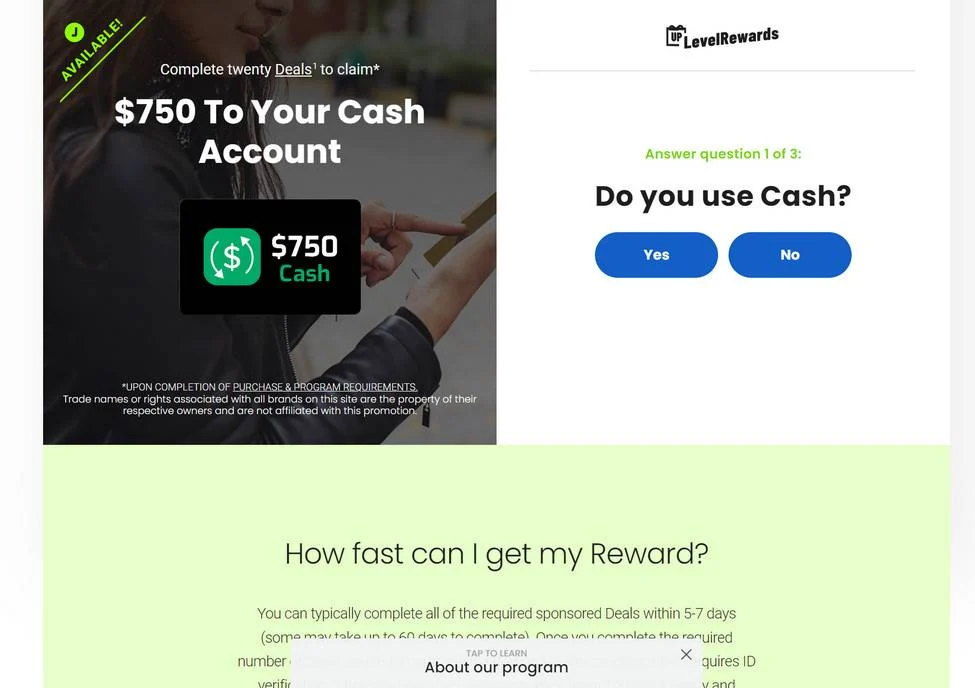
Overview of the AugustCash60 Scam
AugustCash60.com claims users can earn up to $750 in cash by completing 25 “sponsored deals” within 7 days. Deals involve downloading apps, signing up for subscriptions, free trials, and making purchases. The site also promises chances to win up to $1000 through additional deals.
To get your reward, you must complete ID verification too. But this is just a scheme to harvest your personal details. In reality, if you participate in any deals, you’ll be at high risk of identity theft. And you won’t receive any cash payouts despite completing all requirements.
This scam baits victims by promising easy rewards if they just complete a few activities. But it’s all a front to expose people’s data and make money from commissions, subscriptions, and selling your information. Here’s an in-depth look at how this predatory scam works.
How the AugustCash60 Scam Works
The AugustCash60 scam operates on deception at every step. Here are the key stages of how this scam ensnares victims:
Bait With Reward Offers
The AugustCash60 website prominently displays offers like:
- Earn up to $750 cash for completing 25 deals in 7 days
- Get a chance to win up to $1000 through additional deals
- Complete deals by downloading apps, signing up for trials, making purchases, etc.
These attention-grabbing claims give the impression you can quickly earn hundreds of dollars in a week. This lures in people excited by the prospect of easy money.
Make Outrageous Promises
According to the site, you can earn the following rewards:
- Download a mobile game or app – Earn $20
- Sign up for a subscription service – Earn $30
- Participate in a free trial – Earn $25
- Make a product purchase – Earn $40
The promised payouts are absurdly high for simple actions. But people get blinded by dollar signs and don’t consider whether such claims can be real.
Collect Personal Information
To participate in deals, you first have to complete registration forms giving away sensitive personal data including:
- Full name
- Email address
- Phone number
- Home address
- Date of birth
- Payment information
This data allows scammers to steal identities and commit financial fraud.
Redirect to Shady Offer Walls
Clicking on deal links will redirect you to outside offer walls completely unrelated to AugustCash60. These sites get you to complete questionable subscriptions, trials, downloads, and purchases.
The external sites collecting your information are usually scams themselves. Their real purpose is harvesting data and exposing you to identity theft risks.
Prevent You From Withdrawing Winnings
After completing deals, if you try withdrawing your supposed earnings, you’ll face endless obstacles. You may be prompted to complete further offers, surveys, or purchases.
No matter how many hoops you jump through, you won’t be able to claim your “winnings”. Because in reality, there are no winnings to claim.
Sell Your Information
Once AugustCash60 acquires your personal details, this data gets sold to third-party scammers and fraudsters involved in ID theft.
Your information may also be used to bombard you with more scam offers or sold to shady marketing companies.
As you can see, this scam baits with tempting rewards before stealing your information, money, and peace of mind. Protect yourself by recognizing the red flags.
Warning Signs of the AugustCash60 Scam
Here are some clear warning signs that identify AugustCash60 as an untrustworthy scam:
- No company details – The site lacks any address, contact info, business registration, or ownership details. Huge red flag.
- Too good to be true claims – The promises of high earnings for simple tasks are clear bait hooks that are too good to be true.
- High pressure tactics – Creating false urgency and scarcity with claims you must act now or lose out.
- Spelling and grammar errors – Unprofessional errors show the site owners lack legitimacy.
- Requires personal/financial information – Requests for private data like SSNs or bank account numbers are very suspicious.
- Only positive reviews – The site lacks any objective reviews. All shown feedback seems fabricated.
- Redirects to unsecure third-party sites – A clear sign of phishing and scamming when clicking links redirects to outside domains.
- No record of payouts – No evidence that anyone has ever been paid out earnings as claimed.
Trust your gut. If something seems fake, it probably is. Avoid sites using carrots of quick cash to harvest your personal data.
How to Avoid the AugustCash60 Scam
Here are some tips to avoid falling victim to this scam:
- Avoid unfamiliar websites promoting easy earnings. Only use reputable platforms.
- Research websites thoroughly before providing any personal information. Search for reviews and complaints.
- Never pay money upfront for promised rewards. This is a common scam tactic.
- Don’t follow links to external domains. Stay on the main site you researched.
- Watch for grammatical and spelling errors. Poor writing indicates amateur scam artists.
- Verify business addresses using Google Maps. Many scams list fake addresses.
- Avoid disclosing sensitive information like SSNs, bank details, etc unless absolutely necessary.
- Use prepaid cards when shopping online to limit exposure of your real payment cards.
- Don’t be pressured into acting fast with claims you’ll lose out on the deal. Scammers create false urgency.
Your best protection is remaining vigilant. Take time to thoroughly vet any website before you provide personal information or payment details.
What To Do If You Already Fell Victim
If you already got scammed by AugustCash60, here are important next steps:
- Contact your bank to monitor accounts for suspicious charges. Dispute unauthorized transactions.
- Place fraud alert with credit bureaus to be notified of any new accounts opened in your name.
- Change account passwords everywhere you used the same password as on the scam site.
- Cancel accounts created if you were tricked into signing up for paid subscriptions or trials.
- Watch out for phishing attempts now that scammers have your email address and other details.
- Report the scam to the FTC, IC3, BBB, and other organizations warning consumers.
- Warn your friends and community by sharing your experience to prevent others from falling victim too.
- If you suspect your device is infected with malware, you should run a scan with Malwarebytes Anti-Malware.
By taking proactive measures, you can contain some of the damage caused by this scam. But prevention is the best option by staying vigilant against too-good-to-be-true offers online.
Is Your Device Infected? Run a Free Malware Scan
Slow performance, constant pop-ups, or strange behavior? These are classic signs of a malware infection. A quick way to check is to scan your device with Malwarebytes Free, one of the most trusted malware removal tools available. If you only visited a scam page and didn’t download or install anything, this scan is optional.
The free version detects and removes the most common threats, including:
- Adware — the cause of those annoying pop-ups
- Browser hijackers — unwanted redirects and changed homepages
- Trojans and spyware — hidden programs stealing your data
- Potentially unwanted programs (PUPs) — software you never asked for
👉 Select your device below — Windows, Mac, or Android — then follow the simple steps to download Malwarebytes, scan your system, and remove any threats it finds. The scan usually takes 5 to 20 minutes.
Run a Malware Scan with Malwarebytes for Windows
Malwarebytes is one of the most popular and trusted anti-malware tools for Windows — and it’s completely free for removing infections. It catches threats that many antivirus programs miss, including adware, browser hijackers, and trojans. Follow the steps below to scan your PC and remove what Malwarebytes finds.
Download Malwarebytes
Click the button below to download the latest version of Malwarebytes for Windows from the official source. The free version is all you need — it will scan your computer and remove adware, browser hijackers, and other malicious software at no cost.
Download MalwarebytesOfficial installer for Windows 11 and 10. Your download starts right away.Want real-time protection? See Malwarebytes Premium Malwarebytes Free for WindowsScans and removes malware at no cost
-
Install Malwarebytes
When the download finishes, open your Downloads folder and double-click the MBSetup file. If Windows shows a User Account Control pop-up, click “Yes” to allow the installation.

Follow the On-Screen Prompts to Install Malwarebytes
The setup wizard will walk you through a few quick screens:
-
Choose where you’re installing the program — “Personal Computer” or “Work Computer” — then click Next.

-
Malwarebytes will now install on your device. This usually takes under a minute.

-
When installation is complete, the “Welcome to Malwarebytes” screen will open automatically.

-
On the final screen, click Open Malwarebytes to launch the program.

-
Optional: Check for rootkits with a Custom Scan
You don’t need to change any settings for a normal scan. The standard Threat Scan in the next step is enough for most problems, so you can go straight to it.
If you also want to check for rootkits, use a Custom Scan. In current versions of Malwarebytes, rootkit scanning is only available there:
- On the Scanner tile, click the three-dot menu and select Advanced Scan.
- Choose Custom Scan. In its options, check Scan for rootkits.
- Select your system drive (usually C:\) as the location to scan, then start the scan. It takes longer than a Threat Scan.
- When it finishes, review and quarantine the results as described in the steps below.
Rootkit scanning isn’t available on Windows devices with ARM processors.
Start the Scan
Click the blue Scan button. Malwarebytes will automatically update its virus database and start checking your computer for malware.

-
Wait for the Scan to Finish
The scan checks your entire system for browser hijackers and other malicious programs, so it can take 5 to 20 minutes depending on your computer. Feel free to do something else — just check back occasionally to see the progress.

-
Quarantine the Detected Threats
When the scan is done, you’ll see a list of everything Malwarebytes found — malware, adware, and potentially unwanted programs. Click the “Quarantine” button to remove all of them at once.

Malwarebytes will now remove the malicious files and registry entries and move them safely into quarantine.

-
Restart Your Computer
Some threats can only be fully removed after a reboot. If Malwarebytes asks you to restart, click Yes. Once you’re logged back in, Malwarebytes has finished removing the threats it found.

When the scan is done, check whether the problems you noticed have stopped. If they continue, see the options below.
If you are still having problems with your computer after completing these instructions, then please follow one of the steps:
- Run a computer scan with ESET Online Scanner
- Ask for help in our Windows Malware Removal Help & Support forum.
Run a Malware Scan with Malwarebytes for Mac
Malwarebytes for Mac is a free on-demand scanner that removes the malware other security software tends to miss — adware, browser hijackers, and unwanted programs included. Cleaning an infected Mac with Malwarebytes has always been completely free, and it’s our go-to recommendation. Follow the steps below to scan your Mac and remove what Malwarebytes finds.
-
Download Malwarebytes for Mac
Click the button below to download the latest version of Malwarebytes for Mac.
Download MalwarebytesOfficial installer for macOS. Your download starts right away.Want real-time protection? See Malwarebytes PremiumMalwarebytes Free for MacScans and removes malware at no cost -
Open the Malwarebytes setup file
When the download finishes, open your Downloads folder and double-click the setup file to begin the installation.

-
Follow the On-Screen Prompts to Install Malwarebytes
The Malwarebytes for Mac Installer will guide you through a few quick screens. Click “Continue” and keep following the prompts until the installation completes.



When the installation is complete, Malwarebytes opens to the Welcome to Malwarebytes screen. Click “Get started“.
Malwarebytes needs Full Disk Access to check your whole Mac. When it asks, open System Settings > Privacy & Security > Full Disk Access, turn on Malwarebytes (it may be listed as Malwarebytes Protection), and confirm with your password or Touch ID. Then return to Malwarebytes. On macOS Monterey and earlier, this setting is in System Preferences > Security & Privacy > Privacy.
-
Select “Personal Computer” or “Work Computer”
Malwarebytes will ask what type of computer you’re installing it on. Click either Personal Computer or Work Computer, whichever applies.

-
Start the Scan
Click the “Scan” button. Malwarebytes will automatically update its detection database and begin checking your Mac for malware.

-
Wait for the Scan to Finish
Malwarebytes will scan your Mac for adware, browser hijackers, and other malicious programs. This can take a few minutes, so feel free to do something else — just check back occasionally to see the progress.

-
Quarantine the Detected Threats
When the scan is done, you’ll see a list of everything Malwarebytes found. Click the “Quarantine” button to remove all the threats at once.

-
Restart Your Mac
Malwarebytes will now remove all the malicious files it found. Some threats can only be fully removed after a reboot — if Malwarebytes asks you to restart, allow it. Once you’re logged back in, check whether the problems you noticed have stopped. If they come back, save the scan report and ask for help in our forum.

If the problems you noticed continue after the scan, see the options below.
If you are still experiencing problems while trying to remove a malicious program from your computer, please ask for help in our Mac Malware Removal Help & Support forum.
Run a Malware Scan with Malwarebytes for Android
Malwarebytes for Android scans your phone or tablet for malware, adware, and potentially unwanted apps. The free version scans only when you start a scan. Real-time protection, which checks apps automatically, is part of the paid Premium version.
-
Download Malwarebytes for Android.
You can download Malwarebytes for Android by clicking the link below.
Get Malwarebytes for AndroidOpens Google Play in a new tab.Want real-time protection? See Malwarebytes Premium for AndroidMalwarebytes for AndroidScans your phone and removes malware at no cost -
Install Malwarebytes for Android on your phone.
In the Google Play Store, tap “Install” to install Malwarebytes for Android on your device.

When the installation process has finished, tap “Open” to begin using Malwarebytes for Android. You can also open Malwarebytes by tapping on its icon in your phone menu or home screen.

-
Follow the on-screen prompts to complete the setup process
When Malwarebytes opens, it walks you through a short setup. Tap Get started and follow the prompts. If you see an offer for a trial or a paid plan, read it before you accept. You can skip it and keep using the free scanner.
Malwarebytes will ask for permission to access the files on your phone so it can scan them. Tap Allow, or turn on the permission in the Android screen that opens, then return to Malwarebytes.
-
Run a scan with Malwarebytes for Android
On the main screen, tap Scan now. In some versions, you open the menu, tap Scanner, and then tap Run a scan.
-
Wait for the Malwarebytes scan to complete.
Malwarebytes will now start scanning your phone for adware and other malicious apps. This process can take a few minutes, so we suggest you do something else and periodically check on the status of the scan to see when it is finished.

-
Remove the detected apps.
When the scan has been completed, you will see a list of the threats that Malwarebytes for Android has detected. Next to each detected item, tap the menu icon (three dots), then choose to uninstall the app or delete the file. Android then asks you to confirm. Tap OK or Uninstall to remove the app.
-
Restart your phone.
When the detected apps are removed, restart your phone if Malwarebytes asks you to. Then check whether the problems you noticed have stopped.
If the problems you noticed continue after the scan, see the options below.
If you are still having problems with your phone after completing these instructions, then please follow one of the steps:
- Ask for help in our Mobile Malware Removal Help & Support forum.
- Only as a last resort, reset your phone to factory settings. Read the warning below first.
- Back up your photos, videos, files, and messages, for example to your Google account or a computer.
- Make sure you know your Google account email and password. The phone asks for them after the reset. If you changed the password recently, Google recommends waiting 24 hours before you reset.
- On a Samsung phone, also make sure you know your Samsung account password.
- If you use an authenticator app for two-step verification, move your accounts to another device or save your backup codes first.
Stay Protected: Block Ads and Malicious Sites
No scan can prove a device is completely clean, so it helps to block threats before they reach you. Most infections start with a malicious ad or a fake download button — so blocking them at the source is your best defense.
We recommend AdGuard, which blocks malicious ads, phishing pages, and dangerous redirects before they can reach you.
👉 Download AdGuard and browse safely
Conclusion – Verify Before Participating
The AugustCash60 scam reveals how scammers use tempting reward offers to lower people’s guard and steal personal information. By appearing legitimate on the surface, they fool victims into willingly giving up data and money.
This scam goes to show you should carefully verify any website before providing sensitive information or completing dubious offers. Take time to research the company, look for warning signs, and consult objective reviews before participating.
When evaluating money-making opportunities online, use common sense measures. If something appears outrageously easy or risk-free, it’s likely a scam. Maintain healthy skepticism, do your homework, and don’t let desires for quick cash put your identity and finances in jeopardy.
Frequently Asked Questions About the AugustCash60 Scam
Is AugustCash60 a real way to earn money online?
No, AugustCash60 is a scam website that uses false promises of rewards to trick people into handing over their personal and financial information which can lead to identity theft. No actual money can be earned from this shady platform.
What are some of the warning signs that indicate AugustCash60 is a scam?
Red flags include exaggerated earnings claims, high-pressure tactics, lack of company details, positive reviews that appear fake, requests for sensitive personal data, redirects to sketchy third-party sites, and no evidence of anyone receiving payouts.
Can I trust third-party offer walls and downloads on AugustCash60?
No, all third-party offers are highly dubious. These sites are usually scams themselves focused on harvesting data. Never provide your information or download files from the offer walls AugustCash60 redirects to.
Is it possible to make money taking paid surveys and downloads?
While you can earn a bit of extra money with some legitimate survey panels and rewards apps, they will never pay the absurdly high amounts promised by AugustCash60. Most sites advertising get-rich-quick schemes are scams.
What should I do if I already gave my information to AugustCash60?
Immediately contact your bank, monitor your credit reports and accounts for suspicious activity, change online account passwords, and report the incident to the FTC, BBB, and other organizations dedicated to combating fraud.
How can I spot similar scams in the future?
Research websites thoroughly, look for exaggerated claims, verify company details, avoid disclosing personal details, use prepaid cards for purchases, and trust your instincts to identify too-good-to-be true schemes. When in doubt, avoid participating.

Join the discussion
0 commentsShare your experience or ask a question about this article.
Discussion
Start the conversation
Have a question or something useful to share? Add the first comment.