


You ordered a handful of pieces to finish a build. Then BrickLink went offline, and the page you normally use to check the order was gone.
Now there’s an update from the marketplace and possibly a message in your inbox. Which one should you rely on before paying or changing anything?
Overview
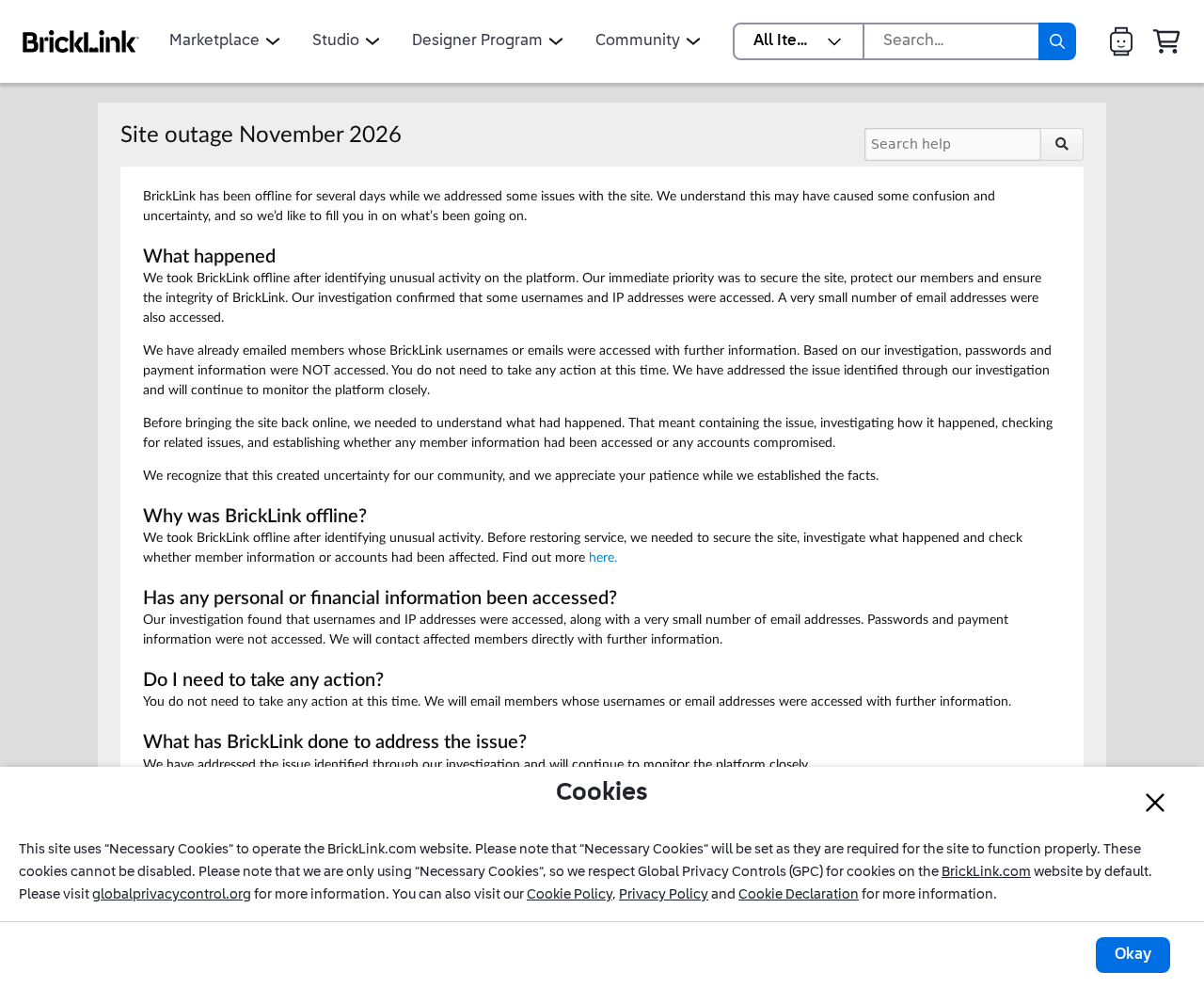
BrickLink has identified the data that was accessed
The November 2026 BrickLink outage update is more specific than the notice members saw while the marketplace was offline. It confirms access to some member information.
- BrickLink says some usernames and IP addresses were accessed.
- The company says a very small number of email addresses were accessed too.
- BrickLink says its investigation did not find access to passwords or payment information.
Those distinctions matter. An account name is enough to make a message feel personal. It isn’t the same thing as a password or a card number.
The outage and your order are two different questions
BrickLink says it took the marketplace offline after noticing unusual activity. It says it addressed the issue and is continuing to monitor the platform.
The company found no evidence that orders, messages, wanted lists, or seller inventories were lost or changed because of the incident.
That doesn’t tell you whether the person selling your missing pieces managed to ship them during the outage. For that, use your order and shipment records.
If an email says your order was lost and needs to be paid again, it hasn’t proved either claim. Check the original transaction before moving any money.
What members are being asked to do
BrickLink says members do not need to take action because of the incident at this time. It says it emailed members whose usernames or email addresses were accessed.
That announcement is not a demand for a reset fee, an identity document, or a replacement payment. A message making one of those demands needs separate verification.
The safest place to start is the marketplace or Help Center you open yourself. If you have a pending order, check it before answering anyone who contacts you.
What BrickLink’s Findings Mean for Your Account
A username is an identifier. It may tell someone which name you use on the marketplace, but knowing it does not sign someone into the account.
An IP address identifies a network connection. Seeing it listed among the accessed data doesn’t mean someone opened your computer or obtained the files on it.
Email addresses are different in a practical way. An address gives someone a way to reach you outside the marketplace, where you have fewer cues about the sender.
Someone can also get your email address elsewhere. An unexpected BrickLink-themed message isn’t evidence that your address was among those accessed in this incident.
Compare the message with what you can verify. Your username, an official-looking footer, or a familiar logo shouldn’t carry more weight than your own account records.
BrickLink’s statement about passwords is specific to this incident. It doesn’t turn a reused password into a good idea or rule out unrelated account problems.
If you already used the same password on multiple sites, replace it with a unique one on each site. Start with accounts that control your email or payments.
If you have no other warning signs, don’t cancel a payment card solely because you saw the outage notice. The company says payment details weren’t accessed.
When an Order Email Asks for More Money
Imagine you placed a small parts order before the shutdown. A message arrives later saying payment needs to be resubmitted because BrickLink couldn’t record the first charge.
Check your payment provider first. A posted charge, a pending authorization, and a refund are different entries. They don’t all mean the seller has been paid.
Write down the amount, currency, transaction date, and order number. If you used more than one payment method that day, match the specific transaction rather than relying on the total.
Then open BrickLink independently and find the order. Compare the seller, purchase amount, and status with your original confirmation. Don’t use the link in the new message.
If you can see the order but the payment status doesn’t agree with your records, contact the seller through the existing order. Ask what they see on their side.
Stay in the original conversation. Someone who contacts you through a different address and claims to represent the seller doesn’t automatically inherit that seller’s authority.
Do not submit a second payment just to see whether the first one reverses. That can leave you with two charges to explain and no clearer order status.
If the order is missing from your view, check that you signed into the account you originally used. A saved order confirmation can help support locate it.
If the seller says they shipped, ask for the tracking reference in the order conversation. Check it on the carrier’s site, not through a fresh demand for a delivery fee.
A tracking page can help explain where a parcel went. It cannot tell you whether an email asking you to pay for a refund is genuine.
What Sellers Should Reconcile Before Resuming Normal Work
Work from your open orders, not from a pile of unread emails. The first job is to identify which orders were paid, shipped, canceled, or still waiting for action.
Start with the purchases you were handling when access was interrupted. Compare what the marketplace shows with payment records, packing notes, and tracking numbers you already have.
If a label was printed but never used, don’t mark the item shipped just because there’s a tracking number. Check the carrier’s acceptance or handoff record.
If a customer canceled and you issued a refund, confirm the transaction before sending another one. An outage makes it easier to lose track of an action already taken.
When there’s a real discrepancy, preserve the order number and the smallest set of records that demonstrates it. Don’t send the customer’s full personal details to an unverified contact.
BrickLink says November and December seller fees will be waived. This is about seller fees, not a blanket refund for every order or every charge during those months.
If someone sends a seller-fee invoice that contradicts the waiver, don’t ignore the discrepancy or pay to make it go away. Ask BrickLink Support to verify it.
The company said the Studio Forum would remain offline when the marketplace returned. That is a separate availability question, not a sign that your seller account is locked.
Keep a copy of the notice relevant to your case. If the policy or restoration status changes later, you’ll have a record of what you were told.
Don’t Let an Old Incident Answer a New Question
Search results can turn up a BrickLink incident FAQ from 2023. Its title mentions November, and it answers many of the same questions members are asking now.
Check the year before using that advice. The older notice called for a password reset when users signed in. The 2026 notice does not impose that requirement.
The older FAQ also discusses a seller invoice issued during its outage. Don’t use that answer to authenticate an invoice that arrived after the 2026 incident.
Compare the invoice period, not just the date it reached your inbox. A late message can concern an earlier billing period. Ask support to identify the fee in question.
Similarly, a support post that describes inventory changes in a previous incident doesn’t contradict the latest finding. The two investigations cover different events.
If you’re helping another collector, share the current Help Center page rather than a screenshot cropped above its date. The date tells them which guidance belongs to their situation.
Before You File a Payment Dispute
If the seller has already refunded you, check where the refund went. A credit returned to the original payment method may not appear beside the order confirmation.
Keep the two records separate: your request for help with the order and any case opened by your payment provider. Ask each party what it needs from you.
If the purchase is simply delayed, a clear shipment update may settle the issue. If you see an unauthorized charge, tell the payment provider exactly which charge you dispute.
For a payment you made yourself after a suspicious message, explain that distinction. Describe the message and the payment without saying your card was stolen if it wasn’t.
Write down any deadline the provider gives you. A marketplace support conversation can take time, and keeping it open doesn’t necessarily extend the payment provider’s deadline.
How to Tell a Notice From a Request You Need to Verify
A notice can tell you something happened without asking you to do anything. An email that claims to be a notice but sends you to a checkout page deserves scrutiny.
Read for the action. Is the sender asking you to sign in, move the conversation, confirm a card, download something, or pay a fee?
Then ask where that action would usually happen. If you need to view an order, you should be able to start from the marketplace you already know.
Remember that contact details printed inside a suspicious email come from the same sender. Use the official BrickLink update and navigate to support from there.
Unsolicited messages about an incident can be misleading even when they accurately describe some public facts. A copied incident date or username doesn’t make a payment instruction genuine.
A message that mentions a real outage isn’t automatically a scam, either. Use the independent check to determine whether the specific request belongs to your order.
If you get no notice at all, there’s no need to search for a third-party service that claims it can tell you whether your BrickLink account was affected.
BrickLink is the source for notifications about its own findings. A lookup site asking for your password would create a risk the outage notice doesn’t require you to take.
What to Do If You Have a BrickLink Order or Account Concern
-
Start from the official update. Read the latest statement independently of your inbox. Check whether the action an email asks for is consistent with what BrickLink actually says.
If you’re looking at a screenshot of an old notice, open the current page. The first outage message and the later findings don’t answer the same questions.
-
Match the order to the payment. Keep the order number, original confirmation, seller name, and transaction record together. Don’t repay an order just because an email says it failed.
Ask the seller through the original order conversation when something doesn’t agree. If the seller can’t explain it, use BrickLink Support.
-
If you entered a password on an unfamiliar page, treat that as a separate exposure. Change the affected password through the genuine service. Change any reused copies too.
Check the account for changes to email, orders, or messages you didn’t make. If you can’t get in, ask official support how to recover access.
-
If you entered card details or sent money, contact the payment provider. Use its app or the number on your card to explain what happened.
Save the charge record and ask about protective steps and dispute deadlines. Don’t wait for a marketplace response if you can see a transaction you didn’t authorize.
-
Keep evidence of any unexpected request. Preserve the original message, its sender details, and the order it refers to. Don’t reopen a suspicious link to gather more.
Show support the difference between the message and the actual account record. Include timestamps if a charge or order status changed while you were checking it.
-
Sellers should report specific discrepancies. Identify the item, order, inventory record, or fee that doesn’t agree with your records. Send only the information the support case requires.
Keep any refund or replacement discussion with the original buyer. A request from a new contact to redirect either money or a package needs verification.
Frequently Asked Questions
Did BrickLink say user passwords were accessed?
No. The company’s November incident update says its investigation found that passwords were not accessed. That statement doesn’t cover credentials entered on a separate phishing page.
Does the outage mean my order disappeared?
No. BrickLink found no evidence that orders were lost or changed in the incident. Check your specific order and payment record if its status looks wrong.
Do I need to pay a fee to restore my account?
The incident update does not require members to pay or take action. Don’t send money to a caller or email sender claiming they can restore access.
Were all member email addresses affected?
BrickLink says a very small number of addresses were accessed. The notice does not say everyone’s email was exposed or publish a complete count.
Does the seller fee waiver cover purchases?
No. The announced waiver covers BrickLink seller fees for November and December. A buyer’s refund or a disputed charge is a separate matter.
Does a known BrickLink username prove an email is genuine?
No. A username isn’t a secret credential. Verify the actual request in your account or with official support before signing in or making a payment.
The Bottom Line
Use BrickLink’s current incident notice and your original order records. Don’t reset an account or repeat a payment just because someone refers to the outage.
If an order or fee doesn’t match, contact BrickLink through its Help Center. If you gave someone payment details or already paid twice, contact your payment provider promptly.

Join the discussion
0 commentsShare your experience or ask a question about this article.
Discussion
Start the conversation
Have a question or something useful to share? Add the first comment.