

You do not expect a browser tab to accuse you of a crime.
But suddenly there it is, in big, urgent letters, dressed up like a real security alert. It claims your system has been blocked. It shows an IP address. It drops a timestamp. It warns you not to close the page.
And then it delivers the line meant to freeze you in place: “CHILD PORNOGRAPHY Found.”
A phone number appears, insisting you call “Windows Support” right now, as if one wrong move could make everything worse.
If that message shocked you, that is the point.
Because this pop-up is built to hijack your emotions first and your decisions second, and once you understand the trick, the whole thing starts to look very different.
Scam Overview
The “Child Pornography Found” pop-up scam is one of the most aggressive variations of the classic tech support scam. For years, scammers have used fake virus alerts and fake “security warnings” to trick people into calling bogus support lines. This version takes the emotional manipulation to a darker level by accusing the victim of a serious crime, then using fear and shame to force fast decisions.
The goal is simple: get you to call the number shown on the screen.
Once you call, you are connected to a fake support center. The person who answers will sound confident and urgent. They may claim they are “Microsoft Certified,” “Windows Support,” “Apple Support,” “Google Security,” or “a security technician.” They may use scripts, call center background noise, and even fake employee IDs to feel legitimate.
From there, they push you into granting remote access to your device, often using tools like AnyDesk, TeamViewer, UltraViewer, ScreenConnect, or similar remote desktop software.
That remote access is where the real danger begins.
Why this scam is so convincing
This scam works because it attacks the brain in a very specific way.
It creates a sudden threat, then offers a single path to “fix it” immediately: call the number.
The message is crafted to cause:
- Fear (you are “blocked,” “infected,” or “under investigation”)
- Shame (the accusation is humiliating and scary)
- Urgency (your data will be deleted, your account will be locked, or the police will be contacted)
- Confusion (the screen looks official, with logos and system-style windows)
When people are overwhelmed, they are more likely to follow instructions without verifying anything. The scammers know that. They intentionally design the alert to prevent calm thinking.
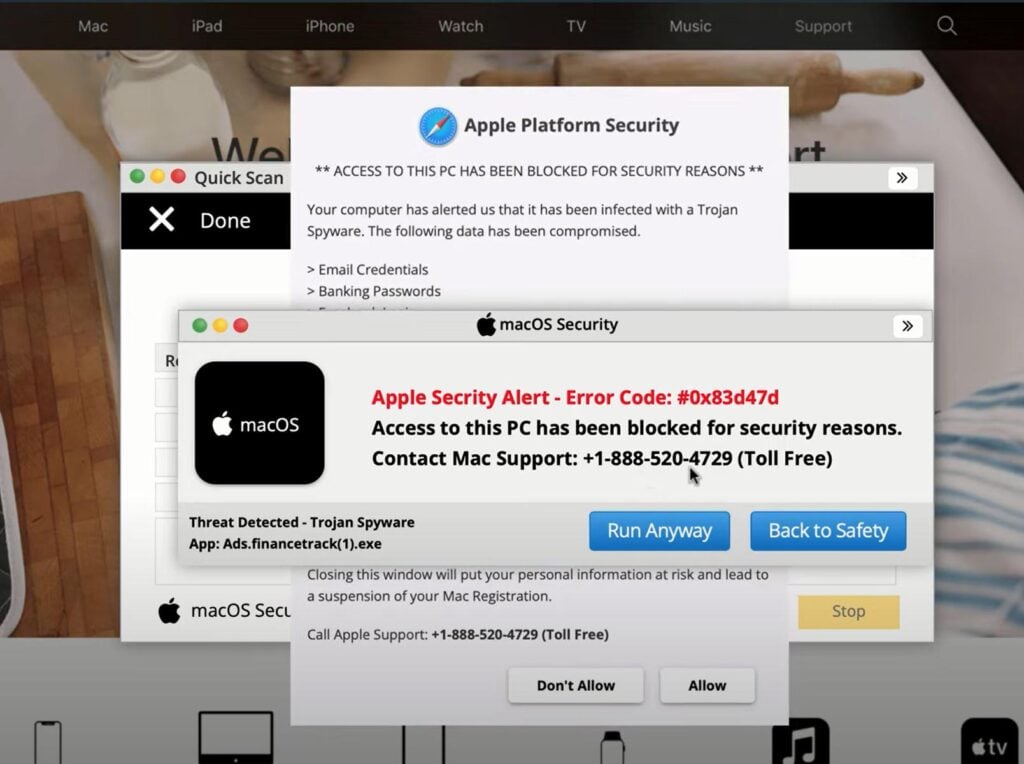
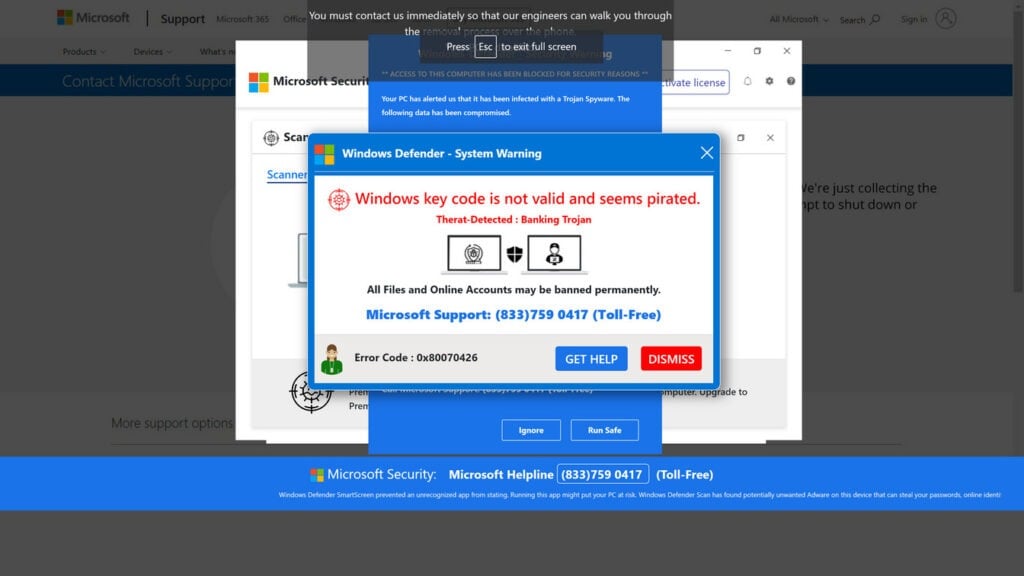
What the pop-up typically looks like
The pop-up often uses official-looking language and branding, such as:
- “Windows Defender Security Center”
- “Microsoft Windows Security”
- “Apple Security Warning”
- “Google Security Alert”
- “Your computer has been blocked”
- “Call Windows Support”
- “Do not shut down your computer”
It may show:
- A phone number with “toll-free” wording
- A fake “Address IP” and “Location”
- A timestamp to look “logged”
- A claim that your system is compromised
- A warning that leaving the page will “erase data” or “not save changes”
Some versions also play loud audio that repeats warnings like “Your computer is blocked” or “Call support now.” This is a pressure tactic, not a real security feature.
Where these pop-ups come from
In most cases, the pop-up is triggered by a malicious or deceptive web page.
People land on these pages through:
- Fake download buttons on shady sites
- Pirated streaming pages and pop-up ad networks
- Malvertising (malicious ads) on low-quality websites
- Redirect chains from “free” file converters, PDF tools, or browser add-ons
- Spam emails or SMS links
- Push notification abuse (sites that trick you into allowing notifications, then spam scary alerts later)
Sometimes the page URL looks random or uses unusual domains and subdomains. It may contain strings like “app,” “security,” “verify,” or a random name to seem like a service.
Even if the page shows Microsoft branding, it is still just a web page. A web page cannot accurately detect that “child pornography” is on your computer. It also cannot “block” Windows at the operating system level. It is acting like a bully with a costume on.
Why the “child pornography” accusation is used
This is the harsh part, but it is important to understand.
Scammers choose accusations that make victims panic and comply without asking questions. A “virus found” message is scary, but people may hesitate, close the tab, or search Google for answers. An accusation of a serious crime creates a different kind of fear.
It can make victims think:
- “What if this is real?”
- “What if someone hacked me?”
- “What if my IP address really is logged?”
- “What if closing it makes it worse?”
- “What if the police show up?”
That fear can push people into calling immediately. Once you are on the phone, the scammer controls the conversation.
They might claim:
- Your computer was “used as a proxy”
- Your network was “compromised”
- Your IP address was “flagged”
- Your device “downloaded illegal files”
- Your “identity is at risk”
Then they pivot into their real objective: money and access.
What happens if you call the number
If you call, the scam usually moves through predictable stages:
- They “verify” your problem by asking what you see on screen.
- They claim urgency and authority, often pretending to be a security department.
- They guide you to install remote access software.
- They “diagnose” the device using fake scans, event logs, or harmless system screens.
- They claim your system is infected, hacked, or “deeply compromised.”
- They demand payment for a “security service,” “cleanup,” “firewall activation,” or “legal clearance.”
- They pressure you into paying with gift cards, bank transfers, crypto, or card payment.
- They may try to access your banking, email, or stored passwords.
- They may install additional software to maintain access later.
Some scammers also attempt a “refund scam” angle. They claim you paid in the past, or they pretend they will issue a refund, then manipulate you into sending money by mistake. Regardless of the storyline, the end goal is the same: get your money and your information.
Common payment demands
These scams frequently demand payment using methods that are hard to reverse, such as:
- Gift cards (Apple, Google Play, Steam, Target, Walmart, Amazon, etc.)
- Wire transfers
- Cryptocurrency
- Peer-to-peer payment apps
- Direct bank transfers
If someone tells you to buy $200, $500, or $1,000 worth of gift cards to “activate security” or “clear a case,” that is not support. That is fraud.
The real risk: remote access
The most damaging part of this scam is remote access.
If a scammer connects to your device, they can:
- Read what is on your screen
- Open your browser and see saved logins
- Access your email if you are logged in
- Try to access online banking
- Install tools that run in the background
- Change settings to weaken security
- Create new user accounts
- Copy files, documents, and saved passwords
- Trick you into typing card numbers or banking details
Even if they do not steal anything immediately, the danger is that they can set up persistence and come back later.
This is why it is so important to respond quickly and correctly if you allowed remote access, even if you did not pay.
Key point to remember
Real security alerts from Microsoft, Apple, or Google do not display random phone numbers in a browser pop-up and demand you call “support” to fix it.
Legitimate companies also do not accuse you of a crime through a pop-up window and ask for gift cards.
This is fear-based social engineering, plain and simple.
How The Scam Works
Below is a detailed, step-by-step breakdown of how the “Child Pornography Found” pop-up scam typically unfolds, including the psychological tricks used at each stage.
Step 1: The victim is redirected to a malicious page
The scam often begins with a redirect.
You might be browsing a normal-looking page when suddenly:
- A new tab opens
- The browser redirects to a “security” page
- Multiple pop-ups spawn quickly
- A full-screen window appears with warnings
This is common on sites that use aggressive advertising networks, especially:
- Streaming sites
- Download sites
- “Free” converter tools
- Adult content sites
- Game cheat pages
- Fake software update prompts
Sometimes it starts with a simple click on a button that looks legitimate, like “Play,” “Download,” or “Continue.”
Behind the scenes, the ad network pushes a script that launches the scam page.
Step 2: The page tries to trap you in a loop
Many of these pages use annoying tricks to keep you from leaving.
For example:
- It triggers repeated “Leave site?” dialogs
- It opens multiple new windows if you try to close one
- It requests full-screen mode to look more official
- It spams alerts to overwhelm you
The goal is not true technical control. It is psychological control.
They want you to feel like the only way out is to call the number.
Step 3: The fake alert impersonates a trusted brand
Brand impersonation is central to this scam.
The page may use:
- Microsoft logos
- Windows Defender branding
- Apple-style warning layouts
- Google-style “security” language
The scammers know that people trust big names, and that many users will not notice the difference between:
- A real system notification
- A browser window pretending to be one
A real Windows Security alert is part of Windows itself, not a web page inside Chrome, Edge, or Firefox.
A real company also will not display a random “toll-free support” number in a pop-up and demand immediate action.
Step 4: The accusation and threat are delivered
This is the emotional hammer.
The page claims something like:
- “Access to this system has been blocked.”
- “Child pornography found.”
- “Your IP address has been logged.”
- “Your computer is infected.”
- “Your files are at risk.”
- “Do not restart.”
- “Call support immediately.”
The “child pornography” language is used to trigger maximum fear and compliance.
This is also why many victims do not want to talk about it later. The scammers count on embarrassment to reduce reporting.
Step 5: The phone call connects you to a scam script
Once you call, the scam becomes a guided performance.
The fake agent will usually:
- Speak quickly and confidently
- Ask what message you see
- Say they are escalating your case
- Give you a “case ID” or “ticket number”
- Warn you not to hang up
They may claim the call is recorded for legal reasons to sound official.
Then they move to the “fix” phase, which is really the access phase.
Step 6: They push you to install remote access software
This is where they try to turn fear into action.
They might tell you to:
- Open a browser
- Go to a site like anydesk.com or a similar tool
- Download remote software
- Read them a code
They often say this is needed to:
- “Remove the infection”
- “Secure your device”
- “Stop the hacker”
- “Verify your identity”
- “Clear your IP”
None of that is real. It is just their excuse.
Once you grant remote access, they have a direct line into your device.
Step 7: The fake “diagnosis” begins
Now they need to convince you that something is wrong.
They may open system tools that look technical, such as:
- Event Viewer
- Task Manager
- Services
- Command Prompt
- Network settings
They point to normal entries and claim they are proof of hacking.
They may run harmless commands, then say:
- “See, your device is compromised.”
- “These errors mean you are infected.”
- “Your firewall is disabled.”
- “Your IP is flagged.”
They may also open a web page that shows your public IP address and location to make it feel like “evidence.”
Seeing your city or ISP can make the scam feel personal. But it is not proof of wrongdoing. Public IP information is easy to obtain and not secret.
Step 8: The payment demand is introduced
Once you are convinced something is wrong, they reveal the cost.
They may call it:
- A one-time cleanup fee
- A 1-year or 3-year security plan
- A firewall activation fee
- A “legal clearance” or “case closure” fee
- A refund processing fee (in refund scam variants)
The numbers can vary widely, but common ranges are:
- $150 to $400 for “basic cleanup”
- $500 to $1,500 for “advanced protection”
- $2,000 or more for “business-level security” or “legal escalation”
The price is often flexible. If you hesitate, they may “discount” it, because the real goal is any payment they can get.
Step 9: Gift cards and irreversible payments
If you refuse to pay by card, or if they want to avoid chargebacks, they push gift cards.
They might say:
- “This is the fastest method.”
- “It is required for verification.”
- “It is a secure payment system.”
- “It protects your identity.”
Those are lies.
Gift cards are favored because once you read the codes to the scammer, the money is gone.
Some scammers will keep you on the phone while you drive to a store, buy cards, scratch the codes, and read them out loud.
They may instruct you not to tell the cashier what the cards are for. That alone tells you everything you need to know.
Step 10: Data theft attempts and account takeover
With remote access, scammers can do more than ask for payment.
They may:
- Ask you to log in to your bank “to verify charges”
- Ask you to open your email “to confirm identity”
- Try to access saved passwords in your browser
- Attempt to install password stealers or additional remote tools
- Copy documents from your desktop or Downloads folder
If you ever typed credentials while they were connected, assume they may have seen them.
Even if you did not type anything, they might still attempt to pull saved data.
Step 11: Persistence and repeat targeting
In some cases, scammers try to make future access easier.
They may:
- Set remote software to start with Windows
- Create a new admin user account
- Install additional tools “for monitoring”
- Change security settings to reduce warnings
Then you may get follow-up calls later claiming:
- “We detected activity again.”
- “Your subscription is expiring.”
- “Your case is reopened.”
Victims who paid once are often targeted again, because scammers share lead lists.
Step 12: The exit phase, and why people feel stuck
Eventually, the call ends.
Sometimes the scammer leaves the computer looking “fixed,” which is meaningless.
Other times, the victim becomes suspicious and hangs up.
Either way, the scam relies on one thing: it got inside your decision-making loop using fear.
The best defense is learning the pattern so you can break it immediately next time.
Red flags that confirm it is a scam
Use this checklist. One or two red flags may be enough, but this scam often hits many at once.
- A browser pop-up accuses you of a crime
- The alert includes a phone number and demands you call
- The page tries to trap you with repeated “Leave site?” dialogs
- The warning claims you are “blocked” but you are still in a web browser
- The “support agent” asks for remote access tools
- They ask for gift cards, crypto, or wire transfers
- They tell you not to speak to your bank or store cashier
- They pressure you to act immediately
- They refuse to let you hang up and “call back later”
- They threaten arrest, legal action, or account closure unless you pay
Real support does not work like this.
What To Do If You Have Fallen Victim to This Scam
If you saw the pop-up but did not call, you are likely fine. If you called, paid, or allowed remote access, take action quickly. The steps below are designed to be calm, practical, and safe.
1) Close the scam page safely
If the pop-up is still on your screen:
- Do not call the number.
- Do not click “OK,” “Cancel,” or any buttons in the pop-up.
Instead:
- Try pressing Alt + F4 to close the browser window.
- If that does not work, open Task Manager (Ctrl + Shift + Esc), select your browser (Chrome, Edge, Firefox), and choose End task.
- Reopen the browser and do not restore the previous session if it asks.
If the browser keeps reopening the scam page, you may need to clear browser data or remove a malicious extension, which we cover below.
2) If you called, stop all contact immediately
- Hang up.
- Do not answer calls from unknown numbers.
- Do not respond to emails or texts from them.
- Do not “negotiate” or try to get your money back by continuing the conversation.
Scammers are trained to keep you talking. The fastest way to regain control is to end contact.
3) If you allowed remote access, disconnect your internet right away
This step matters.
If a scammer is connected, cut the connection:
- Turn off WiFi, or unplug the Ethernet cable.
- Shut down the computer if you cannot disconnect quickly.
- If it is a work device, notify your IT team.
You want to stop any remote session and prevent additional downloads.
4) Uninstall remote access tools they had you install
On Windows:
- Go to Settings -> Apps -> Installed apps (or “Apps & features”).
- Look for AnyDesk, TeamViewer, UltraViewer, ScreenConnect, RemotePC, Atera, Splashtop, or anything you do not recognize.
- Uninstall them.
Then check:
- Task Manager -> Startup apps
- Disable anything suspicious or unfamiliar.
Even legitimate remote tools can be abused if the scammer configured unattended access.
5) Change passwords from a clean device
If you typed any passwords while the scammer was connected, assume they may have seen them.
Use a different device if possible (a phone or another computer) and change:
- Your email password first
- Your banking password
- Your primary accounts (Google, Apple ID, Microsoft account)
- Any passwords saved in your browser
Then:
- Enable 2-factor authentication (2FA) on key accounts
- Review account login history if available
Email is the most important because it is used for password resets.
6) Check for unauthorized access and banking activity
If you logged into a bank or typed card details during the scam:
- Call your bank using the number on the back of your card or the official site.
- Explain you may have been a victim of a tech support scam.
- Ask them to review recent transactions, add extra verification, and issue a new card if needed.
If you paid by card:
- Ask about disputing charges.
- Ask about a new card number.
If you paid by gift cards:
- Contact the gift card issuer immediately. In rare cases, if the funds were not redeemed yet, they may be able to help.
- Keep the receipt, card numbers, and any communication.
Do not blame yourself. These scams are designed to overwhelm people.
7) Scan your computer for malware and unwanted software
Run a full security check.
At minimum:
- Run Microsoft Defender full scan (Windows Security).
- Run a second opinion scanner from a reputable vendor if you have one available.
Also check for:
- Unknown browser extensions
- New programs you did not install
- New administrator accounts
If you are not comfortable doing these checks, ask a trusted local technician or a trusted friend. The key word is trusted. Not a phone number that appeared in a pop-up.
8) Remove suspicious browser extensions and reset browser settings
In your browser:
- Go to Extensions/Add-ons.
- Remove anything you do not recognize, especially “coupon,” “search,” “PDF,” “video,” “security,” or “optimizer” extensions you did not intentionally install.
Then consider resetting browser settings:
- Reset homepage and startup pages
- Reset default search engine
- Clear site permissions for notifications
If you accidentally allowed notifications from a shady site, revoke them. Those notification permissions are a common way scammers keep spamming alerts later.
9) Check for persistence: startup items, scheduled tasks, and remote tools
This step is especially important if the scammer had remote access for more than a few minutes.
Look for:
- Remote tools configured for unattended access
- Unknown startup entries
- Unknown scheduled tasks
If you are not technical, focus on the most impactful actions:
- Uninstall remote tools
- Change passwords
- Scan for malware
If you want extra peace of mind, a professional malware cleanup or a Windows reset can be appropriate, especially if banking was involved.
10) If you paid, document everything
Make a simple folder with:
- Date and time of the incident
- Phone numbers used
- Names they provided (even if fake)
- Payment details, receipts, transaction IDs
- Screenshots of the pop-up and any chat logs
- Remote access tool logs if available
This helps with bank disputes and reporting.
11) Report the scam
Reporting helps build pressure against these operations and can help warn others.
Consider reporting to:
- Your local consumer protection authority
- Your country’s cybercrime reporting portal
- The gift card company if gift cards were used
- The platform where you saw the scam (if it started from an ad or website)
If you manage a community or website, publish a warning and include screenshots and the scam phone numbers. It helps reduce victims.
12) Consider a fresh start if remote access was extensive
If the scammer had full control of your computer for a long time, or you see suspicious activity after scanning, the safest option can be:
- Back up important personal files (documents, photos)
- Perform a clean reinstall or a full reset of Windows
- Reinstall trusted apps only
- Change passwords after the system is clean
This is not always necessary, but it can be the most reassuring choice when the incident was severe.
Is Your Device Infected? Run a Free Malware Scan
Slow performance, constant pop-ups, or strange behavior? These are classic signs of a malware infection. The fastest way to find out is to scan your device with Malwarebytes Free — one of the most trusted malware removal tools available.
The free version detects and removes the most common threats, including:
- Adware — the cause of those annoying pop-ups
- Browser hijackers — unwanted redirects and changed homepages
- Trojans and spyware — hidden programs stealing your data
- Potentially unwanted programs (PUPs) — software you never asked for
👉 Select your device below — Windows, Mac, or Android — then follow the simple steps to download Malwarebytes, scan your system, and remove any threats it finds. The scan usually takes 5 to 20 minutes.
Run a Malware Scan with Malwarebytes for Windows
Malwarebytes is one of the most popular and trusted anti-malware tools for Windows — and it’s completely free for removing infections. It catches threats that many antivirus programs miss, including adware, browser hijackers, and trojans. Follow the steps below to scan and clean your PC in just a few minutes.
Download Malwarebytes
Click the button below to download the latest version of Malwarebytes for Windows from the official source. The free version is all you need — it will scan your computer and remove adware, browser hijackers, and other malicious software at no cost.
Download MalwarebytesOfficial installer for Windows 11 and 10. Your download starts right away.Want real-time protection? See Malwarebytes Premium Malwarebytes Free for WindowsScans and removes malware at no cost
-
Install Malwarebytes
When the download finishes, open your Downloads folder and double-click the MBSetup file. If Windows shows a User Account Control pop-up, click “Yes” to allow the installation.

Follow the On-Screen Prompts to Install Malwarebytes
The setup wizard will walk you through a few quick screens:
-
Choose where you’re installing the program — “Personal Computer” or “Work Computer” — then click Next.

-
Malwarebytes will now install on your device. This usually takes under a minute.

-
When installation is complete, the “Welcome to Malwarebytes” screen will open automatically.

-
On the final screen, click Open Malwarebytes to launch the program.

-
Enable “Scan for Rootkits”
Before scanning, turn on rootkit detection so Malwarebytes can find even the most hidden threats. Click the Settings gear icon on the left side of the screen.

In the settings menu, find “Scan for rootkits” and click the toggle so it turns blue.

Done? Click “Dashboard” in the left pane to return to the main screen.
Start the Scan
Click the blue Scan button. Malwarebytes will automatically update its virus database and start checking your computer for malware.

-
Wait for the Scan to Finish
The scan checks your entire system for browser hijackers and other malicious programs, so it can take 5 to 20 minutes depending on your computer. Feel free to do something else — just check back occasionally to see the progress.

-
Quarantine the Detected Threats
When the scan is done, you’ll see a list of everything Malwarebytes found — malware, adware, and potentially unwanted programs. Click the “Quarantine” button to remove all of them at once.

Malwarebytes will now remove the malicious files and registry entries and move them safely into quarantine.

-
Restart Your Computer
Some threats can only be fully removed after a reboot. If Malwarebytes asks you to restart, click Yes. Once you’re logged back in, Malwarebytes has finished removing the threats it found.

That’s it — your Windows PC is now clean of trojans, adware, and other malware, and should be back to running smoothly.
If you are still having problems with your computer after completing these instructions, then please follow one of the steps:
- Run a computer scan with ESET Online Scanner
- Ask for help in our Windows Malware Removal Help & Support forum.
Run a Malware Scan with Malwarebytes for Mac
Malwarebytes for Mac is a free on-demand scanner that removes the malware other security software tends to miss — adware, browser hijackers, and unwanted programs included. Cleaning an infected Mac with Malwarebytes has always been completely free, and it’s our go-to recommendation. Follow the steps below to scan and clean your Mac in just a few minutes.
-
Download Malwarebytes for Mac
Click the button below to download the latest version of Malwarebytes for Mac.
Download MalwarebytesOfficial installer for macOS. Your download starts right away.Want real-time protection? See Malwarebytes PremiumMalwarebytes Free for MacScans and removes malware at no cost -
Open the Malwarebytes setup file
When the download finishes, open your Downloads folder and double-click the setup file to begin the installation.

-
Follow the On-Screen Prompts to Install Malwarebytes
The Malwarebytes for Mac Installer will guide you through a few quick screens. Click “Continue” and keep following the prompts until the installation completes.



When the installation is complete, Malwarebytes opens to the Welcome to Malwarebytes screen. Click “Get started“.
-
Select “Personal Computer” or “Work Computer”
Malwarebytes will ask what type of computer you’re installing it on. Click either Personal Computer or Work Computer, whichever applies.

-
Start the Scan
Click the “Scan” button. Malwarebytes will automatically update its detection database and begin checking your Mac for malware.

-
Wait for the Scan to Finish
Malwarebytes will scan your Mac for adware, browser hijackers, and other malicious programs. This can take a few minutes, so feel free to do something else — just check back occasionally to see the progress.

-
Quarantine the Detected Threats
When the scan is done, you’ll see a list of everything Malwarebytes found. Click the “Quarantine” button to remove all the threats at once.

-
Restart Your Mac
Malwarebytes will now remove all the malicious files it found. Some threats can only be fully removed after a reboot — if Malwarebytes asks you to restart, allow it. Once you’re logged back in, your Mac is clean.

That’s it — your Mac is now free of adware, rogue browser extensions, and other potentially harmful software.
If you are still experiencing problems while trying to remove a malicious program from your computer, please ask for help in our Mac Malware Removal Help & Support forum.
Run a Malware Scan with Malwarebytes for Android
Malwarebytes for Android automatically detects and removes dangerous threats like malware and ransomware so you don’t have to worry about your most-used device being compromised. Aggressive detection of adware and potentially unwanted programs keeps your Android phone or tablet running smooth.
-
Download Malwarebytes for Android.
You can download Malwarebytes for Android by clicking the link below.
Get Malwarebytes for AndroidOpens Google Play in a new tab.Want real-time protection? See Malwarebytes Premium for AndroidMalwarebytes for AndroidScans your phone and removes malware at no cost -
Install Malwarebytes for Android on your phone.
In the Google Play Store, tap “Install” to install Malwarebytes for Android on your device.

When the installation process has finished, tap “Open” to begin using Malwarebytes for Android. You can also open Malwarebytes by tapping on its icon in your phone menu or home screen.

-
Follow the on-screen prompts to complete the setup process
When Malwarebytes will open, you will see the Malwarebytes Setup Wizard which will guide you through a series of permissions and other setup options.
This is the first of two screens that explain the difference between the Premium and Free versions. Swipe this screen to continue.
Tap on “Got it” to proceed to the next step.
Malwarebytes for Android will now ask for a set of permissions that are required to scan your device and protect it from malware. Tap on “Give permission” to continue.
Tap on “Allow” to permit Malwarebytes to access the files on your phone.
-
Update database and run a scan with Malwarebytes for Android
You will now be prompted to update the Malwarebytes database and run a full system scan.

Click on “Update database” to update the Malwarebytes for Android definitions to the latest version, then click on “Run full scan” to perform a system scan.

-
Wait for the Malwarebytes scan to complete.
Malwarebytes will now start scanning your phone for adware and other malicious apps. This process can take a few minutes, so we suggest you do something else and periodically check on the status of the scan to see when it is finished.

-
Click on “Remove Selected”.
When the scan has been completed, you will be presented with a screen showing the malware infections that Malwarebytes for Android has detected. To remove the malicious apps that Malwarebytes has found, tap on the “Remove Selected” button.

-
Restart your phone.
Malwarebytes for Android will now remove all the malicious apps that it has found. To complete the malware removal process, Malwarebytes may ask you to restart your device.
That’s it — your Android phone is now clean — no more malicious apps, adware, or browser redirects.
If you are still having problems with your phone after completing these instructions, then please follow one of the steps:
- Restore your phone to factory settings by going to Settings > General management > Reset > Factory data reset.
- Ask for help in our Mobile Malware Removal Help & Support forum.
Stay Protected: Block Ads and Malicious Sites
Now that your device is clean, keep it that way. Most infections start with a malicious ad or a fake download button — so blocking them at the source is your best defense.
We recommend AdGuard, which blocks malicious ads, phishing pages, and dangerous redirects before they can reach you.
👉 Download AdGuard and browse safely
The Bottom Line
The “Child Pornography Found” pop-up is a fake browser-based tech support scam. It is designed to terrify you into calling a number so criminals can pressure you, connect remotely to your device, and steal money or information. Microsoft, Apple, and Google are not behind these alerts, and no legitimate security system works by accusing you of a crime and demanding gift cards.
If you see this pop-up, close the browser, do not call, and move on. If you called or allowed remote access, act quickly: disconnect, remove remote tools, change passwords from a clean device, check financial accounts, and scan for malware.
Most importantly, do not carry the shame that scammers want you to feel. The accusation is a manipulation tactic. The alert is fake. The best response is calm action, not panic.
FAQ: Child Pornography Found Pop-up Scam
Is the “Child Pornography Found” alert real?
No. It is a fake browser pop-up designed to scare you into calling a scam phone number. It is not from Microsoft, Apple, Google, Windows Defender, or any real security service.
Can a website actually detect “child pornography” on my computer?
No. A normal website cannot scan your personal files and identify illegal content. The message is made up to trigger fear and force you to act quickly.
Does this mean my computer is hacked or infected?
Not necessarily. Many people see this pop-up due to a malicious ad, redirect, or a shady site. That said, if you downloaded something, installed a browser extension, or allowed remote access, you should treat it seriously and do a full security check.
Why does it show my IP address and location?
Because it is easy to display public IP information using basic web tools. That does not prove you did anything wrong. Scammers use it as “evidence” to make the alert feel personal and official.
Why does the pop-up say my system is “blocked”?
It is a trick. The page is trying to look like a system lock, but it is typically just a browser tab using full-screen mode, repeated alerts, or “leave site” prompts to make it hard to close.
What happens if I call the phone number?
You reach a fake tech support center. They will claim your device is infected, compromised, or under investigation, then push you to install remote access software (AnyDesk, TeamViewer, or similar). After that, they try to steal money and sensitive information.
What if I already gave them remote access?
Disconnect from the internet immediately, uninstall the remote tool they had you install, run a full malware scan, and change passwords from a different, clean device. Also check your banking and email accounts for suspicious activity.
Can scammers steal my bank information just from remote access?
They can steal a lot if you log in while they are connected or if your browser saves passwords. They may watch you type, copy info from the screen, or try to access saved credentials. If you logged into financial accounts during the session, contact your bank right away.
Why do they ask for gift cards?
Gift cards are difficult to trace and usually impossible to recover once the codes are shared. Legitimate support companies do not take payment in gift cards, crypto, or wire transfers for “security fixes.”
I paid with gift cards. Can I get my money back?
Sometimes, but it is time-sensitive. Contact the gift card company immediately and provide the receipt and card details. If the funds were not redeemed yet, they might be able to freeze them. If they were redeemed, recovery is unlikely, but you should still report it.
I paid with a credit or debit card. What should I do?
Call your bank using the official number on the back of your card. Tell them you were a victim of a tech support scam, ask about disputing the charge, and request a new card number if needed. Monitor your statements closely.
Will I get in trouble with the police because of this pop-up?
No. The accusation is a scare tactic. Real law enforcement does not contact people through browser pop-ups or random tech support numbers.
How do I close the pop-up if it will not go away?
Use one of these methods:
- Press Alt + F4 to close the browser window
- Open Task Manager (Ctrl + Shift + Esc) and end the browser task
- Restart the computer if needed, then reopen the browser without restoring the previous session
Why do I keep seeing similar warnings even after closing the tab?
You may have allowed browser notifications from a malicious site, or installed a bad extension. Check:
- Browser notification permissions and remove suspicious sites
- Installed extensions and remove anything unfamiliar
- Startup pages and reset browser settings if needed
Can this happen on phones too?
Yes. Similar scams appear on Android and iPhone browsers, usually through malicious ads or redirects. The goal is the same: scare you into calling a number or installing an app.
How can I prevent this scam in the future?
A few practical habits reduce risk a lot:
- Do not call numbers from pop-ups or “security alerts” in the browser
- Block notifications from unknown sites
- Avoid sketchy download sites and “free” converter tools
- Keep your browser and OS updated
- Use reputable ad blocking and anti-malware protection
- Be cautious with browser extensions and only install well-known ones
What is the single biggest sign it is a scam?
Any “security alert” that shows a phone number and demands you call immediately is almost always a scam. Real Microsoft, Apple, and Google warnings do not work that way.








