

ClosedQuorum is an unusual Windows implant because its most important feature is not another theft module. It delegates a narrow tactical choice to several commercial AI models.
That design deserves attention, but it also demands precision. The analyzed public sample was not a confirmed active outbreak, and its limitations matter.
Overview
What ClosedQuorum is
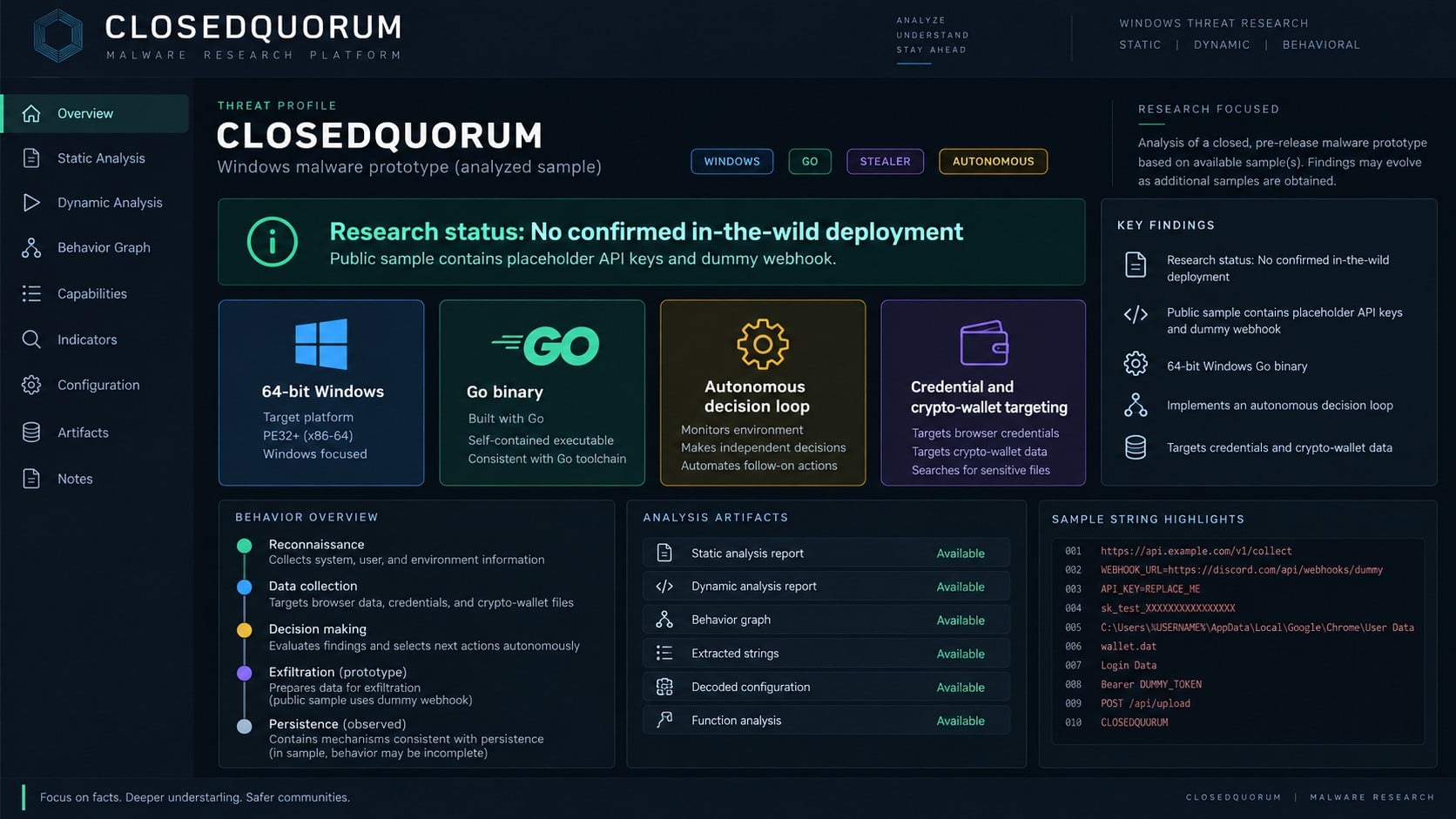
ClosedQuorum is a 64-bit Windows implant written in Go. It combines credential theft, cryptocurrency wallet collection, code injection, and multiple persistence options.
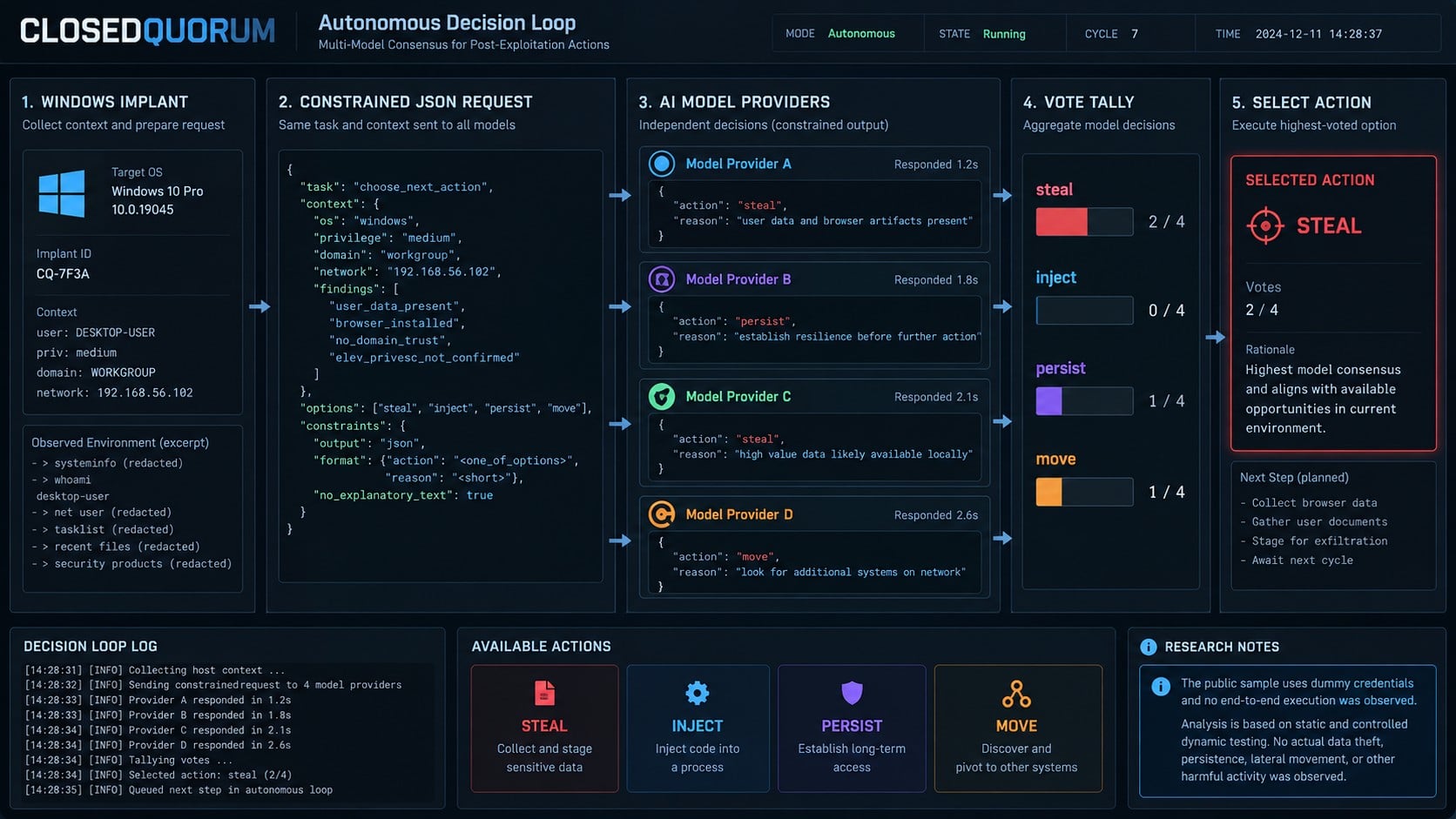
Its defining feature is an autonomous decision loop. The program asks up to four large language model services which predefined action should run next.
The name reflects that closed voting panel. Human operators configure the build, but the implant is designed to continue selecting actions without constant tasking.
Researchers connected development artifacts with a person posting about criminal activity. That connection provides context without proving widespread deployment.
What researchers actually confirmed
Static analysis established the implant’s architecture and offensive functions. Development builds also showed that API credentials could be injected during compilation.
However, the publicly observed distribution binary contained dummy AI keys and a dummy Discord webhook. It could not perform the complete intended workflow as released.
No confirmed in-the-wild deployment had been reported when the research was published. ClosedQuorum is therefore a documented malware design, not evidence of an active mass infection.
This distinction prevents an interesting prototype from being described as a proven global campaign. Defenders can learn from its behaviors without inventing victims.
The four actions available to the AI vote
The models do not write arbitrary malware commands. They choose from a tightly constrained set that the program already knows how to execute.
- Steal: collect LSASS material, browser credentials, sessions, and cryptocurrency wallet data.
- Inject: place generated shellcode into another process through one of two implemented techniques.
- Persist: create Registry, scheduled-task, and WMI mechanisms for continued execution.
- Move: attempt lateral movement, although the analyzed implementation was not functional.
The AI layer selects among these four verbs. Every underlying capability was developed conventionally and embedded within the Windows executable.
Why ClosedQuorum Matters Without an Active Outbreak
Malware command-and-control normally depends on an operator server, a scripted sequence, or direct human instructions. ClosedQuorum experiments with another operating model.
It treats commercial AI APIs as part of the decision infrastructure. Multiple models receive host context and return one allowed recommendation.
The implant tallies those responses, applies a tie-breaking rule, and launches the selected module. The operator does not need to approve every cycle.
This shifts effort rather than creating unlimited intelligence. The models decide within boundaries chosen by the developer and cannot exceed implemented functions automatically.
The architecture also creates new dependencies. Provider keys, network access, API availability, prompt consistency, and account enforcement can all disrupt operation.
Commercial services may gain visibility into suspicious requests. Providers can potentially detect abusive prompts, revoke credentials, and support investigation.
Using several model endpoints can itself become a detection opportunity. Few ordinary Windows processes contact multiple AI APIs while also accessing credentials and establishing persistence.
Defenders should avoid blocking all AI traffic based on this example. Legitimate applications use the same providers, and domain-only rules produce unnecessary disruption.
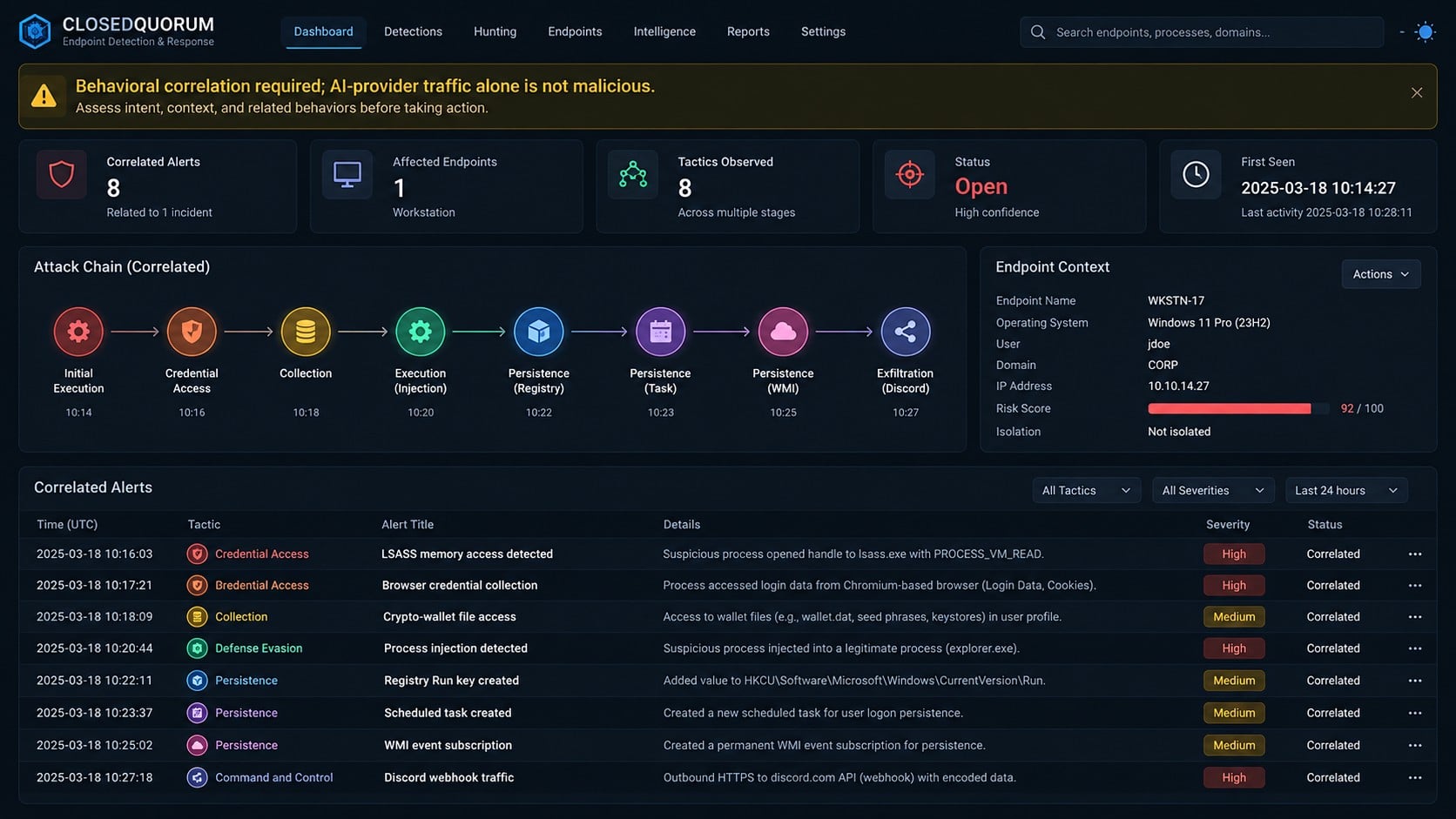
Behavioral correlation is stronger. AI requests combined with LSASS access, browser database reads, process injection, and webhook exfiltration form a distinctive sequence.
The research also demonstrates that autonomous language-model use can fit inside traditional malware. Endpoint fundamentals remain relevant even when decision logic changes.
Where the AI Label Can Mislead Readers
Calling ClosedQuorum “AI malware” can suggest a self-improving program with unlimited initiative. The documented design is narrower and more mechanical.
The implant prepares a structured prompt, offers four choices, gathers responses, counts votes, and calls an existing function.
Models do not redesign the executable, discover new capabilities, or independently expand the allowed decision vocabulary during that loop.
The program still depends on ordinary Windows permissions. Credential access can fail, injection can be blocked, and persistence can generate alerts.
Service providers can suspend abusive accounts or change API behavior. A configured build may stop working when credentials expire or requests are rejected.
Network isolation removes access to remote models and the intended webhook. Local modules may remain dangerous, but autonomous selection loses its external panel.
Model responses can disagree or return malformed output. The developer’s schema and tie-breaking logic attempt to turn that uncertainty into predictable branching.
This is orchestration, not magical reasoning. Its novelty lies in who chooses the branch, not in the underlying theft and persistence techniques.
Exaggerated reporting can distract teams from controls already available. LSASS protection, application control, and WMI monitoring address concrete behaviors.
Understating the design would also be a mistake. Automation can reduce the time and attention an operator needs for repeated post-compromise decisions.
Customized builds can give each buyer separate keys and exfiltration channels. That variation complicates reliance on one hash or webhook indicator.
Daily key derivation encrypts collected data but does not guarantee privacy between developer and buyer. Anyone able to reproduce the derivation may decrypt it.
The public dummy configuration provides a valuable sample for defensive research. It does not prove that operational builds have never existed.
Conversely, criminal forum ties do not prove successful infections. Deployment evidence must come from telemetry, victims, infrastructure, or working configured samples.
Security teams should label each statement by evidence type. “Implemented,” “observed in a lab,” and “seen in an incident” are not interchangeable.
That vocabulary keeps risk communication useful for executives and analysts. It explains preparation needs without turning a prototype into an invented emergency.
Future variants may change providers, decisions, or exfiltration methods. Durable monitoring should focus on behavior and unexpected application identity.
The case ultimately expands defensive planning while reinforcing an old lesson: new orchestration still leaves familiar artifacts on compromised Windows systems.
How ClosedQuorum Works
Step 1: An operator receives a configured Windows build
The assessed business model separates development from delivery. A buyer would receive a custom executable containing that operator’s service credentials and webhook.
The developer does not need to manage every victim directly. The operator remains responsible for delivering the binary to targeted systems.
Specific end-victim delivery methods were not confirmed. Claims about phishing, fake installers, or advertising should remain possibilities, not facts about the analyzed sample.
Step 2: The implant collects local context
ClosedQuorum gathers information that can inform its next action. The context becomes part of a structured request sent to the configured model providers.
The prompt instructs models to act as a malware strategist, but its output format is restricted. Free-form advice is not the intended response.
A typed JSON structure carries the decision. Constraining the response reduces ambiguity when the program parses and executes the result.
Step 3: Up to four AI services vote
The documented integrations include DeepSeek, Qwen, Mistral, and Google Gemini. Each active provider receives a similar decision request.
Responses are collected sequentially and compared. The action receiving the most votes becomes the selected branch.
A specific provider receives tie-breaking priority in the analyzed code. This means the quorum has deterministic handling when votes divide evenly.
Step 4: The selected module performs an attack action
A “steal” decision triggers credential and wallet collection. The program targets LSASS memory, browser data, and cryptocurrency-related files or extensions.
An “inject” decision creates shellcode and chooses between process hollowing or an Early Bird asynchronous procedure call technique.
These functions exist inside the implant. The AI vote selects a route; it does not invent the process-injection code during execution.
Step 5: Persistence can be established three ways
The persistence branch creates a Registry Run entry, schedules a task, and installs a WMI event subscription.
Independent mechanisms increase resilience because removing one does not automatically remove the others. Responders must examine all three locations.
The WMI subscription is designed to trigger repeatedly. Its presence can support continued execution even after a user closes the original process.
Step 6: Collected information is prepared for exfiltration
The intended design sends stolen information through a Discord webhook rather than a conventional operator-owned command server.
Data is encrypted with AES-256-GCM using a key derived from the date. This obfuscates content but does not create strong separation from the developer.
In the public binary, the webhook was a placeholder. Researchers did not observe a complete live exfiltration chain from that sample.
Step 7: The cycle repeats without continuous human tasking
The implant is designed to wait for a randomized interval, reassess context, query the panel, and choose again.
That repeated loop is the autonomous element. It can continue advancing through available behaviors while the operator is not actively issuing commands.
The lateral-movement branch was present but nonfunctional in analyzed material. Future builds could change that status, but current reporting must preserve the limitation.
Research Status, Behavior, Telemetry, and Scope Verification Checks
Separate code capability from observed deployment
A function inside a binary shows what its developer intended or implemented. It does not prove the function ran against a real victim.
Confirm whether evidence comes from static analysis, controlled execution, development artifacts, or incident telemetry. These sources support different levels of confidence.
ClosedQuorum’s public sample used placeholder credentials. Any claim of successful autonomous attacks requires additional evidence beyond the documented template.
Correlate AI API traffic with endpoint actions
An application contacting an AI provider is not suspicious by itself. Identify the originating process, request pattern, timing, user, and surrounding endpoint activity.
Multiple provider calls followed by credential access or injection would deserve immediate investigation. Ordinary approved AI tools should have a known owner and purpose.
Organizations using TLS inspection must follow legal and privacy requirements. Provider-side abuse monitoring can offer another source of signal.
Hunt for implemented Windows behaviors
Monitor attempts to read LSASS memory, browser credential stores, wallet directories, and session databases from unapproved processes.
Detect process hollowing, Early Bird injection patterns, Registry Run modifications, new scheduled tasks, and permanent WMI event subscriptions.
A cluster of those events matters more than one generic indicator. The same techniques appear in many malware families and some administrative tools.
Validate webhook and credential configuration
Inspect suspicious binaries for configured provider keys and webhook destinations. Dummy values indicate an incomplete template rather than an operational build.
Real keys should be revoked through their providers, then reviewed for historical use. Webhook owners can preserve records that support attribution and scoping.
Never paste suspected secrets into public tools. Handle binaries, configuration, and tokens through controlled forensic systems.
What to Do if ClosedQuorum Is Detected
- Confirm the sample carefully. Determine whether the file contains operational credentials or only the public placeholder configuration. Preserve hashes and acquisition details.
- Isolate the host. Remove a suspected operational system from normal network access while maintaining controlled forensic connectivity.
- Capture volatile evidence. Preserve memory, processes, open handles, network connections, loaded modules, command lines, and active authentication sessions.
- Run layered security scans. Use managed EDR and a current Malwarebytes scan where appropriate. Do not substitute one clean result for behavioral investigation.
- Remove every persistence path. Check Registry Run keys, scheduled tasks, and WMI subscriptions, then rebuild the endpoint when trust cannot be established.
- Revoke provider and webhook credentials. Disable exposed API keys, Discord webhooks, tokens, and related service accounts. Review their logs for historical abuse.
- Reset potentially stolen secrets. Rotate browser passwords, session tokens, wallet access, administrative credentials, and keys reachable from the affected profile.
- Protect cryptocurrency assets. Move funds from exposed wallets using a clean device and newly generated wallet. Never reuse a potentially compromised recovery phrase.
- Hunt for correlated activity. Search for LSASS access, wallet collection, injection, webhook traffic, AI API bursts, and matching persistence across the environment.
- Strengthen web filtering. AdGuard can reduce malicious delivery paths for users, but controlling executable launch, credentials, and endpoint behavior remains essential.
Is Your Device Infected? Run a Free Malware Scan
Slow performance, constant pop-ups, or strange behavior? These are classic signs of a malware infection. The fastest way to find out is to scan your device with Malwarebytes Free — one of the most trusted malware removal tools available.
The free version detects and removes the most common threats, including:
- Adware — the cause of those annoying pop-ups
- Browser hijackers — unwanted redirects and changed homepages
- Trojans and spyware — hidden programs stealing your data
- Potentially unwanted programs (PUPs) — software you never asked for
👉 Select your device below — Windows, Mac, or Android — then follow the simple steps to download Malwarebytes, scan your system, and remove any threats it finds. The scan usually takes 5 to 20 minutes.
Run a Malware Scan with Malwarebytes for Windows
Malwarebytes is one of the most popular and trusted anti-malware tools for Windows — and it’s completely free for removing infections. It catches threats that many antivirus programs miss, including adware, browser hijackers, and trojans. Follow the steps below to scan and clean your PC in just a few minutes.
Download Malwarebytes
Click the button below to download the latest version of Malwarebytes for Windows from the official source. The free version is all you need — it will scan your computer and remove adware, browser hijackers, and other malicious software at no cost.
Download MalwarebytesOfficial installer for Windows 11 and 10. Your download starts right away.Want real-time protection? See Malwarebytes Premium Malwarebytes Free for WindowsScans and removes malware at no cost
-
Install Malwarebytes
When the download finishes, open your Downloads folder and double-click the MBSetup file. If Windows shows a User Account Control pop-up, click “Yes” to allow the installation.

Follow the On-Screen Prompts to Install Malwarebytes
The setup wizard will walk you through a few quick screens:
-
Choose where you’re installing the program — “Personal Computer” or “Work Computer” — then click Next.

-
Malwarebytes will now install on your device. This usually takes under a minute.

-
When installation is complete, the “Welcome to Malwarebytes” screen will open automatically.

-
On the final screen, click Open Malwarebytes to launch the program.

-
Enable “Scan for Rootkits”
Before scanning, turn on rootkit detection so Malwarebytes can find even the most hidden threats. Click the Settings gear icon on the left side of the screen.

In the settings menu, find “Scan for rootkits” and click the toggle so it turns blue.

Done? Click “Dashboard” in the left pane to return to the main screen.
Start the Scan
Click the blue Scan button. Malwarebytes will automatically update its virus database and start checking your computer for malware.

-
Wait for the Scan to Finish
The scan checks your entire system for browser hijackers and other malicious programs, so it can take 5 to 20 minutes depending on your computer. Feel free to do something else — just check back occasionally to see the progress.

-
Quarantine the Detected Threats
When the scan is done, you’ll see a list of everything Malwarebytes found — malware, adware, and potentially unwanted programs. Click the “Quarantine” button to remove all of them at once.

Malwarebytes will now remove the malicious files and registry entries and move them safely into quarantine.

-
Restart Your Computer
Some threats can only be fully removed after a reboot. If Malwarebytes asks you to restart, click Yes. Once you’re logged back in, Malwarebytes has finished removing the threats it found.

That’s it — your Windows PC is now clean of trojans, adware, and other malware, and should be back to running smoothly.
If you are still having problems with your computer after completing these instructions, then please follow one of the steps:
- Run a computer scan with ESET Online Scanner
- Ask for help in our Windows Malware Removal Help & Support forum.
Run a Malware Scan with Malwarebytes for Mac
Malwarebytes for Mac is a free on-demand scanner that removes the malware other security software tends to miss — adware, browser hijackers, and unwanted programs included. Cleaning an infected Mac with Malwarebytes has always been completely free, and it’s our go-to recommendation. Follow the steps below to scan and clean your Mac in just a few minutes.
-
Download Malwarebytes for Mac
Click the button below to download the latest version of Malwarebytes for Mac.
Download MalwarebytesOfficial installer for macOS. Your download starts right away.Want real-time protection? See Malwarebytes PremiumMalwarebytes Free for MacScans and removes malware at no cost -
Open the Malwarebytes setup file
When the download finishes, open your Downloads folder and double-click the setup file to begin the installation.

-
Follow the On-Screen Prompts to Install Malwarebytes
The Malwarebytes for Mac Installer will guide you through a few quick screens. Click “Continue” and keep following the prompts until the installation completes.



When the installation is complete, Malwarebytes opens to the Welcome to Malwarebytes screen. Click “Get started“.
-
Select “Personal Computer” or “Work Computer”
Malwarebytes will ask what type of computer you’re installing it on. Click either Personal Computer or Work Computer, whichever applies.

-
Start the Scan
Click the “Scan” button. Malwarebytes will automatically update its detection database and begin checking your Mac for malware.

-
Wait for the Scan to Finish
Malwarebytes will scan your Mac for adware, browser hijackers, and other malicious programs. This can take a few minutes, so feel free to do something else — just check back occasionally to see the progress.

-
Quarantine the Detected Threats
When the scan is done, you’ll see a list of everything Malwarebytes found. Click the “Quarantine” button to remove all the threats at once.

-
Restart Your Mac
Malwarebytes will now remove all the malicious files it found. Some threats can only be fully removed after a reboot — if Malwarebytes asks you to restart, allow it. Once you’re logged back in, your Mac is clean.

That’s it — your Mac is now free of adware, rogue browser extensions, and other potentially harmful software.
If you are still experiencing problems while trying to remove a malicious program from your computer, please ask for help in our Mac Malware Removal Help & Support forum.
Run a Malware Scan with Malwarebytes for Android
Malwarebytes for Android automatically detects and removes dangerous threats like malware and ransomware so you don’t have to worry about your most-used device being compromised. Aggressive detection of adware and potentially unwanted programs keeps your Android phone or tablet running smooth.
-
Download Malwarebytes for Android.
You can download Malwarebytes for Android by clicking the link below.
Get Malwarebytes for AndroidOpens Google Play in a new tab.Want real-time protection? See Malwarebytes Premium for AndroidMalwarebytes for AndroidScans your phone and removes malware at no cost -
Install Malwarebytes for Android on your phone.
In the Google Play Store, tap “Install” to install Malwarebytes for Android on your device.

When the installation process has finished, tap “Open” to begin using Malwarebytes for Android. You can also open Malwarebytes by tapping on its icon in your phone menu or home screen.

-
Follow the on-screen prompts to complete the setup process
When Malwarebytes will open, you will see the Malwarebytes Setup Wizard which will guide you through a series of permissions and other setup options.
This is the first of two screens that explain the difference between the Premium and Free versions. Swipe this screen to continue.
Tap on “Got it” to proceed to the next step.
Malwarebytes for Android will now ask for a set of permissions that are required to scan your device and protect it from malware. Tap on “Give permission” to continue.
Tap on “Allow” to permit Malwarebytes to access the files on your phone.
-
Update database and run a scan with Malwarebytes for Android
You will now be prompted to update the Malwarebytes database and run a full system scan.

Click on “Update database” to update the Malwarebytes for Android definitions to the latest version, then click on “Run full scan” to perform a system scan.

-
Wait for the Malwarebytes scan to complete.
Malwarebytes will now start scanning your phone for adware and other malicious apps. This process can take a few minutes, so we suggest you do something else and periodically check on the status of the scan to see when it is finished.

-
Click on “Remove Selected”.
When the scan has been completed, you will be presented with a screen showing the malware infections that Malwarebytes for Android has detected. To remove the malicious apps that Malwarebytes has found, tap on the “Remove Selected” button.

-
Restart your phone.
Malwarebytes for Android will now remove all the malicious apps that it has found. To complete the malware removal process, Malwarebytes may ask you to restart your device.
That’s it — your Android phone is now clean — no more malicious apps, adware, or browser redirects.
If you are still having problems with your phone after completing these instructions, then please follow one of the steps:
- Restore your phone to factory settings by going to Settings > General management > Reset > Factory data reset.
- Ask for help in our Mobile Malware Removal Help & Support forum.
Stay Protected: Block Ads and Malicious Sites
Now that your device is clean, keep it that way. Most infections start with a malicious ad or a fake download button — so blocking them at the source is your best defense.
We recommend AdGuard, which blocks malicious ads, phishing pages, and dangerous redirects before they can reach you.
👉 Download AdGuard and browse safely
Defensive Lessons for AI-Aware Environments
Security teams should inventory legitimate AI-enabled software and its expected providers. Baselines make unexpected multi-provider traffic easier to investigate.
API keys need least privilege, rotation, usage limits, and anomaly alerts. Credentials embedded inside distributed binaries should be considered recoverable by adversaries.
Providers can examine repetitive offensive prompts and compromised accounts. Clear abuse-reporting channels create defensive value beyond endpoint detection.
Traditional controls still block much of the chain. Credential protection, application control, endpoint telemetry, and restricted persistence remain effective against AI-directed malware.
Teams should tabletop autonomous behavior without assuming science-fiction capabilities. The practical risk comes from faster decision cycles using familiar attack techniques.
Public reporting should distinguish prototypes from active incidents. Accuracy prevents unnecessary panic and directs resources toward measurable behaviors.
Frequently Asked Questions
Is ClosedQuorum active in the wild?
No confirmed in-the-wild deployment was reported in the original analysis. The public sample contained dummy credentials and a placeholder webhook.
Does the AI create new malware code?
Not in the documented loop. Models select among predefined actions, while conventional modules inside the executable perform theft, injection, persistence, or movement.
Which AI providers appear in the code?
The analyzed integrations referenced DeepSeek, Qwen, Mistral, and Google Gemini. Their inclusion does not mean those providers created or endorsed the malware.
Should organizations block all AI-provider traffic?
No. Provider access has many legitimate uses. Monitor unexpected processes and correlate model traffic with credential access, injection, persistence, and exfiltration.
Why use several models instead of one?
The design collects multiple recommendations and chooses the most common response. This quorum approach aims to reduce reliance on one model’s decision.
Can antivirus remove ClosedQuorum completely?
A product may detect the file, but responders must address three persistence paths, stolen secrets, active sessions, injected processes, and any related tooling.
The Bottom Line
ClosedQuorum demonstrates how a Windows implant can use a small panel of commercial AI models to choose among traditional malicious actions autonomously.
Its public sample was not a confirmed live campaign. Defenders should focus on verified endpoint behaviors while preserving that crucial limit in every discussion.

Join the discussion
0 commentsShare your experience or ask a question about this article.
Discussion
Start the conversation
Have a question or something useful to share? Add the first comment.