

The Connolly Foundation email scam is a fraudulent message that claims you have been “selected” to receive a large cash gift, often around $550,000, supposedly funded by lottery winners.
The email is designed to get you to reply, then steer you into sharing personal information or paying fake “processing” or “delivery” fees. If you received one of these messages, treat it as a scam and do not engage.
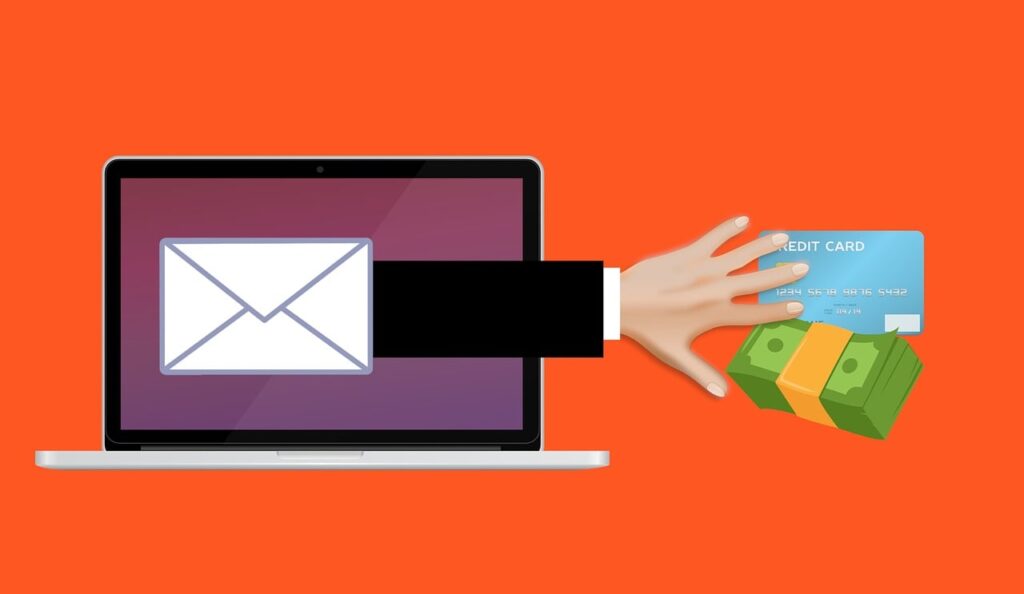
Scam Overview
The Connolly Foundation Email Scam is a lottery-winner impersonation scheme packaged as a charitable donation. It typically claims you have been “selected” to receive a large financial gift, often $100,000 to $1,000,000, from a foundation allegedly run by famous jackpot winners. The amount varies, but the structure rarely does.
The email you shared is a textbook example:
- A high-value promise: $550,000.00
- A credibility anchor: “winners of the 2019 Powerball Jackpot of $145.6 million”
- A charitable storyline: “our foundation’s ongoing community support programs”
- A low-friction call to action: “Please respond… for next steps”
- A signature meant to look official: “Connolly Foundation©”
At a distance, it sounds like philanthropy.
Up close, it behaves like advance-fee fraud and identity theft, with the “foundation” serving as a costume that makes the scam feel safer and more respectable.
Why this scam uses famous names
Scammers routinely use real people’s names to shorten the distance between skepticism and belief. If the name is recognizable, many recipients assume the message must be connected to something legitimate.
In this case, scammers often use the names Frances and Patrick Connolly, widely known in the UK after a major EuroMillions win. Consumer watchdog reporting has documented impersonators using the Connolly name online to lure people with promises of money.
This is not speculation. There have been public warnings about scam outreach associated with the Connolly-linked charity context, including statements that scam emails claiming to represent the relevant trust were circulatin
That is the key point: a real person existing does not make an email real. It just makes the impersonation easier.
The “foundation” language is a deliberate trust hack
Scammers love these words:
- Foundation
- Grant
- Donation
- Beneficiary
- Humanitarian program
- Community support
- Funds release
- Verification
They are designed to signal legitimacy without providing verifiable details.
Legitimate charities do not operate by randomly selecting people via unsolicited emails and then asking them to “reply for next steps.” When real philanthropic programs exist, they have clear public eligibility criteria, established application processes, official contact channels, and documentation that can be verified independently.
The Connolly Foundation scam avoids all of that. It is intentionally vague. Vague is useful because it lets the scammer adapt the story to whatever you say next.
Why the Powerball angle is often a red flag
Many Connolly-themed scam emails mix lottery brands, jackpot numbers, or years in ways that do not hold together. That mismatch is common in impersonation fraud. The scammer needs something that sounds impressive, not something that is accurate.
Even when details are correct, it does not matter. The scam is not about lottery facts. It is about using a lottery narrative to justify a sudden gift.
Consumer protection agencies have repeatedly warned about scammers impersonating lottery winners and promising “free money” to anyone who engages, then turning the conversation into fee demands and payment requests. (Consumer Advice)
What the scammer actually wants
The Connolly Foundation email scam is built to extract value in three main ways.
1) Your personal information
Once you reply, the scam quickly shifts to “verification.” This is the most dangerous stage because it can lead to identity theft.
Typical requests include:
- Full name, home address, phone number
- Date of birth
- Occupation
- Photo of your driver’s license or passport
- Banking information “for transfer”
- A selfie holding your ID (framed as identity confirmation)
Official consumer guidance is blunt for a reason: if someone tells you that you must provide sensitive personal or financial information to receive a prize, donation, or award, it is a scam.
2) Upfront payments
After “verification,” the scam introduces a barrier that conveniently requires you to send money first.
The barrier can be called:
- Processing fee
- Delivery fee
- Courier insurance
- Legal documentation fee
- Tax clearance
- Anti-money laundering compliance charge
- Customs duty
- Transfer activation
The names change. The premise never does.
3) Future targeting and resale of your contact details
Even if you do not pay, a reply marks you as responsive. That makes your email address more valuable inside scam networks. People who engage often see a surge of follow-up attempts, including “recovery” scams that promise to help get money back for a fee.
The FBI has warned that scammers actively revictimize prior victims by claiming they can recover lost funds and then demanding money or sensitive information. (Federal Bureau of Investigation)
Why smart people still get pulled in
This scam does not rely on ignorance. It relies on pressure and emotion.
It leverages:
- Surprise: “selected” out of nowhere
- Relief: the amount is large enough to feel life-changing
- Authority: lottery winners, foundations, official-sounding steps
- Momentum: “just reply for next steps”
- Commitment: once you respond, it feels harder to walk away
- Scarcity: many variants add deadlines or confidentiality requests
This pattern appears across lottery-winner impersonation scams generally. The FTC has described how scammers impersonate lottery winners online, then push urgency and fees, often demanding gift cards or other difficult-to-reverse payment methods.
The reality behind Connolly-related charity warnings
One reason this specific scam persists is that it borrows from a real-world charitable context around the Connolly name, then twists it.
Reporting on scam outreach connected to a Connolly-linked trust included a clear statement: scam emails claiming to represent the trust were circulating, and the founders would not use email or social media as a means of requesting funding for charity purposes. (Strabane Weekly)
That is a useful frame for recipients: even when a charity is real, criminals can impersonate it, and unsolicited outreach that asks for money or personal information is a major warning sign.
Quick red flags that strongly indicate a Connolly Foundation scam
If the message includes any of the following, treat it as fraudulent until proven otherwise:
- You did not apply, enter, or sign up for anything
- You are told you were “selected” randomly
- The email asks you to reply to learn “next steps”
- The sender uses free email services or odd addresses
- The message is vague about how you were chosen
- You are asked for ID, banking details, or personal data
- You are told to pay fees to receive the gift
- The sender pressures urgency or secrecy
- The sender insists on gift cards, crypto, or wire transfers
The FTC’s prize-scam guidance highlights the same core warning signs: paying fees to receive a prize and providing financial or personal information to claim it.
How The Scam Works
The Connolly Foundation email scam is typically a multi-step funnel. It starts gentle and friendly, then becomes administrative and urgent once you are emotionally invested.
Below is the most common sequence, with the main variations scammers use.
Step 1: The bait email hits your inbox
The first email is designed to look simple and welcoming. It rarely includes links at the start. That is intentional.
The scammer’s goal is to get you to respond so they can move you into a one-on-one conversation. Once you reply, the scam feels less like spam and more like a “process.”
Common opening lines include:
- “Congratulations!”
- “You have been selected…”
- “This is part of our foundation’s community support…”
- “Kindly respond for the next steps…”
If the email includes a large amount like $550,000, that number is doing heavy lifting. It is large enough to feel real and meaningful, but not so large that it feels absurd to everyone.
Here is how the email looks:
Congratulations!
You have been selected to receive a financial gift of $550,000.00 USD from Frances & Patrick Connolly, winners of the 2019 Powerball Jackpot of $145.6 million.This initiative is part of our foundation’s ongoing community support programs aimed at assisting individuals around the world.
Please respond at your convenience so we can provide the next steps in the process. Thank you for your time and participation.
Sincerely,
Connolly Foundation©
Step 2: The scammer confirms you as a “beneficiary”
Once you reply, the scammer usually responds quickly with a more formal tone.
They may:
- Congratulate you again
- Assign you a “claims agent,” “foundation officer,” or “delivery coordinator”
- Provide a reference number
- Tell you that your funds are “approved” or “reserved”
This step is psychological. It moves you from uncertainty into a new identity: recipient, beneficiary, selected participant.
That identity makes people more likely to continue because walking away starts to feel like losing something.
Step 3: “Verification” begins
Now the scam shifts to paperwork mode.
The scammer claims they must confirm your identity to:
- Prevent fraud
- Meet compliance rules
- Document the foundation’s donation activity
- Prepare transfer paperwork
In practice, it is data harvesting.
They often request:
- Full name and address
- Phone number
- Age or date of birth
- Copy of your ID
- Banking information or a “receiving account” for transfer
This is not normal, and it is not necessary for a legitimate gift.
FTC guidance on prize scams specifically warns that if someone says you must provide financial or personal information to claim a prize, it is a scam
Step 4: The delivery story appears
In many Connolly Foundation scam variants, the scammer introduces a method for getting your “gift” to you.
Common delivery narratives include:
- Bank transfer to your account
- Cash delivery via courier
- Certified check
- ATM card loaded with funds
- Escrow release
This stage often comes with fake documentation:
- Donation certificate
- Proof of transfer screenshot
- Courier waybill
- “Approval letter” with seals and signatures
The documents are not meant to prove legitimacy. They are meant to increase compliance.
Step 5: The first fee is introduced
This is where the scam becomes clearly transactional.
The scammer claims the donation is real, but you must pay something small to release it.
They frame the fee as:
- Routine
- Legally required
- A minor hurdle
- A refundable deposit
Typical first-fee ranges:
- $50 to $500
- Sometimes $1,000 or more if the victim seems willing
The FTC describes the core tell: if you have to pay to get your prize, it is a scam.
Step 6: Payment method steering
The scammer will try to steer you away from payment methods that are reversible.
Expect pushes toward:
- Gift cards
- Cryptocurrency
- Wire transfers
- Payment apps
The FTC has explicitly warned that scammers who pretend to be lottery winners often demand gift cards for “processing and delivery fees,” and that only scammers ask for gift cards as payment.
Step 7: The “just one more step” loop
After the first payment, the scammer rarely stops. Instead, the process becomes a staircase.
Each time you pay, a new issue appears:
- Courier insurance must be upgraded
- Customs requires a clearance fee
- Transfer is pending anti-fraud validation
- A release code must be purchased
- Legal notarization is required
- The bank requires a deposit to activate transfer
This is how victims lose thousands or tens of thousands over time. The scammer is not trying to get one payment. They are trying to keep you paying until you stop.
Step 8: Escalation tactics if you hesitate
If you slow down, scammers adjust.
They may:
- Increase urgency: “This must be paid today.”
- Apply guilt: “This donation could change your life.”
- Create fear: “Your funds will be forfeited.”
- Push secrecy: “Do not tell anyone or it will be canceled.”
Secrecy is especially important for scammers because it prevents you from showing the email to someone who will spot the fraud in seconds.
Step 9: Revictimization scams
If you realize it is a scam and stop responding, you may still be targeted again.
A common follow-up scam is a “recovery” approach:
- Someone claims they can recover your funds
- They claim to be associated with law enforcement, investigators, or reporting agencies
- They demand fees to release recovered money
The FBI has warned about scammers impersonating the IC3 and using the claim of recovered funds as a ruse to gain financial information and revictimize people.
Step 10: The scam keeps changing names
One of the most frustrating parts is that the branding changes constantly:
- Connolly Foundation
- Connolly Grant Program
- Donation Department
- Community Outreach Foundation
- Kathleen Graham Trust impersonations
- Variants that use other lottery winner names
That is why the best defense is pattern recognition. The story changes. The mechanics remain the same.
What To Do If You Have Fallen Victim to This Scam
If you interacted with the Connolly Foundation email scam, focus on what you shared and what you paid. Use the steps below in order, and skip anything that does not apply.
- Stop contact immediately
- Do not reply again.
- Do not negotiate.
- Block the sender and any follow-up addresses or numbers.
- Preserve evidence
- Save the emails, including attachments.
- Screenshot the messages and any payment instructions.
- Keep transaction IDs, wallet addresses, and recipient details if you paid.
- If you sent money, contact your bank or payment provider right away
- Ask for the fraud department.
- Request a reversal, recall, or dispute if possible.
- Time matters, especially for wires.
- If you paid by gift card, act fast
- Gather the gift card brand, receipt, and card numbers.
- Report it to the gift card issuer immediately.
- Recovery is difficult, but quick reporting can sometimes help.
- If you paid with cryptocurrency, document everything
- Save wallet addresses, transaction hashes, and exchange details.
- Report the wallet addresses to the platform you used.
- Consider reporting to law enforcement with full transaction details.
- If you shared personal information, protect your identity
- Change passwords for email and any accounts linked to that email.
- Enable two-factor authentication on email, banking, and payment apps.
- Monitor accounts for suspicious activity.
- Consider a fraud alert or credit freeze where available.
- Check your email security settings
- Review forwarding rules and filters. Scammers sometimes try to set rules that hide bank alerts.
- Review account recovery email and phone number.
- Sign out of other sessions if your provider supports it.
- Scan your device if you opened attachments
- If you downloaded files or clicked links, run a reputable security scan.
- Remove any unknown remote access tools if installed.
- Report the scam
- Report the email as phishing in your email provider.
- Report prize and lottery scams to the FTC.
- If you are in the US and lost money, report to the FBI’s IC3.
- If you are outside the US, report to your local consumer protection agency or police.
- Watch for recovery scams
- Be skeptical of anyone who contacts you claiming they can recover your money for a fee.
- The FBI has warned that the IC3 will not ask for payment to recover lost funds and that such claims are used to revictimize victims.
Is Your Device Infected? Run a Free Malware Scan
Slow performance, constant pop-ups, or strange behavior? These are classic signs of a malware infection. The fastest way to find out is to scan your device with Malwarebytes Free — one of the most trusted malware removal tools available.
The free version detects and removes the most common threats, including:
- Adware — the cause of those annoying pop-ups
- Browser hijackers — unwanted redirects and changed homepages
- Trojans and spyware — hidden programs stealing your data
- Potentially unwanted programs (PUPs) — software you never asked for
👉 Select your device below — Windows, Mac, or Android — then follow the simple steps to download Malwarebytes, scan your system, and remove any threats it finds. The scan usually takes 5 to 20 minutes.
Run a Malware Scan with Malwarebytes for Windows
Malwarebytes is one of the most popular and trusted anti-malware tools for Windows — and it’s completely free for removing infections. It catches threats that many antivirus programs miss, including adware, browser hijackers, and trojans. Follow the steps below to scan and clean your PC in just a few minutes.
Download Malwarebytes
Click the button below to download the latest version of Malwarebytes for Windows from the official source. The free version is all you need — it will scan your computer and remove adware, browser hijackers, and other malicious software at no cost.
Download MalwarebytesOfficial installer for Windows 11 and 10. Your download starts right away.Want real-time protection? See Malwarebytes Premium Malwarebytes Free for WindowsScans and removes malware at no cost
-
Install Malwarebytes
When the download finishes, open your Downloads folder and double-click the MBSetup file. If Windows shows a User Account Control pop-up, click “Yes” to allow the installation.

Follow the On-Screen Prompts to Install Malwarebytes
The setup wizard will walk you through a few quick screens:
-
Choose where you’re installing the program — “Personal Computer” or “Work Computer” — then click Next.

-
Malwarebytes will now install on your device. This usually takes under a minute.

-
When installation is complete, the “Welcome to Malwarebytes” screen will open automatically.

-
On the final screen, click Open Malwarebytes to launch the program.

-
Enable “Scan for Rootkits”
Before scanning, turn on rootkit detection so Malwarebytes can find even the most hidden threats. Click the Settings gear icon on the left side of the screen.

In the settings menu, find “Scan for rootkits” and click the toggle so it turns blue.

Done? Click “Dashboard” in the left pane to return to the main screen.
Start the Scan
Click the blue Scan button. Malwarebytes will automatically update its virus database and start checking your computer for malware.

-
Wait for the Scan to Finish
The scan checks your entire system for browser hijackers and other malicious programs, so it can take 5 to 20 minutes depending on your computer. Feel free to do something else — just check back occasionally to see the progress.

-
Quarantine the Detected Threats
When the scan is done, you’ll see a list of everything Malwarebytes found — malware, adware, and potentially unwanted programs. Click the “Quarantine” button to remove all of them at once.

Malwarebytes will now remove the malicious files and registry entries and move them safely into quarantine.

-
Restart Your Computer
Some threats can only be fully removed after a reboot. If Malwarebytes asks you to restart, click Yes. Once you’re logged back in, Malwarebytes has finished removing the threats it found.

That’s it — your Windows PC is now clean of trojans, adware, and other malware, and should be back to running smoothly.
If you are still having problems with your computer after completing these instructions, then please follow one of the steps:
- Run a computer scan with ESET Online Scanner
- Ask for help in our Windows Malware Removal Help & Support forum.
Run a Malware Scan with Malwarebytes for Mac
Malwarebytes for Mac is a free on-demand scanner that removes the malware other security software tends to miss — adware, browser hijackers, and unwanted programs included. Cleaning an infected Mac with Malwarebytes has always been completely free, and it’s our go-to recommendation. Follow the steps below to scan and clean your Mac in just a few minutes.
-
Download Malwarebytes for Mac
Click the button below to download the latest version of Malwarebytes for Mac.
Download MalwarebytesOfficial installer for macOS. Your download starts right away.Want real-time protection? See Malwarebytes PremiumMalwarebytes Free for MacScans and removes malware at no cost -
Open the Malwarebytes setup file
When the download finishes, open your Downloads folder and double-click the setup file to begin the installation.

-
Follow the On-Screen Prompts to Install Malwarebytes
The Malwarebytes for Mac Installer will guide you through a few quick screens. Click “Continue” and keep following the prompts until the installation completes.



When the installation is complete, Malwarebytes opens to the Welcome to Malwarebytes screen. Click “Get started“.
-
Select “Personal Computer” or “Work Computer”
Malwarebytes will ask what type of computer you’re installing it on. Click either Personal Computer or Work Computer, whichever applies.

-
Start the Scan
Click the “Scan” button. Malwarebytes will automatically update its detection database and begin checking your Mac for malware.

-
Wait for the Scan to Finish
Malwarebytes will scan your Mac for adware, browser hijackers, and other malicious programs. This can take a few minutes, so feel free to do something else — just check back occasionally to see the progress.

-
Quarantine the Detected Threats
When the scan is done, you’ll see a list of everything Malwarebytes found. Click the “Quarantine” button to remove all the threats at once.

-
Restart Your Mac
Malwarebytes will now remove all the malicious files it found. Some threats can only be fully removed after a reboot — if Malwarebytes asks you to restart, allow it. Once you’re logged back in, your Mac is clean.

That’s it — your Mac is now free of adware, rogue browser extensions, and other potentially harmful software.
If you are still experiencing problems while trying to remove a malicious program from your computer, please ask for help in our Mac Malware Removal Help & Support forum.
Run a Malware Scan with Malwarebytes for Android
Malwarebytes for Android automatically detects and removes dangerous threats like malware and ransomware so you don’t have to worry about your most-used device being compromised. Aggressive detection of adware and potentially unwanted programs keeps your Android phone or tablet running smooth.
-
Download Malwarebytes for Android.
You can download Malwarebytes for Android by clicking the link below.
Get Malwarebytes for AndroidOpens Google Play in a new tab.Want real-time protection? See Malwarebytes Premium for AndroidMalwarebytes for AndroidScans your phone and removes malware at no cost -
Install Malwarebytes for Android on your phone.
In the Google Play Store, tap “Install” to install Malwarebytes for Android on your device.

When the installation process has finished, tap “Open” to begin using Malwarebytes for Android. You can also open Malwarebytes by tapping on its icon in your phone menu or home screen.

-
Follow the on-screen prompts to complete the setup process
When Malwarebytes will open, you will see the Malwarebytes Setup Wizard which will guide you through a series of permissions and other setup options.
This is the first of two screens that explain the difference between the Premium and Free versions. Swipe this screen to continue.
Tap on “Got it” to proceed to the next step.
Malwarebytes for Android will now ask for a set of permissions that are required to scan your device and protect it from malware. Tap on “Give permission” to continue.
Tap on “Allow” to permit Malwarebytes to access the files on your phone.
-
Update database and run a scan with Malwarebytes for Android
You will now be prompted to update the Malwarebytes database and run a full system scan.

Click on “Update database” to update the Malwarebytes for Android definitions to the latest version, then click on “Run full scan” to perform a system scan.

-
Wait for the Malwarebytes scan to complete.
Malwarebytes will now start scanning your phone for adware and other malicious apps. This process can take a few minutes, so we suggest you do something else and periodically check on the status of the scan to see when it is finished.

-
Click on “Remove Selected”.
When the scan has been completed, you will be presented with a screen showing the malware infections that Malwarebytes for Android has detected. To remove the malicious apps that Malwarebytes has found, tap on the “Remove Selected” button.

-
Restart your phone.
Malwarebytes for Android will now remove all the malicious apps that it has found. To complete the malware removal process, Malwarebytes may ask you to restart your device.
That’s it — your Android phone is now clean — no more malicious apps, adware, or browser redirects.
If you are still having problems with your phone after completing these instructions, then please follow one of the steps:
- Restore your phone to factory settings by going to Settings > General management > Reset > Factory data reset.
- Ask for help in our Mobile Malware Removal Help & Support forum.
Stay Protected: Block Ads and Malicious Sites
Now that your device is clean, keep it that way. Most infections start with a malicious ad or a fake download button — so blocking them at the source is your best defense.
We recommend AdGuard, which blocks malicious ads, phishing pages, and dangerous redirects before they can reach you.
👉 Download AdGuard and browse safely
The Bottom Line
The Connolly Foundation email scam is not a charitable gift. It is an impersonation scheme designed to start a conversation, collect sensitive personal information, and pressure you into paying fees to receive money that does not exist.
Treat unsolicited “you have been selected” donation emails as fraudulent by default, especially when they involve lottery winners, urgent next steps, and any request for fees or personal details.
If you already engaged, cut contact, secure your accounts, document everything, and report it. The faster you act, the more options you have.
FAQ
Is the Connolly Foundation email offering a $550,000 gift legitimate?
In nearly all cases, no. Unsolicited emails that claim you were “selected” to receive $550,000 and ask you to reply for “next steps” match the standard pattern of prize, donation, and advance-fee scams.
Are Frances & Patrick Connolly actually behind these emails?
There is no reliable indication that the real people are emailing strangers to give away money. Scammers often impersonate well-known lottery winners because the names are recognizable and easy to search.
Why would a real foundation contact people by email out of the blue?
Legitimate foundations usually do not cold-email random individuals to award large sums. Real charitable programs typically have public eligibility rules, a formal application process, and verifiable contact details. A random selection email with vague “next steps” is a major red flag.
What happens if I reply to the email?
Replying usually triggers a back-and-forth where the scammer tries to:
- Confirm you as a “beneficiary”
- Collect personal information for “verification”
- Introduce fees to “process,” “insure,” or “deliver” the money
What personal information do scammers typically request?
Common requests include:
- Full name, address, phone number
- Date of birth
- Occupation
- Photo or scan of a passport or driver’s license
- Banking details “for transfer”
- A selfie holding your ID
Why do they ask for fees if they are giving away money?
Because the fee is the scam. They invent charges like “processing,” “courier,” “legal,” “insurance,” “tax,” or “clearance” fees to get you to send money first. Once you pay, they often come back with more fees.
What payment methods do scammers prefer?
They usually push methods that are hard to reverse, such as:
- Gift cards
- Cryptocurrency
- Wire transfers
- Money transfer services
- Peer-to-peer payment apps
I only replied once. Am I in danger?
If you did not share sensitive information or send money, your main risk is being targeted again. Replying confirms your email is active. Block the sender, mark the email as phishing, and be alert for follow-up scams.
I shared my address or phone number. What should I do?
Lock down your accounts and expect more scam attempts. Steps that help:
- Change your email password and enable two-factor authentication
- Watch for strange calls, texts, or emails referencing the “gift”
- Be cautious about anyone claiming to be a courier, bank agent, or investigator
I sent my ID or bank details. What should I do immediately?
Treat it as a potential identity theft situation:
- Contact your bank’s fraud department and explain what you shared
- Change passwords on email and financial accounts
- Enable two-factor authentication
- Monitor accounts closely
- Consider a fraud alert or credit freeze where available
I paid money. Can I get it back?
Sometimes, depending on the payment method and how quickly you act.
- Bank transfers and card payments may have limited recovery options if reported fast
- Gift cards and crypto are much harder to recover
Still report it and preserve all transaction details.
What should I do with the email itself?
- Do not reply
- Block the sender
- Report it as phishing in your email provider
- Keep a copy for reporting if you already engaged
Why do these scams keep coming back with different names?
Scammers rotate domains, names, and branding to avoid filters and complaints. The details change, but the mechanics stay the same: unsolicited “selected” message, verification requests, then fees.
How can I quickly spot a similar scam next time?
Use this checklist:
- You did not apply or sign up
- You were “randomly selected”
- You are told to reply for instructions
- You are asked for ID or banking info
- You must pay fees to receive money
- The sender pressures urgency or secrecy
If you see these signs, stop engaging.

Join the discussion
0 commentsShare your experience or ask a question about this article.
Discussion
Start the conversation
Have a question or something useful to share? Add the first comment.