

A new fake Costco reward email claims that shoppers have been selected to receive a YETI Beach Lounge Wagon as part of a customer appreciation giveaway.
The message may look like a Costco promotion at first glance, but it is not a real Costco offer. It is a phishing-style giveaway scam that redirects victims through suspicious pages, asks them to complete a short survey, makes them “win” a prize, and then requests credit card details for a small shipping fee such as $9.95.
The real goal is not to send a free YETI wagon. The goal is to collect personal information, capture payment details, and often enroll victims into unwanted subscriptions that are difficult to cancel.
Costco warns that fraudulent emails, texts, and posts using its name are circulating and says users should not click links or provide personal information through those messages.
Scam Overview
The Costco YETI Beach Lounge Wagon Giveaway Scam is a fake promotional campaign designed to look like a reward from Costco. The scam usually arrives by email, though similar versions may appear through text messages, social media ads, pop-ups, or fake shopping reward pages.
The message tells the recipient they have been selected as a “valued winner” or chosen to receive a YETI Beach Lounge Wagon. The wording is intentionally exciting but vague. It suggests the prize is being offered as part of a customer appreciation initiative, survey reward, loyalty reward, or shipment confirmation.
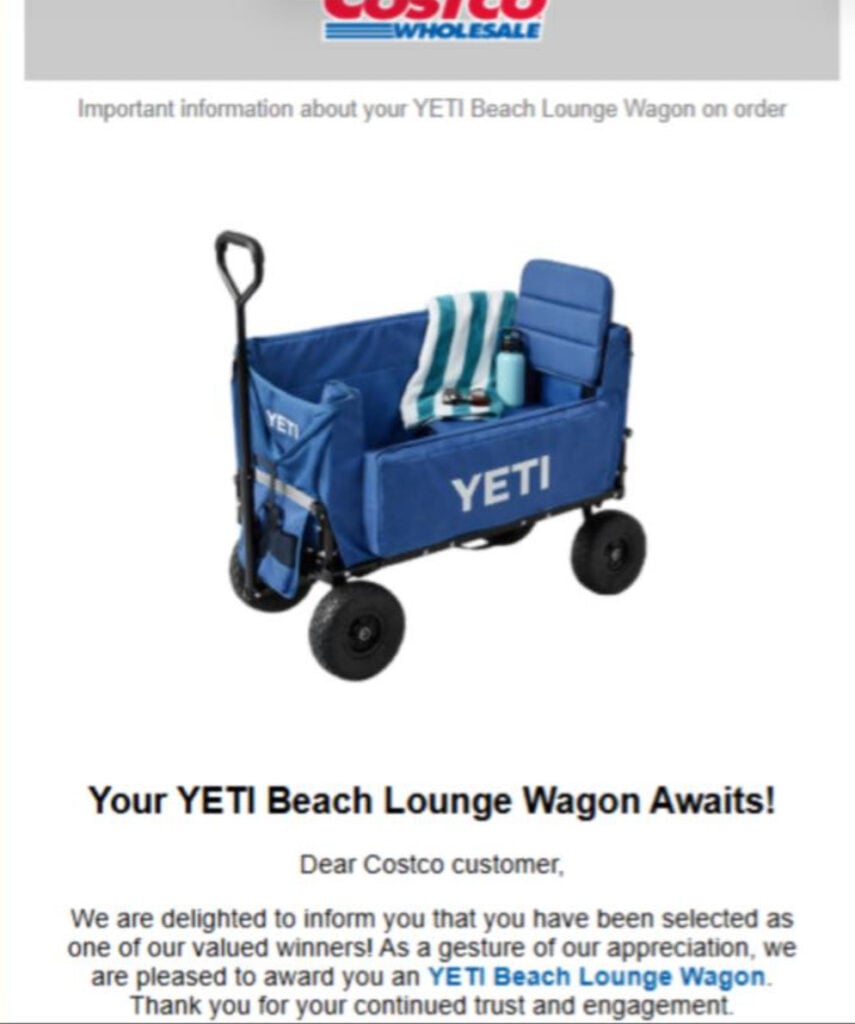
In the examples shown, the scam uses Costco branding, a large product image, and messages such as:
“Your YETI Beach Lounge Wagon Awaits!”
“Dear Costco customer, we are delighted to inform you that you have been selected as one of our valued winners!”
Other versions may even switch brands and claim to be from Walmart, while still offering the same YETI wagon. That is a major warning sign. A legitimate retailer promotion would not randomly change from Costco to Walmart while using the same prize funnel.
One screenshot also shows the email coming from a regular Gmail address while pretending to be “Costco Survey Rewards.” That is another clear red flag. Real Costco emails should come from legitimate Costco-controlled domains, not random personal email accounts.
The scam also uses links that do not point to Costco. One version shown includes an Amazon AWS-hosted URL rather than a Costco domain. Scammers frequently use cloud hosting, shortened links, temporary domains, and redirect chains to hide the final scam page. The link may look technical or random, but it is not a normal Costco promotion link.
Once clicked, the victim is usually taken through a staged reward flow. The page may ask a few generic survey questions, such as whether the person shops at Costco, how often they buy products, or how satisfied they are with the store. These questions are not meaningful research. They are used to make the page feel official and to lower the victim’s suspicion.
After the survey, the victim is shown a fake prize game. A common version displays several boxes and tells the user to pick one. The first choice often “loses.” Then the page says the user has another chance. On the second attempt, the user “wins” the YETI Beach Lounge Wagon.
This is not random. It is scripted. The page is designed to create a small emotional roller coaster: disappointment first, then relief, then urgency. By making the victim feel lucky, the scam increases the chance they will continue to the payment page.
The next page asks for personal details, such as:
- Full name
- Email address
- Phone number
- Home address
- ZIP code
- Sometimes date of birth or other identifying information
Then comes the final step: the victim is told they only need to pay a small shipping fee, usually around $9.95, to receive the prize. This is the trap.
The “shipping fee” is not a harmless delivery charge. It is used to collect credit card information. In many cases, the fine print may contain hidden subscription terms, trial memberships, recurring billing, or vague “premium service” enrollments. Victims may later find monthly charges on their card from companies they do not recognize.
These charges can be difficult to cancel because the merchant name may not match the fake Costco page. The customer support number may not work, the cancellation portal may be confusing, or the company may claim the victim agreed to the terms by submitting the payment form.
This type of scam is especially effective because it impersonates trusted brands. Costco is a real retailer. YETI is a real product brand. The prize looks plausible. A beach wagon sounds like something that could appear in a warehouse-club promotion. That credibility is exactly what scammers exploit.
However, Costco is not giving away these wagons through random emails from Gmail addresses, suspicious AWS links, fake survey pages, or prize box games. Costco’s own fraud-prevention guidance warns customers about fake offers using its name and advises users not to click suspicious links or provide personal information through them.
How The Costco YETI Wagon Scam Works
1. The Scam Starts With a Fake Costco Reward Email
The victim receives an email that appears to come from Costco, Costco Survey Rewards, Costco Wholesale, or a similar name.
The subject line may mention:
- A reward waiting
- Shipment information
- A Costco survey prize
- A customer appreciation gift
- A YETI Beach Lounge Wagon
- A limited-time giveaway
- A pending reward confirmation
The email often uses Costco’s logo, colors, or layout style. It may include a large image of a blue YETI wagon to make the prize feel real.
The wording is usually generic. Instead of addressing the person by full name, it may say “Dear Costco customer.” This is common in mass phishing campaigns because the scammers do not actually know who is receiving the email.
2. The Sender Address Does Not Match Costco
A major red flag is the sender address.
In one example, the visible sender appears as “Costco Survey Rewards,” but the actual email address is a regular Gmail account. A real corporate giveaway from Costco would not be sent from a random Gmail address.
Scammers rely on display names because many people only glance at the sender name, not the actual email address. On mobile devices, this is even easier to miss because the full sender address may be hidden unless the user taps it.
3. The Link Sends Victims Away From Costco
The button or link may say:
- “Claim Your Reward”
- “Access Your Reward”
- “Confirm Shipment”
- “Start Survey”
- “Get Your YETI Wagon”
But the destination is not Costco.com.
Some versions use cloud-hosted links, redirect links, tracking links, or random domains. In the screenshot provided, one link points to an Amazon AWS address rather than an official Costco page.
That does not automatically mean every AWS-hosted page is malicious, but in this context it is highly suspicious. A major retailer like Costco would not normally run a customer giveaway through a random-looking storage URL with a long tracking string.
4. The Victim Lands on a Fake Survey Page
After clicking, the victim may be redirected through multiple pages before landing on the fake survey.
The survey is usually very short. It may ask only three or four generic questions, such as:
- Are you a Costco customer?
- How often do you shop at Costco?
- Would you recommend Costco?
- How satisfied are you with Costco products?
These questions are not designed to qualify the user for a prize. They are designed to create the appearance of a legitimate customer feedback campaign.
The survey also gives the victim small “yes” moments. Each click makes the person more likely to continue to the next step.
5. The Fake Box Game Makes the Victim “Win”
After the survey, the page often displays a prize game. The victim is told to choose a box.
The first pick may show a losing result. Then the page says the victim has one more attempt. On the second try, the victim wins.
This staged loss-then-win sequence is common in scam funnels. It makes the prize feel earned rather than simply handed out. The victim feels lucky, and that emotion can reduce skepticism.
In reality, the outcome is predetermined. Everyone who follows the funnel is pushed toward the same “winning” page.
6. The Scam Requests Personal Information
Once the victim “wins,” the site asks for delivery details.
This is where the scam begins collecting personal data. The form may request a name, home address, email address, and phone number.
That information can be misused in several ways. It can be used for spam, future phishing attempts, identity profiling, fake delivery scams, or sold to other marketing and fraud networks.
Even if the victim never enters a credit card, submitting personal details still creates risk.
7. The Final Page Asks for a Small Shipping Fee
The final page claims the YETI wagon is free, but the victim must pay a small shipping or handling charge. The amount may be $9.95, $6.95, $4.95, or a similar low amount.
This is one of the strongest signs of the scam. The FTC is clear: real prizes are free, and requests to pay shipping, taxes, processing, or handling fees to receive a prize are a warning sign of fraud. (Consumer Advice)
The small amount is intentional. A $9.95 charge feels low enough that many people do not stop to investigate. Scammers use that low price to get the card details.
8. Hidden Subscriptions May Begin After Payment
After the victim enters credit card information, several things can happen:
- The card may be charged immediately.
- The victim may be enrolled in a trial subscription.
- Recurring monthly charges may begin later.
- The merchant name may appear unrelated to Costco or YETI.
- The promised wagon never arrives.
- Customer support may be hard to reach or unhelpful.
Many victims of these fake reward funnels report unwanted subscriptions that are difficult to cancel. The scam may bury subscription language in fine print near the checkout button or on a separate terms page that most people never read.
This is why the scam is more dangerous than a simple fake giveaway. It can become a recurring billing problem.
Red Flags in the Costco YETI Beach Lounge Wagon Email
Watch for these warning signs:
- The email says you won a prize you never entered to win.
- The message uses “Dear Costco customer” instead of your real name.
- The sender is a Gmail, Outlook, Yahoo, or random email address.
- The link does not go to Costco.com.
- The offer appears under different brands, such as Costco in one version and Walmart in another.
- The page asks only a few generic survey questions.
- The prize game makes you lose first, then win on the second try.
- The site asks for a “small” shipping fee.
- The checkout page requests credit card details for a supposedly free prize.
- The terms mention trials, memberships, subscriptions, rewards clubs, or recurring billing.
- The site creates urgency by saying the reward will expire soon.
One or two of these signs should be enough to stop. Several together strongly indicate a scam.
Why Scammers Use Costco and YETI
Costco and YETI are valuable names for scammers because both brands carry trust.
Costco has a reputation for large retail promotions, member deals, and bulk-value offers. YETI products are popular and expensive enough to feel like a desirable prize. A free YETI wagon sounds exciting, but not so impossible that every recipient immediately rejects it.
That is the psychological hook.
The scam borrows credibility from both brands while sending victims to pages that neither brand controls. Costco, Walmart, and YETI are not responsible for these fake emails. Their names and images are being misused to make the scam appear legitimate.
What To Do If You Received the Email
Do not click the link.
If you already opened the email but did not enter information, close the page. Delete the message. Mark it as spam or phishing.
If you want to check whether a Costco offer is real, go directly to Costco’s official website by typing the address into your browser. Do not use the link inside the suspicious message.
You can also compare the sender domain with Costco’s official guidance. Costco maintains fraud-prevention information and examples of known scams, and it advises customers not to visit suspicious links or share personal information through fraudulent messages. (Costco Customer Service)
What To Do If You Entered Your Credit Card Details
If you entered payment information on the fake Costco YETI wagon page, act quickly.
1. Contact Your Bank or Card Issuer
Call the number on the back of your card. Tell them you entered your card details on a suspected fake giveaway site.
Ask them to:
- Block or replace the card
- Review recent charges
- Stop recurring billing attempts
- Dispute unauthorized or deceptive charges
- Monitor the account for additional activity
Do this even if the first charge was only $9.95. The bigger problem may be future recurring charges.
2. Look for Subscription Charges
Check your card statement carefully over the next few weeks.
Search for unfamiliar merchant names, especially small trial charges followed by larger monthly charges. These may not mention Costco, YETI, or the fake giveaway.
If you see unknown charges, dispute them with your bank.
3. Save Evidence
Keep screenshots of:
- The email
- The sender address
- The fake survey page
- The payment page
- Any confirmation email
- The terms and conditions, if visible
- Your bank charges
This evidence can help with disputes and reports.
4. Report the Scam
You can report the scam to the FTC, your email provider, and your bank. If the message arrived through Gmail, Outlook, Yahoo, or another provider, use the built-in “Report phishing” option.
Reporting helps email providers and fraud teams identify related campaigns.
5. Watch for Follow-Up Scams
After entering your details, you may receive more scam emails, fake delivery texts, fake refund calls, or fake subscription cancellation messages.
Be especially careful with messages claiming:
- Your prize shipment failed.
- You need to pay another fee.
- Your subscription is active.
- You must call support to cancel.
- Your card was declined.
- Your account has been locked.
These can be follow-up attempts to get more money or information.
Is Your Device Infected? Run a Free Malware Scan
Slow performance, constant pop-ups, or strange behavior? These are classic signs of a malware infection. The fastest way to find out is to scan your device with Malwarebytes Free — one of the most trusted malware removal tools available.
The free version detects and removes the most common threats, including:
- Adware — the cause of those annoying pop-ups
- Browser hijackers — unwanted redirects and changed homepages
- Trojans and spyware — hidden programs stealing your data
- Potentially unwanted programs (PUPs) — software you never asked for
👉 Select your device below — Windows, Mac, or Android — then follow the simple steps to download Malwarebytes, scan your system, and remove any threats it finds. The scan usually takes 5 to 20 minutes.
Run a Malware Scan with Malwarebytes for Windows
Malwarebytes is one of the most popular and trusted anti-malware tools for Windows — and it’s completely free for removing infections. It catches threats that many antivirus programs miss, including adware, browser hijackers, and trojans. Follow the steps below to scan and clean your PC in just a few minutes.
Download Malwarebytes
Click the button below to download the latest version of Malwarebytes for Windows from the official source. The free version is all you need — it will scan your computer and remove adware, browser hijackers, and other malicious software at no cost.
Download MalwarebytesOfficial installer for Windows 11 and 10. Your download starts right away.Want real-time protection? See Malwarebytes Premium Malwarebytes Free for WindowsScans and removes malware at no cost
-
Install Malwarebytes
When the download finishes, open your Downloads folder and double-click the MBSetup file. If Windows shows a User Account Control pop-up, click “Yes” to allow the installation.

Follow the On-Screen Prompts to Install Malwarebytes
The setup wizard will walk you through a few quick screens:
-
Choose where you’re installing the program — “Personal Computer” or “Work Computer” — then click Next.

-
Malwarebytes will now install on your device. This usually takes under a minute.

-
When installation is complete, the “Welcome to Malwarebytes” screen will open automatically.

-
On the final screen, click Open Malwarebytes to launch the program.

-
Enable “Scan for Rootkits”
Before scanning, turn on rootkit detection so Malwarebytes can find even the most hidden threats. Click the Settings gear icon on the left side of the screen.

In the settings menu, find “Scan for rootkits” and click the toggle so it turns blue.

Done? Click “Dashboard” in the left pane to return to the main screen.
Start the Scan
Click the blue Scan button. Malwarebytes will automatically update its virus database and start checking your computer for malware.

-
Wait for the Scan to Finish
The scan checks your entire system for browser hijackers and other malicious programs, so it can take 5 to 20 minutes depending on your computer. Feel free to do something else — just check back occasionally to see the progress.

-
Quarantine the Detected Threats
When the scan is done, you’ll see a list of everything Malwarebytes found — malware, adware, and potentially unwanted programs. Click the “Quarantine” button to remove all of them at once.

Malwarebytes will now remove the malicious files and registry entries and move them safely into quarantine.

-
Restart Your Computer
Some threats can only be fully removed after a reboot. If Malwarebytes asks you to restart, click Yes. Once you’re logged back in, Malwarebytes has finished removing the threats it found.

That’s it — your Windows PC is now clean of trojans, adware, and other malware, and should be back to running smoothly.
If you are still having problems with your computer after completing these instructions, then please follow one of the steps:
- Run a computer scan with ESET Online Scanner
- Ask for help in our Windows Malware Removal Help & Support forum.
Run a Malware Scan with Malwarebytes for Mac
Malwarebytes for Mac is a free on-demand scanner that removes the malware other security software tends to miss — adware, browser hijackers, and unwanted programs included. Cleaning an infected Mac with Malwarebytes has always been completely free, and it’s our go-to recommendation. Follow the steps below to scan and clean your Mac in just a few minutes.
-
Download Malwarebytes for Mac
Click the button below to download the latest version of Malwarebytes for Mac.
Download MalwarebytesOfficial installer for macOS. Your download starts right away.Want real-time protection? See Malwarebytes PremiumMalwarebytes Free for MacScans and removes malware at no cost -
Open the Malwarebytes setup file
When the download finishes, open your Downloads folder and double-click the setup file to begin the installation.

-
Follow the On-Screen Prompts to Install Malwarebytes
The Malwarebytes for Mac Installer will guide you through a few quick screens. Click “Continue” and keep following the prompts until the installation completes.



When the installation is complete, Malwarebytes opens to the Welcome to Malwarebytes screen. Click “Get started“.
-
Select “Personal Computer” or “Work Computer”
Malwarebytes will ask what type of computer you’re installing it on. Click either Personal Computer or Work Computer, whichever applies.

-
Start the Scan
Click the “Scan” button. Malwarebytes will automatically update its detection database and begin checking your Mac for malware.

-
Wait for the Scan to Finish
Malwarebytes will scan your Mac for adware, browser hijackers, and other malicious programs. This can take a few minutes, so feel free to do something else — just check back occasionally to see the progress.

-
Quarantine the Detected Threats
When the scan is done, you’ll see a list of everything Malwarebytes found. Click the “Quarantine” button to remove all the threats at once.

-
Restart Your Mac
Malwarebytes will now remove all the malicious files it found. Some threats can only be fully removed after a reboot — if Malwarebytes asks you to restart, allow it. Once you’re logged back in, your Mac is clean.

That’s it — your Mac is now free of adware, rogue browser extensions, and other potentially harmful software.
If you are still experiencing problems while trying to remove a malicious program from your computer, please ask for help in our Mac Malware Removal Help & Support forum.
Run a Malware Scan with Malwarebytes for Android
Malwarebytes for Android automatically detects and removes dangerous threats like malware and ransomware so you don’t have to worry about your most-used device being compromised. Aggressive detection of adware and potentially unwanted programs keeps your Android phone or tablet running smooth.
-
Download Malwarebytes for Android.
You can download Malwarebytes for Android by clicking the link below.
Get Malwarebytes for AndroidOpens Google Play in a new tab.Want real-time protection? See Malwarebytes Premium for AndroidMalwarebytes for AndroidScans your phone and removes malware at no cost -
Install Malwarebytes for Android on your phone.
In the Google Play Store, tap “Install” to install Malwarebytes for Android on your device.

When the installation process has finished, tap “Open” to begin using Malwarebytes for Android. You can also open Malwarebytes by tapping on its icon in your phone menu or home screen.

-
Follow the on-screen prompts to complete the setup process
When Malwarebytes will open, you will see the Malwarebytes Setup Wizard which will guide you through a series of permissions and other setup options.
This is the first of two screens that explain the difference between the Premium and Free versions. Swipe this screen to continue.
Tap on “Got it” to proceed to the next step.
Malwarebytes for Android will now ask for a set of permissions that are required to scan your device and protect it from malware. Tap on “Give permission” to continue.
Tap on “Allow” to permit Malwarebytes to access the files on your phone.
-
Update database and run a scan with Malwarebytes for Android
You will now be prompted to update the Malwarebytes database and run a full system scan.

Click on “Update database” to update the Malwarebytes for Android definitions to the latest version, then click on “Run full scan” to perform a system scan.

-
Wait for the Malwarebytes scan to complete.
Malwarebytes will now start scanning your phone for adware and other malicious apps. This process can take a few minutes, so we suggest you do something else and periodically check on the status of the scan to see when it is finished.

-
Click on “Remove Selected”.
When the scan has been completed, you will be presented with a screen showing the malware infections that Malwarebytes for Android has detected. To remove the malicious apps that Malwarebytes has found, tap on the “Remove Selected” button.

-
Restart your phone.
Malwarebytes for Android will now remove all the malicious apps that it has found. To complete the malware removal process, Malwarebytes may ask you to restart your device.
That’s it — your Android phone is now clean — no more malicious apps, adware, or browser redirects.
If you are still having problems with your phone after completing these instructions, then please follow one of the steps:
- Restore your phone to factory settings by going to Settings > General management > Reset > Factory data reset.
- Ask for help in our Mobile Malware Removal Help & Support forum.
Stay Protected: Block Ads and Malicious Sites
Now that your device is clean, keep it that way. Most infections start with a malicious ad or a fake download button — so blocking them at the source is your best defense.
We recommend AdGuard, which blocks malicious ads, phishing pages, and dangerous redirects before they can reach you.
👉 Download AdGuard and browse safely
The Bottom Line
The Costco YETI Beach Lounge Wagon Giveaway email is not a real Costco promotion. It is a fake reward scam that uses Costco branding, a desirable YETI product, a short survey, a rigged prize game, and a small shipping fee to push victims into handing over personal and payment information.
The biggest warning sign is simple: a real prize should not require a credit card payment for shipping. Once a “free” reward asks for card details, stop.
Delete the email, do not click the link, and do not enter your information. If you already paid the fee, contact your bank immediately and watch for unwanted subscription charges.
FAQ
Is the Costco YETI Beach Lounge Wagon giveaway real?
No. The emails claiming that Costco is giving away a free YETI Beach Lounge Wagon are fake. They use Costco branding, reward language, and product images to make the offer look legitimate, but the links redirect to scam survey pages and payment forms.
Why does the email say I was selected as a winner?
That wording is used to make the offer feel personal and urgent. In reality, the same message is sent to many people. The scammers want you to believe you were specially chosen so you will click the link without thinking carefully.
What happens if I click “Claim Your Reward”?
You are usually redirected to a fake survey page. After answering a few generic questions, you may be asked to pick a box or prize tile. The game is rigged so you eventually “win” the YETI wagon, then the site asks for personal details and credit card information.
Why does the scam ask for a $9.95 shipping fee?
The small shipping fee is the trap. It makes the prize feel almost free while giving scammers access to your credit card information. Many victims later discover unwanted subscription charges or recurring payments that are hard to cancel.
Will I actually receive a YETI Beach Lounge Wagon?
Almost certainly not. These fake giveaway funnels are designed to collect personal and payment information, not ship real YETI products. Even if a cheap item is sent, it is usually not the advertised prize.
How can I tell the email is fake?
Common red flags include a random Gmail sender, a link that does not go to Costco.com, generic wording like “Dear Costco customer,” poor formatting, a fake survey, a “pick a box” game, and a request for credit card details to claim a free prize.
What should I do if I entered my credit card details?
Contact your bank or card issuer immediately. Ask them to block the card, review recent transactions, stop recurring charges, and dispute any unauthorized payments. Also monitor your statement for unfamiliar merchant names.
What should I do if I only entered my name, address, email, or phone number?
Be alert for follow-up scams. You may receive more fake delivery messages, prize emails, subscription notices, or scam calls. Do not click unexpected links or provide additional information.
Can I cancel the subscription if I was charged?
You can try contacting the merchant listed on your card statement, but these operations often make cancellation difficult. The safest step is to contact your bank, dispute the charge, and ask them to block future recurring billing attempts.
How should I report the Costco YETI Wagon scam?
Mark the email as phishing or spam in your email account. You can also report it to your bank if you paid, to the FTC if you are in the U.S., and to Costco through its official fraud-reporting or customer service channels.

Join the discussion
2 commentsShare your experience or ask a question about this article.
Discussion
I just got one of these emails, but it used Kroger instead of Costco. Deleted it immediately!
In reply to Andy Stevens
Deleting it was the right call. The retailer name is interchangeable – Costco, Kroger, Walmart, Target – because the template is bought once and re-skinned, and the survey exists only to reach the page asking for a card number for “shipping”. Two tells that never change: a real retailer doesn’t award a prize by email survey, and the link never sits on the retailer’s own domain. If one ever does get clicked, no harm follows unless card details are entered.