


An email apparently sent from your own address says someone recorded you through a webcam. The sender wants $500 in Bitcoin and claims you have eight hours to pay.
That message is frightening on its own. It can feel much more convincing if you recently dealt with a stolen password or an actual infection.
Overview
The threat is specific, but specificity is not evidence of a recording
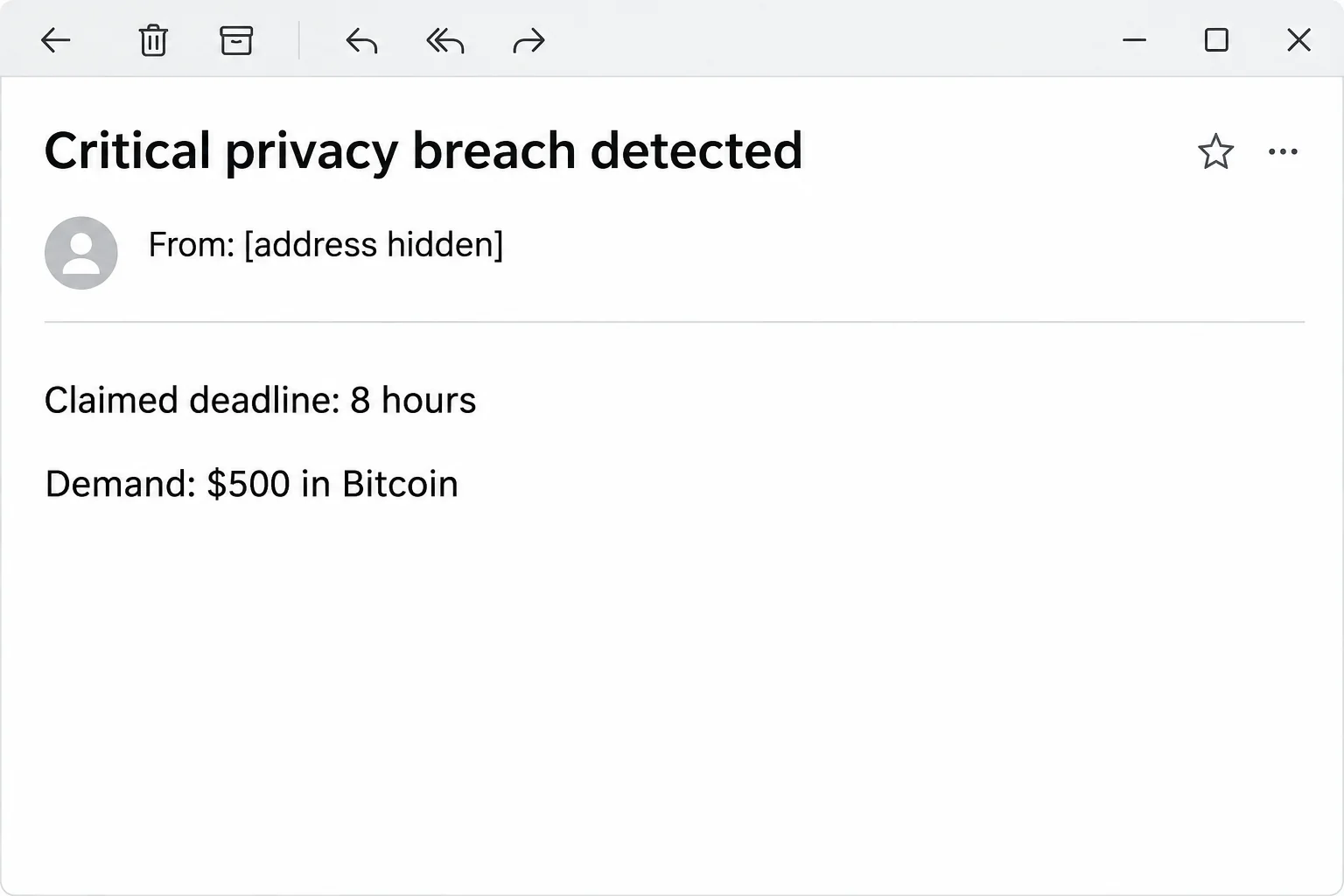
A recipient posted a copy of this message on a public security forum. It claimed a remote-access Trojan collected files and webcam footage, then demanded $500 within eight hours.
The illustration above reconstructs the message’s key details without reproducing the recipient’s address or the payment destination. It is not a screenshot of the original inbox.
Your address and password tell you different things
Seeing your address in From does not establish that someone signed in. A genuine password in the message is a separate reason to replace that password wherever it still works.
Neither clue proves that webcam footage exists. Look for an unfamiliar session, a changed recovery method, unauthorized forwarding or independent evidence of a compromised device.
Treat a real infection separately from the ransom demand
If you already know an infostealer ran, secure the exposed accounts from a trusted device. Reinstalling Windows does not take back secrets that were copied before it was reinstalled.
- Save the message and its headers before reporting it.
- Check the mailbox directly rather than using any link supplied in the threat.
- Replace a current exposed password and review sessions even if you do not believe the recording claim.
How the Critical Privacy Breach Email Scam Works
Step 1: The sender makes the From field look like evidence
The message tells the reader to inspect the displayed address and treats the match as proof of access. It then claims the sender bypassed the mail server’s checks.
The display line is not a sign-in record. An impersonated address can make an incoming message resemble one you sent, without the sender using your webmail session.
The posted example also showed a redacted password line. That detail gives the threat more weight than a generic message, but it does not identify when the password was obtained.
Step 2: Technical language turns fear into a story
The next part invokes a remote-access Trojan and claims it works at a level that antivirus software cannot see. The message does not attach a diagnostic report.
It describes files and contact lists as if those things were already collected. It relies on familiar details without offering a verified file, event or image tied to the reader.
The demand also claims that opening the email notified the sender. Loading remote content can tell a sender something about an open; that is different from controlling a webcam.
Step 3: The payment deadline shortens the time to verify
The eight-hour clock makes seeking help feel dangerous. A threat of automatic release is meant to make the reader act before checking the account or speaking with someone they trust.
The message says a Bitcoin payment will erase the copied material. No transaction gives you a way to check whether a stranger has deleted a file.
The FBI has documented extortion messages using genuine personal information to make threats feel personal. Treat the payment demand as extortion, even if one detail in it is accurate.
What You Can Verify Outside the Email
A message sent from an account is different from a sign-in to it
Open your provider’s account page independently and inspect recent security events. An unfamiliar successful login, new app access or changed recovery address is more significant than a display line.
Look in Sent and Deleted for correspondence you do not recognize. A clear folder is not conclusive, since someone with access could have removed mail.
If you can see technical headers, record them rather than forwarding them around publicly. Providers and incident responders can use that information alongside your account’s actual activity.
In desktop Gmail, open the message, choose More beside Reply, then select Show original. Save the original privately or retain its headers if you are preparing a report.
Do not ask a forum to inspect an unredacted header. It can contain addresses, routing information and identifiers that are unrelated to the public warning you want to share.
When you cannot interpret the headers, check whether your provider flags the message as unusual or unauthenticated. Leave the technical conclusion open rather than guessing from one line.
A correct password is a reason to act even without a recording
Compare the string privately against what you know. If it is current, replace it, then change any reused copies on other accounts instead of altering one character everywhere.
For an old password, check whether an account you rarely visit still uses it. Never type it into a page supplied by the blackmailer.
The password could have come from an unrelated exposure. You can respond to that risk without deciding whether the sender was involved in a separate incident.
Account activity is not a camera recording
Suspicious sign-ins are worth handling even if the threatened recording is fabricated. Equally, an actual sign-in by someone else does not prove the sender used a webcam.
If the cited device had no camera, that undercuts the specific camera claim about that device. It does not tell you whether another account or computer was affected.
If the sender supplies an actual private file or image, preserve it without forwarding it to friends or posting it. Report the threat and evidence through an appropriate official channel.
What Changes If You Already Found an Infostealer
The video that surfaced this version describes a hypothetical Windows reinstall after an infection. The forum post does not establish that the same thing happened to the recipient.
Focus on what was exposed before the device was repaired. Passwords saved in the browser, email sessions and payment accounts need separate decisions even after the machine has been rebuilt.
A password reset may not end every session at every service. Use the provider’s session controls, review connected apps and look for security changes you did not authorize.
Secure your recovery inbox before resetting other accounts that depend on it. Then move to your password manager and financial accounts, where losing access can have wider consequences.
Keep an untreated computer out of the recovery process. For a work or school device, contact the organization’s security team before making any changes.
Account recovery does not diagnose or remove software. If you still have credible signs of an active infection, get help through the MalwareTips malware-removal forum from a separate trusted device.
Work from an exposure timeline, not the blackmailer’s deadline
Write down when you last used the affected device, when the first unusual login appeared and when you secured it. Use dates from receipts or alerts where possible.
Separate your own changes from the alerts you receive. A notification after a reinstall might describe earlier activity, so read the event time in the security log.
Give priority to any account whose security settings changed without your permission. A new recovery contact or added verification method can affect how you regain access later.
Review what else the exposed email can reset, including shopping accounts and cloud storage. You do not need to see transactions or missing files before securing an account.
For accounts you rarely use, verify that you can still sign in through the official site. Remove stale recovery options only after confirming you have an alternative.
If you used the same password at a work service, tell your security team which account may be affected. Do not send the compromised password itself.
What to Do if You Receive the $500 Webcam Threat
-
Do not pay or reply to the email. Save the original privately, and keep a record of when you got it and what the sender demanded.
-
On a trusted device, open your provider’s account settings directly. Review security activity and sessions for unfamiliar access, and save relevant entries before signing other devices out.
-
Change a current or reused password and choose a unique replacement. Then review recovery email addresses, phone numbers and any authentication methods you did not add.
-
Check whether mail is being redirected or hidden. Remove unfamiliar forwarding, delegation and rules, and record what changed if you think someone used them to intercept messages.
-
Report the email to your provider and, in the United States, the FBI’s Internet Crime Complaint Center. Keep original headers private unless investigators request them.
Where to check a personal Gmail or Outlook account
For Gmail, visit the Google Account security page and open Recent security events. Under Your devices, choose Manage all devices and inspect active sessions you don’t recognize.
In desktop Gmail, open Settings, then See all settings. Check Forwarding and POP/IMAP, Filters and Blocked Addresses, and Accounts and Import for an unfamiliar address, rule or delegate.
Google’s compromised account guide also covers getting back in if your password or recovery options have changed. Use account recovery rather than accepting help from the sender.
For a personal Microsoft account, open Security and review sign-in activity. Under Advanced security options, use Sign out everywhere if you find unfamiliar access.
Microsoft says its sign-out process can take up to 24 hours. Keep monitoring security activity rather than treating a button press as confirmation that every session is already closed.
In Outlook on the web, open Settings, select Mail, then check Forwarding and Rules. Record unexpected entries before removing them, and ask an administrator if the account is organization-managed.
Once you have removed unfamiliar access, send yourself a harmless test message. Check that it reaches your inbox and does not move unexpectedly to another folder.
Do not remove your only working recovery method while you are trying to lock someone out. First confirm you can use a replacement you control.
If you are already locked out, navigate to your provider’s recovery page directly. An unsolicited helper who asks for backup codes can make the loss of access worse.
Watch for new changes after the initial cleanup. If a removed rule returns or unfamiliar activity continues, escalate to the provider or your organization’s support team.
A familiar phone or browser can have more than one session. Compare the device details and date before trusting every entry with a recognizable name.
Check connections to third-party apps separately from signed-in devices. If an unfamiliar app can read mail, revoking its access is a different action from signing out a browser.
Finish by checking that legitimate recovery details still work and that recent account activity looks as expected. Record any unfamiliar event that appears after your changes.
What to save if you already sent Bitcoin
Keep the transaction ID, time and amount. Report the payment to the service that handled it, and share those details only with verified support or investigators.
Do not pay someone who promises to retrieve the Bitcoin or delete the material for a fee. Go through a trusted service instead of an unsolicited recovery offer.
Ask someone you trust to sit with you while you secure the account or file a report. You do not need to show them private material.
Save any follow-up demand, even if it looks like the original message. Another date, sender or payment request can help show investigators how the contact changed over time.
If private images actually appear online, use the platform’s reporting process and contact local authorities or a support service. Do not recirculate the images to demonstrate what happened.
Frequently Asked Questions
Does getting a message from my own address mean I sent it?
The displayed sender can be impersonated without using your account. Check security events and active sessions through your provider before drawing conclusions about mailbox access.
Did opening the message start an eight-hour timer?
The sender claims a countdown begins when you open it. Loading remote content can reveal an open in some circumstances, but it does not establish any automatic release of footage.
What if the message contains my real password?
Replace it wherever it is still in use and review sessions and recovery settings. Knowing that string does not show that the sender has a recording.
Should I reset the computer again after an earlier infection?
The message alone does not justify another reset. If there are new signs of infection, handle them separately and seek help before changing the device or losing evidence.
Is the Bitcoin payment reversible if I already paid?
Do not count on reversing a confirmed transfer. Preserve the records, report it to the exchange or payment service and beware of anyone promising guaranteed recovery.
Who should I contact if the sender shows actual private material?
Keep the message private, preserve the evidence and contact local law enforcement or an appropriate victim-support service. If there is immediate danger, contact emergency services.
The Bottom Line
Do not pay the $500 webcam demand. The sender address and the claimed countdown are not evidence of a recording, and a payment does not buy verifiable deletion.
If you have a real sign of compromise, handle it separately from a trusted device. Secure your email first, end unfamiliar sessions and preserve the threat for reporting.

Join the discussion
0 commentsShare your experience or ask a question about this article.
Community experiences
Did this happen to you?
Your experience could help someone recognize the same scam. Submit a private report for our team to review.
I experienced this tooReports are reviewed before publication. Sharing publicly is always your choice.
Discussion
Start the conversation
Have a question or something useful to share? Add the first comment.