


A security email says you allowed someone to access your email data. Its invitation to check your activity sounds like something worth taking seriously.
The important question is where that check happens. A familiar warning can lead somewhere entirely different from your email provider’s real security settings.
Overview
The access warning leads to a password request
- The bait: an unexpected alert about account-data access.
- The destination: an unrelated portal asking for mailbox credentials.
- The safe route: open your real account independently, not through the email.
The reported campaign uses a new-sign-in subject and a third-party-data-access warning. Its activity button sends recipients to an unrelated EdgeOne-hosted page.
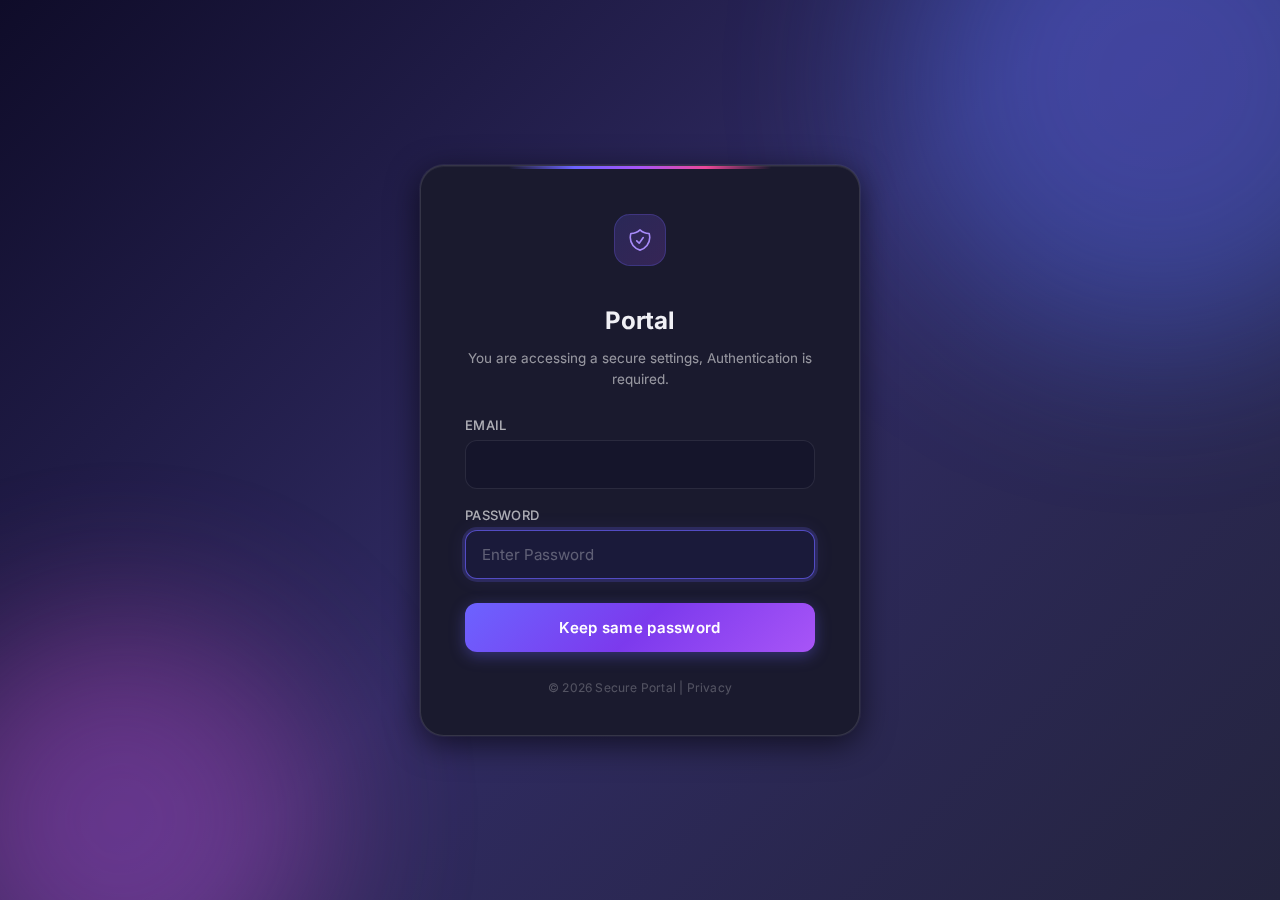
That page asks for an email address and password beside a reassuring “Keep same password” button. This is credential phishing, not an account-protection procedure.
Real security alerts need a separate check
Google and other providers do send legitimate security notifications. The wording alone cannot tell you whether a particular message is genuine.
Open your account through the provider’s established app or website. Review activity there instead of using this message’s link.
Sharing a password is different from granting app access
A password entered on the fake portal may be exposed even if you intended only to confirm your settings. An app permission is a separate issue.
If you entered anything, follow the matching account-recovery steps below. Simply receiving the alert does not prove a malware infection or an actual account intrusion.
Which Email and Website Are Involved?
The reported email says someone has received access to account data. Its subject presents the situation as a new sign-in needing attention.
The message’s activity-check button leads to courageous-cyan-mm3gesbq.edgeone.dev. Treat that address as a campaign identifier, not a place to sign in or test a password.
The page currently shows a purple Portal. It requests authentication and displays email and password fields above the keep-password button.
The email field was empty during our visit. We did not enter an address, submit credentials, or test the form with a real account.
Earlier reporting described a Gmail label and a prefilled recipient address. Those details were not present in our direct, unpersonalized capture.
The current finding is sufficient without them: the linked page requests mailbox credentials outside the provider’s established sign-in flow.
EdgeOne is hosting infrastructure, not evidence that its operator endorses this page. The investigation concerns the deceptive account-check flow placed on that infrastructure.
Why “Keep Same Password” Is the Trap
Keeping a password does not mean keeping it private
The button makes the request sound harmless. You may think you are rejecting a password change while confirming that everything should stay as it was.
But typing the current password into a form hands it to the website receiving that form. The button’s label cannot turn that disclosure into a security check.
Do not test the page with a slightly altered password. There is no benefit to telling its operator which account you use or how you construct credentials.
Authentication is not proof of identity
Anyone can write that authentication is required. That tells you what a page wants, not whether the page has authority to request it.
The password request is especially dangerous because it follows an account-access warning. The proposed remedy creates the exposure that the warning says you should prevent.
This is why checking the page’s destination matters more than matching the color, icon, or wording of an email you remember seeing before.
A secure connection does not make the destination trustworthy
HTTPS protects the connection to the address you opened. It does not certify that an unrelated portal belongs to your email provider.
Likewise, a professional interface does not establish a relationship with Google or your workplace. Read the actual hostname rather than relying on its appearance.
You do not need to diagnose every technical detail to refuse this request. Open the real account independently and continue the security check there.
How the Email Data Access Scam Works
Step 1: Present an unfamiliar permission as an urgent problem
The warning suggests you may have allowed someone into your account data. It gives you a believable reason to investigate immediately.
A recipient does not have to believe their account was hacked. Uncertainty alone can be enough to make an activity-check button attractive.
Step 2: Replace the provider’s settings with an unrelated portal
The message offers an apparent shortcut. Following it takes you away from independently accessed security settings and into a page controlled by someone else.
The new page can still describe itself as secure. Those words do not change its location or establish that it manages your mailbox.
Step 3: Reframe password disclosure as preserving your account
The form asks for authentication while the keep-password button softens the action. It does not plainly say that you are sending credentials to an unrelated website.
Do not assume a later error message means nothing was sent. If you entered a real password, protect the account rather than resubmitting it.
Step 4: Leave the real account at risk
A stolen mailbox password may help an attacker access correspondence or attempt password resets elsewhere. Success depends on the account’s other protections.
A password submission does not prove every linked account has been taken over. It does justify immediate account-security action through the legitimate provider.
Check the Real Account Without Following the Email
Open the account yourself
Use the provider’s installed app, an established bookmark, or its address entered directly. Avoid sponsored recovery services and phone numbers found in unsolicited messages.
For a Google Account, open myaccount.google.com yourself and go to Security & sign-in. Check recent security events and signed-in devices.
If the account belongs to your employer or school, tell its IT team about the message. Use the internal contact route you already know.
Compare actual events with what you did
Look for a sign-in, device, or setting change you cannot explain. A recent event from your own new phone is different from an unfamiliar session.
If something is genuinely suspicious, use the provider’s own response controls. Do not return to the original email to accept its proposed fix.
Do not dismiss a real security event because this particular message is fraudulent. Verify the account independently and respond to what you find there.
Review app permissions separately
A real third-party app connection is managed in the account’s linked-app settings. Review the app, access level, and reason you originally connected it.
Remove access you do not recognize or no longer want. This can stop connected features, and it may not erase information an app already copied.
Google’s linked-app instructions explain the differences between account links, Sign in with Google, and access to account data.
What to Do Based on Your Exposure
If you only received or read the email
- Do not reply or open its link to investigate.
- Report it using your mail service’s phishing option.
- Delete the message after reporting. If your employer needs the original for investigation, preserve it through the approved internal reporting process first.
There is no reason to wipe your computer or buy software solely because the notice reached your inbox. Receipt is not a diagnosis.
If a colleague sent you the warning for review, tell them not to enter credentials. Preserve the suspicious message privately if your organization needs to investigate.
If you opened the portal but entered nothing
Close the page. Check whether you also downloaded a file, installed an extension, or allowed notifications; those would be separate actions to address.
A page visit is not the same as submitting a password. Do not let another popup persuade you that a paid cleanup is now compulsory.
Keep your browser updated and use the real account’s security page if you want to verify activity. You do not need the suspicious portal again.
If you typed your password
Treat it as potentially exposed, even if you are unsure whether you pressed the button. A malicious page need not wait for a visible success screen.
From a trusted device, change the password through the real provider. Choose a new, unique password rather than a small variation of the old one.
Replace the same reused password on other accounts. Merely using the same email address elsewhere does not mean all those accounts need identical emergency action.
If you also approved a prompt or shared a code
Tell the provider or your IT team exactly which prompt you approved. A one-time code, session approval, and third-party-app consent are not interchangeable.
Review signed-in devices and remove unfamiliar sessions using the legitimate service. Recheck recovery methods and any new authentication methods you did not add.
Do not approve another request because a caller says it will cancel the first. Contact support independently if you cannot identify what happened.
Repair the Account, Not Just the Password
Confirm you can still sign in
If the password was changed without your permission, start the provider’s official account-recovery process. Do not pay a stranger who promises guaranteed access.
For Google, the compromised-account guide links its recovery flow and explains the security areas to inspect.
Use a device you trust for recovery. If you also installed suspicious software, avoid entering replacement credentials on that device until the separate software risk is assessed.
Check recovery methods and mailbox changes
Look for unfamiliar recovery addresses, phone numbers, forwarding settings, filters, or delegated mailbox access. Remove only changes you can identify as unwanted.
A forwarding rule can keep exposing new correspondence after you regain access. A filter may hide the security messages you need to see.
For a work mailbox, ask the administrator to investigate account rules and access records. They may have information or controls unavailable in your own settings.
Restore stronger sign-in protection
Review two-step verification and the methods registered to the account. Add a strong supported method, such as a passkey or security key, where available.
Keep recovery information current and store backup options securely. Do not send recovery codes to anyone who contacts you claiming to repair the account.
Strong authentication helps, but it does not make an approved malicious request harmless. Continue checking unfamiliar access rather than assuming a changed password resolves everything.
Warn people only if the account was misused
If unauthorized messages were sent from your account, notify affected contacts through a reliable channel. Explain which messages to ignore without spreading the malicious link again.
If banking information or private documents were accessed, contact the relevant institution about that specific exposure. Do not guess that every stored record was taken.
Keep a record of what you found and the actions you took. It will help your provider or IT team distinguish continuing access from older events.
Why This Is Not Just Another Password-Expiry Email
This campaign borrows the language of data permissions rather than an expiring password. That makes the request feel like a review of something you may have authorized.
The practical response is therefore two-part: reject the fake password portal, then inspect real permissions and account activity independently if you have concerns.
Do not remove every legitimate app connection simply to make the warning go away. Identify the suspicious access and use the provider’s controls deliberately.
The same rule works if the campaign moves to a different hostname. A request to protect mailbox access does not authorize an unrelated page to collect its password.
Keep the account provider separate from the mail app
You may read a Google-hosted mailbox in another company’s mail application. The app displaying the warning does not establish who sent it or where authentication belongs.
For a business account using a custom domain, use your organization’s established sign-in route. Ask IT if you cannot identify it without the suspicious email.
Do not assume a page is legitimate because your own address appears on it. A personalized link can display information the sender already knows.
Conversely, our empty email field does not prove every recipient sees an empty field. The direct capture shows what loaded during our visit, not every possible variant.
These distinctions prevent two mistakes: trusting personalization as proof and treating every genuine provider notification as fraudulent. Independent account access avoids both.
Frequently Asked Questions
Is every “you allowed someone access” email a scam?
No. Providers send genuine access and security notices. This report concerns the message leading to an unrelated password portal, not every warning with similar wording.
What happens if I choose “Keep same password”?
The label does not make the page safe. If you supplied a real password, treat it as potentially disclosed and change it through the legitimate service.
Is the EdgeOne address an official Gmail sign-in?
No. The campaign address is not Google’s established account sign-in service. Hosting on a real infrastructure platform does not authenticate the page as Google.
Does the email prove someone already has my data?
No. The claim is the bait. Check the real account’s activity and linked apps independently to find out whether there is an actual problem.
Is changing my password enough after I submitted it?
It is an important first action, not a complete review. Check sessions, recovery methods, mailbox settings, and app access for unfamiliar changes too.
Should I run a malware-removal guide?
Not for a received email alone. If you also executed a download or installed something, address that separate exposure with an appropriate guide or trusted support.
The Bottom Line
Do not use the email’s activity-check link or type a password into its portal. The keep-password wording disguises credential disclosure as account protection.
Check your real account independently. If you entered credentials or approved access, secure the account and review what changed rather than returning to the fake page.
The decisive check is the legitimate service’s own security record, not the reassurance on an unfamiliar form.

Join the discussion
0 commentsShare your experience or ask a question about this article.
Discussion
Start the conversation
Have a question or something useful to share? Add the first comment.