

A flood of deceptive messages marked “URGENT SECURITY ALERT – YOUR IMMEDIATE ATTENTION IS REQUIRED” is rapidly spreading across Facebook, specifically targeting page administrators and business owners. These alarming messages assert that your Facebook page is in imminent danger of being permanently deleted due to alleged violations of Meta’s Community Standards. The messages direct you to click on a suspicious link to “appeal” the decision.
At first glance, they appear disturbingly authentic. But in truth, they are a dangerous scam designed to hijack your Facebook credentials. In this comprehensive investigation, we reveal the mechanics of the scam, show you how to identify it, and provide actionable steps to protect yourself and recover if you’ve been affected.
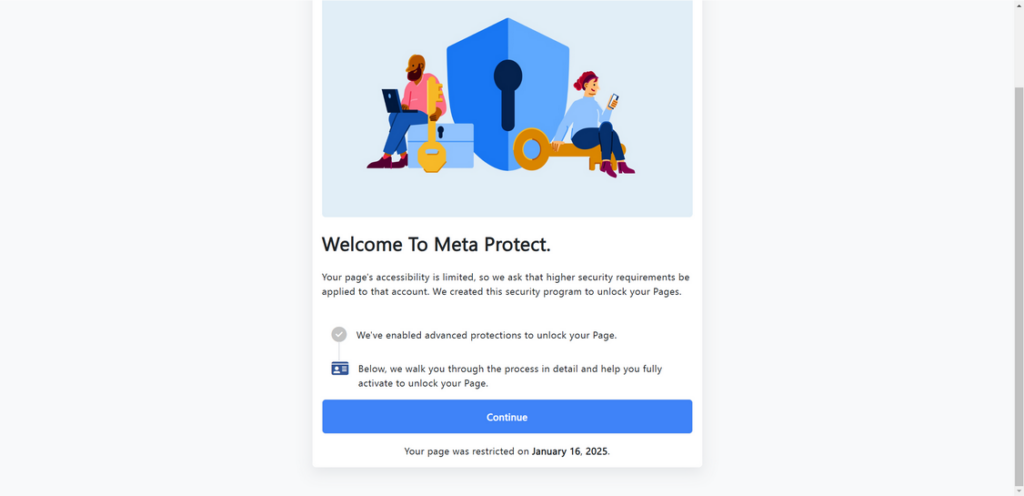
Scam Overview: The Facebook Security Alert Fraud
The “URGENT SECURITY ALERT” scam is a highly deceptive scheme targeting Facebook page admins and social media managers. Posing as official Meta warnings, these fraudulent communications are crafted to instill panic and manipulate recipients into compromising their login credentials.
These scams typically arrive through several channels:
- Direct messages via Facebook Messenger
- Comments left on your public Facebook posts
- Phishing emails that closely mimic Meta’s official communications
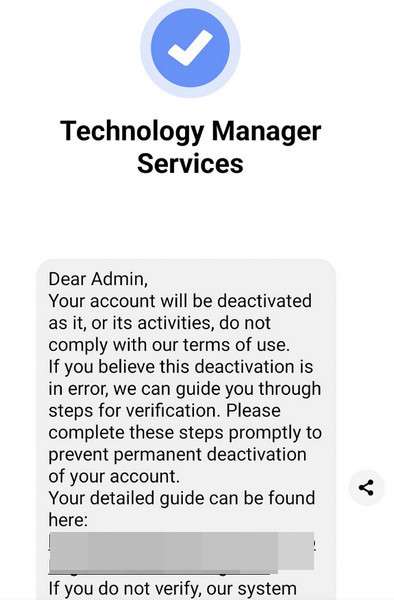
Typical Language Used
Common phrases found in these messages include:
- “Your page is at risk of being permanently removed.”
- “Your page has violated Meta’s Community Standards.”
- “Immediate action required within 24 hours.”
- “Click here to file an appeal to avoid deletion.”
These alerts often contain hyperlinks leading to what appears to be an official Facebook or Meta appeal portal. However, these sites are expertly crafted for one purpose: to steal your credentials and seize control of your page.
What Happens After the Scam Works
Once you provide your login details, the scammers take swift control:
- Your page is renamed to hide its original identity.
- Admins are removed to prevent recovery.
- Posts are deleted or replaced with misleading content.
- The page is repurposed to distribute additional scams, fraudulent ads, or phishing links to your audience.
In many instances, these stolen pages are sold on underground forums or used to run large-scale fraud operations.
Why the Scam Is Believable
- Use of Official Branding: These messages include Meta’s logo, copyright information, and sometimes realistic formatting that mimics corporate emails or Facebook interfaces.
- Professional Tone and Formatting: The language appears formal and businesslike, adding a layer of credibility.
- Deceptive URLs: The scam links often appear similar to real Facebook URLs (e.g.,
https://api.vc.ru/v2.8/redirect...), tricking users who aren’t inspecting them closely. - Urgency Tactics: By imposing a 24-hour deadline, the scammers hope to force a hasty reaction.
- Warning of Severe Consequences: These messages list frightening outcomes such as page deletion, loss of followers, account removal from search visibility, and suspension of monetization.
Psychological Manipulation Tactics
The scam exploits several psychological vulnerabilities:
- Fear of Losing Influence: For influencers and brands, losing a Facebook page means losing audience and revenue.
- Trust in Platform Communication: Users assume communications using Meta branding are legitimate.
- Lack of Technical Awareness: Many users don’t scrutinize links or verify messages through official Meta channels.
Scale and Damage
Once a page is compromised:
- Its existing followers can be scammed or phished.
- Ads may be run using the original owner’s payment methods.
- The reputation of the original page is permanently damaged.
- The page might be turned into a bot to boost engagement on other fraudulent pages.
This type of scam can ruin a digital business in hours, and recovery is rarely quick or guaranteed.
How The Scam Works
Step 1: Delivery of the Bait Message
The scam usually starts with an alarming message. It may arrive as a private message, a comment on one of your posts, or an email. The sender appears to be associated with Facebook or Meta and uses a name like “Meta Infringement Copyrights” or “Meta Business Review.”
What the message includes:
- A bold subject line: “URGENT: Immediate Action Required.”
- Alarming claims of content violations such as hate speech, adult content, or spam behavior.
- A call to action to “appeal” the supposed violations within 24 hours.
- A hyperlink disguised as a Facebook or Meta support page.
Step 2: Redirection to a Phony Appeal Portal
Clicking the link leads to a highly realistic-looking webpage that mimics Facebook’s interface. The page may display the Meta logo, copyright information, and a cloned layout of Facebook’s real appeal form.
What it typically asks for:
- Your Facebook email and password
- Your 2FA (two-factor authentication) code
- Business-related information such as phone number, address, or even credit card details

Step 3: Real-Time Credential Harvesting
As soon as you enter your information, the data is sent directly to the scammer’s server. There’s often no indication that something has gone wrong. Sometimes, you are redirected to a fake “confirmation” page that says your appeal was submitted successfully.
What the scammers do next:
- Use your credentials to log in and take over your Facebook page.
- Change your account recovery options to block you out.
- Begin removing existing admins to secure full control.
Step 4: Hijacking and Rebranding
Once they’re in, the attackers act quickly:
- Your page is renamed to something unrelated or generic.
- Past content is deleted or hidden.
- New posts are created to promote scams, such as fake crypto giveaways.
- Followers are messaged with new scams or phishing links.
Sometimes, your page is merged with other compromised pages to amplify reach.
Step 5: Monetization, Scaling, and Exploitation
With full access to your audience, the scammers go to work:
- Launching Facebook ads using your linked credit card.
- Promoting scam offers disguised as brand partnerships.
- Sending phishing links to your followers to compromise more accounts.
- Selling your page on dark web forums to the highest bidder.
This allows the scam to spread further and generate profit rapidly, all while you are locked out and scrambling to recover your digital presence.
What To Do If You Have Fallen Victim to This Scam
Time is critical if you suspect you’ve fallen for this scam. Here is a step-by-step guide to reclaim your account and protect your digital presence.
1. Change Your Facebook Password Immediately
- Go to Facebook Settings > Security and Login > Change Password.
- Use a strong password with uppercase letters, lowercase letters, numbers, and symbols.
- Do not reuse passwords from other platforms.
2. Enable Two-Factor Authentication (2FA)
- Navigate to Settings > Security and Login > Two-Factor Authentication.
- Select an authenticator app instead of SMS for better security.
- Store your backup codes in a safe place.
3. Secure Your Account Through Facebook’s Hacked Portal
- Visit https://www.facebook.com/hacked
- Follow the on-screen instructions to recover your account.
- If your page was connected to a Business Manager, use Facebook Business Help.
4. Report the Scam to Facebook
- Use the report feature on suspicious messages, pages, or comments.
- If you received an email, report it as phishing.
- Document everything with screenshots for future reference.
5. Remove Suspicious Sessions and Apps
- Go to Settings > Security and Login > Where You’re Logged In.
- End sessions you don’t recognize.
- Visit Business Integrations to revoke access to suspicious apps or platforms.
6. Notify Your Followers and Collaborators
- Post a message explaining your page was compromised.
- Ask your followers not to click on strange links or respond to messages sent during the breach.
- Reach out to partners and clients privately if needed.
7. Contact Facebook Business Support
- Use Facebook Business Suite to access support options.
- Be ready to provide:
- Proof of ID
- Proof of page ownership (e.g., emails, invoices, screenshots)
- Date and time of the breach
8. Scan All Devices for Malware
- Run comprehensive virus and malware scans.
- Ensure your operating system and browser are up to date.
9. Update Your Passwords Everywhere
- Any platform where you used the same credentials should be updated.
- Use a trusted password manager to create and store strong passwords.
10. Educate Your Team
- Hold a meeting or send a memo explaining the scam.
- Train staff to recognize red flags in emails and messages.
Is Your Device Infected? Run a Free Malware Scan
Slow performance, constant pop-ups, or strange behavior? These are classic signs of a malware infection. The fastest way to find out is to scan your device with Malwarebytes Free — one of the most trusted malware removal tools available.
The free version detects and removes the most common threats, including:
- Adware — the cause of those annoying pop-ups
- Browser hijackers — unwanted redirects and changed homepages
- Trojans and spyware — hidden programs stealing your data
- Potentially unwanted programs (PUPs) — software you never asked for
👉 Select your device below — Windows, Mac, or Android — then follow the simple steps to download Malwarebytes, scan your system, and remove any threats it finds. The scan usually takes 5 to 20 minutes.
Run a Malware Scan with Malwarebytes for Windows
Malwarebytes is one of the most popular and trusted anti-malware tools for Windows — and it’s completely free for removing infections. It catches threats that many antivirus programs miss, including adware, browser hijackers, and trojans. Follow the steps below to scan and clean your PC in just a few minutes.
Download Malwarebytes
Click the button below to download the latest version of Malwarebytes for Windows from the official source. The free version is all you need — it will scan your computer and remove adware, browser hijackers, and other malicious software at no cost.
Download MalwarebytesOfficial installer for Windows 11 and 10. Your download starts right away.Want real-time protection? See Malwarebytes Premium Malwarebytes Free for WindowsScans and removes malware at no cost
-
Install Malwarebytes
When the download finishes, open your Downloads folder and double-click the MBSetup file. If Windows shows a User Account Control pop-up, click “Yes” to allow the installation.

Follow the On-Screen Prompts to Install Malwarebytes
The setup wizard will walk you through a few quick screens:
-
Choose where you’re installing the program — “Personal Computer” or “Work Computer” — then click Next.

-
Malwarebytes will now install on your device. This usually takes under a minute.

-
When installation is complete, the “Welcome to Malwarebytes” screen will open automatically.

-
On the final screen, click Open Malwarebytes to launch the program.

-
Enable “Scan for Rootkits”
Before scanning, turn on rootkit detection so Malwarebytes can find even the most hidden threats. Click the Settings gear icon on the left side of the screen.

In the settings menu, find “Scan for rootkits” and click the toggle so it turns blue.

Done? Click “Dashboard” in the left pane to return to the main screen.
Start the Scan
Click the blue Scan button. Malwarebytes will automatically update its virus database and start checking your computer for malware.

-
Wait for the Scan to Finish
The scan checks your entire system for browser hijackers and other malicious programs, so it can take 5 to 20 minutes depending on your computer. Feel free to do something else — just check back occasionally to see the progress.

-
Quarantine the Detected Threats
When the scan is done, you’ll see a list of everything Malwarebytes found — malware, adware, and potentially unwanted programs. Click the “Quarantine” button to remove all of them at once.

Malwarebytes will now remove the malicious files and registry entries and move them safely into quarantine.

-
Restart Your Computer
Some threats can only be fully removed after a reboot. If Malwarebytes asks you to restart, click Yes. Once you’re logged back in, Malwarebytes has finished removing the threats it found.

That’s it — your Windows PC is now clean of trojans, adware, and other malware, and should be back to running smoothly.
If you are still having problems with your computer after completing these instructions, then please follow one of the steps:
- Run a computer scan with ESET Online Scanner
- Ask for help in our Windows Malware Removal Help & Support forum.
Run a Malware Scan with Malwarebytes for Mac
Malwarebytes for Mac is a free on-demand scanner that removes the malware other security software tends to miss — adware, browser hijackers, and unwanted programs included. Cleaning an infected Mac with Malwarebytes has always been completely free, and it’s our go-to recommendation. Follow the steps below to scan and clean your Mac in just a few minutes.
-
Download Malwarebytes for Mac
Click the button below to download the latest version of Malwarebytes for Mac.
Download MalwarebytesOfficial installer for macOS. Your download starts right away.Want real-time protection? See Malwarebytes PremiumMalwarebytes Free for MacScans and removes malware at no cost -
Open the Malwarebytes setup file
When the download finishes, open your Downloads folder and double-click the setup file to begin the installation.

-
Follow the On-Screen Prompts to Install Malwarebytes
The Malwarebytes for Mac Installer will guide you through a few quick screens. Click “Continue” and keep following the prompts until the installation completes.



When the installation is complete, Malwarebytes opens to the Welcome to Malwarebytes screen. Click “Get started“.
-
Select “Personal Computer” or “Work Computer”
Malwarebytes will ask what type of computer you’re installing it on. Click either Personal Computer or Work Computer, whichever applies.

-
Start the Scan
Click the “Scan” button. Malwarebytes will automatically update its detection database and begin checking your Mac for malware.

-
Wait for the Scan to Finish
Malwarebytes will scan your Mac for adware, browser hijackers, and other malicious programs. This can take a few minutes, so feel free to do something else — just check back occasionally to see the progress.

-
Quarantine the Detected Threats
When the scan is done, you’ll see a list of everything Malwarebytes found. Click the “Quarantine” button to remove all the threats at once.

-
Restart Your Mac
Malwarebytes will now remove all the malicious files it found. Some threats can only be fully removed after a reboot — if Malwarebytes asks you to restart, allow it. Once you’re logged back in, your Mac is clean.

That’s it — your Mac is now free of adware, rogue browser extensions, and other potentially harmful software.
If you are still experiencing problems while trying to remove a malicious program from your computer, please ask for help in our Mac Malware Removal Help & Support forum.
Run a Malware Scan with Malwarebytes for Android
Malwarebytes for Android automatically detects and removes dangerous threats like malware and ransomware so you don’t have to worry about your most-used device being compromised. Aggressive detection of adware and potentially unwanted programs keeps your Android phone or tablet running smooth.
-
Download Malwarebytes for Android.
You can download Malwarebytes for Android by clicking the link below.
Get Malwarebytes for AndroidOpens Google Play in a new tab.Want real-time protection? See Malwarebytes Premium for AndroidMalwarebytes for AndroidScans your phone and removes malware at no cost -
Install Malwarebytes for Android on your phone.
In the Google Play Store, tap “Install” to install Malwarebytes for Android on your device.

When the installation process has finished, tap “Open” to begin using Malwarebytes for Android. You can also open Malwarebytes by tapping on its icon in your phone menu or home screen.

-
Follow the on-screen prompts to complete the setup process
When Malwarebytes will open, you will see the Malwarebytes Setup Wizard which will guide you through a series of permissions and other setup options.
This is the first of two screens that explain the difference between the Premium and Free versions. Swipe this screen to continue.
Tap on “Got it” to proceed to the next step.
Malwarebytes for Android will now ask for a set of permissions that are required to scan your device and protect it from malware. Tap on “Give permission” to continue.
Tap on “Allow” to permit Malwarebytes to access the files on your phone.
-
Update database and run a scan with Malwarebytes for Android
You will now be prompted to update the Malwarebytes database and run a full system scan.

Click on “Update database” to update the Malwarebytes for Android definitions to the latest version, then click on “Run full scan” to perform a system scan.

-
Wait for the Malwarebytes scan to complete.
Malwarebytes will now start scanning your phone for adware and other malicious apps. This process can take a few minutes, so we suggest you do something else and periodically check on the status of the scan to see when it is finished.

-
Click on “Remove Selected”.
When the scan has been completed, you will be presented with a screen showing the malware infections that Malwarebytes for Android has detected. To remove the malicious apps that Malwarebytes has found, tap on the “Remove Selected” button.

-
Restart your phone.
Malwarebytes for Android will now remove all the malicious apps that it has found. To complete the malware removal process, Malwarebytes may ask you to restart your device.
That’s it — your Android phone is now clean — no more malicious apps, adware, or browser redirects.
If you are still having problems with your phone after completing these instructions, then please follow one of the steps:
- Restore your phone to factory settings by going to Settings > General management > Reset > Factory data reset.
- Ask for help in our Mobile Malware Removal Help & Support forum.
Stay Protected: Block Ads and Malicious Sites
Now that your device is clean, keep it that way. Most infections start with a malicious ad or a fake download button — so blocking them at the source is your best defense.
We recommend AdGuard, which blocks malicious ads, phishing pages, and dangerous redirects before they can reach you.
👉 Download AdGuard and browse safely
Frequently Asked Questions (FAQ)
How do I know if a Facebook “Security Alert” is a scam?
If the message uses urgent language, demands immediate action, contains unfamiliar links, or claims your page will be deleted within 24 hours unless you appeal, it’s likely a scam. Always check the sender’s identity and avoid clicking on suspicious links.
Does Meta ever send messages through Facebook comments or Messenger?
No. Meta does not use Facebook comments or direct messages to communicate security issues. All official notifications will appear in your Facebook Support Inbox or via email from a verified Meta domain.
What happens if I click on the scam link?
Clicking the link typically leads to a fake login page that looks like Facebook. Entering your credentials there gives scammers access to your account, allowing them to lock you out, rename your page, and use it for malicious purposes.
Can scammers access my payment information through this scam?
If your account is linked to Facebook Ads or Business Manager and you’ve entered your credentials into a phishing site, scammers may gain access to your ad accounts and run fraudulent campaigns using your saved payment methods.
How fast do scammers act once they gain access?
Very quickly. They often change your recovery settings, remove admins, rename your page, and begin posting or advertising scams within minutes.
Is it possible to recover my page after it’s been hacked?
Yes, but recovery can be time-consuming. Acting fast increases your chances. Use Facebook’s Hacked Account portal and contact Meta Business Support with proof of ownership and identity.
What should I do if I accidentally gave my information to scammers?
Immediately change your Facebook password, enable two-factor authentication, report the incident to Facebook, and secure all connected accounts. Scan your device for malware and notify your followers that your page was compromised.
How can I protect my page from this happening again?
- Enable two-factor authentication
- Never click links from unverified sources
- Educate your team on phishing tactics
- Monitor page activity regularly
- Use a strong, unique password
Are there tools to verify if a link is legitimate?
Yes. Services like Google Safe Browsing, VirusTotal, or checking for HTTPS and domain authenticity can help determine if a URL is trustworthy. However, always navigate to Facebook support directly rather than clicking links in messages.
Why do scammers want to hijack Facebook pages?
Stolen pages provide instant access to a large audience, which can be exploited to spread more scams, run fraudulent ads, or sell the page on black market forums. They can also use your reputation to make their scams appear more credible.
The Bottom Line
The “URGENT SECURITY ALERT” Facebook scam is a sophisticated phishing campaign that leverages fear, urgency, and deceptive design to steal login credentials from unsuspecting page owners. Its damage can be severe, leading to lost pages, stolen funds, and reputational harm.
Understanding the threat is the first step in protecting yourself. Never click on links from unverified sources, and always confirm urgent messages through Meta’s official support channels. If you fall victim, act immediately and take comprehensive steps to secure your account and limit damage.
Awareness, swift action, and continuous education are the best weapons against social engineering scams. Stay cautious, stay informed, and never let urgency override your judgment.

Join the discussion
0 commentsShare your experience or ask a question about this article.
Discussion
Start the conversation
Have a question or something useful to share? Add the first comment.