


A tax email says there’s something you need to check. The next page looks like a familiar app store and offers an app under Japan’s e-Tax name.
The small difference between where you think you’ve landed and where you actually are matters before you install anything.
Overview
The fake listing borrows a real Japanese tax service’s name
Japan’s e-Tax service handles electronic tax filing and payment. The fake e-Tax app scam borrows that name to get an Android user to install software from a browser page.
Japan’s National Tax Agency warns that phony refund and payment notices push app downloads. It doesn’t ask you to download an app in an email about your taxes.
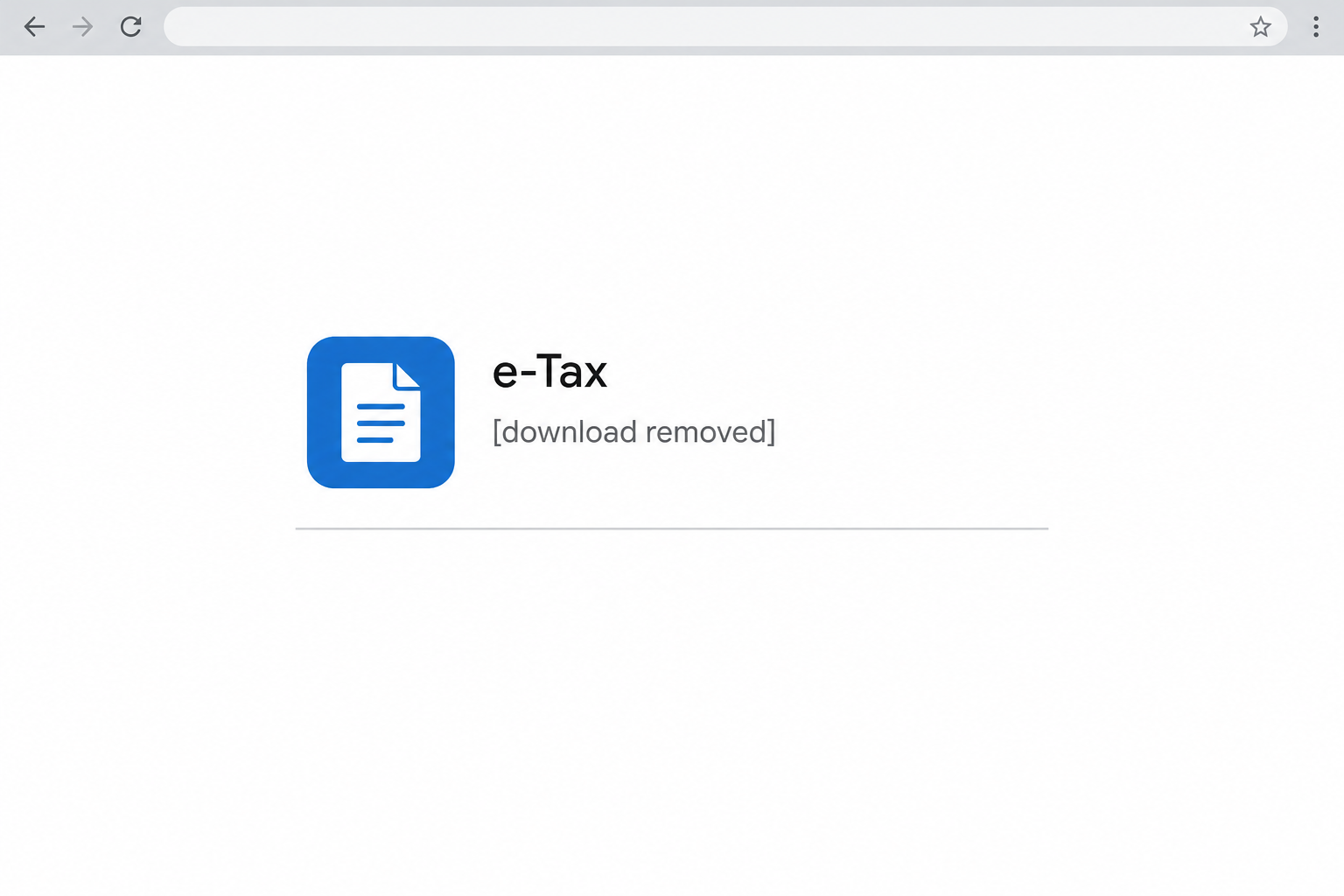
The reconstructed listing above shows the kind of page involved, with no live download. It doesn’t represent a genuine app or the agency’s official filing instructions.
A request for unusual permissions matters more than the icon
These apps weren’t harmless copies with the wrong publisher name. Tests found remote control and counterfeit input screens that could appear over real apps.
An unknown app asking for a VPN or accessibility control deserves a closer look. Those permissions can be legitimate, but they’re not routine for a tax download.
The threat here is what a malicious app can do after installation and permission changes. Reading an email or seeing the ad isn’t equivalent to having granted that access.
A clean-looking home screen doesn’t settle it
The installed app could interfere with ordinary removal. Researchers watched one tax-themed version return the device to its home screen when they tried to reach the app list.
Some fake screens targeted Japanese banks and payment services. That’s a finding about the software and its targets, not a count of successful compromises or a claim about every device.
- A video ad or points email sends you to an app download outside Google Play.
- A browser page imitates a store listing or a government service.
- You’re asked to approve unusual networking or screen-control access.
- A familiar financial app suddenly shows an unexpected prompt.
- Settings or uninstall screens don’t stay open long enough to remove a recent app.
How the Fake e-Tax App Scam Works
Step 1: A tax message arrives with an apparent reason to act
A refund or unpaid-tax message is hard to skim past when you’re expecting an update. A label that says e-Tax can make an unfamiliar message feel like it belongs.
The agency lists several pretexts, from an overdue payment to a refund that needs action. Individual messages may use different wording and destinations.
The documented Japan campaign also included video-app ads and bogus rewards. Those are separate lures. The tax-themed email is the one to compare with the message in your inbox.
Open the actual e-Tax website instead. Check for the notice in your account, or contact the tax office through the site if you aren’t sure what a message means.
Step 2: The app listing appears in a browser
A webpage can display the familiar look of a store without being that store. The tax-themed route did this with a page that imitated Google Play.
Pay attention to what you’re being asked to leave. If the real Play Store app never opens, a browser tab saying it’s a store is still a browser tab.
Japan’s Council of Anti-Phishing documented the fake e-Tax installation lure. PayPay also warned about unauthorized apps linked from suspicious ads and messages.
Those are warnings about the delivery route. They don’t mean a real tax message, rewards account, or payment app should be deleted when it didn’t come through this offer.
Step 3: The installation asks for more control
A permission box belongs to the operating system, but approval depends on which app is asking and why. A familiar Android prompt is not an endorsement of the app.
Some of the documented routes requested a VPN or accessibility control. Accessibility supports important functions, including assistive tools. An unknown entertainment or points app doesn’t automatically need the same access.
If you haven’t approved anything, close the dialog and stop. If you did, consider the phone untrusted until you’ve removed the software and checked the affected settings.
Record what you remember without opening the suspect app again. The install date and the last prompt you approved can help support distinguish the risky app from a legitimate one.
Step 4: An ordinary payment screen may not be what it seems
An overlay is a counterfeit screen shown over another app. You can tap your bank’s real icon yet see a prompt that was placed there by other software.
This is why changing a banking password on the same phone can make things worse. Use a separate trusted device or call the bank from a different phone.
Check what really moved. A prompt or a balance on the screen isn’t the same as a settled transaction in your bank’s own records.
Don’t open your bank app on the affected device just to see if the bad prompt appears again. You don’t need to reproduce it to ask the bank for help.
If you remember which screen seemed different, describe the difference rather than revisiting it. Tell the provider whether you entered a PIN, approved a transfer, or did neither.
Step 5: Deleting the app is only part of recovery
Some tested apps interrupted uninstall attempts. If Settings repeatedly closes, seek help rather than opening it over and over.
Review what happened while the app was installed. A device scan cannot tell you whether the bank approved a transfer or your password was used elsewhere.
Likewise, a device that shows no visible signs of trouble can still need attention. Check the install list and permissions instead of waiting for pop-ups.
If several people share the phone, tell them what happened before using it again. Someone may have logged in or approved a payment without knowing why the screen looked different.
What to Do if You Have Fallen Victim to This Scam
Someone who only saw a post needn’t reset a device. Someone who installed an unknown app and approved full control needs to protect accounts and the phone separately.
-
If you only saw the offer, close and report it. If you downloaded the file without installing it, delete it without opening it and check your app list.
-
For a suspected installation, turn on airplane mode and make sure Wi-Fi and Bluetooth are off. Use another phone for calls, including any urgent call to your bank.
-
Check your financial and mobile accounts from a trusted device. Report unfamiliar transfers or approvals immediately. Ask the provider if it can block pending activity or revoke access.
-
Secure accounts used on the affected phone. Change exposed passwords, review recovery details and signed-in devices, and end unknown sessions. Don’t enter your new passwords through the suspect handset.
-
Preserve the app name, approximate install time, messages and transaction records if safe. For a work or school device, contact the administrator before changing settings or erasing data.
-
Use the removal steps below if it’s a personal phone. If an app prevents removal, don’t use the phone for banking while you’re trying to resolve it.
Decide what to check from a separate device
Check the accounts you used after installing the app. Your bank, email provider, and payment service may each have a different record of what happened.
Look for the time of the last login you recognize and any pending transactions. If a payment provider and the bank display different statuses, tell both what you see.
If your mobile carrier is involved, ask whether the account shows unexpected changes. Don’t assume that every delayed message or lost connection is proof someone took over your phone number.
Write down which accounts were checked and which still need work. That list is useful if a second person in the household helped use the same device.
Ask each provider how to review older activity, not just the newest entries. Keep enough information to explain a dispute later without copying credentials into your notes.
An Android scan with Malwarebytes is useful after a suspected installation. AdGuard may intercept some later risky links, but an ad blocker can’t clean up software already installed.
How to Remove Eagle or Hawk Malware From Android
Step 1: Inspect app access and turn off only what you can identify
From Settings, search for Accessibility and open the downloaded or installed services list. Menu labels vary by manufacturer. Locate the newly installed suspect app and disable its service if present.
Then search for VPN. Remove a profile only if you recognize it as part of the suspicious installation. Don’t delete a work VPN or disable a service someone relies on.
Review Settings for device admin apps and permission to install unknown apps. Revoke only the unexpected approval tied to this download. If you’re unsure what a setting does, get help.
Step 2: Uninstall the unwanted apps
Open Settings, then Apps or See all apps. Choose the app installed from the message or ad. Check its name and install history before tapping Uninstall and confirming.
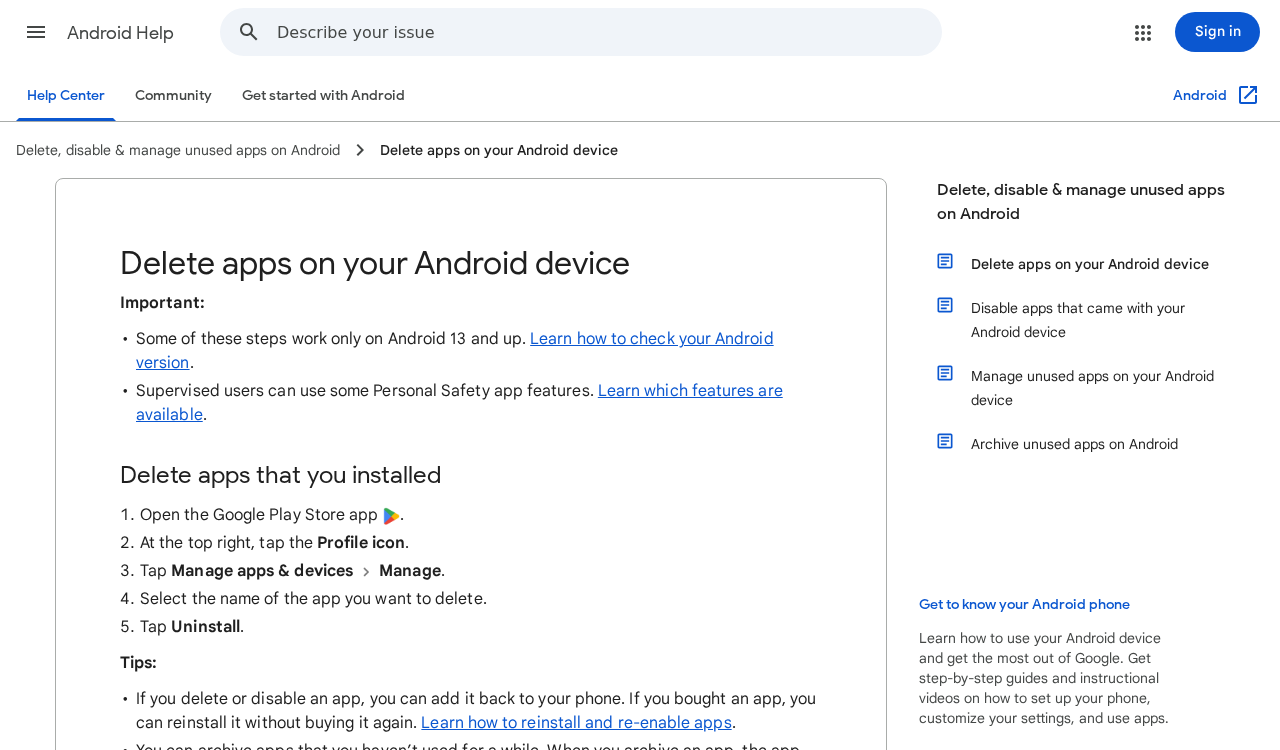
Google also explains how to remove an Android app through Google Play. Use the Settings route first if Play would require bringing the affected phone back online.
Return to the list and check that the app is gone. Look for other apps installed from the same source. Don’t delete a lookalike based on name alone.
If Settings keeps closing, use another device to find your manufacturer’s Safe Mode instructions. This can let you remove an app without running it.
Step 3: Reconnect cautiously and check for detections
When the suspicious app is removed, open Google Play directly. Tap your profile picture and open Play Protect to review its status and run a scan.
If Google marks an app as harmful, follow the removal prompt. Google’s Play Protect guidance explains what each warning means. An empty result isn’t proof that no account was touched.
You can also run a manual scan with Malwarebytes for Android. Use the legitimate store listing from Google Play, not the download page that started the incident.
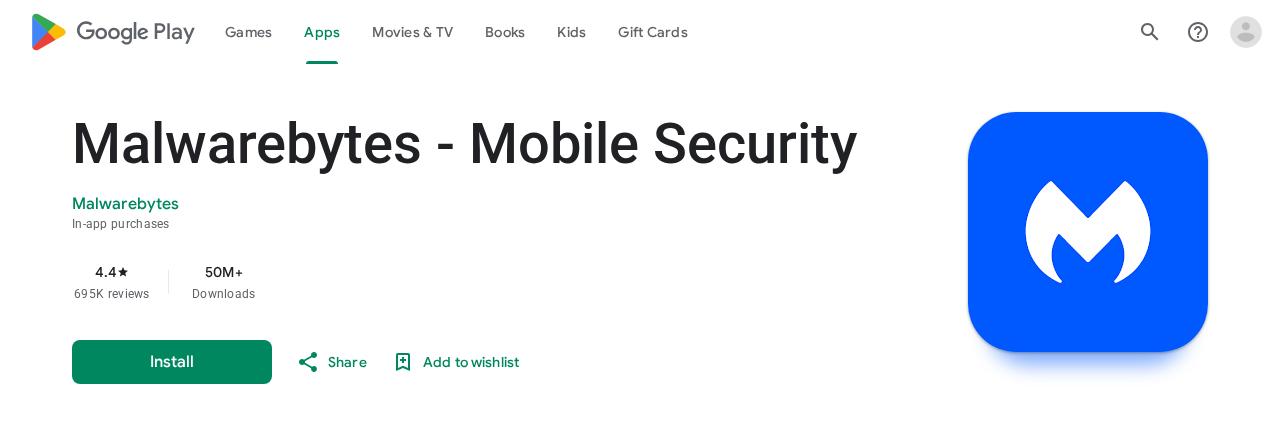
Manual scanning is available without buying real-time protection.
Tap Install, then Open. Complete the onboarding, review any trial or paid offer, and use only permissions needed for the scan. Check that the app is up to date.
Open Device and tap Scan now. Review the results after it finishes. Select the detected app’s menu, choose Uninstall app when offered, and confirm Android’s prompt.
If an item is unfamiliar, open its details before removing it. The Malwarebytes scan guide explains the difference between viewing an item, uninstalling it, and excluding it from future scans.
If you’re asked to restart, do so and check that the detected app didn’t return. A scan doesn’t cancel an unauthorized payment or revoke a stolen browser session.
Step 4: Check settings again and escalate if the problem persists
Check that the unauthorized VPN, accessibility service, and installation permission are gone. Install Android and Google Play system updates through Settings. Don’t use the original promotion to reinstall anything.
If the app returns or settings still won’t open, keep the phone offline and get help from the manufacturer or the MalwareTips support forum.
A reset erases local data. Preserve records and verify a backup first. Don’t restore the suspect app. Follow manufacturer instructions or contact your administrator for a managed device.
After a reset, return to service gradually. Install updates, set up accounts from trusted sources, and reinstall only apps you recognize. Don’t reuse the copy that came from the notice.
Frequently Asked Questions
Is there a current stand-alone e-Tax Android app?
The former stand-alone Android app ended service in 2021. Follow the agency’s current sign-in instructions independently. The old name on a download page isn’t a reason to install it.
Should I reset Android if I only opened the page?
Not just because you opened a page. Close it, don’t run downloaded files, and check whether anything was installed or granted special access. React to what actually happened.
Does a Google Play logo make an app safe?
A logo can be copied onto a browser page. Close the advertisement and open Google Play independently. Verify the publisher against the organization that actually provides the service.
Is every VPN or accessibility permission dangerous?
No. These are legitimate Android features. The concern is an unknown app asking for access inconsistent with its purpose. Don’t disable trusted assistive services across the board.
Can uninstalling the app recover an unauthorized transfer?
No. Contact the bank or payment provider from a clean device. Describe the transfer and any approval you made. Don’t wait for the device scan to finish.
What if the app keeps closing the Settings screen?
Stop using that phone for sensitive tasks. Consult official Safe Mode instructions for the model, or ask the manufacturer or your IT team about removal or a controlled reset.
The Bottom Line
Don’t install an app from a tax email. Open e-Tax independently and check for a genuine notice. The agency doesn’t use an emailed download to handle tax payments or refunds.
If you installed it, isolate the phone and check your money and accounts from a trusted device. Then remove the app, review its permissions, and get help if it returns.

Join the discussion
0 commentsShare your experience or ask a question about this article.
Community experiences
Did this happen to you?
Your experience could help someone recognize the same scam. Submit a private report for our team to review.
I experienced this tooReports are reviewed before publication. Sharing publicly is always your choice.
Discussion
Start the conversation
Have a question or something useful to share? Add the first comment.