

A detailed commercial inquiry can look like a valuable new customer. It asks about prices, quantities, shipping terms, specifications, and delivery timing.
That level of detail is not proof of a real order. In this scam, it is the bait that leads a supplier toward a dangerous download.
Overview
A sales inquiry with convincing detail
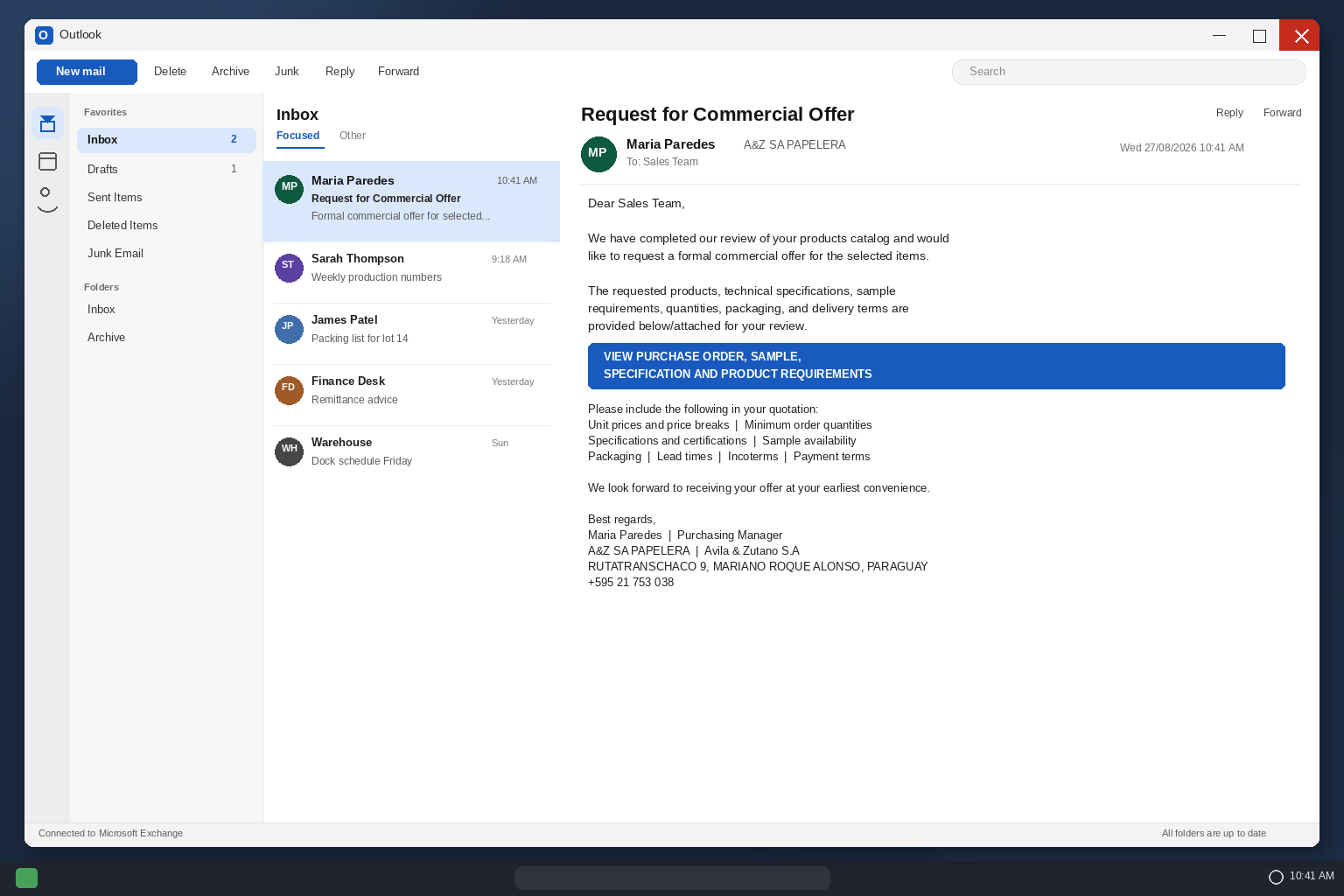
The message asks about unit prices, minimum order quantities, Incoterms, ports, lead times, certification, and payment terms. Those are ordinary questions in international trade.
Specific language helps the sender sound prepared. A busy sales team may see the inquiry as a qualified lead rather than an unfamiliar security risk.
The claimed buyer and product need to be verified separately before a document link is opened.
The purchase order is only the bridge
A button may promise a purchase order, sample, specification, or product requirement. The recipient expects commercial paperwork, not software.
The reviewed path used an Acrobat-style viewer story and pointed toward a batch file named Acrobat_Reader_Installer_Win11_64.bat.
A batch file is a command script. It is not a reader, a PDF, or a safe prerequisite for viewing an order.
A document portal can disguise a software delivery
The landing page may look like cloud storage or a protected document room. It may claim a viewer must be installed before a file can be opened.
That inconvenience is deliberate. It turns a familiar business task into a reason to run an unknown program.
Whether the final file is malicious or merely unwanted, executing it gives an unverified party control over the next step.
- A detailed buyer inquiry aimed at suppliers and export teams
- Commercial terms used to create a realistic business context
- A button promising specifications or a purchase order
- A fake viewer requirement that leads to a batch file
- A file name designed to resemble a familiar PDF reader
- A risk that should be verified through the buyer’s real company channels
The commercial-offer lure feels stronger than a vague invoice. It contains the kinds of questions sales staff expect from an overseas customer.
That realism makes a technical detour easier to overlook. The recipient may focus on winning the order instead of examining the file extension.
A proper buyer can send specifications without asking a vendor to run an installer.
How The Scam Works
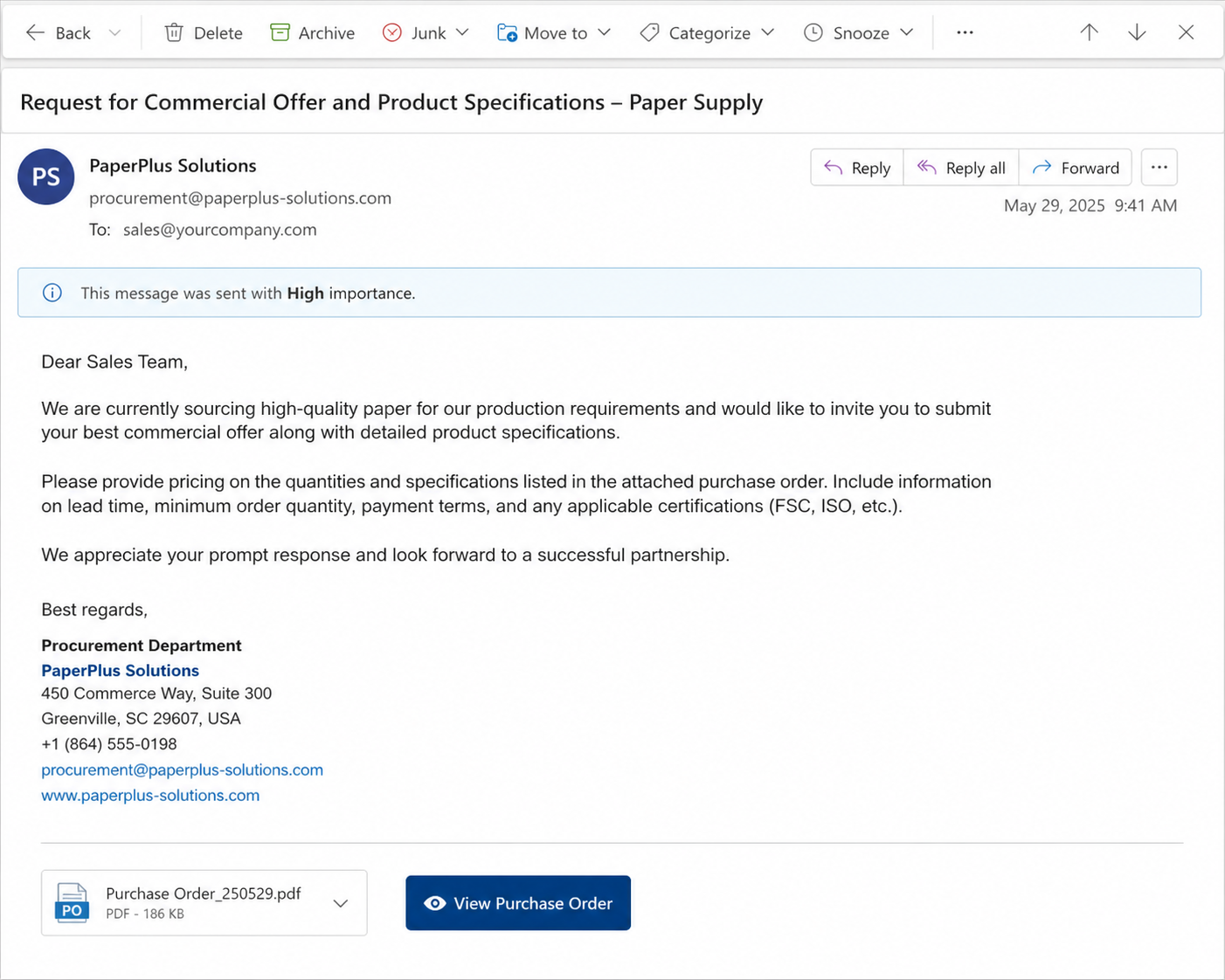
Step 1: A detailed inquiry reaches a supplier
At this point, a supplier receives a request for a commercial offer.
The buyer impostor benefits when the email asks about pricing, packaging, shipping, and lead times.
For a rushed recipient, the detailed format resembles a real export inquiry.
Suppliers expect serious buyers to ask for shipping, certification, and volume information.
The inquiry mimics that professional language to earn attention.
Its detail should invite verification, not automatic trust.
Within the commercial-offer lure, a supplier receives a request for a commercial offer. The businesslike format makes the request feel worth pursuing.
Trade language sounds technical, but a supplier receives a request for a commercial offer. A verified buyer can answer questions through a normal call.
The dangerous turn comes when a supplier receives a request for a commercial offer. An order inquiry should never require running a command script.
Step 2: Trade terminology creates a sense of legitimacy
At this point, incoterms, quantities, certificates, and ports are named.
The buyer impostor benefits when those terms can be copied from ordinary procurement templates.
For a rushed recipient, technical vocabulary is not a substitute for a verified corporate relationship.
Trade vocabulary can be copied from a catalog or previous request-for-quote template.
Terms such as Incoterms and MOQ prove only that the writer knows procurement language.
They do not confirm the identity behind the mailbox.
Within the commercial-offer lure, incoterms, quantities, certificates, and ports are named. The businesslike format makes the request feel worth pursuing.
Trade language sounds technical, but incoterms, quantities, certificates, and ports are named. A verified buyer can answer questions through a normal call.
The dangerous turn comes when incoterms, quantities, certificates, and ports are named. An order inquiry should never require running a command script.
Step 3: The quote request directs attention to a document button
At this point, a link promises the purchase order and requirements.
The buyer impostor benefits when the recipient expects files needed to prepare a quote.
For a rushed recipient, the button shifts the interaction from sales work to an unknown website.
A purchase-order button feels like a normal next step in a commercial conversation.
The campaign uses that expectation to move the recipient into an unfamiliar portal.
Document access should never silently become software installation.
Within the commercial-offer lure, a link promises the purchase order and requirements. The businesslike format makes the request feel worth pursuing.
Trade language sounds technical, but a link promises the purchase order and requirements. A verified buyer can answer questions through a normal call.
The dangerous turn comes when a link promises the purchase order and requirements. An order inquiry should never require running a command script.
Step 4: The portal claims a viewer is required
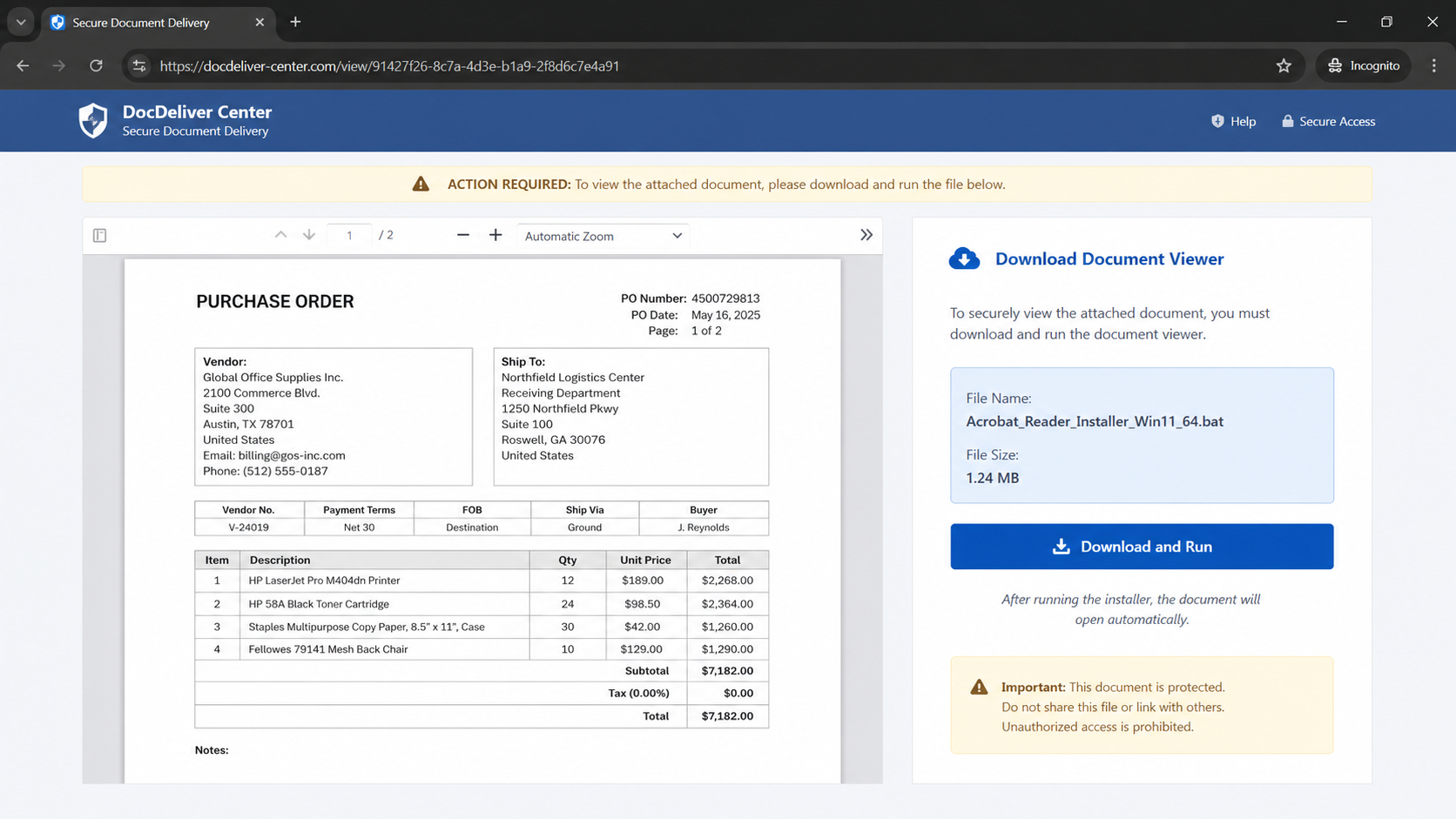
At this point, the portal says a document viewer must be downloaded.
The buyer impostor benefits when this manufactured obstacle makes software installation seem necessary.
For a rushed recipient, normal PDF viewing does not require an unknown batch file from a buyer.
Viewer warnings are a common way to justify an unnecessary download.
Modern systems can view ordinary PDFs without a mystery script supplied by a prospective customer.
The claimed technical obstacle is part of the deception.
Within the commercial-offer lure, the portal says a document viewer must be downloaded. The businesslike format makes the request feel worth pursuing.
Trade language sounds technical, but the portal says a document viewer must be downloaded. A verified buyer can answer questions through a normal call.
The dangerous turn comes when the portal says a document viewer must be downloaded. An order inquiry should never require running a command script.
Step 5: A batch file is presented as a document helper
At this point, a file named Acrobat_Reader_Installer_Win11_64.bat appears.
The buyer impostor benefits when the BAT extension identifies a Windows command script.
For a rushed recipient, a familiar product-like name cannot change what the file actually is.
The BAT extension is the clearest warning in this particular chain.
Command scripts are designed to tell Windows what to do, not simply display a document.
A familiar reader name cannot neutralize that difference.
Within the commercial-offer lure, a file named Acrobat_Reader_Installer_Win11_64.bat appears. The businesslike format makes the request feel worth pursuing.
Trade language sounds technical, but a file named Acrobat_Reader_Installer_Win11_64.bat appears. A verified buyer can answer questions through a normal call.
The dangerous turn comes when a file named Acrobat_Reader_Installer_Win11_64.bat appears. An order inquiry should never require running a command script.
Step 6: Execution can expose the workstation and mailbox
At this point, running an unknown script can change system settings or fetch other material.
The buyer impostor benefits when saved browser credentials and business files may become relevant targets.
For a rushed recipient, the precise impact depends on the file and the device protections.
A sales workstation often contains saved mail, shared folders, and customer information.
An unknown script can make all of those assets relevant to an attacker.
IT should assess the device before normal work resumes.
Within the commercial-offer lure, running an unknown script can change system settings or fetch other material. The businesslike format makes the request feel worth pursuing.
Trade language sounds technical, but running an unknown script can change system settings or fetch other material. A verified buyer can answer questions through a normal call.
The dangerous turn comes when running an unknown script can change system settings or fetch other material. An order inquiry should never require running a command script.
Step 7: The supposed buyer disappears after the download
At this point, the sender may stop responding once the file has been downloaded.
The buyer impostor benefits when a stalled sale can distract from the fact that a computer was exposed.
For a rushed recipient, sales and IT teams should compare notes when a promising lead turns strange.
When the alleged buyer stops replying, a team may focus on the lost sale.
The more urgent concern is whether the document path altered a computer or exposed an inbox.
A prompt internal report changes that outcome.
Within the commercial-offer lure, the sender may stop responding once the file has been downloaded. The businesslike format makes the request feel worth pursuing.
Trade language sounds technical, but the sender may stop responding once the file has been downloaded. A verified buyer can answer questions through a normal call.
The dangerous turn comes when the sender may stop responding once the file has been downloaded. An order inquiry should never require running a command script.
Company, Address, and Fulfillment Checks
A buyer identity must be checked beyond the signature
A company name, trade title, or foreign address can be copied into an email. The details need confirmation through records outside the message.
Search for the company independently and use a published number to verify the inquiry.
A reply to the sender does not establish who controls that mailbox.
A document portal should belong to a known party
A legitimate buyer may use a procurement system, but its domain and access process should be clear before any login or download.
An unrelated cloud page with a generic viewer demand is not a normal proof of purchase intent.
Compare the portal domain with the buyer’s verified website.
Real support can explain the requested order
A verified purchasing contact should know the product, volume, destination, and reason for the request.
A vague response or an insistence that software must run first should end the conversation.
Use a known telephone channel to validate any urgent buyer request.
Software has to be traceable too
A reader installer should come from the software maker’s official website, never from a purchase inquiry.
The batch-file name in the reviewed path is a clear reason not to execute it.
If a file cannot be explained by a verified source, keep it unopened and remove it safely.
Why This Message Can Cause Real Harm
Sales scams are effective because they imitate desirable work. A detailed inquiry can encourage a team to bypass its usual caution in pursuit of revenue.
Train staff to read extensions, not just filenames. “.bat” is a different category from “.pdf,” even if the rest of the name looks familiar.
An unfamiliar customer should be verified before documents are opened. This is prudent business practice, not a lost-sales tactic.
Keep quoting systems separate from email passwords and local administrator rights. Segmentation limits what one mistaken click can expose.
If an employee downloaded the script, preserve it for IT analysis rather than forwarding it to colleagues. The file itself can be harmful.
The seller’s address, phone number, and claimed destination can all be starting points for verification. None should be trusted merely because the email supplies them.
A genuine buyer wants a quote. They do not need a vendor to disable caution or run a mysterious document viewer.
What to Do if You Have Fallen Victim to This Scam
- Stop the download or close the portal if the file has not been opened. Preserve the original email and URL for your IT or security contact.
- If the batch file was executed, disconnect the affected workstation from sensitive business systems when practical and notify IT immediately.
- Do not use the same device to change important passwords if malware is suspected. Use a known-clean system, beginning with email and finance accounts.
- Review recent mailbox logins, forwarding rules, shared drives, and payment conversations. A compromised sales inbox can support later invoice fraud.
- Tell finance, sales, and operations teams about the attempted commercial inquiry. Ask them to verify any bank-detail change by a known telephone number.
- Run Malwarebytes to look for malicious files, unwanted programs, and persistence changes associated with the downloaded script.
- Use AdGuard to reduce exposure to deceptive ads and malicious web destinations while you remove suspicious extensions, browser notifications, and saved logins.
- Report the fake buyer to the impersonated organization if one exists, and send evidence to the appropriate cybercrime or consumer-fraud reporting channel.
Is Your Device Infected? Run a Free Malware Scan
Slow performance, constant pop-ups, or strange behavior? These are classic signs of a malware infection. The fastest way to find out is to scan your device with Malwarebytes Free — one of the most trusted malware removal tools available.
The free version detects and removes the most common threats, including:
- Adware — the cause of those annoying pop-ups
- Browser hijackers — unwanted redirects and changed homepages
- Trojans and spyware — hidden programs stealing your data
- Potentially unwanted programs (PUPs) — software you never asked for
👉 Select your device below — Windows, Mac, or Android — then follow the simple steps to download Malwarebytes, scan your system, and remove any threats it finds. The scan usually takes 5 to 20 minutes.
Run a Malware Scan with Malwarebytes for Windows
Malwarebytes is one of the most popular and trusted anti-malware tools for Windows — and it’s completely free for removing infections. It catches threats that many antivirus programs miss, including adware, browser hijackers, and trojans. Follow the steps below to scan and clean your PC in just a few minutes.
Download Malwarebytes
Click the button below to download the latest version of Malwarebytes for Windows from the official source. The free version is all you need — it will scan your computer and remove adware, browser hijackers, and other malicious software at no cost.
Download MalwarebytesOfficial installer for Windows 11 and 10. Your download starts right away.Want real-time protection? See Malwarebytes Premium Malwarebytes Free for WindowsScans and removes malware at no cost
-
Install Malwarebytes
When the download finishes, open your Downloads folder and double-click the MBSetup file. If Windows shows a User Account Control pop-up, click “Yes” to allow the installation.

Follow the On-Screen Prompts to Install Malwarebytes
The setup wizard will walk you through a few quick screens:
-
Choose where you’re installing the program — “Personal Computer” or “Work Computer” — then click Next.

-
Malwarebytes will now install on your device. This usually takes under a minute.

-
When installation is complete, the “Welcome to Malwarebytes” screen will open automatically.

-
On the final screen, click Open Malwarebytes to launch the program.

-
Enable “Scan for Rootkits”
Before scanning, turn on rootkit detection so Malwarebytes can find even the most hidden threats. Click the Settings gear icon on the left side of the screen.

In the settings menu, find “Scan for rootkits” and click the toggle so it turns blue.

Done? Click “Dashboard” in the left pane to return to the main screen.
Start the Scan
Click the blue Scan button. Malwarebytes will automatically update its virus database and start checking your computer for malware.

-
Wait for the Scan to Finish
The scan checks your entire system for browser hijackers and other malicious programs, so it can take 5 to 20 minutes depending on your computer. Feel free to do something else — just check back occasionally to see the progress.

-
Quarantine the Detected Threats
When the scan is done, you’ll see a list of everything Malwarebytes found — malware, adware, and potentially unwanted programs. Click the “Quarantine” button to remove all of them at once.

Malwarebytes will now remove the malicious files and registry entries and move them safely into quarantine.

-
Restart Your Computer
Some threats can only be fully removed after a reboot. If Malwarebytes asks you to restart, click Yes. Once you’re logged back in, Malwarebytes has finished removing the threats it found.

That’s it — your Windows PC is now clean of trojans, adware, and other malware, and should be back to running smoothly.
If you are still having problems with your computer after completing these instructions, then please follow one of the steps:
- Run a computer scan with ESET Online Scanner
- Ask for help in our Windows Malware Removal Help & Support forum.
Run a Malware Scan with Malwarebytes for Mac
Malwarebytes for Mac is a free on-demand scanner that removes the malware other security software tends to miss — adware, browser hijackers, and unwanted programs included. Cleaning an infected Mac with Malwarebytes has always been completely free, and it’s our go-to recommendation. Follow the steps below to scan and clean your Mac in just a few minutes.
-
Download Malwarebytes for Mac
Click the button below to download the latest version of Malwarebytes for Mac.
Download MalwarebytesOfficial installer for macOS. Your download starts right away.Want real-time protection? See Malwarebytes PremiumMalwarebytes Free for MacScans and removes malware at no cost -
Open the Malwarebytes setup file
When the download finishes, open your Downloads folder and double-click the setup file to begin the installation.

-
Follow the On-Screen Prompts to Install Malwarebytes
The Malwarebytes for Mac Installer will guide you through a few quick screens. Click “Continue” and keep following the prompts until the installation completes.



When the installation is complete, Malwarebytes opens to the Welcome to Malwarebytes screen. Click “Get started“.
-
Select “Personal Computer” or “Work Computer”
Malwarebytes will ask what type of computer you’re installing it on. Click either Personal Computer or Work Computer, whichever applies.

-
Start the Scan
Click the “Scan” button. Malwarebytes will automatically update its detection database and begin checking your Mac for malware.

-
Wait for the Scan to Finish
Malwarebytes will scan your Mac for adware, browser hijackers, and other malicious programs. This can take a few minutes, so feel free to do something else — just check back occasionally to see the progress.

-
Quarantine the Detected Threats
When the scan is done, you’ll see a list of everything Malwarebytes found. Click the “Quarantine” button to remove all the threats at once.

-
Restart Your Mac
Malwarebytes will now remove all the malicious files it found. Some threats can only be fully removed after a reboot — if Malwarebytes asks you to restart, allow it. Once you’re logged back in, your Mac is clean.

That’s it — your Mac is now free of adware, rogue browser extensions, and other potentially harmful software.
If you are still experiencing problems while trying to remove a malicious program from your computer, please ask for help in our Mac Malware Removal Help & Support forum.
Run a Malware Scan with Malwarebytes for Android
Malwarebytes for Android automatically detects and removes dangerous threats like malware and ransomware so you don’t have to worry about your most-used device being compromised. Aggressive detection of adware and potentially unwanted programs keeps your Android phone or tablet running smooth.
-
Download Malwarebytes for Android.
You can download Malwarebytes for Android by clicking the link below.
Get Malwarebytes for AndroidOpens Google Play in a new tab.Want real-time protection? See Malwarebytes Premium for AndroidMalwarebytes for AndroidScans your phone and removes malware at no cost -
Install Malwarebytes for Android on your phone.
In the Google Play Store, tap “Install” to install Malwarebytes for Android on your device.

When the installation process has finished, tap “Open” to begin using Malwarebytes for Android. You can also open Malwarebytes by tapping on its icon in your phone menu or home screen.

-
Follow the on-screen prompts to complete the setup process
When Malwarebytes will open, you will see the Malwarebytes Setup Wizard which will guide you through a series of permissions and other setup options.
This is the first of two screens that explain the difference between the Premium and Free versions. Swipe this screen to continue.
Tap on “Got it” to proceed to the next step.
Malwarebytes for Android will now ask for a set of permissions that are required to scan your device and protect it from malware. Tap on “Give permission” to continue.
Tap on “Allow” to permit Malwarebytes to access the files on your phone.
-
Update database and run a scan with Malwarebytes for Android
You will now be prompted to update the Malwarebytes database and run a full system scan.

Click on “Update database” to update the Malwarebytes for Android definitions to the latest version, then click on “Run full scan” to perform a system scan.

-
Wait for the Malwarebytes scan to complete.
Malwarebytes will now start scanning your phone for adware and other malicious apps. This process can take a few minutes, so we suggest you do something else and periodically check on the status of the scan to see when it is finished.

-
Click on “Remove Selected”.
When the scan has been completed, you will be presented with a screen showing the malware infections that Malwarebytes for Android has detected. To remove the malicious apps that Malwarebytes has found, tap on the “Remove Selected” button.

-
Restart your phone.
Malwarebytes for Android will now remove all the malicious apps that it has found. To complete the malware removal process, Malwarebytes may ask you to restart your device.
That’s it — your Android phone is now clean — no more malicious apps, adware, or browser redirects.
If you are still having problems with your phone after completing these instructions, then please follow one of the steps:
- Restore your phone to factory settings by going to Settings > General management > Reset > Factory data reset.
- Ask for help in our Mobile Malware Removal Help & Support forum.
Stay Protected: Block Ads and Malicious Sites
Now that your device is clean, keep it that way. Most infections start with a malicious ad or a fake download button — so blocking them at the source is your best defense.
We recommend AdGuard, which blocks malicious ads, phishing pages, and dangerous redirects before they can reach you.
👉 Download AdGuard and browse safely
Frequently Asked Questions
Why does the email include so many shipping details?
Specific trade language makes the inquiry look like a serious buyer request. It does not verify the sender or the linked portal.
Is a BAT file a document viewer?
No. A BAT file is a Windows command script. It should not be run to view a purchase order or PDF.
Can a fake buyer use a real company name?
Yes. A real name or address can be copied into the signature, so verify through contact details found independently.
How can a supplier verify a purchase inquiry?
Call a published company number, check the domain, and ask a verified contact to confirm the request before opening documents.
What is dangerous about running an unknown script?
Scripts can change settings, download other programs, and expose data. The impact depends on the file and the affected device.
Should I install a reader from the link?
No. Get software only from the maker’s official site after confirming that an update is genuinely needed.
The Bottom Line
The Formal Commercial Offer scam makes a risky file look like part of an ordinary sales opportunity.
Read the extension, verify the buyer separately, and obtain any software from its official publisher. A purchase order never needs a mystery script.
That discipline protects both the workstation and the customer relationships inside the inbox.

Join the discussion
0 commentsShare your experience or ask a question about this article.
Discussion
Start the conversation
Have a question or something useful to share? Add the first comment.