

You are checking email, half-distracted, and a subject line jumps out at you: Congratulations! You have been selected for a financial gift of $550,000.00 from “Frances & Patrick Connolly,” described as lottery jackpot winners running a charitable foundation.
For a split second, it feels possible. Maybe it is real. Maybe this is the kind of story people talk about for years.
Then the doubts start. Why you? Why email? Why does it sound polished, but also strangely vague?
That uneasy feeling is doing its job. This message is built to get you to respond, and once you do, the scam can begin.
Scam Overview
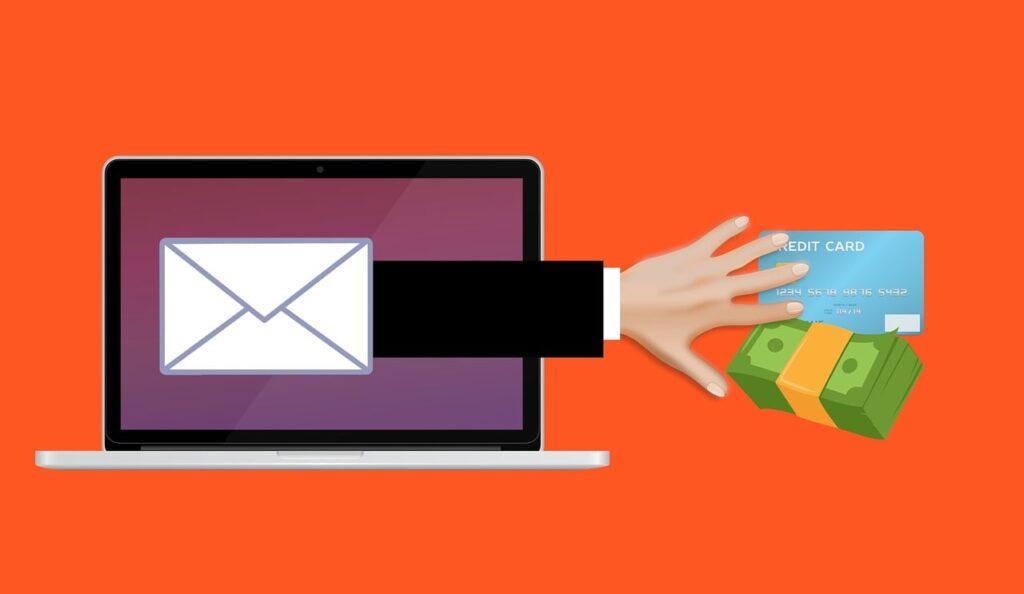
The “Frances & Patrick Connolly Gift Email Scam” is a classic advance-fee and identity theft setup wrapped in a feel-good story. The email claims you have been “selected” to receive a large cash gift, often $100,000 to $1,000,000, from a “foundation” connected to well-known lottery winners. The goal is not to give you money. The goal is to get you to engage, then pressure you into handing over personal information and eventually paying fake fees.
The version you shared follows a familiar script:
- A big, specific amount: $550,000.00
- A credibility anchor: “winners of the 2019 Powerball Jackpot of $145.6 million”
- A charitable frame: “community support programs”
- A soft call to action: “Please respond… for the next steps”
- A signature meant to sound official: “Connolly Foundation©”
Why the names feel convincing
Scammers often borrow names from real people to reduce skepticism. Frances and Patrick Connolly are widely reported lottery winners from the UK and Ireland, known publicly after a major EuroMillions win.
That public recognition is exactly why scammers like using their names. It gives the email a quick shortcut to credibility: “You can Google them and see they exist.”
In fact, warnings about scammers impersonating the Connollys have appeared in local reporting.
The Powerball detail is a red flag
Your email claims the Connollys won a Powerball jackpot. That detail is a common scam tactic: mix a real name with a mismatched lottery brand, year, or jackpot figure. Many recipients will not know the difference, and the scammer is counting on that.
It is also common for lottery scams to piggyback on Powerball branding because it is globally recognizable. Official lottery organizations have repeatedly warned the public about fake emails and social media messages claiming to be jackpot winners.
What this scam is really selling
This scam is not selling a “gift.” It is selling a process.
The email invites you into a storyline where there are “steps,” “verification,” and “documentation.” That process is where the fraud happens. Once you respond, you are no longer just reading an email. You have become a live lead.
From there, the scam usually heads toward one or more of these outcomes:
- Advance fees
- You are told the gift is real, but you must pay something first: “processing,” “legal,” “tax,” “courier,” “insurance,” “customs,” or “release” fees.
- This is the defining pattern of prize and lottery scams. If you must pay to get the money, it is a scam.
- Identity theft
- The scammer asks for personally identifying information to “register” you as a beneficiary.
- They may ask for:
- Full legal name, address, phone number
- Date of birth
- Photo of your driver’s license or passport
- Bank name and account details “for transfer”
- This information can be used to open accounts, apply for credit, or support other fraud.
- Payment method steering
- Scammers prefer payment methods that are hard to reverse:
- Wire transfer
- Crypto
- Gift cards
- Peer-to-peer payment apps
- They may also ask you to send money to a “courier agent” or “foundation representative.”
- Scammers prefer payment methods that are hard to reverse:
- Future targeting
- Even if you do not pay, replying confirms your email is active and that you are willing to engage. Many victims report increased scam attempts afterward, including variations of the same theme.
Why this scam works on smart people
These emails do not rely on people being careless. They rely on people being human.
Here are the psychological levers the scam pulls, often all at once:
- Authority and legitimacy
- Big lottery names, big numbers, “foundation” language.
- Emotional relief
- $550,000 feels like a solution, not just money.
- Low friction
- “Just reply.” No immediate demand. The hook is gentle.
- Reciprocity
- “We are helping the community.” People feel less suspicious of generosity than of sales.
- Private urgency
- Many versions add “keep this confidential” or “respond within 24 hours,” which isolates victims and prevents them from seeking advice.
The “foundation” branding is part of the con
Scammers frequently invent foundations, grants, and charitable programs because it makes the approach feel noble instead of predatory.
They may use:
- A fake logo
- A simple website with stock photos
- “Certificate of donation” PDFs
- Claims of partnership with banks or government agencies
- A copyright symbol “©” to look official
None of that proves legitimacy.
Where this fits in the larger scam landscape
This is a close cousin of several well-documented fraud categories:
- Advance-fee schemes
- Lottery and sweepstakes scams
- Phishing and identity theft
- Impersonation scams
The FBI describes advance-fee schemes as a core scam type, built around convincing victims to send money up front in exchange for a larger payoff.
Government and consumer protection agencies have spent years repeating the same rule because it stays true: real prizes do not require you to pay to get them.
The Connolly name is simply the packaging. The underlying fraud is extremely old, and extremely profitable.
How The Scam Works
Below is the typical step-by-step path of the Frances & Patrick Connolly “gift” email scam. Not every case includes every step, but the structure is remarkably consistent.
Step 1: The bait email lands in your inbox
You receive a message like:
- “Congratulations!”
- “You have been selected”
- “Financial gift of $550,000.00”
- “Community support programs”
- “Please respond for next steps”
At this stage, the scammer is trying to achieve one thing: get a reply.
They keep it vague on purpose. If the email demanded money immediately, more people would delete it. Instead, they start with a friendly tone and a promise.
Here is how the email looks:
Congratulations!
You have been selected to receive a financial gift of $550,000.00 USD from Frances & Patrick Connolly, winners of the 2019 Powerball Jackpot of $145.6 million.This initiative is part of our foundation’s ongoing community support programs aimed at assisting individuals around the world.
Please respond at your convenience so we can provide the next steps in the process. Thank you for your time and participation.
Sincerely,
Connolly Foundation©
Step 2: You reply, and the scammer confirms you are a “winner”
Once you respond, the scammer usually replies quickly, often within hours. They may:
- Congratulate you again
- Call you a “beneficiary” or “recipient”
- Assign you a “claims agent,” “foundation officer,” or “delivery coordinator”
- Provide a fake reference number
This is a crucial pivot: they move you from a random stranger to a participant in a formal-sounding process.
Step 3: “Verification” begins (this is where identity theft starts)
Next comes the justification for collecting your personal information.
Common lines include:
- “We must confirm your identity to prevent fraud”
- “For our foundation records”
- “To register you with the payout department”
- “To prepare the donation certificate”
They may ask for:
- Full name
- Home address
- Phone number
- Occupation
- Age or date of birth
- A scan of your ID
- A selfie holding your ID
- Bank details “for transfer”
If you provide these, you have handed a criminal enough information to attempt identity fraud, social engineering, or account takeovers.
Step 4: The fee appears (advance-fee trap)
Once the scammer thinks you are emotionally invested, the tone shifts. Now there is a “problem” that requires a payment to solve.
Typical fee excuses:
- “Transfer activation fee”
- “Anti-money laundering clearance”
- “Notarization fee”
- “Insurance fee”
- “Courier delivery fee”
- “Tax clearance”
- “Customs duty”
This is the exact pattern consumer protection guidance warns about: if you have to pay to receive a prize or gift, it is a scam. (Consumer Advice)
The scammer often frames the fee as small compared to the gift, such as:
- “Just $150 to release $550,000”
- “A one-time $350 processing fee”
- “$500 courier insurance”
Many victims pay because it feels like unlocking something that already belongs to them.
Step 5: Payment method steering (they push you toward irreversible options)
Scammers usually steer victims toward payment methods that are difficult to reverse. They may request:
- Wire transfers
- Crypto deposits
- Gift cards
- Money transfer services
- Peer-to-peer apps
They may also tell you to avoid telling your bank the truth, using scripts like:
- “Say it is for family support”
- “Say it is for a personal purchase”
- “Do not mention the foundation”
That instruction alone is enough to confirm criminal intent.
Step 6: Fake documents arrive to keep you hooked
If you hesitate, scammers often send “proof.”
This may include:
- Donation certificates with seals
- Letters on fake letterhead
- Bank transfer screenshots
- IDs of “agents”
- Shipping receipts
- Photos of cash in boxes
Some lottery scams go further and impersonate government agencies or investigators to appear legitimate. The FBI has warned about lottery scams that use convincing official-looking documents to pressure victims into paying fees.
These documents are theater. Their job is not to prove anything. Their job is to keep you paying.
Step 7: The fees multiply (the “just one more step” loop)
After you pay the first fee, the scam rarely ends. Instead, a new problem appears:
- The courier is “stopped at customs”
- The transfer is “pending clearance”
- A “release code” must be purchased
- Insurance must be upgraded
- A “final authorization stamp” is needed
This can continue until:
- You run out of money
- You become suspicious
- A bank blocks the transaction
- A family member intervenes
Step 8: If you stop paying, threats or guilt appear
When victims try to exit, scammers often switch tactics:
- Emotional guilt: “You are depriving your family of this blessing”
- Anger: “You are wasting our time”
- Threats: “We will report you for fraud”
- Pressure: “This offer expires today”
This is manipulation, not a legitimate philanthropic process.
Step 9: Your information gets reused or sold
Even if you never pay a fee, replying can put you on “active responder” lists. These lists are valuable in scam networks.
That is why many people notice a surge in:
- Lottery scams
- Fake bank alerts
- Tech support popups
- Romance scams
- Crypto “recovery” offers
Step 10: Revictimization scams (the follow-up trap)
A common next phase is that a new “helper” appears, claiming they can recover your lost money. They might pretend to be:
- A lawyer
- A bank investigator
- A cybercrime unit
- A recovery agent
The FBI’s IC3 has warned about scammers impersonating official entities and offering fake recovery services, often targeting people who have already been scammed.
If someone contacts you out of the blue promising to recover funds for a fee, treat it as another scam until proven otherwise.
Common variants of the Connolly gift email scam
Even if your email mentions $550,000, the same template shows up with many variations:
- Different amounts: $100,000, $250,000, $1,000,000
- Different stories:
- “Grant”
- “Donation”
- “Humanitarian aid”
- “Endowment”
- Different delivery methods:
- “Bank transfer”
- “ATM card delivery”
- “Cash delivery”
- Different impersonated parties:
- Powerball winners
- Mega Millions winners
- EuroMillions winners
- “Philanthropists” and “foundations”
Lottery organizations have issued scam warnings specifically about impostors pretending to be jackpot winners and contacting people via email or social media.
That is why you should evaluate the pattern, not the name.
What To Do If You Have Fallen Victim to This Scam
If you interacted with this scam, do not panic. The right response is calm, fast, and methodical. Use the steps below based on what happened in your case.
- Stop contact immediately
- Do not reply again.
- Do not argue.
- Block the sender’s email and any phone numbers they provided.
- If you only replied once and shared nothing, stopping now still helps.
- Preserve evidence
- Save the emails, including headers if you can.
- Screenshot messages, payment requests, and names used.
- Keep receipts, transaction IDs, crypto wallet addresses, and any documents they sent.
- Evidence matters for banks, platforms, and reports.
- If you sent money, contact your bank or payment provider right away
- Ask for the fraud department.
- Request a recall or reversal if possible.
- If you used a wire transfer, time is critical.
- If you used gift cards or crypto, recovery is harder, but still report it and document everything.
- If you shared personal information, protect your identity
- Assume your data may be used for fraud.
- Place a fraud alert or credit freeze if available in your country.
- Watch for new accounts, unexpected credit checks, or mail about services you did not sign up for.
- Consider changing key answers to security questions if you reused them anywhere.
- Secure your email and important accounts
- Change your email password first.
- Enable two-factor authentication on email, banking, and social accounts.
- Review account recovery settings:
- Backup email
- Phone numbers
- Trusted devices
- Sign out of other sessions if your provider allows it.
- Check your devices for malware if you downloaded anything
- Do not open unknown attachments they sent.
- If you already did, run a reputable security scan.
- Remove any remote access tools if you installed them under instruction.
- Report the scam to the right authorities
- File a report with the FTC through its official fraud reporting channel. (Consumer Advice)
- File a complaint with the FBI’s Internet Crime Complaint Center (IC3), especially if money was lost.
- Report the email as phishing inside your email provider.
- If you lost money, consider a police report for documentation.
- Warn your family and anyone who shares your inbox
- If you use a shared family email or someone else has access, let them know.
- Scammers sometimes try to pivot to relatives if they learn names or relationships.
- Expect follow-up attempts, and do not fall for “recovery” offers
- You may get emails claiming:
- “We recovered your funds”
- “A refund is ready”
- “Your donation is pending”
- The IC3 has specifically warned about scammers who offer to recover lost funds as a way to scam victims again
- You may get emails claiming:
- Use a quick red-flag checklist for anything similar in the future
- You did not apply, enter, or sign up
- You are told you were “selected”
- You are asked to reply to receive instructions
- You are asked to pay fees, even small ones
- You are asked for ID, bank details, or personal data
- The sender uses urgency, secrecy, or emotional pressure
If you are unsure whether an email like this is real
Use this rule: Real organizations do not randomly award you $550,000 by email and then ask you to pay or provide sensitive data to claim it.
Consumer guidance is blunt for a reason: if you have to pay to get a prize, you are dealing with a scammer.
Is Your Device Infected? Run a Free Malware Scan
Slow performance, constant pop-ups, or strange behavior? These are classic signs of a malware infection. The fastest way to find out is to scan your device with Malwarebytes Free — one of the most trusted malware removal tools available.
The free version detects and removes the most common threats, including:
- Adware — the cause of those annoying pop-ups
- Browser hijackers — unwanted redirects and changed homepages
- Trojans and spyware — hidden programs stealing your data
- Potentially unwanted programs (PUPs) — software you never asked for
👉 Select your device below — Windows, Mac, or Android — then follow the simple steps to download Malwarebytes, scan your system, and remove any threats it finds. The scan usually takes 5 to 20 minutes.
Run a Malware Scan with Malwarebytes for Windows
Malwarebytes is one of the most popular and trusted anti-malware tools for Windows — and it’s completely free for removing infections. It catches threats that many antivirus programs miss, including adware, browser hijackers, and trojans. Follow the steps below to scan and clean your PC in just a few minutes.
Download Malwarebytes
Click the button below to download the latest version of Malwarebytes for Windows from the official source. The free version is all you need — it will scan your computer and remove adware, browser hijackers, and other malicious software at no cost.
Download MalwarebytesOfficial installer for Windows 11 and 10. Your download starts right away.Want real-time protection? See Malwarebytes Premium Malwarebytes Free for WindowsScans and removes malware at no cost
-
Install Malwarebytes
When the download finishes, open your Downloads folder and double-click the MBSetup file. If Windows shows a User Account Control pop-up, click “Yes” to allow the installation.

Follow the On-Screen Prompts to Install Malwarebytes
The setup wizard will walk you through a few quick screens:
-
Choose where you’re installing the program — “Personal Computer” or “Work Computer” — then click Next.

-
Malwarebytes will now install on your device. This usually takes under a minute.

-
When installation is complete, the “Welcome to Malwarebytes” screen will open automatically.

-
On the final screen, click Open Malwarebytes to launch the program.

-
Enable “Scan for Rootkits”
Before scanning, turn on rootkit detection so Malwarebytes can find even the most hidden threats. Click the Settings gear icon on the left side of the screen.

In the settings menu, find “Scan for rootkits” and click the toggle so it turns blue.

Done? Click “Dashboard” in the left pane to return to the main screen.
Start the Scan
Click the blue Scan button. Malwarebytes will automatically update its virus database and start checking your computer for malware.

-
Wait for the Scan to Finish
The scan checks your entire system for browser hijackers and other malicious programs, so it can take 5 to 20 minutes depending on your computer. Feel free to do something else — just check back occasionally to see the progress.

-
Quarantine the Detected Threats
When the scan is done, you’ll see a list of everything Malwarebytes found — malware, adware, and potentially unwanted programs. Click the “Quarantine” button to remove all of them at once.

Malwarebytes will now remove the malicious files and registry entries and move them safely into quarantine.

-
Restart Your Computer
Some threats can only be fully removed after a reboot. If Malwarebytes asks you to restart, click Yes. Once you’re logged back in, Malwarebytes has finished removing the threats it found.

That’s it — your Windows PC is now clean of trojans, adware, and other malware, and should be back to running smoothly.
If you are still having problems with your computer after completing these instructions, then please follow one of the steps:
- Run a computer scan with ESET Online Scanner
- Ask for help in our Windows Malware Removal Help & Support forum.
Run a Malware Scan with Malwarebytes for Mac
Malwarebytes for Mac is a free on-demand scanner that removes the malware other security software tends to miss — adware, browser hijackers, and unwanted programs included. Cleaning an infected Mac with Malwarebytes has always been completely free, and it’s our go-to recommendation. Follow the steps below to scan and clean your Mac in just a few minutes.
-
Download Malwarebytes for Mac
Click the button below to download the latest version of Malwarebytes for Mac.
Download MalwarebytesOfficial installer for macOS. Your download starts right away.Want real-time protection? See Malwarebytes PremiumMalwarebytes Free for MacScans and removes malware at no cost -
Open the Malwarebytes setup file
When the download finishes, open your Downloads folder and double-click the setup file to begin the installation.

-
Follow the On-Screen Prompts to Install Malwarebytes
The Malwarebytes for Mac Installer will guide you through a few quick screens. Click “Continue” and keep following the prompts until the installation completes.



When the installation is complete, Malwarebytes opens to the Welcome to Malwarebytes screen. Click “Get started“.
-
Select “Personal Computer” or “Work Computer”
Malwarebytes will ask what type of computer you’re installing it on. Click either Personal Computer or Work Computer, whichever applies.

-
Start the Scan
Click the “Scan” button. Malwarebytes will automatically update its detection database and begin checking your Mac for malware.

-
Wait for the Scan to Finish
Malwarebytes will scan your Mac for adware, browser hijackers, and other malicious programs. This can take a few minutes, so feel free to do something else — just check back occasionally to see the progress.

-
Quarantine the Detected Threats
When the scan is done, you’ll see a list of everything Malwarebytes found. Click the “Quarantine” button to remove all the threats at once.

-
Restart Your Mac
Malwarebytes will now remove all the malicious files it found. Some threats can only be fully removed after a reboot — if Malwarebytes asks you to restart, allow it. Once you’re logged back in, your Mac is clean.

That’s it — your Mac is now free of adware, rogue browser extensions, and other potentially harmful software.
If you are still experiencing problems while trying to remove a malicious program from your computer, please ask for help in our Mac Malware Removal Help & Support forum.
Run a Malware Scan with Malwarebytes for Android
Malwarebytes for Android automatically detects and removes dangerous threats like malware and ransomware so you don’t have to worry about your most-used device being compromised. Aggressive detection of adware and potentially unwanted programs keeps your Android phone or tablet running smooth.
-
Download Malwarebytes for Android.
You can download Malwarebytes for Android by clicking the link below.
Get Malwarebytes for AndroidOpens Google Play in a new tab.Want real-time protection? See Malwarebytes Premium for AndroidMalwarebytes for AndroidScans your phone and removes malware at no cost -
Install Malwarebytes for Android on your phone.
In the Google Play Store, tap “Install” to install Malwarebytes for Android on your device.

When the installation process has finished, tap “Open” to begin using Malwarebytes for Android. You can also open Malwarebytes by tapping on its icon in your phone menu or home screen.

-
Follow the on-screen prompts to complete the setup process
When Malwarebytes will open, you will see the Malwarebytes Setup Wizard which will guide you through a series of permissions and other setup options.
This is the first of two screens that explain the difference between the Premium and Free versions. Swipe this screen to continue.
Tap on “Got it” to proceed to the next step.
Malwarebytes for Android will now ask for a set of permissions that are required to scan your device and protect it from malware. Tap on “Give permission” to continue.
Tap on “Allow” to permit Malwarebytes to access the files on your phone.
-
Update database and run a scan with Malwarebytes for Android
You will now be prompted to update the Malwarebytes database and run a full system scan.

Click on “Update database” to update the Malwarebytes for Android definitions to the latest version, then click on “Run full scan” to perform a system scan.

-
Wait for the Malwarebytes scan to complete.
Malwarebytes will now start scanning your phone for adware and other malicious apps. This process can take a few minutes, so we suggest you do something else and periodically check on the status of the scan to see when it is finished.

-
Click on “Remove Selected”.
When the scan has been completed, you will be presented with a screen showing the malware infections that Malwarebytes for Android has detected. To remove the malicious apps that Malwarebytes has found, tap on the “Remove Selected” button.

-
Restart your phone.
Malwarebytes for Android will now remove all the malicious apps that it has found. To complete the malware removal process, Malwarebytes may ask you to restart your device.
That’s it — your Android phone is now clean — no more malicious apps, adware, or browser redirects.
If you are still having problems with your phone after completing these instructions, then please follow one of the steps:
- Restore your phone to factory settings by going to Settings > General management > Reset > Factory data reset.
- Ask for help in our Mobile Malware Removal Help & Support forum.
Stay Protected: Block Ads and Malicious Sites
Now that your device is clean, keep it that way. Most infections start with a malicious ad or a fake download button — so blocking them at the source is your best defense.
We recommend AdGuard, which blocks malicious ads, phishing pages, and dangerous redirects before they can reach you.
👉 Download AdGuard and browse safely
The Bottom Line
The “Frances & Patrick Connolly Gift” email is not a charitable surprise. It is a polished impersonation scam designed to start a conversation, collect your personal information, and push you into paying fake fees.
The names, the foundation language, and the big numbers are props. The real product is your trust.
If you received this email, do not respond. If you already engaged, cut contact, secure your accounts, document everything, and report it through official fraud channels. And remember the simplest rule in scam defense: money that arrives out of nowhere always comes with a catch, and in scams, you are the one paying it.
FAQ
Is the “Connolly Foundation” email offering $550,000 real?
In almost all cases, no. This message matches a common advance-fee and impersonation scam pattern: a large “gift,” vague selection language, and a request to reply for “next steps.” Legitimate foundations do not randomly award $550,000 to strangers via cold email.
Did Frances & Patrick Connolly actually send this email?
Very unlikely. Scammers regularly use the names of real lottery winners or public figures to sound credible. The presence of real names does not prove the email is connected to them.
Why does the email mention a specific lottery and jackpot amount?
Because specificity builds trust. Scammers add jackpot figures, years, and brand names to make the story feel verifiable. Often the details are inconsistent or mixed, but they still convince enough people to reply.
What happens if I reply “just to see”?
Replying confirms your email address is active and that you engage with unexpected offers. That can increase future scam attempts. It also opens the door for the scammer to begin asking for personal information and fees.
What information do scammers typically ask for next?
Common requests include:
- Full name, home address, phone number
- Date of birth or occupation
- Photo of your ID or passport
- Bank details “for transfer”
- “Verification” forms or signed documents
Any of this can be used for identity theft or further social engineering.
Will they ask me to pay money to receive the “gift”?
Usually, yes. The scam often shifts to “processing,” “legal,” “tax,” “courier,” “insurance,” or “customs” fees. If you must pay to receive money, it is a scam.
What payment methods do these scammers prefer?
They often push irreversible or hard-to-recover methods such as:
- Wire transfers
- Cryptocurrency
- Gift cards
- Money transfer services
- Peer-to-peer payment apps
I did not pay anything, but I shared my name and address. What should I do?
Stop contact and secure your accounts. Then:
- Change your email password and enable 2FA
- Watch for follow-up phishing attempts using your real details
- Be cautious about calls or mail referencing a “gift,” “delivery,” or “verification”
I paid a fee. Can I get my money back?
Sometimes, depending on the payment method and how quickly you act.
- Contact your bank or payment provider immediately and ask for the fraud department.
- Provide transaction details and request a recall or dispute if possible.
- Even if recovery is unlikely (gift cards or crypto), report it and document everything.
They sent me a certificate, ID badge, or official-looking letter. Does that prove it is legitimate?
No. Scammers routinely create convincing documents, logos, seals, and fake “certificates” to keep victims paying. Visual proof is easy to fabricate.
How can I quickly spot this type of scam in the future?
Use this checklist. It is almost certainly a scam if:
- You did not apply, enter, or sign up
- You are told you were “selected”
- The sender wants you to reply for instructions
- You are asked for ID, banking details, or personal data
- You are asked to pay any fee to receive money
- The message uses urgency, secrecy, or pressure
Should I report the email even if I did not lose money?
Yes. Reporting helps providers and agencies track patterns and shut down infrastructure. Report it as phishing in your email client and consider filing a report with relevant fraud reporting channels in your country.
What if someone contacts me saying they can “recover” my lost funds?
Treat it as highly suspicious. “Recovery” scams often target people who have already been scammed and demand another fee. Do not pay them, and do not share additional information.

Join the discussion
0 commentsShare your experience or ask a question about this article.
Discussion
Start the conversation
Have a question or something useful to share? Add the first comment.