


A website offers a free copy of GTA 6 and asks which console you use, as though it’s getting a code ready for you.
The next screen asks for a Google sign-in, even though you came for a game code and weren’t trying to open your email account.
Overview
A free game offer sends you to a copy of Google’s sign-in page
- Malwarebytes researchers followed a giveaway that offered the game to eligible visitors and said the code would arrive by email after verification.
- The Google button appeared after visitors chose a platform, but the next page stayed on the same site instead of opening Google.
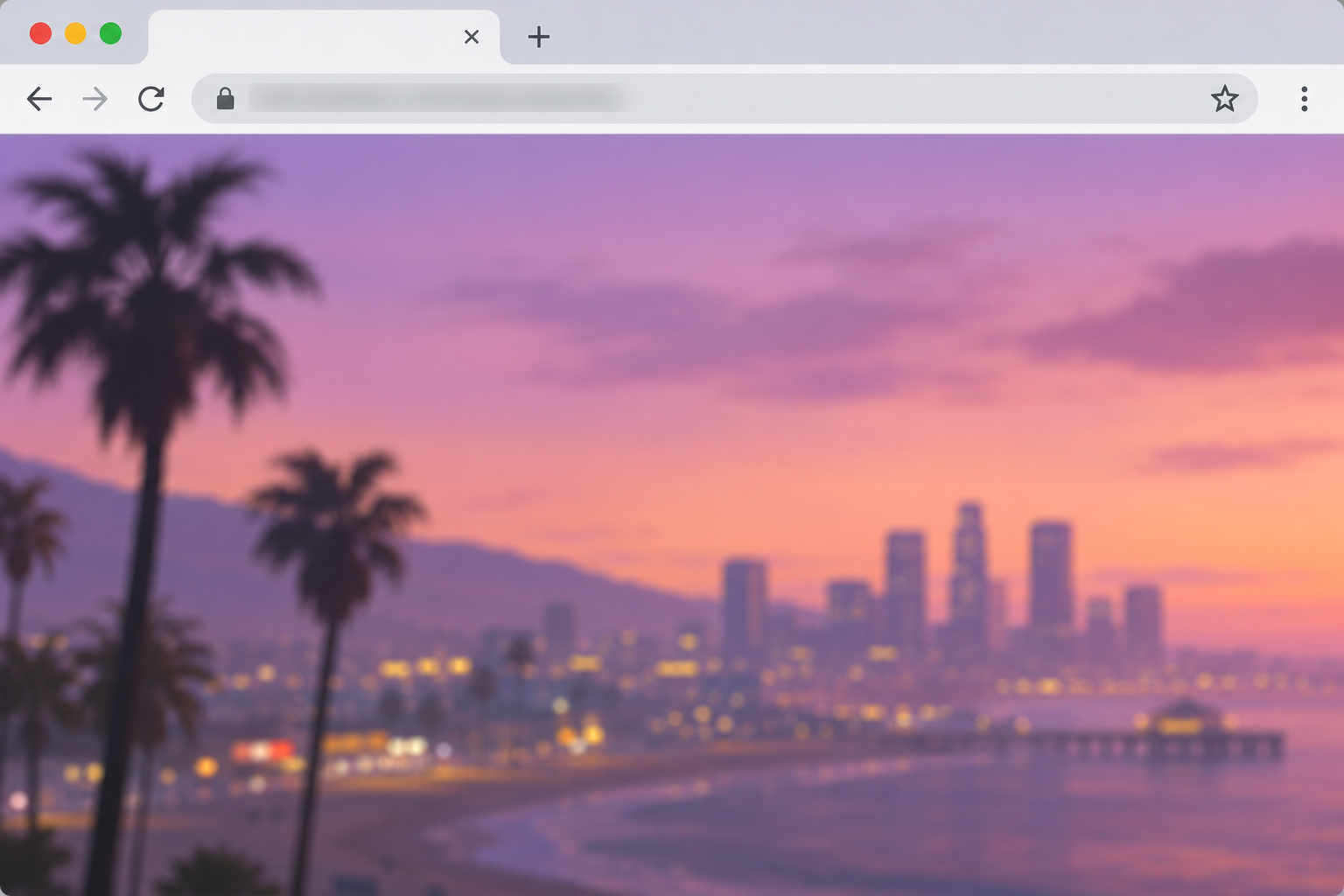
- The illustration draws attention to the browser’s address bar, where the researchers found the difference that the familiar page design tried to hide.
The attacker doesn’t need your credit card to take something valuable
- A password entered on an imitation sign-in page can expose the email account you use for gaming, shopping and other account recovery.
- If the page displayed an error after you typed, treat the password as exposed rather than taking the error as proof nothing happened.
- Seeing the page does not by itself show that anyone signed in or that your device downloaded or installed a harmful program.
The best next step depends on what you did
- If you only opened the offer, close it and look for the game through your console store or Rockstar’s own website.
- If you typed a password or approved a login request, recover the Google account first and check recent activity before relying on that inbox again.
- If you genuinely approved an app on Google’s own website, review that app’s access separately because consent and a stolen password are different problems.
What Malwarebytes Found on the Free GTA 6 Page
In Malwarebytes’ investigation, the promotion said everyone who met its terms could get the game, making the offer sound more certain than a prize draw.
The first page did not ask for a password, so someone checking only the landing page could miss what the next screen was built to collect.
One of the site’s answers pointed out that the promotion page had no payment or sign-in fields, without explaining where the verification button would take visitors.
The researchers reported that the sign-in page still used the giveaway’s domain, even though the tab and page looked like a Google sign-in.
That is the finding that matters, because a tab title can say Google while the browser’s address still shows the site serving the form.
The public captures mask the address, so the available images show the setup without identifying a domain that readers could check or visit.
There is no need to assume that every GTA 6 promotion uses this method, or that every visitor to this one went on to enter a password.
The case is also different from a survey that never shows a game code, because the observed request here was for access to an account.
How the Free GTA 6 Google Sign-In Scam Works
Step 1: The offer starts with an ordinary platform choice
The giveaway asks you to choose between PlayStation 5, Xbox Series X|S and PC, which looks like the kind of question a real game retailer would ask.
The choice costs you nothing and asks for nothing private, which makes it easy to continue before checking whether the promotion exists outside that page.
Rockstar’s official GTA VI page lists the game on PlayStation 5 and Xbox Series X|S, rather than sending players to a free PC activation page.
A real offer can have its own conditions, but none of them should prevent you from checking who runs it before you share an account.
Step 2: The code is held back until you sign in
After the platform choice, the offer says the activation code will arrive at the email address tied to your Google account once you finish verification.
That gives the sign-in a reason to appear, even though a giveaway does not need to see your mailbox password to send an email.
The label on the button sounds familiar because many services let users sign in through Google, so the offer borrows a habit people already have.
Before treating the request as routine, look for the same promotion through the publisher or platform and ask what account the real offer would use.
Step 3: The next page looks familiar but isn’t on Google’s host
The page studied by Malwarebytes looked like a Google sign-in page, but its address remained on the promotion’s site when the button was selected.
That is not the same as a real Google sign-in that opens separately, even if the colors, labels and account field look the way you expect.
Don’t fill in the form to see whether it accepts a password, because an error or blank page cannot tell you what was already collected.
The browser’s security indicator only concerns the connection to the displayed site, so a secure connection doesn’t establish that the site belongs to Google.
How to Check the Address Without Interacting With the Offer
Open Google yourself instead of using the giveaway button
Close the page that asks you to sign in, then open the Google Account page from a new tab or an existing bookmark.
When Google’s ordinary web sign-in asks for your password, look for the exact hostname accounts.google.com before you enter it, rather than relying on the tab title.
On a phone, tap the address bar if the browser is hiding part of the address, and do not proceed if you can’t confirm the hostname.
Words that resemble Google elsewhere in an address do not make the site a Google service, so open the account page independently if the address is unclear.
A browser window opened by another page can still be risky, because a new window only changes what you see, not who operates the destination.
If you use a password manager and it does not offer the expected saved login, stop to check the site rather than copying the password into the form.
Check the offer where you would normally buy the game
Start with Rockstar’s listing or the store on your PlayStation or Xbox, then search there for Grand Theft Auto VI and open the matching product page.
Check which platform and edition that store lists, because a convincing giveaway can combine correct console details with a promised PC key that isn’t there.
If you heard about the promotion from a creator, look for it through that creator’s known account, not another profile that appears in the replies.
A genuine promotion may reach only certain people, but you can still ask the platform or organizer whether the offer exists before handing over account access.
Secure Your Google Account Based on What You Shared
If you entered an email address but not a password
If you typed only your email address, watch for follow-up messages that mention the giveaway or say you’ll lose your place unless you sign in.
An email address alone is not the same as account access, so do not assume the inbox was taken over just because another message arrives.
If a new sign-in alert follows, open your Google Account independently and review the notice there instead of trusting a link sent by the giveaway.
If you didn’t enter a password, approve anything or install software, the page alone is not a reason to reset your computer or phone.
If you entered a password or approved an unexpected sign-in
On a trusted device, follow Google’s compromised-account guidance and replace the password even if the imitation page displayed an error or never showed a code.
In Google Account, open Security & sign-in, select Password, confirm your identity if asked, and choose Change password after entering a new one.
If your old password no longer works, use the official recovery page and answer Google’s questions from a device and location you usually use.
When you can sign in, open Security & sign-in and choose Review security events under Recent security events to check activity you didn’t start.
If an event does not belong to you, choose No, it wasn’t me when Google offers it and follow the steps shown for that event.
In the same security area, open Your devices, choose Manage all devices or the equivalent option shown, and sign out sessions you don’t recognize.
If several sessions share a device name and you cannot tell which one belongs to you, Google’s device guidance recommends signing out all sessions with that name.
Check your recovery phone and email before finishing, because losing control of those settings can make it harder to get back into the account later.
If 2-Step Verification is not already on, set it up from the security page after you are sure you control the account’s recovery information.
If you approved access for an app on Google’s actual site
Open your Google Account connections from a fresh tab and look for the service by name, including services you don’t remember approving during the giveaway.
Open the connection and review what it can access, then remove it if you don’t recognize it or approved it only because of the offer.
Review the options Google shows for that connection, because stopping Google sign-in and removing permission to read account data do not describe the same access.
Removing a connection can prevent future access, but it cannot pull back information that an app already copied while its access was active.
If your inbox may have been used
From Gmail on a computer, choose the gear icon, select See all settings and open Forwarding and POP/IMAP or Forwarding to look for unfamiliar destinations.
Check Filters and Blocked Addresses for rules you didn’t create, especially rules that send security alerts to the archive, trash or someone else’s address.
Google’s forwarding directions show where to disable forwarding and save any change after you confirm that the address or rule does not belong to you.
Once your recovery inbox is under your control, sign in to the gaming services that use it and check for account changes or purchases you didn’t make.
Change any reused passwords on those services, and contact the platform if you find a purchase or account change you cannot put right yourself.
Make sure the changes you made actually took effect
After changing the password, check that you can sign in through your normal Google route and that the recovery phone and email are still yours.
Open the device list again after signing out unfamiliar sessions, because seeing a sign-out notice does not tell you which other sessions remain active.
If the same change or sign-in returns, use Google’s account security prompts again rather than assuming you missed a button the first time.
On a work or school account, contact the organization that manages it if you cannot reset the password or change recovery methods yourself.
If you administer a YouTube channel, look for unfamiliar uploads or changes after securing Google, and use the platform’s own recovery route if access is missing.
What to Do If You Have Fallen Victim to This Scam
- Close the offer and record what you entered, approved or downloaded, without going back to take a screenshot or check whether the form still works.
- Use a trusted device to change the exposed Google password or start recovery, then check security events and end any sessions you don’t recognize.
- Check recovery details, mail forwarding and third-party connections, because a password change does not explain every account setting or permission that might have changed.
- If someone appears to have used your inbox, secure any linked gaming accounts and contact their official support teams about changes or purchases you cannot explain.
- If a different page asked you to install a file or extension, report that separately and do not use the affected device to recover sensitive accounts.
Frequently Asked Questions
Does the “Free GTA 6” offer really send a Google code?
The documented offer took visitors to a copy of Google’s sign-in page on the giveaway site, so don’t use it to look for a code.
Can I tell if my password was collected from an error message?
An error doesn’t tell you whether the page collected what you typed, so change the exposed password from your real Google Account instead of trying again.
Does a browser lock or security icon make the sign-in genuine?
A security icon can indicate an encrypted connection to the site you’re on, but it doesn’t establish that the site is operated by Google.
What if I clicked the offer but didn’t enter anything?
If you only opened the page and didn’t approve access, type anything or install a file, close it without assuming your Google Account was compromised.
Can the offer affect a PlayStation or Xbox account too?
It can matter if someone gets access to the email address you use to recover that account, or if you reused the same password there.
Should I scan my computer if I entered a password?
The reported trick asks for account information, so start with account recovery and reserve device cleanup for a separate sign such as running an unknown file.
The Bottom Line
Do not use a GTA 6 giveaway’s sign-in form to claim a code, because a familiar page can still be hosted on the wrong website.
If you entered a password or approved a request, secure Google from a trusted device first, then look for changes to your inbox and linked accounts.

Join the discussion
0 commentsShare your experience or ask a question about this article.
Community experiences
Did this happen to you?
Your experience could help someone recognize the same scam. Submit a private report for our team to review.
I experienced this tooReports are reviewed before publication. Sharing publicly is always your choice.
Discussion
Start the conversation
Have a question or something useful to share? Add the first comment.