


An email at work says employees can claim a free copy of GTA 6. Coming through a benefits program, it feels more credible than a random giveaway.
The giveaway asks you to scan a code with your phone. Before you switch screens, there’s an easier way to find out whether the offer belongs to your employer.
Overview
The offer arrives dressed as an employee benefit
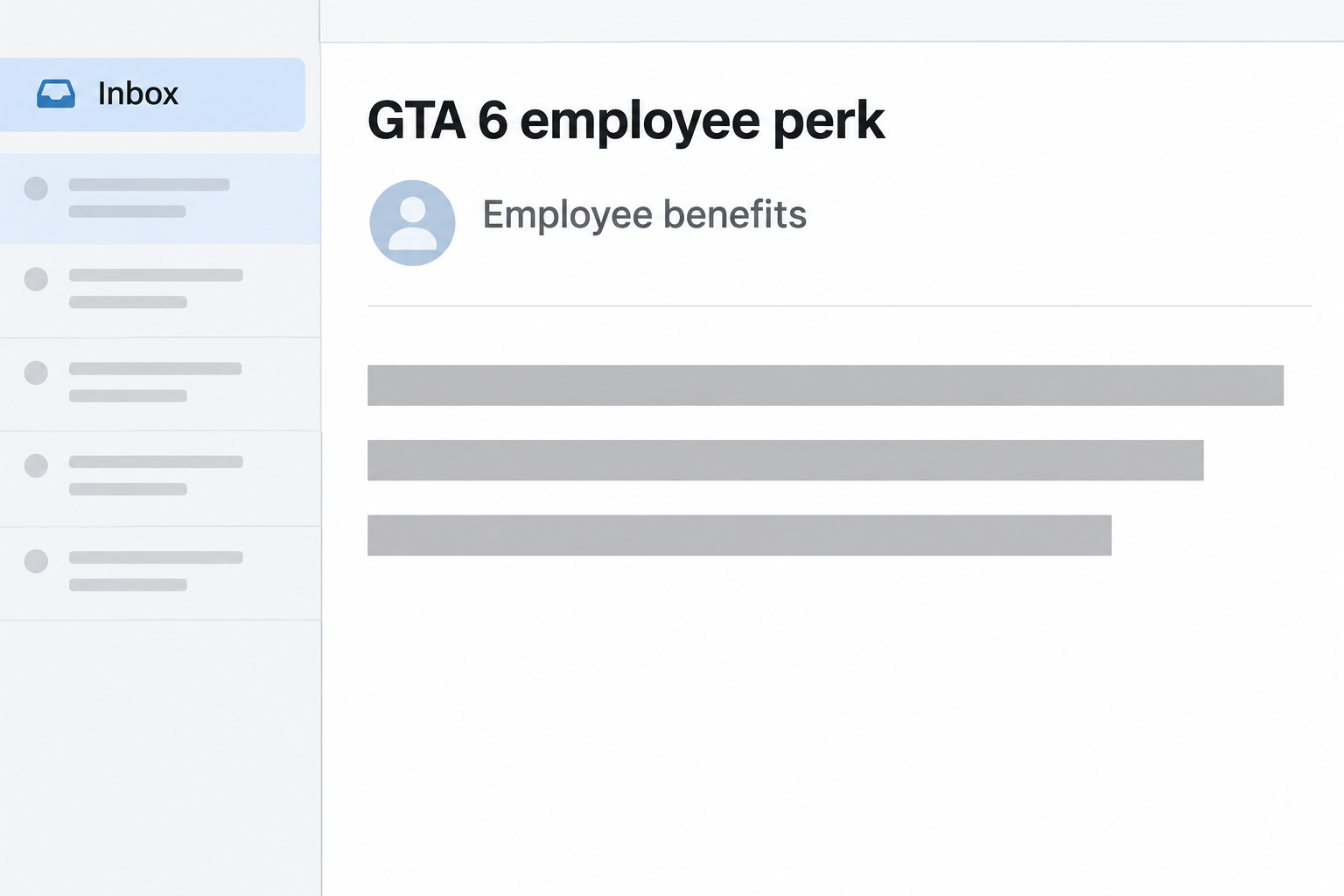
- KnowBe4 documented a GTA 6 giveaway email that posed as an employee perk rather than a message from the game publisher.
- One observed example gave recipients 48 hours and said the offer was limited to the first 250 employees.
- The message directed people to scan a QR code. The illustration above represents that setup without reproducing the original message or its code.
The risk starts with what the next page asks you to do
- The email makes you think about who normally approves benefits. Your phone then shows a destination that may have nothing to do with that program.
- A request for your work password, verification code or unexpected sign-in approval needs immediate attention, even if the page never asks for payment.
- A scan alone is not the same as approving a login. Tell IT exactly how far you went so they can respond to what happened.
Verify the benefit in a place you already use
- Open your normal benefits portal from the company intranet, a known bookmark or a link in your onboarding materials.
- If nothing matches, ask HR through your staff directory. Do not use a reply address or phone number supplied by the offer.
- Report the original email using your company’s phishing process, and make a separate urgent report if you shared a password or approved a sign-in.
Why the Offer Looks Like Something HR Would Send
A free copy of a new game from an unknown sender would be easy to dismiss. A benefit that appears to come from a vendor your employer chose feels different.
The sender doesn’t have to persuade you that it works for Rockstar. It only has to make a plausible claim that your workplace has arranged the promotion.
KnowBe4’s research shows a message using that framing and a short deadline. The email also sought to reassure employees that they wouldn’t be asked for payment information.
That reassurance answers a question you might not otherwise think to ask. No card details doesn’t mean no risk when the page asks you to sign in.
A message can pass technical sender checks for the domain that sent it without having your employer’s approval.
The relevant question is whether your company uses that vendor for this offer.
Rockstar’s official GTA VI listing tells you which platforms the retail game supports. It can’t tell you whether your employer created a private perk or sent this particular email.
Conversely, seeing PS5 or Xbox listed correctly in a message doesn’t make the offer authentic. A fake invitation can get the game details right.
The UK Information Commissioner’s Office also warned that scammers could use the launch to take advantage of players. That advisory is separate from the documented work-perks email.
How the GTA 6 Work Perks Scam Works
Step 1: The message borrows your employer’s authority
The email describes the game as an employee benefit. That gives it a reason to arrive in a work inbox instead of through the console store you normally use.
The invitation in KnowBe4’s example sets a short deadline and a fixed number of recipients. Both details make it feel as if asking HR might cost you a place.
A real perk can also be limited. Treat the deadline as a reason to verify promptly through your usual portal, not as a reason to use the message’s route.
Names and visuals can be borrowed from businesses you recognize. Seeing a vendor you have heard of is different from confirming that your employer actually contracted with it.
Step 2: The offer moves from your inbox to your phone
Instead of asking you to click a visible link, the email asks you to scan a QR code. The next page opens on the device you use to scan it.
That change matters if your phone isn’t covered by the same workplace protections as your computer.
A page that would have been flagged on one device might open on the other.
Do not forward the message to your personal email just to scan it more easily. That adds a new copy and carries the offer outside your company’s reporting process.
Scanning also isn’t necessary to check whether your employer offers a benefit. If the program is real, HR can tell you its name and where employees should claim it.
Step 3: Any credentials or approval you give can create the real exposure
A sign-in page might look like the one you use for work. Bringing up a familiar-looking form does not establish that your company controls the page.
Entering a work password can expose it even if the page responds with an error. Don’t try another password to work out whether the first attempt went through.
A verification code or push approval deserves the same care. Only approve a prompt that you initiated through a known work service and that matches the action you’re doing.
KnowBe4 documents the email and its QR approach. It does not supply a victim count or establish that every person who scanned the code lost account access.
How to Verify the Giveaway Without Scanning
Use your real benefits portal as the starting point
Open the company intranet from the route you use for payroll, expenses or other routine work. Choose the benefits link there or use your existing benefits bookmark.
Search the portal for GTA 6, Grand Theft Auto VI and current employee offers. Check whether the result matches the promised dates, eligibility and method for claiming the benefit.
If the portal has no search function, look at its current rewards or discounts section. Don’t substitute a public search result for the internal page your company provides.
Check announcements for your location and employment category if your benefits differ by office or contract.
A real offer for another group doesn’t confirm that this message was sent to you.
If you can’t find the offer, open your company directory and contact HR using its listed service channel. Ask which portal or vendor should show the offer if it exists.
You don’t need to forward the QR code to ask that question. Give HR the subject and the name of the company the email claimed to represent.
If HR confirms the benefit, claim it from the path HR verifies. Don’t switch back to the original email simply because parts of the offer turned out to be real.
Check whether the email asks for something you don’t normally share
A legitimate benefits sign-in may start from your portal and use your organization’s identity provider.
That does not mean you should type work credentials into a phone page from a surprise email.
Compare the process with a benefit you have previously used. If you’re asked for a code or approval that your normal workflow doesn’t involve, stop and ask IT.
Be particularly cautious if a phone call follows the email and someone offers to help with verification. Don’t read them a one-time code or approve a test request.
A supposed perk administrator doesn’t need a copy of a recovery code. Keep codes private and describe the request to your help desk through its usual contact.
Report the original instead of sending it around
If your company uses Microsoft Outlook, select the message and use its reporting command if enabled. In the desktop or web ribbon, choose Report and then Report phishing.
Microsoft’s Outlook reporting guidance covers the built-in option. Your company may instead use a designated reporting add-in or another inbox.
In Outlook mobile, open the message menu and look for Report Junk, followed by Phishing, where available. Prefer your employer’s prescribed route if it differs.
If the button is missing, use the incident address or portal in the company directory. Ask before forwarding an attachment or screenshot to a group chat.
Reporting the original gives the security team a chance to find matching copies. A screenshot can help explain what you saw but doesn’t preserve all the message details.
Check Your Work Account If You Went Past the Email
If you merely opened the page, record what happened
Close the page without going back to capture anything. Make a note of the approximate time, device and whether the page displayed a sign-in prompt or started a download.
Tell IT if the browser asked to open another app or install something. These are separate events from simply seeing a page and may change the recommended response.
If you copied or shared the link, don’t ask coworkers to test it. Tell the security team where it was shared so they can warn the right people.
If you shared credentials, report it before waiting for symptoms
Contact your help desk from a trusted device using your normal internal phone number or portal.
Tell them if you typed a password, approved a prompt or supplied an authentication code.
Use the official password-reset route IT gives you. If your organization directs you to a self-service portal, reach it from your existing bookmark or verified company instructions.
For a Microsoft work or school account, open My Sign-ins through the usual work account portal and choose Recent activity. Review unfamiliar apps, devices and times with IT.
Microsoft’s My Sign-ins guide explains what that activity shows. A blank review doesn’t rule out access; your security team can investigate beyond the entries you see.
Ask IT to check active sessions and security information. Administrators can take steps that a password reset alone may not cover, such as revoking sessions through their identity service.
When reviewing activity, open the details for an unfamiliar entry and look at its status. A failed attempt is not the same as a successful sign-in you didn’t initiate.
Keep the time and app name for the help desk. Treat a location shown in the log as a clue, not a diagnosis; network routing can affect it.
If you no longer have access, don’t wait for the next shift to find out what happened. Call the number your employer lists for account or security incidents.
Tell them about unexpected changes to recovery details, mailbox rules or sent items. Do not delete those records before they have had a chance to look.
Keep the personal account question separate
If you typed a personal gaming password instead of a work password, reach the gaming service independently from a trusted device.
Change the exposed password and end other sessions where supported.
If that password was reused on another service, change it there as well, starting with the email account that receives reset messages. Choose a different password for each service.
If you sent card details, contact the issuer using its official app or the number on your card. A console store can’t reverse a payment that never went through it.
What to Do If You Have Fallen Victim to This Scam
- Close the page and stop using the message. Record the subject, time, device and what you did, without reopening the link or scanning again.
- Use your company’s phishing report command or contact its help desk through the directory. Flag the incident as urgent if you submitted credentials or approved a prompt.
- Use a trusted device to reset exposed credentials through the official account route. Tell IT which work account was involved and ask them to review active sessions.
- Report any file you downloaded or opened, even if nothing appeared to happen. On a managed device, follow IT’s instructions before deleting files or changing security settings.
- If you used a personal account or provided a card, also contact the appropriate account provider or card issuer. Keep the confirmation and incident numbers for follow-up.
Frequently Asked Questions
Is a free GTA 6 offer from HR always a scam?
No, an employer could run a legitimate promotion. Verify the offer in your normal benefits portal or with HR through the staff directory before doing anything else.
Does scanning the QR code mean someone stole my work password?
Scanning doesn’t automatically disclose your password. The risk changes if you entered it on the resulting page, approved a request, installed something, or shared a code.
What if the message says it never collects payment information?
That does not authenticate the offer. A site can pursue account access without needing a card number, and the email can’t establish who controls the page.
Can I trust the message if it knows my company name?
A company name, logo or email signature can be copied. Confirm the promotion through the directory and employee portal rather than judging it by the branding.
Where can I see recent Microsoft work account sign-ins?
Start from your verified work account portal, choose My Sign-ins and look at Recent activity. Ask IT to investigate entries or applications you don’t recognize.
What if coworkers also received the same giveaway?
Multiple copies don’t prove HR sent it. Report the original through your employer’s phishing process so the security team can look for the other messages.
The Bottom Line
Don’t scan the GTA 6 giveaway code to verify a work perk. Open your benefits portal independently and ask HR to confirm any offer you can’t find.
If you entered a password, shared a code or approved a sign-in, notify IT right away. Say exactly what you did so they can protect the right account.

Join the discussion
0 commentsShare your experience or ask a question about this article.
Community experiences
Did this happen to you?
Your experience could help someone recognize the same scam. Submit a private report for our team to review.
I experienced this tooReports are reviewed before publication. Sharing publicly is always your choice.
Discussion
Start the conversation
Have a question or something useful to share? Add the first comment.