

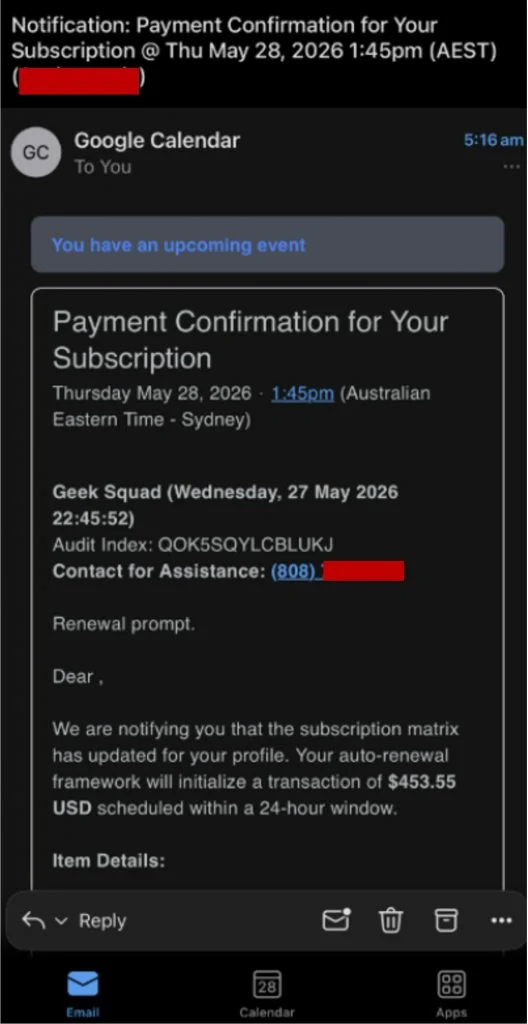
A new event appears in Google Calendar with an alarming title: a Geek Squad subscription has renewed for $453.55. The notice looks as though Google delivered an official bill, and a phone number promises to cancel it before the charge becomes final.
That is the trap. The calendar entry is not a receipt, and the number does not lead to Geek Squad. It leads to scammers who want to turn a fake renewal into remote access, stolen banking details, or an irreversible payment.
Overview
An unwanted invitation becomes a convincing billing notice
The Google Calendar billing alert scam starts with an unsolicited event invitation. Criminals place a fake renewal message inside the event title, description, location, or notes, then send it to a large list of email addresses.
Because Google Calendar processes the invitation, the victim may see a genuine Google notification around fraudulent content. The event can also appear on a phone calendar, where the smaller screen makes the sender and organizer details easier to overlook.
The fake charge creates urgency without proving that money moved
One observed version claims that a Geek Squad service was renewed for $453.55. It includes a reference number, a supposed account manager, and a warning that the recipient has only 24 hours to dispute the payment.
None of those details proves that a subscription exists. The amount is simply text written by the person who created the calendar event. A criminal can type any company name, invoice number, or price into an invitation.
The phone call is the real destination
The event pushes the recipient to call a telephone number. The person answering may claim to work for Geek Squad, Best Buy, a billing department, or a fraud team, but the conversation follows a familiar tech support and refund scam script.
The caller may be asked to install remote-access software, sign in to online banking, reveal card details, or return a supposed overpayment. The fake calendar charge is bait for that more damaging second stage.
- The calendar event was not created by Geek Squad or Google.
- The displayed $453.55 amount is not evidence of a real transaction.
- The listed phone number belongs to the scam flow, not a trusted billing department.
- Remote access, gift cards, cryptocurrency, wire transfers, and cash deliveries are major warning signs.
- The safest response is to verify the account independently and report the invitation as spam.
Why a Fake Calendar Event Can Feel Surprisingly Real
Most people know that an unfamiliar email can be spam. A calendar notification feels different. It appears inside an app used for work meetings, medical appointments, travel plans, and reminders, so recipients may give it more trust than it deserves.
The surrounding Google interface is genuine, but that does not validate the text inside the event. Google is displaying information submitted by an outside organizer, just as an email service displays a message written by its sender.
Scammers exploit this distinction. They borrow the delivery system’s credibility while avoiding the appearance of a conventional phishing email. A notification on a lock screen may show only the frightening charge and the instruction to call.
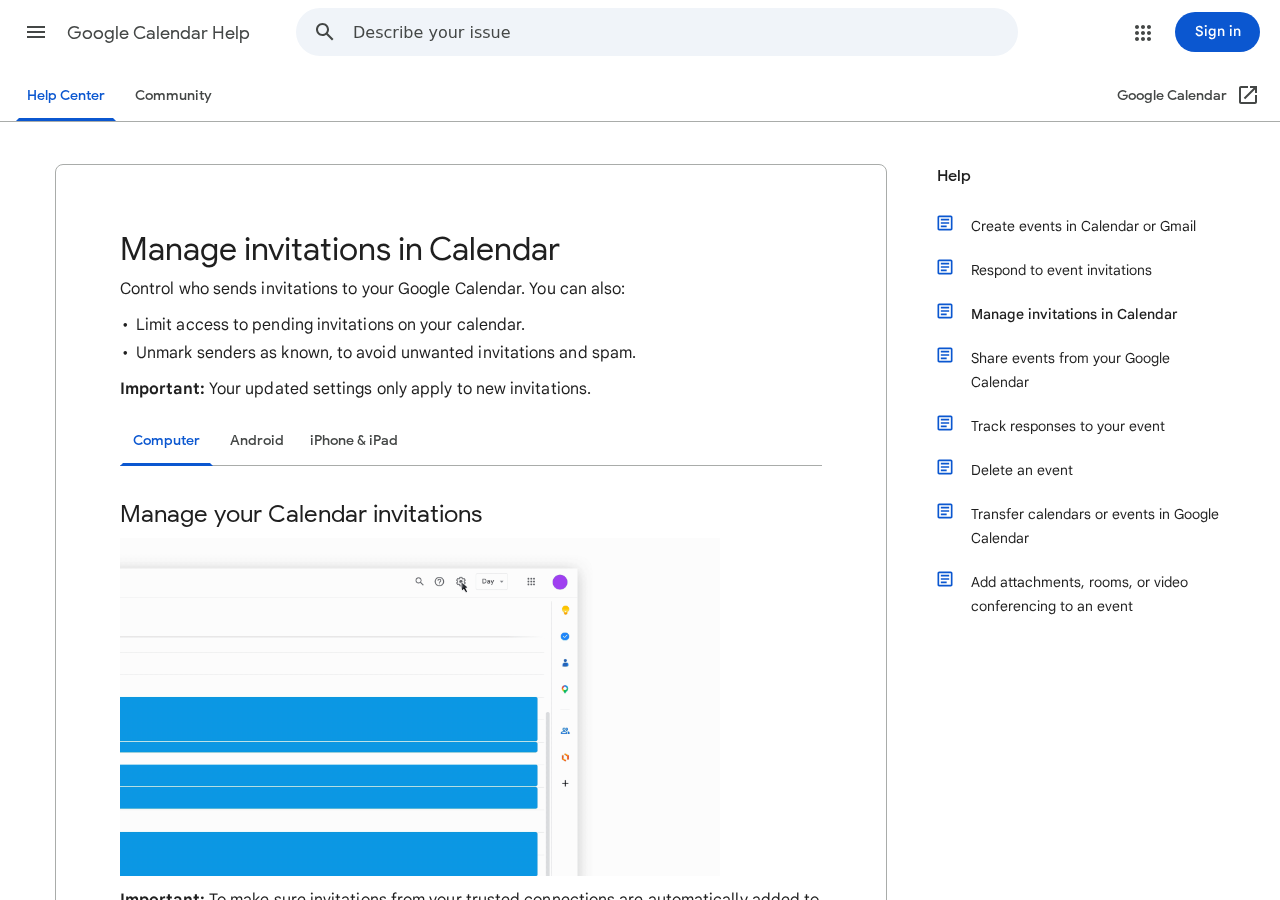
Google provides several invitation controls because unsolicited events are a recognized abuse problem. Users can choose to add invitations from everyone, only from known senders, or only after responding to the invitation by email.
Those controls reduce exposure, but they do not turn every accepted invitation into a verified business notice. Even a known contact can have an account compromised, and a third-party calendar can import unwanted events through a separate setting.
The right question is not whether the notification came through Google Calendar. It is whether the underlying charge appears in the recipient’s actual Best Buy account, bank statement, or card activity when checked independently.
What the Fake $453.55 Geek Squad Notice Looks Like
The observed invitation uses the heading “Payment Confirmation for Your Subscription” and claims that a subscription has renewed for $453.55. It presents the transaction as completed while also offering a short cancellation window.
The event contains administrative-sounding details such as an audit index, customer reference, and account manager. These fields are inexpensive props. They make a mass-produced message look as though it came from a real billing database.
Awkward phrases such as “subscription matrix,” inconsistent capitalization, and vague service descriptions are warning signs. The notice may not identify the exact plan, device, membership date, or payment method that a genuine receipt would normally connect to the customer.
The strongest clue is the instruction to call the number inside the invitation. A legitimate billing dispute can be checked through the company’s official website and the card issuer. It should not depend on a number supplied by an unsolicited calendar organizer.
How the Google Calendar Billing Alert Scam Works
Step 1: Scammers collect email addresses
The campaign begins with lists of email addresses gathered from data breaches, public websites, marketing databases, or previous scam activity. The sender does not need to know whether a recipient owns a Geek Squad subscription.
The same invitation can be sent to many people. A familiar company name and a believable amount are enough to make a small percentage of recipients stop and investigate.
Step 2: A fraudulent calendar invitation is created
The scammer creates an event and fills its fields with fake billing information. The title may say “Billing Alert,” while the description announces a renewal, provides the $453.55 amount, and displays a telephone number.
No payment processor is required. Calendar fields are free-form text, so the organizer can invent a transaction ID, renewal date, support representative, or warning without charging a card.
Step 3: Google delivers the invitation
Google Calendar sends a real notification because an invitation was submitted to the user’s address. Depending on the recipient’s settings and prior interactions with the sender, the event may appear automatically or remain pending until accepted.
This is the psychological advantage of the scheme. The Google notification can be authentic even though every billing claim inside it is false. Google is the delivery channel, not the seller or guarantor.
Step 4: The fake Geek Squad renewal triggers panic
The event claims that a costly service has already renewed and that cancellation must happen quickly. A 24-hour deadline discourages the recipient from opening a bank app, searching for the official company, or asking someone else for advice.
The amount is usually large enough to provoke concern but ordinary enough to resemble an annual technology plan. The scam works best when the victim focuses on stopping the charge rather than verifying whether it exists.
Step 5: The victim calls a fake support center
The number routes to a scammer who answers with a professional greeting and confirms the invented invoice. Background call-center noise, a case number, and a rehearsed cancellation process may make the interaction feel legitimate.
The operator may ask for the recipient’s name, address, email, card information, or banking institution. Information the caller reveals can then be repeated back as supposed proof that the operator already had the account on file.
Step 6: Remote access is presented as a cancellation tool
The victim may be told to install AnyDesk, TeamViewer, ScreenConnect, UltraViewer, or another remote-support application. The scammer says the software is needed to open a secure refund form or remove the subscription.
Remote access can let the criminal watch passwords, move the cursor, hide windows, alter what appears in a browser, and guide the victim into online banking. A legitimate merchant does not need control of a customer’s computer to cancel a renewal.
Step 7: A fake refund creates an overpayment emergency
In a common version, the scammer asks the victim to enter a refund amount. The screen is manipulated to make it appear that $4,535 or $45,355 was credited instead of $453.55.
The operator then pretends that the error will cost an employee their job unless the extra money is returned immediately. The displayed balance may be edited on screen, or money may be moved between the victim’s own accounts to simulate a deposit.
Step 8: Real money leaves through a hard-to-reverse method
The victim is directed to buy gift cards, send cryptocurrency, make a wire transfer, use a payment app, or withdraw cash for delivery. These methods are chosen because they are fast and difficult to reverse.
If the victim pays once, the group may invent additional taxes, verification errors, or recovery fees. Stolen contact and financial details can also be reused in later bank, government, or account-security scams.
Google Calendar Did Not Charge You
Seeing an event in Google Calendar does not mean Google processed the claimed payment. Calendar is carrying an invitation created by another account. The organizer cannot prove a card charge merely by typing one into the description.
Do not call the number to find out whether the bill is real. Open the card issuer’s official app or type the merchant’s known website address yourself. Search posted and pending transactions for the exact amount and merchant descriptor.
If no transaction exists, treat the invitation as spam. If a real unauthorized charge appears, contact the card issuer using the number printed on the card or its official app, not any contact information in the event.
How to Remove and Report the Malicious Invitation
Google’s official guidance allows users to open the unwanted event, select the additional actions menu, and choose Report as spam. Reporting removes the event and helps Google identify abusive organizers.
If the event is part of a repeating series, review the prompt carefully so the entire series is removed. Avoid clicking links, dialing numbers, or downloading attachments while inspecting the event.
Simply declining an invitation may still interact with the sender and may not provide the same abuse signal. Reporting it as spam is the more useful option when the invitation is clearly fraudulent.
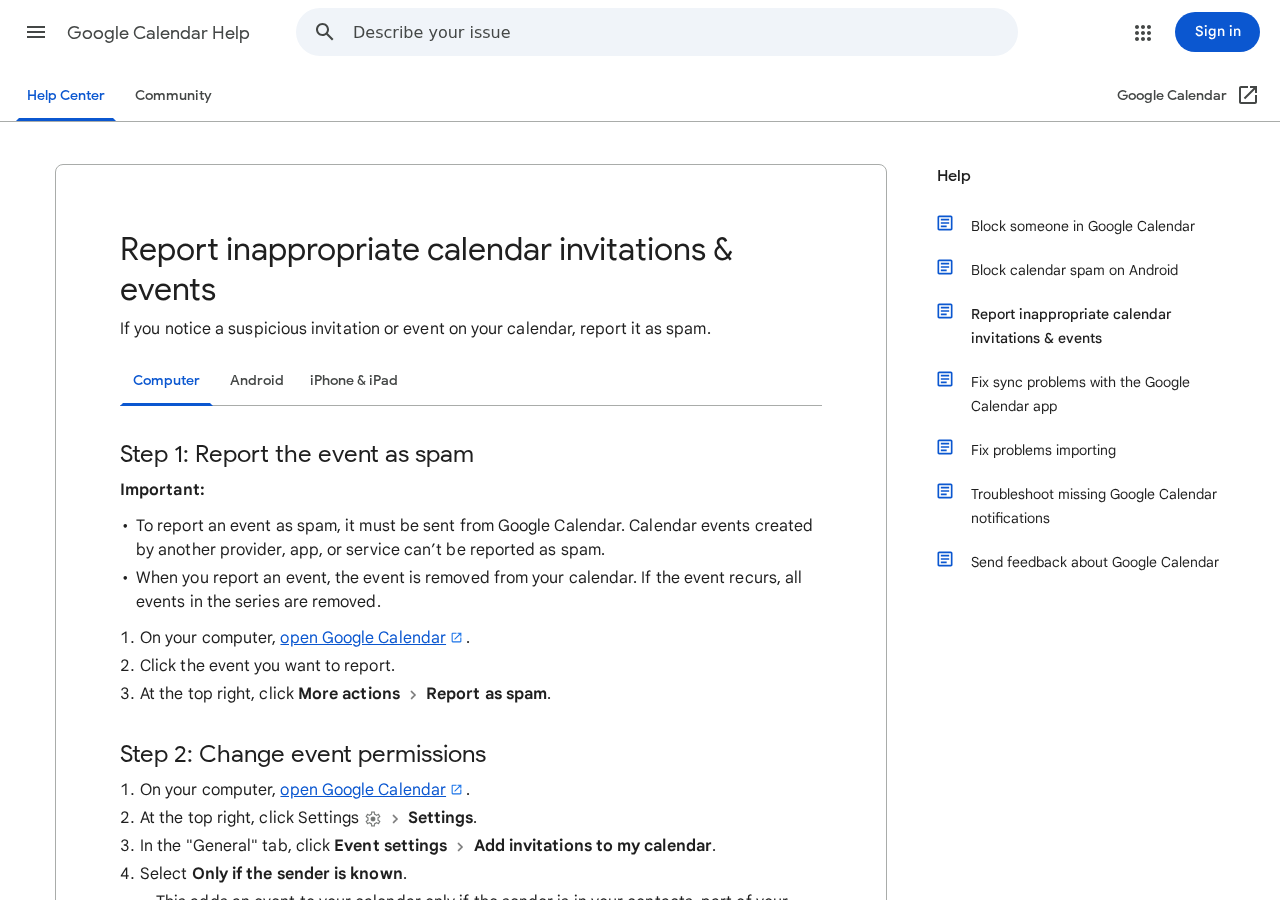
To reduce future invitations, open Google Calendar on a computer, select Settings, then Event settings, and review “Add invitations to my calendar.” “Only if the sender is known” is a practical choice for many users.
The stricter option adds an invitation only after the user responds to it by email. That may reduce automatic clutter further, but it can be inconvenient for legitimate first-time invitations.
Google notes that changing the setting affects new invitations, not events already on the calendar. Existing spam should still be reported and removed individually.
Geek Squad and Best Buy Are Being Impersonated
The brand name in the event does not establish a connection to Geek Squad or Best Buy. Renewal scammers repeatedly impersonate well-known technology companies because many households have purchased electronics or support plans.
The FTC has documented fake Geek Squad renewal messages that demand a phone call within 24 hours. It warns that the caller may seek remote access and stage a refund overpayment before demanding gift cards.
Best Buy advises consumers to locate support through its official channels and accepts reports of Geek Squad impersonation at abuse@bestbuy.com. Forward evidence without calling or replying to the scam contact.
A real support agent will not ask a customer to return a refund with gift cards, cryptocurrency, cash, or a wire. No legitimate cancellation process requires the customer to hide the transaction from a bank or family member.
Company, Address, and Fulfillment Checks
The trusted logos are camouflage
A Google notification and Geek Squad name can make the event look corporate, but neither identifies the person who created it. The actual organizer address and telephone destination matter more than the logos copied into the message.
Scammers often rotate email accounts, event titles, and brand names while keeping the same call script. A polished template is evidence of preparation, not legitimacy.
The event location is not a company address
Calendar scammers can place any text in the location field, including a support number, fake department, or unrelated address. It does not prove that an office, billing department, or registered business exists there.
Do not travel to, mail documents to, or use an address from the invitation. Find verified corporate and bank contacts independently.
The support number may disappear tomorrow
Fraud groups use internet-based phone numbers that can be forwarded to overseas call centers, including operations associated with tech support scams in India and other countries. The displayed area code does not reveal where the caller is located.
A number may answer with several company names or stop working after reports accumulate. That disposable setup is the opposite of a traceable customer-service operation.
The evidence trail is more useful than the sales story
Save the organizer address, event ID, telephone number, email headers, remote-access tool, payment destination, and card or bank records. Those details help providers and investigators connect campaigns even when the fake brand changes.
Never send identity documents to prove a complaint. A calendar invitation that asks for a Social Security number, driver’s license, or banking login should be treated as an active theft attempt.
What to Do if You Have Fallen Victim to This Scam
- Stop the call and disconnect remote access. Hang up. Turn off Wi-Fi or unplug the network cable if someone is controlling the device. Do not follow instructions to keep the computer on.
- Report the event as spam. Open it in Google Calendar, use the additional actions menu, and select Report as spam. Remove any related repeating events without calling the listed number.
- Check whether the charge actually exists. Use the official card or bank app. If a $453.55 charge or another unauthorized transaction is present, call the institution using a verified number.
- Secure accounts from a clean device. Change the passwords for Google, banking, email, shopping, and payment accounts. Use unique passwords, enable two-factor authentication, and review signed-in devices and forwarding rules.
- Remove remote-support software. Uninstall any tool the caller asked you to install. Check startup programs, browser extensions, user accounts, accessibility permissions, and unattended-access settings.
- Contact the bank’s fraud department. Explain that the incident involved a fake tech support or refund scam and possible remote access. Ask about freezing cards, recalling wires, securing accounts, and monitoring new payees.
- Act quickly on gift cards or transfers. Contact the gift card issuer, cryptocurrency platform, wire service, or payment app immediately. Keep receipts and transaction identifiers even if recovery initially appears unlikely.
- Scan and harden the device. Run a full scan with Malwarebytes to detect malware and unwanted remote-access components. Use AdGuard to reduce malicious ads, tracking, and redirects that feed related scams.
- Report the impersonation. Send the evidence to Google, abuse@bestbuy.com, the FTC, and the FBI’s IC3. Include the organizer, phone number, remote tool, and payment method.
- Expect recovery scammers. Anyone promising guaranteed recovery for an upfront fee may be targeting the victim again. Work only with the bank, payment provider, law enforcement, and verified professional services.
Frequently Asked Questions
Why did the fake bill appear in my Google Calendar?
Someone sent an event invitation to your email address. Depending on Calendar settings and sender history, Google may display it automatically or as a pending invitation.
Does this mean my Google account was hacked?
Usually, no. Receiving an unsolicited invitation does not itself prove account access. Still, review signed-in devices and security activity if you clicked links, entered credentials, or granted permissions.
Is the $453.55 Geek Squad charge real?
The calendar message is not proof of a charge. Verify the amount in your actual card statement, bank app, and Best Buy account without using any link or number in the event.
Should I decline, delete, or report the event?
When the event is clearly fraudulent, use Google’s Report as spam option. It removes the event and provides an abuse signal. Avoid interacting with links or the listed phone number.
Which Google Calendar invitation setting is safest?
“Only if the sender is known” offers a useful balance for many people. The strictest option adds invitations only after an email response, but it may require more manual handling of legitimate events.
What if the caller already controlled my computer?
Disconnect it from the internet, remove the remote tool, scan the device, and change important passwords from a separate clean device. Contact the bank immediately if financial accounts were visible.
The Bottom Line
The Google Calendar billing alert scam turns an ordinary invitation into a fake $453.55 Geek Squad renewal. Google’s real notification frame helps the invented charge feel official, while the telephone number moves the victim into a remote-access and refund scam.
Do not call, do not install software, and do not return a supposed refund. Report the event as spam and verify every charge through the merchant and card issuer’s independently located channels.

Join the discussion
0 commentsShare your experience or ask a question about this article.
Discussion
Start the conversation
Have a question or something useful to share? Add the first comment.