


The email says somebody signed in to Google from a new device. You open your account separately, but nothing looks wrong at first.
Before deciding the message is fake, check which account you opened. The address that received the warning isn’t necessarily the account the message claims is at risk.
Overview
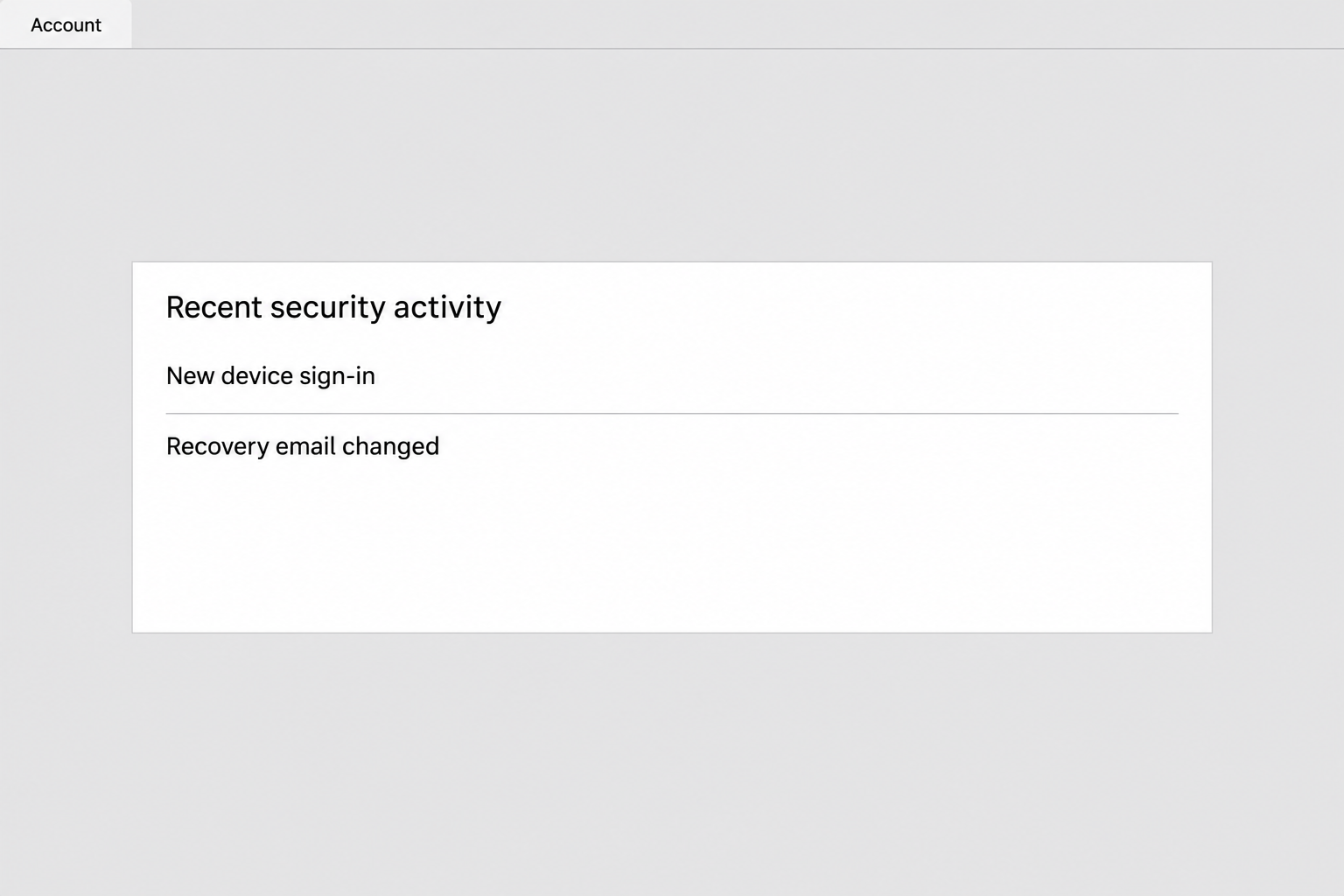
Illustration: Two different events can appear in an account security history.
Check the event, not the email’s appearance
A Google security alert can be genuine, and an email that imitates one can arrive in the same inbox. Treat the message as a prompt to check independently.
Google does send alerts about significant account events. Its security alert documentation describes notifications about new devices, unusual activity, and some blocked actions.
A logo, a convincing sender name, and a correct-looking time don’t settle which of those you’re seeing. The independently opened account has the information you need to act.
Make sure the account and event both match
- Check the email address attached to the selected Google Account, especially if you switch between personal, work, or school profiles.
- Compare the event type, time, device, and any other detail Google shows, rather than relying entirely on a city name.
- Check recent devices and sessions separately if you suspect access that the specific email does not explain.
Do not mark a real security event as yours just to clear the warning. If you can’t establish what happened, keep investigating through the account you opened.
Distinguish checking from recovering
If everything matches an action you took, you can handle that event in the account. If the activity is unfamiliar, use Google’s controls to secure it.
If the email has no matching event, avoid its links and verify that you’re signed in to the intended account. If needed, ask your organization about a managed account.
Open the Account the Alert Actually Concerns
Start somewhere the email did not send you
Open a familiar Google app or type the address for Google Account in a fresh tab. Do not use the warning’s link, attachment, or phone number.
If you already have a trusted device signed in, use it for the first check. You don’t need to approve a new sign-in prompt from the email.
In a Google app with an account selector, tap the profile picture and review the account address. In the browser, use the profile picture in the Google page.
The profile at the top of the browser itself might be a Chrome profile. Check the account inside the Google page before assuming they are the same.
A recovery mailbox can receive an alert for another account
An email may arrive at an address Google uses to help recover a different account. The account that needs review may be mentioned in the body.
Read that address as a claim, not as permission to follow any link. If it belongs to you, switch to that profile using the account selector you opened.
If it’s an old work address that you no longer manage, don’t try to reset it through a message. Ask the organization’s help desk to verify the event independently.
Google’s account switching guidance explains where to see the selected account. A profile picture or familiar display name is less useful than the address itself.
Use the official notification view when a message is unclear
Google’s phishing guidance points readers to the Google Account notifications page for suspect security emails. Open that route independently and check the profile in the corner.
If the page asks you to sign in, make sure it’s the account route you opened yourself, not a sign-in tab still left open from the email.
Some people have several Google accounts with similar names. Write down which one you checked rather than assuming a clean account makes every warning in that inbox false.
Read Security Events and Devices as Two Different Checks
Review the event Google recorded
In Google Account, select Security & sign-in, then look for the recent security events panel. Open the event review option and find the activity that matches the warning.
Click the event in the account, not in the email. Compare what changed, when it happened, and any device details Google shows.
A new sign-in and a changed recovery email are different event types. Confirming that you used a new browser does not explain an unrecognized recovery change.
If the event wasn’t yours, use the option to deny it or secure the account. Google’s compromised account guide explains the prompts and what to check next.
If you recognize it after comparing the details, use the genuine account view to acknowledge it if Google offers that option. Avoid replying to the original email to confirm.
Compare the device list separately
On the same Security & sign-in page, open Your devices and choose Manage all devices. Choose an unfamiliar device or session to see the details instead of guessing.
Google explains how its device list works. One device can have more than one session, and some records in the list may already show that you signed out.
The time next to a device can reflect its most recent communication with Google, including background activity. It doesn’t always mean a person typed your password at that moment.
A city can also reflect an approximate connection location rather than the address where you used the service. Compare time and device information before drawing a conclusion.
Sign out of sessions you can’t account for. If several suspicious sessions use the same device name, check each entry rather than assuming that removing one dismissed the rest.
If there’s no match, don’t use the message to fill the gap
Check the profile address and the time described in the notice again. A discrepancy can come from checking another account or looking at the wrong event type.
If you can’t find what the email claims, don’t click its link to make an event show up. Keep using the account controls or an independently reached administrator.
If the warning is old, an absent entry doesn’t tell you everything about the account’s current state. Review recovery information and active devices when you have another reason for concern.
Three Ways a Convincing Message Can Still Mislead You
A sender name is not an access decision
An email can display Google’s name without proving it is a genuine security notification for your account. A mail authentication result also does not tell you what action is safe.
A generic page branded as help is not the official account settings you opened from a trusted route. Do not enter a password just because that page looks familiar.
You don’t have to be an investigator to avoid the trap. Checking the independently opened account answers the question without asking you to decide who sent each component.
A sign-in prompt may arrive on a real device
If you receive a prompt asking whether you’re signing in, answer based on your own activity. Don’t approve it because someone else calls it a cancellation or security check.
A real prompt can still concern a sign-in you didn’t authorize. If you didn’t start it, decline it and open Google Account separately to check why it appeared.
If you receive multiple prompts, don’t approve one to make them stop. Use the genuine warning controls and record what changed before closing the security review.
A real sign-in event can exist beside a fake message
Suppose you signed in on a new laptop and an email later claims your account was locked. The sign-in alone doesn’t explain an unrelated lock or payment demand.
Handle the actual event in the account. If someone also asks you to buy a recovery service or give a verification code, treat that request separately.
A receipt or phone call is not needed to recognize your own sign-in. When an event remains unexplained, don’t allow a stranger to walk you through the recovery process.
Follow Up When the Account Shows Something You Didn’t Do
Review recovery options before leaving the last trusted device
Open Security & sign-in on the account you already verified. Confirm that its recovery phone and email include a method you can still access.
If you see an unfamiliar recovery change, follow the genuine event’s prompts to secure the account. Keep a private note of the time and which setting was changed.
Secure the recovery mailbox separately if necessary. A password change on your main account won’t fix a second mailbox that someone already controls.
Avoid signing out of your last trusted device before confirming how you’ll get back in. Use Google’s recovery procedure if the account no longer accepts the credentials you know.
Check whether Gmail is still forwarding or hiding mail
On a computer, open Gmail and go to Settings, then See all settings. Check Forwarding and POP/IMAP for a destination or setting you don’t recognize.
Open Filters and Blocked Addresses and review rules you didn’t create. Pay particular attention to rules that move security or billing messages out of view.
In Accounts and Import, check the option for granting access to the mailbox if it is present.
Remove an unfamiliar delegate from the genuine settings rather than replying to an email.
Work accounts can have organization-managed settings. If you don’t recognize a management rule, ask your IT team to review it rather than trying to disable workplace controls yourself.
Separate an app approval from a password disclosure
If you approved a connection, open the settings for third-party apps and services.
Choose the app, read what you granted, and remove the connection if you don’t recognize or need it.
Ending access does not erase files or information the service already copied. Make a note of the permission and when you approved it before reporting the event.
Don’t reconnect the same service because a follow-up email says the account check must be completed again. Confirm any legitimate app request with the responsible team.
Summarize what changed before you close the review
Write down which device sessions you ended, which recovery method you corrected, and whether any recent alert remains unexplained. That helps you recognize later activity that actually belongs to you.
If you’re helping a relative, have them open their own account and type their own credentials.
They can share the event details they understand without sharing a password or verification code.
For work or school, record the account you checked without publishing the address or screenshots. Report unusual changes privately to the administrator who can see organization-side information.
What to Do if You Clicked or Shared Access
- If you opened the page without entering information or permitting access, close it. Review the selected account and look for genuine activity rather than following another link.
- If you entered a password or approved a sign-in you didn’t start, change the password from a trusted device. Then sign out of unfamiliar device sessions.
- Check the recovery phone and recovery email on the account. Correct changes that weren’t yours, and confirm you have a working way to regain access.
- Review connections to apps and services. If you granted access to an unfamiliar app, use Google’s connection controls to remove it and check what it could access.
- Look in Gmail Settings for forwarding, filters, and delegates you didn’t add. These settings can change what arrives or who can read it even after the initial email is gone.
- If you can’t sign in, use Google’s established account recovery route. For work or school accounts, call the organization’s help desk from a contact you already trust.
- Once the account is safe enough to use, report the email from Gmail. On a computer, open the message menu near Reply and select Report phishing.
If a reused password protects other services, change it there too. Give priority to accounts that can reset each other, such as a backup email address.
Frequently Asked Questions
Does an empty event list prove a Google alert is fake?
An empty list is not proof by itself. Check the selected account, review the stated time, and confirm whether another profile or an administrator has the relevant information.
Why would the email reach a different address?
A Google Account can use another address to receive recovery or security messages. Check the named account independently rather than assuming the mailbox is the account at risk.
Can the wrong city appear in a real sign-in record?
Yes, a connection may resolve to a nearby or approximate location. Compare the device, timing, and activity type before deciding whether you recognize the event.
What if Google shows several sessions with the same device name?
Open the session details to see what differs. Sign out of any sessions you can’t account for, and don’t assume a repeated name identifies a single session.
What if a caller says to approve a prompt to stop the attack?
Do not approve a sign-in you didn’t start. Decline the request, open the affected account yourself, and review its activity and recovery settings.
Can I report the email without knowing exactly who sent it?
Yes, use Gmail’s phishing reporting option if the message is suspicious. Report what it requested, and avoid forwarding login codes or private details to unrelated people.
The Bottom Line
Verify a Google security alert through the right Google Account and compare the event before responding. A familiar sender name cannot substitute for the account’s own record.
If the event wasn’t yours or you shared access, secure the account directly. Check recovery methods, sessions, and connections rather than stopping at the first password change.

Join the discussion
0 commentsShare your experience or ask a question about this article.
Community experiences
Did this happen to you?
Your experience could help someone recognize the same scam. Submit a private report for our team to review.
I experienced this tooReports are reviewed before publication. Sharing publicly is always your choice.
Discussion
Start the conversation
Have a question or something useful to share? Add the first comment.