


An email says your iCloud storage has run out. It asks for a payment update and hints that the photos you’ve saved are about to disappear.
Storage and billing are separate problems. Before you change anything, find out whether either one is actually happening on the Apple Account you use for iCloud.
Overview
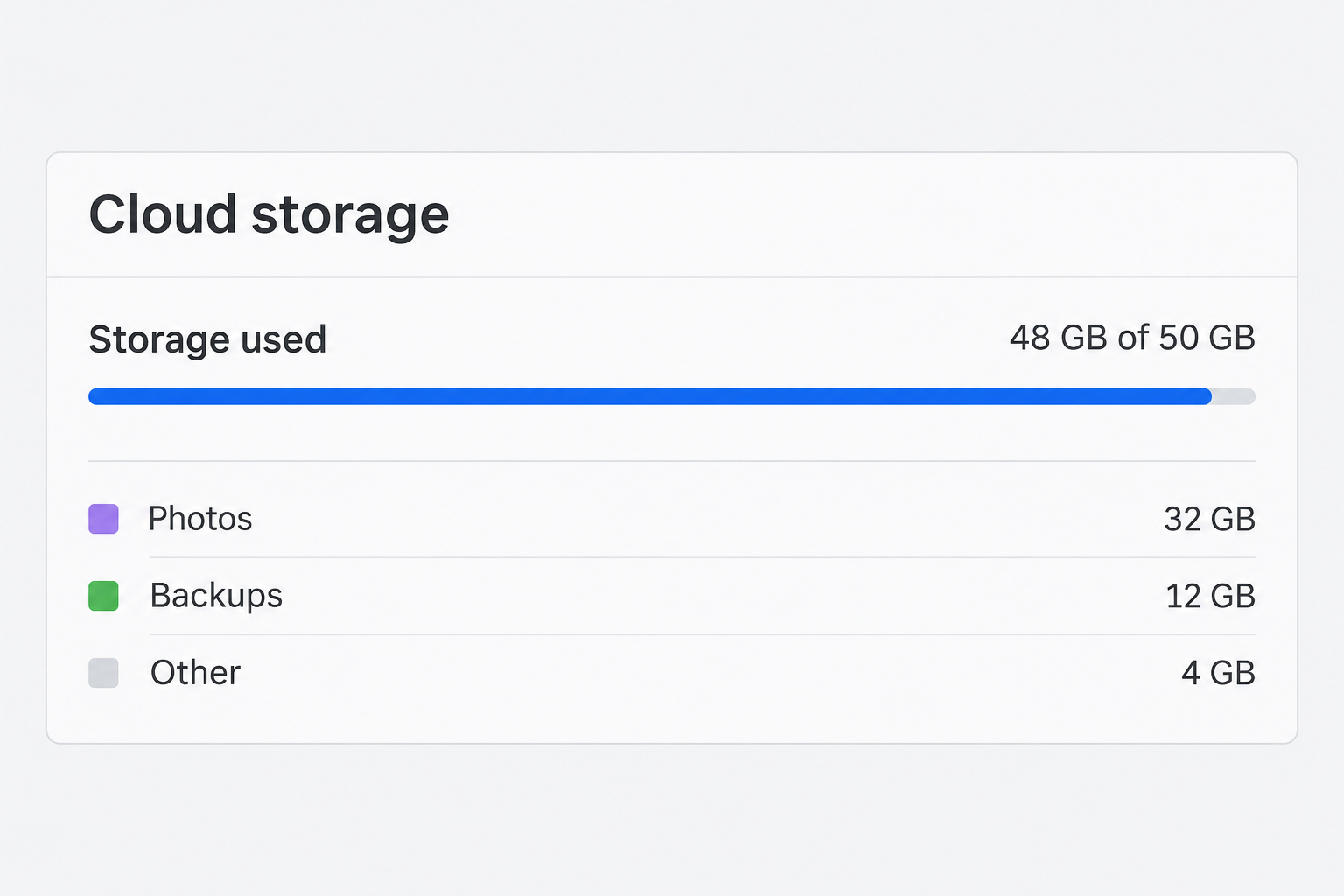
Illustration: This example shows a nearly full cloud plan, not a billing error.
One message can borrow two real problems
An email warning that iCloud storage is full may also claim a card was declined, even though storage and billing problems have different causes and fixes.
Apple’s settings can show real usage, and Apple Account billing can show a payment method that needs attention. Neither check needs the button in the email.
In April 2026, an original investigation documented emails leading to a card collection form. The storage claim was bait, not a diagnosis.
Check each problem in its own place
- For a space warning, look at the iCloud storage bar, its plan limit, and the account attached to the data you care about.
- For a payment warning, check Apple Account payment settings and any official billing notice, not just the card that happens to be saved in Apple Wallet.
- For a family plan, find the person who actually shares the storage subscription before updating a card or buying a second plan.
If neither screen supports the warning, don’t pay the message to find out what it meant. If one problem is real, fix it where you verified it.
Don’t delete photos to prove you’re dealing with a real alert
A full account can stop new uploads and backups, but a storage warning doesn’t tell you which files exist elsewhere. Don’t start deleting from a shared library in a hurry.
The immediate task is to establish what is full, which account owns it, and whether your data is still synchronizing. Decide which files to move only after that.
Check the Right Kind of Storage First
Device storage and iCloud storage are different numbers
On an iPhone or iPad, open Settings, choose General, then open iPhone Storage or iPad Storage. That’s the space used on the device you are holding.
For iCloud, go back to Settings, tap your name, and open iCloud. Tap Storage or Manage Account Storage, if shown, to see the breakdown by category.
Apple explains how device storage differs from iCloud storage.
Buying more cloud space does not increase the physical capacity of your iPhone, even if the phone is what showed you a warning.
Likewise, removing an unused app may help a full device without doing anything about an iCloud plan at its limit. Check which meter is high before trying a fix.
Check whether the warning applies to this Apple Account
In Settings, look at the account shown under your name before you compare the storage bar with the email. The address receiving messages may not be your storage account.
An old address might still receive forwarded mail, or you may use different addresses for work and personal correspondence. Don’t assume the account named in a subject line is yours.
If possible, compare usage from a second trusted device already signed in to the same Apple Account. On Mac, open System Settings, select your name, then choose iCloud.
If the totals appear different, confirm you’re comparing iCloud with iCloud, not iCloud with a Mac’s local drive. You don’t need to sign out just to read either number.
Read what the categories are telling you
A storage screen may show space used by photos, files, messages, backups, and other apps. Look at the largest categories so you know what the problem actually is.
Apple’s current storage guidance says a full plan can stop new device backups, uploads to iCloud Photos, and updates across iCloud apps.
Check whether a new backup actually failed. Go to Settings, select your name and iCloud, then open iCloud Backup and look for the latest successful backup information.
Notice whether the file or photo you’re worried about exists only on one device. Don’t assume a recent backup includes a full independent copy of every item already synchronized elsewhere.
Check Billing Without Following the Email
Use the Apple payment screen directly
On iPhone or iPad, open Settings, tap your name, and choose Payment & Shipping. Sign in only if this Settings screen you opened independently calls for it.
Apple’s payment instructions describe selecting the existing payment method, tapping Edit, entering the corrected information, and confirming with Done.
If Apple won’t let you edit the old card, its instructions explain how to add a working payment method first. Don’t remove everyone’s shared card just because an email asks.
On Mac, open the App Store, select your name or sign in, then review Payment Methods from your account. This is separate from the iCloud storage meter in System Settings.
A card listed in Settings doesn’t settle the alleged charge
Compare the subscription name and any real billing notices with the account you confirmed earlier. A valid payment method on file doesn’t authenticate a charge requested elsewhere.
If you see a real payment issue, use the controls Apple provides in your account to address it. Note whether the status changes after you make the correction.
A bank may show several Apple charges, especially if you buy apps or pay for more than one subscription. Match the amount and date before assuming any entry is iCloud+.
A demand to send a card number or verification code to a supposed support representative is not part of the payment screen you opened yourself.
Check who pays for shared storage
On iPhone or iPad, open Settings, select Family, then open Subscriptions and iCloud+. On Mac, the equivalent Family controls are in System Settings.
Apple’s family storage guide explains that someone in the group can share a plan, while each family member uses their own Apple Account.
If the family pool is nearly full, ask the person sharing the plan what they see before buying anything. One member’s message doesn’t establish whose card is charged.
Don’t hand over your Apple password to someone who claims they need it to check the shared plan. Use the family settings or ask a family member you already know.
When Storage Really Is Full
A real storage limit can exist at the same time as a fake email. Work from the verified settings even if the number there happens to match the sender’s story.
Decide whether to increase capacity or reduce what you store. If you choose to upgrade, review the storage amount and recurring price inside your own Apple Account before confirming.
If you want to reduce usage, start by identifying files you can safely keep elsewhere. Copy important data first, then open the copy and check that it is usable.
A synced library is not the same as an independent backup.
When iCloud Photos is on, deleting on one device can remove the photo from other devices signed in to that account.
Don’t assume Recently Deleted will always save you. Apple documents circumstances when deleting over-capacity items may not leave the usual recovery option, so confirm a separate copy before removing anything.
After correcting the real storage issue, return to the iCloud settings. Check whether the capacity changed, whether a new upload appears, and whether a fresh backup completes.
If storage looks adequate but synchronization is still paused, don’t pay an outside service to restore it.
Apple’s photo status guidance explains how to read the Photos library status and check the account.
Tell a Billing Notice From an Account Break-In
A crowded storage bar does not tell you who has access to the account. If you saw an unfamiliar sign-in request or a password change, check account security itself.
On your trusted iPhone, open Settings, tap your name, and review the devices at the bottom. Open an unfamiliar entry to check its details before deciding to remove it.
If the email only asked for your card, don’t assume your Apple password was captured too. Account recovery and financial recovery are different tasks and may involve different people.
If you did enter an Apple password, open Sign-In & Security in Settings and choose Change Password. Use a new password that isn’t already protecting another account.
Apple’s compromised-account instructions also explain how to check your personal and security information and use account recovery if you can’t sign in.
Compare the Payment Claim With an Actual Subscription
Identify the subscription before assuming your card failed
Opening Payment & Shipping tells you what methods are saved, not which subscription sent a notice. Check the name and billing information for the particular plan.
On iPhone, open Settings, tap your name, and choose Subscriptions. Look for the relevant entry and note what the account actually says about the plan.
If the plan doesn’t show there, don’t assume it’s canceled. Look in the family settings for a shared plan, or ask Apple directly through an independently opened support route.
Match a bank charge to your own purchase history
Go to the App Store and tap your account picture. Open Purchase History, then search for the amount or look through the appropriate date range.
Apple’s purchase history instructions explain that you may need to check another Apple Account. Use that record instead of trusting a bank amount mentioned in an email.
If you see a bank entry but cannot find a corresponding Apple purchase, ask the issuer to identify the transaction.
Don’t send a full statement to the person who emailed you.
Check the outcome, not only the setting you changed
If you upgraded, return to the storage screen to make sure the new limit appears. Check whether the task that stopped, such as a backup, can now complete.
If you edited a payment method instead, compare subsequent charges with the actual subscription. A newly saved card doesn’t prove that a prior charge went through.
When storage is still full, avoid paying twice or deleting an entire library just to make the warning go away. Decide which data exists elsewhere before touching the originals.
A photo that looks normal on one device may be a preview or synced copy. Open the independent copy you planned to keep before deleting the cloud version.
Keep the message separate from this work. Fixing a verified issue from Settings does not make a payment link in the original email safe.
What to Do if You Used the Link
- If you only looked at the page, close it. Reopen Settings yourself to see whether the actual storage or billing problem needs attention.
- If you gave a card number, expiry date, or security code, call your issuer through its app or your card. Explain what you entered and whether any charge posted.
- If you gave your Apple Account password or a verification code, change the password from a trusted device. Review trusted numbers and devices, and remove entries you don’t recognize.
- If your old password was reused, change it on those other accounts too. Prioritize email accounts that receive your recovery messages or sign-in notices.
- Keep a copy of the original message and any card entry. Follow Apple’s phishing reporting instructions, which give a route for suspicious emails impersonating the company.
- If you can’t get into the account, start Apple’s recovery process through its support site. Don’t trust messages from a stranger offering to restore photos for an upfront payment.
Do not erase your device just because an email looked official. A message, a form submission, and an installed app require different responses.
Frequently Asked Questions
Can my iCloud actually be full even if the email is fake?
Yes, a scam can describe a problem you happen to have. Check the storage bar independently and manage the verified limit from Apple’s settings.
Is a full iPhone the same as full iCloud storage?
No, your device and cloud plan have separate capacity limits. Compare General’s device storage screen with the iCloud section under your Apple Account name.
Will adding a new card free up storage?
No, fixing payment information doesn’t automatically increase your plan or reduce usage. Confirm the plan separately, then check whether you need more space or fewer files.
Can I update a family member’s subscription from my own card?
Check the Family settings first to identify which person shares the plan. They may need to review their payment method or handle a change to the shared storage.
What if the page showed an error before charging me?
The site may still have received information you entered. Contact your card issuer if you provided card data, even when no payment confirmation appeared.
Should I turn off iCloud Photos to avoid losing files?
Not simply because an email says you’re at risk. First find out what exists on your devices and in iCloud, then verify an independent copy before making changes.
The Bottom Line
An iCloud storage full email cannot tell you whether your plan, payment method, or account needs help. Check those settings yourself and address only the problem you can see.
If you entered payment details, call your card issuer. If you gave Apple credentials, secure the account from a trusted device, then confirm your recovery information and existing data.

Join the discussion
0 commentsShare your experience or ask a question about this article.
Community experiences
Did this happen to you?
Your experience could help someone recognize the same scam. Submit a private report for our team to review.
I experienced this tooReports are reviewed before publication. Sharing publicly is always your choice.
Discussion
Start the conversation
Have a question or something useful to share? Add the first comment.