How to turn off User Account Control prompts safely
Written by: Stelian
Published on:
The usual way of turning User Account Control off described on blogs is by dropping the slider in UAC Settings to Never notify. This turns UAC off completely and it has a couple of disadvantages. Windows 7 users have a better way to get rid of the prompts they perceive as annoyances.
First of all, you should know that besides displaying the elevation prompts, UAC is responsible for a couple of other security-related settings:
File system and registry virtualization;
Protected Mode in Internet Explorer.
Some applications store settings or user data in areas of the registry or file system that are meant to be used only by the system. This is an unnecessary use of administrative rights and a security risk. File system and registry virtualization diverts attempts to write to the system locations to the ones in user locations while keeping application compatibility. Turning off UAC disables file system and registry virtualization. As a side effect some applications might not work and for others you will loose existing settings.
IE’s Protected Mode is tightly related to virtualization and it is designed to protect the computer by restricting the parts of the system that code running in the IE process can affect. If a malicious web page exploits a bug in IE or an IE plug-in, that code will not be able to do damage to the system. Turning off UAC results in the loss of Protected Mode in IE and it is a significant security disadvantage.
The recommended way of getting rid of the prompts is to disable them while keeping other UAC features on. Actually this method only affects administrators running in admin approval mode (the account created during Windows 7 setup that you are probably using right now is such an account), the behavior of UAC on standard accounts remains the same.
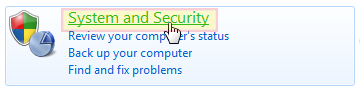
Open your Control Panel and click on the System and Security link;
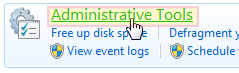
Click on Administrative Tools link;
Double click on Local Security Policy icon;
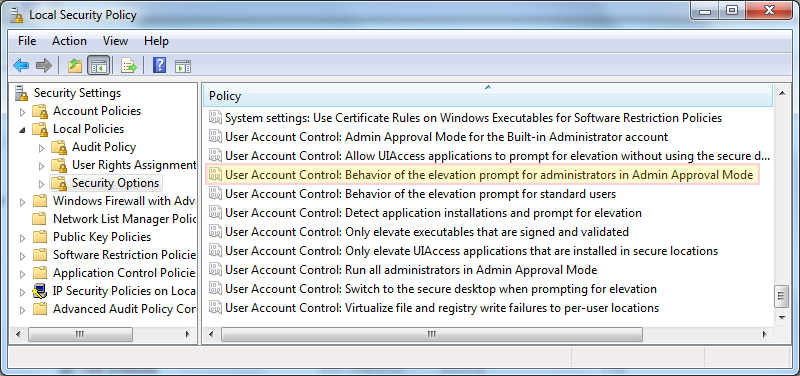
Once Local Security Policy window appears navigate to Security Settings > Local Settings > Security Options.
You will be presented with a long list of settings and among them 10 are related to User Account Control. The setting we need is called User Account Control: Behavior of the elevation prompt for administrators in Admin Approval Mode. Double click on it and a window allowing you to customize this setting appears.
On the Local Security Setting tab change the drop-down box to Elevate without prompting;
Click Apply and close all windows.
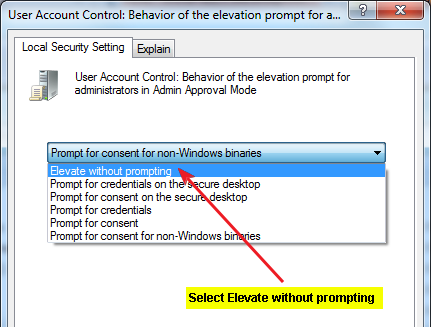
The changes take place immediateley, now you won’t receive the elevation prompts on your administrator acount.
Note for Windows 7 Home users: The Local Security Policy is only available for Windows 7 Professional and higher versions but you should still be able to change the above setting using the Windows registry.
On the start menu search for “regedit.exe” and type Enter on your keyboard to open the Registry Editor. Using the tree structure navigate to:
You need to change the value ConsentPromptBehaviorAdmin. Double-click on it and in the window that opens enter a value data of 0 (zero).
Click OK and close the Registry Editor.
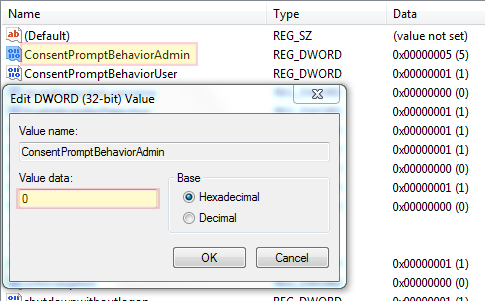
UAC registry setting
A software tool that does it for you
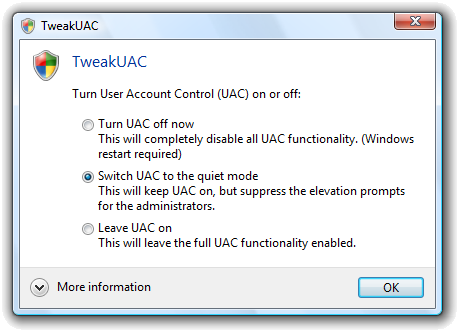
Tweak UAC is a free software tool that you can use to quickly achieve the same result. Just make sure you select “Switch UAC to silent mode”. Tweak UAC Main Screen
Fell free to comment and subscribe. We also have a forum and would like you as a member. We will appreciate it.
10 Rules to Avoid Online Scams
Here are 10 practical safety rules to help you avoid malware, online shopping scams, crypto scams, and other online fraud. Each tip includes a quick “if you already got hit” action.
Stop and verify before you click, log in, download, or pay.
Most scams win by creating urgency. Verify using a trusted method: type the website address yourself, use the official app, or call a known number (not the one in the message).
If you already clicked: close the page, do not enter passwords, and run a malware scan.
Keep your operating system, browser, and apps updated.
Updates patch security holes used by malware and malicious ads. Turn on automatic updates where possible.
If you saw a scary “update now” pop-up: close it and update only through your device settings or the official app store.
Use layered protection: antivirus plus an ad blocker.
Antivirus helps block malware. An ad blocker reduces scam redirects, phishing pages, and malvertising.
If your browser is acting weird: remove unknown extensions, reset the browser, then run a full scan.
Install apps, software, and extensions only from official sources.
Avoid cracked software, “keygens,” and random downloads. During installs, choose Custom/Advanced and decline bundled offers you do not recognize.
If you already installed something suspicious: uninstall it, restart, and scan again.
Treat links and attachments as untrusted by default.
Phishing often impersonates delivery services, banks, and popular brands. If it is unexpected, do not open attachments or log in through the message.
If you entered credentials: change the password immediately and enable 2FA.
Shop safely: research the store, then pay with protection.
Be cautious with brand-new stores, “closing sale” stories, and prices that make no sense. Prefer credit cards or PayPal for dispute options. Avoid wire transfers, gift cards, and crypto payments.
If you already paid: contact your card issuer or PayPal quickly to dispute the transaction.
Crypto rule: never pay a “fee” to withdraw or recover money.
Common patterns include fake profits, then “tax,” “gas,” or “verification” fees. Another is a “recovery agent” who demands upfront crypto.
If you already sent crypto: stop paying, save evidence (wallet addresses, TXIDs, chats), and report the scam to the platform used.
Secure your accounts with unique passwords and 2FA (start with email).
Use a password manager and unique passwords for every account. Enable 2FA using an authenticator app when possible.
If you suspect an account takeover: change passwords, sign out of all devices, and review recent logins and recovery settings.
Back up important files and keep one backup offline.
Backups protect you from ransomware and device failure. Keep at least one backup on an external drive that is not always connected.
If you suspect infection: do not connect backup drives until the system is clean.
If you think you are a victim: stop losses, document evidence, and escalate fast.
Move quickly. Speed matters for disputes, account recovery, and limiting damage.
Stop payments and contact: do not send more money or respond to the scammer.
Call your bank or card issuer: block transactions, replace the card if needed, and start a dispute or chargeback.
Secure your email first: change the email password, enable 2FA, and remove unfamiliar recovery options.
Secure other accounts: change passwords, enable 2FA, and log out of all sessions.
Scan your device: remove suspicious apps or extensions, then run a full malware scan.
Save evidence: screenshots, emails, order pages, tracking pages, wallet addresses, TXIDs, and chat logs.
Report it: to the payment provider, marketplace, social platform, exchange, or wallet service involved.
These rules are intentionally simple. Most online losses happen when decisions are rushed. Slow down, verify independently, and use payment methods and account controls that give you recourse.
4 thoughts on “How to turn off User Account Control prompts safely”
Thanks!
Correction:
On Windows 7, “ConsentPromptBehaviorAdmin” should be under:
HKEY_LOCAL_MACHINE\SOFTWARE\Microsoft\Windows\CurrentVersion\Policies\System
Good article:D
Very good and informative article!
Thank you! Glad you like it.
Comments are closed.
About Stelian
Stelian leverages over a decade of cybersecurity expertise to lead malware analysis and removal, uncover scams, and educate people. His experience provides insightful analysis and valuable perspective.
Thanks!
Correction:
On Windows 7, “ConsentPromptBehaviorAdmin” should be under:
HKEY_LOCAL_MACHINE\SOFTWARE\Microsoft\Windows\CurrentVersion\Policies\System
Good article:D
Very good and informative article!
Thank you! Glad you like it.