


You send a photo link to one person. A few weeks later, it’s still sitting in an old chat, where it can be forwarded again.
Apple’s notice about iCloud public links makes that a good place to start. What did you share, and who can open it now?
Overview
Apple’s notice concerns items shared with an open link
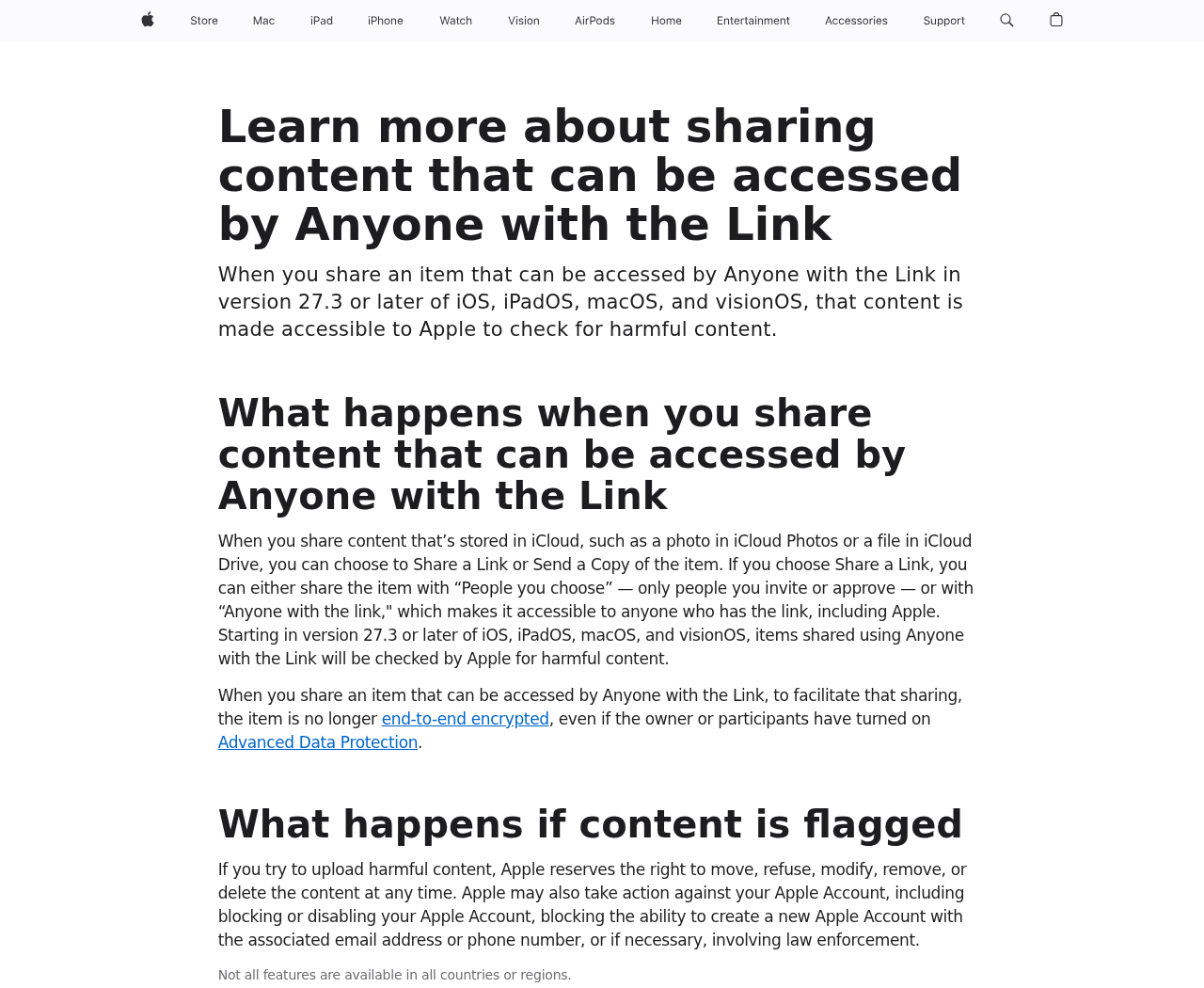
Apple says it will check items shared using Anyone with the Link for harmful content starting in version 27.3 or later of its listed platforms.
Those platforms are iOS, iPadOS, macOS, and visionOS. The Apple Support notice refers to content such as photos and files stored in iCloud.
The notice does not say that every private photo or document in an account will be checked. The kind of sharing you selected is the distinction.
An open link has a different audience from an invitation
Send an open link to one person and they can pass it along. Limiting the original message to one recipient doesn’t limit the audience of the link.
When you use the restricted option, only people you invite or approve can access the item. Check the exact settings on the item before sending it.
Apple says open-link items lose end-to-end encryption to support that kind of sharing, even with Advanced Data Protection enabled. That limitation predates the announced checks.
What to check in a shared item
- Audience: Does the sharing setting name invited people, or can anyone with the address open it?
- Permissions: Can people just view the file, or can they edit it or invite others?
- Ownership: Are you the person who can stop sharing, or do you need to ask the owner?
- Scope: Did you share one document, a folder full of documents, or a copy somebody can keep?
You don’t need to wait for 27.3 to narrow access to a file. The audience of an open link is already worth checking on its own.
What Apple Announced and What It Left Open
The notice sets a boundary around public sharing
Apple names a particular sharing option. It doesn’t describe every iCloud sharing feature as the same thing or say that invited-only links get this treatment.
That matters when people talk about the policy as if storing a photo and publishing a link to it were identical actions.
You can keep a file in iCloud without creating any link at all. You can also collaborate without making an address that works for any holder.
Don’t use the release number as your only decision about privacy. Review access now, then read Apple’s notes for the version your device actually runs.
What the encryption notice means for an open link
Apple’s iCloud data security overview describes a limitation on Advanced Data Protection for sharing with anyone who has the link.
It doesn’t mean the file travels across the internet as readable text. The issue is whether it remains end-to-end encrypted under that sharing mode.
Think of the difference this way: a feature can protect a file in transit without limiting access to just the two people you intended.
Keep two questions separate. Which people can open the file, and what encryption protection does that specific feature support?
The announcement doesn’t explain every review detail
Apple says publicly shared material will be checked for harmful content. It says flagged content or accounts may be subject to actions described in its notice.
The notice doesn’t specify how every review will work, how old links will be treated, or how a mistaken flag would be resolved.
Don’t use an online rumor to decide which old links are affected. If you don’t want a document openly accessible, close the link regardless of those details.
And don’t mistake an unsolicited warning about a flagged file for a genuine Apple notice. Check through your Apple Account or support route independently.
Choose the Sharing Option That Matches the Job
When you only need someone to read the latest version
Invite that person rather than sharing an open link. Choose viewing access if they don’t need to edit the original.
Check the recipient address before sending. A correct permission setting doesn’t help if you chose the wrong person from an autocomplete suggestion.
If another collaborator joins later, add them deliberately. Making the link public just to avoid adding someone can change access for anyone who already has it.
When someone says they can’t get in, first check which address or account they used. You don’t necessarily need to widen the share.
When the material really is meant for the public
An open link can be reasonable for a public event flyer or a document you intend to distribute widely. Choose it knowingly, not by default.
Put the public item in its own location. Check whether the folder includes earlier drafts, internal notes, or other files the public isn’t supposed to see.
Use viewing access if the audience doesn’t need to make changes. That still doesn’t prevent all copying or forwarding.
If the event or project ends, revisit the share. A once-useful public link doesn’t have to stay active indefinitely.
When someone needs a copy, not ongoing access
Apple distinguishes sending a copy from sharing a link. A copy can be useful when a recipient doesn’t need to see future changes.
But don’t use a copy to avoid thinking about privacy. Once you send it, you can’t cancel their ability to open it by closing an iCloud link.
For sensitive material, check the recipient and the delivery channel. Remove information they don’t need, then choose whether a restricted share or a separate copy fits.
If an employer has an approved sharing service, use that for work records. A personal iCloud link shouldn’t substitute for the organization’s rules.
What to Do if You Already Shared an iCloud Link
- Open iCloud Drive independently. Locate the file or folder in your own account instead of starting from a link sent back to you.
- Check who owns it. If you’re a participant, ask the owner to narrow access. Don’t assume you can change everyone’s permissions.
- Review the audience and editing permissions. Restrict it to the people who need it, or stop sharing when nobody needs access.
- Check the parent folder. A file inside a shared folder may be controlled by that folder’s settings rather than its own.
- Tell intended recipients about any replacement. Invite them to the restricted share, then confirm they can access it without restoring the public link.
- Deal with anything sensitive separately. If the file contains an active password or access code, replace it at the service that accepts it.
- Check for copies in other places. The sharing change doesn’t remove copies from messages, downloads, or another service where the file was uploaded.
On iCloud.com, start with the item’s sharing controls
Apple’s iCloud Drive sharing guide explains how to manage a shared file or folder from its menu and remove participants or stop sharing.
Find the file in the drive. Open its menu, then its sharing options. The controls depend on whether you’re the owner or a participant.
If you own it, review the access list and choose the scope you want. Stop sharing entirely if nobody needs the item through iCloud anymore.
Before removing a folder share used by other people, make sure necessary collaborators know what is changing. That reduces last-minute requests to make everything public again.
On iPhone, make sure you’re changing the right share
In Files, locate the shared item and use its share management controls. Apple’s iPhone instructions describe options for files and folders.
For the iCloud Drive flow described there, changing from open access to invited people invalidates the original link. Send new invitations to the intended recipients.
Keep a note of where you originally posted the link. Remove it from a public page if possible so visitors don’t keep following an obsolete address.
For photos, check the controls for the exact feature you used. A shared album, a copied file, and a Photos link may have different options.
How to Review Old Links Without Opening Every Chat
Start with the material that would cause a problem if forwarded: identification documents, financial records, family photos, and files containing home or work details.
Look at the folders where you keep those items. Review the sharing controls on the files or the parent folder before searching through every message thread.
Then check the places where you intentionally posted open links, such as an event page or a shared note. Decide which ones should remain active.
If someone helped you publish a link, tell them when it changes. They might still have a copy in another public post you haven’t seen.
Write down only the sharing decision, not the sensitive document itself. A note saying “family folder, invited people only” is enough to track progress.
Where a link may have exposed something actionable, prioritize changing it. A copied gate code is more urgent than an outdated public invitation.
When you can’t control a file because another person owns it, send them a direct request. Explain which item needs restricting and why, without forwarding it further.
Finally, check future shares before sending. The safest time to choose an audience is before the link leaves your phone.
Three Sharing Decisions That Come Up in Real Life
A family album has outlived the occasion
Suppose you sent a link after a family gathering and people are still asking for pictures. You may want them to see the photos without leaving access open.
Check which photo-sharing feature you used. Apple’s Shared Albums guide describes a separate feature from sharing an ordinary file in iCloud Drive.
If the sharing option you need isn’t in the Photos menu you’re looking at, don’t assume the album was never shared. Check the original location and album settings.
Decide whether every image belongs in the share. One photo with a child’s school details or a visible address can change what makes sense to leave online.
Give the intended recipients a restricted route if they still need one. If they already downloaded copies, ask them not to repost the pictures without checking with you.
A contractor needs one document from a shared folder
Make a separate share for the document they need. Don’t send the folder if it also holds invoices, old quotes, customer details, or drafts they shouldn’t see.
Open the folder and check its contents as a recipient would. A file added later can inherit the existing audience, even if you never create another link.
When the job ends, check who still needs access. Removing the contractor from one share won’t change what they can open through a different public link.
If the document is part of a managed work project, ask the organization to make the change. Avoid replacing its approved process with an unmanaged personal share.
If you own only part of the material, explain the access problem to the owner. They may need to make the change from their account.
A friend sent back an unfamiliar notice about your link
Don’t open the notice’s sign-in link to see if the report is genuine. Check the item directly through your account and read the actual sharing state.
If the notice asks for your password or an account code, treat that request separately from the status of the file. A real share can be used as bait.
Check whether you received a genuine account notification through a route you already trust. If the two stories differ, don’t continue through the sender’s contact details.
If someone asks you to restore a public link because an invitation failed, verify their identity and address first. You can help them without opening the file to everyone.
Don’t send a new link until you know who will receive it. A minute spent checking the account can save you from repeating the same sharing mistake.
Frequently Asked Questions
Will Apple check every photo in my iCloud account?
That’s not what this notice announces. It describes checks for items shared using Anyone with the Link beginning with the listed 27.3 platform versions.
Is an open link private if I send it to one person?
No. Anyone who obtains the link can open it under that setting. Use invited access when only named people should be able to get in.
Does Advanced Data Protection keep open-link items end-to-end encrypted?
Apple says it doesn’t for that sharing mode. Check the data security overview for the protections that apply to your actual feature.
Can I revoke a public iCloud Drive link I own?
Yes. Manage sharing on the file or folder. You can restrict access or stop sharing, depending on what you still need.
Does revoking a link remove a file someone already downloaded?
No. It changes access through the link. It can’t remove a separate copy someone already saved or received.
Do I have to install a beta to change sharing settings?
No. Review and change access in the sharing tools you already have. The announced checks and your existing audience controls are separate.
The Bottom Line
Use invited access for anything that isn’t meant to be public. Review your existing open iCloud links now, starting with files that contain sensitive information.
If you already shared one too widely, restrict or stop sharing. Replace any active secrets it contained and tell intended recipients how to get the right access.

Join the discussion
0 commentsShare your experience or ask a question about this article.
Discussion
Start the conversation
Have a question or something useful to share? Add the first comment.