


A reminder appears in Calendar saying your iPhone needs protection. You dismiss it, but another alarming event arrives later among your normal appointments.
The iPhone Calendar scam can make an ordinary app feel like a warning system. The place where the message appears is important, but not for the reason it suggests.
Overview
The warning is event content, not a virus diagnosis
Calendar displays titles, descriptions, and reminders supplied through events and calendars. A frightening title does not become a system diagnosis when the app shows it.
A spam calendar can supply fake infection warnings, protection deadlines, or prize notices. Those messages encourage you to open a link inside the event.
Apple’s social engineering guidance identifies unwanted Calendar invitations and subscriptions as a scam route, alongside misleading security pop-ups.
The Calendar app itself is legitimate. The problem is untrusted material using its normal reminder function to get your attention.
A subscription and a single invitation need different treatment
A subscribed calendar can keep supplying events from an outside source. Removing one reminder may leave that source connected.
A single unsolicited invitation is different. It can be reported or removed without deleting the genuine calendar containing your other appointments.
That distinction prevents unnecessary damage. You should not erase a work calendar, shared family schedule, or entire account merely to remove one suspicious event.
Spam reminders alone are not evidence that malware was installed. Any additional password, payment, profile, or software exposure needs a separate assessment.
Identify the source before following its instructions
These details help you work out what you are seeing:
- The name of the calendar containing the warning.
- Whether multiple suspicious events belong to that same calendar.
- Whether you remember accepting a subscription or invitation.
- Whether the event pushes a security, payment, or prize website.
- Whether you entered information or installed anything after opening it.
You do not need to visit the event’s website to answer those questions. Start inside the genuine Calendar app.
Why a Calendar Reminder Feels More Official Than an Ad
The notification arrives through something you already use
Calendar normally reminds you about plans you care about. A message delivered that way can inherit the trust you place in your schedule.
The phone may vibrate or display the event beside genuine reminders. That presentation identifies the app displaying the content, not the author’s authority.
Think of an event title as text somebody supplied. It is closer to a message in your inbox than a finding from a security inspection.
Repetition can make the claim feel harder to ignore
One odd reminder is easy to dismiss. Several warnings can make you wonder whether dismissing the first one allowed something to get worse.
A recurring feed does not need to inspect your device to keep sending new content. Repetition is part of the delivery method.
That is why the number of alerts is not a measure of infection. Removing the source is more useful than debating each warning.
The proposed fix belongs to the same stranger
The event offers a convenient next step: verify the device, activate protection, claim a reward, or clear an alleged problem.
But the person supplying the warning also supplies the destination. The link is not an independent source checking whether the warning is true.
When you need help with the device, reach Apple or another appropriate support provider yourself. A reminder’s frightening wording should not choose your support service.
How the iPhone Calendar Scam Works
Step 1: A page or invitation introduces the unwanted content
A calendar subscription can be presented as a way to view information, continue browsing, or receive an update. The request may appear during an unrelated visit.
A person can accept it without realizing that it adds an ongoing source of events. The next reminder then arrives long after the original page was closed.
Other spam comes through an invitation rather than a subscription. You may not have accepted an ongoing feed at all.
Keep both possibilities in mind. Do not assume every unwanted event proves you tapped the same button or granted the same permission.
For future prompts, ask what calendar you are adding and why you need it. Browsing a page should not require accepting an unrelated schedule.
Step 2: Calendar displays what the source supplies
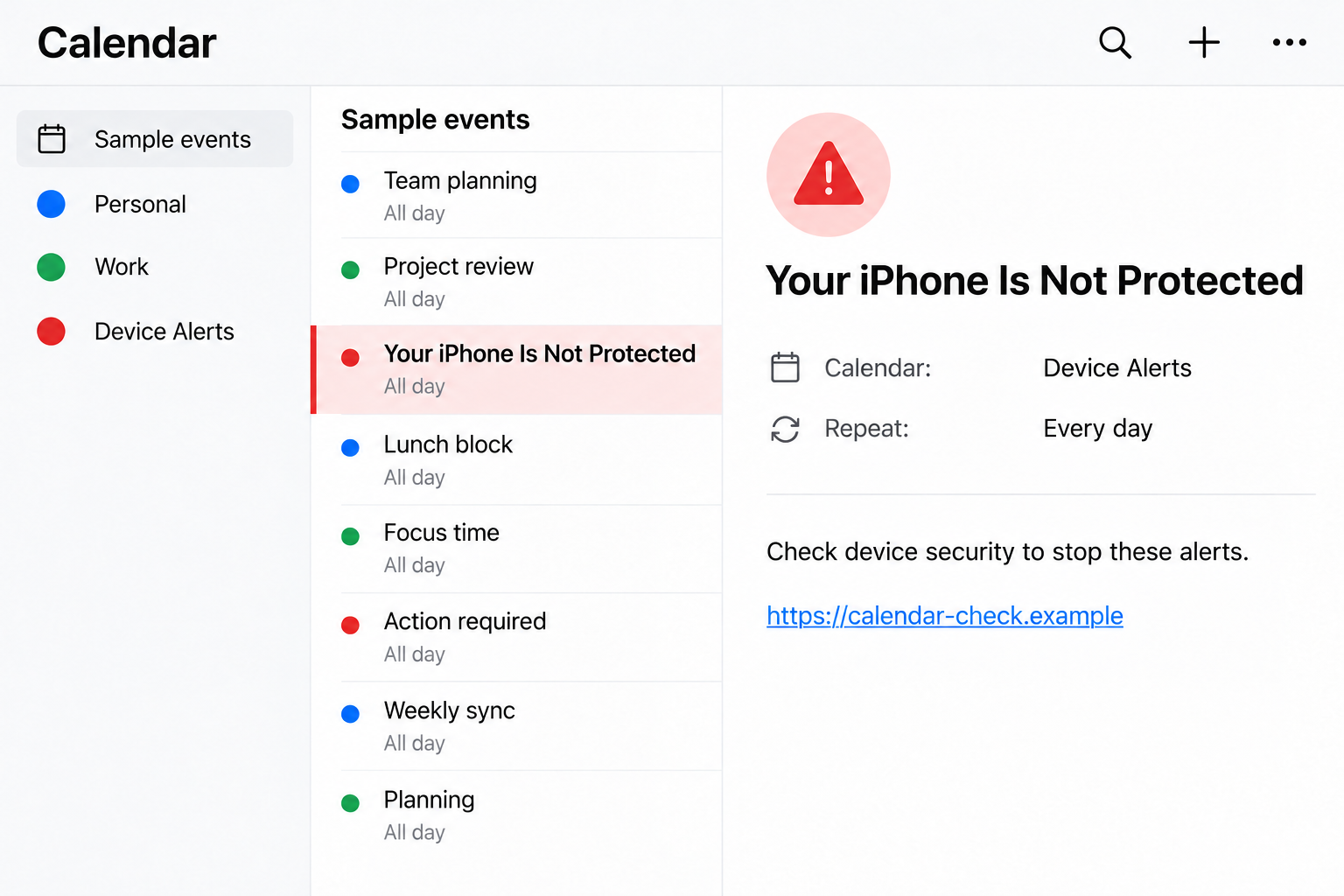
Once an unwanted source is connected, its events can appear among your schedules. Titles and descriptions may imitate device-security language.
The app’s normal reminder behavior gives the claim visibility. That does not mean Apple wrote the event or endorsed the linked website.
The illustrative calendar above shows the pattern with sample events and a fictional link. It is not a captured feed or Apple’s security interface.
Check which calendar the event belongs to. An unfamiliar calendar name can explain why similar warnings keep appearing.
A plausible name is not sufficient reassurance either. A source called “Device Alerts” still has to be something you deliberately chose and understand.
Step 3: Fake warnings create an urgent task
The event says protection is missing, an infection needs attention, or an account is unsafe. Its wording makes ignoring the reminder feel irresponsible.
Some entries may include a deadline or repeat daily. The calendar format makes those dates look like scheduled obligations.
A date in an event is not a verified security deadline. The source can place text on a schedule without knowing anything about your device.
Do not pay for protection simply because the same warning appeared again. First remove the untrusted source and assess any actual exposure separately.
If you have an independent reason to suspect a security problem, use genuine support and security settings. Do not let the spam event provide the diagnosis.
Step 4: The link moves the problem into a website
The event’s destination may present another warning, a login form, a payment request, or a software offer. The calendar has delivered the opening.
What happens next depends on that destination. A password page, a card form, and an installation request create different risks.
Watch for a change in task. A promise to stop reminders does not explain why an unknown site needs your banking details.
Nor does a website’s own animated “scan” establish that it inspected the iPhone. A displayed result can be part of the page’s persuasion.
If you are asked to install a profile or lower security settings, stop. Get independent help before making changes you do not understand.
Do not submit test credentials or revisit the page to see whether it accepts a card. That would add exposure rather than resolve the warning.
Step 5: Deleting an event can leave the feed connected
A person may delete the alarming entry and assume the problem is finished. If an unwanted subscription remains, later events can arrive from it.
Hiding a calendar also differs from unsubscribing. It changes what you see, rather than establishing that the source has been removed.
Check whether that unfamiliar calendar is still listed. If it is, deleting yesterday’s warning has not necessarily stopped tomorrow’s.
For a lone invitation, however, removing or reporting that invitation may be the appropriate action. Do not delete an entire trusted calendar unnecessarily.
Once the spam source is dealt with, review anything you did on its linked website. Calendar cleanup cannot reverse a separate payment or disclosure.
How to Remove the Right Thing Without Losing Your Schedule
Find the calendar associated with the suspicious events
Open Calendar yourself, not a website pretending to provide Calendar support. Look at the calendar name associated with the event.
If several warnings share an unfamiliar source, that is a useful clue. Compare it with calendars you intentionally use for work, family, holidays, or other plans.
An unfamiliar label is a reason to investigate, not automatically a reason to erase it. Shared or managed calendars may have names you did not personally choose.
If you are uncertain about a work or school calendar, ask its administrator through your usual contact. Keep the spam website out of that conversation.
Use current native deletion or unsubscribe controls
Apple’s current Calendar removal instructions apply to iOS 26 or later and distinguish deleting events, removing calendars, and hiding calendars.
For an unwanted calendar, open Calendar, select Calendars, and use the information button beside that source. Choose Delete Calendar or Unsubscribe where offered.
Confirm the chosen action in the app. Do not use an “unsubscribe” link placed by the spammer inside an event description.
For older software, menu wording may differ. Follow Apple’s instructions appropriate to your device rather than relying on an outdated Settings path.
Handle an unwanted invitation without deleting a trusted calendar
For an individual unwanted event, Apple describes Delete Event. When available for an unknown sender, Report Junk followed by Delete and Report Junk is another option.
These are native controls, not buttons on the event’s linked website. Keep that distinction clear when a spam description imitates app instructions.
Be especially careful with recurring events. Read the confirmation so you understand whether it affects one entry or a wider series.
The goal is to remove the untrusted material while preserving appointments you actually need. A blanket account deletion is not the starting point.
What to Do if You Have Fallen Victim to This Scam
-
Stop using the event’s links. Do not follow its protection, prize, payment, or support instructions while trying to remove the spam.
Keep a screenshot and note the calendar name if you need to document what happened. Avoid sharing personal appointments in a public report.
-
Remove the identified unwanted source. Use Calendar’s native calendar list and information controls to delete or unsubscribe from the unfamiliar feed.
Follow the current Apple guide for your software version. If it is only an unwanted invitation, use the appropriate event or junk-reporting control.
Do not remove a genuine account or shared calendar just because one event inside it is suspicious. Ask trusted support when the source is unclear.
-
Check what happened after any click. Note whether you entered a password, supplied card details, approved a request, or installed something.
A reminder you merely viewed is different from a payment you made. Match the next action to what actually happened.
-
Protect accounts whose credentials were shared. Change an exposed Apple Account or other password through the genuine service from a trusted device.
Review authentication and recovery settings, and replace reused passwords elsewhere. Do not send security codes to somebody offering to “finish” the cleanup.
If you lost access, use the provider’s real account-recovery process. The calendar event’s supposed technician is not an independent recovery service.
-
Contact the payment provider if you paid or exposed a card. Explain the calendar warning and the destination where information was entered.
Ask about blocking pending activity, replacing the card, or disputing a transaction. Preserve the receipt and any agreement you were shown.
Cancel an unwanted paid service through a verified channel where appropriate. Removing its event does not itself cancel an order or subscription.
-
Assess installations separately. If you installed an unfamiliar app or configuration profile, seek genuine Apple support or the relevant device administrator.
Do not remove legitimate workplace management profiles on a guess. Explain the download and ask which specific item needs attention.
If a linked page also led to suspicious software on a Windows PC or Mac, Malwarebytes can help inspect that computer.
On iPhone, calendar removal is a native Calendar task, not a desktop antivirus scan. AdGuard security filters may help reduce subsequent known phishing-page exposure.
Neither product removes the need to secure disclosed credentials or address a payment. A clean scan elsewhere does not validate the calendar’s claims.
-
Confirm the source is gone and report recurring problems. Check that the unfamiliar subscription no longer appears in the relevant list.
If warnings continue, identify whether they come from another calendar, email, or browser notification. Similar wording can arrive through different channels.
Use genuine support rather than a stranger asking for a cleanup fee. Keep your normal appointments and necessary account access protected.
Frequently Asked Questions
Is an iPhone Calendar warning proof of a virus?
No. An event title is supplied content, not a security diagnosis. The spam may use normal invitations or subscriptions to display misleading reminders.
Why do alerts return after I delete one event?
An unwanted calendar subscription may remain connected. Check the source and remove that feed when appropriate, rather than only its latest reminder.
Is hiding the calendar the same as unsubscribing?
No. Hiding changes visibility. Deleting or unsubscribing addresses the calendar source; choose the native control appropriate to the unwanted content.
Should I delete my entire Apple or work account?
Not as a routine spam-removal step. Identify the unwanted event or feed first, and preserve legitimate shared or managed calendars.
What if the event led me to a payment page?
Contact the card issuer or payment provider if you paid or entered financial details. Removing the calendar does not reverse that exposure.
Do I need to install the event’s recommended cleaner?
No. Do not follow an untrusted event’s software instructions. Use Calendar’s genuine controls and seek independent support for any actual installation concern.
The Bottom Line
Do not treat a Calendar event as an iPhone virus diagnosis. Ignore its links and remove the unwanted invitation or subscribed feed through native controls.
If you also entered a password, paid, or installed something, address that separately. Stop the reminders without giving their author access to your accounts or money.

Join the discussion
0 commentsShare your experience or ask a question about this article.
Discussion
Start the conversation
Have a question or something useful to share? Add the first comment.