


A KPN email says your mailbox is outdated and could soon stop working. You picture missed messages, lost contacts, and an address you’ve used for years.
The message offers a quick way to keep everything running. Before you follow it, take a moment to look at what you’re being asked to trust.
Overview
A Mailbox Warning Turns Familiar Access Into a Threat
The KPN mailbox verification scam impersonates the Dutch telecom provider. It tells recipients that an aging or invalid mailbox needs immediate revalidation.
The hook isn’t a discount or a prize. It’s the possibility of losing an email address that may connect you to work, appointments, and other accounts.
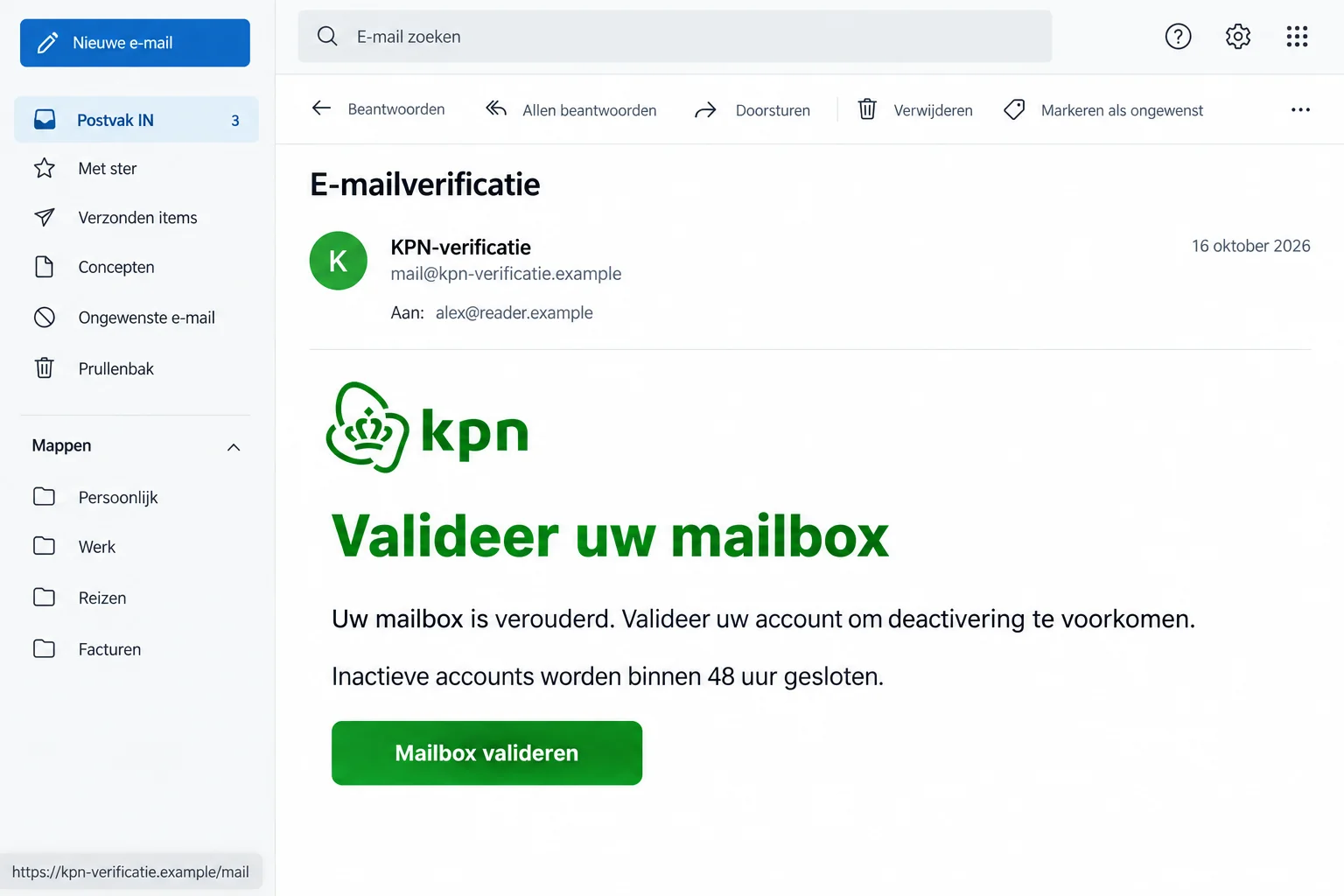
A reported version says inactive accounts will close within 48 hours. Its verification link is the action the sender wants you to take.
KPN Confirms That Its Identity Is Being Misused
A false message dated October 15 claims an expired mailbox cannot synchronize. It threatens deactivation unless the recipient follows its link.
KPN’s own phishing guidance confirms recurring impersonation emails and publishes examples of false account-update pages.
The image illustrates the lure using fictional contact information. Its layout, date, and address are not an original email capture or an active verification service.
Your Real Mailbox Doesn’t Need the Sender’s Shortcut
Don’t use the unexpected link to decide whether your account needs attention. Open KPN’s genuine service independently and check there.
- The threat concerns continued mailbox access, not a confirmed fault on your device.
- A working email address can still receive a false closure warning.
- A password entered on an imitation page needs protecting even if that page reports an error.
- Mailbox credentials and your KPN ID may require separate attention.
Why an Email Address Is Worth More Than It Looks
People often think of an inbox as a place to read messages. It may also be where other services send password resets and security notices.
That makes a mailbox password valuable. Someone who gains access may find private correspondence or try to use messages from other accounts.
This doesn’t mean every recipient has lost their identity. It explains why entering an email password on the wrong page deserves prompt action.
The closure threat also exploits attachment to an established address. You may have given it to family, employers, schools, or healthcare providers.
Replacing it sounds inconvenient, so clicking a verification button can feel like preserving something important rather than taking a risk.
That’s the moment to slow down. Protecting your inbox means checking who controls the page before supplying the credential that opens it.
You can investigate a genuine service issue without letting the message choose the route. Start with KPN’s website or a trusted bookmark.
How the KPN Mailbox Verification Scam Works
Step 1: A False Service Notice Claims Your Mailbox Is Outdated
The reported email uses technical-sounding language about expiration and synchronization. It presents the supposed problem as something already affecting your account.
That can make an ordinary inconvenience feel connected. If your phone recently delayed a message, you may interpret the email as an explanation.
A delayed message doesn’t connect the warning to KPN. Check the mail app’s problem through genuine support rather than accepting the stranger’s diagnosis.
The sender hasn’t demonstrated access to your account merely by naming KPN. Familiar branding identifies the company being imitated, not the person contacting you.
Step 2: The Closure Warning Makes Verification Feel Urgent
The message gives you a short window to act. It makes ignoring the email sound like accepting the loss of a useful service.
But a deadline written by an impersonator isn’t an account notice from your provider. Don’t let it override your normal way of signing in.
You don’t need to spend that window debating spelling mistakes. Even a perfectly written email could direct you to the wrong website.
If you’re worried, check the genuine account now. Verification through the real provider addresses the concern without following the stranger’s instructions.
Step 3: The Link Tries to Become a Login You Trust
A request to revalidate a mailbox can make entering a password seem natural. That’s why the destination matters more than the button’s wording.
The October example doesn’t expose its final page. We can’t claim that its form had particular fields or that it installed software.
KPN’s broader warning does identify imitation account-update destinations. Don’t assume that a screen carrying its logo belongs to its actual login system.
A secure-looking connection doesn’t resolve that question. The browser may securely connect you to a website that has nothing to do with your provider.
Leave the page before entering credentials. If you already typed a password, don’t try several more because the first attempt appeared to fail.
Check Webmail and Account Management Separately
KPN’s email support page provides the genuine routes for webmail, setup, and troubleshooting. Use it as your starting point.
Test access through the official webmail link rather than the unexpected email. If messages load, that tells you about access, not the legitimacy of the warning.
If webmail doesn’t work, use the provider’s own support process. Don’t treat the failure as proof that the email’s explanation was correct.
Account management is a separate question. KPN ID is used to manage provider services; an individual mailbox has its own account credentials.
That distinction matters after phishing. Resetting the wrong password can leave the credential you actually supplied unchanged.
Tell support which address you were trying to access and which login you entered. Don’t send the password itself as evidence.
If someone else manages the subscription, involve them through your established relationship. Don’t create a new account because the suspicious email tells you to.
Aliases Can Make Password Recovery Confusing
KPN’s password guide distinguishes a full mailbox from an extra address, also called an alias.
An alias delivers to an existing inbox and doesn’t have its own separate password. You need to identify the mailbox it belongs to.
If the address isn’t visible where you expected, don’t return to the fake verification page. Use the genuine guide or ask KPN for help locating it.
After changing the appropriate mailbox password, update the legitimate mail programs that use it. Otherwise, ordinary sign-in errors can add unnecessary confusion.
A mail app may keep asking for the old credential after a reset. That doesn’t mean the fake verification was necessary or that the reset failed.
Check the account through genuine webmail first. Then use KPN’s setup guidance to bring the app back into line with the new password.
Avoid deleting the mailbox or removing local messages while troubleshooting. If you’re unsure what a setting will erase, ask support before confirming it.
Note which address receives the warning, too. A forwarding address or alias can make the recipient line look different from your main mailbox name.
That difference is a reason to identify the right account, not a reason to submit several passwords until an unfamiliar page accepts one.
A Real Account Notice Still Deserves a Real Check
Not every email about a KPN mailbox is fraudulent. The provider describes genuine notices in situations such as the end of email access after leaving.
The safe rule isn’t to ignore your account. It’s to handle unexpected requests through the provider you reach yourself.
If you’ve recently changed subscriptions, ask how that affects the particular address. Don’t buy an unfamiliar renewal offered by an unsolicited message.
Keep any genuine confirmation in your records. It should be possible to understand your service through KPN, not through a stranger’s urgency.
A colleague or relative can help you read the instructions, but they don’t need your login code or password to do that.
If a person offers remote assistance after the email, verify them independently. A mailbox warning isn’t permission to hand over control of your computer.
What to Do if You Have Fallen Victim to This Scam
First identify what you exposed. An opened email, a submitted password, and an installed program call for different responses.
-
Leave the verification page. Don’t type another password or continue the conversation. Save the message privately for your phishing report.
Write down whether you supplied a mailbox password, KPN ID, personal details, or anything financial. That helps you choose the right next step.
-
Change the password that was actually disclosed. Reach KPN’s email-management service through its genuine website and follow the official mailbox instructions.
If the exposed credential was your KPN ID instead, secure that account too. Replace reused passwords at other services, particularly accounts connected with the same inbox.
-
Ask about unfamiliar account or mailbox settings. Review the controls available in the genuine service and contact support if something doesn’t look right.
Look for changes you didn’t make, including recovery details or mail-forwarding settings where available. Don’t assume replacing a password explains every unfamiliar change.
-
Review important accounts linked to the inbox. Pay attention to unexpected password resets, login alerts, or account changes.
Open each affected service independently. Don’t click a new recovery message simply because it arrived while you were dealing with the original scam.
-
Report the false KPN message. The provider lists valse-email@kpn.com for phishing reports and asks for the suspicious email as an attachment.
If it already appears among KPN’s published examples, its team is aware of that version. Use genuine support separately if you need help with your account.
-
Involve the bank if you shared financial access or paid. Explain the precise information entered and any transaction or approval you completed.
The provider’s email report doesn’t block a card or recall money. Ask your financial institution what it can protect or investigate.
-
Check the device if there was a download or installation. Reading a closure warning doesn’t itself establish malware.
Malwarebytes can help assess suspected malicious software. AdGuard may be useful if unwanted ads or redirects are part of the exposure.
Neither replaces changing a leaked password. For a work device, give the IT team the facts before making broad changes yourself.
If You Can No Longer Get Into the Mailbox
Don’t let the fake sender become your recovery service. Go through KPN’s independently located help channels and explain the suspected phishing.
Tell the provider when access last worked and which account you were trying to open. Note any password-reset or account-change notices you received.
Use a secure alternative way to communicate if the affected inbox is unavailable. Don’t send sensitive recovery information back through an account you suspect is compromised.
If the mailbox belongs to a family subscription, clarify who is authorized to manage it. Avoid several people trying conflicting resets at once.
Once access is restored, inspect important recent correspondence. Look for suspicious activity rather than assuming every old message has been read or changed.
Warn contacts if you find fraudulent messages actually sent from your account. Tell them not to act on those requests without independently checking with you.
You don’t need to announce a breach based only on the phishing email. Describe what you know and update the warning if the facts change.
Helping Someone Worried About Losing Years of Email
Start by acknowledging the practical concern. A long-used mailbox may contain family history and contact details the owner can’t easily replace.
Help them open the genuine service calmly. Reading a threatening email repeatedly can make its deadline feel more authoritative than it is.
Keep password entry private, even while helping. A person can explain a recovery screen without taking possession of the account holder’s secrets.
Make a short list of the accounts that depend on the address. If access was exposed, prioritize important services rather than trying random password changes.
After the immediate issue is settled, save a trusted bookmark for webmail and account support. The next warning will be easier to check.
Consider a sensible backup of important correspondence through the provider’s supported options. Do that as ordinary account maintenance, not through an attachment in the warning.
Finally, make reporting a mistaken click easy. Quick, accurate information is more useful than a lecture about what someone should have noticed.
Frequently Asked Questions
Is the 48-Hour KPN Mailbox Warning Genuine?
The documented verification email is false. Check any actual account concern through KPN’s genuine webmail or support service, not its supplied link.
Can an Outdated Mailbox Be Fixed Through the Email’s Button?
Don’t use that button. If your mailbox has a real technical or subscription issue, the provider can explain it through independently reached support.
Does Opening the Message Give Someone My Password?
Opening the email doesn’t by itself establish password disclosure. Act promptly if you entered credentials, approved access, or installed something.
Are My KPN ID and Mailbox Password Always the Same?
They serve different account functions and may use different credentials. Secure the specific password you exposed, and ask KPN if you’re unsure.
Why Can’t I Find a Separate Password for an Alias?
An alias uses the mailbox behind it rather than a separate password. KPN’s genuine account guide explains how to locate that mailbox.
Should I Delete My Email Address to Stop the Scam?
No. Secure the account and verify its status first. Deleting an established address can complicate recovery for other services connected to it.
The Bottom Line
Don’t follow the KPN mailbox verification scam’s link. A threat to close your inbox isn’t proof that the sender can protect it.
Check access through KPN itself. If you supplied a password, protect that account now, review connected services, and report the impersonation through the provider’s published route.

Join the discussion
0 commentsShare your experience or ask a question about this article.
Discussion
Start the conversation
Have a question or something useful to share? Add the first comment.