

The Ledger Email Scam is a phishing campaign targeting cryptocurrency users with fake security alerts, firmware update warnings, data breach notices, and wallet verification messages.
These emails are designed to look urgent and official, but their goal is simple: convince you to enter your 24-word Secret Recovery Phrase on a fake Ledger website.
That phrase is not a password. It is the master key to your wallet. Once scammers get it, they can empty your crypto.
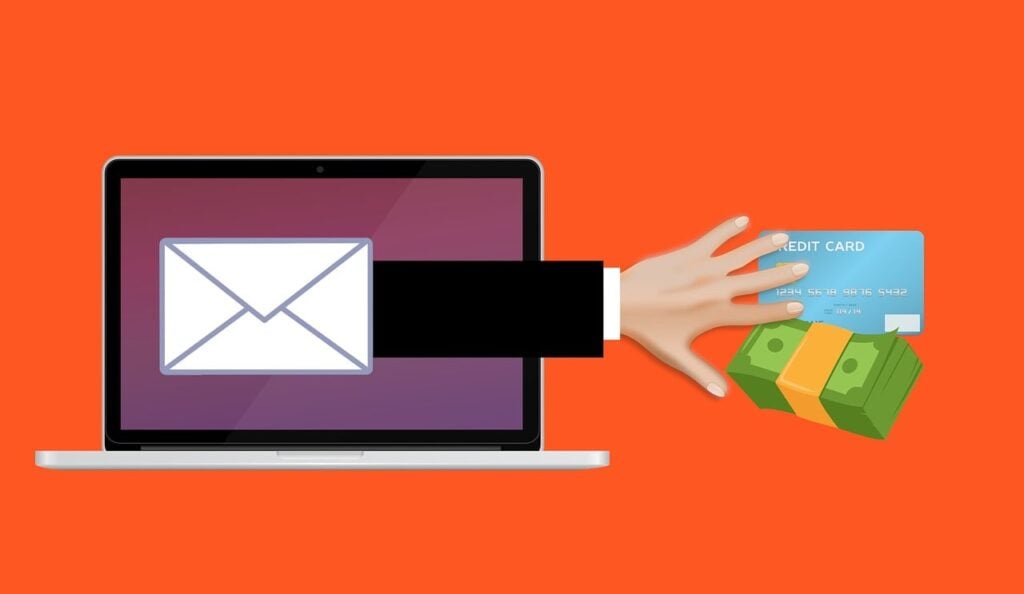
Scam Overview
Ledger email scams are not random spam. They are targeted phishing attacks built around fear, urgency, and the unique way hardware wallets work.
A typical scam email claims there is a serious problem with your Ledger wallet. The message may say your device needs a critical firmware update, your wallet has been exposed in a data breach, your assets are at risk, or your Ledger Live account must be reverified.
The email usually includes a button such as:
- Update Firmware Now
- Secure Your Wallet
- Verify Recovery Phrase
- Restore Ledger Access
- Check If You Were Affected
- Protect Your Assets
- Complete Security Upgrade
The link does not lead to Ledger. It leads to a fake website controlled by scammers.
Ledger warns users that phishing campaigns actively impersonate the company and that users should double-check sending addresses. Ledger also states that it does not send emails asking users to update firmware, enable 2FA, or complete similar actions through links in messages.
The most dangerous part of this scam is the request for your 24-word Secret Recovery Phrase, also called an SRP, seed phrase, or recovery phrase.
A real Ledger device never needs you to type your 24 words into a website, browser form, phone app, email page, Google form, support chat, or computer screen. Ledger’s own phishing guidance is blunt: there is no valid reason to type your recovery phrase into a computer, and anyone who obtains it can access the accounts created from it.
That is why these scams are so effective. The email does not need to hack your Ledger device. It only needs to trick you into handing over the phrase that controls your wallet.
Attackers often use tiny spelling changes in sender names or domains. For example, an email might appear to come from “Ledger Support,” but the real sender address may contain a lookalike spelling such as “legder,” “ledqer,” “ledgér,” or a domain that is close enough to fool someone reading quickly.
The email may also use realistic branding, including:
- Ledger logos
- Black-and-white design similar to official Ledger pages
- Fake ticket numbers
- Fake support signatures
- Fake security incident references
- Fake countdown timers
- Fake “case ID” numbers
- Fake warnings about frozen assets
- Fake “mandatory firmware” notices
Some messages claim that Ledger suffered a new data breach and that users must “confirm” or “synchronize” their wallet to remain protected. Others pretend that suspicious activity has been detected and that the user must update their Ledger device immediately.
These are social engineering tricks. They create panic, then offer a simple button to “fix” the problem.
The scam may also move across channels. Ledger states that it will never contact users by text message or phone call, and any so-called Ledger communication through text, WhatsApp, Telegram, phone call, or postal letter should be treated as a phishing attempt.
This matters because many Ledger scams start with email but continue through another channel. A fake email may lead to a fake support chat. A fake support chat may ask you to install software. A fake phone call may claim to verify a ticket. A fake website may display a “Ledger recovery portal” that asks for your 24 words.
Once you enter the phrase, the scammer no longer needs your device. They can import your wallet into another wallet app and transfer your funds away.
Crypto transactions are generally irreversible. If your coins are moved to a scammer-controlled wallet, recovering them is difficult and often impossible unless law enforcement or an exchange can freeze funds quickly.
The Federal Trade Commission warns that scammers commonly impersonate well-known companies and that users should not click links from unexpected emails, texts, or social media messages, even when the message appears to come from a familiar brand.
That advice applies directly here. A Ledger email that creates panic and sends you to a link is not something to trust blindly.
How The Ledger Email Scam Works
1. The scammer sends a fake Ledger email
The attack begins with an email that looks like it came from Ledger.
The subject line is usually designed to make you act quickly. Examples include:
- Ledger Security Alert: Action Required
- Critical Firmware Update Required
- Your Ledger Wallet May Be At Risk
- Data Breach Notification
- Verify Your 24-Word Recovery Phrase
- Ledger Live Account Suspended
- Unauthorized Login Attempt Detected
- Mandatory Security Upgrade
- Wallet Synchronization Required
- Your Assets May Be Frozen
The message may claim that your funds are vulnerable unless you take action within a few hours.
This urgency is deliberate. Scammers want you to click before you inspect the sender, hover over the link, or visit Ledger’s official website manually.
2. The email uses a spoofed or lookalike sender
Some scam emails display the name “Ledger,” but the actual address is unrelated.
Others use lookalike domains with small spelling changes, such as:
- legder
- ledqer
- ledger-secure
- ledger-walletverify
- ledgerlive-update
- ledger-support-alert
- ledger-protection
A common trick is to place the real brand name before or after a malicious domain. For example, the link may visually contain “ledger,” but the actual domain is not owned by Ledger.
The scam may also hide the destination behind a button, shortened link, tracking redirect, or QR code.
3. The victim clicks a malicious link
After clicking, the user lands on a fake Ledger page.
The fake website may look polished. It may copy Ledger’s logo, colors, page layout, and wording. It may even include fake security badges, fake SSL claims, and fake support chat popups.
The site may ask the user to:
- Connect their wallet
- Install a fake Ledger Live update
- Confirm their device
- Enter their 24-word Secret Recovery Phrase
- Download a “firmware repair tool”
- Upload logs
- Scan a QR code
- Start a fake “security check”
Ledger has documented phishing pages that trick users into entering their 24-word phrase or downloading fraudulent Ledger Live applications.
4. The fake page asks for the 24-word Secret Recovery Phrase
This is the core of the scam.
The fake page may say the phrase is needed to:
- Verify wallet ownership
- Recover from a data breach
- Complete firmware installation
- Restore synchronization
- Unlock Ledger Live
- Prevent asset loss
- Confirm account security
- Reconnect the device to the blockchain
All of that is false.
Your Secret Recovery Phrase should only be used directly on your physical Ledger device during legitimate setup or recovery. It should never be typed into a website, app, browser page, email form, support chat, phone, or computer.
Ledger’s phishing page also warns that physical mail and QR-code scams ultimately attempt to make users enter their 24 words, and that anyone who has the recovery phrase has full access to the accounts created with it.
5. The scammer imports the wallet and drains funds
Once the attacker receives your phrase, they can restore your wallet on another device or software wallet.
They do not need:
- Your physical Ledger device
- Your PIN
- Your email password
- Your Ledger Live installation
- Your computer
- Your phone
The phrase alone is enough to control the wallet.
From there, the scammer can transfer assets to their own addresses. They may move funds through multiple wallets, swap coins, use bridges, or convert stolen assets to stablecoins to make recovery harder.
6. The fake support team may continue the scam
Some victims are contacted again after entering their phrase.
The scammer may claim:
- The recovery process failed
- A fee is needed to unlock funds
- Taxes must be paid before funds are released
- A verification deposit is required
- The wallet must be “reactivated”
- A recovery specialist can retrieve the stolen crypto
This is usually a second-stage scam. Real recovery is not done by sending more crypto to strangers.
Common Ledger Email Scam Variations
Fake Firmware Update Email
This message claims your Ledger device must receive a critical firmware update to remain secure.
The scam email may say:
“Your Ledger firmware is outdated. Failure to update may result in permanent loss of access to your wallet.”
The button leads to a fake update page that asks for your recovery phrase.
Fake Data Breach Notification
This version says your information was exposed in a breach and your wallet must be verified.
The scam may use wording such as:
“Your wallet may have been affected by a recent security incident. Confirm your recovery phrase to secure your assets.”
This is a major red flag. A legitimate breach notice would not require you to type your seed phrase into a website.
Fake Ledger Live Suspension
This version claims your Ledger Live access has been restricted.
It may say:
“Your Ledger Live account has been temporarily suspended due to suspicious activity.”
Ledger Live is a wallet management application, not a bank account that requires phrase verification through email.
Fake 2FA Setup Email
Some scam emails tell users to enable 2FA for their Ledger wallet.
Ledger specifically warns that it does not send emails asking users to enable 2FA or perform similar actions through email links.
Fake Wallet Synchronization Email
This message claims your wallet must be synchronized with the blockchain.
The fake page may ask you to enter your 24 words to “reconnect” the wallet.
This is nonsense. Your recovery phrase is not needed to sync balances.
Fake Support Ticket Email
This version claims a support ticket was created for your account.
In some phishing schemes, attackers create fake credibility by referencing a ticket, case number, or recent request. Ledger has warned about scammers using support-related tactics to make follow-up contact appear more believable.
Fake Token Migration Email
Some emails claim you must migrate your assets to a new Ledger-secured wallet.
The goal is either to steal your recovery phrase or make you send funds to a scammer-controlled address.
Fake Airdrop or Reward Email
This variation promises a Ledger reward, NFT, bonus token, or compensation.
The link asks you to connect a wallet or approve a transaction. That can lead to wallet draining, malicious approvals, or phrase theft.
Red Flags That A Ledger Email Is A Scam
Treat the email as suspicious if it includes any of these signs:
- It asks for your 24-word Secret Recovery Phrase
- It tells you to type your phrase into a website
- It says your wallet will be frozen
- It claims a firmware update must be done through an email link
- It uses urgent threats or countdown timers
- The sender address is misspelled or unusual
- The domain is not Ledger’s official domain
- The message contains typos such as “legder”
- It asks you to install remote access software
- It asks you to scan a QR code and verify your wallet
- It asks for payment in crypto
- It asks you to contact support through Telegram, WhatsApp, phone, or text
- It claims your assets are at risk unless you act immediately
The biggest warning sign is simple: any request for your recovery phrase is a scam.
What To Do If You Receive A Ledger Scam Email
1. Do not click the link
Do not use buttons, QR codes, or links inside the email.
If you need to check anything, open your browser manually and go to Ledger’s official website yourself.
2. Do not reply
Replying can confirm your email address is active. That may lead to more scam attempts.
3. Check the sender carefully
Look beyond the display name. The display name may say “Ledger,” while the actual address belongs to a fake domain.
Be especially cautious with small spelling changes.
4. Do not enter your Secret Recovery Phrase anywhere
This rule overrides everything else.
Never type your 24 words into:
- A website
- Ledger Live
- A browser extension
- A phone app
- A support chat
- A Google form
- An email reply
- A screenshot
- A cloud note
- A document
- A computer or phone keyboard
5. Report and delete the email
Mark it as phishing or spam in your email provider.
You can also report crypto-related fraud to the FTC, the FBI’s IC3, the SEC, the CFTC, or the cryptocurrency exchange involved, depending on what happened. The FTC lists these reporting channels for cryptocurrency scams.
What To Do If You Clicked The Link But Did Not Enter Your Phrase
If you clicked the link but did not type your recovery phrase, the immediate risk is lower, but you should still act carefully.
- Close the website immediately.
- Do not download anything from the page.
- Do not connect your wallet.
- Clear your browser history and cache if you interacted with the page.
- Run a malware scan if you downloaded a file.
- Update Ledger Live only from Ledger’s official website.
- Check your wallet activity from a trusted device.
- Be alert for follow-up phishing attempts.
If you entered login credentials for any related account, change those passwords immediately and enable strong two-factor authentication where available.
What To Do If You Entered Your 24-Word Recovery Phrase
If you typed your recovery phrase into a fake Ledger website, assume the wallet is compromised.
Act immediately.
1. Do not keep using that recovery phrase
A recovery phrase cannot be “changed” like a password. Once exposed, it should be considered permanently unsafe.
2. Create a brand-new wallet with a new recovery phrase
Use a clean, trusted setup process. Generate a new recovery phrase directly on your hardware wallet or another secure wallet setup.
Do not reuse the exposed phrase.
3. Move remaining funds immediately
If any assets remain in the compromised wallet, transfer them to a new wallet controlled by a new recovery phrase.
Move the most valuable and most liquid assets first.
4. Revoke suspicious token approvals
If you connected your wallet to a malicious site or approved transactions, check for risky token approvals and revoke them using reputable tools.
Be careful: scammers also create fake “approval revoke” websites.
5. Check all connected accounts
Review exchanges, email accounts, password managers, cloud storage, and devices.
If your seed phrase was stored in screenshots, notes, email drafts, cloud backups, or password managers, treat those accounts as sensitive and secure them.
6. Report the theft
Report the incident to relevant authorities.
The FBI directs victims of online scams, email hoaxes, and phishing to report internet-enabled crimes through IC3.
You should also report the wallet addresses, transaction hashes, fake domains, emails, and any related messages to Ledger and the exchange or platform involved.
7. Beware of recovery scammers
After a crypto theft, victims are often targeted by fake “recovery experts.”
Do not pay someone who promises guaranteed recovery. Many recovery offers are follow-up scams.
Is Your Device Infected? Run a Free Malware Scan
Slow performance, constant pop-ups, or strange behavior? These are classic signs of a malware infection. The fastest way to find out is to scan your device with Malwarebytes Free — one of the most trusted malware removal tools available.
The free version detects and removes the most common threats, including:
- Adware — the cause of those annoying pop-ups
- Browser hijackers — unwanted redirects and changed homepages
- Trojans and spyware — hidden programs stealing your data
- Potentially unwanted programs (PUPs) — software you never asked for
👉 Select your device below — Windows, Mac, or Android — then follow the simple steps to download Malwarebytes, scan your system, and remove any threats it finds. The scan usually takes 5 to 20 minutes.
Run a Malware Scan with Malwarebytes for Windows
Malwarebytes is one of the most popular and trusted anti-malware tools for Windows — and it’s completely free for removing infections. It catches threats that many antivirus programs miss, including adware, browser hijackers, and trojans. Follow the steps below to scan and clean your PC in just a few minutes.
Download Malwarebytes
Click the button below to download the latest version of Malwarebytes for Windows from the official source. The free version is all you need — it will scan your computer and remove adware, browser hijackers, and other malicious software at no cost.
Download MalwarebytesOfficial installer for Windows 11 and 10. Your download starts right away.Want real-time protection? See Malwarebytes Premium Malwarebytes Free for WindowsScans and removes malware at no cost
-
Install Malwarebytes
When the download finishes, open your Downloads folder and double-click the MBSetup file. If Windows shows a User Account Control pop-up, click “Yes” to allow the installation.

Follow the On-Screen Prompts to Install Malwarebytes
The setup wizard will walk you through a few quick screens:
-
Choose where you’re installing the program — “Personal Computer” or “Work Computer” — then click Next.

-
Malwarebytes will now install on your device. This usually takes under a minute.

-
When installation is complete, the “Welcome to Malwarebytes” screen will open automatically.

-
On the final screen, click Open Malwarebytes to launch the program.

-
Enable “Scan for Rootkits”
Before scanning, turn on rootkit detection so Malwarebytes can find even the most hidden threats. Click the Settings gear icon on the left side of the screen.

In the settings menu, find “Scan for rootkits” and click the toggle so it turns blue.

Done? Click “Dashboard” in the left pane to return to the main screen.
Start the Scan
Click the blue Scan button. Malwarebytes will automatically update its virus database and start checking your computer for malware.

-
Wait for the Scan to Finish
The scan checks your entire system for browser hijackers and other malicious programs, so it can take 5 to 20 minutes depending on your computer. Feel free to do something else — just check back occasionally to see the progress.

-
Quarantine the Detected Threats
When the scan is done, you’ll see a list of everything Malwarebytes found — malware, adware, and potentially unwanted programs. Click the “Quarantine” button to remove all of them at once.

Malwarebytes will now remove the malicious files and registry entries and move them safely into quarantine.

-
Restart Your Computer
Some threats can only be fully removed after a reboot. If Malwarebytes asks you to restart, click Yes. Once you’re logged back in, Malwarebytes has finished removing the threats it found.

That’s it — your Windows PC is now clean of trojans, adware, and other malware, and should be back to running smoothly.
If you are still having problems with your computer after completing these instructions, then please follow one of the steps:
- Run a computer scan with ESET Online Scanner
- Ask for help in our Windows Malware Removal Help & Support forum.
Run a Malware Scan with Malwarebytes for Mac
Malwarebytes for Mac is a free on-demand scanner that removes the malware other security software tends to miss — adware, browser hijackers, and unwanted programs included. Cleaning an infected Mac with Malwarebytes has always been completely free, and it’s our go-to recommendation. Follow the steps below to scan and clean your Mac in just a few minutes.
-
Download Malwarebytes for Mac
Click the button below to download the latest version of Malwarebytes for Mac.
Download MalwarebytesOfficial installer for macOS. Your download starts right away.Want real-time protection? See Malwarebytes PremiumMalwarebytes Free for MacScans and removes malware at no cost -
Open the Malwarebytes setup file
When the download finishes, open your Downloads folder and double-click the setup file to begin the installation.

-
Follow the On-Screen Prompts to Install Malwarebytes
The Malwarebytes for Mac Installer will guide you through a few quick screens. Click “Continue” and keep following the prompts until the installation completes.



When the installation is complete, Malwarebytes opens to the Welcome to Malwarebytes screen. Click “Get started“.
-
Select “Personal Computer” or “Work Computer”
Malwarebytes will ask what type of computer you’re installing it on. Click either Personal Computer or Work Computer, whichever applies.

-
Start the Scan
Click the “Scan” button. Malwarebytes will automatically update its detection database and begin checking your Mac for malware.

-
Wait for the Scan to Finish
Malwarebytes will scan your Mac for adware, browser hijackers, and other malicious programs. This can take a few minutes, so feel free to do something else — just check back occasionally to see the progress.

-
Quarantine the Detected Threats
When the scan is done, you’ll see a list of everything Malwarebytes found. Click the “Quarantine” button to remove all the threats at once.

-
Restart Your Mac
Malwarebytes will now remove all the malicious files it found. Some threats can only be fully removed after a reboot — if Malwarebytes asks you to restart, allow it. Once you’re logged back in, your Mac is clean.

That’s it — your Mac is now free of adware, rogue browser extensions, and other potentially harmful software.
If you are still experiencing problems while trying to remove a malicious program from your computer, please ask for help in our Mac Malware Removal Help & Support forum.
Run a Malware Scan with Malwarebytes for Android
Malwarebytes for Android automatically detects and removes dangerous threats like malware and ransomware so you don’t have to worry about your most-used device being compromised. Aggressive detection of adware and potentially unwanted programs keeps your Android phone or tablet running smooth.
-
Download Malwarebytes for Android.
You can download Malwarebytes for Android by clicking the link below.
Get Malwarebytes for AndroidOpens Google Play in a new tab.Want real-time protection? See Malwarebytes Premium for AndroidMalwarebytes for AndroidScans your phone and removes malware at no cost -
Install Malwarebytes for Android on your phone.
In the Google Play Store, tap “Install” to install Malwarebytes for Android on your device.

When the installation process has finished, tap “Open” to begin using Malwarebytes for Android. You can also open Malwarebytes by tapping on its icon in your phone menu or home screen.

-
Follow the on-screen prompts to complete the setup process
When Malwarebytes will open, you will see the Malwarebytes Setup Wizard which will guide you through a series of permissions and other setup options.
This is the first of two screens that explain the difference between the Premium and Free versions. Swipe this screen to continue.
Tap on “Got it” to proceed to the next step.
Malwarebytes for Android will now ask for a set of permissions that are required to scan your device and protect it from malware. Tap on “Give permission” to continue.
Tap on “Allow” to permit Malwarebytes to access the files on your phone.
-
Update database and run a scan with Malwarebytes for Android
You will now be prompted to update the Malwarebytes database and run a full system scan.

Click on “Update database” to update the Malwarebytes for Android definitions to the latest version, then click on “Run full scan” to perform a system scan.

-
Wait for the Malwarebytes scan to complete.
Malwarebytes will now start scanning your phone for adware and other malicious apps. This process can take a few minutes, so we suggest you do something else and periodically check on the status of the scan to see when it is finished.

-
Click on “Remove Selected”.
When the scan has been completed, you will be presented with a screen showing the malware infections that Malwarebytes for Android has detected. To remove the malicious apps that Malwarebytes has found, tap on the “Remove Selected” button.

-
Restart your phone.
Malwarebytes for Android will now remove all the malicious apps that it has found. To complete the malware removal process, Malwarebytes may ask you to restart your device.
That’s it — your Android phone is now clean — no more malicious apps, adware, or browser redirects.
If you are still having problems with your phone after completing these instructions, then please follow one of the steps:
- Restore your phone to factory settings by going to Settings > General management > Reset > Factory data reset.
- Ask for help in our Mobile Malware Removal Help & Support forum.
Stay Protected: Block Ads and Malicious Sites
Now that your device is clean, keep it that way. Most infections start with a malicious ad or a fake download button — so blocking them at the source is your best defense.
We recommend AdGuard, which blocks malicious ads, phishing pages, and dangerous redirects before they can reach you.
👉 Download AdGuard and browse safely
How To Protect Yourself From Ledger Phishing Emails
The safest approach is to follow a few strict rules.
Never enter your 24-word phrase online. No exceptions.
Never trust urgent crypto emails. Go directly to the official website instead.
Never install Ledger Live from an email link. Use the official Ledger website only.
Never accept support through Telegram, WhatsApp, text message, or phone calls claiming to be Ledger. Ledger states that it will never contact users by text or phone and that these channels should be treated as phishing attempts.
Never store your recovery phrase digitally. Do not keep it in photos, screenshots, cloud drives, email, messaging apps, notes apps, or documents.
Use bookmarks for important crypto sites. This reduces the chance of typing the wrong domain or clicking a malicious ad.
Verify URLs carefully. Lookalike domains are common.
Treat “security alerts” as suspicious by default. Real security does not require panic-clicking an email button.
Keep your device and browser protected. Malware and fake apps can also target wallet users.
Frequently Asked Questions
Is the Ledger email scam real?
Yes. Ledger-themed phishing scams are active and commonly use fake firmware updates, fake security alerts, fake data breach notices, fake support messages, and fake Ledger Live pages to steal recovery phrases.
Can Ledger ask for my 24-word Secret Recovery Phrase?
No. Ledger will never need your 24-word Secret Recovery Phrase through email, support chat, phone, website, or app. If anything asks for it outside your physical device during legitimate recovery, treat it as a scam.
What happens if I enter my recovery phrase on a fake Ledger website?
The scammer can restore your wallet and move your crypto. You should assume the wallet is compromised and move any remaining funds to a brand-new wallet with a new recovery phrase.
Is a Ledger firmware update email always fake?
Be highly suspicious of any email telling you to update Ledger firmware through a link. Ledger says it does not send emails asking users to update device firmware or operating system through email instructions.
What if the email looks exactly like Ledger?
That does not make it safe. Scammers can copy logos, layouts, signatures, and support wording. The recovery phrase request is the real test.
Should I call the phone number in a Ledger email?
No. Scam emails may include fake support phone numbers. Ledger says it will never contact users by phone, and users should ignore phone-based Ledger impersonation attempts. (Ledger)
Can scammers steal crypto without my Ledger device?
Yes, if they obtain your recovery phrase. The phrase can restore access to the wallet elsewhere.
Can I recover crypto after a Ledger phishing scam?
Sometimes funds can be traced, and in rare cases frozen or recovered if they reach a cooperative exchange. But crypto transfers are difficult to reverse. Fast reporting improves your chances.
The Bottom Line
The Ledger Email Scam is built around one goal: stealing your 24-word Secret Recovery Phrase.
The email may mention firmware updates, data breaches, suspicious activity, wallet suspension, Ledger Live errors, or urgent security upgrades. The wording changes, but the trap stays the same.
Never enter your recovery phrase on a computer, phone, website, app, email form, or support page. It belongs only on your physical device during legitimate setup or recovery.
If an email asks for your 24 words, it is not Ledger. It is a wallet-draining phishing scam.
FAQ
What is the Ledger Email Scam?
The Ledger Email Scam is a phishing attack where scammers impersonate Ledger through fake emails, security alerts, firmware update notices, or data breach warnings. The goal is to trick users into entering their 24-word Secret Recovery Phrase on a fake website.
Is a Ledger email asking for my 24-word phrase real?
No. Any email, website, support chat, app, or phone call asking for your 24-word Secret Recovery Phrase is a scam. Ledger will never ask you to type your recovery phrase online.
What happens if I enter my Secret Recovery Phrase on a fake Ledger site?
Scammers can restore your wallet on another device and steal your crypto. If this happens, treat the wallet as fully compromised and move any remaining funds to a new wallet with a new recovery phrase.
Can scammers steal my crypto without my physical Ledger device?
Yes. If scammers get your 24-word recovery phrase, they do not need your Ledger device, PIN, email account, or Ledger Live app. The recovery phrase alone can give them access to your wallet.
How can I tell if a Ledger email is fake?
Common red flags include urgent warnings, fake firmware update buttons, misspelled sender domains like “legder,” suspicious links, requests to verify your wallet, and any request for your Secret Recovery Phrase.
Should I click links in Ledger security emails?
No. Do not click links in unexpected Ledger emails. Open your browser manually and go directly to Ledger’s official website or Ledger Live from a trusted source.
What should I do if I clicked a fake Ledger email link?
Close the page, do not enter your recovery phrase, do not download anything, and do not connect your wallet. If you downloaded a file, scan your device and remove anything suspicious.
What should I do if I gave scammers my 24-word phrase?
Create a brand-new wallet with a new recovery phrase and transfer any remaining funds immediately. Then revoke suspicious approvals, secure your accounts, and report the scam with the fake email, website, wallet addresses, and transaction hashes.
Can Ledger recover stolen crypto?
Usually, no. Crypto transactions are difficult or impossible to reverse once sent. Ledger cannot restore funds stolen because a user shared their recovery phrase.
Are Ledger data breach emails always scams?
Not every security notice is automatically fake, but any message that asks you to enter your 24-word phrase, click an urgent wallet verification link, or download software from an email should be treated as phishing.

Join the discussion
0 commentsShare your experience or ask a question about this article.
Discussion
Start the conversation
Have a question or something useful to share? Add the first comment.