


Outlook stops loading just as you need to send a file. Then a colleague says Teams isn’t working either.
Before you change a password or click an offer of help, find out whether the problem is with your account or the service.
Overview
What happened during the November interruption
A November 12–13 Microsoft 365 disruption affected access to services including Exchange Online, Outlook, Teams and SharePoint. The symptoms varied among organizations and locations.
In a November 13 statement quoted by Malwarebytes, Microsoft attributed the disruption to a technical network issue and reported broad recovery after restoring services gradually.
That describes the reported incident. It does not tell you whether your organization’s connection, account or service is working now. Check the current status for your situation.
An outage and an account compromise are different problems
An inbox that won’t load can be a service problem. A sign-in alert from somewhere you don’t recognize is a separate security signal worth reporting.
A real outage can also make a bogus support message seem timely. Don’t follow a link that claims it can restore your account before everybody else’s.
When you need help, use the IT channel you already know. If your usual chat is down, use the backup contact your organization published before the incident.
What to record before trying fixes
A short symptom report helps IT much more than “Microsoft is down.” Write down what you can check without changing account settings:
- Which work or school account is affected.
- Whether Outlook, Teams or SharePoint fails on the web, the installed app or both.
- The approximate start time and whether the issue comes and goes.
- The exact error, with account and document details removed before sharing publicly.
- Whether coworkers on the same organization account see the same behavior.
One working app does not rule out an outage in another. One failing app does not prove that every Microsoft service is affected.
Find the Status Page That Matches Your Situation
For a work or school account
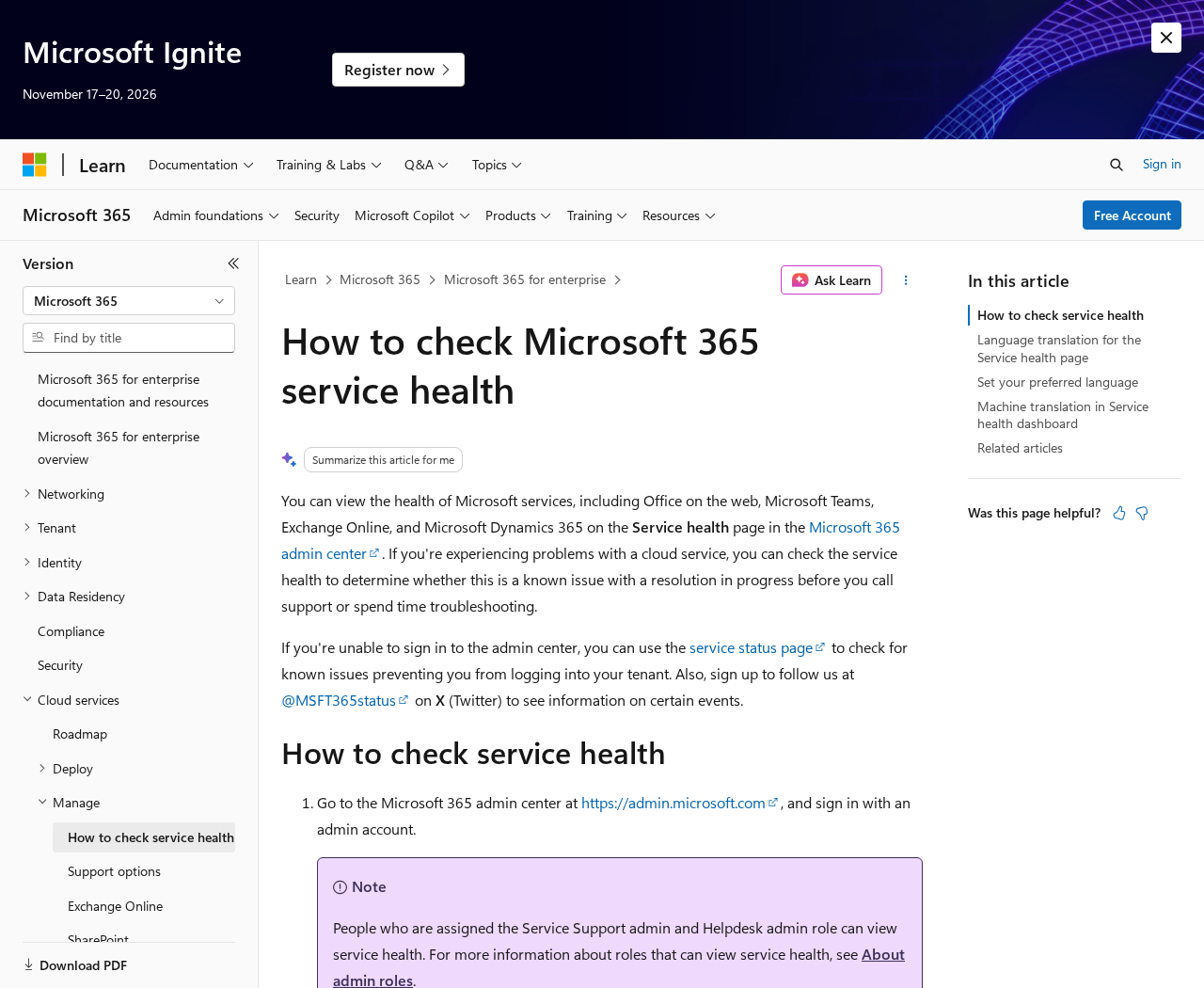
Ask your IT team to check the organization’s service health in the Microsoft 365 admin center. The Microsoft Learn instructions explain where authorized admins can find it.
The service health entry can tell admins which service is affected and how Microsoft describes the impact. Ask whether it matches your symptom rather than assuming it does.
If you aren’t an admin, you may not be able to see that dashboard. That is normal and not a reason to look for an unofficial login.
Give IT the service name and what you were doing when it failed. “Opening an existing Outlook mailbox” is more useful than “I can’t use Microsoft.”
When nobody can reach the dashboard
Open Microsoft’s public service status page independently. It can help when an incident prevents access to the admin center or another service.
A public status page isn’t an exact diagnosis of your organization. A regional or limited tenant issue may be described more precisely in the organization’s own dashboard.
Avoid treating a screenshot of a status card in a group chat as live information. Check the time and whether the update still applies to your location and service.
If someone says you must sign in through their shortcut to see an incident, don’t use it. Open your organization’s normal Microsoft 365 portal or contact IT.
For a personal account
A work tenant’s service notice may not describe a personal Outlook.com account. Check the service you actually use, then try a known official web address.
If one account works and the other doesn’t, make sure you’re checking the right profile and mailbox. An old tab may be showing the wrong session.
Don’t reset every account because one inbox won’t load. If the page displays a specific security or password warning, verify it independently and handle it on its own.
Check Whether the Problem Is Local Without Making It Worse
Try one low-impact comparison
Open Outlook on the web from a known bookmark if the installed app is stuck. If the web version works, note that before trying another change.
Ask a coworker on the same organization whether the same feature fails for them. Different people can be affected differently, so report what each person actually sees.
If only one laptop is affected, check whether other ordinary websites work there. A local network problem can make a Microsoft error look more widespread than it is.
If both web and desktop fail with the same service error, stop repeating the same sign-in attempt. Contact IT with the time, application and error you saw.
Keep your unsaved work in reach
If a document is still open, don’t close it before checking whether your latest edits saved. Follow your organization’s rules for retaining a working copy.
When allowed, use a clearly marked temporary copy on approved storage. Write down what changed so you can merge it once the shared document is available.
Avoid creating competing versions without telling anyone. Two coworkers who edit separate copies during an outage may both assume theirs is the one that will be kept.
If you are working with regulated or confidential data, ask for an approved alternative. A personal email address or shared link outside the company can create another incident.
Don’t remove security controls as a test
Don’t disable multifactor authentication, device management or security software because an inbox won’t load. Those changes can create exposure without fixing a service interruption.
If IT asks you to try a particular workaround, confirm it through your known contact. An unexpected phone caller shouldn’t be the person deciding which controls you turn off.
If the service returns before you make a change, check your original task first. Confirm the problem is resolved instead of continuing through a list of unnecessary resets.
What to Do If Outlook, Teams or SharePoint Stops Working
- Check your organization’s Microsoft 365 status through IT or the admin dashboard. Use Microsoft’s public page if you can’t reach the usual portal.
- Record one or two examples with times. Say which service and device you used, and whether other coworkers can reproduce the same symptom.
- Preserve unsaved work in an approved place. Let coworkers know where the working copy is and who will reconcile it after recovery.
- Use an established backup channel for urgent work. Keep confidential documents and approval requests inside the routes your organization permits.
- Check what actually went through when service returns. Look for unsent email, duplicate drafts, delayed meeting changes and conflicting file edits.
- Report any suspicious recovery message separately. Preserve the sender and link text, then use your normal support channel if you entered credentials or approved a request.
If you were waiting for a deadline confirmation, don’t assume silence means the other person received it. Verify through a known channel and note when you did.
When email delivery resumes, don’t resend everything automatically. Compare the Outbox, Sent Items and recipient confirmation first, especially for instructions that could be acted on twice.
A second email marked as a duplicate or replacement is better than two identical instructions with no context. Tell the recipient which version to use.
Be Careful With Help That Arrives During Recovery
An unexpected message may claim Microsoft needs you to sign in again, install a support tool or approve an authentication prompt. Treat it as a separate event.
If the message asks you to grant access to your computer, don’t do it. Confirm the request using a contact method you already used before the interruption.
You may receive a legitimate company-wide notice. Check who sent it and look for the same update on your organization’s trusted support page or backup channel.
If you entered a password into an unexpected page, tell IT what you entered. Say whether you also approved a sign-in request, downloaded anything or showed your screen.
That information helps the security team respond to the actual exposure. Don’t wait for Outlook to return before reporting a credential or device problem.
How Teams Can Keep Work Moving During an Outage
Pick one backup channel before everybody chooses their own
Use the channel your organization already designated for service disruptions. If there isn’t one, a manager can circulate a temporary plan through a known, approved route.
Decide who sends updates and how often people should expect them. A single update time cuts down on conflicting messages and repeated requests for the same status.
Keep incident messages narrow. Name the services affected, what people should do now and where to check next. Avoid asking employees to sign in through a new link.
If you must contact customers, use the existing support number or status page. Don’t make them guess which new account is really yours during an outage.
Set a cutoff for tasks that can wait. A meeting agenda can usually wait longer than a request to approve a shipment or meet a filing deadline.
Protect approvals while the normal route is unavailable
Don’t skip a second approval because Outlook is down. Use the process your organization already allows for urgent decisions, or wait until you can verify both approvers.
Be particularly careful with changes to bank details. Call the known contact on file rather than using a new number that appeared in a temporary message.
Record who approved each action, at what time and where the confirmation is saved. That is easier to reconcile than a chain of private texts.
When normal service returns, don’t process the same action again just because the original request finally arrives. Mark it as already completed and keep the reference.
Close out delayed files, meetings and messages deliberately
Pick an owner for each important document. Ask everyone who kept an offline copy to share what they changed before the owner updates the shared version.
Look for edits that landed after you last opened the document. Don’t replace a newer shared copy with an older local copy simply because yours opens first.
If a Teams meeting moved, confirm which calendar invitation people should keep. A delayed update can leave two events that look equally current.
Check a small sample of important messages before declaring the backlog cleared. A mailbox that opens may still contain delayed delivery or an unsent item.
Send customers one confirmed status update once you’re ready. If they received two notices, explain which is current rather than making them interpret the timestamps.
Make a note for the next disruption
Afterward, write down which backup route actually worked. Make sure it can be found without the same service that was unavailable this time.
Keep the public status page and your official support contact somewhere employees can reach. A notice buried in the shared drive is little help when SharePoint won’t open.
If one user still has problems after colleagues recover, open a new local support ticket with the current symptoms. Don’t leave it attached to a resolved global incident.
Separate account-security reports from connectivity tickets so they get the right attention. A service interruption doesn’t make an unexpected approval or suspicious message safe to ignore.
Frequently Asked Questions
Does Outlook failing mean my mailbox was hacked?
No. The November interruption affected access to Microsoft services. An error opening an inbox does not on its own establish unauthorized account access.
If you see unknown sign-ins, mailbox rules or messages you did not send, report those details separately to IT rather than blaming them on the outage.
How do I check whether Microsoft 365 is down for my company?
Ask your IT team or an authorized administrator to check Service health in the Microsoft 365 admin center. Provide the affected service and when it failed.
If the portal won’t load, use the public Microsoft status page and your organization’s fallback channel. A public notice may not answer every tenant-specific question.
Should I restart my computer during an outage?
A restart may help a local app issue, but it won’t repair Microsoft’s servers. Preserve unsaved work before restarting anything.
Try a simple web-versus-desktop comparison if possible. Use that result to tell IT what is failing instead of repeatedly rebooting.
Can I send the same urgent email again?
Check whether the first message is still queued or marked sent. If the matter is urgent, verify it through another approved contact route.
If you do send a replacement, say so explicitly. That matters for duplicate invoices, authorizations or instructions the recipient might otherwise process twice.
Why does Teams work while SharePoint doesn’t?
Services can recover or fail at different times, and the same app can work for one person but not another. Record the specific features you can reach.
Ask whether the organization’s status notice mentions your service. Don’t assume a working chat means a document has finished syncing.
Is the November 2026 outage still ongoing?
Microsoft reported broad recovery on November 13. An earlier incident report is not a live status check for the device you’re using now.
Check current service health and ask IT if the symptom persists. Avoid acting on a stale incident screenshot or an unsolicited offer to restore access.
The Bottom Line
Check Microsoft service health and your organization’s known IT channel before changing settings. Keep unsaved work safe and don’t sign in through an unexpected recovery link.
Once service returns, confirm what really sent or synced. If you shared credentials during the interruption, report that as a separate security issue.

Join the discussion
0 commentsShare your experience or ask a question about this article.
Discussion
Start the conversation
Have a question or something useful to share? Add the first comment.