

Norton Antivirus scam emails are fake messages that impersonate Norton, NortonLifeLock, or related security services to scare people into calling a fraudulent phone number, clicking a malicious link, or “canceling” a subscription they never ordered.
These scams usually look like billing notices, renewal alerts, refund confirmations, or urgent account warnings. The goal is not simply to make you believe you bought Norton Antivirus. The real goal is to pull you into a conversation with a scammer who can steal your money, access your computer, or collect sensitive personal information.
Norton itself warns users that scammers may send suspicious emails pretending to be from the company and recommends forwarding suspicious messages as attachments to spam@norton.com. The FTC has also warned about fake Norton billing emails that claim you were charged for a Norton product and urge you to call immediately.
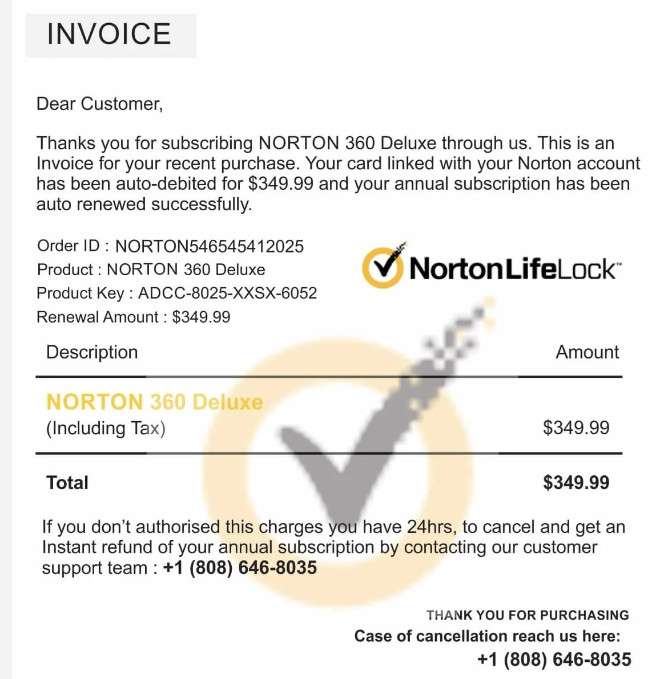
Scam Overview
The Norton Antivirus scam email is one of the most common subscription renewal scams because it exploits a familiar brand name. Norton is widely known for antivirus protection, computer security, identity protection, and online safety products. That familiarity makes the scam feel believable, especially when the email uses official-looking branding, invoice numbers, customer IDs, renewal dates, and large payment amounts.
A typical scam email claims that your Norton Antivirus, Norton 360, NortonLifeLock, or LifeLock subscription has been renewed automatically. The message may say that your account was charged $299, $349, $399, $499, or another amount for a one-year or multi-year plan. In many cases, the victim does not even use Norton, which is exactly why the scam works. The sudden charge creates panic.
The email usually includes a phone number labeled as “billing support,” “refund department,” “cancellation support,” or “customer care.” It may say that you have only 24 hours to dispute the charge. That urgency is intentional. Scammers want you to react before checking your bank account, logging into your official Norton account, or searching for the real Norton support page.
Norton has specifically stated that fake subscription renewal scams have increased, and that identity thieves send fake emails hoping users will click malicious links. Norton recommends sending scam samples as attachments so the company can analyze them properly.
These emails often use subject lines such as:
- Norton Antivirus Subscription Renewed
- Norton 360 Auto-Renewal Confirmation
- Your NortonLifeLock Invoice Is Ready
- Payment Successful for Norton Protection
- Your Account Has Been Charged
- Norton Billing Department: Renewal Notice
- Thank You for Your Norton Purchase
- Action Required: Cancel Within 24 Hours
- Norton Security Order Confirmation
- Renewal Invoice Attached
The scam can take several forms. Some emails include a fake invoice PDF. Others place the fake invoice directly in the email body. Some include links to phishing pages. Others avoid links entirely and rely on the victim calling the phone number. That makes the email less likely to be blocked by spam filters.
The most dangerous version is the refund scam. In this version, the email says you were charged for a Norton subscription and must call to cancel or request a refund. Once you call, the scammer pretends to be a support agent. They may ask you to install remote access software, log into your bank account, fill out a fake refund form, or confirm personal details.
From there, the scam can escalate quickly. The criminal may claim they accidentally refunded too much money and pressure you to return the “extra” amount. In reported cases, victims have lost thousands of dollars through fake Norton refund schemes. One 2025 case described by local police involved a fake Norton email that allegedly led a victim to lose more than $49,000 after calling the number in the message.
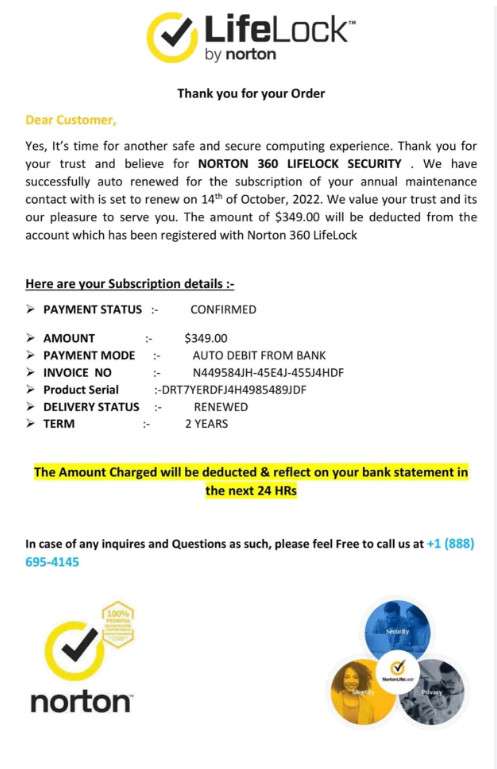
The scam works because it combines several psychological triggers:
- Fear of being charged for something you did not buy
- Trust in a recognizable cybersecurity brand
- Urgency created by fake cancellation deadlines
- Confusion around subscriptions and auto-renewals
- Pressure from a fake support agent
- Technical intimidation through remote access tools
- Embarrassment that prevents some victims from asking for help
A real Norton email may include account or product information, but a legitimate message will not pressure you to call a random number, install remote access software, pay with gift cards, send cryptocurrency, or move money to “protect” your account. Norton also states that official Norton Support is free for current subscribers and that the official support website is support.norton.com.
How the Norton Antivirus Scam Email Works
1. The victim receives a fake Norton invoice
The scam usually begins with an email designed to look like a legitimate invoice or renewal confirmation. The message may use Norton branding, a logo, a fake order number, and a professional-looking layout.
The email often claims:
- Your Norton subscription has renewed automatically
- Your bank account or card has been charged
- Your order is now confirmed
- Your account will be debited soon
- You have 24 hours to cancel
- You must call support if you did not authorize the charge
The email may include a fake product name such as:
- Norton Antivirus Plus
- Norton 360 Deluxe
- Norton 360 Premium
- NortonLifeLock Protection
- Norton Security Ultimate
- LifeLock Identity Protection
- Norton Firewall Protection
The amount is usually high enough to cause concern but not so extreme that it immediately feels impossible. Many fake invoices use figures between $299 and $599.
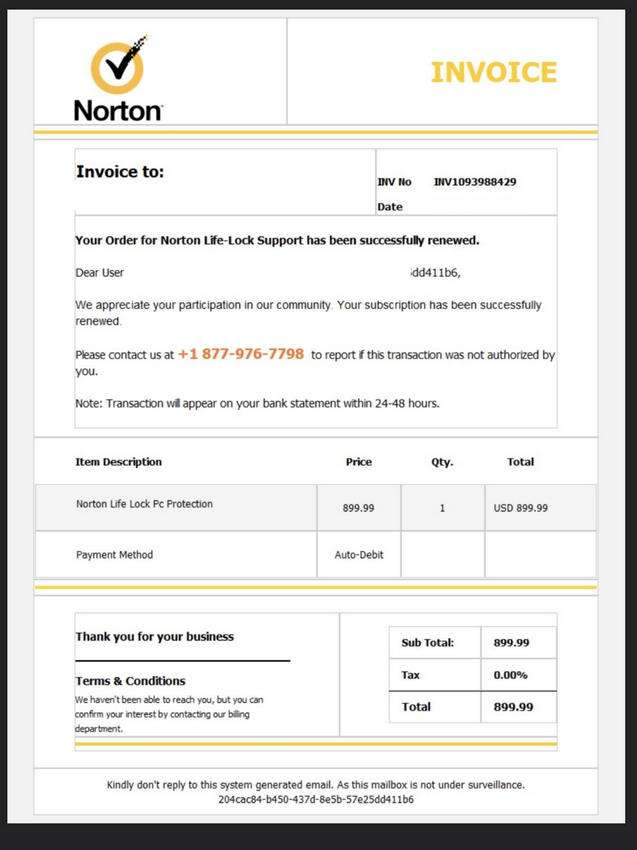
2. The email creates panic with a fake charge
The scam does not need you to believe the charge is real forever. It only needs you to panic for a few minutes.
The message may say something like:
“Your Norton Antivirus subscription has been renewed successfully. Your account has been charged $399.99. If you did not authorize this transaction, call our billing team immediately.”
This is the central trick. The email makes you feel that money has already been taken or is about to be taken. You may rush to call the number before checking whether any charge actually exists.
3. The scammer waits for the victim to call
Unlike many phishing scams that depend on a malicious link, Norton invoice scams often rely on phone calls. This makes them more convincing because the victim feels they are speaking with customer support.
When you call, the scammer may answer with a scripted greeting such as:
“Norton billing department, how may I help you?”
They may ask for the invoice number from the email to make the interaction feel official. Then they may claim they can cancel the subscription or process a refund.
At this point, the scammer is trying to gain control of the conversation. They may speak calmly at first, then become more urgent once they sense hesitation.
4. The victim is asked to install remote access software
In many cases, the fake support agent says they need to “verify your account,” “cancel the renewal from your system,” or “process the refund securely.” To do this, they ask you to install a remote access tool.
They may mention software such as:
- AnyDesk
- TeamViewer
- UltraViewer
- Zoho Assist
- GoToAssist
- ConnectWise
- LogMeIn
- ScreenConnect
Remote access software is not malicious by itself. Legitimate IT professionals use it every day. But in this scam, it gives the criminal direct control over your computer.
Once connected, the scammer may:
- View your screen
- Guide you to your online banking account
- Steal saved passwords
- Access email accounts
- Install malware
- Move files
- Disable security settings
- Manipulate what you see on-screen
This is where the scam becomes especially dangerous. A fake billing issue can turn into full account compromise.
5. The scammer uses a fake refund form
After gaining your trust, the scammer may open a fake refund page or form. It may ask for your name, address, phone number, bank name, card details, and refund amount.
In some versions, the scammer tells you to type the refund amount, such as $399.99. Then they manipulate the screen, browser, or HTML code to make it appear that you accidentally received $3,999 or $39,999 instead.
This “over-refund” trick is common in refund scams. The scammer then pretends to panic and says they will lose their job unless you send back the extra money.
The victim is made to feel responsible for a mistake that never happened.
6. The scammer pressures the victim to send money
Once the fake over-refund story begins, the scammer may demand repayment through methods that are hard to reverse.
They may ask for:
- Gift cards
- Cryptocurrency
- Wire transfers
- Cash withdrawals
- Zelle, Cash App, or Venmo payments
- Bitcoin ATM deposits
- MoneyGram or Western Union transfers
- Mailed cash packages
- Bank-to-bank transfers
They may tell you not to speak with your bank, family, or local police because it would “delay the refund” or “trigger legal action.” This is manipulation. Real companies do not ask customers to return accidental refunds through gift cards, crypto, or cash.
7. The scammer may steal more than money
Even if you do not send money, the scammer may still collect valuable information during the call.
They may obtain:
- Full name
- Home address
- Phone number
- Email address
- Banking institution
- Partial card details
- Account login credentials
- Social Security number
- Identity documents
- Remote access to your computer
- Saved browser passwords
- Email account access
This information can be used for identity theft, account takeover, future phishing attempts, or resale to other criminals.
8. The victim may be targeted again
Once a victim engages with a Norton scam email, scammers may keep targeting them. They may send follow-up messages pretending to be:
- Norton refund agents
- Bank fraud departments
- Government investigators
- Recovery specialists
- Crypto recovery firms
- Law enforcement officers
- Tech support agents
These are secondary scams. The criminals know the victim has already responded once, so they try again with a new story.
Common Red Flags in Norton Antivirus Scam Emails
A Norton scam email can look polished, but there are usually warning signs.
Watch for these red flags:
- The email claims you were charged for a Norton product you never ordered
- The sender address does not match an official Norton domain
- The message uses generic greetings like “Dear Customer”
- The invoice contains strange formatting or grammar errors
- The amount is unusually high
- The email pressures you to call within 24 hours
- The cancellation number appears only inside the email or PDF
- The message asks you to call instead of logging into your official account
- The email includes an attachment you were not expecting
- The link leads to a suspicious website
- The support agent asks for remote access
- You are told to log into your bank while on the call
- You are asked to pay by gift card, crypto, wire transfer, or cash
- You are told not to tell anyone
Norton provides a page for verifying whether an email is legitimate and lists legitimate Norton domains users can check against suspicious messages.
Examples of Norton Scam Email Wording
Below are examples of wording commonly used in this type of scam. These are not legitimate Norton messages.
Fake Renewal Invoice Example
Subject: Norton Antivirus Renewal Confirmation
Dear Customer,
Thank you for choosing Norton Antivirus Protection. Your annual subscription has been renewed successfully.
Product: Norton 360 Security
Invoice Number: NRT-784219
Amount Charged: $399.99
Renewal Date: Today
If you did not authorize this transaction, please call our billing department immediately at the number below.
Customer Support: [fake phone number]
Thank you,
Norton Billing Team
Fake Cancellation Email Example
Subject: Your Norton Subscription Has Been Activated
Your NortonLifeLock subscription has been activated for another 3 years. The amount of $499.99 will appear on your account within 24 hours.
If you wish to cancel this order, contact our cancellation department immediately.
Cancellation Desk: [fake phone number]
Failure to contact us within 24 hours will result in successful payment processing.
Fake Refund Email Example
Subject: Norton Refund Request Approved
Your refund request for Norton Antivirus has been approved. To complete the refund process, contact our refund department.
Refund Amount: $349.99
Case ID: NR-492810
Support Line: [fake phone number]
Please keep your invoice number ready.
What To Do If You Received a Norton Scam Email
If you received a suspicious Norton email but did not click anything or call the number, the safest response is simple:
- Do not call the number in the email.
- Do not click links or open attachments.
- Check your bank or card account directly, not through the email.
- Log into your Norton account only through the official website.
- Forward the suspicious email as an attachment to Norton at spam@norton.com.
- Delete the email after reporting it.
Norton says suspicious emails that appear to come from Norton can be forwarded as attachments to spam@norton.com. Norton also provides reporting instructions for scam emails involving LifeLock at spam@lifelock.com.
What To Do If You Called the Number
If you called the number but did not share information, install software, or send money, end contact immediately. Do not answer follow-up calls.
Then:
- Block the phone number.
- Delete the email.
- Monitor your accounts for suspicious activity.
- Change your email password if you gave any personal details.
- Be alert for follow-up scams.
If the scammer convinced you to install remote access software, take stronger action.
What To Do If You Installed Remote Access Software
If you gave the scammer remote access to your computer:
- Disconnect from the internet immediately.
- Shut down the computer if the scammer is still connected.
- Uninstall the remote access software.
- Run a full antivirus and anti-malware scan.
- Change passwords from a different, clean device.
- Enable two-factor authentication on important accounts.
- Check your email forwarding rules and recovery settings.
- Contact your bank if you accessed financial accounts during the session.
- Consider having a trusted technician inspect the computer.
Do not continue using the same machine for banking until you are confident it is clean.
What To Do If You Lost Money
If you sent money to a Norton Antivirus scammer, act quickly.
1. Contact your bank or card issuer
Call the official number on the back of your card or from your bank’s website. Tell them you were scammed and ask whether the transaction can be blocked, reversed, or disputed.
2. Report gift cards immediately
If you paid with gift cards, contact the gift card company. Provide the card numbers and receipts. Recovery is not guaranteed, but fast reporting gives you the best chance.
3. Report cryptocurrency payments
If you sent cryptocurrency, gather the wallet address, transaction hash, screenshots, and communication records. Crypto transfers are usually irreversible, but the information may help investigators.
4. File a police report
A police report can help with bank disputes, identity theft recovery, and documentation.
5. Report the scam to the FTC
In the U.S., report the scam to the FTC at ReportFraud.ftc.gov. The FTC tracks scam patterns and provides recovery guidance.
6. Preserve evidence
Save:
- The scam email
- Email headers if possible
- Phone numbers used
- Screenshots
- Receipts
- Bank transaction records
- Remote access software names
- Chat logs
- Any names or case numbers the scammer used
7. Watch for recovery scams
After losing money, you may be contacted by people claiming they can recover it for a fee. Be careful. Many “recovery agents” are scammers too.
How To Check If a Norton Email Is Real
Do not rely only on the logo, formatting, or invoice number. Scammers can copy branding easily.
Use this checklist:
- Check the sender’s full email address, not just the display name.
- Compare the domain with Norton’s official list of legitimate domains.
- Do not use phone numbers from suspicious emails.
- Do not open unexpected invoice attachments.
- Log into your Norton account directly from the official website.
- Check your bank account directly for any real charge.
- Contact Norton only through official support channels.
- Search the exact phone number online; many scam numbers are reported by victims.
A real billing issue should be visible inside your official account or financial statement. If the email claims a charge happened but your bank account shows nothing, it is likely a scam attempt.
Why Norton Is So Often Used in These Scams
Scammers impersonate Norton because the brand is strongly associated with computer protection. That gives the scam credibility.
They also target antivirus subscriptions because many people are familiar with auto-renewals. A fake renewal notice feels plausible, especially to users who may not remember what software they installed years ago.
The scam also targets anxiety. People worry about:
- Being charged unexpectedly
- Losing access to computer protection
- Viruses and hackers
- Identity theft
- Subscription traps
- Refund deadlines
Scammers use those concerns to move victims from email to phone, where manipulation becomes easier.
Is Your Device Infected? Run a Free Malware Scan
Slow performance, constant pop-ups, or strange behavior? These are classic signs of a malware infection. The fastest way to find out is to scan your device with Malwarebytes Free — one of the most trusted malware removal tools available.
The free version detects and removes the most common threats, including:
- Adware — the cause of those annoying pop-ups
- Browser hijackers — unwanted redirects and changed homepages
- Trojans and spyware — hidden programs stealing your data
- Potentially unwanted programs (PUPs) — software you never asked for
👉 Select your device below — Windows, Mac, or Android — then follow the simple steps to download Malwarebytes, scan your system, and remove any threats it finds. The scan usually takes 5 to 20 minutes.
Run a Malware Scan with Malwarebytes for Windows
Malwarebytes is one of the most popular and trusted anti-malware tools for Windows — and it’s completely free for removing infections. It catches threats that many antivirus programs miss, including adware, browser hijackers, and trojans. Follow the steps below to scan and clean your PC in just a few minutes.
Download Malwarebytes
Click the button below to download the latest version of Malwarebytes for Windows from the official source. The free version is all you need — it will scan your computer and remove adware, browser hijackers, and other malicious software at no cost.
Download MalwarebytesOfficial installer for Windows 11 and 10. Your download starts right away.Want real-time protection? See Malwarebytes Premium Malwarebytes Free for WindowsScans and removes malware at no cost
-
Install Malwarebytes
When the download finishes, open your Downloads folder and double-click the MBSetup file. If Windows shows a User Account Control pop-up, click “Yes” to allow the installation.

Follow the On-Screen Prompts to Install Malwarebytes
The setup wizard will walk you through a few quick screens:
-
Choose where you’re installing the program — “Personal Computer” or “Work Computer” — then click Next.

-
Malwarebytes will now install on your device. This usually takes under a minute.

-
When installation is complete, the “Welcome to Malwarebytes” screen will open automatically.

-
On the final screen, click Open Malwarebytes to launch the program.

-
Enable “Scan for Rootkits”
Before scanning, turn on rootkit detection so Malwarebytes can find even the most hidden threats. Click the Settings gear icon on the left side of the screen.

In the settings menu, find “Scan for rootkits” and click the toggle so it turns blue.

Done? Click “Dashboard” in the left pane to return to the main screen.
Start the Scan
Click the blue Scan button. Malwarebytes will automatically update its virus database and start checking your computer for malware.

-
Wait for the Scan to Finish
The scan checks your entire system for browser hijackers and other malicious programs, so it can take 5 to 20 minutes depending on your computer. Feel free to do something else — just check back occasionally to see the progress.

-
Quarantine the Detected Threats
When the scan is done, you’ll see a list of everything Malwarebytes found — malware, adware, and potentially unwanted programs. Click the “Quarantine” button to remove all of them at once.

Malwarebytes will now remove the malicious files and registry entries and move them safely into quarantine.

-
Restart Your Computer
Some threats can only be fully removed after a reboot. If Malwarebytes asks you to restart, click Yes. Once you’re logged back in, Malwarebytes has finished removing the threats it found.

That’s it — your Windows PC is now clean of trojans, adware, and other malware, and should be back to running smoothly.
If you are still having problems with your computer after completing these instructions, then please follow one of the steps:
- Run a computer scan with ESET Online Scanner
- Ask for help in our Windows Malware Removal Help & Support forum.
Run a Malware Scan with Malwarebytes for Mac
Malwarebytes for Mac is a free on-demand scanner that removes the malware other security software tends to miss — adware, browser hijackers, and unwanted programs included. Cleaning an infected Mac with Malwarebytes has always been completely free, and it’s our go-to recommendation. Follow the steps below to scan and clean your Mac in just a few minutes.
-
Download Malwarebytes for Mac
Click the button below to download the latest version of Malwarebytes for Mac.
Download MalwarebytesOfficial installer for macOS. Your download starts right away.Want real-time protection? See Malwarebytes PremiumMalwarebytes Free for MacScans and removes malware at no cost -
Open the Malwarebytes setup file
When the download finishes, open your Downloads folder and double-click the setup file to begin the installation.

-
Follow the On-Screen Prompts to Install Malwarebytes
The Malwarebytes for Mac Installer will guide you through a few quick screens. Click “Continue” and keep following the prompts until the installation completes.



When the installation is complete, Malwarebytes opens to the Welcome to Malwarebytes screen. Click “Get started“.
-
Select “Personal Computer” or “Work Computer”
Malwarebytes will ask what type of computer you’re installing it on. Click either Personal Computer or Work Computer, whichever applies.

-
Start the Scan
Click the “Scan” button. Malwarebytes will automatically update its detection database and begin checking your Mac for malware.

-
Wait for the Scan to Finish
Malwarebytes will scan your Mac for adware, browser hijackers, and other malicious programs. This can take a few minutes, so feel free to do something else — just check back occasionally to see the progress.

-
Quarantine the Detected Threats
When the scan is done, you’ll see a list of everything Malwarebytes found. Click the “Quarantine” button to remove all the threats at once.

-
Restart Your Mac
Malwarebytes will now remove all the malicious files it found. Some threats can only be fully removed after a reboot — if Malwarebytes asks you to restart, allow it. Once you’re logged back in, your Mac is clean.

That’s it — your Mac is now free of adware, rogue browser extensions, and other potentially harmful software.
If you are still experiencing problems while trying to remove a malicious program from your computer, please ask for help in our Mac Malware Removal Help & Support forum.
Run a Malware Scan with Malwarebytes for Android
Malwarebytes for Android automatically detects and removes dangerous threats like malware and ransomware so you don’t have to worry about your most-used device being compromised. Aggressive detection of adware and potentially unwanted programs keeps your Android phone or tablet running smooth.
-
Download Malwarebytes for Android.
You can download Malwarebytes for Android by clicking the link below.
Get Malwarebytes for AndroidOpens Google Play in a new tab.Want real-time protection? See Malwarebytes Premium for AndroidMalwarebytes for AndroidScans your phone and removes malware at no cost -
Install Malwarebytes for Android on your phone.
In the Google Play Store, tap “Install” to install Malwarebytes for Android on your device.

When the installation process has finished, tap “Open” to begin using Malwarebytes for Android. You can also open Malwarebytes by tapping on its icon in your phone menu or home screen.

-
Follow the on-screen prompts to complete the setup process
When Malwarebytes will open, you will see the Malwarebytes Setup Wizard which will guide you through a series of permissions and other setup options.
This is the first of two screens that explain the difference between the Premium and Free versions. Swipe this screen to continue.
Tap on “Got it” to proceed to the next step.
Malwarebytes for Android will now ask for a set of permissions that are required to scan your device and protect it from malware. Tap on “Give permission” to continue.
Tap on “Allow” to permit Malwarebytes to access the files on your phone.
-
Update database and run a scan with Malwarebytes for Android
You will now be prompted to update the Malwarebytes database and run a full system scan.

Click on “Update database” to update the Malwarebytes for Android definitions to the latest version, then click on “Run full scan” to perform a system scan.

-
Wait for the Malwarebytes scan to complete.
Malwarebytes will now start scanning your phone for adware and other malicious apps. This process can take a few minutes, so we suggest you do something else and periodically check on the status of the scan to see when it is finished.

-
Click on “Remove Selected”.
When the scan has been completed, you will be presented with a screen showing the malware infections that Malwarebytes for Android has detected. To remove the malicious apps that Malwarebytes has found, tap on the “Remove Selected” button.

-
Restart your phone.
Malwarebytes for Android will now remove all the malicious apps that it has found. To complete the malware removal process, Malwarebytes may ask you to restart your device.
That’s it — your Android phone is now clean — no more malicious apps, adware, or browser redirects.
If you are still having problems with your phone after completing these instructions, then please follow one of the steps:
- Restore your phone to factory settings by going to Settings > General management > Reset > Factory data reset.
- Ask for help in our Mobile Malware Removal Help & Support forum.
Stay Protected: Block Ads and Malicious Sites
Now that your device is clean, keep it that way. Most infections start with a malicious ad or a fake download button — so blocking them at the source is your best defense.
We recommend AdGuard, which blocks malicious ads, phishing pages, and dangerous redirects before they can reach you.
👉 Download AdGuard and browse safely
The Bottom Line
Norton Antivirus scam emails are not real billing notices. They are phishing and refund scams designed to make you panic, call a fake support number, click a malicious link, or give criminals access to your computer and money.
The safest response is to stop, verify independently, and never use the phone number or link inside the message. Check your bank directly, log into your Norton account through the official website, and report suspicious emails to Norton.
If you already interacted with the scam, act quickly. Disconnect remote access, secure your accounts, contact your bank, preserve evidence, and report the fraud. The faster you respond, the better your chances of limiting the damage.
FAQ
Is the Norton Antivirus renewal email real?
It may be real, but many Norton renewal emails are scams. Do not trust the logo or invoice layout alone. Check your bank account directly and log into your Norton account through the official Norton website, not through links in the email.
Why did I receive a Norton invoice if I never bought Norton?
Scammers send fake Norton invoices in bulk. They do not always know whether you use Norton. The goal is to make you panic about a fake charge and call the scam phone number.
What happens if I call the number in the Norton scam email?
You may reach a fake support agent who claims they can cancel the charge or process a refund. They may ask you to install remote access software, log into your bank, provide personal details, or send money through gift cards, wire transfer, crypto, or payment apps.
Can scammers charge me just because I opened the email?
Usually, no. Simply opening the email does not mean you were charged. The danger starts when you click links, open attachments, call the number, download software, or share information.
What should I do if I clicked a link in a fake Norton email?
Close the page immediately. Do not enter any information. Run a security scan, clear suspicious downloads, and change passwords if you typed login details. If you entered banking or card information, contact your bank right away.
What should I do if I downloaded remote access software?
Disconnect from the internet, uninstall the remote access tool, run a full malware scan, and change important passwords from another clean device. Contact your bank if you opened financial accounts while the scammer was connected.
Where can I report Norton scam emails?
Forward suspicious Norton emails as an attachment to spam@norton.com. You can also report fraud to the FTC at ReportFraud.ftc.gov if you are in the U.S., and to your bank or local cybercrime authority if money or personal information was involved.
How can I tell if a Norton email is fake?
Common signs include a strange sender address, urgent cancellation language, a high invoice amount, grammar errors, suspicious attachments, a phone number inside the email, and instructions to call immediately to stop a charge.
Does Norton ask for payment through gift cards or cryptocurrency?
No. A legitimate company will not ask you to pay, refund, or reverse a billing mistake using gift cards, cryptocurrency, cash deposits, wire transfers, or Bitcoin ATMs.
Can I get my money back after a Norton email scam?
It depends on how you paid and how quickly you act. Contact your bank, card issuer, gift card company, or payment provider immediately. Preserve the email, phone number, receipts, screenshots, and transaction details.

Join the discussion
0 commentsShare your experience or ask a question about this article.
Discussion
Start the conversation
Have a question or something useful to share? Add the first comment.