


An alarming email claims your Norton antivirus protection has been turned off and your computer is moments away from being exposed to hackers. It warns that your renewal payment failed, displays what looks like subscription information, and urges you to restore your protection immediately.
The message looks serious, but several details raise questions about who’s really behind it. We examined the warning, its tactics, and the websites commonly associated with these antivirus alerts.
Scam Overview: What Is the Norton “Virus Protection Turned OFF” Email Scam?
The Norton “Virus Protection Turned OFF” email scam is a deceptive security warning that impersonates the popular antivirus provider to convince recipients their computer is no longer protected.
The message claims a subscription renewal has failed, usually because of an expired payment method. It then presents the situation as an immediate security emergency, warning that viruses, hackers, and identity thieves could compromise the device unless the recipient acts quickly.
Unlike ordinary phishing messages that simply ask users to verify an account, this type of campaign can lead into a more elaborate online sales funnel.
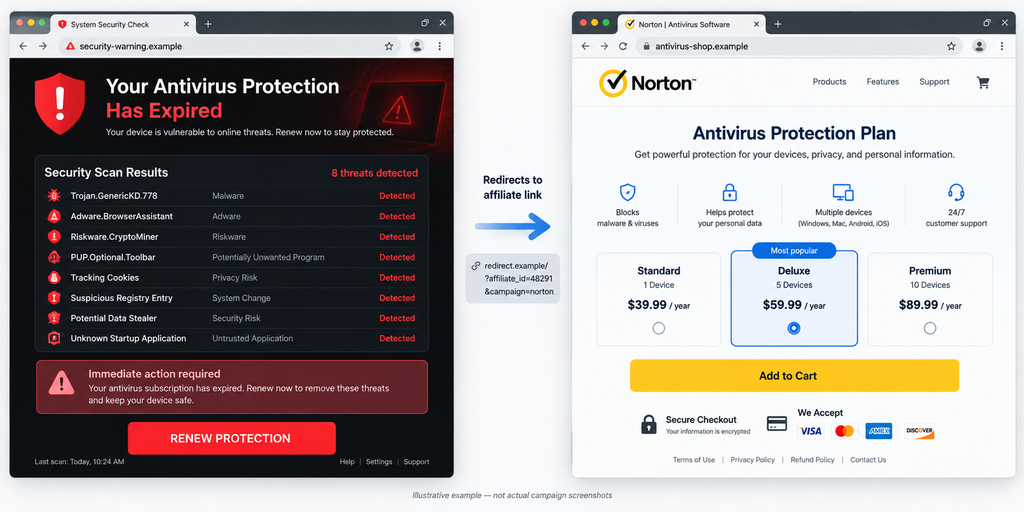
Recipients who click the warning may be redirected to websites that imitate antivirus security dashboards, display fabricated malware scan results, and insist that paid protection must be renewed immediately.
Some of these websites eventually redirect visitors to legitimate antivirus vendors such as Norton, McAfee, or other security software companies through affiliate tracking links.
The software offered at the end of the process may be genuine. The problem is how visitors were persuaded to buy it.
By presenting fake infections and nonexistent security emergencies, the operators attempt to generate antivirus purchases they might otherwise never have received.
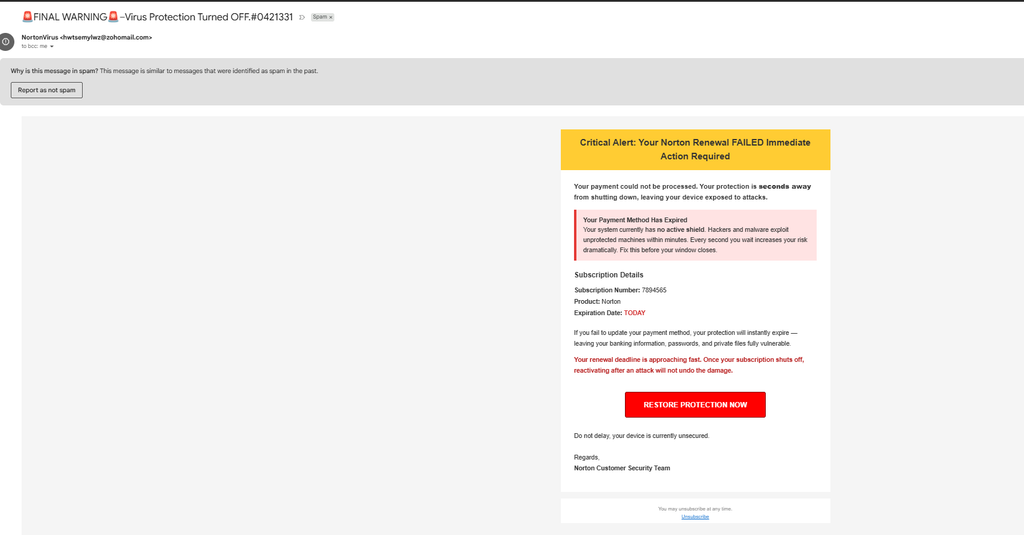
The Suspicious Norton Email We Examined
One example of the campaign uses the subject line:
“FINAL WARNING – Virus Protection Turned OFF #0421331”
The subject includes emergency symbols and a reference number intended to make the notice resemble an official security alert.
The sender appears as “NortonVirus,” but the actual email address is:
hwtsemylwz@zohomail.com
This is an immediate warning sign. The address belongs to an unrelated email domain rather than an identifiable Norton corporate account.
The message was also delivered using a BCC recipient field and was automatically placed in Gmail’s Spam folder.
While BCC delivery isn’t inherently suspicious, combining it with a random sender address and an alarming security warning suggests the message was designed for broad distribution rather than a personalized Norton account notification.
The email’s layout reinforces the impersonation.
A bright yellow banner announces:
“Critical Alert: Your Norton Renewal FAILED Immediate Action Required”
Below that, the message claims the recipient’s payment could not be processed and that their antivirus protection is seconds away from shutting down.
A red-tinted warning panel adds that the payment method has expired and that the computer currently has no active security shield.
The wording escalates the threat by claiming hackers can exploit an unprotected computer within minutes.
The email then presents supposed subscription information:
- Subscription Number: 7894565
- Product: Norton
- Expiration Date: TODAY
These details are intended to establish credibility, but their presence doesn’t prove that the sender has access to a real Norton customer account.
An arbitrary subscription number and a prominently displayed expiration date are easy to include in a fabricated message.
The email also warns that the recipient’s banking information, passwords, and private files could be exposed if they fail to update their payment method.
Near the bottom, a large red button labeled “RESTORE PROTECTION NOW” serves as the primary call to action.
The entire message is built around one idea: create enough fear that the recipient clicks before checking whether the warning is genuine.
The Warning Doesn’t Prove Your Antivirus Has Expired
A particularly misleading aspect of the email is its claim to know the recipient’s current security status.
The message states that protection is about to shut down and that the computer has no active defense against malware.
But the email provides no credible evidence that the sender has checked the device or verified the installed antivirus software.
An unsolicited promotional message cannot determine whether Windows Security is running, which antivirus products are installed, or whether malware is present simply by displaying a warning.
Even if someone previously purchased Norton, the claims in this particular message should not be trusted without independent verification.
A real Norton subscription can expire or encounter a payment issue. That is a legitimate account-management concern, but it doesn’t establish that a computer will suddenly be compromised or that attackers are waiting for a renewal deadline.
On Windows, Microsoft Defender Antivirus may provide protection when another antivirus product is no longer active, depending on the system’s configuration.
The status should be checked directly in the installed security application or Windows Security, not through a link in an unsolicited email.
The Fake Antivirus Scanner Behind These Campaigns
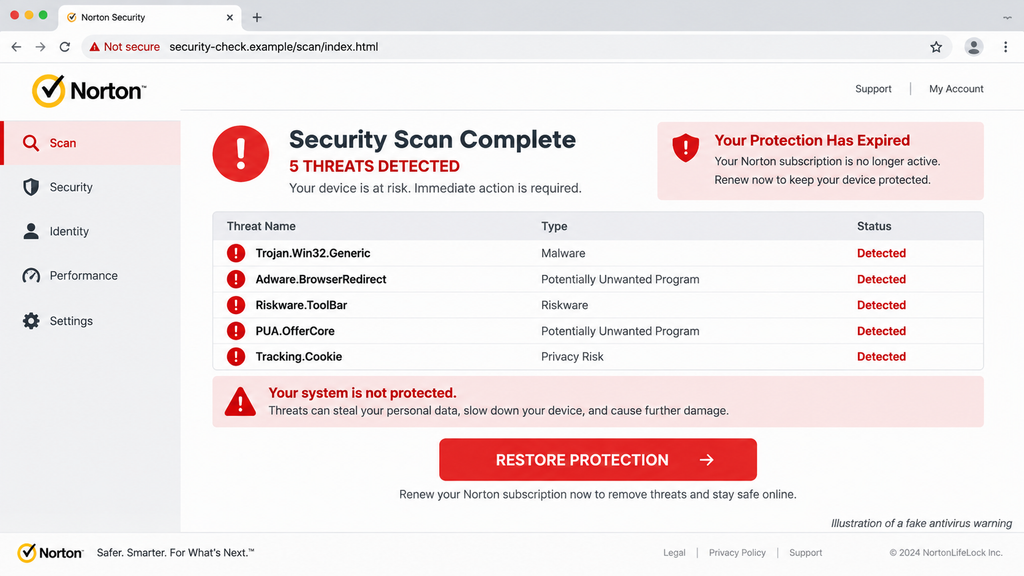
A common next stage in antivirus scareware campaigns is a webpage designed to resemble a security scanner.
Visitors may see a progress bar, a list of files being examined, and a counter showing how many objects have supposedly been checked.
The page can display messages such as “Quick Scan in Progress,” “Security Risks Detected,” or “Your Antivirus Subscription Has Expired.”
After a brief animation, the scanner may announce that several dangerous infections have been found.
The threats can include frightening names involving Trojans, spyware, keyloggers, ransomware, or browser hijackers.
However, an ordinary webpage cannot conduct a complete antivirus scan of a visitor’s operating system and private files merely because someone opened the page.
The apparent scan can be nothing more than JavaScript controlling an animation and displaying predetermined results.
Some scam pages even show the same malware findings to every visitor.
That creates the impression of a personalized security assessment while avoiding any need to examine the actual computer.
The warning then directs the visitor toward a renewal or antivirus purchase button.
This is where the campaign moves from frightening people to monetizing their concern.
How Affiliate Marketing Enters the Picture
Affiliate marketing is a legitimate business model in which a company pays partners for referring customers.
Security software vendors, like businesses in many industries, can use referral programs to promote their products.
An affiliate receives a unique tracking link. When someone visits through that link and completes a qualifying purchase, the referring partner may receive a commission.
The problematic behavior begins when affiliates or other traffic operators use deception to generate those purchases.
Instead of providing a genuine product comparison or an honest recommendation, they create fabricated security alerts.
A visitor is told their computer is infected, their protection has expired, or their personal information is at immediate risk.
The page then presents purchasing antivirus software as the urgent solution.
If the visitor clicks through a tracked referral link and completes a qualifying purchase, the traffic operator may receive credit for the sale.
This creates a financial incentive to make the warning as frightening and convincing as possible.
Importantly, the existence of a legitimate antivirus checkout page does not establish that the vendor created or approved the misleading advertisement.
The operator responsible for the fake warning may be an unrelated advertising affiliate or intermediary.
Without the actual redirect URL and tracking information, the specific affiliate account behind an individual email cannot be identified.
Why the Final Destination May Be a Real Antivirus Website
This is one of the most confusing features of the scheme.
People often assume a scam must end on an obviously fraudulent website that steals credit card information.
But in an affiliate-driven scareware campaign, the visitor may eventually arrive at a genuine antivirus retailer’s website.
The final checkout might process a valid purchase, issue a real license, and provide working software.
That doesn’t make the preceding security warning truthful.
A purchase can involve a legitimate product while still being induced by false claims.
Someone who already has adequate protection may buy an unnecessary subscription because a third-party webpage falsely claimed their device was infected.
The operator behind the misleading alert benefits from the referral rather than necessarily collecting the payment directly.
Other versions of antivirus impersonation scams are more dangerous and can lead to counterfeit checkout pages, unwanted downloads, or fake technical support services.
The destination matters when assessing the financial and security risks.
What the Email Evidence Establishes
The captured Norton message is clearly suspicious because of its unrelated sender address, generic subscription details, urgent language, and unsupported claims about the recipient’s computer.
It impersonates a recognizable security brand and pressures recipients to follow a link.
However, the screenshot does not expose the destination URL behind the red button.
That means it cannot independently establish which landing page this particular email reaches, whether an affiliate network is involved, or which vendor ultimately receives the traffic.
The fake scanner and affiliate redirect sequence described in this investigation is a documented pattern of related antivirus scareware campaigns, not a claim that the exact click path of this individual message has been verified.
This distinction is important because fraudulent antivirus promotions can change destinations, rotate websites, and use different methods to generate revenue.
How the Norton “Virus Protection Turned OFF” Scam Works
The typical campaign uses several stages to move a visitor from an alarming message to an antivirus purchase.
Each stage reinforces the belief that the computer is in danger while reducing the likelihood that the visitor will independently verify the warning.
Step 1: Fraudulent Antivirus Warnings Are Distributed
The campaign begins with unsolicited security alerts delivered through email, misleading advertisements, browser notifications, or suspicious websites.
The email version uses subject lines designed to interrupt ordinary browsing and create anxiety.
Examples can include “Virus Protection Turned OFF,” “Your Norton Subscription Has Expired,” or “Final Warning: Antivirus Renewal Failed.”
These messages may be delivered to people who don’t use Norton at all.
That doesn’t prevent the campaign from working because many recipients are uncertain which antivirus software their computers use.
Others may have purchased Norton years earlier, making the renewal claim sound plausible.
The operator relies on that uncertainty.
Sending the warning to a large audience increases the chance that some people will recognize the brand and react before checking their actual account status.
Step 2: The Email Creates a False Security Emergency
The warning doesn’t merely say a payment failed.
It suggests that hackers, malware, and identity thieves are ready to exploit the computer as soon as protection expires.
This exaggeration is essential to the manipulation.
A normal subscription reminder might be ignored until later. A warning about imminent identity theft is more likely to prompt immediate action.
The captured email uses phrases about protection shutting down within seconds and a rapidly closing window to restore coverage.
It also specifically mentions banking information and passwords, two categories of data people understandably want to protect.
Those claims make the situation feel personal and urgent even though the message provides no evidence of a detected threat.
Step 3: Fake Subscription Details Make the Message Appear Official
To reinforce the warning, the email displays subscription information that resembles account data.
The example examined here includes a numerical subscription ID, a product label, and an expiration date set to “TODAY.”
These details give the message the appearance of an automated billing notification.
The recipient may assume that a specific subscription number could only have come from the security provider.
In reality, a scammer can generate random numbers and insert them into a bulk email template.
A number printed on a webpage or email isn’t proof that the sender has access to a legitimate customer record.
The email does not provide a trustworthy way to verify the account details independently.
Instead, it pushes the recipient directly toward the restoration button.
Step 4: The Restore Protection Button Leads Away From the Email
The next step is getting the recipient to click “RESTORE PROTECTION NOW.”
In a typical affiliate-driven antivirus scareware campaign, the button opens a website operated by a third party or sends the visitor through a tracking redirect.
The destination may use a domain containing security-related words such as protection, antivirus, system check, or renewal.
Those names are chosen to sound trustworthy.
Some campaigns route users through multiple intermediate websites before displaying the main warning page.
The redirects may also allow the operator to measure traffic, assign campaign identifiers, or change the destination without modifying previously distributed emails.
Visitors rarely notice every address involved in the process.
They see a security warning, click the button, and arrive at what appears to be a related security webpage.
Step 5: A Fake Antivirus Scan Starts in the Browser
After the redirect, the website may immediately begin displaying a scanning animation.
The page can imitate the appearance of Norton, McAfee, or another established antivirus provider.
It might show a familiar logo, progress bar, technical file paths, and continuously increasing scan statistics.
The animation creates the impression that the website is actively analyzing the visitor’s computer.
In reality, these elements can be generated entirely within the webpage.
The site may know basic information that browsers normally disclose, such as browser type and general operating-system characteristics.
It can use those details to make the warning look more personalized.
But identifying a browser or operating system is not equivalent to performing a legitimate malware scan.
Without appropriate installed software, permission, or privileged access, the website cannot simply inspect all files and system processes.
The progress bar can move from zero to completion even when no meaningful security analysis is taking place.
Step 6: The Scanner Announces Fabricated Infections
Once the animation finishes, the page typically presents an alarming result.
It may claim that five, eight, or eighteen viruses were found.
Threat names can include Trojans, keyloggers, spyware, adware, or ransomware.
Some pages classify the supposed infections as high-risk or critical, using bright red warning icons.
Others go further and claim hackers are stealing passwords, monitoring banking activity, or preparing to encrypt personal files.
The objective is to make the visitor feel they have already received proof of an infection.
This is a powerful form of social engineering because it transforms a vague fear into what appears to be a technical diagnosis.
A visitor might initially doubt the email but become convinced after seeing an animated scanner produce a detailed threat list.
However, fabricated scan results are still fabricated, regardless of how technical the malware names sound.
The display itself is not reliable evidence that any of those infections exist.
Step 7: The Page Claims Antivirus Protection Has Expired
The next warning usually connects the supposed infection to an expired or inactive antivirus subscription.
This creates a convenient explanation for why the visitor’s computer is allegedly compromised.
The page may claim that Norton protection expired, that McAfee is no longer active, or that security updates have stopped.
Sometimes the website identifies a subscription the visitor never purchased.
Other versions display a generic antivirus expiration warning without identifying a real account.
The claim is designed to make buying security software feel like the immediate solution to the fabricated threats.
A countdown timer or discount message may add more pressure.
The visitor is encouraged to focus on restoring protection rather than verifying whether their device is actually infected.
Step 8: The Visitor Is Pushed Toward a Paid Antivirus Offer
The fake scan now presents a button such as “Renew Protection,” “Remove Viruses,” or “Activate Antivirus.”
Clicking it may redirect the visitor through an affiliate tracking link.
The link can contain campaign parameters, referral identifiers, or other information used to attribute a resulting purchase.
These tracking methods aren’t inherently malicious. Legitimate advertising and referral programs use similar technology.
What makes this application deceptive is the fabricated warning that motivated the click.
The operator may switch between several antivirus offers depending on the campaign, visitor location, or commercial arrangements.
One visitor might be directed toward a Norton product, while another reaches McAfee or another security vendor.
The final destination is selected to turn the visitor’s fear into a purchase.
Step 9: The Visitor Reaches an Antivirus Checkout
If the affiliate redirect leads to a legitimate software provider, the visitor may encounter an ordinary product page or checkout.
The site may display genuine subscriptions, standard payment methods, and real software licenses.
By this stage, however, the visitor has already been conditioned to believe the computer requires immediate protection.
They may purchase a subscription without checking whether their existing security software is functioning or whether a genuine threat was detected.
This is the critical financial outcome for the affiliate-driven version of the scam.
The customer can receive a legitimate product, while the referring operator may earn a commission from a purchase generated through deception.
In other variations, visitors can encounter fake payment forms or suspicious download pages instead.
That is why the final domain should always be verified independently before entering payment details.
Step 10: The Operator Profits and the Campaign Continues
When a qualifying sale is attributed to an affiliate link, the referring account may receive a commission under the applicable program’s terms.
The exact commission depends on the vendor, network, product, and individual arrangement.
There is no verified commission amount associated with the specific email examined here.
For operators using misleading advertisements, the business model can encourage high-volume distribution.
New email templates, warning pages, and redirect addresses can be created when earlier versions are blocked.
The same approach can also be reused with different antivirus brands.
A campaign that initially impersonates Norton may later display McAfee branding or another security company’s name.
The content changes, but the process remains familiar: create a false emergency, display an alarming diagnosis, and send the visitor toward a purchase.
Why Fake Online Antivirus Scanners Are Misleading
The fake scanner is one of the most convincing parts of this scheme because it imitates a process that people already associate with legitimate security software.
Real antivirus programs scan files, processes, memory, and other system components using capabilities granted by the operating system.
A normal webpage does not have that level of access.
Modern browsers restrict ordinary websites from freely reading private local files or inspecting the entire operating system.
A website can display animations, request limited permissions, or let a user deliberately upload a file for analysis. Those abilities are not equivalent to scanning an entire computer.
A legitimate web-based file scanning service, for example, can analyze a file that the user explicitly submits.
That is very different from a random webpage automatically announcing that dozens of local infections have been discovered.
Fake scanner pages exploit this distinction.
They can create convincing interfaces using ordinary web technologies without performing any actual security analysis.
A developer can program a progress bar to advance, increment a file counter, populate a list of malware names, and show a final infection warning.
None of those visual elements requires the website to find a real virus.
Some pages even create the illusion of inspecting system folders by displaying paths that resemble familiar Windows directories.
Those paths can be written directly into the webpage.
The fact that a warning mentions a technical filename or malware family doesn’t make it authentic.
Another common tactic is displaying an urgent expiration message immediately after the fake scan finishes.
This makes two unrelated claims reinforce each other.
The website says viruses were detected, then explains that the infections appeared because antivirus protection expired.
The visitor is left with what seems to be both a problem and a solution.
But neither conclusion has been established through a trustworthy security check.
For an accurate assessment, users should open their installed antivirus software directly and run a scan using the program itself.
On Windows, the built-in Windows Security application is also an appropriate place to check protection status.
A third-party webpage should not be treated as an authority on the condition of the entire device merely because it displays an animated scanner.
How the Affiliate Redirect Scheme Makes Money
Not every misleading antivirus promotion uses a fake checkout page.
Some operators monetize traffic by sending people to genuine security software websites.
Understanding this distinction explains why an antivirus scam can end on a recognizable company domain.
In a normal affiliate transaction, a publisher recommends a product, the reader follows a tracked referral, and the publisher may receive compensation if a qualifying sale occurs.
The recommendation is supposed to represent legitimate marketing activity.
In the scareware version, the traffic is generated through misleading security claims.
A user might receive a fake Norton expiration email, encounter an imitation scan, and then be redirected to a real antivirus product page.
The affiliate link connects the final purchase to the referring campaign.
That means the operator doesn’t necessarily need to steal payment information or distribute malicious software to benefit financially.
A frightened customer buying legitimate software can still be profitable.
This also creates an unusual situation for victims.
They may find that the software they purchased works exactly as advertised, even though the warning that triggered the purchase was false.
The existence of a genuine product doesn’t validate the fraudulent marketing used to sell it.
Are Norton and McAfee Responsible for These Warnings?
The presence of Norton or McAfee branding in a fake scanner does not prove either company created the warning.
Scammers and deceptive advertisers can copy logos, product images, and brand names without authorization.
Likewise, an affiliate redirect that eventually reaches a real vendor doesn’t by itself establish that the vendor approved the earlier advertising method.
Affiliate programs generally operate through networks, publishers, and tracking arrangements that can involve multiple parties.
Identifying responsibility requires examining the actual links, accounts, and advertising records.
For the email discussed here, those details are not available from the screenshot alone.
The supported conclusion is that the message impersonates Norton and uses a false security emergency.
The affiliate sales funnel is a relevant, documented pattern of similar antivirus scareware campaigns, but the exact commercial parties behind this individual message remain unverified.
The Same Tactics Can Promote Other Antivirus Brands
The campaign doesn’t depend on Norton specifically.
Similar fake warnings can use McAfee, TotalAV, Avast, or generic system-security branding.
The operator may even combine different company names within the same sequence.
For example, a message might claim Norton protection has expired, while a subsequent page offers a different antivirus product.
That inconsistency makes more sense when the goal is generating a sale rather than providing genuine account support.
MalwareTips has documented related patterns involving fake antivirus renewal pop-ups and fabricated McAfee online scan warnings.
The brand may change, but the warning signs remain similar.
Warning Signs of the “Virus Protection Turned OFF” Email Scam
Several elements in the captured email point toward impersonation and deceptive marketing.
The sender uses an unrelated email address. The message identifies itself as Norton-related communication, yet the sender address ends in @zohomail.com.
The subject line uses exaggerated urgency. Emergency symbols, “FINAL WARNING,” and an arbitrary reference number are used to make the message stand out.
The email claims to know your computer’s security status. It says your protection is shutting down without demonstrating any reliable access to that information.
The subscription information cannot be verified from the message. A number and an expiration date are displayed, but neither proves a real customer account exists.
The warning threatens immediate consequences. References to hackers, stolen passwords, and exposed banking information are used to encourage rapid action.
The email directs you to an outside action button. Rather than instructing you to independently check an existing account, it pressures you to click “RESTORE PROTECTION NOW.”
The supposed security scan happens inside an unverified webpage. A browser animation showing local malware infections is not proof of an actual antivirus examination.
The proposed solution is an immediate purchase. If a fabricated infection warning suddenly turns into a software sales offer, the financial motivation deserves scrutiny.
These signs become especially significant when they appear together.
A legitimate security provider may send account and subscription communications, but an unrelated sender using fabricated emergencies and unverified scanning pages should not be treated as trustworthy.
What To Do If You Clicked the Fake Norton Warning
The right response depends on what happened after you opened the message.
Clicking a link, permitting browser notifications, purchasing legitimate software, and entering card information into a fake website carry different risks.
1. If You Only Opened the Email, Don’t Click the Button
Simply opening the message in a modern email client does not mean your computer is infected.
Avoid clicking the restoration button, downloading attachments, or replying with account details.
Use your email provider’s phishing-reporting feature, then delete the message.
If you have an actual Norton subscription, verify its status through your installed Norton software or by independently visiting the official Norton website.
Do not use the suspicious email to navigate to your account.
2. If You Opened the Fake Scanner Website, Close It
If the link opened a website displaying a security scan or infection warning, close the browser tab.
You don’t need to click “Clean Now,” “Renew Protection,” or any similar button.
The displayed infection count is not reliable evidence that malware was detected.
Avoid interacting with the page’s own close buttons or confirmation dialogs when possible, since deceptive interfaces can attach redirects to those controls.
If the website is difficult to close, use the browser’s normal controls or end the browser process through your operating system.
3. Verify Your Actual Antivirus Protection
Check your security software independently.
On Windows 11, open the Start menu, search for Windows Security, and select Virus & threat protection.
Review the status shown by Windows and run a scan if you have concerns.
If another antivirus product is installed, open that application directly to check its subscription and protection status.
For Norton customers, subscription information should be verified through the official Norton account or installed product.
There is no need to purchase a new antivirus subscription merely because an unfamiliar website claims protection has expired.
4. Remove Suspicious Browser Notification Permissions
Some related scareware campaigns try to convince users to allow browser notifications.
Once permission is granted, the website may continue displaying fake security alerts through the browser’s notification system.
These alerts can appear outside the original webpage and resemble operating-system warnings.
In Google Chrome, open Settings > Privacy and security > Site settings > Notifications.
Review which websites are allowed to send notifications and remove unfamiliar or suspicious entries.
In Microsoft Edge, check Settings > Cookies and site permissions > Notifications.
Other browsers provide similar permission controls.
Removing abusive notification permissions can stop repeated browser-generated alerts without requiring the purchase of additional security software.
5. If You Purchased Antivirus Software, Verify the Merchant
If you followed the warning and bought antivirus protection, check where the payment was actually processed.
A transaction completed on a legitimate vendor website is different from entering payment details into a counterfeit checkout form.
If the purchase was genuine but unnecessary, contact the vendor directly and review its cancellation, refund, and automatic-renewal terms.
You may have a valid software subscription that you no longer want.
Do not assume that the antivirus manufacturer sent the original fraudulent message simply because its product was purchased.
If the merchant is unfamiliar or the checkout page appears fraudulent, contact your bank or card issuer.
Explain how the payment occurred and ask about appropriate protective steps or dispute options.
6. If You Entered Card Details on a Suspicious Website, Contact Your Bank
If you submitted credit card information to an unverified checkout page, treat those details as potentially compromised.
Contact your bank using its official app or the number printed on your card.
Explain that you entered payment information after following a deceptive antivirus warning.
Ask whether the card should be replaced, whether there are suspicious transactions, and what steps are available to prevent unauthorized billing.
Continue monitoring your account for additional charges.
The exact action your bank recommends will depend on whether a payment was completed, the merchant involved, and the information disclosed.
7. If You Downloaded Software, Check What Was Installed
Some fake antivirus websites promote downloads rather than redirecting visitors directly to a known vendor.
If you installed software from an unverified page, inspect the application carefully.
Check your installed programs for unfamiliar utilities, browser extensions, or remote-support applications.
Run an updated scan with a reputable security product.
If something suspicious is detected, follow the security software’s recommended removal steps.
Avoid downloading additional “cleanup” tools from the same website that displayed the original fake warning.
That can turn a deceptive advertisement into a genuine device-security problem.
8. If You Granted Remote Access, Take Additional Precautions
The specific email examined here emphasizes a restoration button rather than a telephone support number.
However, other antivirus impersonation schemes can involve fake technical support agents who request remote access.
If you allowed someone to control your computer, disconnect the session immediately.
Remove the remote-access software if it is no longer needed, and inspect the device for unwanted changes.
Change important passwords from a device you trust, especially email, banking, and financial account credentials.
Contact your bank if sensitive financial information may have been exposed.
The Federal Trade Commission provides additional guidance on recognizing and responding to tech support scams.
9. Report the Fraudulent Warning
Report the suspicious email to your email provider.
If the warning came from a sponsored advertisement, report the advertisement through the platform where it appeared.
You can also notify the company whose branding was impersonated, using a support channel found independently on its official website.
In the United States, suspected fraud can be reported through ReportFraud.ftc.gov.
If you’ve preserved the suspicious URL, sender address, or screenshots, those details may help explain the campaign.
Avoid reopening dangerous websites merely to collect additional information.
Frequently Asked Questions
Is the Norton “Virus Protection Turned OFF” email real?
The email examined in this investigation is not a trustworthy Norton notification. It uses an unrelated sender address, alarming claims about the recipient’s computer, and subscription details that cannot be independently verified from the message.
The safest approach is to ignore its links and check any genuine Norton subscription directly through your official account.
Why did I receive a Norton expiration email if I don’t use Norton?
Spam campaigns often send the same message to large numbers of addresses without knowing which security products the recipients use.
The operator doesn’t necessarily need accurate customer information.
It only needs some recipients to recognize the Norton name or become concerned enough to click.
Can Norton protection really expire?
Yes. Paid antivirus subscriptions can expire, and failed payments may affect renewal.
However, that doesn’t mean an unsolicited email from an unrelated sender is genuine.
Check the installed application or official customer account to determine your actual subscription status.
Can a website really scan my computer for viruses?
An ordinary webpage cannot automatically perform a complete antivirus scan of your computer’s private files and operating system.
It can display scanning animations and fabricated detection results.
Legitimate online services may scan files that you explicitly upload, but that is different from a webpage claiming it has inspected your entire system without appropriate access.
Why does the fake scanner always find viruses?
The results may be scripted into the webpage.
A scam operator can display a predetermined number of infections, complete with malware names and severity ratings, regardless of the visitor’s actual device condition.
The apparent diagnosis is intended to create urgency and encourage a purchase.
Why does a fake virus warning redirect to the real Norton or McAfee website?
Some scareware campaigns attempt to earn affiliate commissions by sending frightened visitors to legitimate antivirus product pages.
The final product may be real, while the warning used to generate the sale is misleading.
Other campaigns lead to fake payment pages or malicious downloads, so the destination should always be checked independently.
Are Norton and McAfee involved in the fake antivirus warnings?
The use of a company’s branding does not establish that the company created or authorized a fraudulent warning.
Third-party advertisers and scammers can impersonate security vendors.
Determining whether a particular affiliate or intermediary was involved requires examining the actual redirect and tracking records.
Is an affiliate link itself dangerous?
No. Affiliate links are commonly used in legitimate online advertising.
The concern is the deceptive marketing that can precede them.
A tracked referral becomes problematic when users are manipulated into purchases by fabricated infections, false security alerts, or misleading claims about subscriptions.
Will clicking the email link infect my computer?
Not necessarily.
Opening a webpage displaying fake antivirus warnings does not automatically mean malware was installed.
The immediate concern is what the page asks you to do next, such as download software, enter personal information, allow notifications, or provide payment details.
If you downloaded or installed anything suspicious, run an appropriate security check.
Does an expired Norton subscription mean Windows has no protection?
Not automatically.
Windows includes Microsoft Defender Antivirus, and it may provide protection when a third-party antivirus product is inactive, depending on the device’s configuration.
Check Windows Security or your installed antivirus application to confirm the current status.
Do not rely on a random website’s claim that your device is unprotected.
How do I stop the fake Norton warnings from appearing?
If the warnings arrive through email, report them as phishing or spam.
If they appear as browser notifications, remove notification permission from the suspicious website.
If a browser repeatedly redirects to fake scanner pages, review extensions, installed programs, and browser settings, then run a security scan if necessary.
The solution depends on where the warnings originate.
I bought an antivirus subscription after seeing the warning. Was I scammed?
The purchase may have been influenced by a misleading security warning, even if the software itself is genuine.
Check whether you purchased from an authentic vendor and whether a valid subscription was created.
If the product is unnecessary, review the official cancellation and refund terms.
If the payment was submitted to a suspicious merchant or unauthorized charges appear, contact your card issuer promptly.
Should I buy another antivirus to remove the infections shown on the page?
Not based solely on the webpage’s claims.
Use the security tools already installed on your device to verify whether there is a real problem.
If a reputable antivirus scan identifies an actual threat, follow the remediation guidance provided by that software.
A fake online scan is not sufficient reason to purchase another product.
The Bottom Line
The Norton “Virus Protection Turned OFF” email uses a familiar security brand, urgent renewal language, and frightening claims about hackers to push recipients toward a restoration link.
The captured message is a clear example of suspicious Norton impersonation, while related campaigns use fake online scanners and affiliate redirects to convert manufactured security emergencies into antivirus sales.
A legitimate antivirus product at the end of a redirect does not make the original warning trustworthy.
Before clicking a renewal button or buying protection, check your security status and subscription directly through the installed software or the provider’s official website. A genuine security issue should be confirmed by a trustworthy security tool, not an unsolicited email or an animated browser warning.

Join the discussion
0 commentsShare your experience or ask a question about this article.
Discussion
Start the conversation
Have a question or something useful to share? Add the first comment.