


Your phone says you missed a call from someone you know. But the message came from Chrome, and the number isn’t in your call history.
Before you tap the alert, look at what actually delivered it. That detail can tell you more than the picture or the name on it.
Overview
Pushpaganda turned a website permission into repeated alerts
Pushpaganda is the name HUMAN Security’s Satori researchers gave to a campaign that used website notifications to deliver misleading alerts. The notices followed the reader beyond the original page.
The original research describes links appearing in Google Discover feeds. The researchers could not establish whether the placements came from paid promotion or search optimization.
Seeing an item in the feed is not evidence that Google verified the publisher’s claims. Likewise, seeing an alert delivered by Chrome doesn’t mean Chrome wrote its message.
Start with the app and the sending site
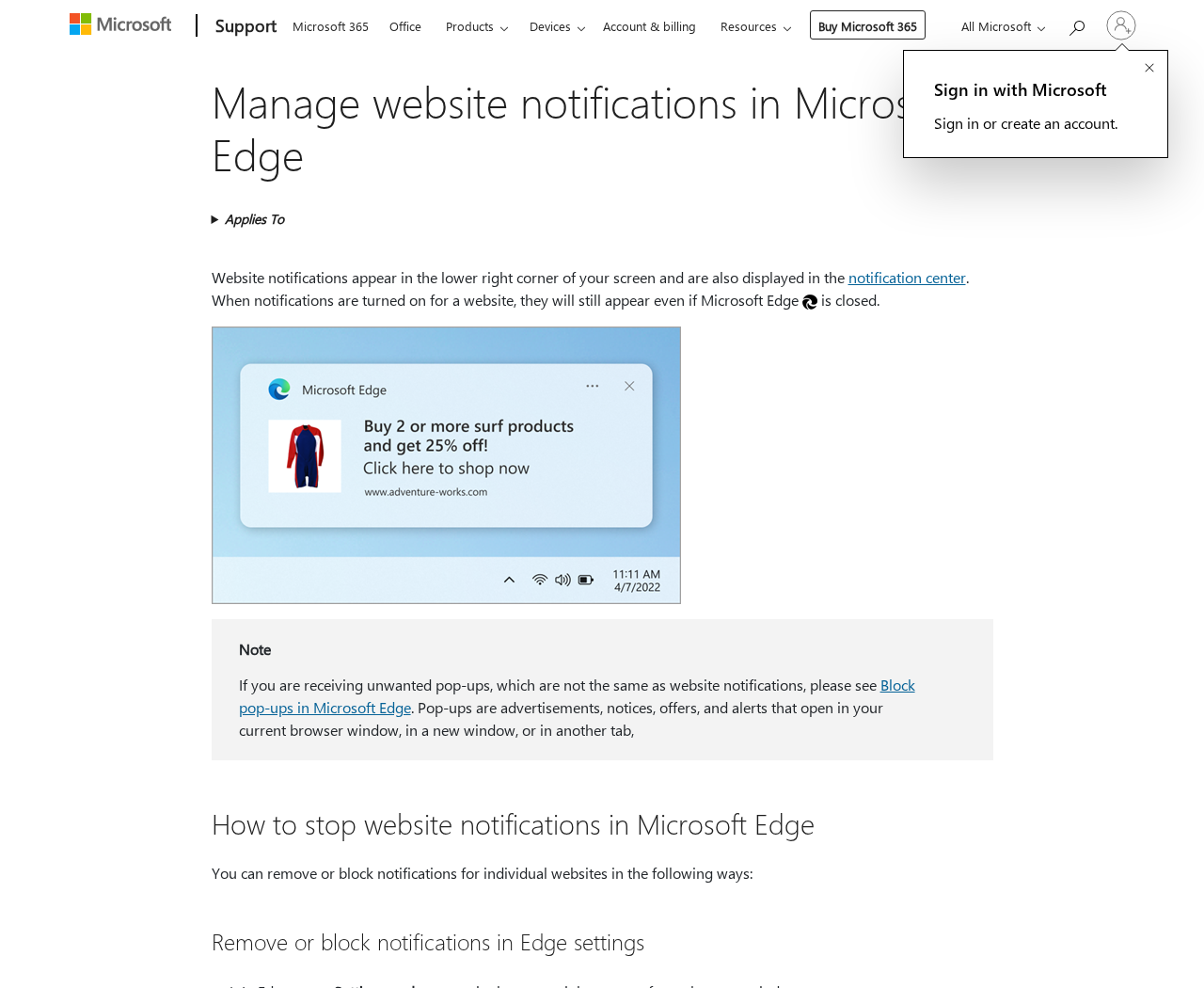
A website notification is a normal browser feature. The Microsoft example above shows what ordinary use can look like. It’s not an example of a Pushpaganda message.
The sender can put alarming words inside the alert. The browser and operating system can still show useful details around those words.
- Look for the app that delivered the notification.
- Note the website name if the alert displays it.
- Open the real phone, bank, or security app independently to check its own records.
- Use the browser’s controls to stop an unfamiliar website from sending more alerts.
Permission isn’t the same as infection
Tapping Allow on the notification prompt grants a website a messaging permission. That action alone does not install malware, authorize a payment, or expose a password.
What you did after receiving a notice matters separately. Entering a password, opening an installer, or paying a fee creates a different problem from receiving unwanted messages.
Start by revoking the permission. Then match any further cleanup to what you actually did, not to what the alert says has happened.
How the Pushpaganda Scam Works
Step 1: A headline gets you onto an unfamiliar site
Researchers found attention-grabbing stories about money and technology. A headline gave readers a reason to visit even if they had never heard of the site that published it.
The story can look like the other items around it. That familiarity belongs to the feed, not necessarily to the page you’re about to open.
If a claim concerns money from a government agency or an offer from a recognizable business, check that organization directly before acting on a headline.
Step 2: The page asks for a permission it doesn’t need
Once readers arrived, the sites prompted them to allow notifications. The prompt belonged to a real browser feature, even when the page gave a misleading reason for approving it.
Pay attention to the wording in the browser’s prompt. Permission to send notifications means ongoing messages from the site. It does not verify your identity or confirm a payment.
You don’t owe a website permanent access to your attention just because you wanted to read a headline. Close the page if it makes reading conditional on permission.
Step 3: A later notification looks like something else
Satori observed bogus legal and financial notices and alerts that mimicked missed calls. The subject of the message could be unrelated to the story that brought the person there.
The delay can make the connection hard to spot. You may not remember the site from yesterday when an unfamiliar alert appears while you’re using another app today.
If the notice claims you missed a call, check the Phone app without tapping the notice. If it claims your bank flagged a payment, use the bank’s own app.
Step 4: Clicking returns you to the deceptive content
Researchers observed clicks bringing people back to associated pages. That makes the notification another route into advertising and deceptive offers, rather than a trustworthy update about the original story.
HUMAN reported roughly 240 million advertising bid requests over one seven-day period at the campaign’s peak. Those were auction requests, not a count of infected devices or people.
You don’t need to follow an alert to see where it goes. The browser lets you stop its sender without visiting the destination advertised in the message.
Stop Unwanted Website Notifications
Step 1: Identify the browser before clearing the alert
Expand the notification in the phone’s notification shade or open the computer’s notification center. Look at the app or browser name shown by the system.
If the website address is visible, note it. Don’t tap the body of the alert or copy its link into the address bar just to find out more.
A browser may deliver several sites’ notifications. Check the specific sender before turning off every notification that browser provides.
Step 2: Block the website in Chrome on Android
Some Chrome alerts show an Unsubscribe control provided by Chrome. Use that control if it’s available. Don’t tap an unsubscribe link written inside the website’s message.
Otherwise, open Chrome yourself. Tap the three-dot menu, open Settings, then go to Site settings and Notifications.
Review the websites allowed to send notifications. Open the entry that matches the alert and turn off its notification permission. Leave unrelated sites alone if you want their messages.
Check Google’s Android notification instructions if your phone uses different labels. You don’t need to reopen the suspicious page to review the list in Settings.
Step 3: Check the corresponding desktop browser
In desktop Chrome, open Settings, then Privacy and security, Site settings, and Notifications. Find the sender among allowed sites and use its menu to block it.
In Edge, open Settings, then Privacy, search, and services, Site permissions, and All sites. Select the site and change its Notifications permission to Block.
In Firefox, open Settings and Privacy & Security. Under Permissions, open the settings beside Notifications, select the site, choose Block, and save the change.
For the current menus, see Chrome Help, Microsoft Support, or Firefox Help. Check the browser profile that actually received the alert.
Step 4: Verify that you stopped the correct sender
Reopen the permission settings and confirm that the site is no longer allowed. Then dismiss any old alerts that are still sitting in your notification history.
Look at the timestamp if a notice remains visible. An old entry in the notification center isn’t proof that a site sent another message after you blocked it.
If fresh alerts keep arriving, check the app name again. You might have granted permission to a second site or be receiving messages from an installed app instead.
If ads only appear in an open tab, review whether they are actually pop-ups rather than notifications. Pop-up settings and website notification permissions are separate controls.
Don’t clear all browser data or reinstall the operating system just to remove one website’s permission. Those actions affect more than the sender you’re trying to block.
Decide Whether You Need Anything Beyond Permission Cleanup
A real security program can show an alert outside the browser too. The location of the notice isn’t enough to tell the difference. Check the actual sender.
If an alert claims your security software detected something, open the software from your app list. Check its detection history instead of tapping the suspicious alert.
If you only granted permission and didn’t follow the later messages, removing that permission is the direct fix. A scan doesn’t replace it.
If you downloaded a file but didn’t open it, don’t run it to find out what it is. On a work device, report the download to IT before changing anything.
If you opened an installer or installed an extension or app, seek cleanup guidance for your device. That is separate from blocking the sender and may require more investigation.
If the message took you to a sign-in form and you entered a password, don’t make a scan your first response. Secure the account through its actual provider.
The point is to solve the problem you have. An advertisement can insist you have five infections without showing any evidence about the device at all.
Find the Permission in the Right Browser Profile
A laptop may have a work profile and a personal profile in the same browser. If the site isn’t on one list, check the other profile before assuming it disappeared.
Open the browser indicated in the notification. The Chrome settings list won’t tell you what a site is allowed to do in Edge or Firefox.
Look for the full website name, not the logo on the alert. A notification that uses a bank logo may come from an unrelated domain.
If you recognize the website and still want some of its messages, use its own preferences only after you know you’re on the genuine site.
Blocking a sender in the browser takes precedence for that website on the affected profile. It’s the better first move if you don’t recognize or trust the source.
When a work browser manages permissions centrally, a setting may be locked. Send IT the site name and browser profile rather than trying to work around management controls.
If the same device is shared, explain what you blocked. Someone else may have seen the prompt or know which site the notification actually came from.
Leave Useful Alerts On Without Accepting Every Prompt
Not every notification needs to be turned off. A calendar reminder you deliberately enabled has a clear purpose. An unfamiliar page demanding permission before showing content doesn’t.
Think about the future message you’re agreeing to receive. If you can’t describe why you want it or who will send it, decline the prompt.
A site that sends too many ordinary promotions can also be blocked. You don’t have to decide whether it’s malicious before taking back control of your notifications.
On Android, don’t mistake an app-wide setting for a single-site setting. Muting Chrome at the system level can hide useful alerts without removing an individual site’s permission.
Review permissions after clearing an incident. That gives you a chance to remove other websites you no longer use without erasing saved logins or browsing history.
When you share this advice with someone else, ask them to show you the system’s sender label. Don’t ask them to open the message or send its active link.
What to Do if You Have Fallen Victim to This Scam
-
Close the destination if you opened it. Don’t use its buttons to dismiss alerts, get help, or verify that it has removed anything.
Return to browser settings separately. If you approved notifications on a second page too, review the permissions for both sites.
-
Remove the notification permission. Use the section above for your browser. Check the allowed list afterward instead of relying on whether the alerts stop immediately.
-
If you entered a password, secure the genuine account. Change the password on the official app or site and review signed-in sessions and recovery settings.
If it’s a work account, report the exact page and time to IT. If you reused that password elsewhere, replace it there too.
-
If you provided payment details, contact the provider. Use your bank’s app or the number on your card. Explain what information you shared or what you paid.
Keep the payment record and ask about blocking future charges or disputing a specific transaction. Don’t pay someone else to retrieve it for you.
-
If you ran a download, handle that separately. Tell IT if the device is managed. On a personal device, use a reputable tool appropriate for that platform.
Malwarebytes can help check a personal device after an actual download or installation. AdGuard may reduce exposure to deceptive pages, but doesn’t revoke a site permission you already granted.
-
Save enough detail to explain the problem. Keep the sender name, timestamp, and a screenshot if you have one. Don’t reopen the link to gather another example.
Frequently Asked Questions
Can the message appear when I’m not on the website?
Yes. An allowed site can send notifications while you’re doing something else. Whether they appear with no browser window open depends on your browser and system.
Did tapping Allow install an app?
No. A website notification prompt grants permission to send notifications. If you later installed something, treat that as a separate action.
Why does the alert show a familiar brand or person?
The sender can use words and imagery that look familiar. Check the sending site and open the actual app independently before trusting the claim.
Will blocking pop-ups stop these alerts?
Not necessarily. Browser notifications have their own permission. Revoke it for the website instead of changing only the pop-up setting.
Why does the notification still show after blocking it?
Previously delivered alerts can remain in your history until dismissed. Check the timestamp and confirm whether any new messages are arriving.
Does the advertising number tell me how many people were infected?
No. The researchers counted advertising bid requests. That metric does not establish the number of people who clicked, paid, or installed anything.
The Bottom Line
Don’t tap an alert just because it appears in the notification center. For Pushpaganda-style messages, identify the sending website and remove its permission from your browser.
If you went further, act on what you shared or installed. Protect the affected account, call your payment provider, or seek device cleanup as appropriate.

Join the discussion
0 commentsShare your experience or ask a question about this article.
Discussion
Start the conversation
Have a question or something useful to share? Add the first comment.