


A request to review a quarter statement arrives in an email that looks like a DocuSign notification. It sounds like routine financial paperwork.
The review button takes you somewhere unexpected. Before you enter a work password, check who asked for the document and where the sign-in actually opened.
Overview
A quarter statement was the reason to open the message
A recipient reported an email asking them to review a document. The subject referred to a quarter statement distribution, and the displayed sender appeared to use a DocuSign domain.
The destination shown for the button looked associated with Intuit. The recipient said opening it led to a Microsoft-style sign-in on a separate, unrelated address.
They closed the page immediately. The account describes an attempted phishing lure and gives no indication that anyone signed in or that a mailbox was compromised.
The request borrowed three familiar business names
DocuSign explains the signature request. Intuit makes sense beside the language of statements and accounting. Microsoft can feel like a normal sign-in for someone who uses a work account.
Those associations can make each screen seem familiar. The real question is whether the organization you work with actually asked you to review this statement through that process.
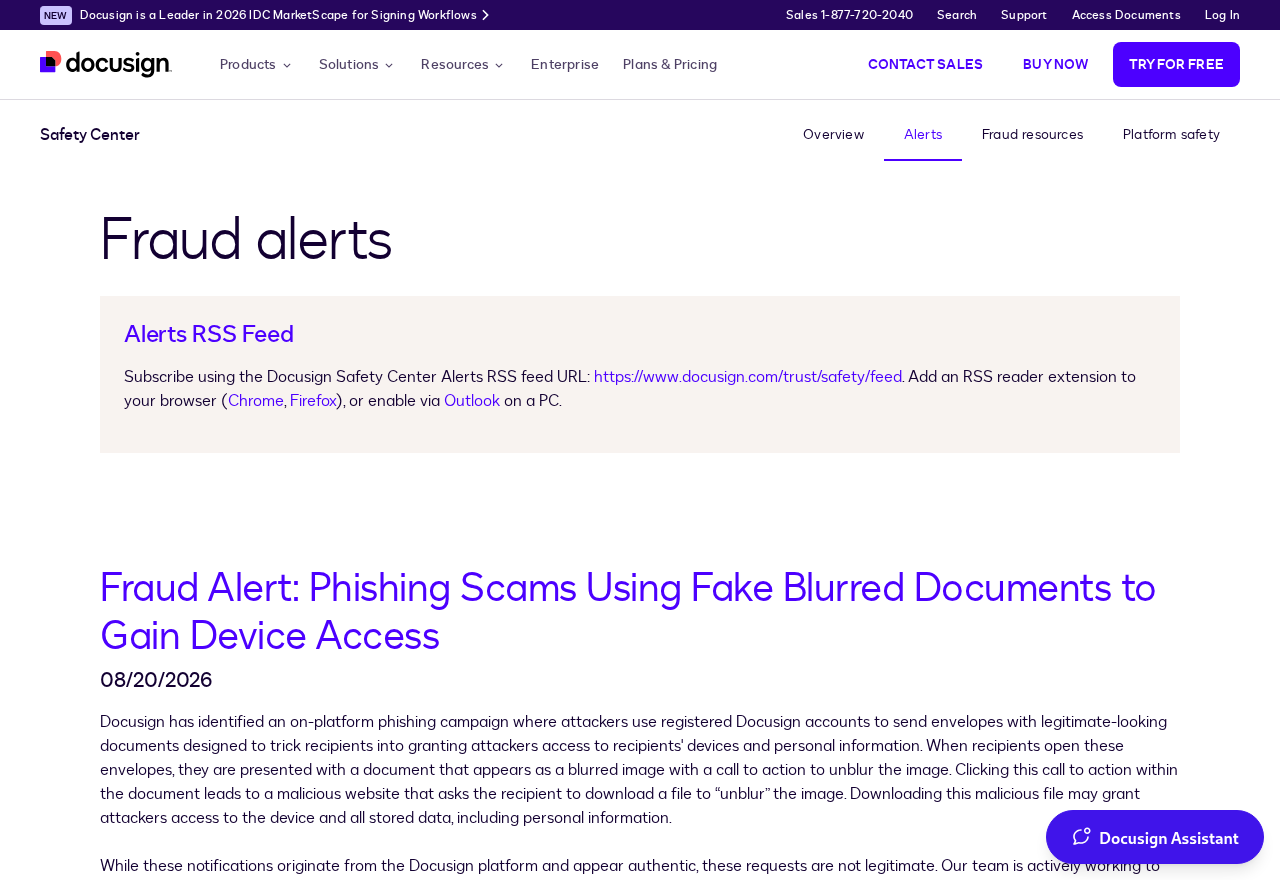
Docusign’s safety alerts describe several campaigns that use legitimate-looking requests to direct recipients to outside pages. The image shows its fraud alert center.
The report does not include the original headers or an authenticated copy of the envelope. It establishes what the recipient saw and where they say the login appeared.
A document request and a work login call for separate checks
If you regularly handle financial documents, you may know which team distributes them and how they are shared.
Confirm an unexpected request with that team through a contact you already use.
For a real request, the sender should be able to verify the document name, reason, and expected delivery method. Ask them to do that before you open the message again.
- The message describes a financial document requiring review.
- It appears to come from an established e-signature service.
- The displayed destination suggests another familiar business brand.
- The sign-in appears on an unrelated site, according to the recipient.
- Nobody needs to enter a work password to confirm whether the document exists.
How the Scam Works
Step 1: A financial document sounds familiar enough to open
A quarterly statement is an ordinary thing for a finance team, supplier, or account manager to send.
The subject fits into the type of inbox where urgent documents appear every week.
That familiarity can make the recipient supply their own explanation. A busy employee may assume the message belongs to a customer or quarter-end project they have already been working on.
Look up the project before trusting that connection. If the subject does not name a business you recognize, check with the department that normally handles these records.
The case report contains no evidence that the senders knew the recipient’s actual accounting schedule. The subject alone was enough to make the document sound plausible.
Step 2: The message looks like a normal e-signature request
A familiar service name can make a message seem like part of an approved workflow. You may have used the same service with several customers and suppliers already.
The recipient saw a sender presented as coming from a DocuSign domain. The public account does not provide enough information to determine whether the message actually came through Docusign.
The company’s alerts explain that genuine envelope notifications can also carry fraudulent content sent by another party. A recognizable sender therefore leaves the document itself to be verified.
Check whether you can find the expected request through your established signing workflow. If you cannot, ask the sender you know to confirm the original request.
Step 3: The destination changes as the recipient opens the request
In the report, the displayed destination suggested Intuit, a name that fits a financial statement. The page the recipient saw afterward had the appearance of a Microsoft sign-in.
The important distinction for the recipient is where a password would be entered. A trusted brand appearing earlier in a message does not verify the page asking for credentials.
You can stop at any unexpected sign-in. Open your company’s known Microsoft or document portal in a fresh tab and check whether the document is actually waiting there.
If you are reporting the message at work, tell IT the page looked like a Microsoft login.
Send the original through your approved reporting tool so the team can review it safely.
Step 4: The supposed document puts a work password at risk
A sign-in screen can make you think the document is one step away.
The account you are being asked to use may also be the one that holds your work email.
If a fake page collects that password, the risk goes beyond the missing statement. The recipient may need help securing email, files, or other services that use the same account.
Close the page if its address or reason for asking is unfamiliar. Do not try a different account to see whether that gets you to the document.
The person who reported the email said they backed out immediately. There is no verified credential submission or follow-on activity in that account.
Step 5: Account checks matter if someone used the form
If you entered a work password, treat it as exposed and contact the team that manages the account. They can check activity you may be unable to see.
Tell them whether you also approved a sign-in request or supplied a code. A password change may need to be accompanied by a review of existing sessions and permissions.
If suspicious messages came from your mailbox, have your organization notify affected contacts through an established channel. A familiar email from you can make the next request more convincing.
For a personal account, use Microsoft’s compromised-account help. Start there yourself, without reopening the message that asked for the password.
How to Verify a Quarterly Statement Request at Work
Check whether the financial statement normally arrives through your accounting portal, a vendor’s customer dashboard, or a shared internal folder. Use an address or bookmark already in your records.
Ask the person responsible for sending the statement whether they used an e-signature service. Give them the date and title so they can tell you whether it matches their request.
An existing agreement, invoice, or vendor record may give you the correct contact details. Avoid using a phone number or support address that appeared only in the suspicious email.
If the sender confirms a real document, ask them to make it available through your established process. That lets you check the request without relying on the message you questioned.
If the message concerns a supplier payment, notify the person who approves payments in your organization. They can confirm whether any related instructions or account details have changed.
A work device may already have a reporting button or extension approved by your organization. Use that method to send the original email to the people who investigate suspicious messages.
## Record the Details That Help Your Security Team
Keep the original subject and delivery time. If the email arrived in a shared mailbox, identify which mailbox received it so your security team can check the right account.
Tell the team the names you saw at each point. The displayed sender, review button, and login page can suggest different companies. Record each without trying to reproduce the trip.
If you already have a screenshot, share it through your employer’s approved reporting route. Leave out any password, security code, private statement, or customer record visible on screen.
If you cannot find the email after reporting it, note the time you used the reporting button. Some workplace tools move the message once a report has been filed.
If anyone else received the same request, ask them to report their own copy. The organization can compare what arrived without circulating the original link more widely.
Tell IT if the login prompt appeared while you were already signed in to your work account. That gives it context about what you saw without proving what caused it.
If you approved a phone prompt, write down the approximate time and what you thought you were approving. That can help the team identify which event to review.
If you use separate accounts for work and personal email, identify which one you entered. A similar email address or profile picture can make them easy to confuse in hindsight.
Keep any account changes ordered by time. A password reset, a sign-out, and a suspicious outgoing message may each be relevant to determining what happened.
What to Do if You Have Fallen Victim to This Scam
Act on what you actually did. Someone who only received the email has a different problem from someone who signed in or approved a prompt.
-
Stop using the message or page. Close the sign-in and leave the email available for reporting. Do not enter any other credentials or approve a request.
-
For a work account, alert IT or security immediately. Include the document title, when you opened it, and whether you entered information or approved a sign-in.
-
Secure an exposed personal account through Microsoft. Use its official recovery process, change an exposed password, and check your sign-in and recovery settings.
-
Check for signs of unauthorized access. Review unfamiliar sign-ins, sent messages, and changes to recovery details or mail rules. Ask your organization for help where appropriate.
-
Report the suspicious request through Docusign’s safety guidance. Use the published reporting route. Preserve the original email for your organization’s investigation.
-
Tell the relevant business about any separate exposure. If you shared customer data or changed a payment instruction, notify the person responsible for that information or payment.
If you opened the page and immediately closed it, report the message and note whether anything downloaded or asked for permissions. Your response should match any changes you actually observed.
If you reused the password on other services, change it on those services through their genuine sign-in pages. Start with accounts that could be used to reset the rest.
Check the original email alongside your report. Preserve what it showed, but keep private credentials and security codes out of screenshots or shared copies.
If an apparent support agent contacts you about the incident, check through the help request you already opened. A follow-up may be unrelated to your actual report.
If a page downloaded a file or asked you to install something, tell IT. On a personal device, a trusted Malwarebytes scan can help check an unexpected download.
AdGuard can help block known phishing sites. A filter does not tell you whether a particular account needs password or session recovery after you entered information.
Frequently Asked Questions
Does a DocuSign sender address make the request safe?
Docusign publishes its own domains and also warns that criminals can use genuine notifications to deliver fraudulent content. A displayed sender address does not settle the document’s legitimacy.
Confirm that the person or company sending the request is one you expected to hear from. If possible, access the document through your normal signing process.
Why did the review button look like it led to Intuit?
The recipient said the displayed address looked related to Intuit. The public report does not verify how the link was routed or whether Intuit participated in any part of it.
The page where you would enter your password needs its own check. If it is unrelated to your organization’s sign-in, close it and report the request.
Is it normal for a document to ask for Microsoft sign-in?
Some genuine business services use a work Microsoft account for access. Check whether the document is expected and whether your company approves that sign-in flow.
If the request is unexpected, go directly to your work portal or ask your IT team. Avoid entering your password as a way to test the page.
What if I entered a password but never approved a prompt?
Report the password exposure and follow your account provider’s recovery instructions. Refusing a prompt can help, but the password still needs attention.
Tell the provider about any other devices, codes, or approvals you noticed. That makes it easier to identify what happened before or after the attempt.
Should I forward the message to coworkers as a warning?
Use your organization’s reporting route first. For any wider warning, share the subject and what to watch for without sending an active button or link.
If your account sent messages without your knowledge, notify recipients through a different, trusted channel. Ask them to report any suspicious message they already received.
Can I still get the real statement?
Yes, if a legitimate statement exists. Contact the verified finance team or vendor and ask where it normally provides the document.
Do not ask the sender of the suspicious request to prove it by sending another link. Use the route the actual business confirms independently.
The Bottom Line
Close a quarter statement distribution request that takes you to an unexpected Microsoft login. Confirm the document with the real sender before opening any new copy.
If you entered credentials or approved a prompt, report the exposure promptly and secure the account through your IT team or Microsoft’s official recovery process.

Join the discussion
0 commentsShare your experience or ask a question about this article.
Discussion
Start the conversation
Have a question or something useful to share? Add the first comment.