

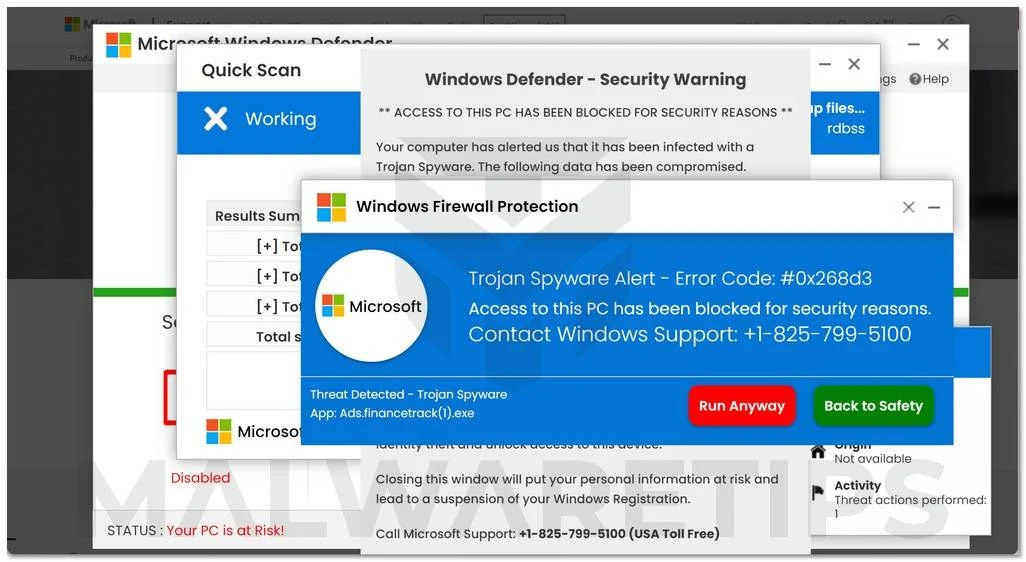
The “C00d0e000Er0” page is a browser-based scam that displays fake error messages to trick you into calling a Tech Support Scam phone number.
What is the “C00d0e000Er0” alert?
The “C00d0e000Er0” fake error message is a scam that pretends to be from Microsoft to trick you into thinking that your computer has crashed or that a virus has been detected. It does this to try and scare you into calling one of the listed numbers to receive support.
If you call these phone numbers, scammers will ask you to install a program that gives them remote access to your computer. Using remote access, these experienced scammers rely on confidence tricks typically involving utilities built into Windows (eg. Event Viewer) to gain your trust and trick you into paying for “support” services or even steal credit card account information.
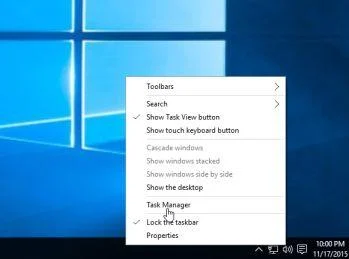
The “C00d0e000Er0” tech support scam will put your browser on full-screen mode and display pop-up messages that won’t go away, essentially locking your browser. If this happens, you can use the Windows Task Manager to close your browser and stop this pop-up.
- Open the “Task Manager” by right-clicking the taskbar and then selecting Task Manager. You can also open the Task Manager by pressing Ctrl+Alt+Del on your keyboard and then selecting Task Manager.
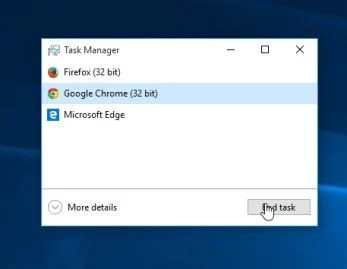
- Scroll through the list until you see your web browser’s process and left-click on it once so it becomes highlighted. Once you have selected the browser’s process, click on the End Task button as shown in the image below.
- Your browser window should now be closed. The next time you open your browser, do not allow the browser to open the last opened page.
This is the fake error message that the “C00d0e000Er0” page will display:
C00d0e000Er0
Ads.fiancetrack(07).dllMicrosoft
Pornographic_Spyware Alert – Error Code: #0x268d3(00×7)
Access to this PC has been blocked for security reasons.
Contact Microsoft Support: +1-888-489-8832Threat_Detected – Pornographic_Spyware
App: Ads.financetrack(1).exe
As you can imagine, the above alert is not real and its purpose is to scare you into allowing the scammer remote access to your computer. If your browser has been redirected to the “C00d0e000Er0” tech support scam, we recommend closing the page and do not call the listed phone number.
Why am I seeing the “C00d0e000Er0” pop-up ads?
You are seeing the “C00d0e000Er0” tech support scam because your device is infected with malware, malicious push notifications, or a site you have visited has redirected your browser.
Less than reputable sites can display malicious ads that redirect your browser to the “C00d0e000Er0” tech support scam to generate advertising revenue. If this happens, you can close the page and install an ad blocker like AdGuard [recommended] to block the malicious ads. However, if you are continuously seeing pop-ups like the “C00d0e000Er0” tech support scam, then your computer might be infected with a malicious program and you need to scan your device for adware and remove it.
Here are a few typical signs that you have a malicious program installed on your computer:
- Advertisements appear in places they shouldn’t be.
- Your web browser’s homepage has mysteriously changed without your permission.
- Web pages that you typically visit are not displaying properly.
- Website links redirect to sites different from what you expected.
- Browser popups appear which recommend fake updates or other software.
- Other unwanted programs might get installed without your knowledge.
For the most part, if you see a browser-based tech support scam, then you can simply close the browser and start it again. On the other hand, if you are continuously seeing scams like the “C00d0e000Er0” scam, then you should scan your computer for adware and remove anything that is found.
How to Remove “C00d0e000Er0” Fake Alerts
This malware removal guide may appear overwhelming due to the number of steps and numerous programs that are being used. We have only written it this way to provide clear, detailed, and easy-to-understand instructions that anyone can use to remove malware for free.
Please perform all the steps in the correct order. If you have any questions or doubts at any point, stop and ask for our assistance.
- STEP 1: Use Malwarebytes to remove the “C00d0e000Er0” tech support scam
- STEP 2: Use HitmanPro to scan your computer for “C00d0e000Er0” tech support scam and other malware
- STEP 3: Use AdwCleaner to remove adware and malicious browser policies
- STEP 4: Reset your web browser to its original settings to remove the “C00d0e000Er0” tech support scam
STEP 1: Use Malwarebytes to remove the “C00d0e000Er0” tech support scam
In this first step, we will install Malwarebytes to scan and remove any infections, adware, or potentially unwanted programs that may be present on your computer.
Malwarebytes is one of the most popular and most used anti-malware software for Windows, and for good reasons. It is able to destroy many types of malware that other software tends to miss, without costing you absolutely nothing. When it comes to cleaning up an infected device, Malwarebytes has always been free and we recommend it as an essential tool in the fight against malware.
-
Download Malwarebytes for Windows.
You can download Malwarebytes by clicking the link below.
 Malwarebytes Free for WindowsScans and removes malware at no cost
Download MalwarebytesOfficial installer for Windows 11 and 10. Your download starts right away.Want real-time protection? See Malwarebytes Premium
-
Double-click on the Malwarebytes setup file.
When Malwarebytes has finished downloading, double-click on the MBSetup file to install Malwarebytes on your computer. In most cases, downloaded files are saved to the Downloads folder.
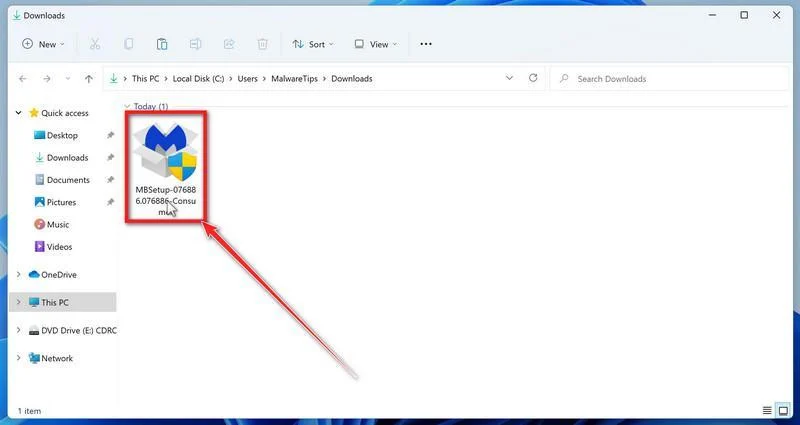
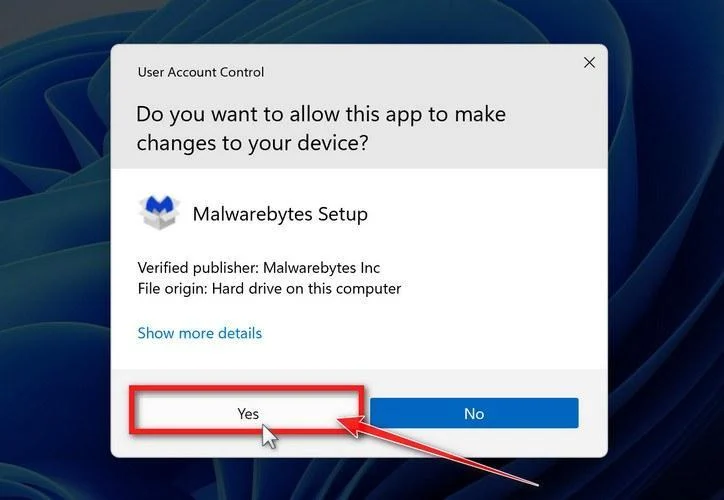
You may be presented with a User Account Control pop-up asking if you want to allow Malwarebytes to make changes to your device. If this happens, you should click “Yes” to continue with the Malwarebytes installation.
-
Follow the on-screen prompts to install Malwarebytes.
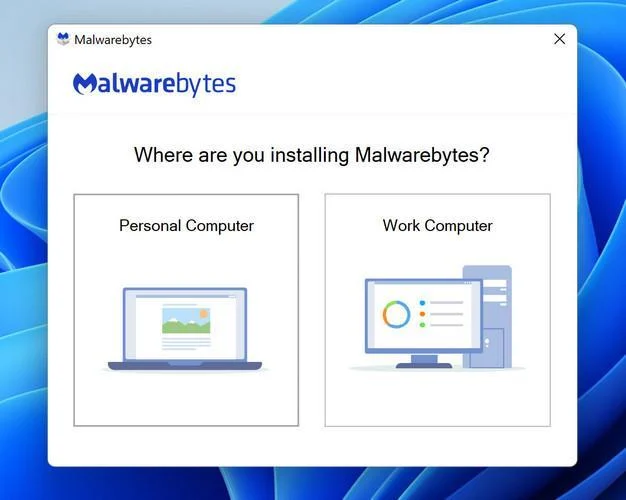
When the Malwarebytes installation begins, you will see the Malwarebytes setup wizard which will guide you through the installation process. The Malwarebytes installer will first ask you what type of computer are you installing this program on, click either Personal Computer or Work Computer.
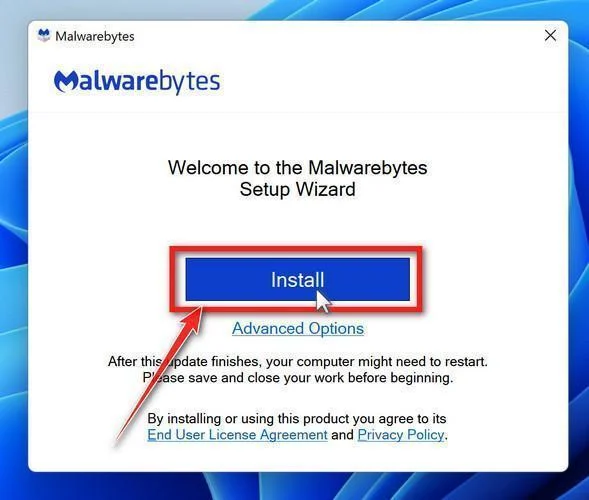
On the next screen, click “Install” to install Malwarebytes on your computer.
When your Malwarebytes installation completes, the program opens to the Welcome to Malwarebytes screen.
-
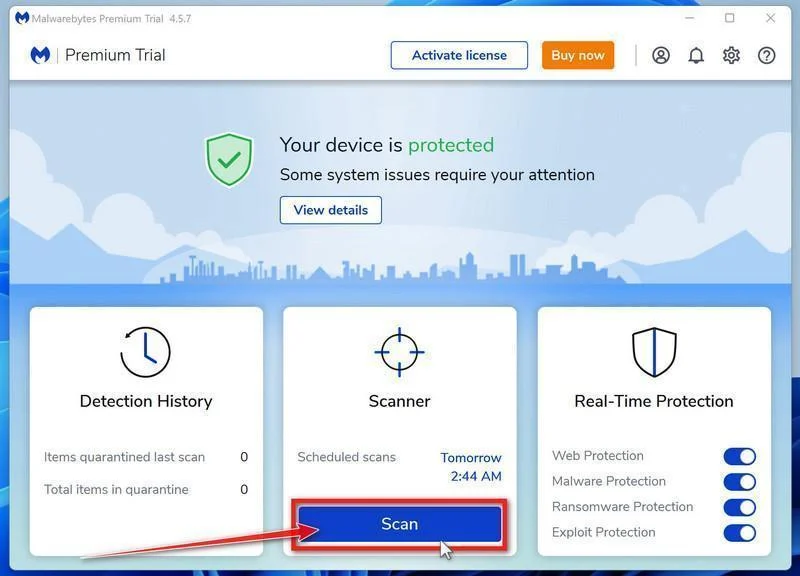
Click on “Scan”.
Malwarebytes is now installed on your computer, to start a scan click on the “Scan” button. Malwarebytes will automatically update the antivirus database and start scanning your computer for the “C00d0e000Er0” tech support scam and other malicious programs.
-
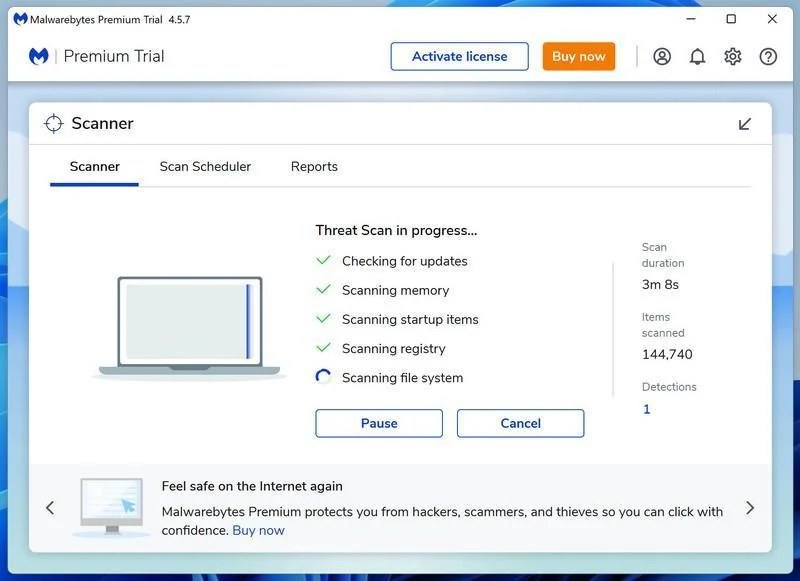
Wait for the Malwarebytes scan to complete.
Malwarebytes will now scan your computer for the “C00d0e000Er0” tech support scam and other malicious programs. This process can take a few minutes, so we suggest you do something else and periodically check on the status of the scan to see when it is finished.
-
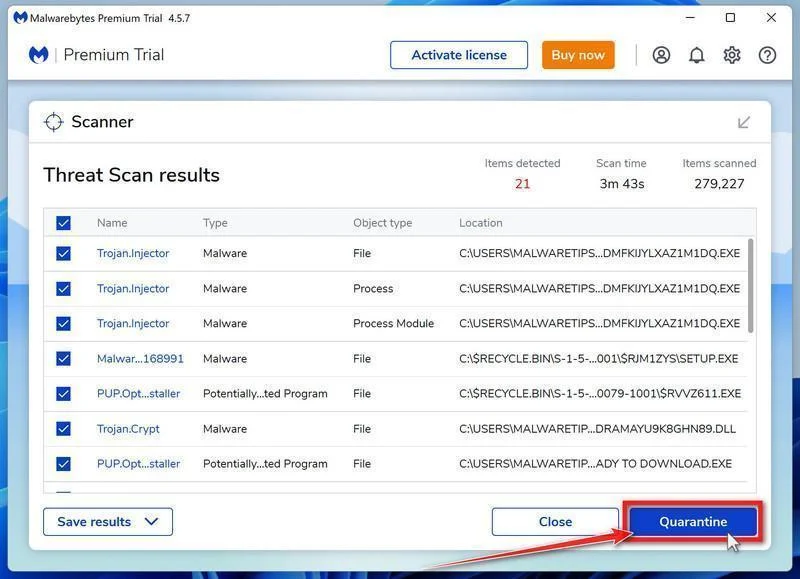
Click on “Quarantine”.
When the Malwarebytes scan is finished scanning it will show a screen that displays any malware, adware, or potentially unwanted programs that it has detected. To remove the “C00d0e000Er0” tech support scam and other malicious programs that Malwarebytes has found, click on the “Quarantine” button.
-
Restart computer.
Malwarebytes will now remove all the malicious files and registry keys that it has found. To complete the malware removal process, Malwarebytes may ask you to restart your computer.
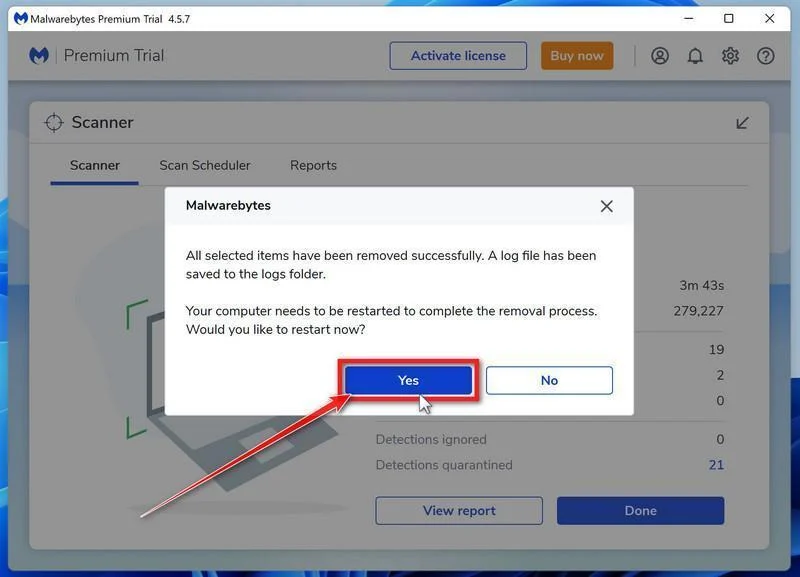
When the malware removal process is complete, you can close Malwarebytes and continue with the rest of the instructions.
STEP 2: Use HitmanPro to scan your computer for the “C00d0e000Er0” tech support scam
In this next step, we will scan the computer with HitmanPro to ensure that no other malicious programs are installed on your device.
HitmanPro is a second opinion scanner that takes a unique cloud-based approach to malware scanning. HitmanPro scans the behavior of active files and also files in locations where malware normally resides for suspicious activity. If it finds a suspicious file that’s not already known, HitmanPro sends it to its clouds to be scanned by two of the best antivirus engines today, which are Bitdefender and Kaspersky.
Although HitmanPro is shareware and costs $24.95 for 1 year on 1 PC, there is no limit on scanning. The limitation only kicks in when there is a need to remove or quarantine detected malware by HitmanPro on your system and by then, you can activate the one-time 30-days trial to enable the clean up.
-
Download HitmanPro.
You can download HitmanPro by clicking the link below.
 HitmanProSecond-opinion malware scanner from Sophos
Download HitmanProFree scan. Removing threats needs the free 30-day trial. Your download starts right away.
-
Install HitmanPro.
When HitmanPro has finished downloading, double-click on “hitmanpro.exe” (for 32-bit versions of Windows) or “hitmanpro_x64.exe” (for 64-bit versions of Windows) to install this program on your computer. In most cases, downloaded files are saved to the Downloads folder.
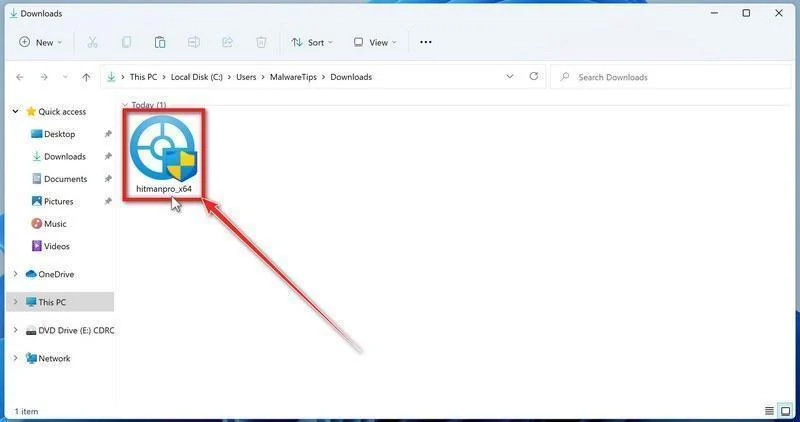
You may be presented with a User Account Control pop-up asking if you want to allow HitmanPro to make changes to your device. If this happens, you should click “Yes” to continue with the installation.
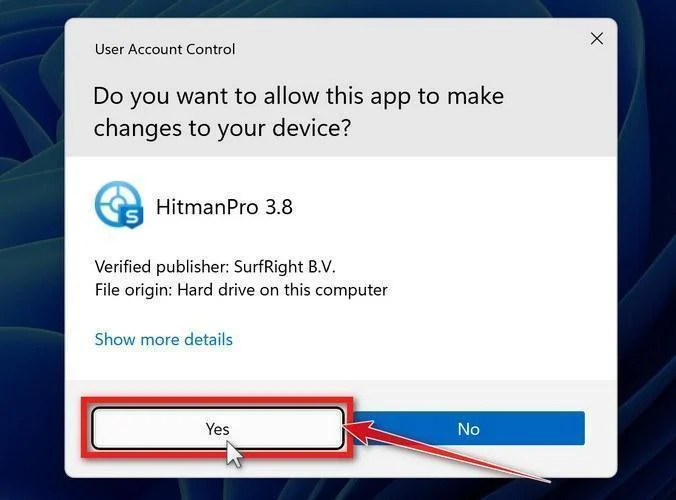
-
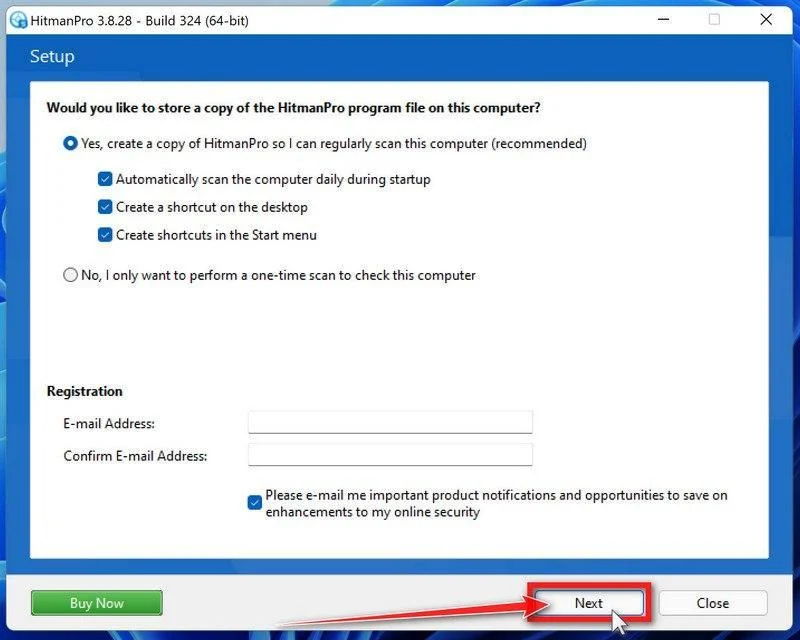
Follow the on-screen prompts.
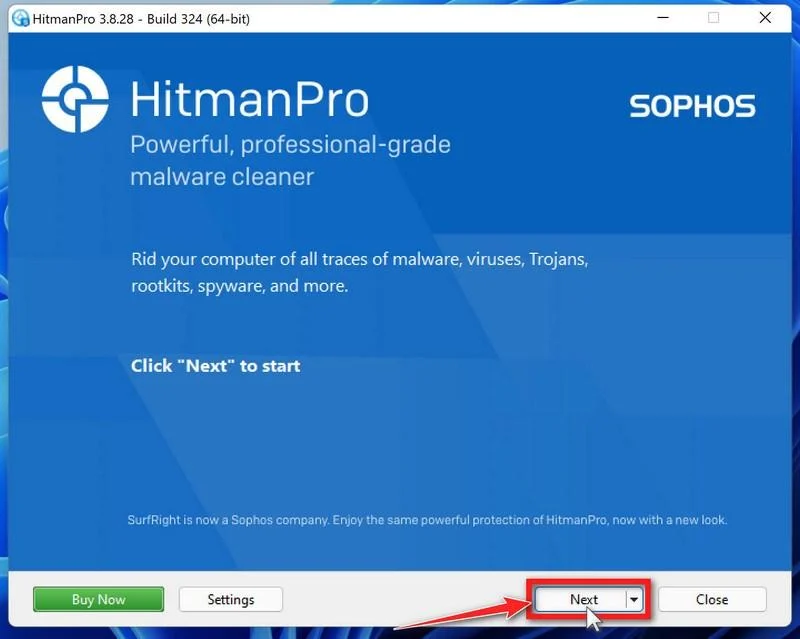
When HitmanPro starts you will be presented with the start screen as shown below. Click on the “Next” button to perform a system scan.
-
Wait for the HitmanPro scan to complete.
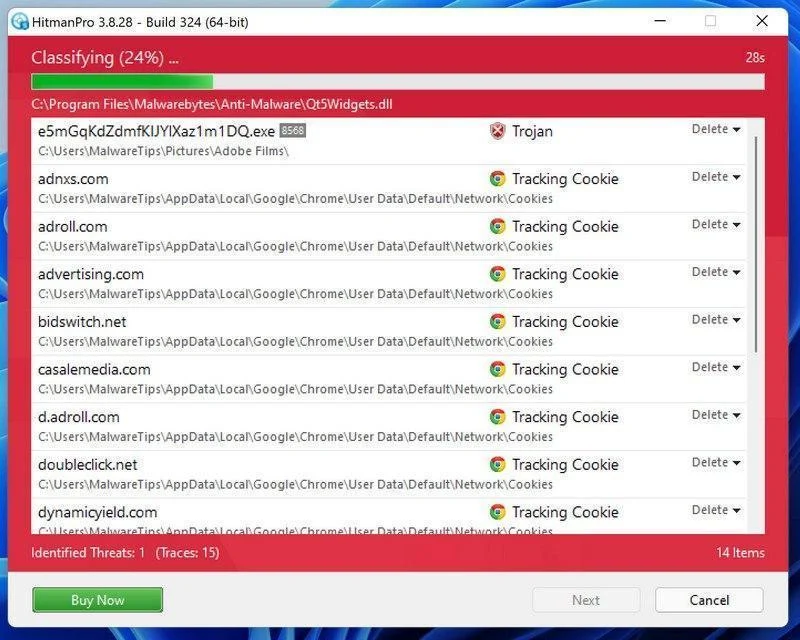
HitmanPro will now begin to scan your computer for the “C00d0e000Er0” tech support scam and other malicious programs.
-
Click on “Next”.
When HitmanPro has finished the scan, it will display a list of all the malware that it has found. Click on the “Next” button to have HitmanPro remove the detected items.
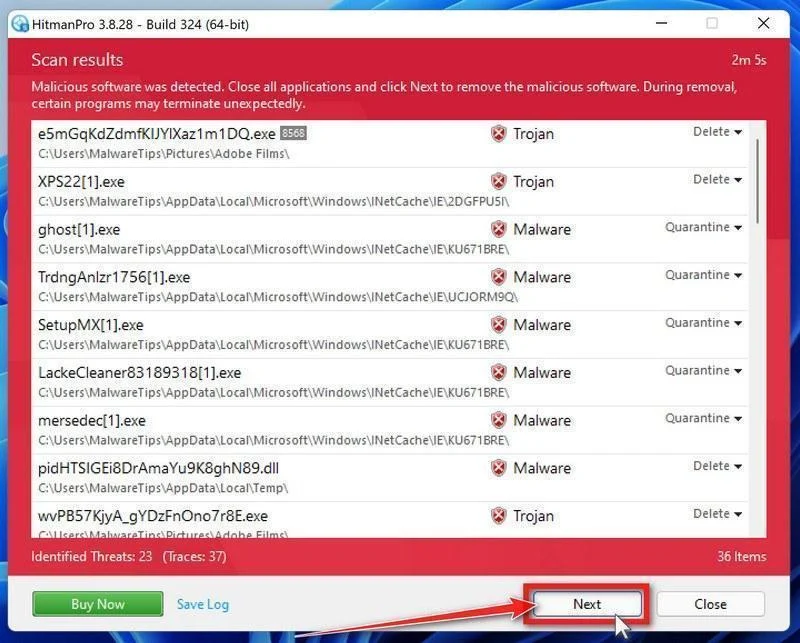
-
Click on “Activate free license”.
HitmanPro may now require to activate the free 30-days trial to remove the malicious files. To do this, click on the “Activate free license” button to begin the free 30 days trial and remove all the malicious files from your computer.
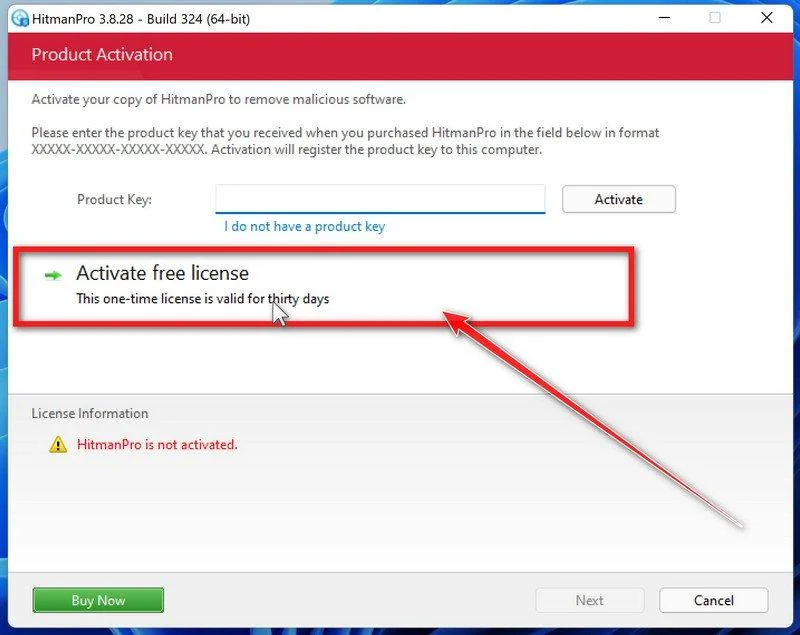
When the malware removal process is complete, it will display a screen that shows the status of the various programs that were removed. At this screen, you should click on the Next button and then if prompted you should click on the Reboot button. If HitmanPro does not prompt you to reboot, please just click on the Close button.
STEP 3: Use AdwCleaner to remove adware and malicious browser policies
In this third step, we will use AdwCleaner to remove adware and malicious browser policies that might be set on your computer.
AdwCleaner is a free popular on-demand scanner that can detect and remove malware that even the most well-known anti-virus and anti-malware applications fail to find. This on-demand scanner includes a lot of tools that can be used to fix the side effects of browser hijackers.
-
Download AdwCleaner.
You can download AdwCleaner by clicking the link below.
 Malwarebytes AdwCleanerRemoves adware and unwanted programs at no cost
Download AdwCleanerOfficial download. Your download starts right away.
-
Double-click on the setup file.
Double-click on the file named “adwcleaner_x.x.x.exe” to start AdwCleaner. In most cases, downloaded files are saved to the Downloads folder.
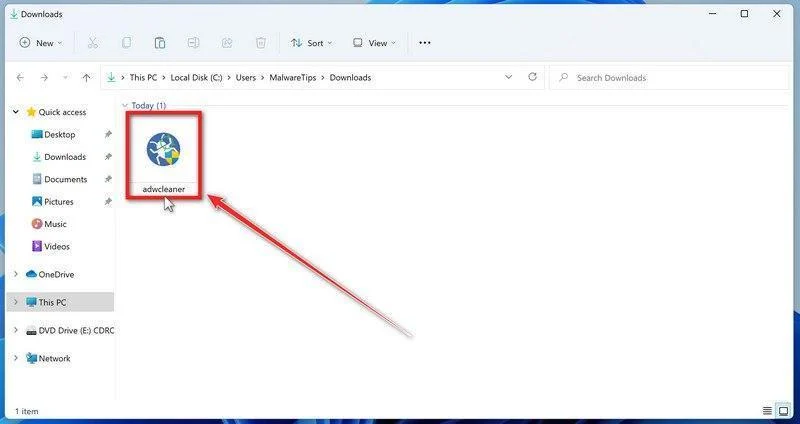
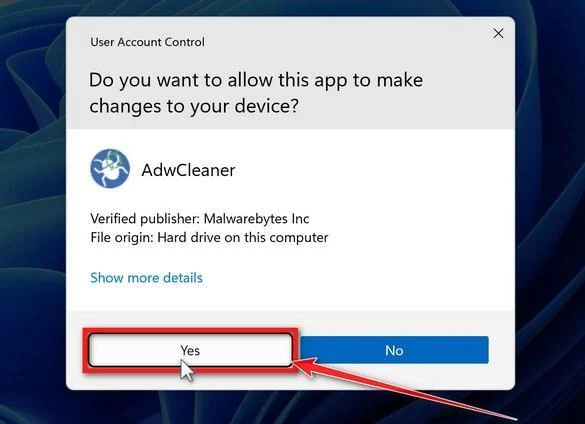
AdwCleaner program will now open and you will be presented with the program’s license agreement. After you read it, click on the I agree button if you wish to continue. If Windows prompts you as to whether or not you wish to run AdwCleaner, please allow it to run.
-
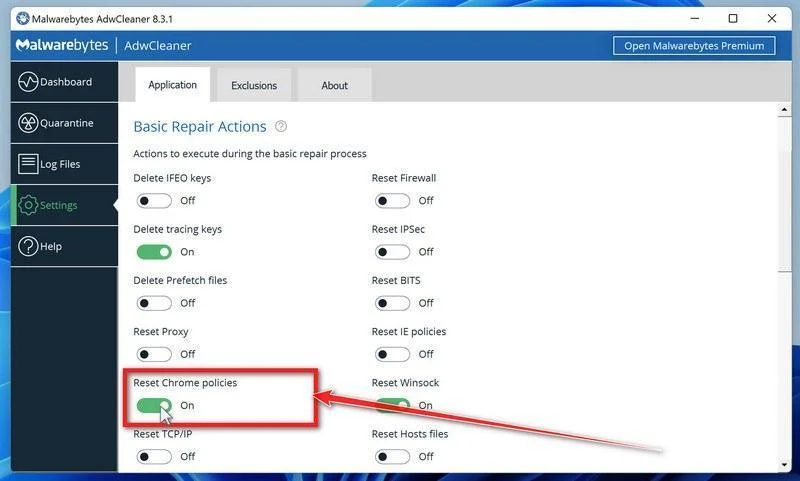
Enable “Reset Chrome policies” to remove malicious browser policies.
When AdwCleaner starts, on the left side of the window, click on “Settings” and then enable “Reset Chrome policies“.
-
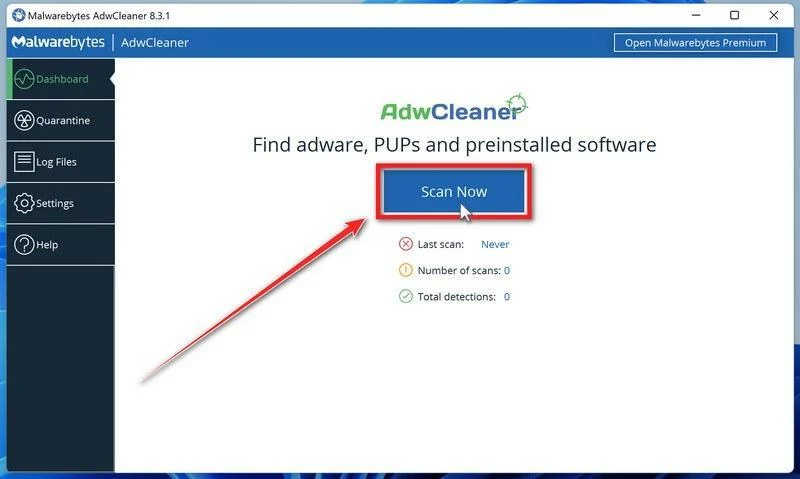
Click on the “Scan” button.
On the left side of the AdwCleaner window, click on “Dashboard” and then click “Scan” to perform a computer scan.
-
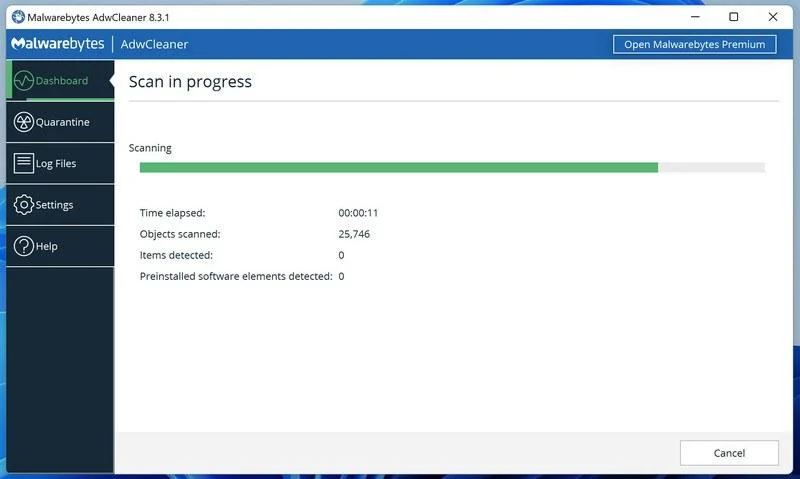
Wait for the AdwCleaner scan to finish.
AdwCleaner will now scan your computer for the “C00d0e000Er0” tech support scam and other malicious programs. This process can take a few minutes.
-
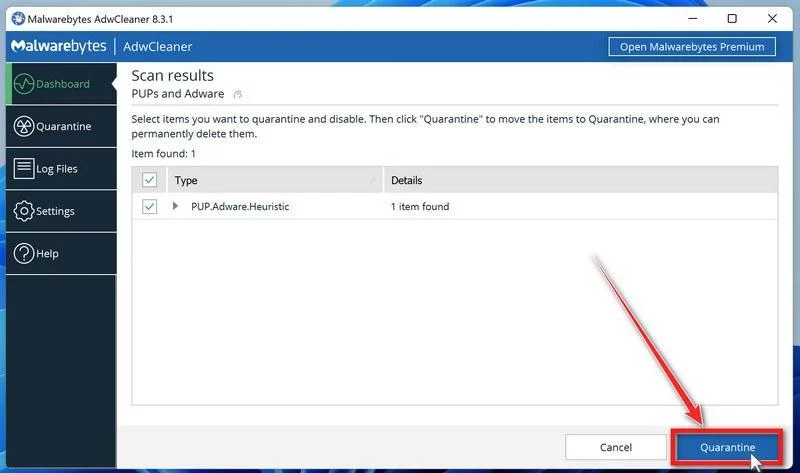
Click on “Quarantine” to remove malware.
When the AdwCleaner scan is completed it will display all of the items it has found. Click on the “Quarantine” button to remove the “C00d0e000Er0” tech support scam and other malicious programs from your computer.
-
Click on “Continue” to start malware removal.
AdwCleaner will now prompt you to save any open files or data as the program will need to close any open programs before it starts to clean. Click on the “Continue” button to finish the removal process.
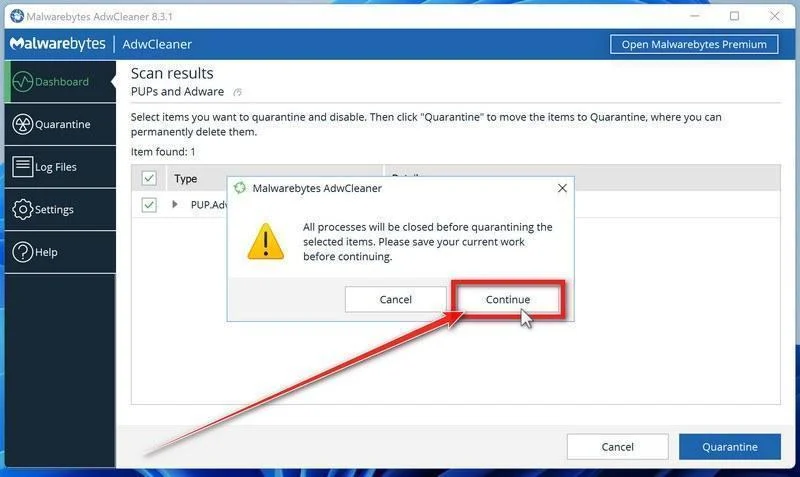
AdwCleaner will now delete all detected malware from your computer. When the malware removal process is complete, you can close AdwCleaner and continue with the rest of the next steps from this guide.
STEP 4: Reset your web browser to its original settings to remove the “C00d0e000Er0” tech support scam
If you are still having problems with the “C00d0e000Er0” tech support scam then you should also reset your browsers back to their default configuration. Please note that this method will remove all extensions, toolbars, and other customizations but will leave your bookmarks and favorites intact. For each browser that you have installed on your computer, please click on the browsers tab below and follow the displayed steps to reset that browser.
Remove the “C00d0e000Er0” tech support scam from Google Chrome
To remove the “C00d0e000Er0” tech support scam from Google Chrome, we will reset the browser settings to their original defaults. This will reset your startup page, new tab page, search engine, and pinned tabs. It will also disable all extensions and clear temporary data like cookies. Your favorites, history, and saved passwords will not be cleared.
-
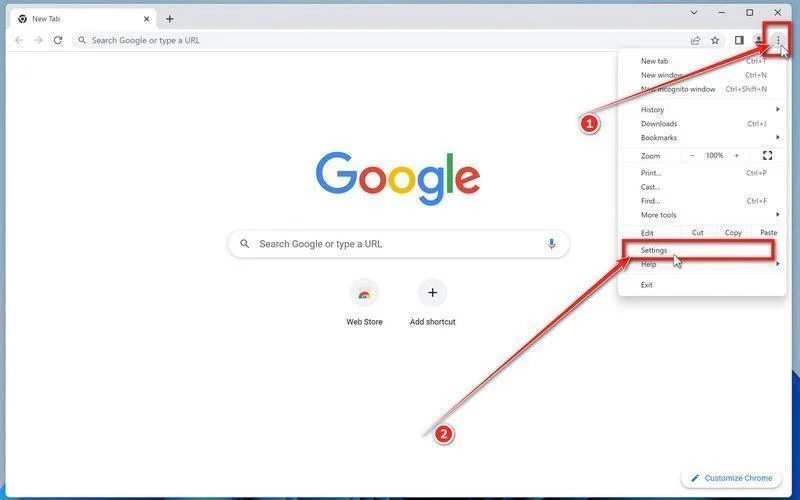
Click the three dots in the top-right corner and then click on “Settings”.
Open Chrome and click on the menu button (represented by three vertical dots) in the top right corner of the window. In the dropdown menu that opens, click “Settings“.
-
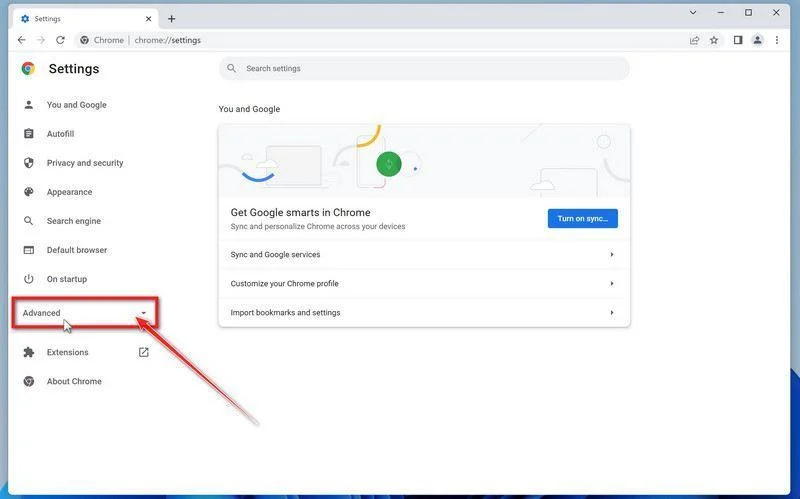
Click “Advanced”.
Chrome’s “Settings” should now be displayed in a new tab or window, depending on your configuration. In the left sidebar, click on the “Advanced” link.
-
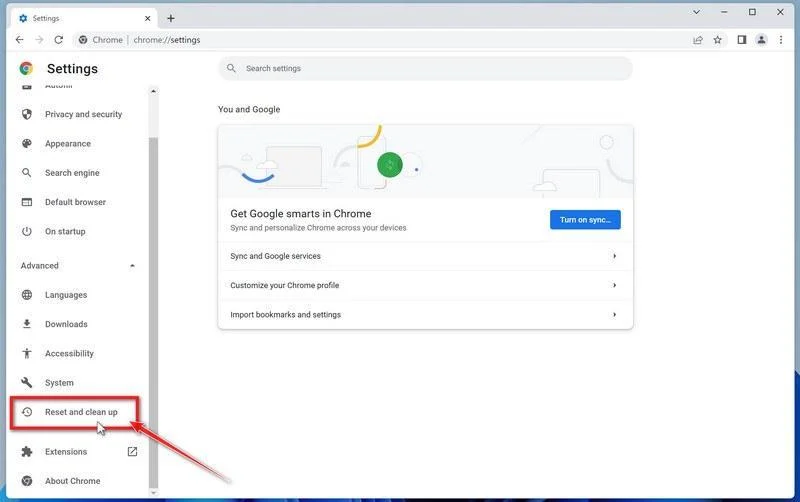
Click “Reset and clean up”.
In the left sidebar, under the “Advanced” section, click on “Reset and clean up“.
-
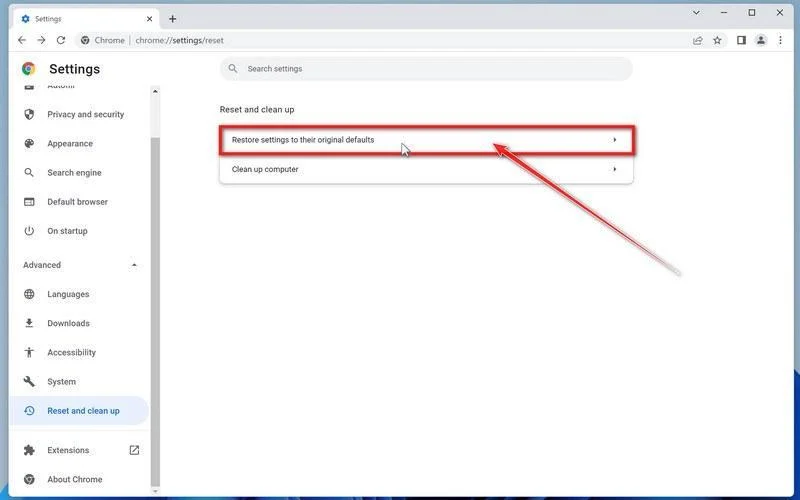
Click “Reset settings to their original defaults”.
In the main window, the “Reset and clean up” section is visible, as shown in the screenshot below. Click on “Reset settings to their original defaults“.
-
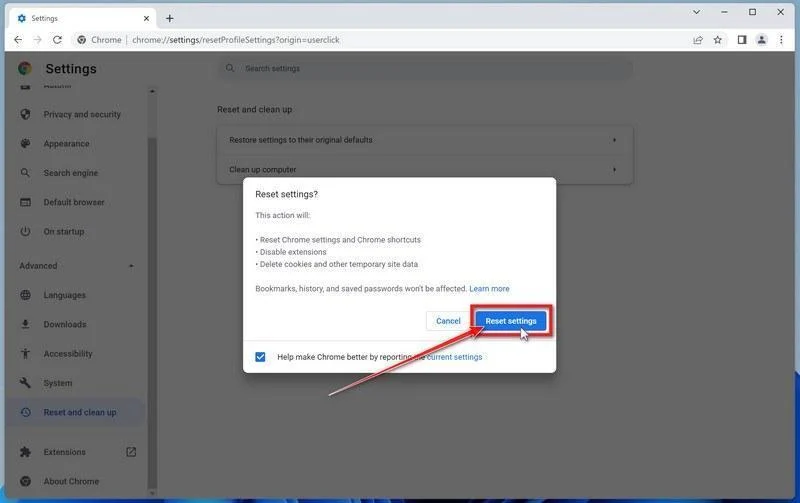
Click “Reset settings”.
A confirmation dialog will now be displayed, detailing the components that will be restored to their default state should you continue with the reset process. To complete the restoration process, click on the “Reset settings” button.
Remove the “C00d0e000Er0” tech support scam from Firefox
To remove the “C00d0e000Er0” tech support scam from Firefox we will reset the browser settings to their default. The reset feature fixes many issues by restoring Firefox to its factory default state while saving your essential information like bookmarks, passwords, web form auto-fill information, browsing history, and open tabs.
-
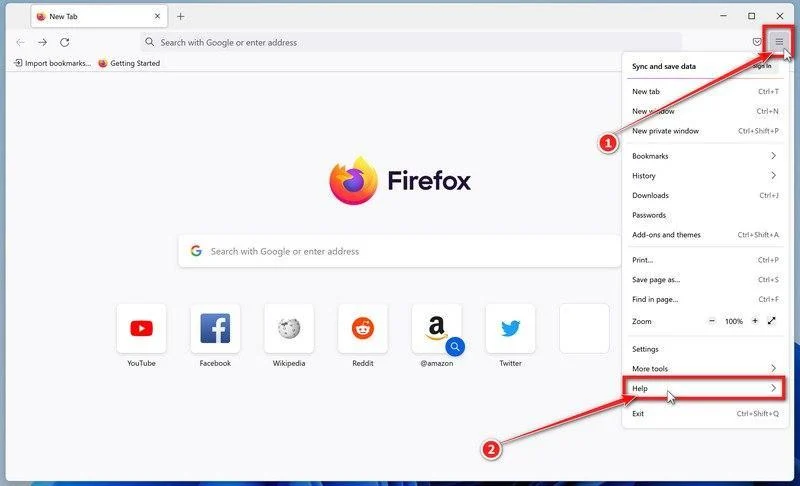
Click the three horizontal lines in the top-right corner and then click on “Help”.
Click on Firefox’s main menu button, represented by three horizontal lines. When the drop-down menu appears, select the option labeled “Help“.
-
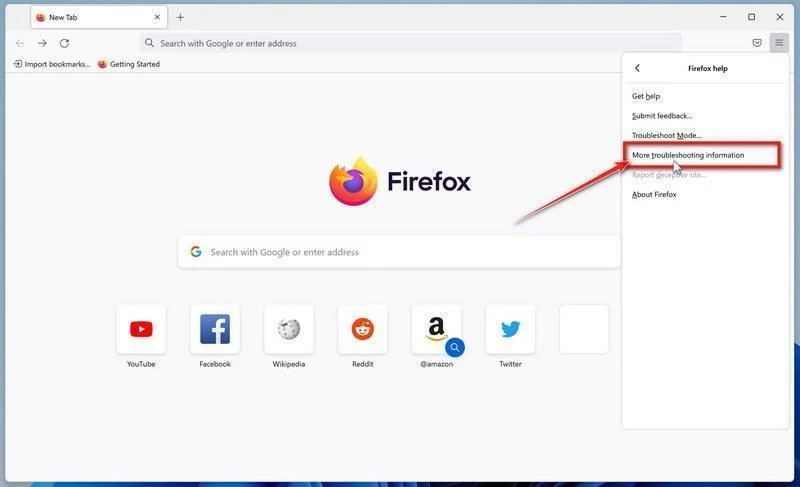
Click “More troubleshooting information”.
From the Help menu, click on “More troubleshooting information“.
-
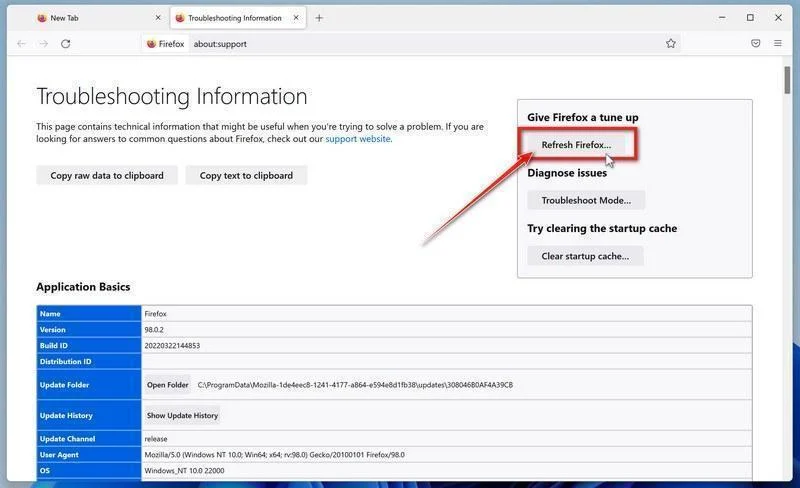
Click on “Refresh Firefox”
When the “Troubleshooting Information” page opens, click on the “Refresh Firefox” button.
-
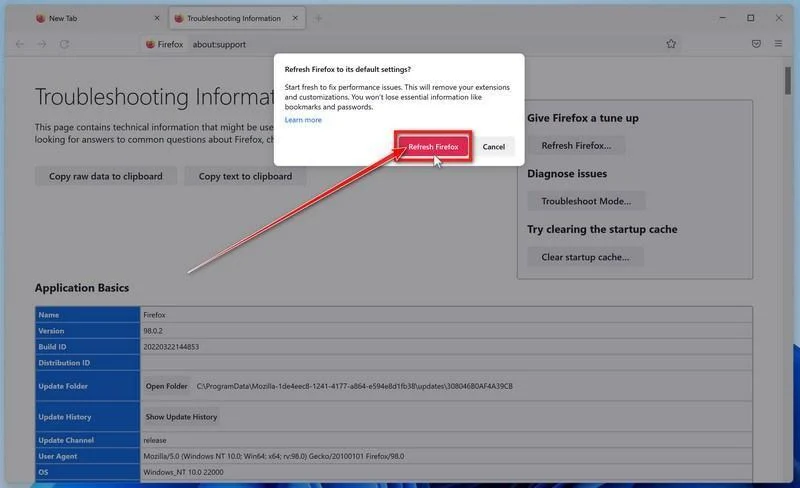
Confirm that you want to reset your browser settings.
To finish the reset process, click on the “Refresh Firefox” button in the new confirmation window that opens.
-
Click “Finish”.
Firefox will now close itself and will revert to its default settings. When it’s done, a window will list the information that was imported. Click on “Finish“.
Your old Firefox profile will be placed on your desktop in a folder named “Old Firefox Data“. If the reset didn’t fix your problem you can restore some of the information not saved by copying files to the new profile that was created. If you don’t need this folder any longer, you should delete it as it contains sensitive information.
Remove the “C00d0e000Er0” tech support scam from Microsoft Edge
To remove the “C00d0e000Er0” tech support scam from Microsoft Edge we will reset the browser settings to their default. This will reset your startup page, new tab page, search engine, and pinned tabs. It will also disable all extensions and clear temporary data like cookies. Your favorites, history, and saved passwords will not be cleared.
-
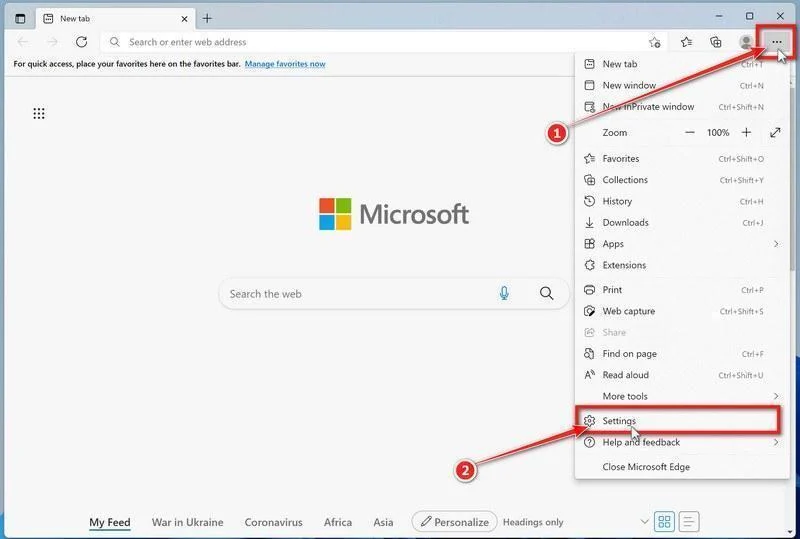
Click the three dots in the top-right corner and then click on “Settings”.
In the top right corner, click on Microsoft Edge’s main menu button, represented by three horizontal dots. When the drop-down menu appears, click on “Settings“.
-
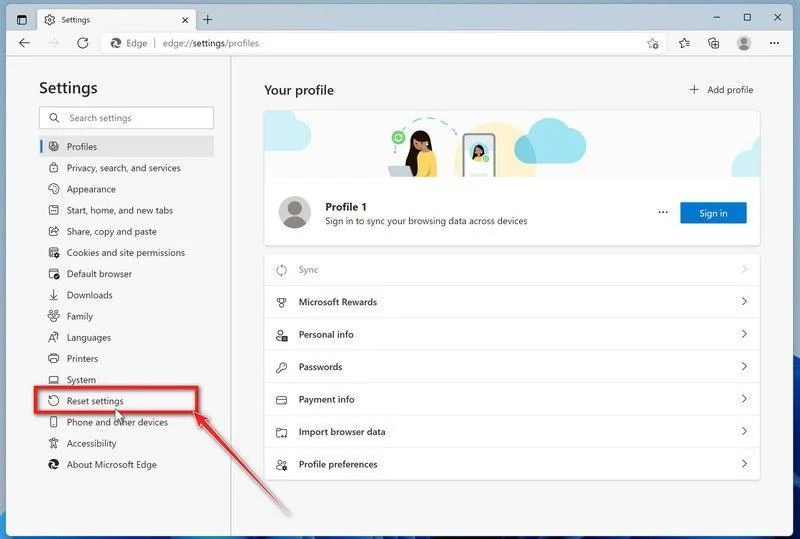
Click on “Reset Settings”.
On the left side of the window, click on “Reset Settings“.
-
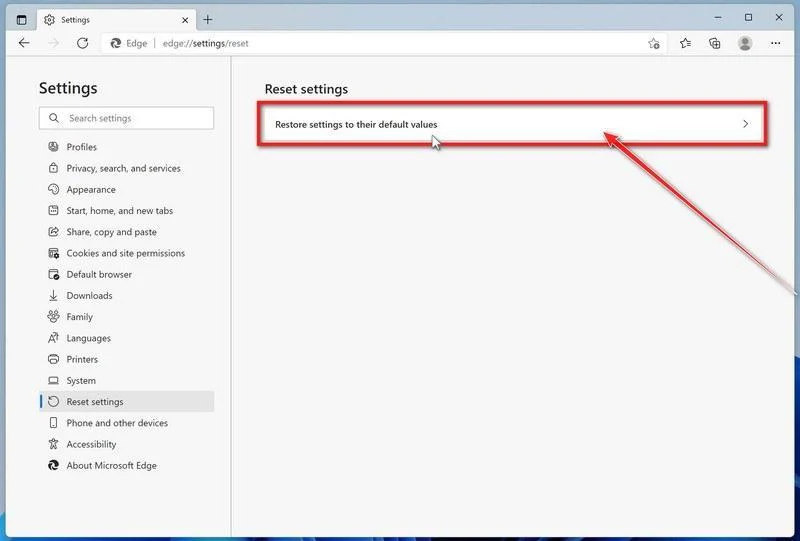
Click on “Restore settings to their default values”.
In the main window, click on “Restore settings to their default values“.
-
Click “Reset”.
A confirmation dialog should now be displayed, detailing the components that will be restored to their default state should you continue with the reset process. To complete the restoration process, click on the “Reset” button.
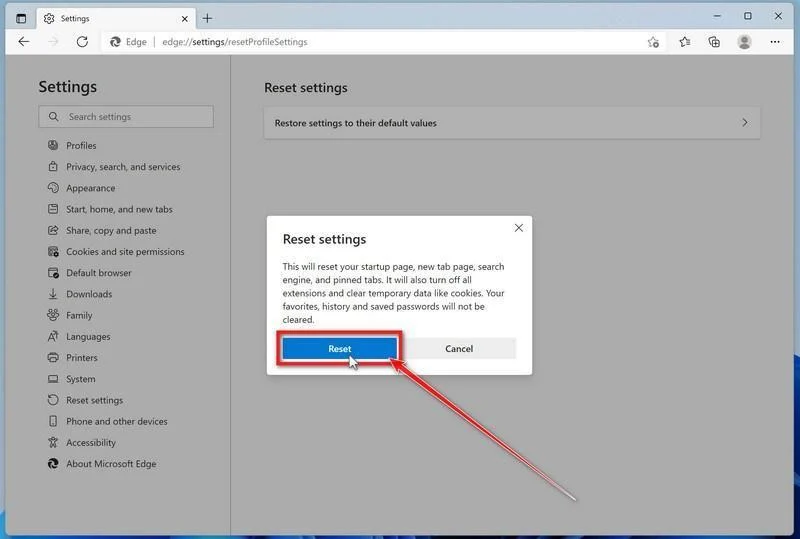
Microsoft Edge will now erase all your personal data, browsing history, and disable all installed extensions. Your bookmarks, though, will remain intact and still be accessible.
Remove the “C00d0e000Er0” tech support scam from Internet Explorer
To remove the “C00d0e000Er0” tech support scam from Internet Explorer we will reset the browser settings to its default. You can reset Internet Explorer settings to return them to the state they were in when Internet Explorer was first installed on your computer.
-
Go to “Internet Options”.
Open Internet Explorer, click on the gear icon in the upper-right part of your browser, then select “Internet Options“.
-
Select the “Advanced” tab, then click “Reset”
In the “Internet Options” dialog box, select the “Advanced” tab, then click on the “Reset” button.
-
Click on “Reset”.
In the “Reset Internet Explorer settings” section, select the “Delete personal settings” checkbox, then click on the “Reset” button.
-
Click on “Close”.
When Internet Explorer has completed its task, click on the “Close” button in the confirmation dialogue box.
Close your browser and then you can open Internet Explorer again.
If you are still having problems with your computer after completing these instructions, then please follow one of the steps:
- Run a computer scan with ESET Online Scanner
- Ask for help in our Windows Malware Removal Help & Support forum.

Join the discussion
0 commentsShare your experience or ask a question about this article.
Discussion
Start the conversation
Have a question or something useful to share? Add the first comment.