

Conduit Search is a browser hijacker that is bundled with other free software that you download off of the Internet. Once installed it will set the homepage and search engine for any installed browsers to http://search.conduit.com without your permission.
![[Image: Conduit Search virus]](https://malwaretips.com/blogs/wp-content/uploads/2013/06/conduit-search-virus.jpg "Conduit Search")
Conduit it’s technically not a virus, but it does exhibit plenty of malicious traits, such as browser hijacking, and in general just interfering with the user experience. The industry generally refers to it as a “PUP,” or potentially unwanted program.
Conduit Search browser hijacker is bundled with other free software that you download off of the Internet. Unfortunately, some free downloads do not adequately disclose that other software will also be installed and you may find that you have installed adware without your knowledge.
For example, when you install Utorrent, you will also agree to change your default browser homepage and default search engine to search.conduit.com., and install the Conduit Toolbar.
However when you uninstall Utorrent from your computer, your web browser’s default settings will not be restored. This means that you’ll have to remove Conduit Toolbar and search.conduit.com from your favorite web browser manually.
![[Image: Conduit Search installation]](https://malwaretips.com/blogs/wp-content/uploads/2013/06/conduit-search-setup.jpg "Conduit Search installation")
Always opt for the custom installation and deselect anything that is not familiar, especially optional software that you never wanted to download and install in the first place. It goes without saying that you should not install software that you don’t trust.
How to remove Conduit Search and Search.conduit.com search redirect (Removal Guide)
Please perform all the steps in the correct order. If you have any questions or doubt at any point, STOP and ask for our assistance.
- STEP 1: Uninstall the malicious programs from Windows
- STEP 2: Use Malwarebytes to remove Conduit Search and Search.conduit.com redirect
- STEP 3: Use Zemana AntiMalware Free to scan for malware and unwanted programs
- STEP 4: Double-check for malicious programs with HitmanPro
- (OPTIONAL) STEP 5: Reset your browser settings to default
STEP 1: Uninstall the malicious programs from Windows
In this first step, we will try to identify and remove any malicious program that might be installed on your PC.
- Go to the uninstall menu.
Windows 10 or Windows 8.1
- To uninstall a program on Windows 10 or Windows 8, right-click on the Windows Start button and choose “Control Panel” from the pop-up menu.

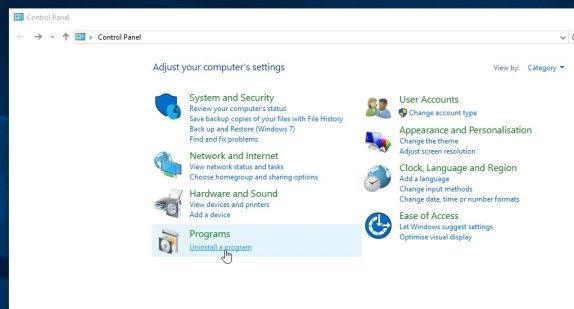
- When the “Control Panel” window opens click on the “Uninstall a program” option under “Programs” category.
Windows 7
- If you are using Windows XP, Windows Vista or Windows 7, click the “Start” button, then click on the “Control Panel” menu option.
- When the “Control Panel” window opens click on the “Uninstall a program” option under “Programs” category.
- To uninstall a program on Windows 10 or Windows 8, right-click on the Windows Start button and choose “Control Panel” from the pop-up menu.
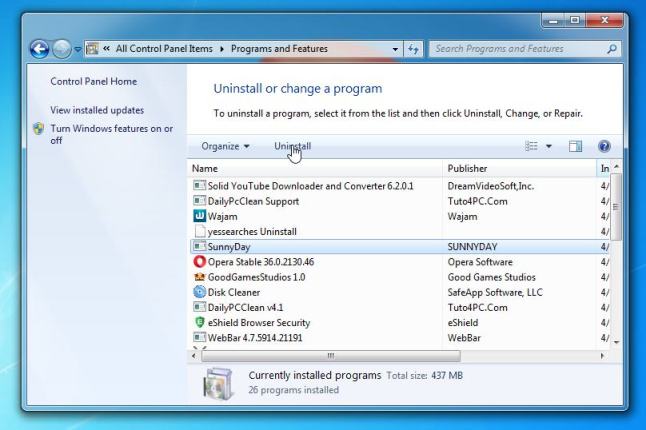
- When the “Programs and Features” screen is displayed, scroll through the list of currently installed programs and uninstall any unwanted programs.
Known malicious programs: Search Protect, Client-Connect_uninstaller, TakeSave, DNS Unlocker, Cinema Plus, Price Minus, SalesPlus, New Player, MediaVideosPlayers, Browsers_Apps_Pro, PriceLEess, Pic Enhance, Sm23mS, Salus, Network System Driver, SS8, Save Daily Deals, Word Proser, Desktop Temperature Monitor, CloudScout Parental Control, Savefier, Savepass, HostSecurePlugin, CheckMeUp or HD-V2.2.The malicious program may have a different name on your computer. To view the most recently installed programs, you can click on the “Installed On” column to sort your program by the installation date. Scroll through the list, and uninstall any unwanted or unknown programs.
If you cannot find any unwanted programs on your computer, you can proceed with the next step.
If you are having issues while trying to uninstall a program, you can use Revo Uninstaller to completely remove this unwanted program from Windows.
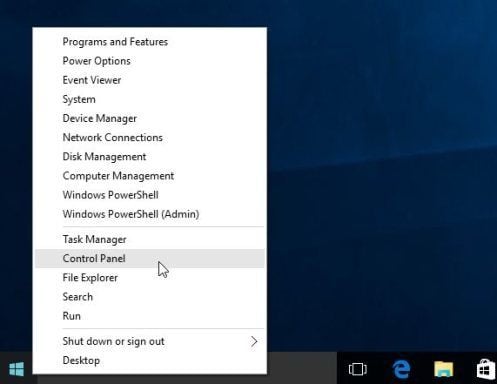
![[Image: Control Panel in Windows Start Menu]](https://malwaretips.com/blogs/wp-content/uploads/2014/08/windows-start-menu-control-panel.jpg "Control Panel in Windows Start Menu")
![[Image: Uninstall a program]](https://malwaretips.com/blogs/wp-content/uploads/2013/03/uninstall-a-program-windows.jpg "Click on Uninstall a program")
STEP 2: Use Malwarebytes to remove Conduit Search and Search.conduit.com search redirect
Malwarebytes is a powerful on-demand scanner which will remove the Conduit Search and Search.conduit.com search redirect from your PC. It is important to note that Malwarebytes will run alongside antivirus software without conflicts.
- You can download download Malwarebytes from the below link.
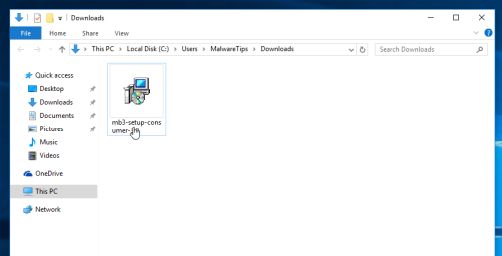
MALWAREBYTES DOWNLOAD LINK (This link open a new page from where you can download “Malwarebytes”) - When Malwarebytes has finished downloading, double-click on the “mb3-setup-consumer” file to install Malwarebytes on your computer.
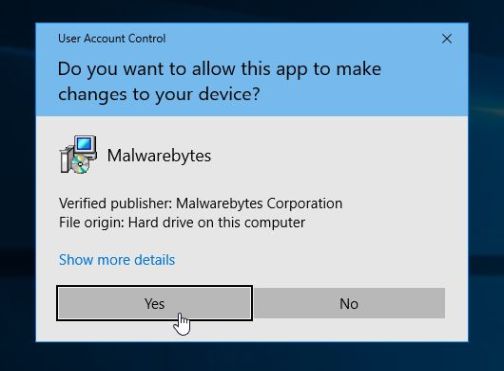
You may be presented with an User Account Control pop-up asking if you want to allow Malwarebytes to make changes to your device. If this happens, you should click “Yes” to continue with the installation.
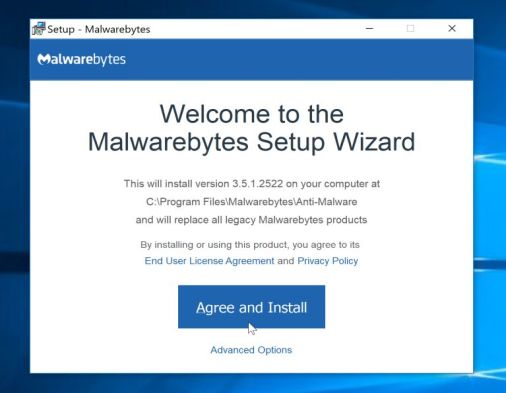
- When the Malwarebytes installation begins, you will see the Malwarebytes Setup Wizard which will guide you through the installation process.
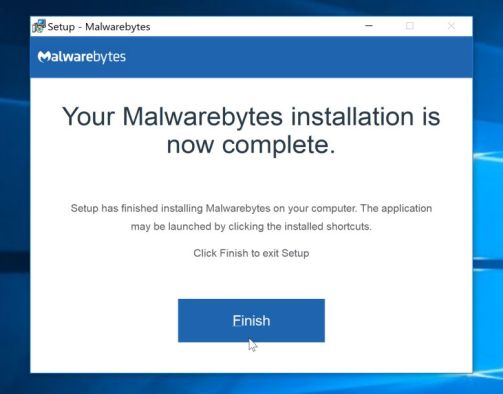
To install Malwarebytes on your machine, keep following the prompts by clicking the “Next” button.
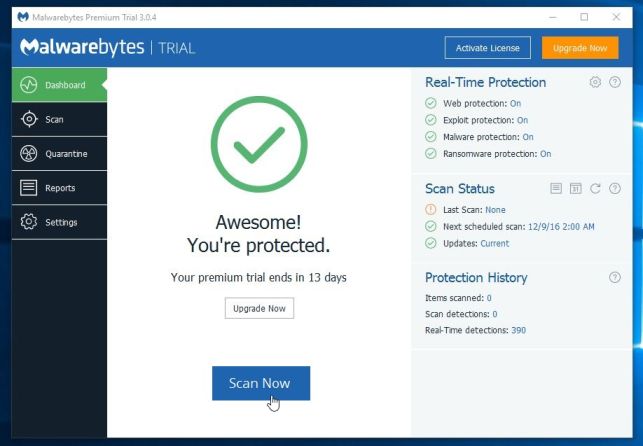
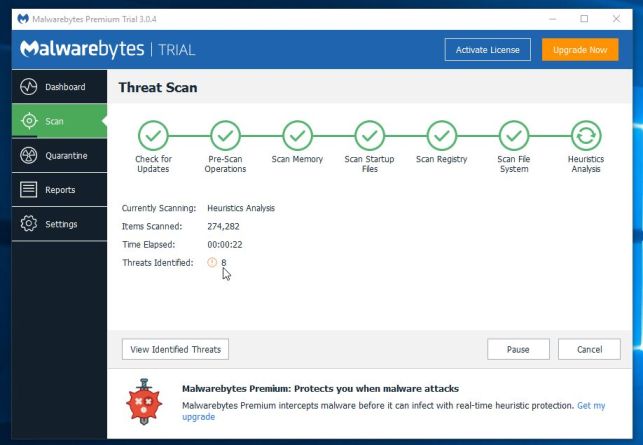
- Once installed, Malwarebytes will automatically start and update the antivirus database. To start a system scan you can click on the “Scan Now” button.
- Malwarebytes will now start scanning your computer for malicious programs.
This process can take a few minutes, so we suggest you do something else and periodically check on the status of the scan to see when it is finished.
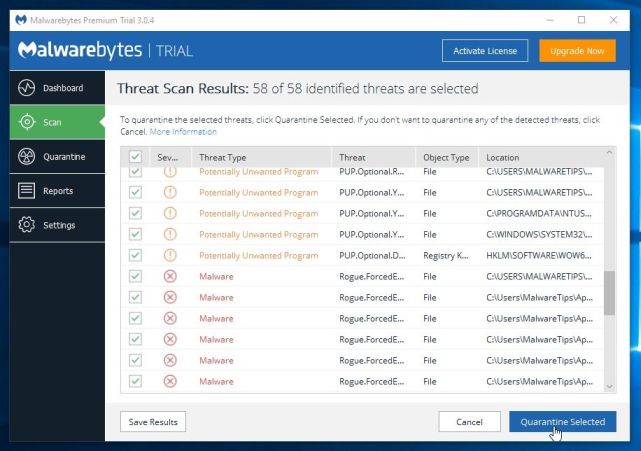
- When the scan has completed, you will be presented with a screen showing the malware infections that Malwarebytes has detected.
To remove the malicious programs that Malwarebytes has found, click on the “Quarantine Selected” button.
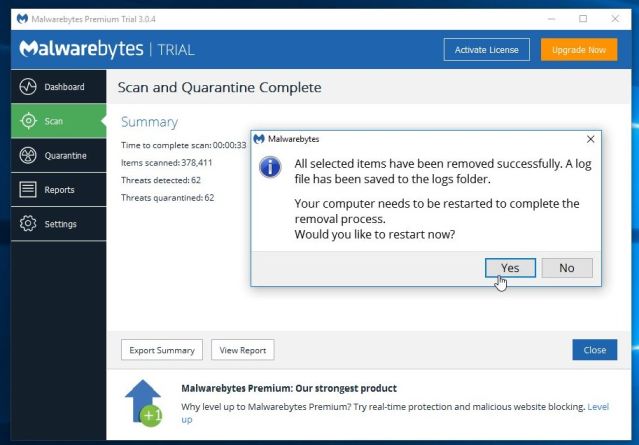
- Malwarebytes will now quarantine all the malicious files and registry keys that it has found.
To complete the malware removal process, Malwarebytes may ask you to restart your computer.
When the malware removal process is complete, you can close Malwarebytes and continue with the rest of the instructions.
STEP 3: Use Zemana AntiMalware Free to scan for Malware and Unwanted Programs
Zemana AntiMalware is a free malware scanner which can detect malicious programs that your antivirus has failed to find.
- You can download Zemana AntiMalware Free from the below link:
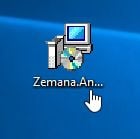
ZEMANA ANTIMALWARE FREE DOWNLOAD LINK (This link open a new webpage from where you can download “Zemana AntiMalware Free”) - Double-click on the file named “Zemana.AntiMalware.Setup.exe” to start the installation of Zemana AntiMalware.
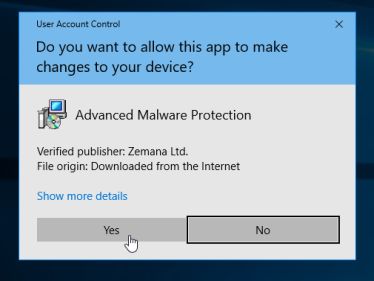
You may be presented with a User Account Control dialog asking you if you want to run this file. If this happens, you should click “Yes” to continue with the installation.
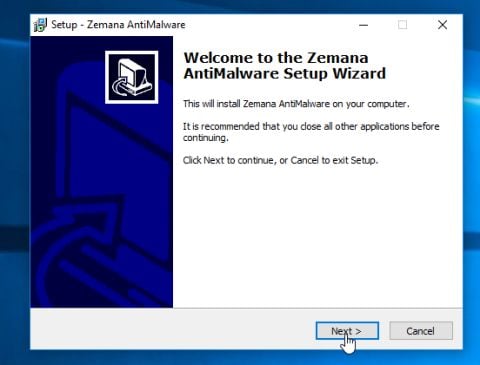
- Click on the “Next” button, to install Zemana AntiMalware on your computer.
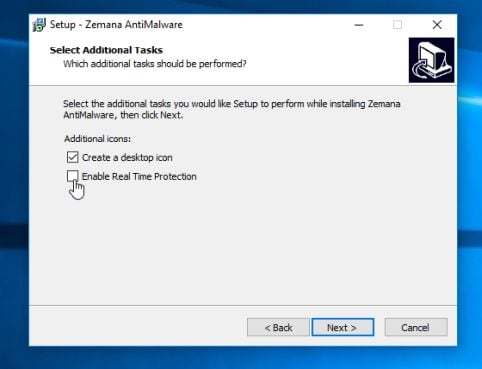
When you reach the “Select Additional Tasks” screen, you can opt-out the “Enable Real Time Protection” option, then click on the “Next” button.
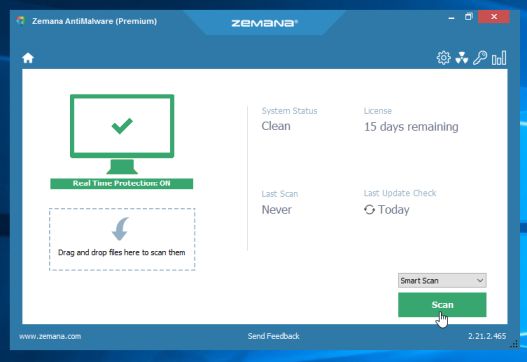
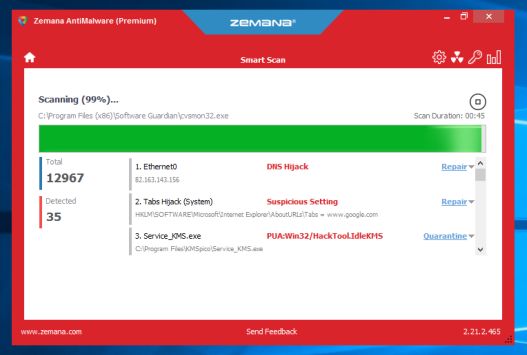
- When Zemana AntiMalware will start, click on the “Scan” button.
- Zemana AntiMalware will now scan computer for malicious files. This process can take up to 10 minutes.
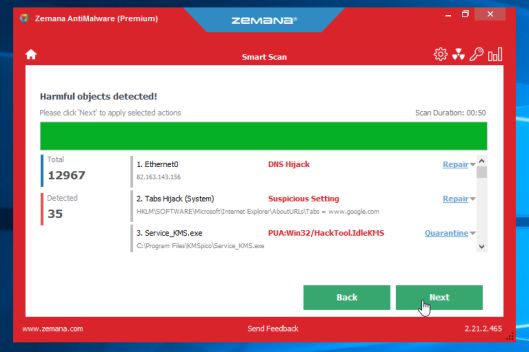
- When Zemana AntiMalware has finished it will display a list of all the malware that the program found. Click on the “Next” button, to remove the malicious files from your computer.
Zemana AntiMalware will now start to remove all the malicious programs from your computer. When the process is complete, you may need to restart your computer.
STEP 4: Double-check for malicious programs with HitmanPro
HitmanPro finds and removes malware, adware, bots, and other threats that even the best antivirus suite can oftentimes miss. It’s designed to run alongside your antivirus suite, firewall, and other security tools.
- You can download HitmanPro from the below link:
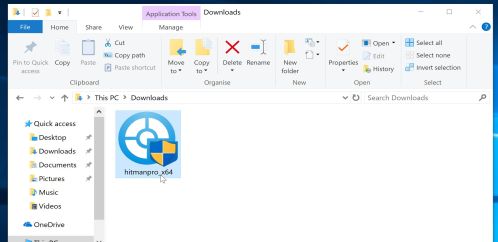
HITMANPRO DOWNLOAD LINK (This link will open a new web page from where you can download “HitmanPro”) - When HitmanPro has finished downloading, double-click on the “hitmanpro” file to install this program on your computer.
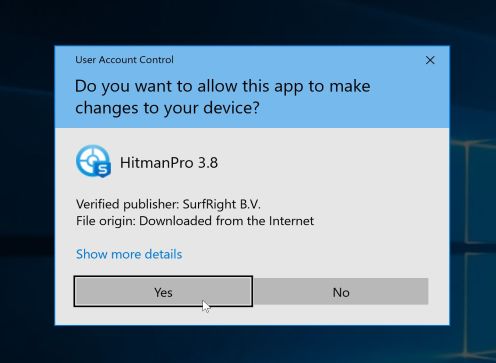
You may be presented with an User Account Control pop-up asking if you want to allow HitmanPro to make changes to your device. If this happens, you should click “Yes” to continue with the installation.
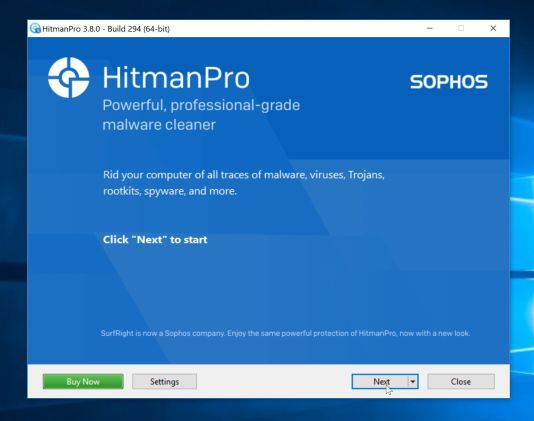
- When the program starts you will be presented with the start screen as shown below. Now click on the Next button to continue with the scan process.
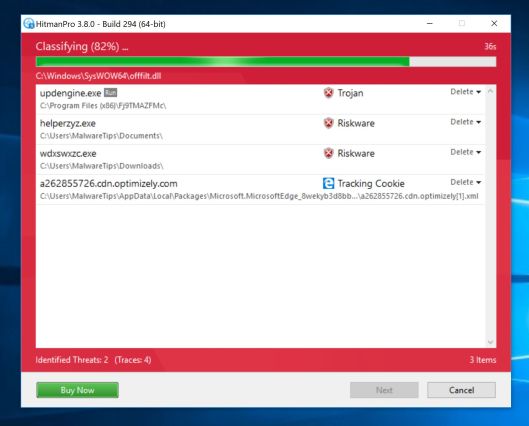
- HitmanPro will now begin to scan your computer for malware.
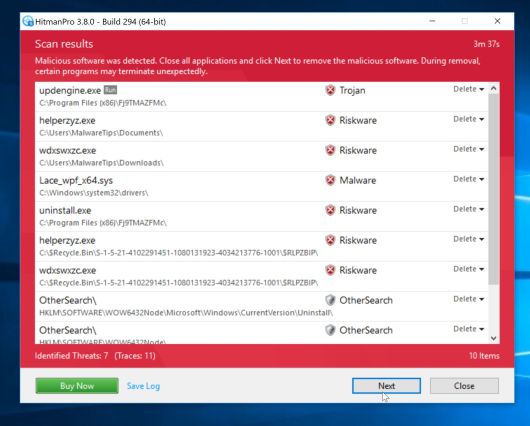
- When it has finished it will display a list of all the malware that the program found as shown in the image below. Click on the “Next” button, to remove malware.
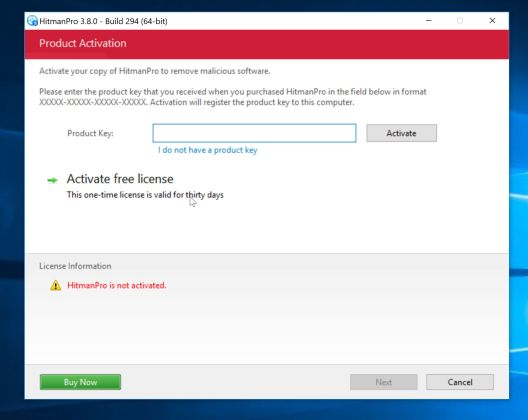
- Click on the “Activate free license” button to begin the free 30 days trial, and remove all the malicious files from your computer.
When the process is complete, you can close HitmanPro and continue with the rest of the instructions.
(Optional) STEP 5: Reset your browser to the default settings
This step needs to be performed only if your issues have not been solved by the previous steps.
Google Chrome
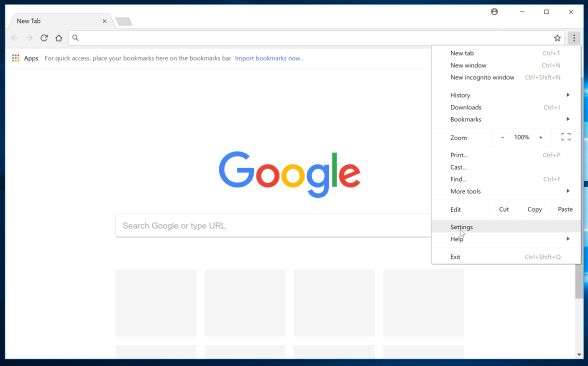
- Click on Chrome’s main menu button, represented by three horizontal lines. When the drop-down menu appears, select the option labeled Settings.
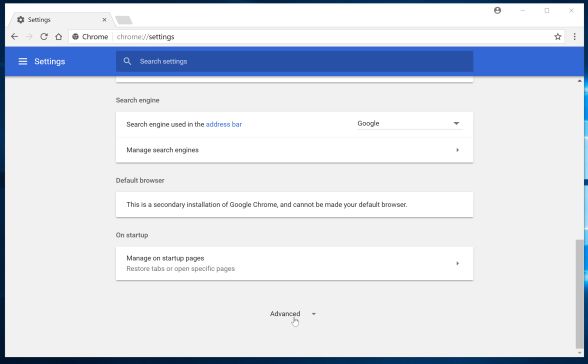
- Chrome’s Settings should now be displayed in a new tab or window, depending on your configuration. Next, scroll to the bottom of the page and click on the Advanced link (as seen in the below example).
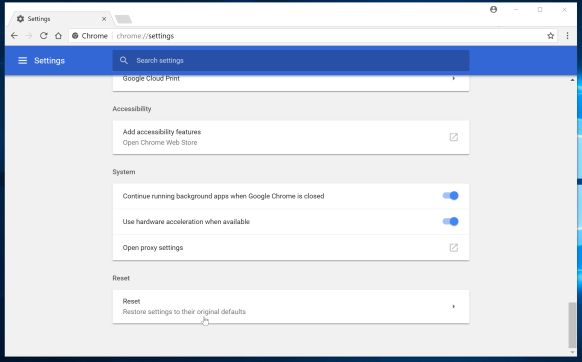
- Chrome’s advanced Settings should now be displayed. Scroll down until the Reset browser settings section is visible, as shown in the example below. Next, click on the Reset settings button.
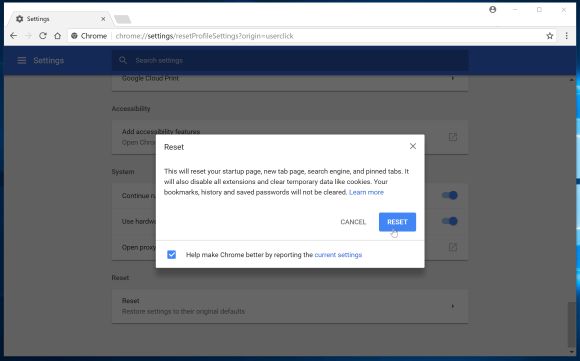
- A confirmation dialog should now be displayed, detailing the components that will be restored to their default state should you continue on with the reset process. To complete the restoration process, click on the Reset button.
Internet Explorer
- Open Internet Explorer, click on the “gear icon” in the upper right part of your browser, then click again on Internet Options.
- In the “Internet Options” dialog box, click on the “Advanced” tab, then click on the “Reset” button.
- In the “Reset Internet Explorer settings” section, select the “Delete personal settings” check box, then click on “Reset” button.
- When Internet Explorer has completed its task, click on the “Close” button in the confirmation dialogue box. You will now need to close your browser, and then you can open Internet Explorer again.
 in the upper right part of your browser, then click again on Internet Options.
![[Image: Internet Options in Internet Explorer]](https://malwaretips.com/blogs/wp-content/uploads/2014/03/Internet-Options-Internet-Explorer.jpg "Click on the Gear Icon then on Internet Options")
![[Image: Reset Internet Explorer]](https://malwaretips.com/blogs/wp-content/uploads/2014/03/Reset-Internet-Explorer.jpg "In the Advanced tab click on the Reset button")
![[Image: Reset Internet Explorer to its default settings]](https://malwaretips.com/blogs/wp-content/uploads/2014/03/reset-button-Internet-Explorer.jpg "Click on the Reset button to revert IE to its default settings")
![[Image Reset Internet Explorer settings]](https://malwaretips.com/blogs/wp-content/uploads/2014/03/Close-button-Reset.jpg "Click on the Close button")
Mozilla Firefox
- In the upper-right corner of the Firefox window, click the Firefox menu button (), then click on the “Help” () button.
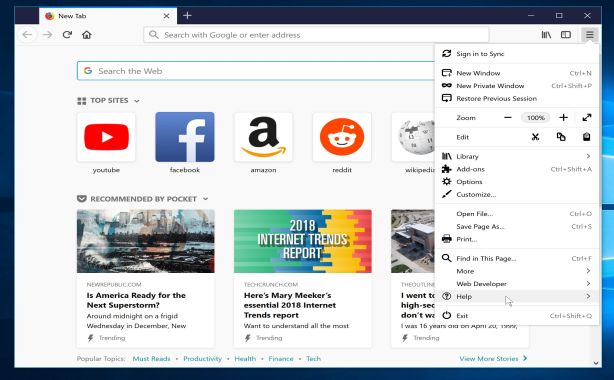
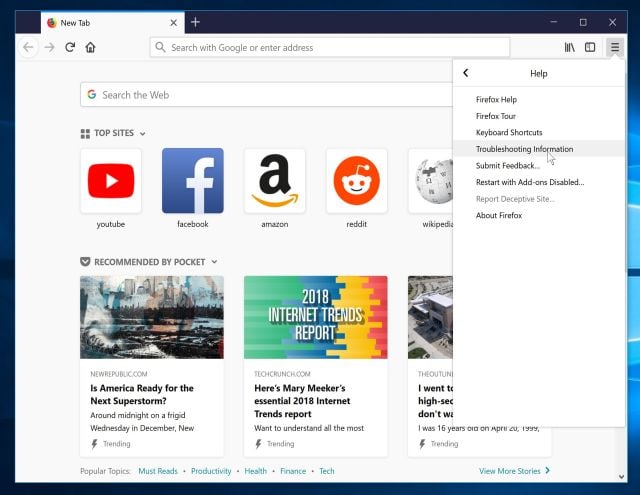
- From the Help menu, choose Troubleshooting Information.
If you’re unable to access the Help menu, type about:support in your address bar to bring up the Troubleshooting information page.
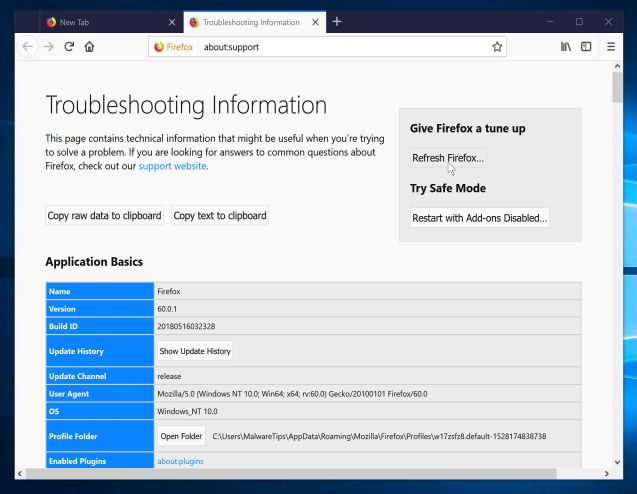
- Click the “Refresh Firefox” button in the upper-right corner of the “Troubleshooting Information” page.
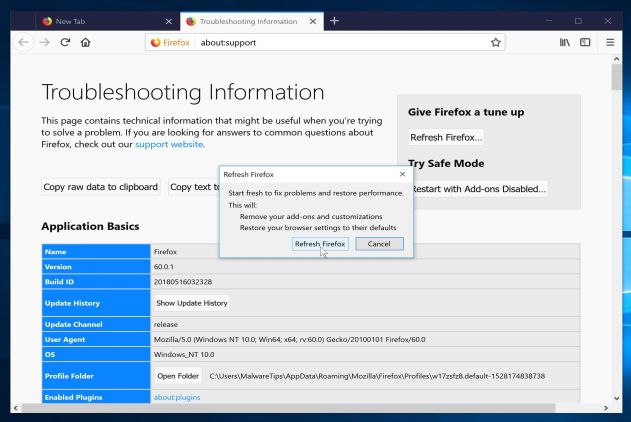
- To continue, click on the “Refresh Firefox” button in the new confirmation window that opens.
- Firefox will close itself and will revert to its default settings. When it’s done, a window will list the information that was imported. Click on the “Finish“.
![[Image: Firefox Menu button]](https://malwaretips.com/blogs/wp-content/uploads/2014/04/Firefox-menu-button.png "Firefox Menu button") ), then click on the “Help” (
), then click on the “Help” (![[Image: Firefox Help button]](https://malwaretips.com/blogs/wp-content/uploads/2014/04/Firefox-Help.png "Firefox Help button") ) button.
) button.If you are still experiencing problems while trying to remove Conduit Search and Search.conduit.com search redirect from your PC, please do one of the following:
- Run a system scan with Emsisoft Emergency Kit
- Ask for help in our Malware Removal Assistance for Windows forum.









Cheers for this.
First day with a brand new laptop and I already got malware on it. Do I win a prize? LOL.
I’m usually very careful – I’ve never had any major problems in well over 10 years of having my own computers – but I only downloaded uTorrent to get winrar as I forgot to transfer it from my old computer before formatting. My own fault – I was in such a hurry I forgot to check what it had ticked for install. ALWAYS double check, people!
I’m even using a free trail of this expensive, big name anti-virus/malware software and it didn’t pick it up at all. Definitely won’t be buying THIS once my trail is over! In fact I think I’ll get rid of it now, fat lot of good it is. Avast does better.
HEY tHANKS A MILLION I HOT DONATE BUTTON,
Thank you! This worked!
Hello,
Lets try to remove this infection:
STEP 1: Run a scan with AdwCleaner
1. Download AdwCleaner from here: http://general-changelog-team.fr/fr/downloads/finish/20-outils-de-xplode/2-adwcleaner
2.Close all open programs and internet browsers.
3.Double click on adwcleaner.exe to run the tool.
4.Click on Clean button. Your computer should restart.
STEP 2: Run a scan with Junkware Removal Tool
1.Download Junkware Removal Tool to your desktop from the below link:
JUNKWARE REMOVAL TOOL : http://thisisudax.org/download…
2. Double-click on the JRT.exe icon to start this utility.
3. The tool will open and start scanning your system. Please be patient as this can take a while to complete depending on your system’s specifications
Next, please run a scan with Malwarebytes Anti-Malware and HitmanPro as see in this guide.
Stay safe!
Thank you, very helpful.
Thank you this worked great!!!
thank you man you saved my laptop cause i was about to smash it to small pieces
It would be nice, but the GOD DAMNED SEARCH PROTECT program will NOT uninstall!!!!!!!!!!!
Hello,
Lets try to remove this infection:
STEP 1: Run a scan with AdwCleaner
1. Download AdwCleaner from here: http://general-changelog-team.fr/fr/downloads/finish/20-outils-de-xplode/2-adwcleaner
2.Close all open programs and internet browsers.
3.Double click on adwcleaner.exe to run the tool.
4.Click on Delete, then confirm each time with Ok.
STEP 2: Run a scan with Junkware Removal Tool
1.Download Junkware Removal Tool to your desktop from the below link:
JUNKWARE REMOVAL TOOL : http://thisisudax.org/download…
2. Double-click on the JRT.exe icon to start this utility.
3. The tool will open and start scanning your system. Please be patient as this can take a while to complete depending on your system’s specifications
Next, please run a scan with Malwarebytes Anti-Malware and HitmanPro as see in this guide.
Stay safe!
Hello,
Lets run a scan with these tools:
STEP 1: Run a scan with ESET Online Scanner
1.Download ESET Online Scanner utility.
ESET Online Scanner Download Link : http://download.eset.com/special/eos/esetsmartinstaller_enu.exe
2. Double click on the Eset installer program (esetsmartinstaller_enu.exe).
3.Check Yes, I accept the Terms of Use, then click the Start button.
4.Check Scan archives and push the Start button.
5. ESET will then download updates for itself, install itself, and begin scanning your computer. Please be patient as this can take some time.
6. When the scan completes, click on the Finish button.
STEP 2: Run a scan with Kaspersky Virus Removal Tool:
1. You can download from Kaspersky Virus Removal Tool from here : http://www.kaspersky.com/antivirus-removal-tool?form=1
2. Double click the setup file to run it, then follow the onscreen prompts until it is installed
Click the Options button (the ‘Gear’ icon), then make sure only the following are ticked:
System Memory
Hidden startup objects
Disk boot sectors
Local Disk (C:)
Also any other drives (Removable that you may have)
3. Then click on Actions on the left hand side
4. Click Select Action, then make sure both Disinfect and Delete if disinfection fails are ticked
5. Click on Automatic Scan, then click the Start Scanning button, to run the scan.
Next, please run a scan with HitmanPro and if a threat is detect, please post the log in your next reply, so that I may take a look.
Stay safe!
thank you it really-really helps a lot
Hi, I tried doing this but whenever I start/restart my computer this shows up. Please help.
Hello,
The infection has been removed, however it seems that it left behind a harmless start-up registry key.
To remove this, we can run Ccleaner:
1. Download Ccleaner from here: https://www.piriform.com/ccleaner/download/standard
2. Install Ccleaner and start this utility, click the Tools icon at left, then click the Startup button.
3. In the Startup screen, you’ll see a list of all items that have been set to start automatically with Windows.
4. Select for Conduit, and any other programs that you don’t want to start with Windows, then do one of the following:
To prevent a program from starting with Windows, select the program entry and click Disable.
To prevent a program from starting with Windows and to remove it from the auto-start list, select the program entry and click Delete.
Stay safe!
I LOVE YOU!!!!!!!!!!!
why is the fn bs that search conduit does legal? its promoters should be jailed for about 25 years. maybe that would get their attention!
This worked really well, thank you for putting this together!
This assistance has been absolutely amazing. Thanks so much
I’ve removed everything but I get the error saying it’s looking for the .dll file for conduit when I reboot the computer. How do I remove the final command for that?
Hello Murphy,
The infection has been removed, however it seems that it left behind a harmless startup registry key.
To remove this, we can run Ccleaner:
1. Download Ccleaner from here: https://www.piriform.com/ccleaner/download/standard
2. Install Ccleaner and start this utility, click the Tools icon at left, then click the Startup button.
3. In the Startup screen, you’ll see a list of all items that have been set to start automatically with Windows.
4. Select for Conduit, and any other programs that you don’t want to start with Windows, then do one of the following:
To prevent a program from starting with Windows, select the program entry and click Disable.
To prevent a program from starting with Windows and to remove it from the auto-start list, select the program entry and click Delete.
Stay safe!
Thanks! Worked perfectly!
Thanks for the guide. It seemed to have worked well. Btw you might want to mention that Junkware Removal Tool will close the browser and explorer while running. It freaked me out for a sec.
Worked perfectly. Thank you for the information.
This helps alot, thanks!
For some reason, the conduit extension is not showing up when I use the google chrome options menu. Also, when I attempt to use the control panel to uninstall it, it won’t let me (It thinks the program is uninstalling and says “please wait until the program is finished uninstalling.”) I’ve downloaded malewarebytes and ran it, but it’s not finding anything (I got frustrated beforehand and just searched for and deleted some search conduit related files.) Essentially, nothing on my computer signals that it’s there, but it is plainly visible when I type something in the toolbar and it tells me to use conduit search. Could you help me with this? It’s quite annoying.
Hello Alex,
Lets try to remove this infection:
STEP 1: Run a scan with AdwCleaner
Please run AdwCleaner (as seen on STEP 3) to remove this infection!
STEP 2: Run a scan with Junkware Removal Tool
1.Download Junkware Removal Tool to your desktop from the below link:
JUNKWARE REMOVAL TOOL : http://thisisudax.org/download…
2. Double-click on the JRT.exe icon to start this utility.
3. The tool will open and start scanning your system. Please be patient as this can take a while to complete depending on your system’s specifications
Waiting for your reply! Stay safe!
Hello Jasmine,
When you login into your Chrome account, you sync back all the extensions, and because we have used some utilities to remove the Conduit extension, this come back. Nevertheless, this is not something to worry, and can easily be fixed.
Can you please login into your Chrome account, then click the Chrome menu button (the 3 lines in the top right part) on the browser toolbar, select Tools and then click on Extensions.
Then look in the extension list for any unknown extension, basically if you did not install it, you can remove it.
Then, click again on Chrome menu button, then select Settings, and in the On Startup section, put the check mark on One the New Tab page.
Let me know everything is working….
Hello Alyssa,
Conduit will drop a lot of files on your computer, after STEP 2, you browser should be free of the Conduit hijack, however there might be some left over files on your computer.
If you do not want them removed, then Step 1 and 2 are more than enough, however I would advise you to go through all the steps, as this will clean up your machine, and possibly solve any other issues that you may have with your computer.
Stay safe!